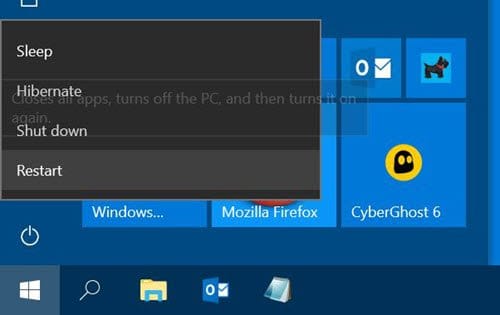
When I wake my PC from sleeping the start menu always automatically opens


FatherTime

Well-known member
Member
Local time
4:33 PM
Posts
119
OS
Windows 11 Pro
When I put my PC to sleep and then turn it on and wake it, the start menu always automatically opens like this.

1707743283688.png

How can I fix the issue and stop windows menu from automatically open from waking?

EDIT: Added windows build/version
 
Windows Build/Version
23H2/OS Build 22361.3085
Last edited:

My Computer

System One

  • OS
    Windows 11 Pro
    Computer type
    PC/Desktop
    Manufacturer/Model
    iBUYPOWER/MSI
    CPU
    Intel® Core™ i9-14900KF Processor
    Motherboard
    MSI PRO Z790-P WIFI
    Memory
    32 GB DDR5-5200MHz
    Graphics Card(s)
    NVIDIA GeForce RTX 4070 Ti
It may be worthwhile to mention how you do the waking up.
- By a mouse click
- By hitting a key on the keyboard
- By pressing the on/off switch of the computer
- Or whatever more is possible to wake the computer from sleep.

Does it make a difference if you use another way to awake the computer?
 

My Computer

System One

  • OS
    Windows 11 Pro 25H2 26200.8457
    Computer type
    PC/Desktop
    Manufacturer/Model
    Build by vendor to my specs
    CPU
    AMD Ryzen 7 5700G
    Motherboard
    MSI PRO B550M-P Gen3
    Memory
    Kingston FURY Beast 2x16GB DIMM DDR4 2666 CL16
    Graphics Card(s)
    MSI GeForce GT 730 2GB LP V1
    Sound Card
    Creative Sound Blaster Audigy FX
    Monitor(s) Displays
    Samsung S24E450F 24"
    Screen Resolution
    1920 x 1080
    Hard Drives
    1. SSD Crucial P5 Plus 500GB PCIe M.2
    2. SSD-SATA Crucial MX500-2TB
    PSU
    Corsair CV650W
    Case
    Cooler Master Silencio S400
    Cooling
    Cooler Master Hyper H412R with Be Quiet Pure Wings 2 PWM BL038 fan
    Keyboard
    Cherry Stream (wired, scissor keys)
    Mouse
    Asus WT465 (wireless)
    Internet Speed
    70 Mbps down / 80 Mbps up
    Browser
    Firefox 130.0
    Antivirus
    F-Secure (Internetprovider version)
    Other Info
    Router: FRITZBox 7490
    Oracle VirtualBox 7 for testing software on Win 10 or 11
It may be worthwhile to mention how you do the waking up.
- By a mouse click
- By hitting a key on the keyboard
- By pressing the on/off switch of the computer
- Or whatever more is possible to wake the computer from sleep.

Does it make a difference if you use another way to awake the computer?

I wake the PC by pressing the power button and then hitting a key to unlock then type password/passcode.
 

My Computer

System One

  • OS
    Windows 11 Pro
    Computer type
    PC/Desktop
    Manufacturer/Model
    iBUYPOWER/MSI
    CPU
    Intel® Core™ i9-14900KF Processor
    Motherboard
    MSI PRO Z790-P WIFI
    Memory
    32 GB DDR5-5200MHz
    Graphics Card(s)
    NVIDIA GeForce RTX 4070 Ti
...then hitting a key to unlock...
If you use the windows key for that, it may be logical, but if you use the space bar or any other key, I would not know why the start menu would open automatically.

Did you change anything on the system (was it OK earlier)?
Do you use a program to modify the keyboard layout? Do you use hotkeys?
Do you use any program to change the behaviour of Windows, like ExplorerPatcher or StartAllback?

All information that has to do with the settings of your computer might help to guess what's wrong...
 

My Computer

System One

  • OS
    Windows 11 Pro 25H2 26200.8457
    Computer type
    PC/Desktop
    Manufacturer/Model
    Build by vendor to my specs
    CPU
    AMD Ryzen 7 5700G
    Motherboard
    MSI PRO B550M-P Gen3
    Memory
    Kingston FURY Beast 2x16GB DIMM DDR4 2666 CL16
    Graphics Card(s)
    MSI GeForce GT 730 2GB LP V1
    Sound Card
    Creative Sound Blaster Audigy FX
    Monitor(s) Displays
    Samsung S24E450F 24"
    Screen Resolution
    1920 x 1080
    Hard Drives
    1. SSD Crucial P5 Plus 500GB PCIe M.2
    2. SSD-SATA Crucial MX500-2TB
    PSU
    Corsair CV650W
    Case
    Cooler Master Silencio S400
    Cooling
    Cooler Master Hyper H412R with Be Quiet Pure Wings 2 PWM BL038 fan
    Keyboard
    Cherry Stream (wired, scissor keys)
    Mouse
    Asus WT465 (wireless)
    Internet Speed
    70 Mbps down / 80 Mbps up
    Browser
    Firefox 130.0
    Antivirus
    F-Secure (Internetprovider version)
    Other Info
    Router: FRITZBox 7490
    Oracle VirtualBox 7 for testing software on Win 10 or 11
If you use the windows key for that, it may be logical, but if you use the space bar or any other key, I would not know why the start menu would open automatically.

Did you change anything on the system (was it OK earlier)?
Do you use a program to modify the keyboard layout? Do you use hotkeys?
Do you use any program to change the behaviour of Windows, like ExplorerPatcher or StartAllback?

All information that has to do with the settings of your computer might help to guess what's wrong...
As far as I know, I haven't changed anything on the system. I don't use any hotkeys or modified keyboard layout and I don't have any program that would change the behavior of windows.

I think when I put the machine to sleep via the start menu, the start menu stays open until I wake the PC.
 

My Computer

System One

  • OS
    Windows 11 Pro
    Computer type
    PC/Desktop
    Manufacturer/Model
    iBUYPOWER/MSI
    CPU
    Intel® Core™ i9-14900KF Processor
    Motherboard
    MSI PRO Z790-P WIFI
    Memory
    32 GB DDR5-5200MHz
    Graphics Card(s)
    NVIDIA GeForce RTX 4070 Ti

My Computers

System One System Two

  • OS
    11 Home
    Computer type
    Laptop
    Manufacturer/Model
    Asus TUF Gaming F16 (2024)
    CPU
    i7 13650HX
    Memory
    16GB DDR5
    Graphics Card(s)
    GeForce RTX 4060 Mobile
    Sound Card
    Eastern Electric MiniMax DAC Supreme; Emotiva UMC-200; Astell & Kern AK240
    Monitor(s) Displays
    Sony Bravia XR-55X90J
    Screen Resolution
    3840×2160
    Hard Drives
    512GB SSD internal
    37TB external
    PSU
    Li-ion
    Cooling
    2× Arc Flow Fans, 4× exhaust vents, 5× heatpipes
    Keyboard
    Logitech K800
    Mouse
    Logitech G402
    Internet Speed
    30Mbit/s up, 500Mbit/s down
    Browser
    FF
    Antivirus
    What's an antivirus?
  • Operating System
    11 Home
    Computer type
    Laptop
    Manufacturer/Model
    Medion S15450
    CPU
    i5 1135G7
    Memory
    16GB DDR4
    Graphics card(s)
    Intel Iris Xe
    Sound Card
    Eastern Electric MiniMax DAC Supreme; Emotiva UMC-200; Astell & Kern AK240
    Monitor(s) Displays
    Sony Bravia XR-55X90J
    Screen Resolution
    3840×2160
    Hard Drives
    2TB SSD internal
    37TB external
    PSU
    Li-ion
    Keyboard
    Logitech K800
    Mouse
    Logitech G402
    Internet Speed
    30Mbit/s up, 500Mbit/s down
    Browser
    FF

My Computer

System One

  • OS
    Windows 11 Pro
    Computer type
    PC/Desktop
    Manufacturer/Model
    iBUYPOWER/MSI
    CPU
    Intel® Core™ i9-14900KF Processor
    Motherboard
    MSI PRO Z790-P WIFI
    Memory
    32 GB DDR5-5200MHz
    Graphics Card(s)
    NVIDIA GeForce RTX 4070 Ti
I did not know that, because I have assigned a dedicated key on the keyboard to command the computer to go sleeping.
That's why I thought it had to do with the way you awake the computer, but it apparently has to do with the way you get it into sleep.
The command I assigned to a dedicated key: %windir%System32rundll32.exe powrprof.dll,SetSuspendState

You could assign the power button as well to get the computer into sleep.
You find a tutorial for that here:
 

My Computer

System One

  • OS
    Windows 11 Pro 25H2 26200.8457
    Computer type
    PC/Desktop
    Manufacturer/Model
    Build by vendor to my specs
    CPU
    AMD Ryzen 7 5700G
    Motherboard
    MSI PRO B550M-P Gen3
    Memory
    Kingston FURY Beast 2x16GB DIMM DDR4 2666 CL16
    Graphics Card(s)
    MSI GeForce GT 730 2GB LP V1
    Sound Card
    Creative Sound Blaster Audigy FX
    Monitor(s) Displays
    Samsung S24E450F 24"
    Screen Resolution
    1920 x 1080
    Hard Drives
    1. SSD Crucial P5 Plus 500GB PCIe M.2
    2. SSD-SATA Crucial MX500-2TB
    PSU
    Corsair CV650W
    Case
    Cooler Master Silencio S400
    Cooling
    Cooler Master Hyper H412R with Be Quiet Pure Wings 2 PWM BL038 fan
    Keyboard
    Cherry Stream (wired, scissor keys)
    Mouse
    Asus WT465 (wireless)
    Internet Speed
    70 Mbps down / 80 Mbps up
    Browser
    Firefox 130.0
    Antivirus
    F-Secure (Internetprovider version)
    Other Info
    Router: FRITZBox 7490
    Oracle VirtualBox 7 for testing software on Win 10 or 11
I did not know that, because I have assigned a dedicated key on the keyboard to command the computer to go sleeping.
That's why I thought it had to do with the way you awake the computer, but it apparently has to do with the way you get it into sleep.
The command I assigned to a dedicated key: %windir%System32rundll32.exe powrprof.dll,SetSuspendState

You could assign the power button as well to get the computer into sleep.
You find a tutorial for that here:
Yeah, I was mainly a laptop user who uses the power button to put the laptop into sleep. I bought a PC around a few months ago and used sleep function from Windows Start Menu. Also, thanks for the tutorial. Will check it out.
 

My Computer

System One

  • OS
    Windows 11 Pro
    Computer type
    PC/Desktop
    Manufacturer/Model
    iBUYPOWER/MSI
    CPU
    Intel® Core™ i9-14900KF Processor
    Motherboard
    MSI PRO Z790-P WIFI
    Memory
    32 GB DDR5-5200MHz
    Graphics Card(s)
    NVIDIA GeForce RTX 4070 Ti
Another way to avoid this is to use Open-Shell. It has tons of customization options.

Open-Shell Main Menu.png
 

My Computers

System One System Two

  • OS
    11 Home
    Computer type
    Laptop
    Manufacturer/Model
    Asus TUF Gaming F16 (2024)
    CPU
    i7 13650HX
    Memory
    16GB DDR5
    Graphics Card(s)
    GeForce RTX 4060 Mobile
    Sound Card
    Eastern Electric MiniMax DAC Supreme; Emotiva UMC-200; Astell & Kern AK240
    Monitor(s) Displays
    Sony Bravia XR-55X90J
    Screen Resolution
    3840×2160
    Hard Drives
    512GB SSD internal
    37TB external
    PSU
    Li-ion
    Cooling
    2× Arc Flow Fans, 4× exhaust vents, 5× heatpipes
    Keyboard
    Logitech K800
    Mouse
    Logitech G402
    Internet Speed
    30Mbit/s up, 500Mbit/s down
    Browser
    FF
    Antivirus
    What's an antivirus?
  • Operating System
    11 Home
    Computer type
    Laptop
    Manufacturer/Model
    Medion S15450
    CPU
    i5 1135G7
    Memory
    16GB DDR4
    Graphics card(s)
    Intel Iris Xe
    Sound Card
    Eastern Electric MiniMax DAC Supreme; Emotiva UMC-200; Astell & Kern AK240
    Monitor(s) Displays
    Sony Bravia XR-55X90J
    Screen Resolution
    3840×2160
    Hard Drives
    2TB SSD internal
    37TB external
    PSU
    Li-ion
    Keyboard
    Logitech K800
    Mouse
    Logitech G402
    Internet Speed
    30Mbit/s up, 500Mbit/s down
    Browser
    FF

My Computers

System One System Two

  • OS
    11 Home
    Computer type
    Laptop
    Manufacturer/Model
    Asus TUF Gaming F16 (2024)
    CPU
    i7 13650HX
    Memory
    16GB DDR5
    Graphics Card(s)
    GeForce RTX 4060 Mobile
    Sound Card
    Eastern Electric MiniMax DAC Supreme; Emotiva UMC-200; Astell & Kern AK240
    Monitor(s) Displays
    Sony Bravia XR-55X90J
    Screen Resolution
    3840×2160
    Hard Drives
    512GB SSD internal
    37TB external
    PSU
    Li-ion
    Cooling
    2× Arc Flow Fans, 4× exhaust vents, 5× heatpipes
    Keyboard
    Logitech K800
    Mouse
    Logitech G402
    Internet Speed
    30Mbit/s up, 500Mbit/s down
    Browser
    FF
    Antivirus
    What's an antivirus?
  • Operating System
    11 Home
    Computer type
    Laptop
    Manufacturer/Model
    Medion S15450
    CPU
    i5 1135G7
    Memory
    16GB DDR4
    Graphics card(s)
    Intel Iris Xe
    Sound Card
    Eastern Electric MiniMax DAC Supreme; Emotiva UMC-200; Astell & Kern AK240
    Monitor(s) Displays
    Sony Bravia XR-55X90J
    Screen Resolution
    3840×2160
    Hard Drives
    2TB SSD internal
    37TB external
    PSU
    Li-ion
    Keyboard
    Logitech K800
    Mouse
    Logitech G402
    Internet Speed
    30Mbit/s up, 500Mbit/s down
    Browser
    FF
This command puts the computer in hibernation instead of sleep if hibernate is set to enabled.
I was not aware of that, because I always disable hibernation as soon as when a PC is taken in use. Only already to spare SSD space...

I nowadays use AutoHotkey and there the command is:
(Preset Key):: DllCall("PowrProf\SetSuspendState", "Int", 0, "Int", 0, "Int", 0)
But I don't even know if that's sleep or hibernation...
 

My Computer

System One

  • OS
    Windows 11 Pro 25H2 26200.8457
    Computer type
    PC/Desktop
    Manufacturer/Model
    Build by vendor to my specs
    CPU
    AMD Ryzen 7 5700G
    Motherboard
    MSI PRO B550M-P Gen3
    Memory
    Kingston FURY Beast 2x16GB DIMM DDR4 2666 CL16
    Graphics Card(s)
    MSI GeForce GT 730 2GB LP V1
    Sound Card
    Creative Sound Blaster Audigy FX
    Monitor(s) Displays
    Samsung S24E450F 24"
    Screen Resolution
    1920 x 1080
    Hard Drives
    1. SSD Crucial P5 Plus 500GB PCIe M.2
    2. SSD-SATA Crucial MX500-2TB
    PSU
    Corsair CV650W
    Case
    Cooler Master Silencio S400
    Cooling
    Cooler Master Hyper H412R with Be Quiet Pure Wings 2 PWM BL038 fan
    Keyboard
    Cherry Stream (wired, scissor keys)
    Mouse
    Asus WT465 (wireless)
    Internet Speed
    70 Mbps down / 80 Mbps up
    Browser
    Firefox 130.0
    Antivirus
    F-Secure (Internetprovider version)
    Other Info
    Router: FRITZBox 7490
    Oracle VirtualBox 7 for testing software on Win 10 or 11
Is there any way to disable this behaviour, I have an odd issue, when I wake from sleep only part of the Start Menu is shown, and then it does not respond to any mouse inputs. This only happens if I manually put the PC into sleep mode in the evening and then wake it in the morning. If I wake the PC up immediately, the Start Menu appears in full and there are no issues. I have done an in-place upgrade/reinstall and the issue remains.
 

My Computers

System One System Two

  • OS
    Windows 11 25H2
    Computer type
    PC/Desktop
    Manufacturer/Model
    Custom Built
    CPU
    Intel i9 14900KF
    Motherboard
    ASUS Z790 ProArt Creator WiFi
    Memory
    64GB Corsair Vengeance RGB
    Graphics Card(s)
    MSI 4090 Suprim X
    Sound Card
    Onboard
    Monitor(s) Displays
    1 x Asus 24". 1 x Asus 32"
    Screen Resolution
    1920 x 1080 & 2560 x 1440
    Hard Drives
    Multiple
    PSU
    Corsair 1200HX
    Case
    Corsair 7000D RGB
    Cooling
    Corsair H150I Capellix XT
    Keyboard
    Corsair K70 RGB PRO
    Mouse
    Corsair M55 RGB Pro
    Internet Speed
    1000Mbps
    Browser
    Edge
    Antivirus
    Windows Default
  • Operating System
    Windows 11 25H2
    Computer type
    PC/Desktop
    Manufacturer/Model
    Custom Built
    CPU
    Intel i7 6800K
    Motherboard
    ASUS Z99 Deluxe
    Memory
    32GB DDR4 (Corsair)
    Graphics card(s)
    ASUS GTX 1080ti
    Sound Card
    Onboard
    Monitor(s) Displays
    1x Viewsonic 24" 1x LG 19"
    Screen Resolution
    1920 x 1080 & 1600 x 900
    Hard Drives
    3 x SATA SSD
    PSU
    650W Gigabyte Bronze
    Case
    Coolermaster HAF-X
    Cooling
    Noctua NH-15 Chroma black
    Keyboard
    Generic RGB
    Mouse
    Microsoft Basic
    Internet Speed
    1000Mbps
    Browser
    Edge
    Antivirus
    Windows Default
When I put my PC to sleep and then turn it on and wake it, the start menu always automatically opens...
I bought a PC around a few months ago and used sleep function from Windows Start Menu.
If you use the Start menu to put the PC to sleep, then the Start menu is open when it goes to sleep. That's why it's still open when you wake the PC.

Rather than the Start menu, click any empty space on the Taskbar or desktop then press Alt+F4. Choose Sleep from the options.

1767134770167.webp

Is there any way to disable this behaviour, I have an odd issue, when I wake from sleep only part of the Start Menu is shown....
That may be a video driver issue. Try the Alt+F4 method instead.
 

My Computers

System One System Two

  • OS
    Windows 11 Home
    Computer type
    Laptop
    Manufacturer/Model
    Acer Aspire 3 A315-23-R9VY
    CPU
    AMD Athlon Silver 3050U
    Memory
    8GB
    Graphics Card(s)
    Radeon Graphics
    Monitor(s) Displays
    laptop screen
    Screen Resolution
    1366x768 native resolution, up to 2560x1440 with Radeon Virtual Super Resolution
    Hard Drives
    1TB Samsung EVO 870 SSD (from April 2026: 250GB EVO 850)
    Internet Speed
    150 Mbps
    Browser
    Edge, Firefox
    Antivirus
    Defender
    Other Info
    fully 'Windows 11 ready' laptop. Windows 10 C: partition migrated from my old unsupported 'main machine' then upgraded to 11. A test migration ran Insider builds for 2 months. When 11 was released on 5th October 2021 it was re-imaged back to 10 and was offered the upgrade in Windows Update on 20th October. Windows Update offered the 22H2 Feature Update on 20th September 2022. It got the 23H2 Feature Update on 4th November 2023 through Windows Update, 24H2 on 3rd October 2024 through Windows Update by setting the Target Release Version for 24H2, and 25H2 on 30th September 2025 through Windows Update by setting the Target Release Version for 25H2.

    UPDATE - 11 April 2026: due to mechanical deterioration this PC has been retired from active duty. The OS with all software and files has been migrated to my System Seven below to carry on as my general purpose 'main machine'.

    My SYSTEM THREE is a Dell Latitude 5410, i7-10610U, 32GB RAM, 512GB NVMe ssd, supported device running Windows 11 Pro.

    My SYSTEM FOUR is a 2-in-1 convertible Lenovo Yoga 11e 20DA, Celeron N2930, 8GB RAM, 256GB ssd. Unsupported device: currently running Win10 Pro, plus Win11 Pro RTM and Insider Dev, Beta, and RP 24H2 as native boot vhdx.

    My SYSTEM FIVE is a Dell Latitude 3190 2-in-1, Pentium Silver N5030, 8GB RAM, 1TB NVMe ssd, supported device running Windows 11 Pro, plus Insider Beta, Dev, and Canary builds (and a few others) as a native boot .vhdx.

    My SYSTEM SIX is a Dell Latitude 5550, Core Ultra 7 165H, 64GB RAM, 1TB NVMe SSD, supported device, Windows 11 Pro 24H2, Hyper-V host machine. Updated to 25H2 on 30th September 2025.

    My SYSTEM SEVEN is a Lenovo Thinkpad T580, Intel Core i7-8650U, 16GB RAM, 512GB NVMe SSD + 2nd 512GB NVMe SSD, a supported device for Windows 11. This is my current general purpose 'main machine'. The installed Windows 11 Home from my System One has been migrated to this machine.
  • Operating System
    Windows 11 Pro
    Computer type
    Laptop
    Manufacturer/Model
    Dell Latitude E4310
    CPU
    Intel® Core™ i5-520M
    Motherboard
    0T6M8G
    Memory
    8GB
    Graphics card(s)
    (integrated graphics) Intel HD Graphics
    Screen Resolution
    1366x768
    Hard Drives
    500GB Crucial MX500 SSD
    Browser
    Firefox, Edge
    Antivirus
    Defender
    Other Info
    unsupported machine: Legacy bios, MBR, TPM 1.2, upgraded from W10 to W11 using W10/W11 hybrid install media workaround. In-place upgrade to 22H2 using ISO and a workaround. Feature Update to 23H2 by manually installing the Enablement Package. In-place upgrade to 24H2 using hybrid 23H2/24H2 install media. Upgraded to 25H2 by Enablement Package. Also running Insider Dev, and Canary builds and Windows 10 as native boot .vhdx.

    My SYSTEM THREE is a Dell Latitude 5410, i7-10610U, 32GB RAM, 512GB NVMe ssd, supported device running Windows 11 Pro.

    My SYSTEM FOUR is a 2-in-1 convertible Lenovo Yoga 11e 20DA, Celeron N2930, 8GB RAM, 256GB ssd. Unsupported device: currently running Win10 Pro, plus Win11 Pro RTM and Insider Dev, Beta, and RP 24H2 as native boot vhdx.

    My SYSTEM FIVE is a Dell Latitude 3190 2-in-1, Pentium Silver N5030, 8GB RAM, 1TB NVMe ssd, supported device running Windows 11 Pro, plus Insider Beta, Dev, and Canary builds (and a few others) as a native boot .vhdx.

    My SYSTEM SIX is a Dell Latitude 5550, Core Ultra 7 165H, 64GB RAM, 1TB NVMe SSD, supported device, Windows 11 Pro 24H2, Hyper-V host machine. Updated to 25H2 on 30th September 2025.

    My SYSTEM SEVEN is a Lenovo Thinkpad T580, Intel Core i7-8650U, 16GB RAM, 512GB NVMe SSD + 2nd 512GB NVMe SSD, a supported device for Windows 11. This is my current general purpose 'main machine'. The installed Windows 11 Home from my System One has been migrated to this machine.
Back
Top Bottom