Solved win 10 update says not compatible with win 11, but it is - help pls


Microsoft’s documentation states that this applies only if "it is at least 100 MB (or 260 MB for 4K sector size disks) in size."

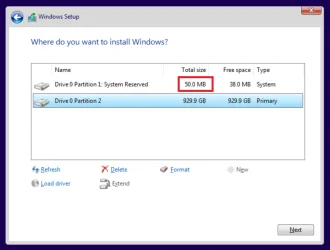
Older Windows 10 installations created a 500 MB System Reserved Partition, but Windows 10 22H2 creates only a 50 MB System Reserved Partition (when the disk does not use 4K sectors).
You're right. Isn't the OP System partition 100M or bigger?
Let me ask you: Why do you think what I wrote isn't valid for this thread?
 

My Computers

System One System Two

  • OS
    Windows 11 Pro - Windows 7 HP 64 - Lubuntu
    Computer type
    PC/Desktop
    Manufacturer/Model
    custom build
    CPU
    i5 6600K - 800MHz to 4400MHz
    Motherboard
    GA-Z170-HD3P
    Memory
    4+4G GSkill DDR4 3000
    Graphics Card(s)
    IG - Intel 530
    Monitor(s) Displays
    Samsung 226BW
    Screen Resolution
    1680x1050
    Hard Drives
    (1) -1 SM951 – 128GB M.2 AHCI PCIe SSD drive for Win 11
    (2) -1 WD SATA 3 - 1T for Data
    (3) -1 WD SATA 3 - 1T for backup
    (4) -1 BX500 SSD - 256G for Windows 7 and Lubuntu
    PSU
    Thermaltake 450W TR2 gold
    Keyboard
    Old and good Chicony mechanical keyboard
    Mouse
    Logitech mX performance - 9 buttons (had to disable some)
    Internet Speed
    500 Mb/s
    Browser
    Firefox 64
  • Operating System
    Windows 11 Pro
    Computer type
    Laptop
    Manufacturer/Model
    Asus Q550LF
    CPU
    i7-4500U 800- 3000MHz
    Motherboard
    Asus Q550LF
    Memory
    (4+4)G DDR3 1600
    Graphics card(s)
    IG intel 4400 + NVIDIA GeForce GT 745M
    Sound Card
    Realtek
    Monitor(s) Displays
    LG Display LP156WF4-SPH1
    Screen Resolution
    1920 x 1080
    Hard Drives
    BX500 120G SSD for Windows and programs
    & 1T HDD for data
    Internet Speed
    500 Mb/s
    Browser
    Firefox 64

My Computers

System One System Two

  • OS
    Windows 11 Pro
    Computer type
    PC/Desktop
    CPU
    AMD Ryzen 9 9950X3D
    Motherboard
    ASRock B650E Taichi Lite
    Memory
    Kingston FURY Beast 64GB (2x32GB) DDR5 6000MT/s
    Graphics Card(s)
    ASUS TUF Gaming Radeon RX 9070 OC Edition 16GB GDDR6
    Hard Drives
    Solidigm P44 Pro 2TB M.2 NVMe SSD
  • Operating System
    Windows 11 Home
    Computer type
    Laptop
    Manufacturer/Model
    Lenovo Legion Pro 7i Gen 10 16"
    CPU
    Intel Core Ultra 9 275HX
    Memory
    64GB (2x 32GB) DDR5-6400
    Graphics card(s)
    NVIDIA GeForce RTX 5080 16GB GDDR7 Laptop GPU
    Hard Drives
    2x 1TB M.2 NVMe SSD (SK Hynix)
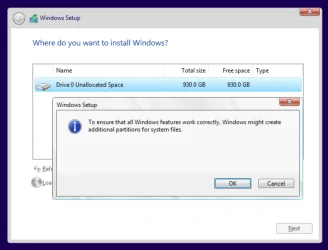
The first image is legit. Once you select where to install it will proceed with the install and wont return asking where you want to install.
The second image is fake. The partitions were created by Diskpart or alike. You forgot to create the Recovery partition.
 

My Computers

System One System Two

  • OS
    Windows 11 Pro - Windows 7 HP 64 - Lubuntu
    Computer type
    PC/Desktop
    Manufacturer/Model
    custom build
    CPU
    i5 6600K - 800MHz to 4400MHz
    Motherboard
    GA-Z170-HD3P
    Memory
    4+4G GSkill DDR4 3000
    Graphics Card(s)
    IG - Intel 530
    Monitor(s) Displays
    Samsung 226BW
    Screen Resolution
    1680x1050
    Hard Drives
    (1) -1 SM951 – 128GB M.2 AHCI PCIe SSD drive for Win 11
    (2) -1 WD SATA 3 - 1T for Data
    (3) -1 WD SATA 3 - 1T for backup
    (4) -1 BX500 SSD - 256G for Windows 7 and Lubuntu
    PSU
    Thermaltake 450W TR2 gold
    Keyboard
    Old and good Chicony mechanical keyboard
    Mouse
    Logitech mX performance - 9 buttons (had to disable some)
    Internet Speed
    500 Mb/s
    Browser
    Firefox 64
  • Operating System
    Windows 11 Pro
    Computer type
    Laptop
    Manufacturer/Model
    Asus Q550LF
    CPU
    i7-4500U 800- 3000MHz
    Motherboard
    Asus Q550LF
    Memory
    (4+4)G DDR3 1600
    Graphics card(s)
    IG intel 4400 + NVIDIA GeForce GT 745M
    Sound Card
    Realtek
    Monitor(s) Displays
    LG Display LP156WF4-SPH1
    Screen Resolution
    1920 x 1080
    Hard Drives
    BX500 120G SSD for Windows and programs
    & 1T HDD for data
    Internet Speed
    500 Mb/s
    Browser
    Firefox 64
@Megahertz:

In Windows 10 22H2, if you manually create partitions on the "Where do you want to install Windows?" screen, Windows Setup does not create the Recovery partition right away. Instead, the partition is created later in the installation process.

Starting with Windows 10 version 2004 (May 2020 Update), a 50 MB System Reserved partition is created on MBR disks.

This 50 MB system reserved partition in MBR disk is by design in Windows 10 v2004 when default partition layouts are changed to match better for MS recommendations for manufacturers.

50 MB System Reserved Partition.webp


My Computers

System One System Two

  • OS
    Windows 11 Pro
    Computer type
    PC/Desktop
    CPU
    AMD Ryzen 9 9950X3D
    Motherboard
    ASRock B650E Taichi Lite
    Memory
    Kingston FURY Beast 64GB (2x32GB) DDR5 6000MT/s
    Graphics Card(s)
    ASUS TUF Gaming Radeon RX 9070 OC Edition 16GB GDDR6
    Hard Drives
    Solidigm P44 Pro 2TB M.2 NVMe SSD
  • Operating System
    Windows 11 Home
    Computer type
    Laptop
    Manufacturer/Model
    Lenovo Legion Pro 7i Gen 10 16"
    CPU
    Intel Core Ultra 9 275HX
    Memory
    64GB (2x 32GB) DDR5-6400
    Graphics card(s)
    NVIDIA GeForce RTX 5080 16GB GDDR7 Laptop GPU
    Hard Drives
    2x 1TB M.2 NVMe SSD (SK Hynix)
@Megahertz:

In Windows 10 22H2, if you manually create partitions on the "Where do you want to install Windows?" screen, Windows Setup does not create the Recovery partition right away. Instead, the partition is created later in the installation process.

Starting with Windows 10 version 2004 (May 2020 Update), a 50 MB System Reserved partition is created on MBR disks.


Now we agree. You created it manually. That is NOT a Default installation.
If OP did a regular installation, what I wrote on post #21 is valid.

Now I come back to my question on post #21: Let me ask you: Why do you think what I wrote on post #19 isn't valid for this thread?
Do you think that the OP also Manually created a System partition smaller than 100M?
Do you think that the OP system partition ISN"t at least 100 MB (or 260 MB for 4K sector size disks) in size?

If you don't do a regular installation many things can happen.
I suppose OP did a regular installation and normal behavior apply.
You are speculating that he may not did a default installation.
 

My Computers

System One System Two

  • OS
    Windows 11 Pro - Windows 7 HP 64 - Lubuntu
    Computer type
    PC/Desktop
    Manufacturer/Model
    custom build
    CPU
    i5 6600K - 800MHz to 4400MHz
    Motherboard
    GA-Z170-HD3P
    Memory
    4+4G GSkill DDR4 3000
    Graphics Card(s)
    IG - Intel 530
    Monitor(s) Displays
    Samsung 226BW
    Screen Resolution
    1680x1050
    Hard Drives
    (1) -1 SM951 – 128GB M.2 AHCI PCIe SSD drive for Win 11
    (2) -1 WD SATA 3 - 1T for Data
    (3) -1 WD SATA 3 - 1T for backup
    (4) -1 BX500 SSD - 256G for Windows 7 and Lubuntu
    PSU
    Thermaltake 450W TR2 gold
    Keyboard
    Old and good Chicony mechanical keyboard
    Mouse
    Logitech mX performance - 9 buttons (had to disable some)
    Internet Speed
    500 Mb/s
    Browser
    Firefox 64
  • Operating System
    Windows 11 Pro
    Computer type
    Laptop
    Manufacturer/Model
    Asus Q550LF
    CPU
    i7-4500U 800- 3000MHz
    Motherboard
    Asus Q550LF
    Memory
    (4+4)G DDR3 1600
    Graphics card(s)
    IG intel 4400 + NVIDIA GeForce GT 745M
    Sound Card
    Realtek
    Monitor(s) Displays
    LG Display LP156WF4-SPH1
    Screen Resolution
    1920 x 1080
    Hard Drives
    BX500 120G SSD for Windows and programs
    & 1T HDD for data
    Internet Speed
    500 Mb/s
    Browser
    Firefox 64
@Megahertz:

If you create partitions in unallocated space by selecting “New” on the “Where do you want to install Windows?” screen, you’ll see the message:

“To ensure that all Windows features work correctly, Windows might create additional partitions for system files.”

When you click “OK”, Windows 10 22H2 Setup creates a 50 MB System Reserved partition (if the Windows USB stick is booted in BIOS mode). After that, you can create more partitions or start installing Windows by clicking “Next.”

Windows 10 22H2 Setup also creates a 50 MB System Reserved partition if the drive is unallocated and you just click “Next.”

So in both cases, Windows 10 22H2 Setup automatically creates a 50 MB System Reserved partition.
 

My Computers

System One System Two

  • OS
    Windows 11 Pro
    Computer type
    PC/Desktop
    CPU
    AMD Ryzen 9 9950X3D
    Motherboard
    ASRock B650E Taichi Lite
    Memory
    Kingston FURY Beast 64GB (2x32GB) DDR5 6000MT/s
    Graphics Card(s)
    ASUS TUF Gaming Radeon RX 9070 OC Edition 16GB GDDR6
    Hard Drives
    Solidigm P44 Pro 2TB M.2 NVMe SSD
  • Operating System
    Windows 11 Home
    Computer type
    Laptop
    Manufacturer/Model
    Lenovo Legion Pro 7i Gen 10 16"
    CPU
    Intel Core Ultra 9 275HX
    Memory
    64GB (2x 32GB) DDR5-6400
    Graphics card(s)
    NVIDIA GeForce RTX 5080 16GB GDDR7 Laptop GPU
    Hard Drives
    2x 1TB M.2 NVMe SSD (SK Hynix)
@Megahertz:

Windows 10 22H2 Setup also creates a 50 MB System Reserved partition if the drive is unallocated and you just click “Next.”

So in both cases, Windows 10 22H2 Setup automatically creates a 50 MB System Reserved partition.
If it does, I apologize for my attitude. In all my installations I never seen it creating a System partition less than 100M ( on MBR drives evem bigger)
 

My Computers

System One System Two

  • OS
    Windows 11 Pro - Windows 7 HP 64 - Lubuntu
    Computer type
    PC/Desktop
    Manufacturer/Model
    custom build
    CPU
    i5 6600K - 800MHz to 4400MHz
    Motherboard
    GA-Z170-HD3P
    Memory
    4+4G GSkill DDR4 3000
    Graphics Card(s)
    IG - Intel 530
    Monitor(s) Displays
    Samsung 226BW
    Screen Resolution
    1680x1050
    Hard Drives
    (1) -1 SM951 – 128GB M.2 AHCI PCIe SSD drive for Win 11
    (2) -1 WD SATA 3 - 1T for Data
    (3) -1 WD SATA 3 - 1T for backup
    (4) -1 BX500 SSD - 256G for Windows 7 and Lubuntu
    PSU
    Thermaltake 450W TR2 gold
    Keyboard
    Old and good Chicony mechanical keyboard
    Mouse
    Logitech mX performance - 9 buttons (had to disable some)
    Internet Speed
    500 Mb/s
    Browser
    Firefox 64
  • Operating System
    Windows 11 Pro
    Computer type
    Laptop
    Manufacturer/Model
    Asus Q550LF
    CPU
    i7-4500U 800- 3000MHz
    Motherboard
    Asus Q550LF
    Memory
    (4+4)G DDR3 1600
    Graphics card(s)
    IG intel 4400 + NVIDIA GeForce GT 745M
    Sound Card
    Realtek
    Monitor(s) Displays
    LG Display LP156WF4-SPH1
    Screen Resolution
    1920 x 1080
    Hard Drives
    BX500 120G SSD for Windows and programs
    & 1T HDD for data
    Internet Speed
    500 Mb/s
    Browser
    Firefox 64
I am sorry about neglecting this thread. My computer is my main source for work, so I didn't want to take a chance. I have backed everything up now and I have a vacation this week, so I am going to try this.
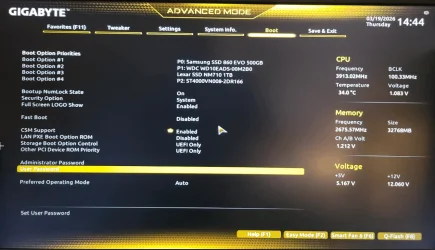
Presently, this is my BIOS . From the first part of this thread, it stated that my boot drive was legacy, but it is not, so I am not sure if I am looking at the wrong thing here. I have run the Whywin11 program again, just to keep it up to date. I am not sure if I have to go the rufus route considering this computer should be able to run everything since it was only purchased a few years ago. But I want to try and go through the steps and get the boot stuff correct - however I am not sure what to change.

win 11.webp


win11 2.webp
 

My Computer

System One

  • OS
    Win 11
    Computer type
    Laptop
    Manufacturer/Model
    HP
    CPU
    Athlon
    Memory
    4 gig
    Graphics Card(s)
    Radeon graphics 2.30
    Other Info
    Win 11 home 226213007
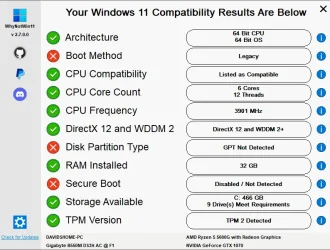
The only issue is that you installed Windows 10 on an MBR disk. You should have selected the Windows 10 installation USB with the UEFI prefix in the one-time boot menu (Gigabyte F12). In that case, Windows Setup would have automatically installed Windows 10 on a GPT disk, and your computer would have met the Windows 11 system requirements.

How to fix it:

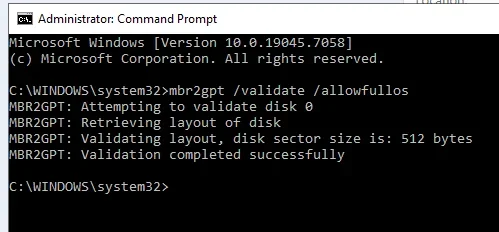
Run the following command as administrator:

mbr2gpt /validate /allowfullos

This checks whether the disk meets the requirements. No changes are made. If everything is OK, it will display: "Validation completed successfully."

If no problems are found, run:

mbr2gpt /convert /allowfullos

Once the conversion is complete, restart your computer.

Windows 10 should now boot in UEFI mode.

Your screenshot shows "CSM Support > Enabled".
If you want, you can change this to "CSM Support > Disabled".

CSM (Compatibility Support Module)
- Enabled: Both UEFI and Legacy BIOS modes are available.
- Disabled: Only UEFI mode is available.
 

My Computers

System One System Two

  • OS
    Windows 11 Pro
    Computer type
    PC/Desktop
    CPU
    AMD Ryzen 9 9950X3D
    Motherboard
    ASRock B650E Taichi Lite
    Memory
    Kingston FURY Beast 64GB (2x32GB) DDR5 6000MT/s
    Graphics Card(s)
    ASUS TUF Gaming Radeon RX 9070 OC Edition 16GB GDDR6
    Hard Drives
    Solidigm P44 Pro 2TB M.2 NVMe SSD
  • Operating System
    Windows 11 Home
    Computer type
    Laptop
    Manufacturer/Model
    Lenovo Legion Pro 7i Gen 10 16"
    CPU
    Intel Core Ultra 9 275HX
    Memory
    64GB (2x 32GB) DDR5-6400
    Graphics card(s)
    NVIDIA GeForce RTX 5080 16GB GDDR7 Laptop GPU
    Hard Drives
    2x 1TB M.2 NVMe SSD (SK Hynix)
Do I need to backup before doing the command line work?

1773966247668.webp
 

My Computer

System One

  • OS
    Win 11
    Computer type
    Laptop
    Manufacturer/Model
    HP
    CPU
    Athlon
    Memory
    4 gig
    Graphics Card(s)
    Radeon graphics 2.30
    Other Info
    Win 11 home 226213007
Do you still need help?
 

My Computer

System One

  • OS
    Windows 10
    Computer type
    Laptop
    Manufacturer/Model
    HP
    CPU
    Intel(R) Core(TM) i7-4800MQ CPU @ 2.70GHz
    Motherboard
    Product : 190A Version : KBC Version 94.56
    Memory
    16 GB Total: Manufacturer : Samsung MemoryType : DDR3 FormFactor : SODIMM Capacity : 8GB Speed : 1600
    Graphics Card(s)
    NVIDIA Quadro K3100M; Intel(R) HD Graphics 4600
    Sound Card
    IDT High Definition Audio CODEC; PNP Device ID HDAUDIO\FUNC_01&VEN_111D&DEV_76E0
    Hard Drives
    Model Hitachi HTS727575A9E364
    Antivirus
    Microsoft Defender
    Other Info
    Mobile Workstation
Do I need to backup before doing the command line work?
You should "backup" before doing ANY system work

Understanding "backup" ... in the case where changes to the system may be tried/occur/are suspected, imaging is the best option. A full image of the installed system
Options (freeware)
- Macrium Reflect (freeware version still available from majorgeeks)
- AOMEI BackUpper
- EaseUS ToDo
 

My Computers

System One System Two

  • OS
    Windows 11 2xH2 (latest update ... forever anal)
    Computer type
    PC/Desktop
    Manufacturer/Model
    HP Slim S01
    CPU
    Intel i5-12400
    Memory
    8GB
    Graphics Card(s)
    NVIDIA GeForce GT730
    Sound Card
    OOBE
    Monitor(s) Displays
    Acer 32"
    Screen Resolution
    1920x1080
    Hard Drives
    512GB KIOXIA NVMe
    1TB SATA SSD
    PSU
    OOBE
    Case
    OOBE
    Cooling
    OOBE
    Keyboard
    BT
    Mouse
    BT
    Browser
    Brave FFox Chrome Opera
    Antivirus
    KIS
  • Operating System
    Windows 11 Pro 2xH2 (latest update ... 4ever anal)
    Computer type
    Laptop
    Manufacturer/Model
    HP Pavillion 15
    CPU
    i7-1165G7 @ 2.80GHz
    Graphics card(s)
    Intel Iris Xe Graphics
    Hard Drives
    Samsung NVMe 512GB
    + numerous/multiple SSD Type C USB enclosures
    Internet Speed
    NBN FTTN 50
    Browser
    Brave
    Antivirus
    KIS
Do I need to backup before doing the command line work?
Some users have reported being unable to boot their computers after a successful MBR2GPT conversion, so make sure your backups are up to date.

Note that the error below is not something to worry about, as it does not affect your computer’s ability to boot:

"Failed to update ReAgent.xml, please try to manually disable and enable WinRE."
 

My Computers

System One System Two

  • OS
    Windows 11 Pro
    Computer type
    PC/Desktop
    CPU
    AMD Ryzen 9 9950X3D
    Motherboard
    ASRock B650E Taichi Lite
    Memory
    Kingston FURY Beast 64GB (2x32GB) DDR5 6000MT/s
    Graphics Card(s)
    ASUS TUF Gaming Radeon RX 9070 OC Edition 16GB GDDR6
    Hard Drives
    Solidigm P44 Pro 2TB M.2 NVMe SSD
  • Operating System
    Windows 11 Home
    Computer type
    Laptop
    Manufacturer/Model
    Lenovo Legion Pro 7i Gen 10 16"
    CPU
    Intel Core Ultra 9 275HX
    Memory
    64GB (2x 32GB) DDR5-6400
    Graphics card(s)
    NVIDIA GeForce RTX 5080 16GB GDDR7 Laptop GPU
    Hard Drives
    2x 1TB M.2 NVMe SSD (SK Hynix)
If you convert from Legacy-MBR to UEFI-GPT under windows (/allowfullos) it will shrink C: and create a new EFI partition remaining the old System partition useless. If you convert offline (booting from a Win 10 or Win 11 installation drive and at the Windows Setup screen, press Shift+F10 simultaneously to open a command line prompt) it will convert the MBR System partition into the EFI GPT partition and it will be in the current UEFI-GPT partitions order: EFI, C: and recovery
 

My Computers

System One System Two

  • OS
    Windows 11 Pro - Windows 7 HP 64 - Lubuntu
    Computer type
    PC/Desktop
    Manufacturer/Model
    custom build
    CPU
    i5 6600K - 800MHz to 4400MHz
    Motherboard
    GA-Z170-HD3P
    Memory
    4+4G GSkill DDR4 3000
    Graphics Card(s)
    IG - Intel 530
    Monitor(s) Displays
    Samsung 226BW
    Screen Resolution
    1680x1050
    Hard Drives
    (1) -1 SM951 – 128GB M.2 AHCI PCIe SSD drive for Win 11
    (2) -1 WD SATA 3 - 1T for Data
    (3) -1 WD SATA 3 - 1T for backup
    (4) -1 BX500 SSD - 256G for Windows 7 and Lubuntu
    PSU
    Thermaltake 450W TR2 gold
    Keyboard
    Old and good Chicony mechanical keyboard
    Mouse
    Logitech mX performance - 9 buttons (had to disable some)
    Internet Speed
    500 Mb/s
    Browser
    Firefox 64
  • Operating System
    Windows 11 Pro
    Computer type
    Laptop
    Manufacturer/Model
    Asus Q550LF
    CPU
    i7-4500U 800- 3000MHz
    Motherboard
    Asus Q550LF
    Memory
    (4+4)G DDR3 1600
    Graphics card(s)
    IG intel 4400 + NVIDIA GeForce GT 745M
    Sound Card
    Realtek
    Monitor(s) Displays
    LG Display LP156WF4-SPH1
    Screen Resolution
    1920 x 1080
    Hard Drives
    BX500 120G SSD for Windows and programs
    & 1T HDD for data
    Internet Speed
    500 Mb/s
    Browser
    Firefox 64
The reason I am asking about backing up is that since it changes the partition, I didn't know if the imaging (macrium) would save that as well - or if this fix is a one-and-done.
 

My Computer

System One

  • OS
    Win 11
    Computer type
    Laptop
    Manufacturer/Model
    HP
    CPU
    Athlon
    Memory
    4 gig
    Graphics Card(s)
    Radeon graphics 2.30
    Other Info
    Win 11 home 226213007
If you convert from Legacy-MBR to UEFI-GPT under windows (/allowfullos) it will shrink C: and create a new EFI partition remaining the old System partition useless. If you convert offline (booting from a Win 10 or Win 11 installation drive and at the Windows Setup screen, press Shift+F10 simultaneously to open a command line prompt) it will convert the MBR System partition into the EFI GPT partition and it will be in the current UEFI-GPT partitions order: EFI, C: and recovery
You have lost me here. I am going to try the command line from win10 to start - are you saying that is not the method to use?
 

My Computer

System One

  • OS
    Win 11
    Computer type
    Laptop
    Manufacturer/Model
    HP
    CPU
    Athlon
    Memory
    4 gig
    Graphics Card(s)
    Radeon graphics 2.30
    Other Info
    Win 11 home 226213007

/allowFullOS

By default, MBR2GPT.exe can only run from Windows PE and is blocked from running in full Windows. This option overrides this block and enables disk conversion while running in the full Windows environment.
Note: Since the existing MBR system partition is in use while running the full Windows environment, it can't be reused. In this case, a new EFI system partition is created by shrinking the OS partition.

You can run the MBR2GPT command using either method; however, please note the point highlighted in red. So check the System Reserved partition size in Disk Management.

Creating an EFI system partition​

For Windows to remain bootable after the conversion, an EFI system partition must be in place. MBR2GPT creates the EFI system partition using the following rules:

  1. The existing MBR system partition is reused if it meets these requirements:
    • It isn't also the OS or Windows Recovery Environment partition.
    • It is at least 100 MB (or 260 MB for 4K sector size disks) in size.
    • It's less than or equal to 1 GB in size. This size is a safety precaution to ensure it isn't a data partition.
    • The conversion isn't being performed from the full OS. In this case, the existing MBR system partition is in use and can't be repurposed.
  2. If the existing MBR system partition can't be reused, a new EFI system partition is created by shrinking the OS partition. This new partition has a size of 100 MB (or 260 MB for 4K sector size disks) and is formatted FAT32.
If the existing MBR system partition isn't reused for the EFI system partition, it's no longer used by the boot process after the conversion. Other partitions aren't modified.
 

My Computers

System One System Two

  • OS
    Windows 11 Pro
    Computer type
    PC/Desktop
    CPU
    AMD Ryzen 9 9950X3D
    Motherboard
    ASRock B650E Taichi Lite
    Memory
    Kingston FURY Beast 64GB (2x32GB) DDR5 6000MT/s
    Graphics Card(s)
    ASUS TUF Gaming Radeon RX 9070 OC Edition 16GB GDDR6
    Hard Drives
    Solidigm P44 Pro 2TB M.2 NVMe SSD
  • Operating System
    Windows 11 Home
    Computer type
    Laptop
    Manufacturer/Model
    Lenovo Legion Pro 7i Gen 10 16"
    CPU
    Intel Core Ultra 9 275HX
    Memory
    64GB (2x 32GB) DDR5-6400
    Graphics card(s)
    NVIDIA GeForce RTX 5080 16GB GDDR7 Laptop GPU
    Hard Drives
    2x 1TB M.2 NVMe SSD (SK Hynix)
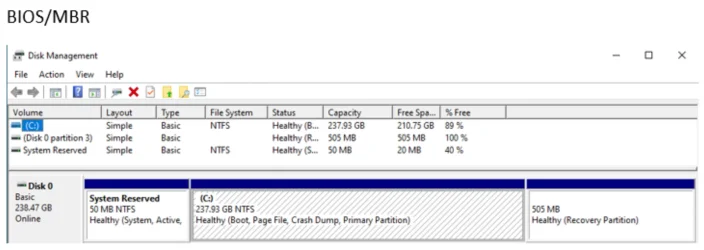
This is what my C drive looks like
1774320041015.webp
 

My Computer

System One

  • OS
    Win 11
    Computer type
    Laptop
    Manufacturer/Model
    HP
    CPU
    Athlon
    Memory
    4 gig
    Graphics Card(s)
    Radeon graphics 2.30
    Other Info
    Win 11 home 226213007
Your boot method is Legacy (BIOS) but should be UEFI in order to install Windows 11. The disk partition type is MBR but should be GPT and secure boot is disabled but should be enabled in the UEFI.

I miss using the term "BIOS".
 

My Computers

System One System Two

  • OS
    Win 11 Pro 25H2 (10.0.26200)
    Computer type
    Laptop
    Manufacturer/Model
    HP EliteBook 840 14 inch G10 Notebook (BIOS HP V70 Ver. 01.11.00, 11/6/202)5
    CPU
    i7-1360p 2.20 GHz
    Motherboard
    HP Model 8B41 KBC Version 51.40.00
    Memory
    32 GB
    Graphics Card(s)
    Intel® Iris® Xe Graphics
    Sound Card
    Realtek High Definition Audio; Intel® Smart Sound Technology for Bluetooth® Audio; Intel® Smart Sound Technology for USB Audio Intel® Smart Sound Technology for Digital Microphones
    Monitor(s) Displays
    as outfitted
    Screen Resolution
    1920 x 1200 (as recommended)
    Hard Drives
    (1) Samsung SSD 990 EVO Plus 2TB; (2) external Samsung Portable SSD T5 Shield 8TB
    Case
    N/A
    Cooling
    as outfitted
    Keyboard
    integrated
    Mouse
    integrated touchpad
    Internet Speed
    800MB/sec up & down
    Browser
    Chrome
    Antivirus
    Malwarebytes
    Other Info
    Device name AWC-840
    Processor 13th Gen Intel(R) Core(TM) i7-1360P 2.20 GHz
    Installed RAM 32.0 GB (31.6 GB usable)
    Product ID 00355-61334-62672-AAOEM
    System type 64-bit operating system, x64-based processor
    Pen and touch Touch support with 10 touch points
  • Operating System
    Win 11 Pro 25H2 (10.0.26200)
    Computer type
    PC/Desktop
    Manufacturer/Model
    HP Elite Tower 800 G9 Desktop PC (7E5P9AV)
    CPU
    Intel i7 (14th generation)
    Motherboard
    8AC1 KBC Version 12.03.39
    Memory
    64 GB
    Graphics card(s)
    (1) Intel UHD Graphics 770 (integrated); (2) Intel Arc B580 graphics card
    Sound Card
    Topping E30 II DAC Preamp Audio Decoder running @ 384.0 kHz
    Monitor(s) Displays
    ASUS ProArt Display PA279CV
    Screen Resolution
    3840 x 2160
    Hard Drives
    (1) Samsung SSD 990 PRO with Heatsink 2TB; (2) internal HHD CT2000BX500SSD1 2 TB; (3) external Samsung Portable SSD T7 Shield 4 TB
    Case
    HP Elite Tower 800
    Cooling
    As God dictates the room temperature
    Keyboard
    HHKB Lite 2
    Mouse
    Microsoft wheel mouse
    Internet Speed
    800MB/sec up & down
    Browser
    Chrome
    Antivirus
    Malwarebytes
    Other Info
    BIOS U01 Ver. 02.18.10
This is what my C drive looks like

Your System Reserved partition is 100 MB, so you can run the MBR2GPT command using the following method. In this case, MBR2GPT will usually use the existing MBR system partition.

Boot from a Windows 10/11 installation USB flash drive. Press Shift + F10 to open Command Prompt, then run:

mbr2gpt /validate
mbr2gpt /convert

Once the conversion is complete, restart your computer. Windows 10 should now boot in UEFI mode with the default settings of your Gigabyte motherboard.

A Windows 11 upgrade (or clean install) will succeed regardless of whether Secure Boot or CSM are enabled (CSM means that both UEFI and Legacy BIOS modes are available).

If you want to enable Secure Boot, note that on many systems it cannot be enabled until CSM is disabled.
 
Last edited:

My Computers

System One System Two

  • OS
    Windows 11 Pro
    Computer type
    PC/Desktop
    CPU
    AMD Ryzen 9 9950X3D
    Motherboard
    ASRock B650E Taichi Lite
    Memory
    Kingston FURY Beast 64GB (2x32GB) DDR5 6000MT/s
    Graphics Card(s)
    ASUS TUF Gaming Radeon RX 9070 OC Edition 16GB GDDR6
    Hard Drives
    Solidigm P44 Pro 2TB M.2 NVMe SSD
  • Operating System
    Windows 11 Home
    Computer type
    Laptop
    Manufacturer/Model
    Lenovo Legion Pro 7i Gen 10 16"
    CPU
    Intel Core Ultra 9 275HX
    Memory
    64GB (2x 32GB) DDR5-6400
    Graphics card(s)
    NVIDIA GeForce RTX 5080 16GB GDDR7 Laptop GPU
    Hard Drives
    2x 1TB M.2 NVMe SSD (SK Hynix)

Latest Support Threads

Back
Top Bottom