@echo off
cd /d %~dp0
cls
:::::::::::::::::::::::::::::::::::::::
:: Windows Image Updater ::
:: ::
:: Version 6.0.4 ::
:: ::
:: Feb 26, 2025 by Hannes Sehestedt ::
:::::::::::::::::::::::::::::::::::::::
:::::::::::::::::::::::::::::::::::::::::::::::::::::::::::::::::::::::::::::::::::::::::::::::::::::::::
:: ::
:: PURPOSE OF THIS SCRIPT ::
:: ::
:: This script will take one Windows edition in a Windows ISO image and inject Windows ::
:: updates into it. The updated edition of Windows will be saved to a new file containing ::
:: just that one edition of Windows. As an example, assume that you have a retail Windows ::
:: ISO image. This ISO image has multiple editions of Windows such as Win 11 Home, Pro, etc. ::
:: Each edition of Windows has an index number associated with it. ::
:: ::
:: For example, on the US English consumer edition ISO images from Microsoft, Windows 11 Pro is index ::
:: number 6. To get a list of Windows editions and the index number associated with each edition, you ::
:: can run this command: ::
:: ::
:: dism /Get-WimInfo /WimFile:C:\Project\ISO_Files\Sources\install.wim ::
:: ::
:: If located elsewhere, substitute the correct location of the install.wim file in the above command. ::
:: ::
:: This utility will perform the updates THE RIGHT WAY by updating all elements of the image ::
:: including not only the cumulative update, but also the SSU (Servicing Stack Update), Safe ::
:: OS Dynamic Update, Setup Dynamic Update, other updates such as .NET updates and Microcode ::
:: updates, and will even allow you to add custom scripts to the Windows PE image. However, ::
:: if you want to update only one item, such as the cumulative update, you can do that as well. ::
:: ::
:: IMPORTANT: As noted, this script will only update one edition of Windows from an image. If ::
:: you want to update multiple editions and combine them all into a single image, please ::
:: message me as noted above. I can provide to you a tool that will allow you to update many ::
:: Windows editions and combine them into a single image. That same tool also has many other ::
:: features such as being able to inject drivers into an image, create bootable media, and many ::
:: other tasks related to Windows Image Management. ::
:: ::
:: Please note that it is possible to also add updates such as language packs and other language ::
:: related components to Windows images. This batch file does not apply those updates, however ::
:: I can provide information regarding how to update those components if you need to do so. ::
:::::::::::::::::::::::::::::::::::::::::::::::::::::::::::::::::::::::::::::::::::::::::::::::::::::::::
:::::::::::::::::::::::::::::::::::::::::::::::::::::::::::::::::::::::::::::::::::::::::::::::::::::::::::::::::::::
:: ::
:: SUMMARY OF INSTRUCTIONS ::
:: ::
:: ::
:: 1) Read the instructions below to learn how to organize the folders that this project needs. ::
:: ::
:: 2) Review the "User defined variables" section below and modify as needed. ::
:: ::
:: 3) Make sure that you have the Windows ADK installed. Only the Deployment Tools from the ::
:: ADK need to be installed. ::
:::::::::::::::::::::::::::::::::::::::::::::::::::::::::::::::::::::::::::::::::::::::::::::::::::::::::::::::::::::
:: ::
:: DETAILED INSTRUCTIONS ::
:: ::
:: Create the following folders before you run this batch file. ::
:: ::
:: NOTE: The paths below assume the default settings of user defined variables. If you change those variables, ::
:: Please alter the below paths accordingly. ::
:: ::
:: Do either one of the following: ::
:: ::
:: 1) Create a folder and copy the contents of your Windows ISO image that you want to update to it. ::
:: ::
:: OR ::
:: ::
:: 2) Mount the ISO image by double-clicking it. ::
:: ::
:: For whichever of the above options you choose, note the location as the batch file will ask you for that ::
:: location when you run it. ::
:: ::
:: Create a folder under which you will place the Windows updates to be installed. ::
:: ::
:: NOTE: This location can be changed using the user defined variables below. In this example, we assume that ::
:: location will be "C:\WinUpdates". Beneath that folder, create all of the following folders and place the ::
:: updates described into that folder. All of these updates can be downloaded from the "Microsoft Update Catalog". ::
:: ::
:: NOTE: All items are optional. For example, if you do not have a Safe OS Dynamic Update, simply leave that ::
:: folder empty. ::
:: ::
:: The "PE_Files" folder can be used to place files that you want to copy to Windows setup. For example, I have a ::
:: couple of scripts that I want to be available to Windows setup. Any files that you place here will be available ::
:: on drive X: during windows setup. Note that X: is the RAM Drive that Windows creates during setup. Since this ::
:: is just about the first thing setup does, these files will be available very early in setup. IT IS EXTREMEMELY ::
:: UNLIKELY that you will ever put anything in this folder unless you have a very specific reason for doing so. As ::
:: a result, you will typically leave this folder empty. ::
:: ::
:: If you wish to DELETE files from Windows PE, for example, scripts that you previously added as described in the ::
:: above paragragh, please search this batch file for the text "delete files from WinPE" and follow the ::
:: instructions found there. Once again, IT IS EXTREMEMELY UNLIKELY that you will need to do this. ::
:: ::
:: When downloading updates from the Microsoft Update Catalog, please note that the "Safe OS Dynamic Update" ::
:: will include "Windows Safe OS Dysnamic Update" in the "Products" column. The "Setup Dynamic Update" will ::
:: simply be called a "Dynamic Update" in this same column. ::
:: ::
:: Once again, note that the "C:\WinUpdates" portion of the paths below can be changed using the user defined ::
:: variables that are described below. ::
:: ::
:: C:\WinUpdates\LCU <--- Place Latest Cumulative / Checkpoint / Incremental updates in this folder. ::
:: C:\WinUpdates\SSU <--- Place a Standalone SSU in this folder if one is available. These are rare. ::
:: C:\WinUpdates\Other <--- Place other updates (for example .NET and OOBE ZDP Updates) in this folder. ::
:: C:\WinUpdates\SafeOS_DU <--- Place the latest Safe OS Dynamic Update in this folder. ::
:: C:\WinUpdates\Setup_DU <--- Place the latest Setup Dynamic Update in this folder. ::
:: C:\WinUpdates\PE_Files <--- Place any files such as scripts that you want copied to WinPE here. ::
:: ::
:: IMPORTANT: Please note that for each type of update, you should only download the latest update of that type ::
:: because updates are cumulative. However, there are two exceptions to this rule:
::
:: 1) The OOBE ZDP updates are NOT cumulative, so you should download ALL available updates of that type and place ::
:: them in the Other folder. ::
:: ::
:: 2) Windows 11 24H2 introduces checkpoint and incremental updates for the LCU (Latest Cumulative Update). If you ::
:: locate a cumulative update for Windows in the Microsoft update catalog and you find that it shows two files to ::
:: download rather than just one, this indicates that there is both a checkpoint and an incremental update. ::
:: Download both and save them in the LCU folder. However, you only need the most recent cumulative update whether ::
:: that consists of just one file or two files. ::
:: ::
:: Be aware that there may sometimes be no update of a certain type available. As an example, Safe OS updates do ::
:: not get released every month, so it is possible that there is no update of that type available, especially soon ::
:: after the release of a new version of Windows. ::
:::::::::::::::::::::::::::::::::::::::::::::::::::::::::::::::::::::::::::::::::::::::::::::::::::::::::::::::::::::
:::::::::::::::::::::::::::::::::::::::::::::::::::::::::::::::::::::::::::::::::::::::::::::::::::::::::::::::::::::::::
:: ::
:: USER DEFINED VARIABLES ::
:: ::
:: Below you will find a description of variables that you can set. You should check each one to make sure that it ::
:: fits your needs. The actual variables are found below the description section. Please note that spaces in path ::
:: names or file names are perfectly fine. you should NOT use quotes to enclose file names or paths even if there ::
:: are spaces in the names. ::
:: ::
:: IndexNum - Set "IndexNum" to the index number corresponding to the Windows edition you want to update. By default ::
:: we have this set to "6" which corresponds to Windows 10 or 11 Pro when using the standard retail edition ISO ::
:: image from Microsoft. To get a list of Windows editions and the index number associated with each edition, you ::
:: can run this command: ::
:: ::
:: dism /Get-WimInfo /WimFile:C:\Project\ISO_Files\Sources\install.wim ::
:: ::
:: If located elsewhere, substitute the correct location of the install.wim file in the above command. ::
:: ::
:: ProjectFolder - Set "ProjectFolder" to the location where the project will be created. The batch file will create ::
:: a number of folders under the project folder. Many of the files here are temporary files. Be aware that there ::
:: will be a lot files. You can easily need 20GB or more of space in this location. ::
:: ::
:: WinUpdates - Set "WinUpdates" to the location of the Windows update files. Under this folder, you should create the ::
:: folder structure that is desribed above in the "DETAILED INSTRUCTIONS" section. ::
:: ::
:: EnableLogs - If you want logging to show what updates actually got installed into your WinRE.WIM, BOOT.WIM, and ::
:: INSTALL.WIM files, set "EnableLogs" to "1". Otherwise, set it "0". This will cause two text files for each WIM ::
:: to be created. The first is created after updates are applied, but before the cleanup of the image is performed. ::
:: The second is created after cleanup. As an example, after a combined LCU / SSU package is applied, you may see ::
:: more than one SSU package in the log prior to the cleanup, however, after the cleanup, the older SSU should have ::
:: been removed. Note that for WinPE four files are created because a pair is created for each of the two indicies ::
:: that get updated. The files are created in the same folder from which the batch file is run. You can normally ::
:: leave this set to "0". ::
:: ::
:: NewImageFileName - Set "NewImageFileName" to the name you want to use for the final ISO image to be created. Make ::
:: sure to include the .ISO file extension. Spaces in the file name are okay. ::
:: ::
:: ADK_Location - Set this variable to the location of the "Deployment Tools" folder within the Windows ADK. You ::
:: should only need to change this if you did not install to the default location. ::
:: ::
:: SaveWinRE - Set this to "1" if you wish to save a copy of the WinRE.wim file after it is updated. This can be ::
:: helpful if you need to replace the WinRE.wim file in your Recovery Partition. This file could otherwise be ::
:: difficult to obtain because it is located within another WIM file (the install.wim) so saving a copy after ::
:: updating can be helpful. Setting this to "0" (or anything other than "1") will cause a copy of the file to ::
:: not be saved. ::
:::::::::::::::::::::::::::::::::::::::::::::::::::::::::::::::::::::::::::::::::::::::::::::::::::::::::::::::::::::::::
set IndexNum=6
set ProjectFolder=C:\Project
set WinUpdates=C:\WinUpdates\x64
set EnableLogs=0
set NewImageFileName=Windows.ISO
set ADK_Location=C:\Program Files (x86)\Windows Kits\10\Assessment and Deployment Kit\Deployment Tools
set SaveWinRE=0
:::::::::::::::::::::::::::::::::::
:: End of user defined variables ::
:::::::::::::::::::::::::::::::::::
::::::::::::::::::::::::::::::::::::::::::::::::::::::::::::::::::::::::::::::::::::::::::::::::::::::::::::
:: Check to see if this batch file is being run as Administrator. If it is not, then rerun the batch file ::
:: automatically as admin and terminate the initial instance of the batch file. ::
::::::::::::::::::::::::::::::::::::::::::::::::::::::::::::::::::::::::::::::::::::::::::::::::::::::::::::
(Fsutil Dirty Query %SystemDrive%>Nul)||(PowerShell start """%~f0""" -verb RunAs & Exit /B) > NUL 2>&1
::::::::::::::::::::::::::::::::::::::::::::::::
:: End Routine to check if being run as Admin ::
::::::::::::::::::::::::::::::::::::::::::::::::
::::::::::::::::::::::::::::::::::::::::::::::::::::::::::::::::::
:: Change the console mode to 120 columns wide by 25 lines high ::
::::::::::::::::::::::::::::::::::::::::::::::::::::::::::::::::::
mode con: cols=120 lines=25
:::::::::::::::::::::::::::::::::::
:: Display introductory comments ::
:::::::::::::::::::::::::::::::::::
echo It is VERY IMPORTANT that prior to running this batch file, you open it in an editor such as notepad and read the
echo following sections: PURPOSE OF THIS SCRIPT, SUMMARY OF INSTRUCTIONS, DETAILED INSTRUCTIONS. Make certain to set the
echo user defined variables as instructed.
echo.
echo If you have not done so, please press CTRL + C to terminate this batch file, and then run it again after you perform
echo the above steps.
echo.
pause
::::::::::::::::::::::::::::::::::::::::::::::::::::::::::::::::::::::::::::::::::::::::::::::::::::::::::::
:: Save the current location where this batch file is being run, then run the the "DandISetEnv.bat" file ::
:: which sets environment variables for the ADK. This also changes the current directory, which we do NOT ::
:: want, so we will change it back to the current directory. ::
::::::::::::::::::::::::::::::::::::::::::::::::::::::::::::::::::::::::::::::::::::::::::::::::::::::::::::
pushd %~dp0
call "%ADK_Location%\DandISetEnv.bat"
popd
::::::::::::::::::::::::::::::::::::::::::::::::::::::::::::::::::::::::::::::::::::::::::::::
:: Ask user for location of mounted ISO image or the directory containing the Windows files ::
::::::::::::::::::::::::::::::::::::::::::::::::::::::::::::::::::::::::::::::::::::::::::::::
:GetSourcePath
cls
echo Enter the path to the SOURCE where your Windows files are located below.
echo.
echo Note that these files can be located in a folder on your HDD, SSD, flash drive, etc. or they can be located on an ISO
echo image that you have mounted.
echo.
echo Tip: The path can end with or without a backslash (\). D:, D:\, D:\ISO_Files, D:\ISO_Files\ are all valid paths.
echo.
:GetSourcePath
set /p SourcePath="Enter source path: "
:: Add a trailing backslash (\) if one does not exist
IF NOT "%SourcePath:~-1%"=="\" (
set SourcePath=%SourcePath%\
)
:::::::::::::::::::::::::::::::::::::::::::::::::::::::::::::::::::::::::::::::::::::::::::::::::::::::::::::::::
:: Any valid Windows boot media will have a file called "boot\bootfix.bin" on the drive. This is true for both ::
:: single architecture images (x64 or x86) or for images with dual architectures. We will do a simple check to ::
:: see if such a file exists as a basic test for a valid source image location. ::
:::::::::::::::::::::::::::::::::::::::::::::::::::::::::::::::::::::::::::::::::::::::::::::::::::::::::::::::::
if NOT EXIST "%SourcePath%boot\bootfix.bin" (
cls
echo The location that you specified does not contain a valid Windows image. Please try another location. If you are
echo specifying a location on disk, please be sure to specify the location to the root of the Windows image. If you
echo are using an ISO image, you should double-click the ISO image to mount it and note the drive letter to which it
echo was mounted.
echo.
pause
goto GetSourcePath
)
:: Finally, all preparation is done. We can now begin the update process.
cls
echo ***************************************************************
echo ***************************************************************
echo ** **
echo ** PLEASE BE PATIENT! Applying updates is a lengthy process. **
echo ** **
echo ***************************************************************
echo ***************************************************************
echo.
:: Create the initial directory structure for this project
md "%ProjectFolder%\Mount" > NUL 2>&1
md "%ProjectFolder%\WinRE" > NUL 2>&1
md "%ProjectFolder%\WinRE_Mount" > NUL 2>&1
md "%ProjectFolder%\WinPE" > NUL 2>&1
md "%ProjectFolder%\WinPE_Mount" > NUL 2>&1
md "%ProjectFolder%\Assets" > NUL 2>&1
md "%ProjectFolder%\Temp" > NUL 2>&1
md "%ProjectFolder%\Base" > NUL 2>&1
md "%ProjectFolder%\SSU" > NUL 2>&1
:: Copy the ISO image files to base folder
echo ****************************************
echo * Copy Windows files to working folder *
echo ****************************************
echo.
::::::::::::::::::::::::::::::::::::::::::::::::::::::::::::::::::::::::::::::::::::::::::
:: Note: Because the source path end with a backslash, and this is seen as an escape ::
:: when followed by the double quotes, we have to add a space before the double quotes. ::
:: Also, we need to make sure that the files we are working with are accessible, so ::
:: we are stripping the read-only, hidden, and system attributes from the files. ::
::::::::::::::::::::::::::::::::::::::::::::::::::::::::::::::::::::::::::::::::::::::::::
robocopy "%SourcePath% " "%ProjectFolder%\Base" /mir /a-:HSR > NUL
:: Mount the install.wim file
echo ****************************************
echo * Mounting main OS image (install.wim) *
echo ****************************************
echo.
DISM /mount-image /imagefile:"%ProjectFolder%\Base\sources\install.wim" /index:%IndexNum% /mountdir:"%ProjectFolder%\Mount" > NUL
:: Update Win RE
echo ******************************
echo * Updating WinRE (winre.wim) *
echo ******************************
echo.
echo ***************************
echo * Applying Standalone SSU *
echo ***************************
echo.
copy /B "%ProjectFolder%\Mount\Windows\System32\Recovery\WinRE.wim" "%ProjectFolder%\WinRE" > NUL
DISM /mount-image /imagefile:"%ProjectFolder%\WinRE\WinRE.wim" /index:1 /mountdir:"%ProjectFolder%\WinRE_Mount" > NUL
DISM /Add-Package /Image:"%ProjectFolder%\WinRE_Mount" /PackagePath="%WinUpdates%\SSU" > NUL
echo ************************************************
echo * Applying SSU from combined LCU / SSU package *
echo ************************************************
echo.
::::::::::::::::::::::::::::::::::::::::::::::::::::::::::::::::::::::::::::::::::::::::::::::::::::::::::::::::::
:: We are now applying the SSU from the combined SSU / LCU package. Note that since the SSU is contained within ::
:: the combined SSU / LCU package, we first need to extract the SSU from that package. Once we have extracted ::
:: the SSU package, we can use it here and later when we also apply the SSU to WinPE (boot.wim) and the main ::
:: Windows image (install.wim). We will not need to extract the SSU again since we are already doing so here. ::
::::::::::::::::::::::::::::::::::::::::::::::::::::::::::::::::::::::::::::::::::::::::::::::::::::::::::::::::::
expand "%WinUpdates%\LCU\*.msu" /f:SSU*.cab "%ProjectFolder%\SSU" > NUL
DISM /Add-Package /Image:"%ProjectFolder%\WinRE_Mount" /PackagePath="%ProjectFolder%\SSU" > NUL
::::::::::::::::::::::::::::::::::::::::::::::::::::::::::::::::::::::::::::::::::::::::::::::::::::::::::::::
:: Microsoft documentation indicates that the LCU package does NOT get applied to the WinRE.wim. However, ::
:: testing related to a Windows vulnerability in Jan of 2023 reveals that it is necessary to apply the LCU. ::
:: As a result, this batch file has been updated as of Jan 2023 to apply the SSU, LCU, and Safe OS Dynamic ::
:: Updates. ::
::::::::::::::::::::::::::::::::::::::::::::::::::::::::::::::::::::::::::::::::::::::::::::::::::::::::::::::
echo ***********************************
echo * Applying Safe OS Dynamic Update *
echo ***********************************
echo.
DISM /Add-Package /Image:"%ProjectFolder%\WinRE_Mount" /PackagePath="%WinUpdates%\SafeOS_DU" > NUL
if %EnableLogs%==1 (
DISM /Get-Packages /image:"%ProjectFolder%\WinRE_Mount" > WinRE_Before_Cleanup.txt
)
echo ************************************
echo * Cleaning up old files from image *
echo ************************************
echo.
DISM /Cleanup-Image /Image:"%ProjectFolder%\WinRE_Mount" /StartComponentCleanup > NUL
if %EnableLogs%==1 (
DISM /Get-Packages /image:"%ProjectFolder%\WinRE_Mount" > WinRE_After_Cleanup.txt
)
echo ********************
echo * Unmounting image *
echo ********************
echo.
DISM /Unmount-Image /MountDir:"%ProjectFolder%\WinRE_Mount" /Commit > NUL
echo *************************
echo * Exporting WinRE image *
echo *************************
echo.
DISM /Export-Image /SourceImageFile:"%ProjectFolder%\WinRE\WinRE.wim" /SourceIndex:1 /DestinationImageFile:"%ProjectFolder%\Assets\WinRE.wim" > NUL
:::::::::::::::::::::::::::::::::::::::::::::::::::::::::::::::::::::::::::::::::::::::::::::::::::::::::::::::::::::::::::::::::::::
:: It is possible that the user may wish to save a copy of the WinRE.wim file. As an example, in Jan 2023 a vulnerability required ::
:: that the WinRE on a running system be updated to avoid an exploit that could allow access to a BitLocker encrypted OS volume ::
:: from the Recovery Environment. Unfortunatley, there may not be enough room on the Recovery volume to update this file in place. ::
:: If the users chooses to save the WinRE.wim, we will save a copy to the same place where the final ISO image is saved. ::
:::::::::::::::::::::::::::::::::::::::::::::::::::::::::::::::::::::::::::::::::::::::::::::::::::::::::::::::::::::::::::::::::::::
if %SaveWinRE%==1 (
copy /B /Y "%ProjectFolder%\Assets\WinRE.wim" "%ProjectFolder%" > NUL
)
echo **********************************
echo * Updating main OS (install.wim) *
echo **********************************
echo.
echo ***************************
echo * Applying Standalone SSU *
echo ***************************
echo.
DISM /Add-Package /Image:"%ProjectFolder%\Mount" /PackagePath="%WinUpdates%\SSU" > NUL
echo ************************************************
echo * Applying SSU from combined LCU / SSU package *
echo ************************************************
echo.
DISM /Add-Package /Image:"%ProjectFolder%\Mount" /PackagePath="%ProjectFolder%\SSU" > NUL
echo ****************
echo * Applying LCU *
echo ****************
echo.
DISM /Add-Package /Image:"%ProjectFolder%\Mount" /PackagePath="%WinUpdates%\LCU" > NUL
echo ********************************************************
echo * Move updated winre.wim back into mounted install.wim *
echo ********************************************************
echo.
move /Y "%ProjectFolder%\Assets\WinRE.wim" "%ProjectFolder%\Mount\Windows\System32\Recovery" > NUL
if %EnableLogs%==1 (
DISM /Get-Packages /image:"%ProjectFolder%\Mount" > MainOS_Before_Cleanup.txt
)
echo ************************************
echo * Cleaning up old files from image *
echo ************************************
echo.
DISM /Cleanup-Image /Image:"%ProjectFolder%\Mount" /StartComponentCleanup /ResetBase /ScratchDir:"%ProjectFolder%\Temp" > NUL
if %EnableLogs%==1 (
DISM /Get-Packages /image:"%ProjectFolder%\Mount" > MainOS_After_Cleanup.txt
)
echo *************************************************************************************************
echo * Install "Other" updates such as .NET and OOBE ZDP updates to the main OS image (install.wim). *
echo *************************************************************************************************
echo.
DISM /Add-Package /Image:"%ProjectFolder%\Mount" /PackagePath="%WinUpdates%\Other" > NUL
:::::::::::::::::::::::::::::::::::::::::::::::::::::::::::::::::::::::::::::::::::::::::::::::::::::::::::::::
:: We could copy files from the mounted install.wim now but just as with the boot.wim we will delay doing so ::
:: until after the Setup Dynamic Update has been applied. ::
:::::::::::::::::::::::::::::::::::::::::::::::::::::::::::::::::::::::::::::::::::::::::::::::::::::::::::::::
echo **************************************
echo * Updating WinPE (boot.wim), index 1 *
echo **************************************
echo.
copy /B "%ProjectFolder%\Base\sources\boot.wim" "%ProjectFolder%\WinPE" > NUL
DISM /mount-image /imagefile:"%ProjectFolder%\WinPE\boot.wim" /index:1 /mountdir:"%ProjectFolder%\WinPE_Mount" > NUL
echo ***************************
echo * Applying Standalone SSU *
echo ***************************
echo.
DISM /Add-Package /Image:"%ProjectFolder%\WinPE_Mount" /PackagePath="%WinUpdates%\SSU" > NUL
echo ************************************************
echo * Applying SSU from combined LCU / SSU package *
echo ************************************************
echo.
DISM /Add-Package /Image:"%ProjectFolder%\WinPE_Mount" /PackagePath="%ProjectFolder%\SSU" > NUL
echo ****************
echo * Applying LCU *
echo ****************
echo.
DISM /Add-Package /Image:"%ProjectFolder%\WinPE_Mount" /PackagePath="%WinUpdates%\LCU" > NUL
if %EnableLogs%==1 (
DISM /Get-Packages /image:"%ProjectFolder%\WinPE_Mount" > WinPE_Index1_Before_Cleanup.txt
)
echo ************************************
echo * Cleaning up old files from image *
echo ************************************
echo.
DISM /Cleanup-Image /Image:"%ProjectFolder%\WinPE_Mount" /StartComponentCleanup > NUL
if %EnableLogs%==1 (
DISM /Get-Packages /image:"%ProjectFolder%\WinPE_Mount" > WinPE_Index1_After_Cleanup.txt
)
echo ********************
echo * Unmounting image *
echo ********************
echo.
DISM /Unmount-Image /MountDir:"%ProjectFolder%\WinPE_Mount" /Commit > NUL
echo **********************************
echo * Exporting WinPE image, index 1 *
echo **********************************
echo.
DISM /Export-Image /SourceImageFile:"%ProjectFolder%\WinPE\boot.wim" /SourceIndex:1 /DestinationImageFile:"%ProjectFolder%\Assets\boot.wim" > NUL
echo **************************************
echo * Updating WinPE (boot.wim), index 2 *
echo **************************************
echo.
DISM /mount-image /imagefile:"%ProjectFolder%\WinPE\boot.wim" /index:2 /mountdir:"%ProjectFolder%\WinPE_Mount" > NUL
echo ***************************
echo * Applying Standalone SSU *
echo ***************************
echo.
DISM /Add-Package /Image:"%ProjectFolder%\WinPE_Mount" /PackagePath="%WinUpdates%\SSU" > NUL
echo ************************************************
echo * Applying SSU from combined LCU / SSU package *
echo ************************************************
echo.
DISM /Add-Package /Image:"%ProjectFolder%\WinPE_Mount" /PackagePath="%ProjectFolder%\SSU" > NUL
echo ****************
echo * Applying LCU *
echo ****************
echo.
DISM /Add-Package /Image:"%ProjectFolder%\WinPE_Mount" /PackagePath="%WinUpdates%\LCU" > NUL
echo **************************************
echo * Copy any user files to WinPE image *
echo **************************************
echo.
robocopy "%ProjectFolder%\PE_Files" "%ProjectFolder%\WinPE_Mount" *.* /E > NUL
:: If you want to delete files from WinPE, such as scripts you may have added previously, uncommet the
:: line below and change the filename to the name of the file you want to delete. Add additional lines using
:: the same format if needed.
:: del "%ProjectFolder%\WinPE_Mount\MyScript.bat" /Q > NUL
if %EnableLogs%==1 (
DISM /Get-Packages /image:"%ProjectFolder%\WinPE_Mount" > WinPE_Index2_Before_Cleanup.txt
)
echo ************************************
echo * Cleaning up old files from image *
echo ************************************
echo.
DISM /Cleanup-Image /Image:"%ProjectFolder%\WinPE_Mount" /StartComponentCleanup > NUL
if %EnableLogs%==1 (
DISM /Get-Packages /image:"%ProjectFolder%\WinPE_Mount" > WinPE_Index2_After_Cleanup.txt
)
:::::::::::::::::::::::::::::::::::::::::::::::::::::::::::::::::::::::::::::::::::::::::::::::::::::::::
:: We are going to delay exporting of the boot.wim index 2 until later so that we can copy files while ::
:: it is still mounted to the main media. We could this right now, but by delaying it until after the ::
:: Setup Dynamic Update is applied, we can demonstrate that there are files that are out of sync after ::
:: all updates, including the Setup Dynamic Update, have been applied. ::
:::::::::::::::::::::::::::::::::::::::::::::::::::::::::::::::::::::::::::::::::::::::::::::::::::::::::
echo ******************************
echo * Apply Setup Dynamic Update *
echo ******************************
echo.
Expand "%WinUpdates%\Setup_DU\*" -F:* "%ProjectFolder%\Base\Sources" > NUL
echo **************************************************
echo * Copy mismatched files to appropriate locations *
echo **************************************************
echo.
::::::::::::::::::::::::::::::::::::::::::::::::::::::::::::::::::::::::::::::::
:: The section below syncs files between Windows PE and the base media. It is ::
:: possible that some files which should be the same are not synced properly. ::
:: This section will correct that situation. ::
::::::::::::::::::::::::::::::::::::::::::::::::::::::::::::::::::::::::::::::::
:::::::::::::::::::::::::::::::::::::::::::::::::::::::::::::::::::::::::::::::::::::::::::::::::::::::::::::::::::::::::::
:: These are the items that should be synced (In x64 Images): ::
:: ::
:: From WinPE, Index 2, \Sources\Setup.exe > \Sources folder on base media. ::
:: From WinPE, Index 2, \Windows\boot\efi\bootmgfw.efi > base media \efi\boot\bootx64.efi (replace the file bootx64.efi) ::
:: From WinPE, Index 2, \Windows\boot\efi\bootmgr.efi > base media \bootmgr.efi (replace the file bootmgr.efi) ::
:::::::::::::::::::::::::::::::::::::::::::::::::::::::::::::::::::::::::::::::::::::::::::::::::::::::::::::::::::::::::::
copy /b /y "%ProjectFolder%\winpe_mount\sources\setup.exe" "%ProjectFolder%\Base\sources\setup.exe" > NUL
copy /b /y "%ProjectFolder%\winpe_mount\sources\setuphost.exe" "%ProjectFolder%\Base\sources\setuphost.exe" > NUL
copy /b /y "%ProjectFolder%\winpe_mount\windows\boot\efi\bootmgfw.efi" "%ProjectFolder%\Base\efi\boot\bootx64.efi" > NUL
copy /b /y "%ProjectFolder%\winpe_mount\windows\boot\efi\bootmgr.efi" "%ProjectFolder%\Base\bootmgr.efi" > NUL
echo ******************************************
echo * Unmounting index 2 of WinPE (boot.wim) *
echo ******************************************
echo.
DISM /Unmount-Image /MountDir:"%ProjectFolder%\WinPE_Mount" /Commit > NUL
echo **********************************
echo * Exporting WinPE Image, Index 2 *
echo **********************************
echo.
DISM /Export-Image /Bootable /SourceImageFile:"%ProjectFolder%\WinPE\boot.wim" /SourceIndex:2 /DestinationImageFile:"%ProjectFolder%\Assets\boot.wim" > NUL
echo ****************************************
echo * Unmounting the Main OS (install.wim) *
echo ****************************************
echo.
DISM /Unmount-Image /MountDir:"%ProjectFolder%\Mount" /Commit > NUL
echo ***************************************
echo * Exporting the Main OS (install.wim) *
echo ***************************************
echo.
DISM /Export-Image /SourceImageFile:"%ProjectFolder%\Base\sources\install.wim" /SourceIndex:%IndexNum% /DestinationImageFile:"%ProjectFolder%\Assets\install.wim" > NUL
echo ******************************************************
echo * Move updated boot.wim and install.wim image folder *
echo * to replace the original files *
echo ******************************************************
echo.
move /Y "%ProjectFolder%\Assets\boot.wim" "%ProjectFolder%\Base\Sources" > NUL
move /Y "%ProjectFolder%\Assets\install.wim" "%ProjectFolder%\Base\Sources" > NUL
echo ******************************
echo * Create the final ISO image *
echo ******************************
echo.
oscdimg.exe -m -o -u2 -udfver102 -bootdata:2#p0,e,b"%ProjectFolder%\Base\boot\etfsboot.com"#pEF,e,b"%ProjectFolder%\Base\efi\microsoft\boot\efisys.bin" "%ProjectFolder%\Base" "%ProjectFolder%\%NewImageFileName%" > NUL 2>&1
:: Cleanup the temporary folders.
rd "%ProjectFolder%\Mount" /s /q > NUL
rd "%ProjectFolder%\winre" /s /q > NUL
rd "%ProjectFolder%\winre_mount" /s /q > NUL
rd "%ProjectFolder%\winpe" /s /q > NUL
rd "%ProjectFolder%\winpe_mount" /s /q > NUL
rd "%ProjectFolder%\assets" /s /q > NUL
rd "%ProjectFolder%\temp" /s /q > NUL
rd "%ProjectFolder%\Base" /s /q > NUL
rd "%ProjectFolder%\SSU" /s /q > NUL
echo Done! The ISO image has been saved as "%ProjectFolder%\%NewImageFileName%"
echo.
pause



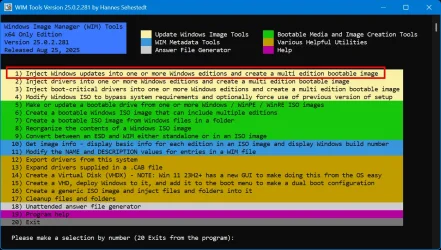
 . I have a batch fil that will automate the process for you. If interested, I can provide it. Note that it only updates one edition at a time. For example, if you have the Microsoft Consumer ISO, that has 11 editions of Windows including Home, Pro, etc. The batch file will have you select just one and it will update that one. Or, you could check out my GitHub project (WIM Tools, link in my signature). That is FAR more versatile. You can tell it what editions you want to update - just one, any editions you want like just Home and Pro (or any combination you want), or just upgrade all of them. You can even combine edition from different images and then have it compile them all into one. It can actually perform MANY other functions, but we'll save that discussion for another time.