Windows 11 crashes whenever it goes to "sleep"


Sephirote

Well-known member
Member
Local time
2:26 PM
Posts
70
OS
Windows 11
Hi all,

My Windows 11 crashes whenever I put it to sleep via the start/power button.
When I click on "sleep", Windows goes to sleep normally and monitor screen goes black. However after a little while when I move to mouse to wake windows it doesn't respond. It's completely off, I need the turn it back on by pressing the Power button on.
All the apps I left open are gone. When I launch Chrome, I'm greeted with the message "Chrome unexpectedly closed, do you want to restore your tabs?" which is really annoying and I also lost work in the past due to this.
Now in Windows power settings, I prevent Windows from ever going to sleep and I just leave it on all the time (I occasionally shutdown/restart the system for updates etc)

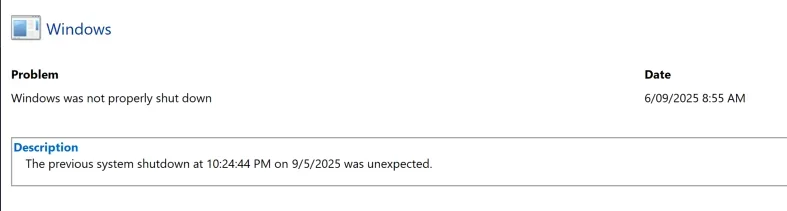
When I restart after a crash, the reliability monitor does register the unexpected shutdown as shown below but it doesn't give me any technical details as to what may have caused the crash.

kNtQHvzFsg.webp

It's an XPS15 running a fresh Windows 11 install (without all the DELL bloatware).
Besides this glitch Windows behave really normally, no other bugs or glitch, I also maintain my system fairly well and clean and it's not exhibiting any performance issues. Just that glitch when I put Windows to sleep.

I don't know where to start investigating as the reliability monitor doesn't give me any thing to work with.

Any thoughts?

Thanks

EDIT: Windows is up to date, latest BIOS firmware installed
 
Windows Build/Version
Windows 11 24H2

My Computer

System One

  • OS
    Windows 11
    Computer type
    Laptop
    CPU
    11th Gen Intel(R) Core(TM) i7-11800H
    Memory
    32GB
    Graphics Card(s)
    Nvidia Gefore RTX 3050 Ti
    Monitor(s) Displays
    OLED
Hi all,

My Windows 11 crashes whenever I put it to sleep via the start/power button.
When I click on "sleep", Windows goes to sleep normally and monitor screen goes black. However after a little while when I move to mouse to wake windows it doesn't respond. It's completely off, I need the turn it back on by pressing the Power button on.
All the apps I left open are gone. When I launch Chrome, I'm greeted with the message "Chrome unexpectedly closed, do you want to restore your tabs?" which is really annoying and I also lost work in the past due to this.
Now in Windows power settings, I prevent Windows from ever going to sleep and I just leave it on all the time (I occasionally shutdown/restart the system for updates etc)

When I restart after a crash, the reliability monitor does register the unexpected shutdown as shown below but it doesn't give me any technical details as to what may have caused the crash.


View attachment 144508

It's an XPS15 running a fresh Windows 11 install (without all the DELL bloatware).
Besides this glitch Windows behave really normally, no other bugs or glitch, I also maintain my system fairly well and clean and it's not exhibiting any performance issues. Just that glitch when I put Windows to sleep.

I don't know where to start investigating as the reliability monitor doesn't give me any thing to work with.

Any thoughts?

Thanks

EDIT: Windows is up to date, latest BIOS firmware installed
So I notice you have a Dell, when my new Alienware PC (uses Dell drivers) had this exact same problem and I contacted Dell tech support it turned out to be the generic updated graphics drivers I installed that would stop S0 modern standby from waking the computer from sleep and then causing a BSOD while trying to wake it. After restoring the factory graphics drivers and getting a big I told you so from Dell support I no longer had any issues. I'm only using the Dell factory graphics drivers now for stability and would suggest you give those a try especially if you updated your NVIDIA driver from NVIDIA.
 
Last edited:

My Computers

System One System Two

  • OS
    Windows 11 25H2
    Computer type
    Laptop
    Manufacturer/Model
    Alienware 18 Area-51
    CPU
    Intel Core Ultra 9 275HX (24-Core)
    Motherboard
    Alienware
    Memory
    64GB DDR5 6400MT/s
    Graphics Card(s)
    NVIDIA GeForce RTX 5080 and Intel UHD Graphics
    Sound Card
    Onboard, Realtek high-performance Audio chips (ALC3329 & ALC1708))
    Monitor(s) Displays
    300HZ 18-inch QHD 500 nit Comfort View+
    Screen Resolution
    2560 x 1600
    Hard Drives
    2TB NVMe M.2 PCIe Gen 5 SSD
    Case
    Magnesium Alloy
    Cooling
    Advanced Cryo-Tech Quad-Fan Cooling system & large vapor chamber
    Keyboard
    Cherry MX ultra low profile mechanical keyboard with per key AlienFX RGB lighting
    Mouse
    Logitech MX Master 4
    Browser
    Vivaldi (main), Firefox, Chrome, Edge
    Antivirus
    MS Defender and Malwarebytes Free
  • Operating System
    Windows 11 25H2
    Computer type
    Laptop
    Manufacturer/Model
    Microsoft Surface Laptop 7
    CPU
    Qualcomm Snapdragon X Elite (12 Core) ARM based CPU
    Motherboard
    Microsoft Corp.
    Memory
    16GB LPDDR5
    Graphics card(s)
    Qualcomm Adreno X1-85
    Sound Card
    Omnisonic speakers with Dolby Atmos spatial sound
    Monitor(s) Displays
    120 Hz 13.8-inch 600 nit PixelSense Flow touchscreen
    Screen Resolution
    2304x1536
    Hard Drives
    1TB NVMe Gen 4 SSD
    Case
    Anodized Aluminum
    Cooling
    Traditional active cooling fan system
    Keyboard
    Mechanical QWERTY, backlit when in use
    Mouse
    Logitech MX Master 4 and Surface Arc Mouse
    Browser
    Vivaldi (main), Firefox, Chrome, Edge
    Antivirus
    MS Defender and Malwarebytes Free
Please follow the directions here to gather the necessary logs so that @zbook can analyze the crashes. Gather all the necessary files, put them in a folder, zip the folder, and upload the zipped folder to any cloud provider. Post a SHARED link to the folder here.
BSOD POSTING INSTRUCTIONS
 

My Computers

System One System Two

  • OS
    Windows 11 Pro 25H2
    Computer type
    PC/Desktop
    Manufacturer/Model
    Dell Optiplex 7080
    CPU
    i9-10900 10 core 20 threads
    Motherboard
    DELL 0J37VM
    Memory
    32 gb
    Graphics Card(s)
    none-Intel UHD Graphics 630
    Sound Card
    Integrated Realtek
    Monitor(s) Displays
    Benq 27
    Screen Resolution
    2560x1440
    Hard Drives
    2x1tb Solidigm m.2 nvme /External drives 512gb Samsung m.2 sata+2tb Kingston m2.nvme
    PSU
    500w
    Case
    MT
    Cooling
    Dell Premium
    Keyboard
    Logitech wired
    Mouse
    Logitech wireless
    Internet Speed
    so slow I'm too embarrassed to tell
    Browser
    #1 Edge #2 Firefox
    Antivirus
    Defender+MWB Premium
  • Operating System
    Windows 11 Pro 24H2 26200.8457
    Computer type
    PC/Desktop
    Manufacturer/Model
    Beelink Mini PC SER5
    CPU
    AMD Ryzen 7 6800U
    Memory
    32 gb
    Graphics card(s)
    integrated
    Sound Card
    integrated
    Monitor(s) Displays
    Benq 27
    Screen Resolution
    2560x1440
    Hard Drives
    1TB Crucial nvme
    Keyboard
    Logitech wired
    Mouse
    Logitech wireless
    Internet Speed
    still too embarrassed to tell
    Browser
    Firefox
    Antivirus
    Defender
    Other Info
    System 3 is non compliant Dell 9020 i7-4770/24gb ram Win11 PRO 26200.8457
So I notice you have a Dell, when my new Alienware PC (uses Dell drivers) had this exact same problem and I contacted Dell tech support it turned out to be the generic updated graphics drivers I installed that would stop S0 modern standby from waking the computer from sleep and then causing a BSOD while trying to wake it. After restoring the factory graphics drivers and getting a big I told you so from Dell support I no longer had any issues. I'm only using the Dell factory graphics drivers now for stability and would suggest you give those a try especially if you updated your NVIDIA driver from NVIDIA.

Thanks for the input.
Did you get a BSOD screen when trying to wake your computer? In my case, I don't get any blue screen. When it goes to sleep screen turns off as expected and then next thing you know computer is turned off. No BSOD screen or anything. Also when I boot the PC following the crash, I don't get a Windows message saying Windows wasn't turned off properly. It boots up normally and all the apps I left when I put it to sleep are gone.

Please follow the directions here to gather the necessary logs so that @zbook can analyze the crashes. Gather all the necessary files, put them in a folder, zip the folder, and upload the zipped folder to any cloud provider. Post a SHARED link to the folder here.
BSOD POSTING INSTRUCTIONS

Thanks for this here's the file XPS_15-(2025-09-06_14-41-53).zip
 

My Computer

System One

  • OS
    Windows 11
    Computer type
    Laptop
    CPU
    11th Gen Intel(R) Core(TM) i7-11800H
    Memory
    32GB
    Graphics Card(s)
    Nvidia Gefore RTX 3050 Ti
    Monitor(s) Displays
    OLED
Fwiw neither my Windows 10 (desktop built by me off assorted matching :p parts) nor my Windows 11 (a pre-built miniPC but not from a "dominant" big brand) show Windows messages about a non clean shut down, if so. Both do slightly different things in the lock screen (more recognizable in 10 b/c it turns to what seems its "default landscape", in a beach with caves and some funny rocks). Both do the same different things if, instead of not having had a clean shutdown, they're rebooting for installing sw or for WU.

When it goes to sleep screen turns off as expected and then next thing you know computer is turned off.

Are you trying S1, S3 or hibernation? If the computer uses S0 modern standby, I don't have experience there, but I heard time ago it's difficult or impossible to take some computers out of that feature (that sometimes causes issues with scheduled tasks). Maybe you can in the BIOS/UEFI.
 

My Computer

System One

  • OS
    Windows 11
    Manufacturer/Model
    MeLE Quieter 2Q (fanless miniPC)
    CPU
    Celeron J4125 (10th gen)
    Memory
    8GB DDR4
    Monitor(s) Displays
    Samsung SyncMaster T260
    Screen Resolution
    1920x1200
    Hard Drives
    256GB eMMC (Windows)
    2TB USB3 HDD Toshiba (Data)
The laptop computer has been having GPU problems (BSODs, hangs, freezes) for many months (since 04/2025).

Bug Check 0x116: VIDEO_TDR_FAILURE​

Bug Check 0x141: VIDEO_ENGINE_TIMEOUT_DETECTED​

Bug Check 0x1A8: VIDEO_DXGKRNL_BLACK_SCREEN_LIVEDUMP​


1) Run Tuneup plus > post a share link


2) Create a new restore point:


3) Enable Regback:


4) Reinstall both the Nvidia and Intel GPU drivers from the Dell website.

If BSODs, hangs, freezes continue then consider servicing or using only the Intel integrated GPU (iGPU).


Code:
Name    NVIDIA GeForce RTX 3050 Ti Laptop GPU
PNP Device ID    PCI\VEN_10DE&DEV_25A0&SUBSYS_0B191028&REV_A1\4&B4F9675&0&0008
Adapter Type    NVIDIA GeForce RTX 3050 Ti Laptop GPU, NVIDIA compatible
Adapter Description    NVIDIA GeForce RTX 3050 Ti Laptop GPU
Adapter RAM    (1,048,576) bytes
Installed Drivers    C:\WINDOWS\System32\DriverStore\FileRepository\nvdm.inf_amd64_68c34e154aa75211\nvldumdx.dll,C:\WINDOWS\System32\DriverStore\FileRepository\nvdm.inf_amd64_68c34e154aa75211\nvldumdx.dll,C:\WINDOWS\System32\DriverStore\FileRepository\nvdm.inf_amd64_68c34e154aa75211\nvldumdx.dll,C:\WINDOWS\System32\DriverStore\FileRepository\nvdm.inf_amd64_68c34e154aa75211\nvldumdx.dll
Driver Version    32.0.15.7683
INF File    oem240.inf (Section347 section)
Driver    C:\WINDOWS\SYSTEM32\DRIVERSTORE\FILEREPOSITORY\NVDM.INF_AMD64_68C34E154AA75211\NVLDDMKM.SYS (32.0.15.7683, 106.50 MB (111,671,016 bytes), 2/09/2025 7:25 PM)
   
Name    Intel(R) Iris(R) Xe Graphics
PNP Device ID    PCI\VEN_8086&DEV_46A6&SUBSYS_0B191028&REV_0C\3&11583659&0&10
Adapter Type    Intel(R) Iris(R) Xe Graphics Family, Intel Corporation compatible
Adapter Description    Intel(R) Iris(R) Xe Graphics
Adapter RAM    2.00 GB (2,147,479,552 bytes)
Installed Drivers    C:\WINDOWS\System32\DriverStore\FileRepository\iigd_dch.inf_amd64_16ebc8ff2bb71c24\igdumdim64.dll,C:\WINDOWS\System32\DriverStore\FileRepository\iigd_dch.inf_amd64_16ebc8ff2bb71c24\igd10iumd64.dll,C:\WINDOWS\System32\DriverStore\FileRepository\iigd_dch.inf_amd64_16ebc8ff2bb71c24\igd10iumd64.dll,C:\WINDOWS\System32\DriverStore\FileRepository\iigd_dch.inf_amd64_16ebc8ff2bb71c24\igd12umd64.dll
Driver Version    32.0.101.6881
INF File    oem119.inf (iADLPD_w11_DS section)
Driver    C:\WINDOWS\SYSTEM32\DRIVERSTORE\FILEREPOSITORY\IIGD_DCH.INF_AMD64_16EBC8FF2BB71C24\IGDKMDN64.SYS (32.0.101.6881, 58.83 MB (61,685,160 bytes), 2/09/2025 6:26 PM)
 
Last edited:

My Computer

System One

  • OS
    Windows 10
    Computer type
    Laptop
    Manufacturer/Model
    HP
    CPU
    Intel(R) Core(TM) i7-4800MQ CPU @ 2.70GHz
    Motherboard
    Product : 190A Version : KBC Version 94.56
    Memory
    16 GB Total: Manufacturer : Samsung MemoryType : DDR3 FormFactor : SODIMM Capacity : 8GB Speed : 1600
    Graphics Card(s)
    NVIDIA Quadro K3100M; Intel(R) HD Graphics 4600
    Sound Card
    IDT High Definition Audio CODEC; PNP Device ID HDAUDIO\FUNC_01&VEN_111D&DEV_76E0
    Hard Drives
    Model Hitachi HTS727575A9E364
    Antivirus
    Microsoft Defender
    Other Info
    Mobile Workstation
Thanks for the input.
Did you get a BSOD screen when trying to wake your computer? In my case, I don't get any blue screen. When it goes to sleep screen turns off as expected and then next thing you know computer is turned off. No BSOD screen or anything. Also when I boot the PC following the crash, I don't get a Windows message saying Windows wasn't turned off properly. It boots up normally and all the apps I left when I put it to sleep are gone.


Thanks for this here's the file XPS_15-(2025-09-06_14-41-53).zip
Yes mine would BSOD when trying to wake it but the screen wouldn't wake so I actually couldn't see the BSOD. It would just crash and reboot. The reason I know it was a BSOD is after I rebooted I would check BSOD software like WhoCrashed and BlueScreenView which showed the crashes. My sleep mode was S0 modern Standby as I mentioned and the graphics driver was crashing it on wake. Once I went back to the Dell NVIDIA and Intel graphics drivers the issue was solved and the machine wakes instantly now with no issue what so ever. That's why I'm curious if you updated your driver's from other than Dell? Oh I'm running the NVIDIA GeForce RTX 5080.
 

My Computers

System One System Two

  • OS
    Windows 11 25H2
    Computer type
    Laptop
    Manufacturer/Model
    Alienware 18 Area-51
    CPU
    Intel Core Ultra 9 275HX (24-Core)
    Motherboard
    Alienware
    Memory
    64GB DDR5 6400MT/s
    Graphics Card(s)
    NVIDIA GeForce RTX 5080 and Intel UHD Graphics
    Sound Card
    Onboard, Realtek high-performance Audio chips (ALC3329 & ALC1708))
    Monitor(s) Displays
    300HZ 18-inch QHD 500 nit Comfort View+
    Screen Resolution
    2560 x 1600
    Hard Drives
    2TB NVMe M.2 PCIe Gen 5 SSD
    Case
    Magnesium Alloy
    Cooling
    Advanced Cryo-Tech Quad-Fan Cooling system & large vapor chamber
    Keyboard
    Cherry MX ultra low profile mechanical keyboard with per key AlienFX RGB lighting
    Mouse
    Logitech MX Master 4
    Browser
    Vivaldi (main), Firefox, Chrome, Edge
    Antivirus
    MS Defender and Malwarebytes Free
  • Operating System
    Windows 11 25H2
    Computer type
    Laptop
    Manufacturer/Model
    Microsoft Surface Laptop 7
    CPU
    Qualcomm Snapdragon X Elite (12 Core) ARM based CPU
    Motherboard
    Microsoft Corp.
    Memory
    16GB LPDDR5
    Graphics card(s)
    Qualcomm Adreno X1-85
    Sound Card
    Omnisonic speakers with Dolby Atmos spatial sound
    Monitor(s) Displays
    120 Hz 13.8-inch 600 nit PixelSense Flow touchscreen
    Screen Resolution
    2304x1536
    Hard Drives
    1TB NVMe Gen 4 SSD
    Case
    Anodized Aluminum
    Cooling
    Traditional active cooling fan system
    Keyboard
    Mechanical QWERTY, backlit when in use
    Mouse
    Logitech MX Master 4 and Surface Arc Mouse
    Browser
    Vivaldi (main), Firefox, Chrome, Edge
    Antivirus
    MS Defender and Malwarebytes Free
Yes mine would BSOD when trying to wake it but the screen wouldn't wake so I actually couldn't see the BSOD. It would just crash and reboot. The reason I know it was a BSOD is after I rebooted I would check BSOD software like WhoCrashed and BlueScreenView which showed the crashes. My sleep mode was S0 modern Standby as I mentioned and the graphics driver was crashing it on wake. Once I went back to the Dell NVIDIA and Intel graphics drivers the issue was solved and the machine wakes instantly now with no issue what so ever. That's why I'm curious if you updated your driver's from other than Dell? Oh I'm running the NVIDIA GeForce RTX 5080.
Really interesting.
Maybe I'm also getting BSODs but I'm not seeing them just like you? Wasn't familiar with software like WhoCrashed and BlueScreenView, I could have used them to check BSOD.
In my mind, my assumption was that I wasn't getting BSOD because upon reboot, Windows wasn't showing any message that it didn't turn off correctly. But maybe I was getting BSOD all along and never knew

So in terms of drivers, I initially installed all drivers via Dell SupportAssist. Eventually I decided to get rid of SupportAssist because it would crash randomly in the background, I found out in the reliability monitor. But now, come to think of it, I seem to remember downloading NVIDIA drivers from the NVIDIA website so I may have deleted the DELL NVIDIA graphic drivers and updated them with NVIDIA drivers at one point.

@zbook just above looked at my logs and picked up GPU problems, so we might be onto something here.

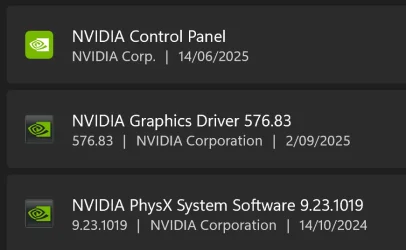
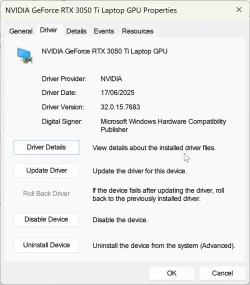
Is there a way to tell whether I have the DELL Nvidia drivers or NVIDIA drivers installed? Can you post a pic of how your DELL Nvidia drivers show in your system?

aYvF31XReY.webp jOiBoOLof3.webp


Also, I assumed (probably wrongly) that GPU drivers were exactly the same whether downloaded from NVIDIA directly or through DELL. I thought that DELL was just hosting the NVIDIA drivers untouched/unmodified on their website to make it easier for their customers to download all the drivers from one place. Does that mean DELL gets the driver from NVIDIA and tweak them to run on DELL computers?

Ok, I'm going to uninstall my NVIDIA drivers using DDU for a clean uninstall and reinstall GPU drivers straight from DELL website.

I will report back
 

My Computer

System One

  • OS
    Windows 11
    Computer type
    Laptop
    CPU
    11th Gen Intel(R) Core(TM) i7-11800H
    Memory
    32GB
    Graphics Card(s)
    Nvidia Gefore RTX 3050 Ti
    Monitor(s) Displays
    OLED
Really interesting.
Maybe I'm also getting BSODs but I'm not seeing them just like you? Wasn't familiar with software like WhoCrashed and BlueScreenView, I could have used them to check BSOD.
In my mind, my assumption was that I wasn't getting BSOD because upon reboot, Windows wasn't showing any message that it didn't turn off correctly. But maybe I was getting BSOD all along and never knew

So in terms of drivers, I initially installed all drivers via Dell SupportAssist. Eventually I decided to get rid of SupportAssist because it would crash randomly in the background, I found out in the reliability monitor. But now, come to think of it, I seem to remember downloading NVIDIA drivers from the NVIDIA website so I may have deleted the DELL NVIDIA graphic drivers and updated them with NVIDIA drivers at one point.

@zbook just above looked at my logs and picked up GPU problems, so we might be onto something here.

Is there a way to tell whether I have the DELL Nvidia drivers or NVIDIA drivers installed? Can you post a pic of how your DELL Nvidia drivers show in your system?

View attachment 144598 View attachment 144599


Also, I assumed (probably wrongly) that GPU drivers were exactly the same whether downloaded from NVIDIA directly or through DELL. I thought that DELL was just hosting the NVIDIA drivers untouched/unmodified on their website to make it easier for their customers to download all the drivers from one place. Does that mean DELL gets the driver from NVIDIA and tweak them to run on DELL computers?

Ok, I'm going to uninstall my NVIDIA drivers using DDU for a clean uninstall and reinstall GPU drivers straight from DELL website.

I will report back
You can't tell whose driver you have by the Device manager as that will just tell you the version number of the driver. Keep in mind you don't have to use the Dell Support assistant to install your drivers, just go to the Dell Support site and manually download and install the graphics drivers for your PC at Support Home | Dell US

You will need your computer name/model and the service tag number would be even more helpful. The website can also read your machine model if you have a Dell account and are signed in. In any event, I would try downloading and installing the NVIDIA and intel graphics drivers on the Dell website for your "specific" model machine and see if that cures the sleep issue. If it doesn't you can always go back to the later number generic drivers.

Keep in mind laptop drivers can be finicky and the Dell manufacturer drivers are tweaked and tested thoroughly for your specific hardware that's installed on your machine. Your issue is just so similar to the one I had on a new machine after I updated those graphics drivers I think it's worth trying your latest Dell factory drivers for your machine. Hopefully that solves the sleep issue. Oh, an FYI, you can get those two BSOD apps for free on their websites for the future.
 

My Computers

System One System Two

  • OS
    Windows 11 25H2
    Computer type
    Laptop
    Manufacturer/Model
    Alienware 18 Area-51
    CPU
    Intel Core Ultra 9 275HX (24-Core)
    Motherboard
    Alienware
    Memory
    64GB DDR5 6400MT/s
    Graphics Card(s)
    NVIDIA GeForce RTX 5080 and Intel UHD Graphics
    Sound Card
    Onboard, Realtek high-performance Audio chips (ALC3329 & ALC1708))
    Monitor(s) Displays
    300HZ 18-inch QHD 500 nit Comfort View+
    Screen Resolution
    2560 x 1600
    Hard Drives
    2TB NVMe M.2 PCIe Gen 5 SSD
    Case
    Magnesium Alloy
    Cooling
    Advanced Cryo-Tech Quad-Fan Cooling system & large vapor chamber
    Keyboard
    Cherry MX ultra low profile mechanical keyboard with per key AlienFX RGB lighting
    Mouse
    Logitech MX Master 4
    Browser
    Vivaldi (main), Firefox, Chrome, Edge
    Antivirus
    MS Defender and Malwarebytes Free
  • Operating System
    Windows 11 25H2
    Computer type
    Laptop
    Manufacturer/Model
    Microsoft Surface Laptop 7
    CPU
    Qualcomm Snapdragon X Elite (12 Core) ARM based CPU
    Motherboard
    Microsoft Corp.
    Memory
    16GB LPDDR5
    Graphics card(s)
    Qualcomm Adreno X1-85
    Sound Card
    Omnisonic speakers with Dolby Atmos spatial sound
    Monitor(s) Displays
    120 Hz 13.8-inch 600 nit PixelSense Flow touchscreen
    Screen Resolution
    2304x1536
    Hard Drives
    1TB NVMe Gen 4 SSD
    Case
    Anodized Aluminum
    Cooling
    Traditional active cooling fan system
    Keyboard
    Mechanical QWERTY, backlit when in use
    Mouse
    Logitech MX Master 4 and Surface Arc Mouse
    Browser
    Vivaldi (main), Firefox, Chrome, Edge
    Antivirus
    MS Defender and Malwarebytes Free
without all the DELL bloatware

Not everything needs to be removed.
Perhaps some OEM drivers are needed, for example for ACPI (and services).
 

My Computer

System One

  • OS
    Microsoft Windows 11 Home
    Computer type
    PC/Desktop
    Manufacturer/Model
    MSI MS-7D98
    CPU
    Intel Core i5-13490F
    Motherboard
    MSI B760 GAMING PLUS WIFI
    Memory
    2 x 16 Patriot Memory (PDP Systems) PSD516G560081 6400MT (32-37-37-74); 1.35V)
    Graphics Card(s)
    GIGABYTE GeForce RTX 4070 WINDFORCE OC 12G (GV-N4070WF3OC-12GD)
    Sound Card
    Bluetooth Аудио
    Monitor(s) Displays
    INNOCN 15K1F
    Screen Resolution
    1920 x 1080
    Hard Drives
    WD_BLACK SN770 250GB
    KINGSTON SNV2S1000G (ELFK0S.6)
    PSU
    Thermaltake Toughpower GF3 1000W
    Case
    CG560 - DeepCool
    Cooling
    ID-COOLING SE-224-XTS / 2 x 140Mm Fan - rear and top; 3 x 120Mm - front
    Keyboard
    Corsair K70 RGB TKL
    Mouse
    Corsair KATAR PRO XT
    Internet Speed
    100 Mbps
    Browser
    Firefox
    Antivirus
    Microsoft Defender Antivirus
    Other Info
    https://www.userbenchmark.com/UserRun/66553205
When available update the progress with post #6 steps #1 - #3.
 

My Computer

System One

  • OS
    Windows 10
    Computer type
    Laptop
    Manufacturer/Model
    HP
    CPU
    Intel(R) Core(TM) i7-4800MQ CPU @ 2.70GHz
    Motherboard
    Product : 190A Version : KBC Version 94.56
    Memory
    16 GB Total: Manufacturer : Samsung MemoryType : DDR3 FormFactor : SODIMM Capacity : 8GB Speed : 1600
    Graphics Card(s)
    NVIDIA Quadro K3100M; Intel(R) HD Graphics 4600
    Sound Card
    IDT High Definition Audio CODEC; PNP Device ID HDAUDIO\FUNC_01&VEN_111D&DEV_76E0
    Hard Drives
    Model Hitachi HTS727575A9E364
    Antivirus
    Microsoft Defender
    Other Info
    Mobile Workstation
When available update the progress with post #6 steps #1 - #3.
@zbook thanks for taking the time to look into the logs earlier, much appreciated.

Here's the Tuneup.log file
Tuneup.log

Can you help me understand what it did, more precisely the section copied below.
What does AutoReboot refers to?
If I understand correctly, the batch changed the AutoReboot from TRUE to FALSE, what does that mean/do realistically?
Same for DebugInfoType, it was changed from 3 to 7? What does that mean?

Started on Sun 07/09/2025 at 17:44:52.13

AutoReboot

TRUE

==================================================================

[Set AutoReboot = False]

Updating property(s) of '\\XPS_15\ROOT\CIMV2:Win32_OSRecoveryConfiguration.Name="Microsoft Windows 11 Home|C:\\WINDOWS|\\Device\\Harddisk0\\Partition3"'
Property(s) update successful.
==================================================================

AutoReboot

FALSE

==================================================================

DebugInfoType

3

==================================================================

[Set DebugInfoType = 7]

Updating property(s) of '\\XPS_15\ROOT\CIMV2:Win32_OSRecoveryConfiguration.Name="Microsoft Windows 11 Home|C:\\WINDOWS|\\Device\\Harddisk0\\Partition3"'
Property(s) update successful.
==================================================================

DebugInfoType

7

==================================================================

[WMIC PageFile list]

AllocatedBaseSize=14336
CurrentUsage=214
Description=C:\pagefile.sys
InstallDate=20250403143753.947468+660
Name=C:\pagefile.sys
PeakUsage=216
Status=
TempPageFile=FALSE

==================================================================

AutomaticManagedPagefile

TRUE

==================================================================

[Set AutomaticManagedPagefile = True]

Updating property(s) of '\\XPS_15\ROOT\CIMV2:Win32_ComputerSystem.Name="XPS_15"'
Property(s) update successful.
==================================================================

AutomaticManagedPagefile

TRUE

==================================================================
 

My Computer

System One

  • OS
    Windows 11
    Computer type
    Laptop
    CPU
    11th Gen Intel(R) Core(TM) i7-11800H
    Memory
    32GB
    Graphics Card(s)
    Nvidia Gefore RTX 3050 Ti
    Monitor(s) Displays
    OLED
@zbook Can you help me understand what it did, more precisely the section copied below.
What does AutoReboot refers to?
If I understand correctly, the batch changed the AutoReboot from TRUE to FALSE, what does that mean/do realistically?
Same for DebugInfoType, it was changed from 3 to 7? What does that mean?


BSOD recognition:

Autoreboot on > more likely to miss BSODs

Autoreboot off > less likely to miss BSODs


DebugInfoType:

3 > no memory dump

7 > allows memory dump


My Computer

System One

  • OS
    Windows 10
    Computer type
    Laptop
    Manufacturer/Model
    HP
    CPU
    Intel(R) Core(TM) i7-4800MQ CPU @ 2.70GHz
    Motherboard
    Product : 190A Version : KBC Version 94.56
    Memory
    16 GB Total: Manufacturer : Samsung MemoryType : DDR3 FormFactor : SODIMM Capacity : 8GB Speed : 1600
    Graphics Card(s)
    NVIDIA Quadro K3100M; Intel(R) HD Graphics 4600
    Sound Card
    IDT High Definition Audio CODEC; PNP Device ID HDAUDIO\FUNC_01&VEN_111D&DEV_76E0
    Hard Drives
    Model Hitachi HTS727575A9E364
    Antivirus
    Microsoft Defender
    Other Info
    Mobile Workstation
Thanks for the reading material , this clear things up (y)
Great batch, automating all the sfc/, DISM/ and chdisk commands. I normally run them manually each time my PC crashed in sleep mode so that's pretty handy.

Ok, progress update:
- Booted into safe mode and ran DDU
- Uninstalled NVIDIA and Intel drivers
- Rebooted into normal mode without internet connection to prevent Window installing drivers automatically
- Installed NVIDIA & Intel drivers downloaded from Dell website for my computer

Things to note, before doing all the above, I launched Intel Graphic software and I was greeted with this message. First time I launched the Intel Graphic software and I'm unsure how the Intel Arc Control and Intel Graphics Command Center was installed in the first place. I'm positive I never downloaded any Intel graphic drivers/software directly from Intel, those would have been installed by Dell SupportAssist software when I first set up the computer. Anyway after running DDU to uninstall Intel drivers, after rebooting I made sure that the legacy Intel command center was removed by DDU and it was.

Nv2NgBvtJg.webp

Maybe the legacy Intel command center was causing glitch.

I will put to sleep my computer every night from now on and monitor if the issue reoccurs or not. The glitch was intermittent so I can't really say if it has been fixed as of now. I'll wait 1 week and give an update.
 

My Computer

System One

  • OS
    Windows 11
    Computer type
    Laptop
    CPU
    11th Gen Intel(R) Core(TM) i7-11800H
    Memory
    32GB
    Graphics Card(s)
    Nvidia Gefore RTX 3050 Ti
    Monitor(s) Displays
    OLED
For any BSOD post a new V2 share link into the newest post.


See if you can find the location with menu options to turn on / off the different GPUs (Nvidia control panel, BIOS, etc.)


Run FurMark - GPU Stress Test Windows 10 Performance Maintenance Tutorials

FurMark - GPU Stress Test Windows 10 Performance Maintenance Tutorials:


Please make note of the importance of temperature monitoring and aborting the test in the GPU link.
a) Record the maximum temperature and post the maximum temperature into the thread
b) Record the test duration and post the uninterrupted test duration into the thread
c) Aim for testing 1 hour.
d) Post images into the thread.
 

My Computer

System One

  • OS
    Windows 10
    Computer type
    Laptop
    Manufacturer/Model
    HP
    CPU
    Intel(R) Core(TM) i7-4800MQ CPU @ 2.70GHz
    Motherboard
    Product : 190A Version : KBC Version 94.56
    Memory
    16 GB Total: Manufacturer : Samsung MemoryType : DDR3 FormFactor : SODIMM Capacity : 8GB Speed : 1600
    Graphics Card(s)
    NVIDIA Quadro K3100M; Intel(R) HD Graphics 4600
    Sound Card
    IDT High Definition Audio CODEC; PNP Device ID HDAUDIO\FUNC_01&VEN_111D&DEV_76E0
    Hard Drives
    Model Hitachi HTS727575A9E364
    Antivirus
    Microsoft Defender
    Other Info
    Mobile Workstation
@zbook

Night 1: put to sleep and woke computer without issue in the morning
Night 2: put to sleep and woke computer without issue in the morning
Night 3: put to sleep but in the morning couldn't wake computer from sleep. Also this time computer wasn't off, just frozen as the keyboard was still warm which indicated system was still on but unresponsive. Screens were black, pressing a key on keyboard or moving mouse didn't wake computer and pressing power button didn't boot the system.
Had to Long press power button (10s) to force shutting down system
I'm thinking this has to do with the fact we changed AutoReboot to FALSE via the tuneup script.
In any case, couldn't see any BSOD screen, monitors were black and computer unresponsive

- After booting the computer I ran a V2 log, see log here XPS_15-(2025-09-11_11-41-50).zip
- Then ran Tuneup_Plus Tuneup.log
- Ran FurMark for 1h in 1080p resolution with Burn-in, Xtreme burn-in and Post-FX
a) Maximum temp 89 degrees then stabilised at 88 degrees during the entire test.
b) Test duration 1h
Results: No artifact, no instability. OS remained responsive during the test, was still able to open the start menu and launch programs
I exited the test by pressing ESC and there wasn't a summary/result to share in the thread.

Let me know what the 2nd V2 log says

Thanks
 

My Computer

System One

  • OS
    Windows 11
    Computer type
    Laptop
    CPU
    11th Gen Intel(R) Core(TM) i7-11800H
    Memory
    32GB
    Graphics Card(s)
    Nvidia Gefore RTX 3050 Ti
    Monitor(s) Displays
    OLED
@zbook

Night 1: put to sleep and woke computer without issue in the morning
Night 2: put to sleep and woke computer without issue in the morning
Night 3: put to sleep but in the morning couldn't wake computer from sleep. Also this time computer wasn't off, just frozen as the keyboard was still warm which indicated system was still on but unresponsive. Screens were black, pressing a key on keyboard or moving mouse didn't wake computer and pressing power button didn't boot the system.
Had to Long press power button (10s) to force shutting down system
I'm thinking this has to do with the fact we changed AutoReboot to FALSE via the tuneup script.
In any case, couldn't see any BSOD screen, monitors were black and computer unresponsive

- After booting the computer I ran a V2 log, see log here XPS_15-(2025-09-11_11-41-50).zip
- Then ran Tuneup_Plus Tuneup.log
- Ran FurMark for 1h in 1080p resolution with Burn-in, Xtreme burn-in and Post-FX
a) Maximum temp 89 degrees then stabilised at 88 degrees during the entire test.
b) Test duration 1h
Results: No artifact, no instability. OS remained responsive during the test, was still able to open the start menu and launch programs
I exited the test by pressing ESC and there wasn't a summary/result to share in the thread.

Let me know what the 2nd V2 log says

Thanks

Following up

I downloaded BlueScreenView and WhoCrashed and looked into the dmp file generated by V2 log this morning and I realised that there was no new dump file generated after this morning's crash. V2 log extracted the same dump file dated from April 2024 located at C:\WINDOWS\MiniDump
Does anyone know why no new dump files were generated since April 2024? This morning my system crashed and hard rebooted and there doesn't seem to be a new dmp file to analyse.

Looking at the dump file I can see what was reported by @zbook above

1757590250901.webp

Minidump: VIDEO_TDR_ERROR
- TDR stands for Timeout Detection and Recovery.
- Windows detected that the GPU stopped responding and tried to reset it.
- The reset failed, triggering a BSOD.
- Often linked to nvlddmkm.sys (NVIDIA driver) or watchdog.sys.
Kernel Dump: VIDEO_ENGINE_TIMEOUT_DETECTED
- A more granular error pointing to the DirectX graphics kernel (dxgkrnl.sys) as the culprit.
- Indicates the GPU video engine (e.g. rendering pipeline, hardware acceleration) timed out.
- Suggests deeper instability in how the driver interacts with DirectX or the hardware.

So my read is that when I try to wake the computer, the GPU doesn't respond fast enough and computer crashes. No idea why, maybe a conflict due to having 2 GPUs?
I read online that time outs could also be caused by multi-monitor setups. I'm running 2 extra monitors so that may be the case. Here's a new development that may align with the above suspicion.

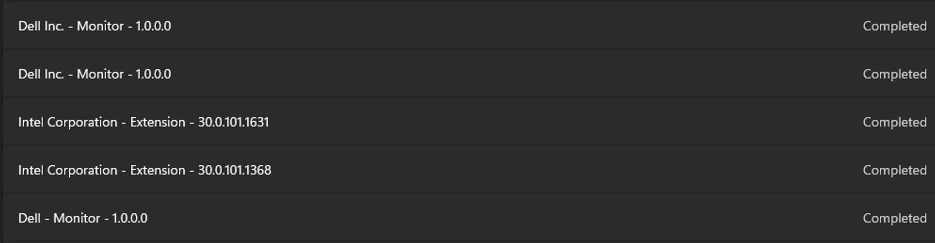
When I turned back on Windows update (which I had paused before using DDU to reinstall GPU drivers), it pushed a bunch of updates for my DELL monitors (Monitors were uninstalled by DDU)

1757591229842.webp

When Windows was installing the DELL monitor update all the screens went dark and changed resolutions back and forth for a couple of times (just like when you install GPU drovers and the screen goes blinking and resolution and scaling goes all weird for a few seconds)

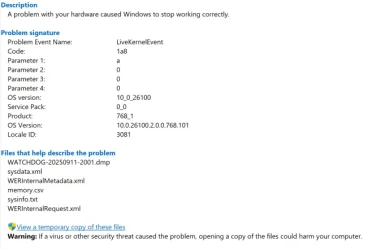
When my screens went back to normal, reliability monitor reported hardware problem

1757591374306.webp

Here's the share file of the above dump WERCE8A.tmp.rar

As shown above the system that caused the problem was watchdog.sys

Now if we go back to the original V2 log dump (from C:\WINDOWS\MiniDump), the culprit was nvlddmkm.sys and based on a quick online research, nvlddmkm.sys is often linked to watchdog.sys.

So now I'm also wondering if there isn't some sort of incompatibility bug between my computer and these monitors.

Because we have ruled out GPU drivers, I've done a clean install of both GPU drivers from Dell website for my computer.
I have stress tested the NVIDIA GPU and there is no instability or performance issue.
I'm starting to think this could be a hardware incompatibility. I'm going to disconnect my monitors before putting my system to sleep for the next couple of days and we will see.

Other potential fixes we haven't explored
- Run DirectX End User runtime web installer to replace any corrupted component? We ran a DISM repair command but I don't know if the DISM repair command covers DirectX components?
- Ram issue
- I also came across a suggestion that it could be caused by a background app using GPU acceleration. Come to think of it, first 2 nights where I didn't have any issue, I didn't leave open a software that I believe does use GPU acceleration. On the 3rd night when I couldn't wake my PC, that night I left this software on.

I've got some trial and error to do

Will update when I have new findings to share
 

My Computer

System One

  • OS
    Windows 11
    Computer type
    Laptop
    CPU
    11th Gen Intel(R) Core(TM) i7-11800H
    Memory
    32GB
    Graphics Card(s)
    Nvidia Gefore RTX 3050 Ti
    Monitor(s) Displays
    OLED
1) Read this link on Windows Driver Verifier (WDV):

Enable and Disable Driver Verifier in Windows 10


2) Create a new restore point


3) Learn the methods to recover from BSOD caused by WDV by booting into safe mode and running one or more of these commands:

verifier /reset

verifier /bootmode resetonbootfail


(option nine and seven)


4) Plan to run the tool with various customized test settings.

a) Test all non-Microsoft drivers

b) Test no Microsoft drivers

c) For the first run of WDV select the 3 customized tests displayed in the TF tutorial


5) Whenever the WDV tool is started if there is no immediate BSOD then open administrative command prompt and copy and paste:

verifier /querysettings

Post a share link.


Customized tests will then be posted for the next run of WDV.


WDV can run continuously during the testing.


For any BSOD post a new V2 share link into the newest post.
 

My Computer

System One

  • OS
    Windows 10
    Computer type
    Laptop
    Manufacturer/Model
    HP
    CPU
    Intel(R) Core(TM) i7-4800MQ CPU @ 2.70GHz
    Motherboard
    Product : 190A Version : KBC Version 94.56
    Memory
    16 GB Total: Manufacturer : Samsung MemoryType : DDR3 FormFactor : SODIMM Capacity : 8GB Speed : 1600
    Graphics Card(s)
    NVIDIA Quadro K3100M; Intel(R) HD Graphics 4600
    Sound Card
    IDT High Definition Audio CODEC; PNP Device ID HDAUDIO\FUNC_01&VEN_111D&DEV_76E0
    Hard Drives
    Model Hitachi HTS727575A9E364
    Antivirus
    Microsoft Defender
    Other Info
    Mobile Workstation
remove disable browser extensions too. if using a/c power adapter, make sure the power plug is not broken.
 

My Computer

System One

  • OS
    Win11
    Computer type
    PC/Desktop
    Manufacturer/Model
    Asus Home built
    CPU
    i9-13900
    Motherboard
    ASUS Strix Z790-H
    Memory
    64 GB
    Graphics Card(s)
    Nvidia RTX 5070 TI OC
    Monitor(s) Displays
    Sony 55"
    Hard Drives
    SSD
    PSU
    850 watt EVGA
    Case
    Cooler Master Haf 932
    Cooling
    CoolerMaster
    Keyboard
    RedDragon
    Mouse
    CoolerMaster
    Internet Speed
    300/300
    Antivirus
    Defender
    Other Info
    VR, Virtual Reality
@zbook problem solved!

In my previous post, I flagged GPU acceleration as a possible culprit. It turns out it was TradingView desktop which has GPU acceleration enabled by default.
I disabled it in the settings and went a solid 2–3 weeks without a single crash. To confirm, I re-enabled GPU acceleration and put my laptop to sleep overnight. The next morning sure enough it failed to wake and crashed.
So I’m now 100% certain: GPU acceleration in TradingView Desktop was causing the crashes. With it turned off, my system sleeps and wakes reliably.
Appreciate all the input/help, but I'm glad my bet on GPU acceleration being the issue paid off. It's strange that this didn't show up in the logs
 

My Computer

System One

  • OS
    Windows 11
    Computer type
    Laptop
    CPU
    11th Gen Intel(R) Core(TM) i7-11800H
    Memory
    32GB
    Graphics Card(s)
    Nvidia Gefore RTX 3050 Ti
    Monitor(s) Displays
    OLED

Latest Support Threads

Back
Top Bottom