
Solved Windows 11 Explorer - Quick access, Favorites, & Recent headings have disappeared.


CCLandfall35

New member
Local time
11:26 AM
Posts
3
OS
Windows 11
In the navigation pane with Home selected, the headings for Quick access, Favorites, & Recent shown in the circled areas have disappeared. The individual files are lumped into one long list. There is no separation between types. How do I get these headings back? I have tried using the GUI to resolve the problem to no avail. I believe it may require changes to the registry.
 
Windows Build/Version
Windows 11 Home, Version 22H2, OS build 22621.3155

Attachments
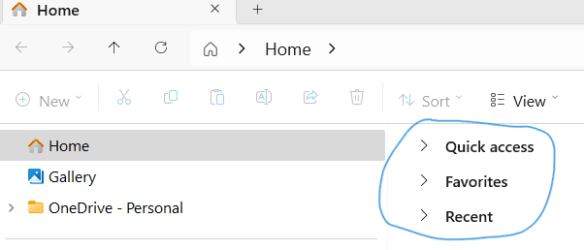
  • File Explorer Home Folders Circled.png
    File Explorer Home Folders Circled.png
    6.7 KB · Views: 10

My Computer My Computer

At a glance

Windows 11Intel(R) Core(TM) i5-10400 CPU @ 2.90GHz 2.90...Installed RAM 8.00 GB (7.83 GB usable)
OS
Windows 11
Computer type
PC/Desktop
Manufacturer/Model
HP/Pavilion Desktop TP01-1050
CPU
Intel(R) Core(TM) i5-10400 CPU @ 2.90GHz 2.90 GHz
Memory
Installed RAM 8.00 GB (7.83 GB usable)
Other Info
64-bit operating system, x64-based processor

My Computers My Computers

  • At a glance

    Windows 11 Pro
    OS
    Windows 11 Pro
    Computer type
    PC/Desktop
    Manufacturer/Model
    ASUS ROG Strix
  • At a glance

    Windows 11 Pro
    Operating System
    Windows 11 Pro
    Computer type
    Laptop
    Manufacturer/Model
    ASUS VivoBook
  • ASUS VivoBook 'Lite' ~ Windows 11 Home
Some things to try...

Reset folder views:

1708444678301.png


Clear recent items:

1708444754856.png


Clear AutomaticDestinations and CustomDestinations:

Code:
del /F /Q %APPDATA%\Microsoft\Windows\Recent\AutomaticDestinations\*
del /F /Q %APPDATA%\Microsoft\Windows\Recent\CustomDestinations\*


Clear the registry keys that hold the saved folder views:

You can do that manually and restart Explorer, but it's easier to just run WinSetView. It does that every time you click Submit.


Windows Repair Install. It will keep your data, applications, and most settings:
 

My Computer My Computer

At a glance

Windows 10/11
OS
Windows 10/11
Computer type
Laptop
Manufacturer/Model
Acer
OP marked it solved. All good, or what?
 

My Computers My Computers

  • At a glance

    Windows 11 Pro
    OS
    Windows 11 Pro
    Computer type
    PC/Desktop
    Manufacturer/Model
    ASUS ROG Strix
  • At a glance

    Windows 11 Pro
    Operating System
    Windows 11 Pro
    Computer type
    Laptop
    Manufacturer/Model
    ASUS VivoBook
  • ASUS VivoBook 'Lite' ~ Windows 11 Home
I reset the folders as LesFerch suggested and it worked. Thanks so much for the simple answer. It was about the only thing that I didn't try with the GUI.
 

My Computer My Computer

At a glance

Windows 11Intel(R) Core(TM) i5-10400 CPU @ 2.90GHz 2.90...Installed RAM 8.00 GB (7.83 GB usable)
OS
Windows 11
Computer type
PC/Desktop
Manufacturer/Model
HP/Pavilion Desktop TP01-1050
CPU
Intel(R) Core(TM) i5-10400 CPU @ 2.90GHz 2.90 GHz
Memory
Installed RAM 8.00 GB (7.83 GB usable)
Other Info
64-bit operating system, x64-based processor
This is an old thread but this issue came up for me recently on my Dell XPS. On the Home folder of Explorer the Quick Access & Favourites headings were suddenly missing, & while the pinned items added to Quick Access were present, they were were stuck in content view in a list, & the option to group by & sort by was completely missing on right clicking. Changing the view to tiles in the view option didn't change it from the content view. It was strange as the settings for Explorer were identical to the 9 other laptops here, all of which were functioning normally & displaying the Home view correctly.

I had already tried resetting the folder in the View tab in Options, and this did not work, neither did DSIM or SFCs. I then did a repair install via Windows Update, which in the past has fixed all things that rebooting & running DSIM commands didn't, however on opening explorer I was dismayed to see the same issue.

Some further scouring of help forums brought me to this thread, which hadn't appeared in previous searches. While resetting the folders as per LesFerch reply above (step 1) hadn't worked for me previously, it DID work after running a repair installation. So this is for anyone else who has developed this issue - try Reset Folder Views as per LesFerch's reply, even if you've tried it already, then resorted to a repair & it failed to fix it. I did not need to do any of the other steps in his reply.

There appears to be several threads around various tech forums about this exact issue, the bulk of which started between Nov 2023 & Feb 2024, however there were a few in the last 5 days as well, which is when I think it began for me.
 

My Computer My Computer

At a glance

Windows 11 Proi7-8850H16GBIntel UHD 530 + Quadro P600
OS
Windows 11 Pro
Computer type
Laptop
Manufacturer/Model
HP Zbook 15v
CPU
i7-8850H
Memory
16GB
Graphics Card(s)
Intel UHD 530 + Quadro P600
Monitor(s) Displays
When used as a desktop - Dell P2415Q (4K)
Screen Resolution
4K
Hard Drives
1 x SSD
Keyboard
Logitech MX Keys
Mouse
Logitech MX Anywhere 3
Internet Speed
4G Wireless Broadband. Speeds vary from 260/50 to 70/20 (Mb) depending on day/time.
Browser
Edge, Chrome. Firefox
Antivirus
Windows Defender. MBAM Pro
Other Info
No battery - spicy pillow removed. Laptop is permanently plugged in.

Latest Support Threads

Back
Top Bottom




