Windows 11 Failed after NVMe and nVidia 5090 install


veldthui

Well-known member
Local time
1:34 AM
Posts
21
OS
Windows 11
I built a new PC and installed Windows with just 1 NVMe drive and using the onboard Gfx of the Intel 285K chip. It detected internet during install on only one port (The Realtek port) and installed fine. I did this because because I have had issues with installing Windows when there is more than one drive to select from.
Next day I installed the second NVMe drive and the nVidia 5090 card. Fired the machine up and got a display from the card but them Windows stopped with the loading circle frozen and would not go further. I reset and Windows loaded to checking the drives which it completed and then went onto the recovery screen. Decided to recover it to the initial restore and then each time it booted it came up with a Blue Screen with the details of it DIED.

In the end I rebooted with the Windows install USB, wiped out the drive partitions and started from fresh. This time it would not detect the Internet although it was connected. I made it use a local login and finished installing. Installed the drivers from the Asus MB USB and Internet discovered. Switched back to my MS account and it has been running fine since.

Not sure why just installing a NVMe drive and video card would cause Windows so much issue. Any thoughts would be appreciated.
The Windows 11 install USB was freshly loaded from the MS web site and put on the USB stick with Rufus with only the allow local accounts ticked.
 

My Computer

System One

  • OS
    Windows 11
    Computer type
    PC/Desktop
    Manufacturer/Model
    ASUS ROG MAXIMUS Z890
    CPU
    Intel Core Ultra 9 285K CPU
    Motherboard
    ASUS ROG MAXIMUS Z890 HERO ATX Motherboard
    Memory
    G.SKILL Ripjaws M5 RGB for Intel XMP 64GB 6400Mhz DDR5
    Graphics Card(s)
    ASUS ROG ASTRAL NVIDIA GeForce RTX 5090 OC GAMING 32GB GDDR7
    Sound Card
    N/A
    Monitor(s) Displays
    BENQ 36"
    Screen Resolution
    3840x2160
    Hard Drives
    Crucial P510 2TB NVMe M.2 Gen5
    Samsung 990 Pro 4TB M.2 NVMe Internal SSD
    PSU
    ASUS ROG THOR 1200W Platinum III ATX 3.1
    Case
    ASUS ROG Strix Helios Gaming Case with Tempered Glass
    Cooling
    ASUS ROG RYUO IV 360 ARGB Black All in one Water Cooling
    Keyboard
    G510S
    Mouse
    Dell Standard
    Internet Speed
    1Gb
    Browser
    Google Chrome
    Antivirus
    None
Blue Screen of Death (also known as a blue screen or BSoD) is an error screen displayed on a Windows computer system after a fatal system error, also known as a system crash: when the operating system reaches a condition where it can no longer operate safely. BSoDs can be caused by poorly written device drivers or malfunctioning hardware, such as faulty memory, power supply issues, overheating of components, or hardware running beyond its specification limits.

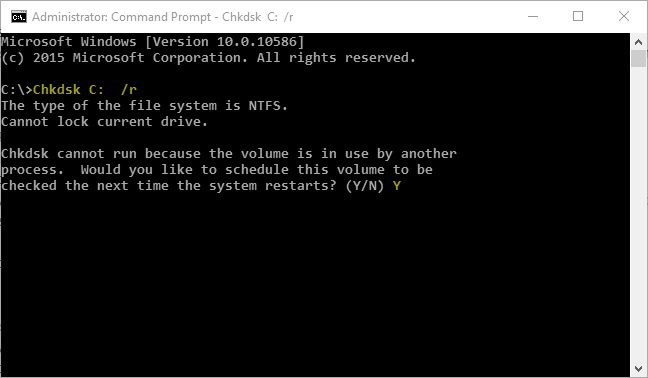
Check C: Partition for Errors

Check C: partition for file system and bad sector errors.

1. Start the Command Prompt as a administrator.

2. Within Command Prompt type Chkdsk C: /r command, press Enter key to schedule error checking C: partition at next time the system reboots.


YqAkQuW.png


Error checking with /r parameter can take long as 30 minutes or more.


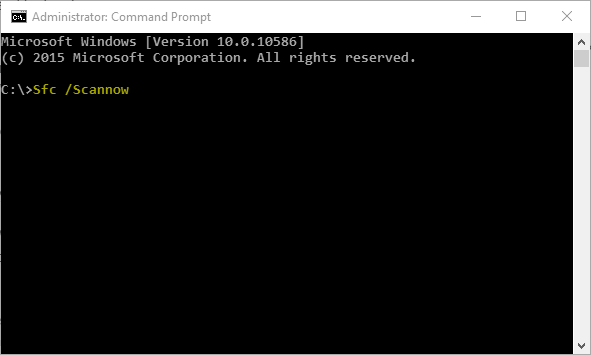
Repair any Corrupted Windows System Files

1. Start the Command Prompt as a administrator.

2. Within Command Prompt type Sfc /Scannow command, press Enter key.


tjNcOJL.png


3. Copy the C:\Windows\Logs\CBS\CBS.log file to the Desktop.

4. Attach the CBS.log file to your next post or upload the CBS.log file to PasteBin and let us have the download link.[/COLOR]


Important Recommended Steps

• Update all installed applications
• Uninstall currently installed device drivers and then install latest version of the devices drivers.
• Install all of the Windows important updates.
• If you are overclocking (pushing the components beyond their design) you should revert to default at least until the crashing is solved. If you don't know what it is you probably are not overclocking.
• Use SpeedFan to monitor temperatures in computers, overheating can cause BSOD.
• Use Memtest86+ disc to check system memory's (RAM's) for errors.
• Use CrystalDiskInfo to check SMART health report of the hard disk drive (HDD).
• Use Prime95 to stress test your CPU
• Use 3DMark to stress test your GPU


Click the url links for the website to follow instructions on how to do hardware diagnostics:
- http://www.carrona.org/diag.html
- Loading...
- Loading...


My Computer

System One

  • OS
    Windows 11
    Computer type
    PC/Desktop
    Manufacturer/Model
    HP Pavilion
    CPU
    AMD Ryzen 7 5700G
    Motherboard
    Erica6
    Memory
    Micron Technology DDR4-3200 16GB
    Graphics Card(s)
    NVIDIA GeForce RTX 3060
    Sound Card
    Realtek ALC671
    Monitor(s) Displays
    Samsung SyncMaster U28E590
    Screen Resolution
    3840 x 2160
    Hard Drives
    SAMSUNG MZVLQ1T0HALB-000H1
Hi @veldthui

So that those helping you have more complete information about your computer please fill in your full system details in your profile, so they show up under My Computer at the end of your posts.

Thanks in advance.
 

My Computers

System One System Two

  • OS
    Windows 11 Pro 25H2
    Computer type
    PC/Desktop
    Manufacturer/Model
    Homebuilt
    CPU
    Intel Core i9 13900K
    Motherboard
    Asus ProArt Z790 Creator WiFi - Bios 3107
    Memory
    Corsair Dominator Platinum 64gb 5600MT/s DDR5 Dual Channel
    Graphics Card(s)
    Sapphire NITRO+ AMD Radeon RX 7900 XTX Vapor-X 24GB
    Sound Card
    External DAC: Cambridge Audio DACMagic200M - Headphone Amp: Topping L50
    Monitor(s) Displays
    Panasonic MX950 Mini LED 55" TV 120hz
    Screen Resolution
    3840 x 2160 120hz
    Hard Drives
    Samsung 980 Pro 2TB (OS)
    Samsung 980 Pro 1TB (Files)
    Lexar NZ790 4TB
    LaCie d2 Professional 6TB external - USB 3.1
    Seagate Expansion 16TB external - USB 3.2
    Seagate One Touch 18TB external HD - USB 3.0
    PSU
    Corsair RM1200x Shift
    Case
    Corsair RGB Smart Case 5000x (white)
    Cooling
    Corsair iCue H150i Elite Capellix XT
    Keyboard
    Incase Ergonomic USB (Microsoft clone)
    Mouse
    Logitech MX Master 3S
    Internet Speed
    Fibre 900/500 Mbps
    Browser
    Microsoft Edge Chromium
    Antivirus
    Bitdefender Total Security
    Other Info
    AMD Radeon Software & Drivers 26.1.1
    Hasleo Backup Suite
    Dashlane password manager
    Kensington Verimark fingerprint reader
    Logitech Brio 4K webcam
    Orico 10-port powered USB 3.0 hub
  • Operating System
    Windows 11 Pro 25H2
    Computer type
    Laptop
    Manufacturer/Model
    Asus Vivobook X1605VA
    CPU
    Intel® Core™ i9-13900H
    Motherboard
    Asus X1605VA bios 309
    Memory
    32GB DDR4-3200 Dual channel
    Graphics card(s)
    *Intel Iris Xᵉ Graphics G7
    Sound Card
    Realtek | Intel SST Bluetooth & USB
    Monitor(s) Displays
    16.0-inch, WUXGA 16:10 aspect ratio, IPS-level Panel
    Screen Resolution
    1920 x 1200 60hz
    Hard Drives
    512GB M.2 NVMe™ PCIe® 3.0 SSD
    Mouse
    Logitech MX Ergo Trackball
    Antivirus
    Bitdefender Total Security
    Other Info
    720p Webcam
    WiFi & USB to ethernet
Blue Screen of Death (also known as a blue screen or BSoD) is an error screen displayed on a Windows computer system after a fatal system error, also known as a system crash: when the operating system reaches a condition where it can no longer operate safely. BSoDs can be caused by poorly written device drivers or malfunctioning hardware, such as faulty memory, power supply issues, overheating of components, or hardware running beyond its specification limits.

Thanks. It would not Boot at all after the install. It would not Boot into Safe mode without the error. Only thing added was the NVMe stick and Video card which Windows should be able to handle and did in fact handle after a fresh install. Just wanted to know what would have caused the issue.

Maybe the video driver installed for the onboard Intel Gfx did not like the nVidia card but I would have thought safe mode would allow it to work okay.
Certainly nothing wrong with the Hardware/Memory as it is working really great and one game got an increase from 133fps to 388fps from the 4090 in my old rig to the 5090 in this one.
 

My Computer

System One

  • OS
    Windows 11
    Computer type
    PC/Desktop
    Manufacturer/Model
    ASUS ROG MAXIMUS Z890
    CPU
    Intel Core Ultra 9 285K CPU
    Motherboard
    ASUS ROG MAXIMUS Z890 HERO ATX Motherboard
    Memory
    G.SKILL Ripjaws M5 RGB for Intel XMP 64GB 6400Mhz DDR5
    Graphics Card(s)
    ASUS ROG ASTRAL NVIDIA GeForce RTX 5090 OC GAMING 32GB GDDR7
    Sound Card
    N/A
    Monitor(s) Displays
    BENQ 36"
    Screen Resolution
    3840x2160
    Hard Drives
    Crucial P510 2TB NVMe M.2 Gen5
    Samsung 990 Pro 4TB M.2 NVMe Internal SSD
    PSU
    ASUS ROG THOR 1200W Platinum III ATX 3.1
    Case
    ASUS ROG Strix Helios Gaming Case with Tempered Glass
    Cooling
    ASUS ROG RYUO IV 360 ARGB Black All in one Water Cooling
    Keyboard
    G510S
    Mouse
    Dell Standard
    Internet Speed
    1Gb
    Browser
    Google Chrome
    Antivirus
    None
Okay, you can post the .dmp BSOD memory dump files that is located at C:\Windows\Minidump folder.

I think there is something wrong with your GPU what happens when you disconnect it does the Windows 11 boots?
 

My Computer

System One

  • OS
    Windows 11
    Computer type
    PC/Desktop
    Manufacturer/Model
    HP Pavilion
    CPU
    AMD Ryzen 7 5700G
    Motherboard
    Erica6
    Memory
    Micron Technology DDR4-3200 16GB
    Graphics Card(s)
    NVIDIA GeForce RTX 3060
    Sound Card
    Realtek ALC671
    Monitor(s) Displays
    Samsung SyncMaster U28E590
    Screen Resolution
    3840 x 2160
    Hard Drives
    SAMSUNG MZVLQ1T0HALB-000H1
Okay, you can post the .dmp BSOD memory dump files that is located at C:\Windows\Minidump folder.

I think there is something wrong with your GPU what happens when you disconnect it does the Windows 11 boots?
Not possible. As I said above I deleted all the partitions and did a fresh install so all previous data is gone. Nothing wrong with the GPU either because as I said after the fresh install everything is working fine.
 

My Computer

System One

  • OS
    Windows 11
    Computer type
    PC/Desktop
    Manufacturer/Model
    ASUS ROG MAXIMUS Z890
    CPU
    Intel Core Ultra 9 285K CPU
    Motherboard
    ASUS ROG MAXIMUS Z890 HERO ATX Motherboard
    Memory
    G.SKILL Ripjaws M5 RGB for Intel XMP 64GB 6400Mhz DDR5
    Graphics Card(s)
    ASUS ROG ASTRAL NVIDIA GeForce RTX 5090 OC GAMING 32GB GDDR7
    Sound Card
    N/A
    Monitor(s) Displays
    BENQ 36"
    Screen Resolution
    3840x2160
    Hard Drives
    Crucial P510 2TB NVMe M.2 Gen5
    Samsung 990 Pro 4TB M.2 NVMe Internal SSD
    PSU
    ASUS ROG THOR 1200W Platinum III ATX 3.1
    Case
    ASUS ROG Strix Helios Gaming Case with Tempered Glass
    Cooling
    ASUS ROG RYUO IV 360 ARGB Black All in one Water Cooling
    Keyboard
    G510S
    Mouse
    Dell Standard
    Internet Speed
    1Gb
    Browser
    Google Chrome
    Antivirus
    None
Not possible. As I said above I deleted all the partitions and did a fresh install so all previous data is gone. Nothing wrong with the GPU either because as I said after the fresh install everything is working fine.
What do you think the problem is?

Also, have you updated BIOS firmware and GPU driver?
 

My Computer

System One

  • OS
    Windows 11
    Computer type
    PC/Desktop
    Manufacturer/Model
    HP Pavilion
    CPU
    AMD Ryzen 7 5700G
    Motherboard
    Erica6
    Memory
    Micron Technology DDR4-3200 16GB
    Graphics Card(s)
    NVIDIA GeForce RTX 3060
    Sound Card
    Realtek ALC671
    Monitor(s) Displays
    Samsung SyncMaster U28E590
    Screen Resolution
    3840 x 2160
    Hard Drives
    SAMSUNG MZVLQ1T0HALB-000H1
Maybe the video driver installed for the onboard Intel Gfx did not like the nVidia card but I would have thought safe mode would allow it to work okay.
One would think that yes, but for years now, there is nothing safe about Safe Mode anymore. Personally, I have sometimes had issues getting Safe Mode to boot up an otherwise perfectly working machine.

But glad you got the issue sorted out in the end. Enjoy your new rig!
 

My Computers

System One System Two

  • OS
    Win 11 Pro 25H2 26200.8457 / Linux Mint 22.3
    Computer type
    Laptop
    Manufacturer/Model
    Lenovo A485
    CPU
    Ryzen 7 2700U Pro
    Motherboard
    Lenovo (WiFi/BT module upgraded to Intel Wireless-AC-9260)
    Memory
    32GB
    Graphics Card(s)
    iGPU Vega 10
    Sound Card
    Realtek
    Monitor(s) Displays
    14" FHD (built-in) + 14" Lenovo Thinkvision M14t (touch+pen) + 32" Asus PB328
    Screen Resolution
    FHD + FHD + 1440p
    Hard Drives
    Intel 660p m.2 nVME PCIe3.0 x2 512GB
    PSU
    125W(Dock)/65W(Travel Adapter)
    Keyboard
    Thinkpad / Logitech MX Keys
    Mouse
    Logitech MX Master 2S
    Internet Speed
    1/1Gbit
    Browser
    Firefox
    Antivirus
    Windows Defender
    Other Info
    SecureBoot: Enabled
    TPM2.0: Enabled
    AMD-V: Enabled
  • Operating System
    Win 11 Pro 25H2 26200.8521(RP)
    Computer type
    PC/Desktop
    Manufacturer/Model
    Custom
    CPU
    i7-7700k @4.8GHz
    Motherboard
    Asus PRIME Z270-A
    Memory
    32GB 2x16GB 2133MHz CL15
    Graphics card(s)
    EVGA GTX1080Ti FTW 11GB
    Sound Card
    Integrated
    Monitor(s) Displays
    32" 10-bit Asus PB328Q
    Screen Resolution
    WQHD 2560x1440
    Hard Drives
    512GB ADATA SX8000NP NVMe PCIe Gen 3 x4
    PSU
    850W
    Case
    Fractal Design Define 7
    Cooling
    Noctua NH-D15 chromax.black
    Keyboard
    Logitech MX Keys
    Mouse
    Logitech MX Master 2S
    Internet Speed
    1/1Gbit
    Browser
    Firefox
    Antivirus
    Windows Defender
    Other Info
    AC WiFi Card

Latest Support Threads

Back
Top Bottom