
Solved Windows 11 Laptop Taking 4 Minutes to Connect to Wireless Network


did you uninstall it first, then reboot and then install the latest driver?
I followed the instructions on the Intel website and used their "Driver and Support Assistant" tool to update the Bluetooth and wifi drivers. That tool now reports that my drives and software are up to date.
When you get into windows, open cmd and ping your router. See how long it takes. When hovering over the wifi symbol does it say establishing connection and then get stuck there for a bit?
Here are the results from a ping of the router:

Pinging 192.168.1.254 with 32 bytes of data:
Reply from 192.168.1.254: bytes=32 time=2ms TTL=64
Reply from 192.168.1.254: bytes=32 time=1ms TTL=64
Reply from 192.168.1.254: bytes=32 time=4ms TTL=64
Reply from 192.168.1.254: bytes=32 time=1ms TTL=64

Ping statistics for 192.168.1.254:
Packets: Sent = 4, Received = 4, Lost = 0 (0% loss),
Approximate round trip times in milli-seconds:
Minimum = 1ms, Maximum = 4ms, Average = 2ms

There is no wifi symbol in my systray until the laptop connects. Then hovering over it reports the connection and internet access. I would guess that means as soon as the preferred wifi connection is identified, it immediately connects. Again, until then, no wifi connections are "available". It takes fully 4 minutes to identify any available connections, at which point it connects to my preferred one immediately.
 

My Computer My Computer

At a glance

Windows 11Processor Intel(R) Core(TM) i7-8565U CPU @ 1....Installed Physical Memory (RAM) 16.0 GB
OS
Windows 11
Computer type
Laptop
Manufacturer/Model
Dell
CPU
Processor Intel(R) Core(TM) i7-8565U CPU @ 1.80GHz, 199
Motherboard
BaseBoard Manufacturer Dell Inc. BaseBoard Product 08YRWT BaseBoard Version A00
Memory
Installed Physical Memory (RAM) 16.0 GB
Uninstalling first then restarting and then reinstalling the driver usually works best when having issues vs simply just updating it.

It also honestly might be simpler than we think, try this:

Go under settings> network and internet -> wifi > manage known networks. Choose forget on everything that isnt your network ssid/name and restart
 

My Computers My Computers

  • At a glance

    Windows 11 ProRyzen 7 5700 X3D64 GB DDR4 3600mhz Gskill Ripjaws VRTX 4070 Super , 12GB VRAM Asus EVO Overclock
    OS
    Windows 11 Pro
    Computer type
    PC/Desktop
    Manufacturer/Model
    Custom Built
    CPU
    Ryzen 7 5700 X3D
    Motherboard
    MSI MPG B550 GAMING PLUS
    Memory
    64 GB DDR4 3600mhz Gskill Ripjaws V
    Graphics Card(s)
    RTX 4070 Super , 12GB VRAM Asus EVO Overclock
    Monitor(s) Displays
    Gigabyte M27Q (rev. 2.0) 2560 x 1440 @ 170hz HDR
    Hard Drives
    2TB Samsung nvme ssd
    4TB Western Digital nvme ssd
    PSU
    CORSAIR RMx SHIFT Series™ RM750x 80 PLUS Gold Fully Modular ATX Power Supply
    Case
    CORSAIR 3500X ARGB Mid-Tower ATX PC Case – Black
    Cooling
    ID-COOLING FROSTFLOW X 240 CPU Water Cooler
    Keyboard
    Logitech G213
    Mouse
    Logitech G203
    Internet Speed
    1.2gbps Fiber 😎
  • At a glance

    Chrome OSIntel Pentium Quad Core4GB LPDDR4
    Operating System
    Chrome OS
    Computer type
    Laptop
    Manufacturer/Model
    HP Chromebook
    CPU
    Intel Pentium Quad Core
    Memory
    4GB LPDDR4
    Monitor(s) Displays
    14 Inch HD SVA anti glare micro edge display
    Hard Drives
    64 GB emmc
Uninstalling first then restarting and then reinstalling the driver usually works best when having issues vs simply just updating it.
I could uninstall then reboot and see what Windows does. Will it re-install the driver I just uninstalled or the driver that was installed before I went to the Intel site? Since I installed both Bluetooth and wifi, should I uninstall both and reboot?
It also honestly might be simpler than we think, try this:

Go under settings> network and internet -> wifi > manage known networks. Choose forget on everything that isnt your network ssid/name and restart

I chose to forget everything that wasn't the 5G SSID that I prefer, including the 2.4G SSID that I use sometimes and several other SSIDs that I have connected to in the past. None of the neighbor's SSIDs can be "forgotten" since I've never connected to any of them. When I did this and rebooted, there was no impact on connection time. Indeed I think it took closer to 5 minutes rather than 4.
 

My Computer My Computer

At a glance

Windows 11Processor Intel(R) Core(TM) i7-8565U CPU @ 1....Installed Physical Memory (RAM) 16.0 GB
OS
Windows 11
Computer type
Laptop
Manufacturer/Model
Dell
CPU
Processor Intel(R) Core(TM) i7-8565U CPU @ 1.80GHz, 199
Motherboard
BaseBoard Manufacturer Dell Inc. BaseBoard Product 08YRWT BaseBoard Version A00
Memory
Installed Physical Memory (RAM) 16.0 GB
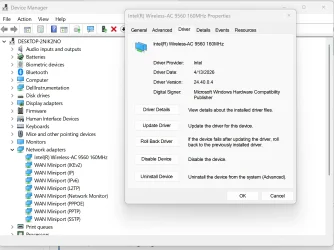
I could uninstall then reboot and see what Windows does. Will it re-install the driver I just uninstalled or the driver that was installed before I went to the Intel site? Since I installed both Bluetooth and wifi, should I uninstall both and reboot?
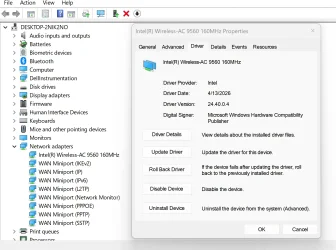
Under device manager under network adapters take a screenshot and upload here.

You can download the drivers from here:


Choose select drivers, and then on the top right under category choose network, ethernet, and wireless.

Once you have them downloaded to your machine, you can safely uninstall it from device manager (make sure to choose to remove the driver software from device little checkbox) and then restart, sign in go to the downloads folder and install the driver.
 

My Computers My Computers

  • At a glance

    Windows 11 ProRyzen 7 5700 X3D64 GB DDR4 3600mhz Gskill Ripjaws VRTX 4070 Super , 12GB VRAM Asus EVO Overclock
    OS
    Windows 11 Pro
    Computer type
    PC/Desktop
    Manufacturer/Model
    Custom Built
    CPU
    Ryzen 7 5700 X3D
    Motherboard
    MSI MPG B550 GAMING PLUS
    Memory
    64 GB DDR4 3600mhz Gskill Ripjaws V
    Graphics Card(s)
    RTX 4070 Super , 12GB VRAM Asus EVO Overclock
    Monitor(s) Displays
    Gigabyte M27Q (rev. 2.0) 2560 x 1440 @ 170hz HDR
    Hard Drives
    2TB Samsung nvme ssd
    4TB Western Digital nvme ssd
    PSU
    CORSAIR RMx SHIFT Series™ RM750x 80 PLUS Gold Fully Modular ATX Power Supply
    Case
    CORSAIR 3500X ARGB Mid-Tower ATX PC Case – Black
    Cooling
    ID-COOLING FROSTFLOW X 240 CPU Water Cooler
    Keyboard
    Logitech G213
    Mouse
    Logitech G203
    Internet Speed
    1.2gbps Fiber 😎
  • At a glance

    Chrome OSIntel Pentium Quad Core4GB LPDDR4
    Operating System
    Chrome OS
    Computer type
    Laptop
    Manufacturer/Model
    HP Chromebook
    CPU
    Intel Pentium Quad Core
    Memory
    4GB LPDDR4
    Monitor(s) Displays
    14 Inch HD SVA anti glare micro edge display
    Hard Drives
    64 GB emmc
Under device manager under network adapters take a screenshot and upload here.
Screenshot 2026-05-04 104051.webp
You can download the drivers from here:


Choose select drivers, and then on the top right under category choose network, ethernet, and wireless.

Once you have them downloaded to your machine, you can safely uninstall it from device manager (make sure to choose to remove the driver software from device little checkbox) and then restart, sign in go to the downloads folder and install the driver.
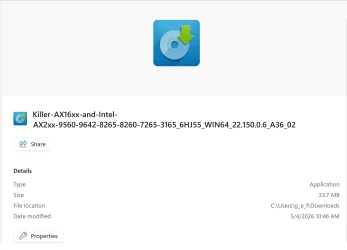
I've downloaded the drivers from the Dell web site -- there are three of them. Here's a picture of what's included in the downloaded file:
Screenshot 2026-05-04 105613.webp

Note that these drivers don't appear to be the same as the "new" ones I installed from Intel. Also, it seems like I need to uninstall the current bluetooth driver too. Is that right?
 

Attachments

  • Screenshot 2026-05-04 103805.webp
    Screenshot 2026-05-04 103805.webp
    207.9 KB · Views: 2

My Computer My Computer

At a glance

Windows 11Processor Intel(R) Core(TM) i7-8565U CPU @ 1....Installed Physical Memory (RAM) 16.0 GB
OS
Windows 11
Computer type
Laptop
Manufacturer/Model
Dell
CPU
Processor Intel(R) Core(TM) i7-8565U CPU @ 1.80GHz, 199
Motherboard
BaseBoard Manufacturer Dell Inc. BaseBoard Product 08YRWT BaseBoard Version A00
Memory
Installed Physical Memory (RAM) 16.0 GB

My Computers My Computers

  • At a glance

    Windows 11 Pro 25H2 26200.8655AMD Ryzen 7 5825U with Radeon Graphics16GB
    OS
    Windows 11 Pro 25H2 26200.8655
    Computer type
    Laptop
    Manufacturer/Model
    Acemagic LX15PRO
    CPU
    AMD Ryzen 7 5825U with Radeon Graphics
    Motherboard
    BIOS CT_BI_AMI_LX15PRO_AB8139_A-004
    Memory
    16GB
    Screen Resolution
    1920 x 1080
    Hard Drives
    SSD 2TB
    Internet Speed
    30 Mbps
    Browser
    Brave
    Antivirus
    Defender/Windows Security
    Other Info
    System 3

    Acer Swift SF114-34 laptop
    OS Windows 11 Pro 26200.8655
    CPU Pentium Silver N6000
    RAM 4GB
    BIOS v1.17
    SSD Samsung 970 EVO Plus SSD 2TB (an upgrade)
  • At a glance

    Windows 11 Pro 23H2 22631.2506Atom N450 1.66GHz2GB
    Operating System
    Windows 11 Pro 23H2 22631.2506
    Computer type
    Laptop
    Manufacturer/Model
    HP Mini 210-1090NR PC (bought in late 2009!)
    CPU
    Atom N450 1.66GHz
    Memory
    2GB
    Browser
    Brave
    Antivirus
    Webroot
How ungrateful!
Did you read the context of that message? My point was that I had been to the suggested Dell website already and didn't find anything there helpful. That should have been very clear from the context.

I very much appreciate the comments and suggestions from those here as I try to remedy the problem I'm having.
 

My Computer My Computer

At a glance

Windows 11Processor Intel(R) Core(TM) i7-8565U CPU @ 1....Installed Physical Memory (RAM) 16.0 GB
OS
Windows 11
Computer type
Laptop
Manufacturer/Model
Dell
CPU
Processor Intel(R) Core(TM) i7-8565U CPU @ 1.80GHz, 199
Motherboard
BaseBoard Manufacturer Dell Inc. BaseBoard Product 08YRWT BaseBoard Version A00
Memory
Installed Physical Memory (RAM) 16.0 GB
Did you read the context of that message? My point was that I had been to the suggested Dell website already and didn't find anything there helpful. That should have been very clear from the context.

I very much appreciate the comments and suggestions from those here as I try to remedy the problem I'm having.
Ok, I misunderstood you.
 

My Computers My Computers

  • At a glance

    Windows 11 Pro 25H2 26200.8655AMD Ryzen 7 5825U with Radeon Graphics16GB
    OS
    Windows 11 Pro 25H2 26200.8655
    Computer type
    Laptop
    Manufacturer/Model
    Acemagic LX15PRO
    CPU
    AMD Ryzen 7 5825U with Radeon Graphics
    Motherboard
    BIOS CT_BI_AMI_LX15PRO_AB8139_A-004
    Memory
    16GB
    Screen Resolution
    1920 x 1080
    Hard Drives
    SSD 2TB
    Internet Speed
    30 Mbps
    Browser
    Brave
    Antivirus
    Defender/Windows Security
    Other Info
    System 3

    Acer Swift SF114-34 laptop
    OS Windows 11 Pro 26200.8655
    CPU Pentium Silver N6000
    RAM 4GB
    BIOS v1.17
    SSD Samsung 970 EVO Plus SSD 2TB (an upgrade)
  • At a glance

    Windows 11 Pro 23H2 22631.2506Atom N450 1.66GHz2GB
    Operating System
    Windows 11 Pro 23H2 22631.2506
    Computer type
    Laptop
    Manufacturer/Model
    HP Mini 210-1090NR PC (bought in late 2009!)
    CPU
    Atom N450 1.66GHz
    Memory
    2GB
    Browser
    Brave
    Antivirus
    Webroot
Hey g_e_f,

Your time to obtain a wifi network connection is excessive.
There seems to be some interference preventing any network detection.
In order to determine what it is, you need to power down anything that connects to your network so, that the only device connected is your laptop.
Test that way first.
You should repeat that while moving around, so you might need a few attempts.

I would then use my phone as a hotspot and see how long it takes to detect that network.


Could you log in as Administrator to see if there is any difference to the connection time?
Test that way third. I am not too optimistic about that as the detection is done prior to login, but what's there to lose?

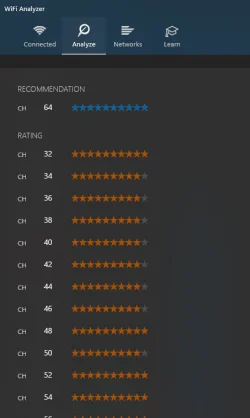
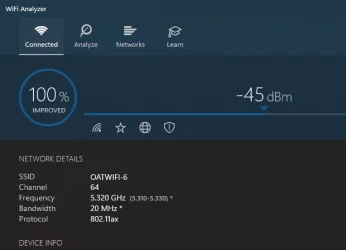
In order to establish the best connection available I use Wifi Analyzer which tell me the optimal channel to use,
that is - once connected, but we are not there yet .
So try the 3 things I listed but I must warn you that something has been changed and you need to dig deep and go back to first day you noticed
the delay and back track yourself.
Do you have any backups from that time period maybe?
Report back and don't give up.

analyzer.webpwifi2.webp
 

My Computers My Computers

  • At a glance

    All Branches but ReleaseAMD Ryzen 7 7735HS 3200-4500 Mhz 8 cores x 232 GB DDR5Radeon Graphic / NVIDIA GeForce RTX 4060 8 GB...
    OS
    All Branches but Release
    Computer type
    Laptop
    Manufacturer/Model
    Acer Nitro ANV15-51
    CPU
    AMD Ryzen 7 7735HS 3200-4500 Mhz 8 cores x 2
    Motherboard
    Sportage_RBH
    Memory
    32 GB DDR5
    Graphics Card(s)
    Radeon Graphic / NVIDIA GeForce RTX 4060 8 GB GDDR6
    Sound Card
    AMD/Realtek(R) Audio
    Monitor(s) Displays
    Integrated Monitor (15.3"vis)
    Screen Resolution
    FHD 1920X1080 16:9 144Hz
    Hard Drives
    KINGSTON OM8SEP4512Q-AA 1TB
    Western Digital 256GB
    PSU
    19V DC 6.32 A 120 W
    Cooling
    Dual Fans
    Mouse
    MS Bluetooth
    Internet Speed
    Fiber 1GB Cox -us & 1GB Orange-fr
    Browser
    Edge Canary- Firefox Nightly-Chrome Dev-Chrome Dev
    Antivirus
    Windows Defender
  • At a glance

    Windows 11 BetaAMD A9-94208 GB of DDR4AMD Radeon R5
    Operating System
    Windows 11 Beta
    Computer type
    Laptop
    Manufacturer/Model
    Asus X751BP
    CPU
    AMD A9-9420
    Memory
    8 GB of DDR4
    Graphics card(s)
    AMD Radeon R5
    Screen Resolution
    1600x900
    Hard Drives
    Seagate 1 TB
Hey g_e_f,

Your time to obtain a wifi network connection is excessive.
There seems to be some interference preventing any network detection.
In order to determine what it is, you need to power down anything that connects to your network so, that the only device connected is your laptop.
Test that way first.
You should repeat that while moving around, so you might need a few attempts.

I would then use my phone as a hotspot and see how long it takes to detect that network.


Could you log in as Administrator to see if there is any difference to the connection time?
Test that way third. I am not too optimistic about that as the detection is done prior to login, but what's there to lose?

In order to establish the best connection available I use Wifi Analyzer which tell me the optimal channel to use,
that is - once connected, but we are not there yet .
So try the 3 things I listed but I must warn you that something has been changed and you need to dig deep and go back to first day you noticed
the delay and back track yourself.
Do you have any backups from that time period maybe?
Report back and don't give up.
dang I forgot about the channels. Good call.

Could be funky interference but seeing as how they were on 5ghz I ruled that out.
Note that these drivers don't appear to be the same as the "new" ones I installed from Intel. Also, it seems like I need to uninstall the current bluetooth driver too. Is that right?
Sometimes the newest drivers are not ones that will work with your system well. I always recommend trying the newest drivers for security patches and the like, but if you have problems it is best to use the manufactures drivers for your specific model. Especially on a laptop.
 

My Computers My Computers

  • At a glance

    Windows 11 ProRyzen 7 5700 X3D64 GB DDR4 3600mhz Gskill Ripjaws VRTX 4070 Super , 12GB VRAM Asus EVO Overclock
    OS
    Windows 11 Pro
    Computer type
    PC/Desktop
    Manufacturer/Model
    Custom Built
    CPU
    Ryzen 7 5700 X3D
    Motherboard
    MSI MPG B550 GAMING PLUS
    Memory
    64 GB DDR4 3600mhz Gskill Ripjaws V
    Graphics Card(s)
    RTX 4070 Super , 12GB VRAM Asus EVO Overclock
    Monitor(s) Displays
    Gigabyte M27Q (rev. 2.0) 2560 x 1440 @ 170hz HDR
    Hard Drives
    2TB Samsung nvme ssd
    4TB Western Digital nvme ssd
    PSU
    CORSAIR RMx SHIFT Series™ RM750x 80 PLUS Gold Fully Modular ATX Power Supply
    Case
    CORSAIR 3500X ARGB Mid-Tower ATX PC Case – Black
    Cooling
    ID-COOLING FROSTFLOW X 240 CPU Water Cooler
    Keyboard
    Logitech G213
    Mouse
    Logitech G203
    Internet Speed
    1.2gbps Fiber 😎
  • At a glance

    Chrome OSIntel Pentium Quad Core4GB LPDDR4
    Operating System
    Chrome OS
    Computer type
    Laptop
    Manufacturer/Model
    HP Chromebook
    CPU
    Intel Pentium Quad Core
    Memory
    4GB LPDDR4
    Monitor(s) Displays
    14 Inch HD SVA anti glare micro edge display
    Hard Drives
    64 GB emmc
Another possibility is the WiFi services are configured for "Automatic (Delayed Start)". So they're pushed back to run right after system startup.

Can you run this command?
Code:
powershell -C "(Get-ItemProperty 'HKLM:\SYSTEM\CurrentControlSet\Services\*' | Where-Object { $_.Start -eq 2 -and $_.DelayedAutostart -eq 1 }).PSChildName"
 

My Computer My Computer

At a glance

Windows 7
OS
Windows 7
The only thing I can think of to suggest is try to work backward one thing at a time, testing after each step to see if there's a difference. This is assuming that you have verified you have NO isp connection problems and that other devices on your network have no issues connecting.
1. Restart the router.
2. Reset network components using attached @FreeBooter .bat file. Unzip it, right click on the unzipped file and run as administrator.
3. Assign the laptop a static ip address.

4. Eliminate it being a wireless adapter problem by using a usb wireless adapter. They cost less than $15. There are many brands but I recommend either TP-Link or Cudy as I have had good luck with both. Just disable your Intel one and plug in the usb one. The drivers will automatically install.
Right now I have 2 Dell devices using a usb wireless adapter and neither misses a lick.
 

Attachments

My Computers My Computers

  • At a glance

    Windows 11 Pro 25H2 26200.8655i9-10900 10 core 20 threads32 gbnone-Intel UHD Graphics 630
    OS
    Windows 11 Pro 25H2 26200.8655
    Computer type
    PC/Desktop
    Manufacturer/Model
    Dell Optiplex 7080
    CPU
    i9-10900 10 core 20 threads
    Motherboard
    DELL 0J37VM
    Memory
    32 gb
    Graphics Card(s)
    none-Intel UHD Graphics 630
    Sound Card
    Integrated Realtek
    Monitor(s) Displays
    Benq 27
    Screen Resolution
    2560x1440
    Hard Drives
    2x1tb Solidigm m.2 nvme /External drives 512gb Samsung m.2 sata+2tb Kingston m2.nvme
    PSU
    500w
    Case
    MT
    Cooling
    Dell Premium
    Keyboard
    Logitech wired
    Mouse
    Logitech wireless
    Internet Speed
    so slow I'm too embarrassed to tell
    Browser
    #1 Edge #2 Firefox
    Antivirus
    Defender+MWB Premium
  • At a glance

    Windows 11 Pro 24H2 26200.8457AMD Ryzen 7 6800U32 gbintegrated
    Operating System
    Windows 11 Pro 24H2 26200.8457
    Computer type
    PC/Desktop
    Manufacturer/Model
    Beelink Mini PC SER5
    CPU
    AMD Ryzen 7 6800U
    Memory
    32 gb
    Graphics card(s)
    integrated
    Sound Card
    integrated
    Monitor(s) Displays
    Benq 27
    Screen Resolution
    2560x1440
    Hard Drives
    1TB Crucial nvme
    Keyboard
    Logitech wired
    Mouse
    Logitech wireless
    Internet Speed
    still too embarrassed to tell
    Browser
    Firefox
    Antivirus
    Defender
    Other Info
    System 3 is non compliant Dell 9020 i7-4770/24gb ram Win11 PRO 26200.8457
Under device manager under network adapters take a screenshot and upload here.

You can download the drivers from here:


Choose select drivers, and then on the top right under category choose network, ethernet, and wireless.

Once you have them downloaded to your machine, you can safely uninstall it from device manager (make sure to choose to remove the driver software from device little checkbox) and then restart, sign in go to the downloads folder and install the driver.
I did as you suggested here. After uninstalling the bluetooth and wifi drivers, I restarted the laptop. Windows "automatically" re-installed drivers; i.e., I didn't get a chance to install the ones I had just downloaded from the Dell site. Connection time was unchanged. Still between 4 and 5 minutes.
 

My Computer My Computer

At a glance

Windows 11Processor Intel(R) Core(TM) i7-8565U CPU @ 1....Installed Physical Memory (RAM) 16.0 GB
OS
Windows 11
Computer type
Laptop
Manufacturer/Model
Dell
CPU
Processor Intel(R) Core(TM) i7-8565U CPU @ 1.80GHz, 199
Motherboard
BaseBoard Manufacturer Dell Inc. BaseBoard Product 08YRWT BaseBoard Version A00
Memory
Installed Physical Memory (RAM) 16.0 GB
Another possibility is the WiFi services are configured for "Automatic (Delayed Start)". So they're pushed back to run right after system startup.

Can you run this command?
Code:
powershell -C "(Get-ItemProperty 'HKLM:\SYSTEM\CurrentControlSet\Services\*' | Where-Object { $_.Start -eq 2 -and $_.DelayedAutostart -eq 1 }).PSChildName"
On running the command, I got the following results:

C:\Users\g_e_f>powershell -C "(Get-ItemProperty 'HKLM:\SYSTEM\CurrentControlSet\Services\*' | Where-Object { $_.Start -eq 2 -and $_.DelayedAutostart -eq 1 }).PSChildName"
cbdhsvc
CDPSvc
Dell Digital Delivery Services
Dell SupportAssist Remediation
DellClientManagementService
DoSvc
edgeupdate
ESRV_SVC_QUEENCREEK
InventorySvc
MapsBroker
OneSyncSvc
PcaSvc
sppsvc
SupportAssistAgent
UsoSvc
whesvc
wscsvc
WSearch

So, it looks like they could be delayed if I'm reading the output correctly?
 

My Computer My Computer

At a glance

Windows 11Processor Intel(R) Core(TM) i7-8565U CPU @ 1....Installed Physical Memory (RAM) 16.0 GB
OS
Windows 11
Computer type
Laptop
Manufacturer/Model
Dell
CPU
Processor Intel(R) Core(TM) i7-8565U CPU @ 1.80GHz, 199
Motherboard
BaseBoard Manufacturer Dell Inc. BaseBoard Product 08YRWT BaseBoard Version A00
Memory
Installed Physical Memory (RAM) 16.0 GB
ESRV_SVC_QUEENCREEK
"ESRV_SVC_QUEENCREEK" is the Intel System Usage Report Service.

Go under Services, and disable it. Restart Windows and see if that makes a difference. It's a telemetry service that Intel installs as "Intel Computing Improvement Program" app under Programs & Apps, when you use their setup installers.
 

My Computer My Computer

At a glance

Windows 7
OS
Windows 7
@OAT ,

Thank you for your extensive feedback. I'll think through what your suggesting and think about what to do next. Meanwhile, I did have some questions and comments of my own, based on my amateur status.
Hey g_e_f,

Your time to obtain a wifi network connection is excessive.
There seems to be some interference preventing any network detection.
In order to determine what it is, you need to power down anything that connects to your network so, that the only device connected is your laptop.
Test that way first.
I understand what you're saying, but I'm not sure how this would help. We know that all of my other devices (there are many; I've documented a few above) connect quickly and reliably, and speeds are very good. My gateway has both 5G and 2.4G radios. Some of my devices connect at 5G, some connect at 2.4G. That suggests to me (remember I'm an amateur) that the problem is in my laptop, either with software or hardware. Moreover, my laptop takes over 4 minutes to find any available connections, including my neighbors', which suggests again that the problem is not with my gateway.
You should repeat that while moving around, so you might need a few attempts.

I would then use my phone as a hotspot and see how long it takes to detect that network.
I had my phone set up as a hotspot early on. The laptop saw this as an available connection at 4 minutes, just like every other SSID.
Could you log in as Administrator to see if there is any difference to the connection time?
Test that way third. I am not too optimistic about that as the detection is done prior to login, but what's there to lose?

In order to establish the best connection available I use Wifi Analyzer which tell me the optimal channel to use,
that is - once connected, but we are not there yet .
So try the 3 things I listed but I must warn you that something has been changed and you need to dig deep and go back to first day you noticed
I get this and I need to reflect on what I may have done over the past month or so. That will take some time and energy on my part.
the delay and back track yourself.
Do you have any backups from that time period maybe?
Report back and don't give up.

View attachment 170580View attachment 170581

I think I'll pick up a USB adapter and try it before I do much else. If the problem is in my laptop, it's got to be either the driver or the wifi adapter, right? I've uninstalled and Windows has re-installed the driver with no joy, which leave me with getting a USB adapter.
 

My Computer My Computer

At a glance

Windows 11Processor Intel(R) Core(TM) i7-8565U CPU @ 1....Installed Physical Memory (RAM) 16.0 GB
OS
Windows 11
Computer type
Laptop
Manufacturer/Model
Dell
CPU
Processor Intel(R) Core(TM) i7-8565U CPU @ 1.80GHz, 199
Motherboard
BaseBoard Manufacturer Dell Inc. BaseBoard Product 08YRWT BaseBoard Version A00
Memory
Installed Physical Memory (RAM) 16.0 GB
"ESRV_SVC_QUEENCREEK" is the Intel System Usage Report Service.

Go under Services, and disable it. Restart Windows and see if that makes a difference. It's a telemetry service that Intel installs as "Intel Computing Improvement Program" app under Programs & Apps, when you use their setup installers.
I disabled the service and restarted. No joy. Note that I had not installed their setup installer until after this problem occurred and I went to the Intel site in search of the latest drivers.

I think my next step is to install a USB wifi adapter. I'll report back on the results I get.
 

My Computer My Computer

At a glance

Windows 11Processor Intel(R) Core(TM) i7-8565U CPU @ 1....Installed Physical Memory (RAM) 16.0 GB
OS
Windows 11
Computer type
Laptop
Manufacturer/Model
Dell
CPU
Processor Intel(R) Core(TM) i7-8565U CPU @ 1.80GHz, 199
Motherboard
BaseBoard Manufacturer Dell Inc. BaseBoard Product 08YRWT BaseBoard Version A00
Memory
Installed Physical Memory (RAM) 16.0 GB
Well, I happened to have a USB wifi adapter here in the house, so I disabled the onboard adapter and installed the USB adapter. I rebooted and there was no change in connection time.

I'll keep thinking about what may have changed in the past couple months, but I'm out of ideas right now. I know I've installed a couple Windows updates during this timeframe. I also ran Dell SupportAssist and it did update a couple of Dell's programs (but no drivers). The only other "odd" thing that happened during this time is that I had to re-start the 5G radio in my gateway.

I do appreciate everyone's help here. Thank you and please advise any additional ideas as they occur to you. If I can ever solve this problem (or if it solves itself), I'll post back.
 

My Computer My Computer

At a glance

Windows 11Processor Intel(R) Core(TM) i7-8565U CPU @ 1....Installed Physical Memory (RAM) 16.0 GB
OS
Windows 11
Computer type
Laptop
Manufacturer/Model
Dell
CPU
Processor Intel(R) Core(TM) i7-8565U CPU @ 1.80GHz, 199
Motherboard
BaseBoard Manufacturer Dell Inc. BaseBoard Product 08YRWT BaseBoard Version A00
Memory
Installed Physical Memory (RAM) 16.0 GB
have you tried static addressing for the WiFi connection
IP address
subnet mask
gateway address
DNS

then check the connection to see if there is any improvement.
best of luck Steve ..
 

My Computers My Computers

  • At a glance

    Debian 13 KDE .. Windows 11 HomeRyzen 7 5825u64GB DDR4 3200Ryzen 7 5825u
    OS
    Debian 13 KDE .. Windows 11 Home
    Computer type
    PC/Desktop
    Manufacturer/Model
    HP 24" AiO
    CPU
    Ryzen 7 5825u
    Motherboard
    HP
    Memory
    64GB DDR4 3200
    Graphics Card(s)
    Ryzen 7 5825u
    Sound Card
    RealTek
    Monitor(s) Displays
    24" HP AiO
    Screen Resolution
    1920 x 1080 @60 Hz
    Hard Drives
    1TB WD Blue SN580 M2 SSD Partitioned.
    2x 1TB USB HDD External Backup/Storage.
    PSU
    90W external power brick
    Case
    24" All in One
    Cooling
    Default Air Cooling
    Keyboard
    HP WiFi UK extended
    Mouse
    HP WiFi 3 Button
    Internet Speed
    1GB full fibre
    Browser
    Edge & Firefox
    Antivirus
    AVG Internet Security/Windows Defender
    Other Info
    Mainly Open Source Software
  • At a glance

    Ubuntu 22.04.5 LTSi5 7200u16GB DDR4Intel
    Operating System
    Ubuntu 22.04.5 LTS
    Computer type
    Laptop
    Manufacturer/Model
    Dell 13" Latitude 2017
    CPU
    i5 7200u
    Motherboard
    Dell
    Memory
    16GB DDR4
    Graphics card(s)
    Intel
    Sound Card
    Intel
    Monitor(s) Displays
    13" Dell Laptop
    Hard Drives
    250GB Crucial 2.5" SSD
    Mouse
    Generic WiFi 3 button
    Internet Speed
    WiFi only
    Browser
    Firefox
    Antivirus
    ClamAV TK
    Other Info
    Mainly Open Source Software
Boot from a Linux distro (Mint is a good flavour) and test the connection

Ultimate drastic step ... swap out the drive for a blank one. Clean install Win 11. Test. You can then replace the old drive and decide what to do next

Can't see it being asked previously, and at the risk of stating the bleedin' obvious ...
- no VPNs, I assume
- has the DNS settings been changed (physically check, not just assume)

In respect of the DNS, if no change, try a DNS change - Google iPV4 8.8.8.8 (primary) and 8.8.4.4 (secondary)

there's a great little progam called DNS Jumper tha can do that for you
Dns Jumper v2.3 (only this one from sordum, others are a bit iffy)
 

My Computers My Computers

  • At a glance

    Windows 11 2xH2 (latest update ... forever anal)Intel i5-124008GBNVIDIA GeForce GT730
    OS
    Windows 11 2xH2 (latest update ... forever anal)
    Computer type
    PC/Desktop
    Manufacturer/Model
    HP Slim S01
    CPU
    Intel i5-12400
    Memory
    8GB
    Graphics Card(s)
    NVIDIA GeForce GT730
    Sound Card
    OOBE
    Monitor(s) Displays
    Acer 32"
    Screen Resolution
    1920x1080
    Hard Drives
    512GB KIOXIA NVMe
    1TB SATA SSD
    PSU
    OOBE
    Case
    OOBE
    Cooling
    OOBE
    Keyboard
    BT
    Mouse
    BT
    Browser
    Brave FFox Chrome Opera
    Antivirus
    KIS
  • At a glance

    Windows 11 Pro 2xH2 (latest update ... 4ever ...i7-1165G7 @ 2.80GHzIntel Iris Xe Graphics
    Operating System
    Windows 11 Pro 2xH2 (latest update ... 4ever anal)
    Computer type
    Laptop
    Manufacturer/Model
    HP Pavillion 15
    CPU
    i7-1165G7 @ 2.80GHz
    Graphics card(s)
    Intel Iris Xe Graphics
    Hard Drives
    Samsung NVMe 512GB
    + numerous/multiple SSD Type C USB enclosures
    Internet Speed
    NBN FTTN 50
    Browser
    Brave
    Antivirus
    KIS

Latest Support Threads

Back
Top Bottom




