Windows 11 upgrade


Wally C

Member
Local time
12:54 AM
Posts
13
OS
Windows 11 25H2
I recently upgraded to Windows 11 from Windows 10. Everything seems to have gone smoothly (I checked the system settings, and it said the computer had Windows 11 Home installed). The only thing I noticed was that the desktop did not change like it did on my other computers I upgraded. It still looks like it did in Windows 10! Does anyone have any idea why that is? I would appreciate any input. Thanks!!!!
 
Windows Build/Version
Windows 11 Home

My Computer

System One

  • OS
    Windows 11 25H2
    Computer type
    PC/Desktop
    Manufacturer/Model
    HP
    CPU
    11th Gen Intel(R) Core(TM) i7-1165G7 @ 2.80GHz (2.80 GH
    Memory
    16.0 GB (15.6 GB usable)
    Graphics Card(s)
    2 GB
    Monitor(s) Displays
    17in
    Keyboard
    wireless
    Mouse
    wireless
    Antivirus
    Norton 365
11 isn't that different from Windows 10. Do you have custom Windows background Wallpaper?
Take a screenshot or picture with your smart phone and attach it in your next post.
Tell us what you are missing.
 

My Computer

System One

  • OS
    Windows 11 Pro Insider 64 bit 25H2 26200.5742
    Computer type
    PC/Desktop
    Manufacturer/Model
    Gigabyte Z390 UD
    CPU
    Intel Core i7 9700K 3.60
    Motherboard
    Gigabyte Z390 UD
    Memory
    16 GB
    Graphics Card(s)
    nVidia GEForce RTX 2060 Super
    Sound Card
    onboard
    Monitor(s) Displays
    Two 27" Dell 4K monitors
    Screen Resolution
    3840 x 2160
    Hard Drives
    M.2 NVME SSD, 500 GB; Two 2TB Mechanical HDD's
    PSU
    850w PSU
    Case
    Cyberpower PC
    Cooling
    Water cooled
    Keyboard
    Backlit Cyberpower gaming keyboard
    Mouse
    Backlit Cyberpower gaming mouse
    Internet Speed
    1 GB mbps
    Browser
    Brave
    Antivirus
    Windows Security
Hi, Wally, welcome.

Your desktop isn’t going to change just because you upgraded to Windows 11.
This would be due to your personalised settings in Windows.
Right click on your desktop, select Personalise.
Compare the settings and wallpaper to your other devices (If you wan’t them to look the same)
 

My Computers

System One System Two

  • OS
    Windows 11 Pro 25H2 Build 26200.8524
    Computer type
    PC/Desktop
    Manufacturer/Model
    Sin-built 2013
    CPU
    Intel(R) Core(TM) i7-4770K CPU @ 3.50GHz
    Motherboard
    ASUS ROG Maximus VI Formula
    Memory
    32.0 GB of I forget and the box is in storage.
    Graphics Card(s)
    Gigabyte nVidia GeForce GTX 1660 Super OC 6GB
    Sound Card
    Onboard thingy
    Monitor(s) Displays
    5 x LG 25MS500-B - 1 x 24MK430H-B - 1 x Wacom Pro 22" Touch Screen Tablet
    Screen Resolution
    All over the place
    Hard Drives
    Too many to list.
    OS on Samsung 1TB 870 QVO SATA
    PSU
    Silverstone 1500
    Case
    NZXT Phantom 820 Full-Tower Case
    Cooling
    Noctua NH-D15 Elite Class Dual Tower CPU Cooler / 6 x EziDIY 120mm / 2 x Corsair 140mm somethings / 1 x 140mm Thermaltake something / 2 x 200mm Corsair.
    Keyboard
    Corsair K95 / Logitech diNovo Edge Wireless
    Mouse
    Logitech: G402 / G502 / Mx Masters / Mx Air Cordless
    Internet Speed
    2000/500Mbps
    Browser
    All sorts
    Antivirus
    Kaspersky Premium
    Other Info
    ㅤㅤㅤㅤㅤㅤㅤㅤㅤㅤㅤㅤㅤㅤㅤㅤㅤㅤㅤㅤㅤㅤㅤㅤㅤㅤㅤㅤㅤㅤㅤㅤㅤㅤㅤㅤㅤㅤㅤㅤ⠀⠀⠀⠀⠀⠀⠀⠀⠀⠀
    TP-Link BE9300 WiFi 7 Bluetooth 5.4 (Archer TBE550E)
    TP-Link TX201 V1 2.5GB Lan

    Grandstream HT812 - VoIP
    ASUS DSL-AX82U - Mesh
    ASUS RT-AC68U - Mesh
    ASUS RT-BE88U Router

    Brother MFC-L2880DW Printer

    I’m on a horse.
  • Operating System
    Windows 11 Pro 25H2 Build 26200.8524
    Computer type
    Laptop
    Manufacturer/Model
    LENOVO Yoga 7 14IRL8 - 7i EVO OLED 14" Touchscreen i5 12 Core 16GB/512GB
    CPU
    Intel Core 12th Gen i5-1240P Processor (1.7 - 4.4GHz)
    Memory
    16GB LPDDR5 RAM
    Graphics card(s)
    Intel Iris Xe Graphics Processor
    Sound Card
    Optimized with Dolby Atmos®
    Screen Resolution
    QHD 2880 x 1800 OLED
    Hard Drives
    M.2 512GB
    Antivirus
    Defender / Malwarebytes
    Other Info
    …still on a horse.
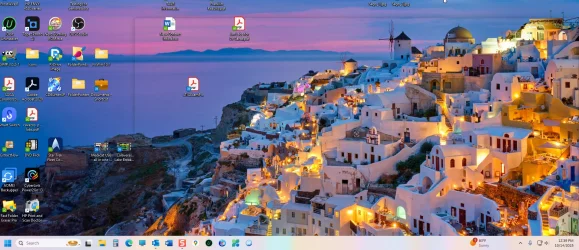
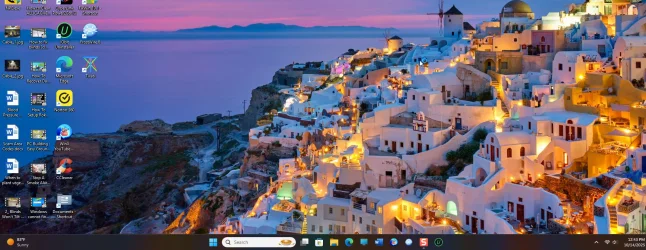
Here is a photo of the computer I just upgraded (Computer_1) and the other computer I had upgraded before (Computer2). Notice the task bar at the bottom of each.
Thanks. Wally
 

Attachments

  • Computer_1.webp
    Computer_1.webp
    294.9 KB · Views: 1
  • Computer_2.webp
    Computer_2.webp
    273.1 KB · Views: 1

My Computer

System One

  • OS
    Windows 11 25H2
    Computer type
    PC/Desktop
    Manufacturer/Model
    HP
    CPU
    11th Gen Intel(R) Core(TM) i7-1165G7 @ 2.80GHz (2.80 GH
    Memory
    16.0 GB (15.6 GB usable)
    Graphics Card(s)
    2 GB
    Monitor(s) Displays
    17in
    Keyboard
    wireless
    Mouse
    wireless
    Antivirus
    Norton 365
So the second photo has the Windows 11 task bar - and will have the Windows 11 start menu instead of the Windows 10 start menu :-) It's just kept your files and desktop background. Can you add a screenshot of the start menu for both (probably not as you no longer have Windows 10!) - but you'll see the start menu is different. Also if you look in "Settings" you'll see the settings is different.
 

My Computers

System One System Two

  • OS
    Windows 11 Home 25H2
    Computer type
    Laptop
    Manufacturer/Model
    HP Pavilion 14-ce3606sa
    CPU
    Core i5-1035G1
    Memory
    32gb
    Hard Drives
    Samsung 870 evo sata ssd
    Cooling
    Could be better
    Internet Speed
    50 mbps Starlink
    Browser
    Firefox
    Other Info
    Originally came installed with a 500gb H10 Optane ssd
  • Operating System
    Windows 11 Home
    Computer type
    Laptop
    Manufacturer/Model
    HP Pavilion ce3606sa
    CPU
    Intel Core i5-1035G1
    Memory
    16gb
    Hard Drives
    Hynix Gold P31 2TB
    Internet Speed
    200mbps Starlink
    Browser
    Firefox
    Antivirus
    Defender
Computer 2 is the default Windows 11 look which has the Start button on the Center of the taskbar, You can change this by
Right clicking the Taskbar and selecting Taskbar Settings.
Click the drop down arrow for Taskbar Behaviors.
Under Taskbar Alignment, you can take the drop down arrow and choose Left, if that is where you want the Start button.

Also under drop down arrow for Other System Tray Icons,
You can select which icons you want to view on the taskbar.

If you don't want to see Widgets like Weather, on your taskbar you can turn Widgets off.

You have the same background picture, but you are missing some of your icons on the desktop, which you can find off the Start button or in the C:\Program Files and C:\Program Files (x86) folders, right click any .exe file for any app and choose Send to... Desktop to create a shortcut to the app or program on your desktop.
 

My Computer

System One

  • OS
    Windows 11 Pro Insider 64 bit 25H2 26200.5742
    Computer type
    PC/Desktop
    Manufacturer/Model
    Gigabyte Z390 UD
    CPU
    Intel Core i7 9700K 3.60
    Motherboard
    Gigabyte Z390 UD
    Memory
    16 GB
    Graphics Card(s)
    nVidia GEForce RTX 2060 Super
    Sound Card
    onboard
    Monitor(s) Displays
    Two 27" Dell 4K monitors
    Screen Resolution
    3840 x 2160
    Hard Drives
    M.2 NVME SSD, 500 GB; Two 2TB Mechanical HDD's
    PSU
    850w PSU
    Case
    Cyberpower PC
    Cooling
    Water cooled
    Keyboard
    Backlit Cyberpower gaming keyboard
    Mouse
    Backlit Cyberpower gaming mouse
    Internet Speed
    1 GB mbps
    Browser
    Brave
    Antivirus
    Windows Security
Yeah, that happens sometimes when the upgrade keeps your old desktop layout and theme from Windows 10 — totally normal.
 

My Computer

System One

  • OS
    Windows 11
    Computer type
    PC/Desktop
    Manufacturer/Model
    DIY
    CPU
    Intel i5 7500
    Motherboard
    ASRock B250M
    Memory
    Kingston 8 GB DDR4
    Graphics Card(s)
    Intel Graphics HD 630
    Monitor(s) Displays
    HKC M242
    Hard Drives
    SanDisk SSD PLus 240
    Browser
    Chrome
The taskbat is kept to the left in the upgraded computer, while in the fresh Windows 11 installation it is at the center which is the Windows 11 default. You can change that from Settings, Personalization, Taskbar, Taskbar behavior. Also if you look carefully you will see that all the system icons (This PC, folders etc) are a little different. I find the Windows 11 default icons a little nicer than the Windows 10 default icons. However there are customization tools if you like to make them look like Windows 8 or 7. I used Customizer God and Resource Hacker to extract the system icons from the appropriate Windows 7 and 8 system files, and then import them in the respective Windows 11 files, so I have the good old 3D Windows 7 icons in 11.

Customized system icons.webp

Customized start button.webp Customized system icons tray.webp

To replace the system tray icons you must first ungroup power/network/sound icons. I use Explorer Patcher for that. I also use Open Shell for the custom taskbar color and Windows 7 style start button and start menu.
 
Last edited:

My Computers

System One System Two

  • OS
    Windows 11 Pro 23H2 (5699), 25H2 (8457)
    Computer type
    Laptop
    Manufacturer/Model
    Acer Extensa 5630EZ
    CPU
    Mobile DualCore Intel Core 2 Duo T7250, 2000 MHz
    Motherboard
    Acer Extensa 5630
    Memory
    4GB
    Graphics Card(s)
    Mobile Intel(R) GMA 4500M (Mobile 4 series)
    Sound Card
    Realtek ALC268 @ Intel 82801IB ICH9 - High Definition Audio Controller
    Monitor(s) Displays
    1
    Screen Resolution
    1280x800
    Hard Drives
    Samsung SSD 850 EVO 250GB SATA Device (250 GB, SATA-III)
    Internet Speed
    VDSL 50 Mbps
    Browser
    MICROSOFT EDGE
    Antivirus
    WINDOWS DEFENDER
    Other Info
    Legacy MBR installation, no TPM, no Secure Boot, no WDDM 2.0 graphics drivers, no SSE4.2, cannot get more unsupported ;) This is only my test laptop. I had installed Windows 11 here before upgrading my main PC. For my main PC I use everyday see my 2nd system specs.
  • Operating System
    Windows 11 Pro v25H2 (build 26200.8457)
    Computer type
    PC/Desktop
    Manufacturer/Model
    Custom-built PC
    CPU
    Intel Core-i7 3770 3.40GHz s1155 (3rd generation)
    Motherboard
    Asus P8H61 s1155 ATX
    Memory
    2x Kingston Hyper-X Blu 8GB DDR3-1600
    Graphics card(s)
    GIGABYTE GeForce RTX 3050 WINDFORCE OC V2 6GB (GV-N3050WF2OCV2-6GD)
    Sound Card
    Realtek HD audio (ALC887)
    Monitor(s) Displays
    Sony Bravia KDL-19L4000 19" LCD TV via VGA
    Screen Resolution
    1440x900 32-bit 60Hz
    Hard Drives
    WD Blue SA510 2.5 1000GB SSD as system disk, Western Digital Caviar Purple 4TB SATA III (WD40PURZ) as second
    PSU
    Thermaltake Litepower RGB 550W Full Wired
    Case
    SUPERCASE MIDI-TOWER
    Cooling
    Deepcool Gamma Archer CPU cooler, 1x 8cm fan at the back
    Keyboard
    Mitsumi 101-key PS/2
    Mouse
    Sunnyline OptiEye PS/2
    Internet Speed
    100Mbps
    Browser
    Microsoft Edge, Mozilla Firefox
    Antivirus
    Microsoft Windows Defender
    Other Info
    Legacy BIOS (MBR) installation, no TPM, no Secure Boot, WDDM 3.0 graphics drivers, WEI score 7.4

Latest Support Threads

Back
Top Bottom