Windows OneDrive folder and file properties


Into_Oblivion1

Active member
Member
Local time
1:10 AM
Posts
189
OS
Windows 11
Hello

I use Windows 10 on the system this relates to.

All the files in the OneDrive folder has the green checkmark.

1.
Are the files with the green checkmark both in a local OneDrive folder and in the OneDrive online cloud?

2.
If I "Unlink this PC" - what happens to all the files with the green checkmark?
They are kept in the OneDrive online cloud?
They are deleted from the local OneDrive folder?

3.
If I download a file from OneDrive online browser then the files "Modified" date is being updated - bad
If I copy a file from the OneDrive folder in Windows to another local folder, then the "Modified" date is unchaged - good
I have only tried this on the same computer.
But what if there is 2 computers:
Computer 1 copy file A to the Windows OneDrive folder.
Computer 2 (another computer) copies file A from Windows OneDrive folder to another local folder - is the "Modified" date unchanged or updated?

I know the "Created" and "Accessed" dates are being updated / new when copying file A.

4.
Are the answers the same for Windows 11?

Thank you
 
Windows Build/Version
Windows 10

My Computer My Computer

At a glance

Windows 11
OS
Windows 11
Computer type
Laptop
I use Windows 10 on the system this relates to.
All the files in the OneDrive folder has the green checkmark.

1. Are the files with the green checkmark both in a local OneDrive folder and in the OneDrive online cloud?
There are two types of green checkmark, one with a white background, the other solid green. Both mean that the file is on your PC as well as in the cloud. Solid green are files that you have marked as "Always keep on this device".

Full list of all icon meanings here: What do the OneDrive icons mean? - Microsoft Support

Are the answers the same for Windows 11?
Yes.
 

My Computers My Computers

  • At a glance

    Windows 11 HomeAMD Athlon Silver 3050U8GBRadeon Graphics
    OS
    Windows 11 Home
    Computer type
    Laptop
    Manufacturer/Model
    Acer Aspire 3 A315-23-R9VY
    CPU
    AMD Athlon Silver 3050U
    Memory
    8GB
    Graphics Card(s)
    Radeon Graphics
    Monitor(s) Displays
    laptop screen
    Screen Resolution
    1366x768 native resolution, up to 2560x1440 with Radeon Virtual Super Resolution
    Hard Drives
    1TB Samsung EVO 870 SSD (from April 2026: 250GB EVO 850)
    Internet Speed
    150 Mbps
    Browser
    Edge, Firefox
    Antivirus
    Defender
    Other Info
    fully 'Windows 11 ready' laptop. Windows 10 C: partition migrated from my old unsupported 'main machine' then upgraded to 11. A test migration ran Insider builds for 2 months. When 11 was released on 5th October 2021 it was re-imaged back to 10 and was offered the upgrade in Windows Update on 20th October. Windows Update offered the 22H2 Feature Update on 20th September 2022. It got the 23H2 Feature Update on 4th November 2023 through Windows Update, 24H2 on 3rd October 2024 through Windows Update by setting the Target Release Version for 24H2, and 25H2 on 30th September 2025 through Windows Update by setting the Target Release Version for 25H2.

    UPDATE - 11 April 2026: due to mechanical deterioration this PC has been retired from active duty. The OS with all software and files has been migrated to my System Seven in 'Other systems' to carry on as my general purpose 'main machine'.

    I've now clean installed 25H2 and used Garlin's scripts to update Secure Boot to CA 2023 and revoke the PCA 2011 certificates. It's new role is to test secure boot issues.
  • At a glance

    Windows 11 ProIntel® Core™ i5-520M8GB(integrated graphics) Intel HD Graphics
    Operating System
    Windows 11 Pro
    Computer type
    Laptop
    Manufacturer/Model
    Dell Latitude E4310
    CPU
    Intel® Core™ i5-520M
    Motherboard
    0T6M8G
    Memory
    8GB
    Graphics card(s)
    (integrated graphics) Intel HD Graphics
    Screen Resolution
    1366x768
    Hard Drives
    500GB Crucial MX500 SSD
    Browser
    Firefox, Edge
    Antivirus
    Defender
    Other Info
    unsupported machine: Legacy bios, MBR, TPM 1.2, upgraded from W10 to W11 using W10/W11 hybrid install media workaround.

    In-place upgrade to 22H2 using ISO and a workaround.
    Feature Update to 23H2 by manually installing the Enablement Package.
    In-place upgrade to 24H2 using hybrid 23H2/24H2 install media.
    Upgraded to 25H2 by Enablement Package.

    Also running Insider Dev, and Canary builds and Windows 10 as native boot .vhdx.
  • My SYSTEM THREE is a Dell Latitude 5410, i7-10610U, 32GB RAM, 512GB NVMe ssd, supported device running Windows 11 Pro.

    My SYSTEM FOUR is a 2-in-1 convertible Lenovo Yoga 11e 20DA, Celeron N2930, 8GB RAM, 256GB ssd. Unsupported device: currently running Win10 Pro, plus Win11 Pro RTM and Insider Dev, Beta, and RP 24H2 as native boot vhdx.

    My SYSTEM FIVE is a Dell Latitude 3190 2-in-1, Pentium Silver N5030, 8GB RAM, 1TB NVMe ssd, supported device running Windows 11 Pro, plus Insider Beta, Dev, and Canary builds (and a few others) as a native boot .vhdx.

    My SYSTEM SIX is a Dell Latitude 5550, Core Ultra 7 165H, 64GB RAM, 1TB NVMe SSD, supported device, Windows 11 Pro 24H2, Hyper-V host machine. Updated to 25H2 on 30th September 2025.

    My SYSTEM SEVEN is a Lenovo Thinkpad T580, Intel Core i7-8650U, 16GB RAM, 512GB NVMe SSD + 2nd 512GB NVMe SSD, a supported device for Windows 11. This is my current general purpose 'main machine'. The installed Windows 11 Home from my System One has been migrated to this machine.
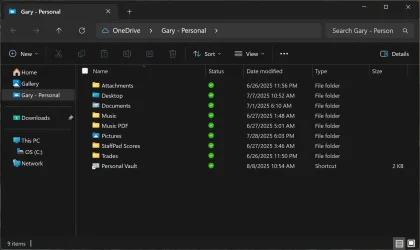
I've been using OneDrive since it was introduced 18 years ago. I keep Files On Demand turned OFF. This results in everything kept in my OneDrive folder being kept in real-time sync in both cloud OneDrive and local OneDrive. Thus, when I do my daily Macrium Reflect X images I am backing up everything in OneDrive. This is what my File Explorer currently looks like. Notice the Status icons.

1754666370845.webp
 

My Computers My Computers

  • At a glance

    Windows 11 ProIntel Series 3 Core Ultra X9 388H64GB LPDDR5x 9600 MT/sIntel Arc graphics B390 Panther Lake
    OS
    Windows 11 Pro
    Computer type
    Laptop
    Manufacturer/Model
    Dell XPS 16 DA16260
    CPU
    Intel Series 3 Core Ultra X9 388H
    Memory
    64GB LPDDR5x 9600 MT/s
    Graphics Card(s)
    Intel Arc graphics B390 Panther Lake
    Monitor(s) Displays
    16" 3.2K Tandem OLED Infinity Edge
    Screen Resolution
    3200 x 2000 16:10 236 PPI
    Hard Drives
    1 Terabyte M.2 PCIe NVMe SSD
    Case
    Black Anodized Aluminum
    Cooling
    Vapor Chamber Cooling
    Mouse
    None
    Internet Speed
    942 Mbps Netgear Mesh + 2 Satellites
    Browser
    Microsoft Edge (Chromium)
    Antivirus
    Windows Security (Defender)
    Other Info
    NPU delivering 67 TOPS
    Microsoft 365 subscription
    Microsoft Office 365
    Microsoft OneDrive 1TB Cloud
    Microsoft Visual Studio
    Microsoft Visual Studio Code
    Microsoft Sysinternals Suite
    Microsoft BitLocker
    Microsoft Copilot
    Dell Support Assist
    Dell Command | Update
    Macrium Reflect X subscription
    1Password Password Manager
    Amazon Kindle for PC
    Lightroom/Photoshop subscription
    Interactive Brokers Trader Workstation
  • At a glance

    Windows 11 ProSnapdragon® X Elite (12 Core) with Hexagon NP...32GB LPDDR5x 8448 MT/sIntegrated Adreno GPU
    Operating System
    Windows 11 Pro
    Computer type
    Laptop
    Manufacturer/Model
    Microsoft Surface Laptop 7
    CPU
    Snapdragon® X Elite (12 Core) with Hexagon NPU delivering 45 TOPS
    Memory
    32GB LPDDR5x 8448 MT/s
    Graphics card(s)
    Integrated Adreno GPU
    Sound Card
    Omnisonic speakers with Dolby Atmos spatial sound
    Monitor(s) Displays
    13.8″ PixelSense Flow touchscreen 120 Hz 600 NIT
    Screen Resolution
    2304 × 1536 (201 PPI), 3:2 aspect ratio
    Hard Drives
    1 TB PCIe NVMe Gen 4 SSD
    Case
    Black Anodized Aluminum
    Cooling
    Vapor Chamber Cooling
    Mouse
    None
    Internet Speed
    942 Mbps Netgear Mesh + 2 Satellites
    Browser
    Microsoft Edge (Chromium)
    Antivirus
    Windows Security (Defender)
    Other Info
    Microsoft 365 subscription (Office)
    Microsoft Office 365
    Microsoft OneDrive 1TB Cloud
    Microsoft Visual Studio 2026
    Microsoft Visual Studio Code
    Interactive Brokers Trader Workstation
    Lightroom/Photoshop subscription
    1Password Password Manager
    Microsoft Sysinternals
    Amazon Kindle for PC
    Microsoft BitLocker
    Microsoft Copilot
Thank you for your replies

Can anyone please help me with 3. and 4.?

Thank you

Have a great weekend :-)
 

My Computer My Computer

At a glance

Windows 11
OS
Windows 11
Computer type
Laptop
I keep Files On Demand turned OFF. This results in everything kept in my OneDrive folder being kept in real-time sync in both cloud OneDrive and local OneDrive. Thus, when I do my daily Macrium Reflect X images I am backing up everything in OneDrive. This is what my File Explorer currently looks like. Notice the Status icons.

View attachment 141632
Where is this setting "Files On Demand "? I can't find it in OneDrive settings?
 

My Computer My Computer

At a glance

Windows 11i7-9700k32 GBAsus 660 Ti
OS
Windows 11
Computer type
PC/Desktop
Manufacturer/Model
Custom
CPU
i7-9700k
Motherboard
Asus ROG Maximus X hero
Memory
32 GB
Graphics Card(s)
Asus 660 Ti
@Basa

To turn Files On-Demand OFF in OneDrive and ensure all files remain available both locally and in the cloud, follow these steps:

🛠️ Turn Off Files On-Demand
  1. Open OneDrive Settings:
    • Click the OneDrive cloud icon in your system tray (bottom-right corner of your screen).
    • Select the gear icon ⚙️ > Settings.
  2. Go to Sync and Backup:
    • In the OneDrive settings window, click on the Sync and backup tab.
  3. Disable Files On-Demand:
    • Scroll to Advanced settings.
    • Find the Files On-Demand section.
    • Uncheck the box that says “Free up disk space.”
    • Check the box that says "Download all files."
  4. Confirm and Apply:
  • Click OK or Apply to save your changes.

📥 Make Sure All Files Are Stored Locally

After turning off Files On-Demand, OneDrive will begin downloading all files to your device. To ensure this happens:
  1. Open your OneDrive folder in File Explorer.
  2. Right-click the top-level OneDrive folder (or any subfolder you want fully available).
  3. Select “Always keep on this device.”
This will force OneDrive to download and store all files locally while keeping them synced to the cloud.

✅ What Happens Next?
  • All files in your OneDrive folder will be physically stored on your device.
  • Any changes made locally will still sync to the cloud in real-time.
  • You’ll no longer see the “cloud-only” icons — everything will be available offline.
  • Now when you do your image backups, you will also be backing up everything in cloud OneDrive.
 
Last edited:

My Computers My Computers

  • At a glance

    Windows 11 ProIntel Series 3 Core Ultra X9 388H64GB LPDDR5x 9600 MT/sIntel Arc graphics B390 Panther Lake
    OS
    Windows 11 Pro
    Computer type
    Laptop
    Manufacturer/Model
    Dell XPS 16 DA16260
    CPU
    Intel Series 3 Core Ultra X9 388H
    Memory
    64GB LPDDR5x 9600 MT/s
    Graphics Card(s)
    Intel Arc graphics B390 Panther Lake
    Monitor(s) Displays
    16" 3.2K Tandem OLED Infinity Edge
    Screen Resolution
    3200 x 2000 16:10 236 PPI
    Hard Drives
    1 Terabyte M.2 PCIe NVMe SSD
    Case
    Black Anodized Aluminum
    Cooling
    Vapor Chamber Cooling
    Mouse
    None
    Internet Speed
    942 Mbps Netgear Mesh + 2 Satellites
    Browser
    Microsoft Edge (Chromium)
    Antivirus
    Windows Security (Defender)
    Other Info
    NPU delivering 67 TOPS
    Microsoft 365 subscription
    Microsoft Office 365
    Microsoft OneDrive 1TB Cloud
    Microsoft Visual Studio
    Microsoft Visual Studio Code
    Microsoft Sysinternals Suite
    Microsoft BitLocker
    Microsoft Copilot
    Dell Support Assist
    Dell Command | Update
    Macrium Reflect X subscription
    1Password Password Manager
    Amazon Kindle for PC
    Lightroom/Photoshop subscription
    Interactive Brokers Trader Workstation
  • At a glance

    Windows 11 ProSnapdragon® X Elite (12 Core) with Hexagon NP...32GB LPDDR5x 8448 MT/sIntegrated Adreno GPU
    Operating System
    Windows 11 Pro
    Computer type
    Laptop
    Manufacturer/Model
    Microsoft Surface Laptop 7
    CPU
    Snapdragon® X Elite (12 Core) with Hexagon NPU delivering 45 TOPS
    Memory
    32GB LPDDR5x 8448 MT/s
    Graphics card(s)
    Integrated Adreno GPU
    Sound Card
    Omnisonic speakers with Dolby Atmos spatial sound
    Monitor(s) Displays
    13.8″ PixelSense Flow touchscreen 120 Hz 600 NIT
    Screen Resolution
    2304 × 1536 (201 PPI), 3:2 aspect ratio
    Hard Drives
    1 TB PCIe NVMe Gen 4 SSD
    Case
    Black Anodized Aluminum
    Cooling
    Vapor Chamber Cooling
    Mouse
    None
    Internet Speed
    942 Mbps Netgear Mesh + 2 Satellites
    Browser
    Microsoft Edge (Chromium)
    Antivirus
    Windows Security (Defender)
    Other Info
    Microsoft 365 subscription (Office)
    Microsoft Office 365
    Microsoft OneDrive 1TB Cloud
    Microsoft Visual Studio 2026
    Microsoft Visual Studio Code
    Interactive Brokers Trader Workstation
    Lightroom/Photoshop subscription
    1Password Password Manager
    Microsoft Sysinternals
    Amazon Kindle for PC
    Microsoft BitLocker
    Microsoft Copilot
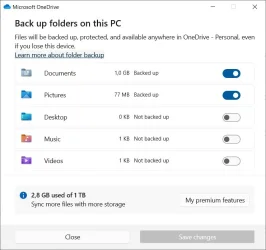
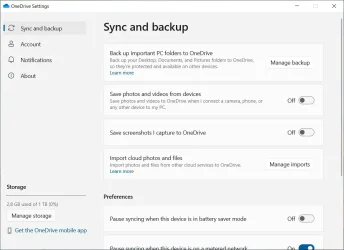
There are no "Advanced Settings" in OneDrive on my PC? Look at the screenshots. Although I remember that there was such an option before?
 

Attachments

  • Capture 1.webp
    Capture 1.webp
    31.3 KB · Views: 3
  • Capture.webp
    Capture.webp
    50.1 KB · Views: 3

My Computer My Computer

At a glance

Windows 11i7-9700k32 GBAsus 660 Ti
OS
Windows 11
Computer type
PC/Desktop
Manufacturer/Model
Custom
CPU
i7-9700k
Motherboard
Asus ROG Maximus X hero
Memory
32 GB
Graphics Card(s)
Asus 660 Ti
There are no "Advanced Settings" in OneDrive on my PC? Look at the screenshots. Although I remember that there was such an option before?
Scroll to the bottom of the Sync and Backup page and there will be a line that says, "Advanced settings".

Click on it.

Then scroll to the bottom of that page.
 

My Computers My Computers

  • At a glance

    Windows 11 ProIntel Series 3 Core Ultra X9 388H64GB LPDDR5x 9600 MT/sIntel Arc graphics B390 Panther Lake
    OS
    Windows 11 Pro
    Computer type
    Laptop
    Manufacturer/Model
    Dell XPS 16 DA16260
    CPU
    Intel Series 3 Core Ultra X9 388H
    Memory
    64GB LPDDR5x 9600 MT/s
    Graphics Card(s)
    Intel Arc graphics B390 Panther Lake
    Monitor(s) Displays
    16" 3.2K Tandem OLED Infinity Edge
    Screen Resolution
    3200 x 2000 16:10 236 PPI
    Hard Drives
    1 Terabyte M.2 PCIe NVMe SSD
    Case
    Black Anodized Aluminum
    Cooling
    Vapor Chamber Cooling
    Mouse
    None
    Internet Speed
    942 Mbps Netgear Mesh + 2 Satellites
    Browser
    Microsoft Edge (Chromium)
    Antivirus
    Windows Security (Defender)
    Other Info
    NPU delivering 67 TOPS
    Microsoft 365 subscription
    Microsoft Office 365
    Microsoft OneDrive 1TB Cloud
    Microsoft Visual Studio
    Microsoft Visual Studio Code
    Microsoft Sysinternals Suite
    Microsoft BitLocker
    Microsoft Copilot
    Dell Support Assist
    Dell Command | Update
    Macrium Reflect X subscription
    1Password Password Manager
    Amazon Kindle for PC
    Lightroom/Photoshop subscription
    Interactive Brokers Trader Workstation
  • At a glance

    Windows 11 ProSnapdragon® X Elite (12 Core) with Hexagon NP...32GB LPDDR5x 8448 MT/sIntegrated Adreno GPU
    Operating System
    Windows 11 Pro
    Computer type
    Laptop
    Manufacturer/Model
    Microsoft Surface Laptop 7
    CPU
    Snapdragon® X Elite (12 Core) with Hexagon NPU delivering 45 TOPS
    Memory
    32GB LPDDR5x 8448 MT/s
    Graphics card(s)
    Integrated Adreno GPU
    Sound Card
    Omnisonic speakers with Dolby Atmos spatial sound
    Monitor(s) Displays
    13.8″ PixelSense Flow touchscreen 120 Hz 600 NIT
    Screen Resolution
    2304 × 1536 (201 PPI), 3:2 aspect ratio
    Hard Drives
    1 TB PCIe NVMe Gen 4 SSD
    Case
    Black Anodized Aluminum
    Cooling
    Vapor Chamber Cooling
    Mouse
    None
    Internet Speed
    942 Mbps Netgear Mesh + 2 Satellites
    Browser
    Microsoft Edge (Chromium)
    Antivirus
    Windows Security (Defender)
    Other Info
    Microsoft 365 subscription (Office)
    Microsoft Office 365
    Microsoft OneDrive 1TB Cloud
    Microsoft Visual Studio 2026
    Microsoft Visual Studio Code
    Interactive Brokers Trader Workstation
    Lightroom/Photoshop subscription
    1Password Password Manager
    Microsoft Sysinternals
    Amazon Kindle for PC
    Microsoft BitLocker
    Microsoft Copilot
I found it now. Thank you!
 

My Computer My Computer

At a glance

Windows 11i7-9700k32 GBAsus 660 Ti
OS
Windows 11
Computer type
PC/Desktop
Manufacturer/Model
Custom
CPU
i7-9700k
Motherboard
Asus ROG Maximus X hero
Memory
32 GB
Graphics Card(s)
Asus 660 Ti
Can anyone help me with my remaining questions?

2.
If I "Unlink this PC" - what happens to all the files with the green checkmark?
They are kept in the OneDrive online cloud?
They are deleted from the local OneDrive folder?

3.
If I download a file from OneDrive online browser then the files "Modified" date is being updated - bad
If I copy a file from the OneDrive folder in Windows to another local folder, then the "Modified" date is unchaged - good
I have only tried this on the same computer.
But what if there is 2 computers:
Computer 1 copy file A to the Windows OneDrive folder.
Computer 2 (another computer) copies file A from Windows OneDrive folder to another local folder - is the "Modified" date unchanged or updated?

Another quetion related to the topic:

5.
When I access the Windows OneDrive folder - close the folder - and then access the folder again. The files / bmp. files properties "Accessed" timestamp has been updated.
I only opened the folder, I did not open the files in any way.

Why is the files "Accessed" timestap updated?

Thank you all

Have a great weekend :-)
 

My Computer My Computer

At a glance

Windows 11
OS
Windows 11
Computer type
Laptop

My Computers My Computers

  • At a glance

    Windows 11 Pro Version 25H2 (Build 26200.8894Intel i7-9700K 4700 MHz32 GB (4 x 8GB SK Hynix DDR4 @1333 MHz) (2666...NVIDIA GeForce RTX 2060 (6 GB) GDDR6 300 MHz
    OS
    Windows 11 Pro Version 25H2 (Build 26200.8894
    Computer type
    PC/Desktop
    Manufacturer/Model
    Dell XPS8930 SE
    CPU
    Intel i7-9700K 4700 MHz
    Motherboard
    Dell XPS 8930
    Memory
    32 GB (4 x 8GB SK Hynix DDR4 @1333 MHz) (2666 MHz)
    Graphics Card(s)
    NVIDIA GeForce RTX 2060 (6 GB) GDDR6 300 MHz
    Sound Card
    None
    Monitor(s) Displays
    Dell UltraSharp U2518D 25"
    Screen Resolution
    2560 x 1440
    Hard Drives
    NVMe Intel 1024 TB
    Seagate 2 TB, SATA-III
    Western Digital Black 4TB
    PSU
    850 W Gold Standard
    Case
    Dell XPS 8930 Base (Special Edition)
    Cooling
    Air
    Keyboard
    Dell 0G4D2W
    Mouse
    Dell MOCZUL
    Internet Speed
    Download 553 Mbps, Upload 686 Mbps
    Browser
    Google Chrome
    Antivirus
    ESET Smart Security Premium, plus Malwarebytes Premium
    Other Info
    BIOS Version 1.1.31
  • At a glance

    Windows 11 Pro Version 25H2 (Build 26200.8894)i7-9750H 4.5 GHz16 GB (2 x 8GB @ 1333 MHz) DDR4-2666 MHzNVIDIA GeForce 1650 4 GB GDDR5
    Operating System
    Windows 11 Pro Version 25H2 (Build 26200.8894)
    Computer type
    Laptop
    Manufacturer/Model
    Dell XPS 15 7590
    CPU
    i7-9750H 4.5 GHz
    Motherboard
    Dell XPS 15 7590
    Memory
    16 GB (2 x 8GB @ 1333 MHz) DDR4-2666 MHz
    Graphics card(s)
    NVIDIA GeForce 1650 4 GB GDDR5
    Sound Card
    None
    Monitor(s) Displays
    Dell XPS 15 7590, 15.6" InfinityEdge Anti-Glare, Non-Touch
    Screen Resolution
    1920 x 1080
    Hard Drives
    512 GB M.2 PCle NVMe SK Hynix
    PSU
    130W Power Adapter
    Case
    Dell XPS 15 7590
    Cooling
    Air
    Keyboard
    Laptop
    Mouse
    Logitech M510
    Internet Speed
    Download: 400 Mbps, Upload: 203 Mbps
    Browser
    Google Chrome
    Antivirus
    ESET Smart Security Premium, plus Malwarebytes Premium
    Other Info
    BIOS Version 1.35.0
Can anyone help me with my remaining questions?

2.
If I "Unlink this PC" - what happens to all the files with the green checkmark?
They are kept in the OneDrive online cloud?
They are deleted from the local OneDrive folder?

If there is a green checkmark in the status column it means that the file is in both the local OneDrive folder and cloud OneDrive. A solid green circle checkmark means Files On Demand is turned OFF. This results in everything kept in the local OneDrive folder being kept in real-time sync in both cloud OneDrive and local OneDrive.

If you "Unlink this PC", all files that are in the local OneDrive folder remain unchanged. All files that are in cloud OneDrive remain unchanged. The only thing you have changed is the synchronization between the local OneDrive folder and cloud OneDrive.

3.
If I download a file from OneDrive online browser then the files "Modified" date is being updated - bad

If you actively copy a file from cloud OneDrive to local OneDrive it creates a new sync, and the file status changes because of the newly instantiated synchronization. The purpose of OneDrive is to keep all files between your local OneDrive folder and cloud OneDrive in perfect real-time sync.

If I copy a file from the OneDrive folder in Windows to another local folder, then the "Modified" date is unchaged - good

When you copy a file from OneDrive to a local folder outside of the OneDrive folder, no sync takes place, thus the file status does not change.

I have only tried this on the same computer.
But what if there is 2 computers:
Computer 1 copy file A to the Windows OneDrive folder.
Computer 2 (another computer) copies file A from Windows OneDrive folder to another local folder - is the "Modified" date unchanged or updated?

When both computers are using the same cloud OneDrive, all files are kept in real-time sync between both computers. That's the beauty of OneDrive, you can move transparently between the two computers. You edit a file in the OneDrive folder, and the file is edited on both computers. You delete a file in the OneDrive folder, and it is deleted on both computers.

Another quetion related to the topic:

5.
When I access the Windows OneDrive folder - close the folder - and then access the folder again. The files / bmp. files properties "Accessed" timestamp has been updated.
I only opened the folder, I did not open the files in any way.

Why is the files "Accessed" timestap updated?

Whenever you open a OneDrive folder you cause OneDrive to compare all files to see if there are any changes that have occurred that would require cloud OneDrive to be updated. Remember, the purpose of OneDrive is to keep all files in OneDrive synchronized at all times.

Thank you all

Have a great weekend :-)
 
Last edited:

My Computers My Computers

  • At a glance

    Windows 11 ProIntel Series 3 Core Ultra X9 388H64GB LPDDR5x 9600 MT/sIntel Arc graphics B390 Panther Lake
    OS
    Windows 11 Pro
    Computer type
    Laptop
    Manufacturer/Model
    Dell XPS 16 DA16260
    CPU
    Intel Series 3 Core Ultra X9 388H
    Memory
    64GB LPDDR5x 9600 MT/s
    Graphics Card(s)
    Intel Arc graphics B390 Panther Lake
    Monitor(s) Displays
    16" 3.2K Tandem OLED Infinity Edge
    Screen Resolution
    3200 x 2000 16:10 236 PPI
    Hard Drives
    1 Terabyte M.2 PCIe NVMe SSD
    Case
    Black Anodized Aluminum
    Cooling
    Vapor Chamber Cooling
    Mouse
    None
    Internet Speed
    942 Mbps Netgear Mesh + 2 Satellites
    Browser
    Microsoft Edge (Chromium)
    Antivirus
    Windows Security (Defender)
    Other Info
    NPU delivering 67 TOPS
    Microsoft 365 subscription
    Microsoft Office 365
    Microsoft OneDrive 1TB Cloud
    Microsoft Visual Studio
    Microsoft Visual Studio Code
    Microsoft Sysinternals Suite
    Microsoft BitLocker
    Microsoft Copilot
    Dell Support Assist
    Dell Command | Update
    Macrium Reflect X subscription
    1Password Password Manager
    Amazon Kindle for PC
    Lightroom/Photoshop subscription
    Interactive Brokers Trader Workstation
  • At a glance

    Windows 11 ProSnapdragon® X Elite (12 Core) with Hexagon NP...32GB LPDDR5x 8448 MT/sIntegrated Adreno GPU
    Operating System
    Windows 11 Pro
    Computer type
    Laptop
    Manufacturer/Model
    Microsoft Surface Laptop 7
    CPU
    Snapdragon® X Elite (12 Core) with Hexagon NPU delivering 45 TOPS
    Memory
    32GB LPDDR5x 8448 MT/s
    Graphics card(s)
    Integrated Adreno GPU
    Sound Card
    Omnisonic speakers with Dolby Atmos spatial sound
    Monitor(s) Displays
    13.8″ PixelSense Flow touchscreen 120 Hz 600 NIT
    Screen Resolution
    2304 × 1536 (201 PPI), 3:2 aspect ratio
    Hard Drives
    1 TB PCIe NVMe Gen 4 SSD
    Case
    Black Anodized Aluminum
    Cooling
    Vapor Chamber Cooling
    Mouse
    None
    Internet Speed
    942 Mbps Netgear Mesh + 2 Satellites
    Browser
    Microsoft Edge (Chromium)
    Antivirus
    Windows Security (Defender)
    Other Info
    Microsoft 365 subscription (Office)
    Microsoft Office 365
    Microsoft OneDrive 1TB Cloud
    Microsoft Visual Studio 2026
    Microsoft Visual Studio Code
    Interactive Brokers Trader Workstation
    Lightroom/Photoshop subscription
    1Password Password Manager
    Microsoft Sysinternals
    Amazon Kindle for PC
    Microsoft BitLocker
    Microsoft Copilot
If you "Unlink this PC", all files that are in the local OneDrive folder remain unchanged. All files that are in cloud OneDrive remain unchanged. The only thing you have changed is the synchronization between the local OneDrive folder and cloud OneDrive.
If I unlink, I can still see the OneDrive folder in Windows, but I can't access it.
The status of the files are "Locally available".
What happens to the data in the local OneDrive folder?
Is the data deleted from the local folder?
Is the data being stored in a restricted folder, until the system is linked to OneDrive again?

If you actively copy a file from cloud OneDrive to local OneDrive it creates a new sync, and the file status changes because of the newly instantiated synchronization. The purpose of OneDrive is to keep all files between your local OneDrive folder and cloud OneDrive in perfect real-time sync.

When you copy a file from OneDrive to a local folder outside of the OneDrive folder, no sync takes place, thus the file status does not change.

When both computers are using the same cloud OneDrive, all files are kept in real-time sync between both computers. That's the beauty of OneDrive, you can move transparently between the two computers. You edit a file in the OneDrive folder, and the file is edited on both computers. You delete a file in the OneDrive folder, and it is deleted on both computers.
Let me rephrase 3.

3.
If I copy a file from the OneDrive folder in Windows to another local folder, for example Desktop, then the "Modified" date is unchaged in file properties- good
I have only tried this on the same computer.
But what if there is 2 computers:
Computer 1 copy file A to the Windows OneDrive folder.
Computer 2 (another computer) copies file A from Windows OneDrive folder to another local folder, for example Desktop, then the "Modified" date is unchaged in file properties?

Thank you
 

My Computer My Computer

At a glance

Windows 11
OS
Windows 11
Computer type
Laptop
If I unlink, I can still see the OneDrive folder in Windows, but I can't access it.

Cloud OneDrive is still yours. The only thing that changed is the files in cloud OneDrive are no longer synchronized with the files in your local OneDrive folder. The files in cloud OneDrive are still yours. You can change them. You can delete them. You can download them to use on your local computer. The only thing that's changed is the link the keeps the files synchronized.

The status of the files are "Locally available".

If you use File Explorer to look at your local OneDrive folder, the files are, of course, locally available.

What happens to the data in the local OneDrive folder?

Your OneDrive folder works like it always has. You can copy files, edit files, delete files, just like any folder. The only thing that changed was you unlinked from cloud OneDrive and your files in your OneDrive folder are no longer synchronized with cloud OneDrive.

Is the data deleted from the local folder?

Only if you delete it yourself. Again, after you unlink, the only thing that changed was sync with cloud OneDrive. After unlinking your OneDrive folder works like any folder on your computer, just like it always has.

Is the data being stored in a restricted folder, until the system is linked to OneDrive again?

The OneDrive folder is not restricted in any way. It acts like any other folder on your computer. It always has. Again, the ONLY thing that has changed is your synchronization with cloud OneDrive.

Let me rephrase 3.

3.
If I copy a file from the OneDrive folder in Windows to another local folder, for example Desktop, then the "Modified" date is unchaged in file properties- good

Not only is that good, it's the way files have always worked with the OneDrive folder. OneDrive only syncs with files that are in the OneDrive folder.

I have only tried this on the same computer.
But what if there is 2 computers:
Computer 1 copy file A to the Windows OneDrive folder.
Computer 2 (another computer) copies file A from Windows OneDrive folder to another local folder, for example Desktop, then the "Modified" date is unchaged in file properties?

That's what I love about OneDrive. The files in the OneDrive folder on both of my computers are always in real-time sync. If I change a file on one computer, it changes on both computers. If I delete a file, it's deleted on both computers., That's why I love being able to move from one computer to another and all my work is always in perfect sync.

Remember, the only files that are affected by OneDrive are the files that are actually in the OneDrive folder. If you copy or move a file to a folder outside of the control of the OneDrive folder, it's now unaffected by OneDrive.

Thank you
 

My Computers My Computers

  • At a glance

    Windows 11 ProIntel Series 3 Core Ultra X9 388H64GB LPDDR5x 9600 MT/sIntel Arc graphics B390 Panther Lake
    OS
    Windows 11 Pro
    Computer type
    Laptop
    Manufacturer/Model
    Dell XPS 16 DA16260
    CPU
    Intel Series 3 Core Ultra X9 388H
    Memory
    64GB LPDDR5x 9600 MT/s
    Graphics Card(s)
    Intel Arc graphics B390 Panther Lake
    Monitor(s) Displays
    16" 3.2K Tandem OLED Infinity Edge
    Screen Resolution
    3200 x 2000 16:10 236 PPI
    Hard Drives
    1 Terabyte M.2 PCIe NVMe SSD
    Case
    Black Anodized Aluminum
    Cooling
    Vapor Chamber Cooling
    Mouse
    None
    Internet Speed
    942 Mbps Netgear Mesh + 2 Satellites
    Browser
    Microsoft Edge (Chromium)
    Antivirus
    Windows Security (Defender)
    Other Info
    NPU delivering 67 TOPS
    Microsoft 365 subscription
    Microsoft Office 365
    Microsoft OneDrive 1TB Cloud
    Microsoft Visual Studio
    Microsoft Visual Studio Code
    Microsoft Sysinternals Suite
    Microsoft BitLocker
    Microsoft Copilot
    Dell Support Assist
    Dell Command | Update
    Macrium Reflect X subscription
    1Password Password Manager
    Amazon Kindle for PC
    Lightroom/Photoshop subscription
    Interactive Brokers Trader Workstation
  • At a glance

    Windows 11 ProSnapdragon® X Elite (12 Core) with Hexagon NP...32GB LPDDR5x 8448 MT/sIntegrated Adreno GPU
    Operating System
    Windows 11 Pro
    Computer type
    Laptop
    Manufacturer/Model
    Microsoft Surface Laptop 7
    CPU
    Snapdragon® X Elite (12 Core) with Hexagon NPU delivering 45 TOPS
    Memory
    32GB LPDDR5x 8448 MT/s
    Graphics card(s)
    Integrated Adreno GPU
    Sound Card
    Omnisonic speakers with Dolby Atmos spatial sound
    Monitor(s) Displays
    13.8″ PixelSense Flow touchscreen 120 Hz 600 NIT
    Screen Resolution
    2304 × 1536 (201 PPI), 3:2 aspect ratio
    Hard Drives
    1 TB PCIe NVMe Gen 4 SSD
    Case
    Black Anodized Aluminum
    Cooling
    Vapor Chamber Cooling
    Mouse
    None
    Internet Speed
    942 Mbps Netgear Mesh + 2 Satellites
    Browser
    Microsoft Edge (Chromium)
    Antivirus
    Windows Security (Defender)
    Other Info
    Microsoft 365 subscription (Office)
    Microsoft Office 365
    Microsoft OneDrive 1TB Cloud
    Microsoft Visual Studio 2026
    Microsoft Visual Studio Code
    Interactive Brokers Trader Workstation
    Lightroom/Photoshop subscription
    1Password Password Manager
    Microsoft Sysinternals
    Amazon Kindle for PC
    Microsoft BitLocker
    Microsoft Copilot
Cloud OneDrive is still yours. The only thing that changed is the files in cloud OneDrive are no longer synchronized with the files in your local OneDrive folder. The files in cloud OneDrive are still yours. You can change them. You can delete them. You can download them to use on your local computer. The only thing that's changed is the link the keeps the files synchronized.
Let me try to rephrase:

I have copied files to my Onedrive folder in File Explorer. I can see the files in the Onedrive folder in File Explorer.
The files are "Locally available".

The files in the Onedrive folder in File Explorer - is that only a cloud view or is it local data on my drive?

If I then unlink Onedrive in Windows:
I can see the Onedrive folder in File Explorer, but when I double click it / try to access it - nothing happens - I can't access it.

If it is local data on my drive and not a cloud view - what happens to this data when I unlink Onedrive in Windows, and no longer can access the Onedrive folder in File Explorer?

That's what I love about OneDrive. The files in the OneDrive folder on both of my computers are always in real-time sync. If I change a file on one computer, it changes on both computers. If I delete a file, it's deleted on both computers., That's why I love being able to move from one computer to another and all my work is always in perfect sync.
If I copy a file from the OneDrive folder in Windows to another local folder (out of Onedrive), for example Desktop, then the "Modified" date is unchaged in file properties- good
I have only tried this on the same computer.
But what if there is 2 computers:
Computer 1 copy file A to the Windows OneDrive folder.
Computer 2 (another computer) copies file A from Windows OneDrive folder to another local folder (not a Onedrive folder), for example Desktop, then the "Modified" date is unchaged in file properties?

Have you tried this experiment?

Thank you
 

My Computer My Computer

At a glance

Windows 11
OS
Windows 11
Computer type
Laptop
Not sure I quite followed this, but "local data" refers to your usual files on your computer - eg documents, pictures folders and their contents. The One Drive folder is just something to do with one drive.

If you want to unlink one Drive and uninstall it/not use it, and just use the data on your computer, then I would do a backup of all the files on your computer first onto an external hard drive. Just in case you didn't have the right boxes ticked in one drive, because the wrong combination can delete the files from your computer as well as one drive. I will admit I don't fully understand it and I always uninstall it and keep my files on my computer and back them up some other way.

When you say the one drive folder, do you mean the one in c drive? Or - you mentioned one in file explorer. I think the one in file explorer just shows what is backed up with one drive in the cloud. Which is probably why you can't open it when you unlink one drive. Local data remains in its usual folders on the computer.
 

My Computers My Computers

  • At a glance

    Windows 11 Home 25H2Core i5-1035G132gb
    OS
    Windows 11 Home 25H2
    Computer type
    Laptop
    Manufacturer/Model
    HP Pavilion 14-ce3606sa
    CPU
    Core i5-1035G1
    Memory
    32gb
    Hard Drives
    Samsung 870 evo sata ssd
    Cooling
    Could be better
    Internet Speed
    50 mbps Starlink
    Browser
    Firefox
    Other Info
    Originally came installed with a 500gb H10 Optane ssd
  • At a glance

    Windows 11 HomeIntel Core i5-1035G116gb
    Operating System
    Windows 11 Home
    Computer type
    Laptop
    Manufacturer/Model
    HP Pavilion ce3606sa
    CPU
    Intel Core i5-1035G1
    Memory
    16gb
    Hard Drives
    Hynix Gold P31 2TB
    Internet Speed
    200mbps Starlink
    Browser
    Firefox
    Antivirus
    Defender
Not sure I quite followed this, but "local data" refers to your usual files on your computer - eg documents, pictures folders and their contents. The One Drive folder is just something to do with one drive.
"Local data" - data that is on the drive, and not in the cloud

When you say the one drive folder, do you mean the one in c drive? Or - you mentioned one in file explorer. I think the one in file explorer just shows what is backed up with one drive in the cloud. Which is probably why you can't open it when you unlink one drive. Local data remains in its usual folders on the computer.
I only have one Onedrive folder and its on C:

Local data remains in its usual folders on the computer. - this only refers to the Onedrive folder in C:
 

My Computer My Computer

At a glance

Windows 11
OS
Windows 11
Computer type
Laptop
The One Drive folder in C, can just be activated again if you install MS office for example. I believe some people rename it to stop it being activated. Or you could just ignore it if not intending to install anything that will trigger one drive again. I've had One Drive come back after unlinking/uninstalling, when I installed Office - but I just deleted it in programs again.
 

My Computers My Computers

  • At a glance

    Windows 11 Home 25H2Core i5-1035G132gb
    OS
    Windows 11 Home 25H2
    Computer type
    Laptop
    Manufacturer/Model
    HP Pavilion 14-ce3606sa
    CPU
    Core i5-1035G1
    Memory
    32gb
    Hard Drives
    Samsung 870 evo sata ssd
    Cooling
    Could be better
    Internet Speed
    50 mbps Starlink
    Browser
    Firefox
    Other Info
    Originally came installed with a 500gb H10 Optane ssd
  • At a glance

    Windows 11 HomeIntel Core i5-1035G116gb
    Operating System
    Windows 11 Home
    Computer type
    Laptop
    Manufacturer/Model
    HP Pavilion ce3606sa
    CPU
    Intel Core i5-1035G1
    Memory
    16gb
    Hard Drives
    Hynix Gold P31 2TB
    Internet Speed
    200mbps Starlink
    Browser
    Firefox
    Antivirus
    Defender
Has anyone tried, and can confirm:

If you copy a file from the OneDrive folder in Windows to another folder on the drive, then the “Modified” date is unchanged.
I have only tried this on the same computer.
But what if there is 2 computers:
Computer 1 copy file A to the Windows OneDrive folder.
Computer 2 (another computer) copies file A from Windows OneDrive folder to another local folder on its drive
Is the “Modified” date unchanged or updated?
 

My Computer My Computer

At a glance

Windows 11
OS
Windows 11
Computer type
Laptop
Has anyone tried, and can confirm:

If you copy a file from the OneDrive folder in Windows to another folder on the same drive, then the “Modified” date is unchanged.
I have only tried this on the same computer.

But what if there is 2 computers:
Computer 1 copy file A to the Windows OneDrive folder.
Computer 2 (another computer) copies file A from Windows OneDrive folder to another local folder on its drive
Is the “Modified” date unchanged or updated?
 

My Computer My Computer

At a glance

Windows 11
OS
Windows 11
Computer type
Laptop
Back
Top Bottom