wireless router using another name


man00

Well-known member
Member
Local time
8:51 AM
Posts
326
OS
windows 11
I need 2.4ghz for a device, my router only 5ghz name (A)
can I use another router connect via wireless and use another name (B)? so I can connect the 2.4 ghz device to 2.4
 

My Computer

System One

  • OS
    windows 11
    Computer type
    PC/Desktop
    Manufacturer/Model
    Antec/Case
    CPU
    Intel i5-10600kf
    Motherboard
    GIGABYTE Z590 UD AC
    Memory
    32gb corsair vengerance pro
    Graphics Card(s)
    AMD RX 6500XT
    Sound Card
    onboard
    Monitor(s) Displays
    40" Hisense
    Hard Drives
    Samsung 850
    Samsung 870
    Seagate 2TB
    PSU
    EVGA GQ 750
What router model is it?

A lot of models now use smart connect and will assign the same SSID to both bands.

In that case you need to turn off smart connect then you can assign a separate SSID to each band.
 

My Computer

System One

  • OS
    Windows 11 Pro
I have a EERO 7 that is 5ghz its suppose to know when 2.4 is needed
the other router will be older linksys ea7300
trying to get camera setup
 

My Computer

System One

  • OS
    windows 11
    Computer type
    PC/Desktop
    Manufacturer/Model
    Antec/Case
    CPU
    Intel i5-10600kf
    Motherboard
    GIGABYTE Z590 UD AC
    Memory
    32gb corsair vengerance pro
    Graphics Card(s)
    AMD RX 6500XT
    Sound Card
    onboard
    Monitor(s) Displays
    40" Hisense
    Hard Drives
    Samsung 850
    Samsung 870
    Seagate 2TB
    PSU
    EVGA GQ 750
Why do you want to use 2 routers? Doesn't each one have 2.4 and 5 GHz?

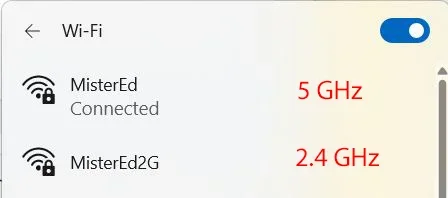
My router supports WiFi 6E. By default it has one SSID. When that is selected the computer selects which band is used. I changed that so each band has its own SSID name. That allows me to manually select which band to connect to in the WiFi settings.

WiFi_SSID.webp
 

My Computers

System One System Two

  • OS
    Windows 11 Pro 25H2 (26200.6901)
    Computer type
    Laptop
    Manufacturer/Model
    ASUS TUF Gaming A15 (2022)
    CPU
    AMD Ryzen 7 6800H with Radeon 680M GPU (486MB RAM)
    Memory
    Crucial DDR5-4800 (2400MHz) 32GB (2 x 16GB)
    Graphics Card(s)
    NVIDIA RTX 3060 Laptop (6GB RAM)
    Sound Card
    n/a
    Monitor(s) Displays
    15.6-inch
    Screen Resolution
    1920x1080 300Hz
    Hard Drives
    2 x Samsung 990 Evo Plus (2TB M.2 NVME SSD)
    PSU
    n/a
    Mouse
    Wireless Mouse M510
    Internet Speed
    2100Mbps/300Mbps
    Browser
    Firefox
    Antivirus
    Malwarebytes
  • Operating System
    Windows 11 Pro 25H2 (26200.8246)
    Computer type
    PC/Desktop
    Manufacturer/Model
    Custom build
    CPU
    AMD Ryzen 7 5700X3D
    Motherboard
    ASUS ROG Strix B550-F Gaming WiFi II
    Memory
    G.SKILL Flare X 32GB (2x16GB) DDR4
    Graphics card(s)
    ASUS ROG-STRIX-RTX3060TI-08G-V2-GAMING (RTX 3060-Ti, 8GB RAM)
    Monitor(s) Displays
    Samsung G50D IPS 27"
    Screen Resolution
    1440p/180Hz
    Hard Drives
    SAMSUNG 990 EVO Plus (2TB] M.2 NVME SSD
    SAMSUNG 990 EVO Plus (4TB) M.2 NVME SSD
    PSU
    Corsair RM750x (750 watts)
    Case
    Cooler Master MasterCase 5
    Cooling
    Scythe Mugen 6
    Keyboard
    Logitech K520 (MK540 keyboard/mouse combo)
    Mouse
    Logitech M310 (MK540 keyboard/mouse combo)
    Internet Speed
    2100 Mbps down / 300 Mbps up
    Browser
    Firefox, Edge, Chrome
    Antivirus
    Malwarebytes (Premium)
    Other Info
    ASUS Blu-ray Burner BW-16D1HT (SATA) || Western Digital Easystore 20TB USB 3.0 external hard drive used with Acronis True Image 2025 backup software || HP OfficeJet Pro 6975 Printer/Scanner
looks like I have to use only one 5ghz or 2.4ghz for all devices on the network
 

My Computer

System One

  • OS
    windows 11
    Computer type
    PC/Desktop
    Manufacturer/Model
    Antec/Case
    CPU
    Intel i5-10600kf
    Motherboard
    GIGABYTE Z590 UD AC
    Memory
    32gb corsair vengerance pro
    Graphics Card(s)
    AMD RX 6500XT
    Sound Card
    onboard
    Monitor(s) Displays
    40" Hisense
    Hard Drives
    Samsung 850
    Samsung 870
    Seagate 2TB
    PSU
    EVGA GQ 750
I have a EERO 7 that is 5ghz its suppose to know when 2.4 is needed

EERO 7 has only one SSID for both bands.

What you could do is go into setting and create a guest network for the 2.4 band and use that with a different SSID.
 

My Computer

System One

  • OS
    Windows 11 Pro
What you could do is go into setting and create a guest network for the 2.4 band and use that with a different SSID.

That's a pretty good idea anyway, for cameras, light bulbs, garage doors... IoT things. Security on those is generally poo-quality.
 

My Computer

System One

  • OS
    Windows 11 Pro 25H2
    Computer type
    PC/Desktop
    Manufacturer/Model
    Intel NUC12WSHi7
    CPU
    12th Gen Core i7-1260P
    Motherboard
    NUC12WSBi7
    Memory
    64 GB Micron PC4-25600
    Graphics Card(s)
    Intel Iris Xe Graphics
    Sound Card
    on-board Realtek HD Audio
    Monitor(s) Displays
    Dell U3219Q
    Screen Resolution
    3840 x 2160
    Hard Drives
    Samsung SSD 990 PRO 1TB
    Crucial MX500 2 TB
    Antivirus
    Microsoft Defender
Sorry for misunderstanding your problem. I just read this:
Eero systems, including the eero 7, use a single, combined network name (SSID) for all frequencies and do not support permanently splitting the 2.4 GHz, 5 GHz, and 6 GHz bands into separate networks. Instead, eero handles band steering automatically, choosing the best frequency for each connected device to optimize the mesh network..
I don't know if this is accurate but I found this online:
The "2.4 GHz Only" Temporary Pause

If you are trying to set up a smart home device or a legacy gadget that requires your phone to be on the 2.4 GHz band during setup, eero has a built-in feature to temporarily suppress the 5 GHz and 6 GHz bands:
  1. Open the eero app on your iOS or Android device.
  2. Tap the Settings icon in the bottom right.
  3. Select Troubleshooting.
  4. Tap My device won't connect.
  5. Choose My device is 2.4 GHz only.
  6. Tap the option to temporarily pause the 5 GHz band. This will limit your network to 2.4 GHz for 10 minutes, allowing you to complete setup on your stubborn device.
 

My Computers

System One System Two

  • OS
    Windows 11 Pro 25H2 (26200.6901)
    Computer type
    Laptop
    Manufacturer/Model
    ASUS TUF Gaming A15 (2022)
    CPU
    AMD Ryzen 7 6800H with Radeon 680M GPU (486MB RAM)
    Memory
    Crucial DDR5-4800 (2400MHz) 32GB (2 x 16GB)
    Graphics Card(s)
    NVIDIA RTX 3060 Laptop (6GB RAM)
    Sound Card
    n/a
    Monitor(s) Displays
    15.6-inch
    Screen Resolution
    1920x1080 300Hz
    Hard Drives
    2 x Samsung 990 Evo Plus (2TB M.2 NVME SSD)
    PSU
    n/a
    Mouse
    Wireless Mouse M510
    Internet Speed
    2100Mbps/300Mbps
    Browser
    Firefox
    Antivirus
    Malwarebytes
  • Operating System
    Windows 11 Pro 25H2 (26200.8246)
    Computer type
    PC/Desktop
    Manufacturer/Model
    Custom build
    CPU
    AMD Ryzen 7 5700X3D
    Motherboard
    ASUS ROG Strix B550-F Gaming WiFi II
    Memory
    G.SKILL Flare X 32GB (2x16GB) DDR4
    Graphics card(s)
    ASUS ROG-STRIX-RTX3060TI-08G-V2-GAMING (RTX 3060-Ti, 8GB RAM)
    Monitor(s) Displays
    Samsung G50D IPS 27"
    Screen Resolution
    1440p/180Hz
    Hard Drives
    SAMSUNG 990 EVO Plus (2TB] M.2 NVME SSD
    SAMSUNG 990 EVO Plus (4TB) M.2 NVME SSD
    PSU
    Corsair RM750x (750 watts)
    Case
    Cooler Master MasterCase 5
    Cooling
    Scythe Mugen 6
    Keyboard
    Logitech K520 (MK540 keyboard/mouse combo)
    Mouse
    Logitech M310 (MK540 keyboard/mouse combo)
    Internet Speed
    2100 Mbps down / 300 Mbps up
    Browser
    Firefox, Edge, Chrome
    Antivirus
    Malwarebytes (Premium)
    Other Info
    ASUS Blu-ray Burner BW-16D1HT (SATA) || Western Digital Easystore 20TB USB 3.0 external hard drive used with Acronis True Image 2025 backup software || HP OfficeJet Pro 6975 Printer/Scanner
Sorry for misunderstanding your problem. I just read this:

I don't know if this is accurate but I found this online:
Yep. Pretty much the same results I got from a quick look into eero:

To temporarily hide 5 and 6 GHz:​

  1. Open the eero App, and tap Settingsin the bottom-right corner
  2. Scroll to the bottom, and tap Troubleshooting
  3. Tap My device won’t connect
  4. Tap My device is 2.4 GHz only
  5. Tap Temporarily pause 5 and 6 GHz
Note: The 5 and 6 GHz bands will automatically re-enable after 10 minutes. To re-enable sooner, tap Cancel at the bottom of the screen.
 

My Computer

System One

  • OS
    Windows 11 Pro
You can get another router and plug it in the modem and create a 2,4 network only with a different SSID.
 

My Computers

System One System Two

  • OS
    Windows 11 Pro
    Computer type
    PC/Desktop
    CPU
    AMD Ryzen 7 9800X3D
    Motherboard
    MSI PRO B850-P Wifi
    Memory
    32GB DDR5 CL30 Kingston Fury
    Graphics Card(s)
    ASUS Prime Radeon RX 9060 XT OC Edition 16GB
    Monitor(s) Displays
    LG Ultrawide 34" + LG 27" 1080p
    Screen Resolution
    3440x1440
    Hard Drives
    Main Boot Drive : 512GB Adata XPG RGB Gen3x4 NVMe M.2 SSD
    PSU
    EVGA 750 Watts 80+ Gold
    Case
    Deepcool Genome II
    Cooling
    Thermalright Burst Assassin 120
    Internet Speed
    1Gbps
    Browser
    Chrome
    Antivirus
    "Moderna"
  • Operating System
    Windows 11 Pro
    Computer type
    PC/Desktop
    CPU
    i7-4790K
    Motherboard
    ASRock Xtreme6 Z97
    Memory
    16GB Corsair Vengeance Pro
    Graphics card(s)
    MSI R9 290
    Monitor(s) Displays
    LG Ultrawide 34"
    Screen Resolution
    3440x1440
    Hard Drives
    500GB Adata SSD (OS Only)
    PSU
    Thermaltake 475 Watts 80 Bronze
    Case
    Thermaltake Commander I Snow Edition
    Cooling
    Deep Cool Archer Air Cooler
    Keyboard
    Armageddon MKA-5R RGB-Hornet
    Mouse
    Logitech G402
    Internet Speed
    1Gbps
    Browser
    Chrome
    Antivirus
    Moderna :)
If the bands cannot be split, you could simply connect a second router via an ethernet cable (lan port connected to lan port).

The second router will need to be configured to be on same subnet e.g. if IP address of first router is 192.168.1.1, second will need to be 192.168.1.x where x is say 2 (it must be outside the dynamic iP range of router).

Also DHCP on second router must be turned off.

Then you can set 2.4 GHD SSID on second router (of course decond router must support separate 2.4/5 Ghz bands).
 

My Computer

System One

  • OS
    Windows 11 Pro + Win11 Canary VM.
    Computer type
    Laptop
    Manufacturer/Model
    ASUS Zenbook 14
    CPU
    I9 13th gen i9-13900H 2.60 GHZ
    Motherboard
    Yep, Laptop has one.
    Memory
    16 GB soldered
    Graphics Card(s)
    Integrated Intel Iris XE
    Sound Card
    Realtek built in
    Monitor(s) Displays
    laptop OLED screen
    Screen Resolution
    2880x1800 touchscreen
    Hard Drives
    1 TB NVME SSD (only weakness is only one slot)
    PSU
    Internal + 65W thunderbolt USB4 charger
    Case
    Yep, got one
    Cooling
    Stella Artois (UK pint cans - 568 ml) - extra cost.
    Keyboard
    Built in UK keybd
    Mouse
    Bluetooth , wireless dongled, wired
    Internet Speed
    900 mbs (ethernet), wifi 6 typical 350-450 mb/s both up and down
    Browser
    Edge
    Antivirus
    Defender
    Other Info
    TPM 2.0, 2xUSB4 thunderbolt, 1xUsb3 (usb a), 1xUsb-c, hdmi out, 3.5 mm audio out/in combo, ASUS backlit trackpad (inc. switchable number pad)

    Macrium Reflect Home V8
    Office 365 Family (6 users each 1TB onedrive space)
    Hyper-V (a vm runs almost as fast as my older laptop)
I have a EERO 7 that is 5ghz its suppose to know when 2.4 is needed
the other router will be older linksys ea7300
trying to get camera setup
You should be able to connect all your wireless devices to your router without any issue. If your 2.4 GHz device cannot connect to it, the reason could be the security of the router being set to WPA3 by default and your wireless device does not support WPA3.

If this is the case, then you can change wireless security to WPA2/WPA3. Problem should be solved. I had this problem. My wireless printer and my 2018 M/Y HP notebook do not support WPA3.

Hope this helps.
 

My Computers

System One System Two

  • OS
    Windows 11 Pro build 26200.8524
    Computer type
    PC/Desktop
    Manufacturer/Model
    Home Built
    CPU
    Intel i7-4790
    Motherboard
    Asus H97 Pro Gamer with add-on TPM1.2 module
    Memory
    Teams DDR3-1600 4x4 GB
    Graphics Card(s)
    MSI Nvidia GeForce GTX 1050Ti
    Sound Card
    Realtek ALC1150
    Monitor(s) Displays
    Dell P2425D
    Screen Resolution
    2560 by 1440 pixels
    Hard Drives
    Corsair NVMe M.2 Core XT 1000 GB (Windows 11 v.25H2); Samsung SATA Evo 870 500 GB (Windows 11 v.25H2);
    PSU
    Corsair HX850
    Case
    Gigabyte Solo 210
    Cooling
    Zalman CNPS7X Tower
    Keyboard
    Microsoft AIO Wireless (includes touchpad)
    Mouse
    HP S1000 Plus Wireless
    Internet Speed
    500 Mb fiber optic
    Browser
    Chrome; MS Edge
    Antivirus
    Windows Defender
  • Operating System
    MacOS 12 Monterey
    Computer type
    Laptop
    Manufacturer/Model
    Apple Macbook Air
    CPU
    Intel Core i5
    Memory
    8 GB
    Graphics card(s)
    Intel integrated
    Screen Resolution
    1440 by 900 pixels
    Hard Drives
    128 GB
    Keyboard
    Built-in
    Mouse
    Microsoft Wireless
    Internet Speed
    802.11 ac
    Browser
    Chrome; Safari
    Antivirus
    N/A
I have this issue with some of my smart devices. So what I normally do before connecting any new device, I change my wifi bandwidth to only 2.4 (on my phone app) then put it back to 2.4 and 5 after. The device should actually pick up only 2.4 but yeah, for some reason having dual band enabled at the same time complicates the connection process.
 

My Computers

System One System Two

  • OS
    Windows 11 Pro
    Computer type
    PC/Desktop
    CPU
    AMD Ryzen 7 9800X3D
    Motherboard
    MSI PRO B850-P Wifi
    Memory
    32GB DDR5 CL30 Kingston Fury
    Graphics Card(s)
    ASUS Prime Radeon RX 9060 XT OC Edition 16GB
    Monitor(s) Displays
    LG Ultrawide 34" + LG 27" 1080p
    Screen Resolution
    3440x1440
    Hard Drives
    Main Boot Drive : 512GB Adata XPG RGB Gen3x4 NVMe M.2 SSD
    PSU
    EVGA 750 Watts 80+ Gold
    Case
    Deepcool Genome II
    Cooling
    Thermalright Burst Assassin 120
    Internet Speed
    1Gbps
    Browser
    Chrome
    Antivirus
    "Moderna"
  • Operating System
    Windows 11 Pro
    Computer type
    PC/Desktop
    CPU
    i7-4790K
    Motherboard
    ASRock Xtreme6 Z97
    Memory
    16GB Corsair Vengeance Pro
    Graphics card(s)
    MSI R9 290
    Monitor(s) Displays
    LG Ultrawide 34"
    Screen Resolution
    3440x1440
    Hard Drives
    500GB Adata SSD (OS Only)
    PSU
    Thermaltake 475 Watts 80 Bronze
    Case
    Thermaltake Commander I Snow Edition
    Cooling
    Deep Cool Archer Air Cooler
    Keyboard
    Armageddon MKA-5R RGB-Hornet
    Mouse
    Logitech G402
    Internet Speed
    1Gbps
    Browser
    Chrome
    Antivirus
    Moderna :)

Latest Support Threads

Back
Top Bottom