Word not opening docx files for editing, but blank docs are fine


Bardiferously

Well-known member
Member
Local time
6:43 PM
Posts
37
OS
Windows 11
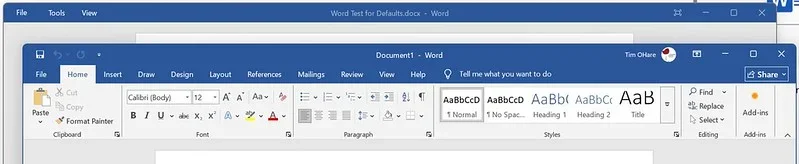
if I open Word and then open a new, blank document, the whole ribbon and menu bar is available. If I open any existing docx file, it is un-editable and there is no editing menu. :oops:o_O See here:

Word BAD Behavior.webp
See how the Document1 in the foreground has all the editing menu & ribbon? The .docx behind it only shows "File Tools View." I can select all from the one and paste it into the blank doc, but that is a PITA to have to do every time I need to modify a document.

I've now uninstalled Office 2019 and then reinstalled it - and all the settings were as before - and Outlook was fully set up as it was before. If I move these existing .docx files to another PC, they open up normally.

So I'm confused!! What setting has been changed for this behavior?

HELP!! :eek1:
 

My Computers

System One System Two

  • OS
    Windows 11
    Computer type
    Laptop
    Manufacturer/Model
    Lenovo
    CPU
    11th Gen Intel Core i5-1135G7 @ 2.40GHz
    Motherboard
    LNVNB161216 (U3E1)
    Memory
    8GB (not upgradeable)
    Graphics Card(s)
    Intel Iris Xe Graphics
    Screen Resolution
    HD 1920 x 1080
    Hard Drives
    VMe SAMSUNG MZALQ256HBJD-00BL2 256GB
    Mouse
    Logitech MX2
    Internet Speed
    Very good, in most of my regular places
    Browser
    Chrome, Firefox, Edge (in that order)
    Antivirus
    Norton 360
  • Operating System
    Windows 10
    Computer type
    PC/Desktop
    Manufacturer/Model
    Homebuilt in an old Dell case
    CPU
    AMD Ryzen 5 4500 6-Core Processor
    Motherboard
    ASUS PRIME B550M-A (AM4)
    Memory
    Corsair DDR4-2132 (1066 MHz) CMK16GX4M2B3200C16 (2x8GB)
    Graphics card(s)
    NVIDIA GeForce RTX 2080 Ti
    Monitor(s) Displays
    Samsung 27"
    Screen Resolution
    1920x1080
    Hard Drives
    500GB m.2 Samsung 980
    1TB WDC WD10EADX-00TDHB0
    1TB WDC WD1002FAEX-00Y9A0
    Case
    Old Dell Dimension Vista PC
Are they opening in protected view?
 

My Computer

System One

  • OS
    W11
    Computer type
    PC/Desktop
    Manufacturer/Model
    2 HP Desktops, 1 Dell Desktop, 2 Dell XPS Laptops, 1 HP Laptop
    Keyboard
    Logitech
    Mouse
    Logitech MX Master 4 & 3
    Internet Speed
    500 mps
    Browser
    Firefox
    Antivirus
    Bitdefender
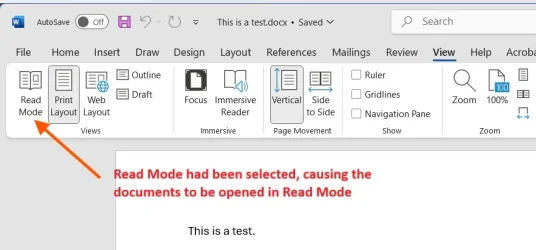
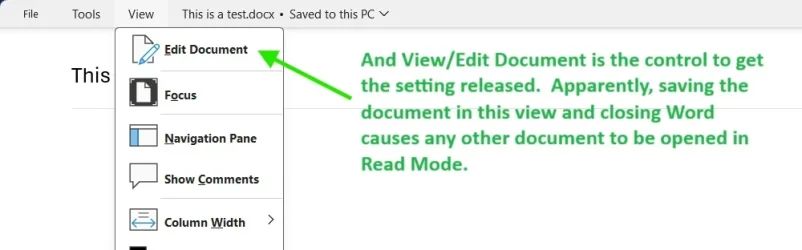
Looks like they're opening in Read Mode. When you change the view, Word remembers that and opens subsequent files in the same view. Close all but one Word window, and on the last one, change the view. Close that last Word window, and see if opening a file is normal again.

View attachment 143478
 

My Computer

System One

  • OS
    Windows 11 Pro 25H2
    Computer type
    PC/Desktop
    Manufacturer/Model
    Intel NUC12WSHi7
    CPU
    12th Gen Core i7-1260P
    Motherboard
    NUC12WSBi7
    Memory
    64 GB Micron PC4-25600
    Graphics Card(s)
    Intel Iris Xe Graphics
    Sound Card
    on-board Realtek HD Audio
    Monitor(s) Displays
    Dell U3219Q
    Screen Resolution
    3840 x 2160
    Hard Drives
    Samsung SSD 990 PRO 1TB
    Crucial MX500 2 TB
    Antivirus
    Microsoft Defender
It is not opening in Protected Mode. And the Layout doesn't change how THIS copy of Word opens existing Word docs; moving any of these files to a different computer allows them to be opened normally in Word.

Appreciate the feedback so far, but I'm still looking for the right setting to fix this - and what's more bizarre, I uninstalled Office and restarted the laptop, then reinstalled Office - and all the settings were maintained, the four Outlook email accounts were still there and the layout for Outlook was the same. Is there some way to force a FRESH INSTALL? :unsure: Maybe that will fix this.
 

My Computers

System One System Two

  • OS
    Windows 11
    Computer type
    Laptop
    Manufacturer/Model
    Lenovo
    CPU
    11th Gen Intel Core i5-1135G7 @ 2.40GHz
    Motherboard
    LNVNB161216 (U3E1)
    Memory
    8GB (not upgradeable)
    Graphics Card(s)
    Intel Iris Xe Graphics
    Screen Resolution
    HD 1920 x 1080
    Hard Drives
    VMe SAMSUNG MZALQ256HBJD-00BL2 256GB
    Mouse
    Logitech MX2
    Internet Speed
    Very good, in most of my regular places
    Browser
    Chrome, Firefox, Edge (in that order)
    Antivirus
    Norton 360
  • Operating System
    Windows 10
    Computer type
    PC/Desktop
    Manufacturer/Model
    Homebuilt in an old Dell case
    CPU
    AMD Ryzen 5 4500 6-Core Processor
    Motherboard
    ASUS PRIME B550M-A (AM4)
    Memory
    Corsair DDR4-2132 (1066 MHz) CMK16GX4M2B3200C16 (2x8GB)
    Graphics card(s)
    NVIDIA GeForce RTX 2080 Ti
    Monitor(s) Displays
    Samsung 27"
    Screen Resolution
    1920x1080
    Hard Drives
    500GB m.2 Samsung 980
    1TB WDC WD10EADX-00TDHB0
    1TB WDC WD1002FAEX-00Y9A0
    Case
    Old Dell Dimension Vista PC
So what was the result when you did what I said?
 

My Computer

System One

  • OS
    Windows 11 Pro 25H2
    Computer type
    PC/Desktop
    Manufacturer/Model
    Intel NUC12WSHi7
    CPU
    12th Gen Core i7-1260P
    Motherboard
    NUC12WSBi7
    Memory
    64 GB Micron PC4-25600
    Graphics Card(s)
    Intel Iris Xe Graphics
    Sound Card
    on-board Realtek HD Audio
    Monitor(s) Displays
    Dell U3219Q
    Screen Resolution
    3840 x 2160
    Hard Drives
    Samsung SSD 990 PRO 1TB
    Crucial MX500 2 TB
    Antivirus
    Microsoft Defender
pseymour, you were correct - but you left out how to get out of Read Mode. On the laptop with Word 2019, I couldn't see the option to Edit Document because it was greyed out. When I get a chance, I'll take a screenshot of that dropdown to share.

I reached out to Microsoft and was connected to Leo D. in a Help Chat window. Leo remoted into that laptop and eventually fixed it and showed me what was needed to get back into Edit Mode.

In the meantime, here is the explanation I shared with others:

Word Read Mode option.webp

Word Read Mode - change back to Edit.webp

In my Word 365 version, Edit Document is clearly available. Not so in Word 2019. Even in the current version, what you showed me isn't the same when clicking on View while in Read Mode.

In any case, thank you for your contribution.
 

My Computers

System One System Two

  • OS
    Windows 11
    Computer type
    Laptop
    Manufacturer/Model
    Lenovo
    CPU
    11th Gen Intel Core i5-1135G7 @ 2.40GHz
    Motherboard
    LNVNB161216 (U3E1)
    Memory
    8GB (not upgradeable)
    Graphics Card(s)
    Intel Iris Xe Graphics
    Screen Resolution
    HD 1920 x 1080
    Hard Drives
    VMe SAMSUNG MZALQ256HBJD-00BL2 256GB
    Mouse
    Logitech MX2
    Internet Speed
    Very good, in most of my regular places
    Browser
    Chrome, Firefox, Edge (in that order)
    Antivirus
    Norton 360
  • Operating System
    Windows 10
    Computer type
    PC/Desktop
    Manufacturer/Model
    Homebuilt in an old Dell case
    CPU
    AMD Ryzen 5 4500 6-Core Processor
    Motherboard
    ASUS PRIME B550M-A (AM4)
    Memory
    Corsair DDR4-2132 (1066 MHz) CMK16GX4M2B3200C16 (2x8GB)
    Graphics card(s)
    NVIDIA GeForce RTX 2080 Ti
    Monitor(s) Displays
    Samsung 27"
    Screen Resolution
    1920x1080
    Hard Drives
    500GB m.2 Samsung 980
    1TB WDC WD10EADX-00TDHB0
    1TB WDC WD1002FAEX-00Y9A0
    Case
    Old Dell Dimension Vista PC

Latest Support Threads

Back
Top Bottom