Microsoft 365 Insider Blog:
Hi, Insiders! I’m Ananta Gupta, a Product Manager on the PowerPoint team. I’m excited to announce a new Microsoft 365 Copilot-powered feature in Microsoft PowerPoint for Windows and for Mac that breaks down complex concepts in slides, improving your reading experience and comprehension.
Get clarity on complex presentations with Explainer in PowerPoint
If you’ve ever encountered a presentation packed with unfamiliar acronyms, confusing slides, or dense text and thought to yourself, “What does this even mean?” – we’ve been there. That’s why we built Explainer: Powered by Copilot, Explainer offers instant summaries and explanations of complex content without you having to break your flow by searching online or re-reading paragraphs.This feature provides numerous benefits, including:
- Context wins: Explainer delivers insights specific to your slide, rather than generic, unhelpful summaries.
- Intuitive workflow: You can access Explainer right on the canvas with one click, making it easy to understand any type of content fast.
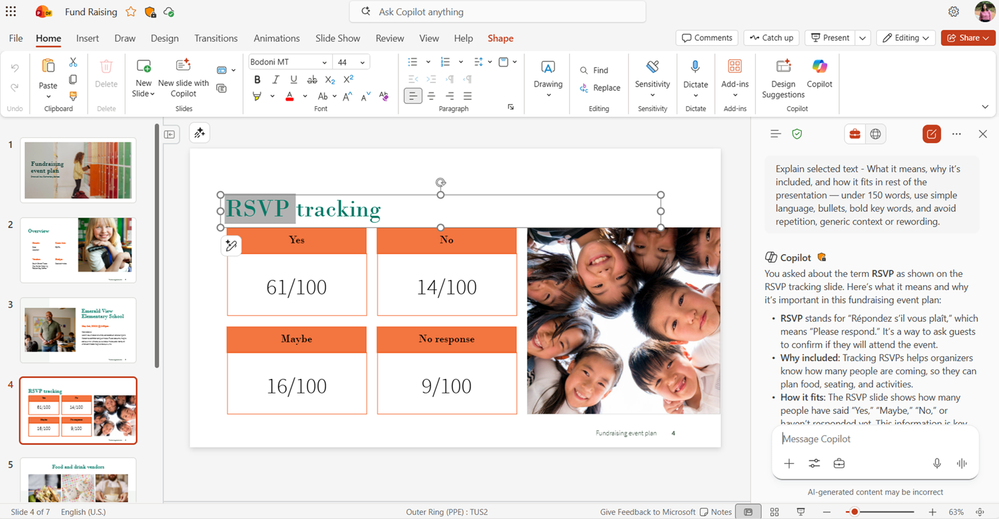
- Clean experience: Explanations will appear in the Copilot side pane, keeping your canvas clutter-free.
How it works
1. Open a presentation in PowerPoint on your Windows or Mac device.2. Right-click on any object, such as a text box, chunk of text, slide, or table, and then select Explain.
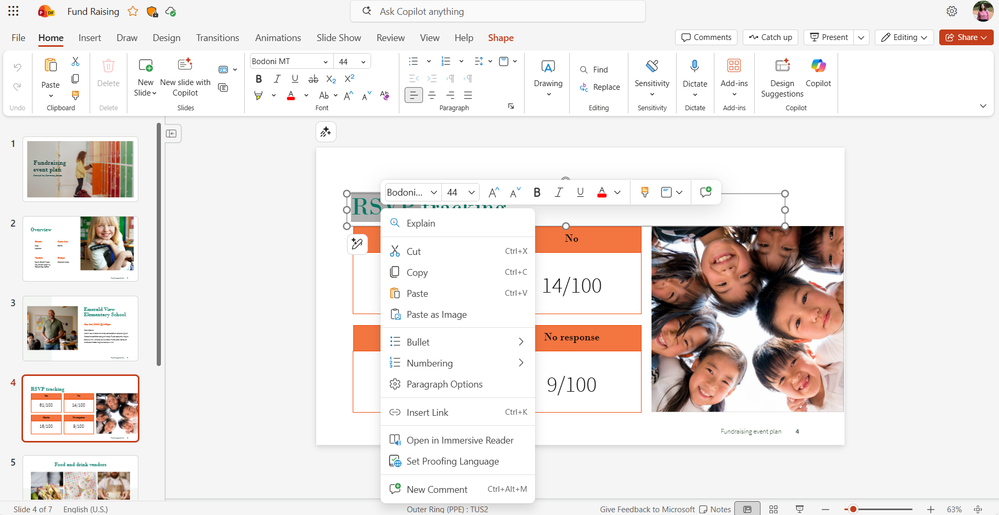
3. Notice that Copilot provides a concise explanation of the content highlighted in the Copilot side pane.
Availability
This feature is available to PowerPoint users with a Microsoft 365 Copilot license (get more details on licenses for businesses) and running:- Windows: Version 2510 (Build 19328.20072) or later.
- Mac: Version 16.103 (Build 25110343) or later.
Feedback
We’d love to hear what you think of this new capability! Select Help > Feedback in PowerPoint to provide feedback, or use the Copilot thumbs up and down buttons to submit feedback directly after Explainer is triggered. Source:

Get clarity on complex presentations with Explainer in PowerPoint
Powered by Microsoft 365 Copilot, Explainer in PowerPoint for Windows and for Mac offers instant summaries and explanations of complex content without you...
 techcommunity.microsoft.com