Microsoft 365 Insider Blog:
Hi, Microsoft 365 Insiders! I’m Valerie Kistrina, a Product Manager on the Excel team. I’m so excited to share with you a long-awaited PivotTable feature in Microsoft Excel for Windows and Mac: PivotTable Auto Refresh!
Keep data updated with PivotTable Auto Refresh in Excel
PivotTables are a powerful tool for calculating, summarizing, and analyzing data, but one drawback many of you have shared with us is that whenever new data is added to the PivotTable’s data source, you have to manually refresh it.PivotTable Auto Refresh has been one of the most highly requested PivotTable features across forums, feedback channels, and communities. Today, we’re thrilled to bring you a way to keep your PivotTables up-to-date automatically.
With Auto Refresh enabled, any updates to the source range – like new sales entries or corrections – are instantly reflected in the PivotTable, keeping it updated in real time.
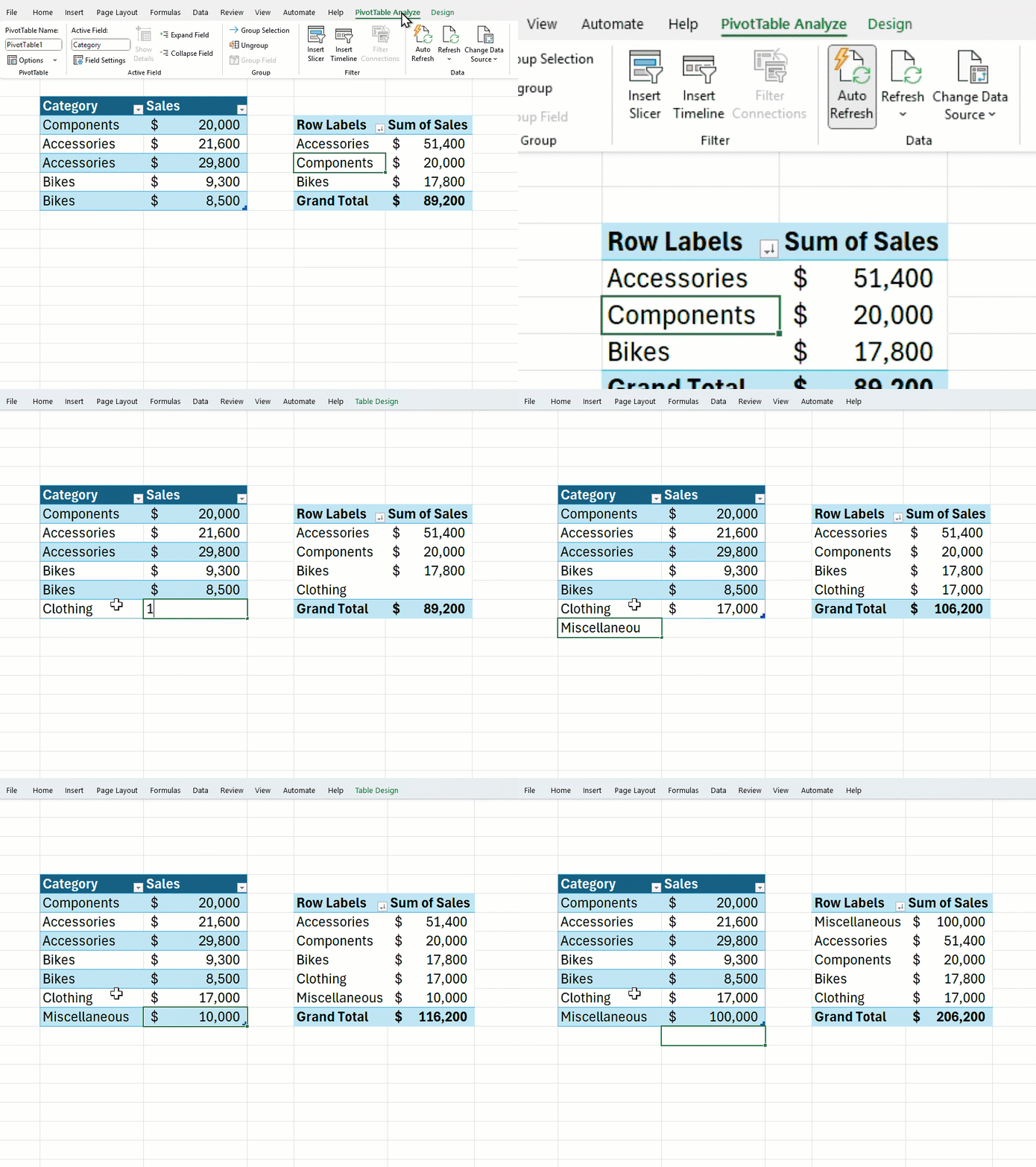
How it works
Auto Refresh is on by default for new PivotTables. To turn it off or to turn it on for previously created PivotTables:- Select your PivotTable, then navigate to the PivotTable Analyze tab and select Auto Refresh.
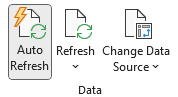
Tips and tricks
- Auto Refresh is a per-data-source property. A single Auto Refresh toggle controls all PivotTables connected to that data source.
- When Auto Refresh is off or unable to be triggered, an indicator is added in the bottom-left corner of the window to let you know that one or more PivotTables are using outdated source data. Clicking this indicator will refresh all stale PivotTables.

- Auto Refresh is only supported for data within the current workbook and not connected to external data sources, ensuring that your workbook data and PivotTables are consistent.
- Just like formulas, you can temporarily suspend automatic updates to PivotTables by going into Manual or Partial Calculation options.
- Auto Refresh may become unavailable when working in some co-authoring scenarios, such as when working with others using older versions of Excel or when source data includes volatile functions like RAND() or NOW().
- Auto Refresh does not support asynchronous data sources.
Availability
This feature is available to Beta Channel users running:- Windows: Version 2506 (Build 19008.2000) or later.
- Mac: Version 16.99 (Build 250616106) or later.
Features are released over some time to ensure things are working smoothly. We highlight features that you may not have because they’re slowly releasing to larger numbers of Insiders. Sometimes we remove elements to further improve them based on your feedback. Though this is rare, we also reserve the option to pull a feature entirely out of the product, even if you, as an Insider, have had the opportunity to try it.
Feedback
We’d love to hear your thoughts on how this feature is working! Please select Help > Feedback in Excel to provide your thoughts and suggestions. Source:

Keep data updated with PivotTable Auto Refresh in Excel
PivotTable Auto Refresh keeps PivotTable data updated automatically in Microsoft Excel for Windows and Mac.
 techcommunity.microsoft.com