Microsoft 365 Insider Blog:
Hi, Microsoft 365 Insiders! I’m Valerie Kistrina, a Product Manager on the Excel team. I’m excited to introduce PivotTable #SPILL!, a new feature in Microsoft Excel for Windows and for Mac. Instead of breaking your flow with confusing alerts, PivotTables can now collapse into a single cell with a #SPILL! error – so you can stay focused and resolve errors on your own terms, without unnecessary disruption.
Stay in the flow with PivotTable #SPILL! in Excel
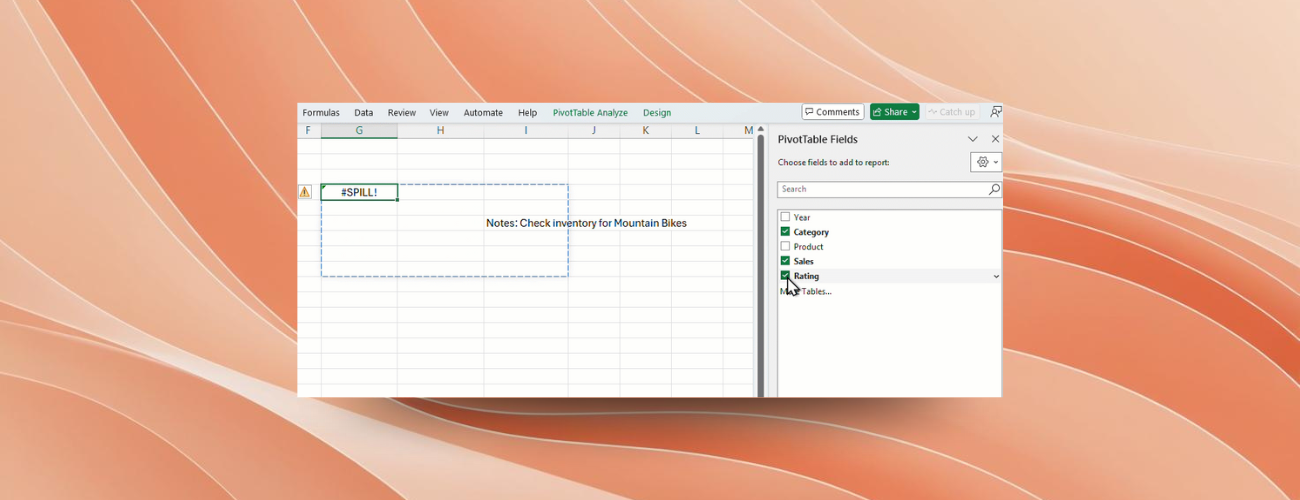
PivotTable #SPILL! brings the familiar #SPILL! experience from dynamic arrays to PivotTables. If something is blocking your PivotTable from expanding – such as text, merged cells, tables, or the edge of your spreadsheet – you’ll see a #SPILL! error. This lets you address the issue at your own pace, so you can keep working without disruption and stay focused on your analysis.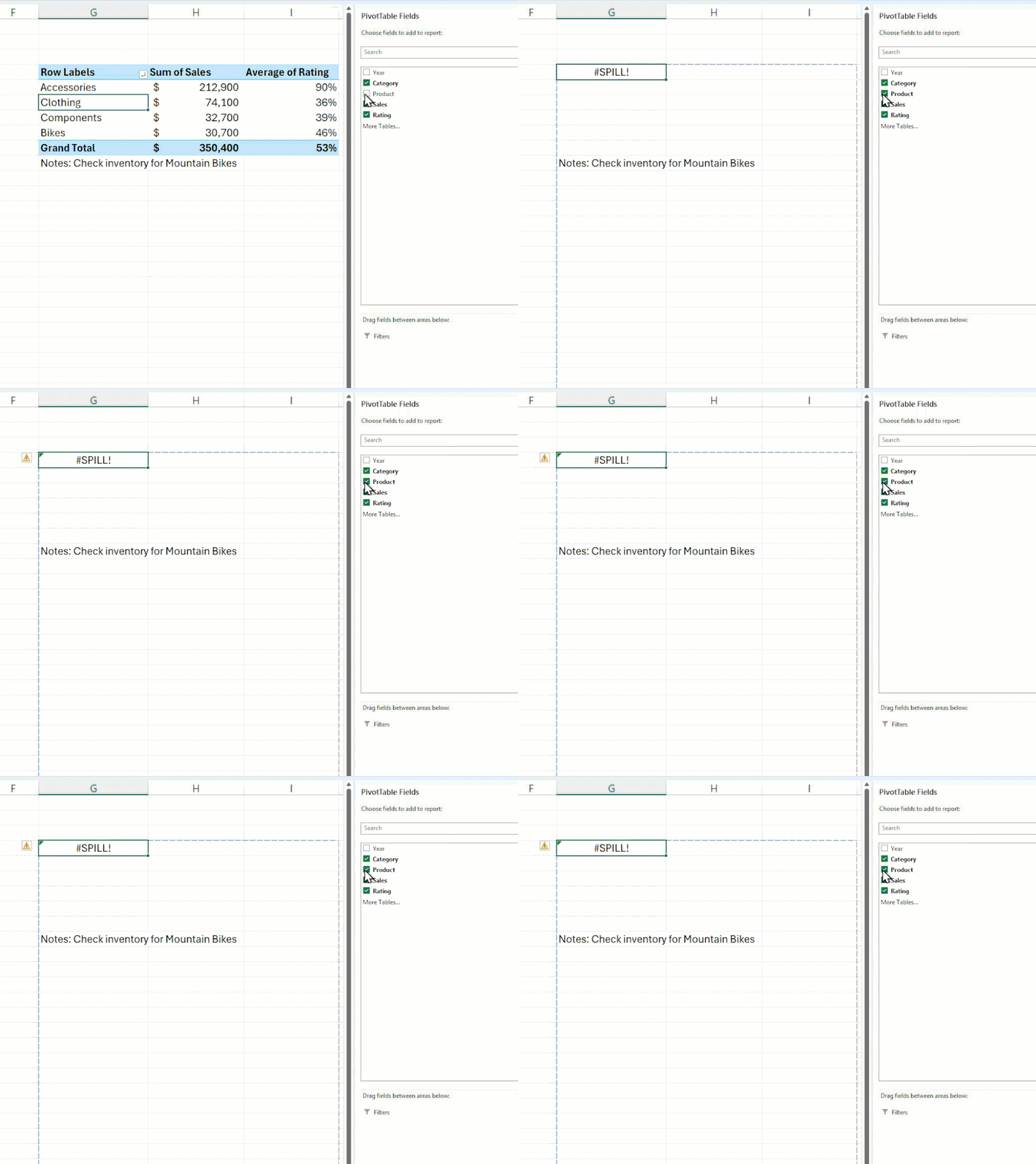
How it works
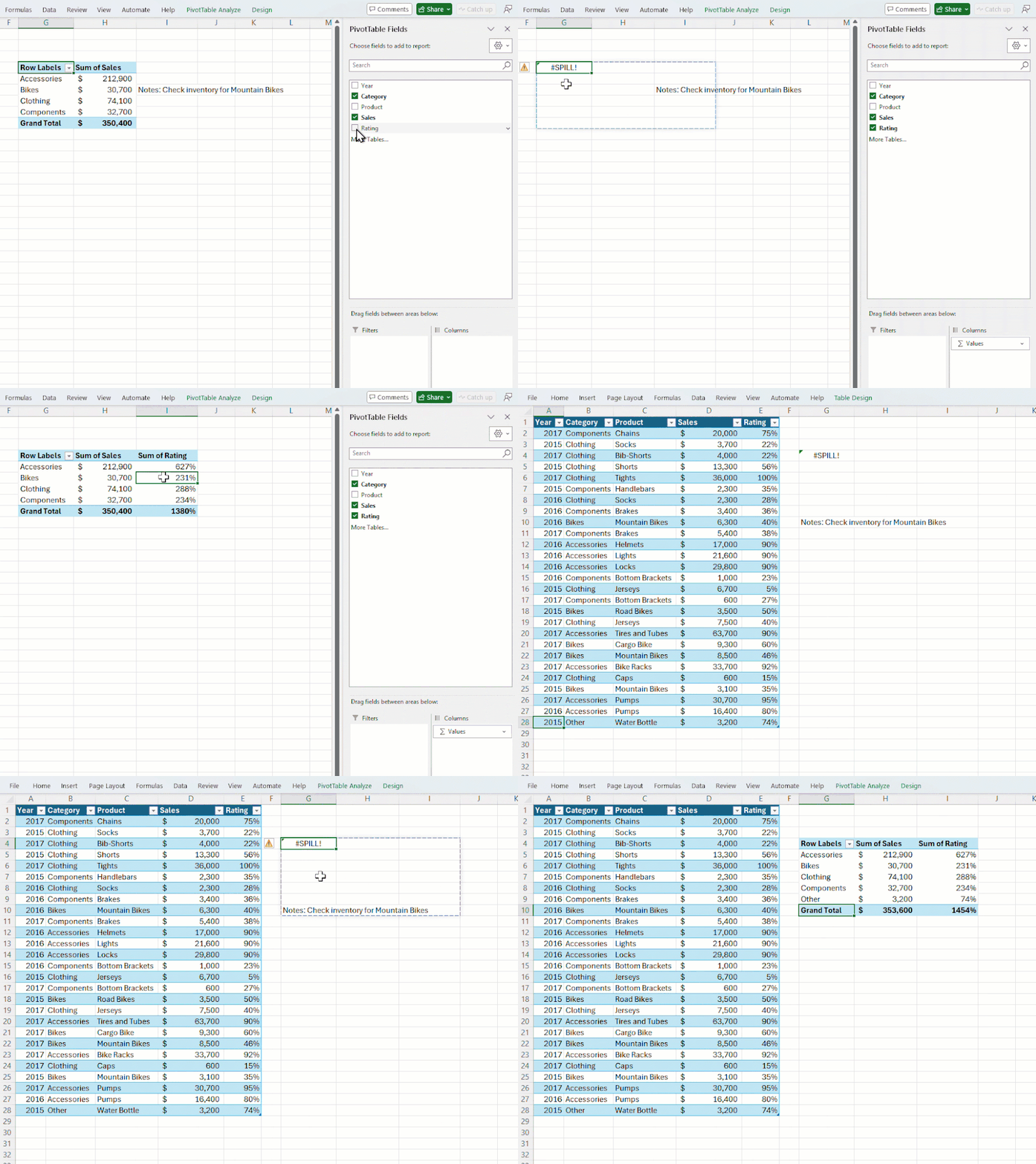
- Insert, refresh, or work with a PivotTable in Excel for Windows or for Mac, and if something’s in the way of the PivotTable expanding, the top-left cell will include a #SPILL! error.
- To get your PivotTable out of the #SPILL! error:
- Clear any cells that are blocking the PivotTable from expanding.
- Move the PivotTable to a location with enough space.
- Use the PivotTable Fields list pane to adjust your PivotTable until the error is resolved.
- Use slicers and timelines to manipulate your PivotTable out of the error state.
Tips and tricks
- PivotTable #SPILL! impacts dependent analysis objects, such as formulas (e.g., GetPivotData), PivotCharts, and macros, while interaction objects like slicers and timelines remain unaffected.
Availability
This feature is available to Beta Channel users running:- Windows: Version 2508 (Build 19309.20000) or later.
- Mac: Version 16.102 (Build 25090953) or later.
Feedback
We’d love to hear your thoughts on how this feature is working! Please select Help > Feedback in Excel to provide your thoughts and suggestions. Source:
Stay in the flow with PivotTable #SPILL! in Excel
PivotTables in Microsoft Excel for Windows and for Mac can now collapse into a single cell with a #SPILL! error, so you can stay focused and resolve errors...
 techcommunity.microsoft.com