A few clarifications on Windows Recovery tools - Recovery Drive & Installation Media Creation tool


Local time
7:31 PM
Posts
65
OS
Windows 11
For Windows recovery there are two primary means that are provided. They are
  1. Windows Recovery Drive (C:\Windows\System32\RecoveryDrive.exe)
  2. Windows Installation media creation tool.
For both of these it is suggested to use a usb flash/thumb drive. I have a USB SSD drive, inside of an external enclosure/caddy. Size of this drive is about 128 GB. It is not a memory stick rather a proper ssd inside an enclosure. I am planning to partition this drive into 2 partitions, i.e. E:\ drive having 64 GB capacity and F:\ drive approx 64 GB in size. Can I use E:\ drive for the Windows Recovery drive while F:\ drive for Windows Installation media, using the media creation tool? So E:\ drive will have the Windows image created by Windows Recovery Driver. And F:\ drive will have the windows image created by a Windows installation media. Will this setup work in times of emergency and when I want to recover from a crash? In other words, I would like to use a single big SSD drive instead of two usb flash/thumb drives. Are there any pitfalls that I should be careful of in this setup?

Secondly will my Windows product and activation key be stored in both the cases? i.e. using Windows Recovery Drive as well as Windows Installation media creation tool? I have purchased my laptop from a vendor and it came pre installed with Windows 11.

Thirdly for all the other 3rd party vendor drivers, like from Nvidia, Intel, Realtek, etc. can I create a folder like say 3rdPartyDrivers and then put all the drivers and driver setup in it? This folder will be present inside both the partitions, i.e. E:\ and F:\. Will this cause any issue?
 
Windows Build/Version
Windows 11 25H2

My Computer

System One

  • OS
    Windows 11
    Computer type
    Laptop
    CPU
    Intel
    Memory
    16 GB
    Graphics Card(s)
    Intel UHD Integrated
    Mouse
    Inbuilt
    Browser
    Firefox
    Antivirus
    Microsoft Defender

You do not need fast drives for either of those purposes and, IMO I would not use an external ssd for either of them. With flash drives being so cheap and ssd storage increasing in price, the storage can be put to better use in other ways; as a backup drive to store system images (assuming it's large enough for how much data you have on your system drive. 128 gb would store 2 images for MOST people.), a place for storage of files you don't use often (which makes an image of your system drive smaller) or even a drive that stays connected all the time for personal files. You can relocate your personal folders onto it.

Last time I checked a Windows 11 iso will fit on an 8gb drive so why would you want to tie up 128 gb of storage for that. I mean, just how often do you think you will have to use recovery or clean install windows.

Besides, if you have a good bootable iso, that's all one needs to get into WinRE. You do not need both. If you have a working recovery partition on your system drive, rarely is it necessary to use bootable media at all to get into recovery. Just hold the shift key down during boot to get into WINRE.

But that's just me.
 

My Computers

System One System Two

  • OS
    Windows 11 Pro 25H2
    Computer type
    PC/Desktop
    Manufacturer/Model
    Dell Optiplex 7080
    CPU
    i9-10900 10 core 20 threads
    Motherboard
    DELL 0J37VM
    Memory
    32 gb
    Graphics Card(s)
    none-Intel UHD Graphics 630
    Sound Card
    Integrated Realtek
    Monitor(s) Displays
    Benq 27
    Screen Resolution
    2560x1440
    Hard Drives
    2x1tb Solidigm m.2 nvme /External drives 512gb Samsung m.2 sata+2tb Kingston m2.nvme
    PSU
    500w
    Case
    MT
    Cooling
    Dell Premium
    Keyboard
    Logitech wired
    Mouse
    Logitech wireless
    Internet Speed
    so slow I'm too embarrassed to tell
    Browser
    #1 Edge #2 Firefox
    Antivirus
    Defender+MWB Premium
  • Operating System
    Windows 11 Pro 24H2 26200.8457
    Computer type
    PC/Desktop
    Manufacturer/Model
    Beelink Mini PC SER5
    CPU
    AMD Ryzen 7 6800U
    Memory
    32 gb
    Graphics card(s)
    integrated
    Sound Card
    integrated
    Monitor(s) Displays
    Benq 27
    Screen Resolution
    2560x1440
    Hard Drives
    1TB Crucial nvme
    Keyboard
    Logitech wired
    Mouse
    Logitech wireless
    Internet Speed
    still too embarrassed to tell
    Browser
    Firefox
    Antivirus
    Defender
    Other Info
    System 3 is non compliant Dell 9020 i7-4770/24gb ram Win11 PRO 26200.8457
Well there are only two ways to create an image in windows, Windows Recovery Drive and Windows Installation media creation tool (i.e. MCT). Is there some other way to create system images apart from these two? I have heard of rescuezilla and clonezilla but not anything else.

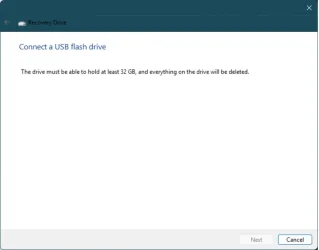
Also Windows Recovery Drive now seeks out a usb memory stick which has 32 gb. Please see the screenshot given below for more details.
Windows 11 Recovery Drive.webp
 

My Computer

System One

  • OS
    Windows 11
    Computer type
    Laptop
    CPU
    Intel
    Memory
    16 GB
    Graphics Card(s)
    Intel UHD Integrated
    Mouse
    Inbuilt
    Browser
    Firefox
    Antivirus
    Microsoft Defender
Well there are only two ways to create an image in windows, Windows Recovery Drive and Windows Installation media creation tool (i.e. MCT). Is there some other way to create system images apart from these two? I have heard of rescuezilla and clonezilla but not anything else.

Also Windows Recovery Drive now seeks out a usb memory stick which has 32 gb. Please see the screenshot given below for more details.
View attachment 160050
There are loads of quality imaging tools e.g. Macrium Reflect, Aomei Backupper, Hasleo Backup Suite, Easus Backup to name a few.

Some even have some beginner guidelines on this forum - just search for them
 

My Computer

System One

  • OS
    Windows 11 Pro + Win11 Canary VM.
    Computer type
    Laptop
    Manufacturer/Model
    ASUS Zenbook 14
    CPU
    I9 13th gen i9-13900H 2.60 GHZ
    Motherboard
    Yep, Laptop has one.
    Memory
    16 GB soldered
    Graphics Card(s)
    Integrated Intel Iris XE
    Sound Card
    Realtek built in
    Monitor(s) Displays
    laptop OLED screen
    Screen Resolution
    2880x1800 touchscreen
    Hard Drives
    1 TB NVME SSD (only weakness is only one slot)
    PSU
    Internal + 65W thunderbolt USB4 charger
    Case
    Yep, got one
    Cooling
    Stella Artois (UK pint cans - 568 ml) - extra cost.
    Keyboard
    Built in UK keybd
    Mouse
    Bluetooth , wireless dongled, wired
    Internet Speed
    900 mbs (ethernet), wifi 6 typical 350-450 mb/s both up and down
    Browser
    Edge
    Antivirus
    Defender
    Other Info
    TPM 2.0, 2xUSB4 thunderbolt, 1xUsb3 (usb a), 1xUsb-c, hdmi out, 3.5 mm audio out/in combo, ASUS backlit trackpad (inc. switchable number pad)

    Macrium Reflect Home V8
    Office 365 Family (6 users each 1TB onedrive space)
    Hyper-V (a vm runs almost as fast as my older laptop)
Can I use E:\ drive for the Windows Recovery drive while F:\ drive for Windows Installation media, using the media creation tool?
Both those tools need to be bootable so cannot be put on the same storage device unless you also put on one of those multi-boot utilities [which you could search for in the forum if you wanted].

will my Windows product and activation key be stored in both the cases?
Your activation is stored on MS servers not on any device of yours.

can I create a folder like say 3rdPartyDrivers and then put all the drivers and driver setup in it?
Yes.
I do that in addition to making the driver backups that I wrote about in one of your other threads about Recovery drives.
I store them all on my backup disks.
I could copy them to my installation USB or to a Recovery drive if I wanted to make better use of the spare space on those USBs.


Denis
 

My Computer

System One

  • OS
    Windows 11 Home x64 Version 25H2 Build 26200.8037
Both those tools need to be bootable so cannot be put on the same storage device unless you also put on one of those multi-boot utilities [which you could search for in the forum if you wanted].
Thanks @Try3/Denis your answer helped and clarified aspects that I was not aware off. I did not know that Windows Recover Drive and MCT both require the disk to be boot-able. Which obviously cannot happen on a single disk divided into two or more partitions. There can only be a single boot partition or a boot manager/loader to control this. And for recovery scenarios it is obviously not good to have such boot managers/loaders in the middle. I had put a similar question to the Windows Q&A forum and the AI had responded erroneously that yes I can put both of them on a single drive which is partitioned.

There are loads of quality imaging tools e.g. Macrium Reflect, Aomei Backupper, Hasleo Backup Suite, Easus Backup to name a few.

Some even have some beginner guidelines on this forum - just search for them
@cereberus there was a post by @pewa a few months ago which had indicated that Macrium Reflect could not rescue his system. He had to fall back on Windows Installation Media Creation Tools(MCT) to get things working. Also there was another post that the free edition of Macrium Reflect is being discontinued. And finally I am working under the assumption that the 2 recovery tools provided by Microsoft, i.e. Recovery Drive and Windows Installation Media creation tool (i.e. MCT) ought to be enough. Please do let me know if the assumption is correct or not.
 

My Computer

System One

  • OS
    Windows 11
    Computer type
    Laptop
    CPU
    Intel
    Memory
    16 GB
    Graphics Card(s)
    Intel UHD Integrated
    Mouse
    Inbuilt
    Browser
    Firefox
    Antivirus
    Microsoft Defender
the 2 recovery tools provided by Microsoft, i.e. Recovery Drive and Windows Installation Media creation tool (i.e. MCT) ought to be enough

No, system images are much, much better.
If you have a system image then you can expect to be able to recover from any OS corruption inside twenty minutes.
In general, system imaging utilities have a validation capability that checks the image when it has been made so that you can be confident that it is not defective.
I think I had one system image that failed to be restored. It was about a decade ago. I had to resort to restoring the system image I had made the previous week.

My first line of defence is the combination of a system image with the imaging utility's boot disk together with file backups of my data drives.
After that, I'd fall back on
- an installation USB, and
- copies of the [MSUpdateCatalog] latest Windows Cumulative update & latest .Net cumulative update, and
- my driver backups, and
- file backups of my data drives.

I use a free, limited capability version of Acronis True Image. Some people dislike Acronis but I have no problems with it.
There are many system imaging utilities.
I think @Ghot keeps a list of them.


Denis


Welcome to ElevenForum.

It's really worth making time to browse through the ElevenForum Tutorial index - there's a shortcut to it at the top of every ElevenForum page [within the Tutorials dropdown list].
- At the foot of the ElevenForum Tutorial index is a shortcut to download it as a spreadsheet.
- I download a new copy each month.
- By downloading it as a spreadsheet I can benefit from Excel's excellent filtering capabilities when I search for topics of interest.
- ElevenForum tutorials are also listed at Tutorials and there's a shortcut to that at the top of every page.

You can search ElevenForum using the search box in the top-right corner of all ElevenForum webpages or using Advanced Search - ElevenForum
- You can also search ElevenForum threads in many general search engines, such as Google, by adding site:elevenforum.com after your search term. For example,
Taskbar setup site:elevenforum.com
- [This is what the search box in the top-right corner of ElevenForum webpages does automatically]
 

My Computer

System One

  • OS
    Windows 11 Home x64 Version 25H2 Build 26200.8037
Further to my comments about system images

I only have the OS & installed applications on my C:\ drive [and some bits & pieces that Windows like to make in that drive as well].
I put my own files in separate drives.
- In some cases, that's a separate disk.
- On some laptops, I have to partition off a section of its single disk for my own files.

I make system images of the OS-applications drive & simple file backup copies of my own files.
So each system image is less than 40GB, takes less than twenty minutes to make & less than twenty minutes to restore.


Denis
 

My Computer

System One

  • OS
    Windows 11 Home x64 Version 25H2 Build 26200.8037
No, system images are much, much better.
If you have a system image then you can expect to be able to recover from any OS corruption inside twenty minutes.
In general, system imaging utilities have a validation capability that checks the image when it has been made so that you can be confident that it is not defective.
I think I had one system image that failed to be restored. It was about a decade ago. I had to resort to restoring the system image I had made the previous week.


I use a free, limited capability version of Acronis True Image. Some people dislike Acronis but I have no problems with it.
There are many system imaging utilities.
I think @Ghot keeps a list of them.


Denis


Thanks @Try3 / Denis. I will have a look at creating system images. Typical windows setup has a single drive, which has the system/os files, user data and user configuration files (i.e. %APPDATA% and %USERPROFILE%\AppData). If we create a system image it will create an image of the full/entire partition, including user data and user configuration files. There is no way to restrict it to just create a OS related image only.
Do you have experience on using RescueZilla and/or Clonezilla for creating system images? Would it be possible for you to please share them?

@Ghot would it be possible for you to please share the list or give the link to the forum post that has the list of imaging utilities? Are there any tutorials too?
 

My Computer

System One

  • OS
    Windows 11
    Computer type
    Laptop
    CPU
    Intel
    Memory
    16 GB
    Graphics Card(s)
    Intel UHD Integrated
    Mouse
    Inbuilt
    Browser
    Firefox
    Antivirus
    Microsoft Defender

user configuration files
That's what I should have written above instead of bits & pieces. Sounds much posher.

experience
Apart from a single experiment with Macrium, I have only used Acronis True image during the last fifteen-ish years.
There are often heated 'discussions' about the relative merits of different system imaging utilities.


Denis
 

My Computer

System One

  • OS
    Windows 11 Home x64 Version 25H2 Build 26200.8037
Well there are only two ways to create an image in windows, Windows Recovery Drive and Windows Installation media creation tool
Wrong. A system image is nowhere close to either of those tools.

Images are usually created using 3rd party imaging apps designed for the purpose and the images are usually stored on external media. (some people image to the cloud, but no one I know)

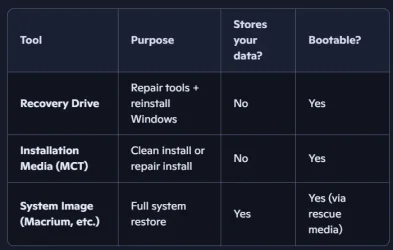
A system image is a complete, point-in-time snapshot of your entire computer drive, capturing the operating system, settings, installed programs, and all user files, allowing for a full restoration to that exact state in case of a major failure, crash, or malware attack, effectively acting as a comprehensive disaster recovery tool. .

This is why most of us here make regular images of our systems, both system drive and data drive if we have multiple drives.
In whichever imaging app one uses, you create bootable usb rescue drive for that app.(requires nothing more than a very small usb drive)

You boot from the application's boot media to restore the image offline. I just did this today for my husband's PC. He managed to pick up some malware. It was faster to restore an image than to troubleshoot. I recoved everything on his system drive in 6 minutes....minus the malware.
Here's a comparison co-pilot made.
Screenshot 2026-01-19 020003.webp
 

My Computers

System One System Two

  • OS
    Windows 11 Pro 25H2
    Computer type
    PC/Desktop
    Manufacturer/Model
    Dell Optiplex 7080
    CPU
    i9-10900 10 core 20 threads
    Motherboard
    DELL 0J37VM
    Memory
    32 gb
    Graphics Card(s)
    none-Intel UHD Graphics 630
    Sound Card
    Integrated Realtek
    Monitor(s) Displays
    Benq 27
    Screen Resolution
    2560x1440
    Hard Drives
    2x1tb Solidigm m.2 nvme /External drives 512gb Samsung m.2 sata+2tb Kingston m2.nvme
    PSU
    500w
    Case
    MT
    Cooling
    Dell Premium
    Keyboard
    Logitech wired
    Mouse
    Logitech wireless
    Internet Speed
    so slow I'm too embarrassed to tell
    Browser
    #1 Edge #2 Firefox
    Antivirus
    Defender+MWB Premium
  • Operating System
    Windows 11 Pro 24H2 26200.8457
    Computer type
    PC/Desktop
    Manufacturer/Model
    Beelink Mini PC SER5
    CPU
    AMD Ryzen 7 6800U
    Memory
    32 gb
    Graphics card(s)
    integrated
    Sound Card
    integrated
    Monitor(s) Displays
    Benq 27
    Screen Resolution
    2560x1440
    Hard Drives
    1TB Crucial nvme
    Keyboard
    Logitech wired
    Mouse
    Logitech wireless
    Internet Speed
    still too embarrassed to tell
    Browser
    Firefox
    Antivirus
    Defender
    Other Info
    System 3 is non compliant Dell 9020 i7-4770/24gb ram Win11 PRO 26200.8457
would it be possible for you to please share the list or give the link to the forum post that has the list of imaging utilities? Are there any tutorials too?


My Computers

System One System Two

  • OS
    Win 11 Home ♦♦♦26200.8457 ♦♦♦♦♦♦♦25H2
    Computer type
    PC/Desktop
    Manufacturer/Model
    Built by Ghot® [May 2020]
    CPU
    AMD Ryzen 7 3700X
    Motherboard
    Asus Pro WS X570-ACE (BIOS 5302)
    Memory
    G.Skill (F4-3200C14D-16GTZKW)
    Graphics Card(s)
    EVGA RTX 2070 (08G-P4-2171-KR)
    Sound Card
    Realtek ALC1220P / ALC S1220A
    Monitor(s) Displays
    Dell U3011 30"
    Screen Resolution
    2560 x 1600
    Hard Drives
    2x Samsung 860 EVO 500GB,
    WD 4TB Black FZBX - SATA III,
    WD 8TB Black FZBX - SATA III,
    DRW-24B1ST CD/DVD Burner
    PSU
    PC Power & Cooling 750W Quad EPS12V
    Case
    Cooler Master ATCS 840 Tower
    Cooling
    CM Hyper 212 EVO (push/pull)
    Keyboard
    Ducky DK9008 Shine II Blue LED
    Mouse
    Logitech Optical M-100
    Internet Speed
    300/300
    Browser
    Firefox (latest)
    Antivirus
    Bitdefender Total Security
    Other Info
    Speakers: Klipsch Pro Media 2.1
  • Operating System
    Windows XP Pro 32bit w/SP3
    Computer type
    PC/Desktop
    Manufacturer/Model
    Built by Ghot® (not in use)
    CPU
    AMD Athlon 64 X2 5000+ (OC'd @ 3.2Ghz)
    Motherboard
    ASUS M2N32-SLI Deluxe Wireless Edition
    Memory
    TWIN2X2048-6400C4DHX (2 x 1GB, DDR2 800)
    Graphics card(s)
    EVGA 256-P2-N758-TR GeForce 8600GT SSC
    Sound Card
    Onboard
    Monitor(s) Displays
    ViewSonic G90FB Black 19" Professional (CRT)
    Screen Resolution
    up to 2048 x 1536
    Hard Drives
    WD 36GB 10,000rpm Raptor SATA
    Seagate 80GB 7200rpm SATA
    Lite-On LTR-52246S CD/RW
    Lite-On LH-18A1P CD/DVD Burner
    PSU
    PC Power & Cooling Silencer 750 Quad EPS12V
    Case
    Generic Beige case, 80mm fans
    Cooling
    ZALMAN 9500A 92mm CPU Cooler
    Keyboard
    Logitech Classic Keybooard 200
    Mouse
    Logitech Optical M-BT96a
    Internet Speed
    300/300
    Browser
    Firefox 3.x ??
    Antivirus
    Symantec (Norton)
    Other Info
    Still assembled, still runs. Haven't turned it on for 15 years?
If you have a BSOD (Blue Screen of Death) and an image backup doesn't help, you can try use a usb live rescue disk (running on a single usb stick or multi-boot installer like Ventoy). Sometimes, your BIOS setting is so messed up, even an MCT doesn't work.

Personally, I use Active@Boot Disk and it works for me.
 

My Computer

System One

  • OS
    Win 7,8.1,10,11, Mint, Kde Plasma, Debian
    Computer type
    Laptop
    Manufacturer/Model
    Dell
    CPU
    Intel(R) Core(TM) i7-6500U CPU @ 2.50GHz
    Memory
    16 GB
    Graphics Card(s)
    Intel(R) HD Graphics 520/Nvidia GeForce 930M
    Sound Card
    Intel(R) Display Audio/RealtekAudio
    Monitor(s) Displays
    Generic Pnp Monitor
    Screen Resolution
    1366 X 768
    Hard Drives
    ST2000LM024-1EJ164
    Keyboard
    Eng (US)
    Mouse
    Sanwa Supply
    Browser
    Firefox
    Antivirus
    Avast One
    Other Info
    Too many laptops with different system specifications.

Latest Support Threads

Back
Top Bottom