Personalization Add or Remove Folders under This PC in File Explorer in Windows 11


Display_banner.png

This tutorial will show you how to add or remove the 3D Objects, Desktop, Documents, Downloads, Music, Pictures, and/or Videos folder(s) in File Explorer > This PC for all users in Windows 11.

Starting with Windows 11 build 25136 and build 22621.160, Microsoft is introducing a refreshed layout of the left navigation pane in File Explorer which makes it easy for you to navigate to folders that matter to you.

Known Windows Folders which are available by default in the navigation pane are no longer displayed as a "Folders" group under This PC to keep that view focused for your PC’s drives.

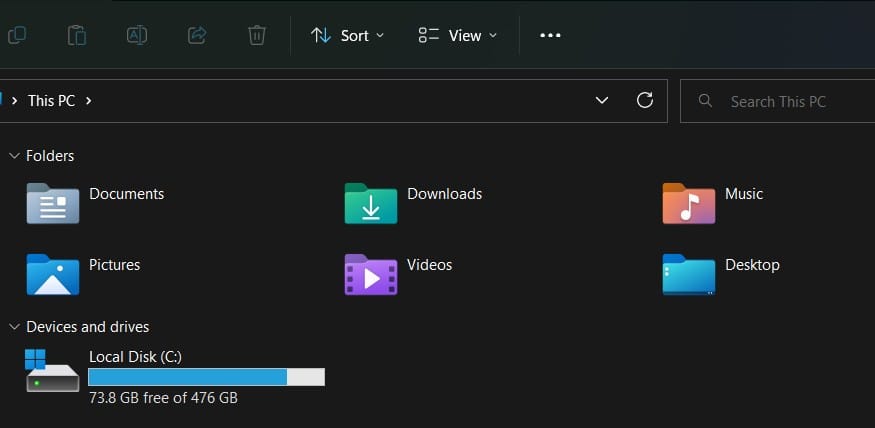
If you like, you can add the 3D Objects, Desktop, Documents, Downloads, Music, Pictures, and/or Videos folder(s) back under "Folders" in File Explorer > This PC.


You must be signed in as an administrator to add or remove folders in File Explorer > This PC.

This does not add folders under "This PC" in the navigation pane of File Explorer.

This does not affect folders in the navigation pane.


Contents

  • Option One: Add Folders under This PC in File Explorer
  • Option Two: Remove Folders under This PC in File Explorer


EXAMPLE: Add Folders group under This PC in File Explorer

This_PC_Folders.png


Option One

Add Folders under This PC in File Explorer


1 Do step 2 (all), step 3 (3D Objects), step 4 (Desktop), step 5 (Documents), step 6 (Downloads), step 7 (Music), step 8 (Pictures), or step 9 (Videos) for the folder(s) you want to add.


 2. Add All Folders to This PC

A) Click/tap on the Download button below to download the .reg file below, and go to step 10 below.​

Add_all_folders_to_This_PC_in_File_Explorer.reg


(Contents of REG file for reference)
Code:
Windows Registry Editor Version 5.00

; 3D Folders
[HKEY_LOCAL_MACHINE\SOFTWARE\Microsoft\Windows\CurrentVersion\Explorer\MyComputer\NameSpace\{0DB7E03F-FC29-4DC6-9020-FF41B59E513A}]

; Desktop
[HKEY_LOCAL_MACHINE\SOFTWARE\Microsoft\Windows\CurrentVersion\Explorer\MyComputer\NameSpace\{B4BFCC3A-DB2C-424C-B029-7FE99A87C641}]
"HideIfEnabled"=-

[HKEY_LOCAL_MACHINE\SOFTWARE\Microsoft\Windows\CurrentVersion\Explorer\MyComputer\NameSpace\{B4BFCC3A-DB2C-424C-B029-7FE99A87C641}]
"HiddenByDefault"=dword:00000000

; Documents
[HKEY_LOCAL_MACHINE\SOFTWARE\Microsoft\Windows\CurrentVersion\Explorer\MyComputer\NameSpace\{d3162b92-9365-467a-956b-92703aca08af}]
"HideIfEnabled"=-

[HKEY_LOCAL_MACHINE\SOFTWARE\Microsoft\Windows\CurrentVersion\Explorer\MyComputer\NameSpace\{d3162b92-9365-467a-956b-92703aca08af}]
"HiddenByDefault"=dword:00000000

; Downloads
[HKEY_LOCAL_MACHINE\SOFTWARE\Microsoft\Windows\CurrentVersion\Explorer\MyComputer\NameSpace\{088e3905-0323-4b02-9826-5d99428e115f}]
"HideIfEnabled"=-

[HKEY_LOCAL_MACHINE\SOFTWARE\Microsoft\Windows\CurrentVersion\Explorer\MyComputer\NameSpace\{088e3905-0323-4b02-9826-5d99428e115f}]
"HiddenByDefault"=dword:00000000

; Music
[HKEY_LOCAL_MACHINE\SOFTWARE\Microsoft\Windows\CurrentVersion\Explorer\MyComputer\NameSpace\{3dfdf296-dbec-4fb4-81d1-6a3438bcf4de}]
"HideIfEnabled"=-

[HKEY_LOCAL_MACHINE\SOFTWARE\Microsoft\Windows\CurrentVersion\Explorer\MyComputer\NameSpace\{1CF1260C-4DD0-4ebb-811F-33C572699FDE}]
"HiddenByDefault"=dword:00000000

[HKEY_LOCAL_MACHINE\SOFTWARE\Microsoft\Windows\CurrentVersion\Explorer\MyComputer\NameSpace\{3dfdf296-dbec-4fb4-81d1-6a3438bcf4de}]
"HiddenByDefault"=dword:00000000

; Pictures
[HKEY_LOCAL_MACHINE\SOFTWARE\Microsoft\Windows\CurrentVersion\Explorer\MyComputer\NameSpace\{24ad3ad4-a569-4530-98e1-ab02f9417aa8}]
"HideIfEnabled"=-

[HKEY_LOCAL_MACHINE\SOFTWARE\Microsoft\Windows\CurrentVersion\Explorer\MyComputer\NameSpace\{24ad3ad4-a569-4530-98e1-ab02f9417aa8}]
"HiddenByDefault"=dword:00000000

; Videos
[HKEY_LOCAL_MACHINE\SOFTWARE\Microsoft\Windows\CurrentVersion\Explorer\MyComputer\NameSpace\{f86fa3ab-70d2-4fc7-9c99-fcbf05467f3a}]
"HideIfEnabled"=-

[HKEY_LOCAL_MACHINE\SOFTWARE\Microsoft\Windows\CurrentVersion\Explorer\MyComputer\NameSpace\{f86fa3ab-70d2-4fc7-9c99-fcbf05467f3a}]
"HiddenByDefault"=dword:00000000


 3. Add 3D Objects folder to This PC

A) Click/tap on the Download button below to download the .reg file below, and go to step 10 below.​

Add_3D_Objects_folder_to_This_PC_in_File_Explorer.reg


(Contents of REG file for reference)
Code:
Windows Registry Editor Version 5.00

[HKEY_LOCAL_MACHINE\SOFTWARE\Microsoft\Windows\CurrentVersion\Explorer\MyComputer\NameSpace\{0DB7E03F-FC29-4DC6-9020-FF41B59E513A}]


 4. Add Desktop folder to This PC

A) Click/tap on the Download button below to download the .reg file below, and go to step 10 below.​

Add_Desktop_folder_to_This_PC_in_File_Explorer.reg


(Contents of REG file for reference)
Code:
Windows Registry Editor Version 5.00

[HKEY_LOCAL_MACHINE\SOFTWARE\Microsoft\Windows\CurrentVersion\Explorer\MyComputer\NameSpace\{B4BFCC3A-DB2C-424C-B029-7FE99A87C641}]
"HideIfEnabled"=-

[HKEY_LOCAL_MACHINE\SOFTWARE\Microsoft\Windows\CurrentVersion\Explorer\MyComputer\NameSpace\{B4BFCC3A-DB2C-424C-B029-7FE99A87C641}]
"HiddenByDefault"=dword:00000000


 5. Add Documents folder to This PC

A) Click/tap on the Download button below to download the .reg file below, and go to step 10 below.​

Add_Documents_folder_to_This_PC_in_File_Explorer.reg


(Contents of REG file for reference)
Code:
Windows Registry Editor Version 5.00

[HKEY_LOCAL_MACHINE\SOFTWARE\Microsoft\Windows\CurrentVersion\Explorer\MyComputer\NameSpace\{d3162b92-9365-467a-956b-92703aca08af}]
"HideIfEnabled"=-

[HKEY_LOCAL_MACHINE\SOFTWARE\Microsoft\Windows\CurrentVersion\Explorer\MyComputer\NameSpace\{d3162b92-9365-467a-956b-92703aca08af}]
"HiddenByDefault"=dword:00000000


 6. Add Downloads folder to This PC

A) Click/tap on the Download button below to download the .reg file below, and go to step 10 below.​

Add_Downloads_folder_to_This_PC_in_File_Explorer.reg


(Contents of REG file for reference)
Code:
Windows Registry Editor Version 5.00

[HKEY_LOCAL_MACHINE\SOFTWARE\Microsoft\Windows\CurrentVersion\Explorer\MyComputer\NameSpace\{088e3905-0323-4b02-9826-5d99428e115f}]
"HideIfEnabled"=-

[HKEY_LOCAL_MACHINE\SOFTWARE\Microsoft\Windows\CurrentVersion\Explorer\MyComputer\NameSpace\{088e3905-0323-4b02-9826-5d99428e115f}]
"HiddenByDefault"=dword:00000000


 7. Add Music folder to This PC

A) Click/tap on the Download button below to download the .reg file below, and go to step 10 below.​

Add_Music_folder_to_This_PC_in_File_Explorer.reg


(Contents of REG file for reference)
Code:
Windows Registry Editor Version 5.00

[HKEY_LOCAL_MACHINE\SOFTWARE\Microsoft\Windows\CurrentVersion\Explorer\MyComputer\NameSpace\{3dfdf296-dbec-4fb4-81d1-6a3438bcf4de}]
"HideIfEnabled"=-

[HKEY_LOCAL_MACHINE\SOFTWARE\Microsoft\Windows\CurrentVersion\Explorer\MyComputer\NameSpace\{1CF1260C-4DD0-4ebb-811F-33C572699FDE}]
"HiddenByDefault"=dword:00000000

[HKEY_LOCAL_MACHINE\SOFTWARE\Microsoft\Windows\CurrentVersion\Explorer\MyComputer\NameSpace\{3dfdf296-dbec-4fb4-81d1-6a3438bcf4de}]
"HiddenByDefault"=dword:00000000


 8. Add Pictures folder to This PC

A) Click/tap on the Download button below to download the .reg file below, and go to step 10 below.​

Add_Pictures_folder_to_This_PC_in_File_Explorer.reg


(Contents of REG file for reference)
Code:
Windows Registry Editor Version 5.00

[HKEY_LOCAL_MACHINE\SOFTWARE\Microsoft\Windows\CurrentVersion\Explorer\MyComputer\NameSpace\{24ad3ad4-a569-4530-98e1-ab02f9417aa8}]
"HideIfEnabled"=-

[HKEY_LOCAL_MACHINE\SOFTWARE\Microsoft\Windows\CurrentVersion\Explorer\MyComputer\NameSpace\{24ad3ad4-a569-4530-98e1-ab02f9417aa8}]
"HiddenByDefault"=dword:00000000


 8. Add Videos folder to This PC

A) Click/tap on the Download button below to download the .reg file below, and go to step 10 below.​

Add_Videos_folder_to_This_PC_in_File_Explorer.reg


(Contents of REG file for reference)
Code:
Windows Registry Editor Version 5.00

[HKEY_LOCAL_MACHINE\SOFTWARE\Microsoft\Windows\CurrentVersion\Explorer\MyComputer\NameSpace\{f86fa3ab-70d2-4fc7-9c99-fcbf05467f3a}]
"HideIfEnabled"=-

[HKEY_LOCAL_MACHINE\SOFTWARE\Microsoft\Windows\CurrentVersion\Explorer\MyComputer\NameSpace\{f86fa3ab-70d2-4fc7-9c99-fcbf05467f3a}]
"HiddenByDefault"=dword:00000000

10 Save the .reg file to your desktop.

11 If you have Smart App Control turned on, you will need to unblock the downloaded REG file.

12 Double click/tap on the downloaded .reg file to merge it.

13 When prompted, click/tap on Run, Yes (UAC), Yes, and OK to approve the merge.

14 If File Explorer is currently open, then either refresh (F5) or close and reopen File Explorer to apply.

15 You can now delete the downloaded .reg file(s) if you like.


Option Two

Remove Folders under This PC in File Explorer


1 Do step 2 (all), step 3 (3D Objects), step 4 (Desktop), step 5 (Documents), step 6 (Downloads), step 7 (Music), step 8 (Pictures), or step 9 (Videos) for the folder(s) you want to remove.


 2. Remove All Folders from This PC

This is the default setting.


A) Click/tap on the Download button below to download the .reg file below, and go to step 10 below.​

Remove_all_folders_from_This_PC_in_File_Explorer.reg


(Contents of REG file for reference)
Code:
Windows Registry Editor Version 5.00

; 3D Folders
[-HKEY_LOCAL_MACHINE\SOFTWARE\Microsoft\Windows\CurrentVersion\Explorer\MyComputer\NameSpace\{0DB7E03F-FC29-4DC6-9020-FF41B59E513A}]

; Desktop
[HKEY_LOCAL_MACHINE\SOFTWARE\Microsoft\Windows\CurrentVersion\Explorer\MyComputer\NameSpace\{B4BFCC3A-DB2C-424C-B029-7FE99A87C641}]
"HideIfEnabled"=dword:022ab9b9

[HKEY_LOCAL_MACHINE\SOFTWARE\Microsoft\Windows\CurrentVersion\Explorer\MyComputer\NameSpace\{B4BFCC3A-DB2C-424C-B029-7FE99A87C641}]
"HiddenByDefault"=dword:00000001

; Documents
[HKEY_LOCAL_MACHINE\SOFTWARE\Microsoft\Windows\CurrentVersion\Explorer\MyComputer\NameSpace\{d3162b92-9365-467a-956b-92703aca08af}]
"HideIfEnabled"=dword:022ab9b9

[HKEY_LOCAL_MACHINE\SOFTWARE\Microsoft\Windows\CurrentVersion\Explorer\MyComputer\NameSpace\{d3162b92-9365-467a-956b-92703aca08af}]
"HiddenByDefault"=dword:00000001

; Downloads
[HKEY_LOCAL_MACHINE\SOFTWARE\Microsoft\Windows\CurrentVersion\Explorer\MyComputer\NameSpace\{088e3905-0323-4b02-9826-5d99428e115f}]
"HideIfEnabled"=dword:022ab9b9

[HKEY_LOCAL_MACHINE\SOFTWARE\Microsoft\Windows\CurrentVersion\Explorer\MyComputer\NameSpace\{088e3905-0323-4b02-9826-5d99428e115f}]
"HiddenByDefault"=dword:00000001

; Music
[HKEY_LOCAL_MACHINE\SOFTWARE\Microsoft\Windows\CurrentVersion\Explorer\MyComputer\NameSpace\{3dfdf296-dbec-4fb4-81d1-6a3438bcf4de}]
"HideIfEnabled"=dword:022ab9b9

[HKEY_LOCAL_MACHINE\SOFTWARE\Microsoft\Windows\CurrentVersion\Explorer\MyComputer\NameSpace\{1CF1260C-4DD0-4ebb-811F-33C572699FDE}]
"HiddenByDefault"=dword:00000001

[HKEY_LOCAL_MACHINE\SOFTWARE\Microsoft\Windows\CurrentVersion\Explorer\MyComputer\NameSpace\{3dfdf296-dbec-4fb4-81d1-6a3438bcf4de}]
"HiddenByDefault"=dword:00000001

; Pictures
[HKEY_LOCAL_MACHINE\SOFTWARE\Microsoft\Windows\CurrentVersion\Explorer\MyComputer\NameSpace\{24ad3ad4-a569-4530-98e1-ab02f9417aa8}]
"HideIfEnabled"=dword:022ab9b9

[HKEY_LOCAL_MACHINE\SOFTWARE\Microsoft\Windows\CurrentVersion\Explorer\MyComputer\NameSpace\{24ad3ad4-a569-4530-98e1-ab02f9417aa8}]
"HiddenByDefault"=dword:00000001

; Videos
[HKEY_LOCAL_MACHINE\SOFTWARE\Microsoft\Windows\CurrentVersion\Explorer\MyComputer\NameSpace\{f86fa3ab-70d2-4fc7-9c99-fcbf05467f3a}]
"HideIfEnabled"=dword:022ab9b9

[HKEY_LOCAL_MACHINE\SOFTWARE\Microsoft\Windows\CurrentVersion\Explorer\MyComputer\NameSpace\{f86fa3ab-70d2-4fc7-9c99-fcbf05467f3a}]
"HiddenByDefault"=dword:00000001


 3. Remove 3D Objects folder from This PC

A) Click/tap on the Download button below to download the .reg file below, and go to step 10 below.​

Remove_3D_Objects_folder_from_This_PC_in_File_Explorer.reg


(Contents of REG file for reference)
Code:
Windows Registry Editor Version 5.00

[-HKEY_LOCAL_MACHINE\SOFTWARE\Microsoft\Windows\CurrentVersion\Explorer\MyComputer\NameSpace\{0DB7E03F-FC29-4DC6-9020-FF41B59E513A}]


 4. Remove Desktop folder from This PC

A) Click/tap on the Download button below to download the .reg file below, and go to step 10 below.​

Remove_Desktop_folder_from_This_PC_in_File_Explorer.reg


(Contents of REG file for reference)
Code:
Windows Registry Editor Version 5.00

[HKEY_LOCAL_MACHINE\SOFTWARE\Microsoft\Windows\CurrentVersion\Explorer\MyComputer\NameSpace\{B4BFCC3A-DB2C-424C-B029-7FE99A87C641}]
"HideIfEnabled"=dword:022ab9b9

[HKEY_LOCAL_MACHINE\SOFTWARE\Microsoft\Windows\CurrentVersion\Explorer\MyComputer\NameSpace\{B4BFCC3A-DB2C-424C-B029-7FE99A87C641}]
"HiddenByDefault"=dword:00000001


 5. Remove Documents folder from This PC

A) Click/tap on the Download button below to download the .reg file below, and go to step 10 below.​

Remove_Documents_folder_from_This_PC_in_File_Explorer.reg


(Contents of REG file for reference)
Code:
Windows Registry Editor Version 5.00

[HKEY_LOCAL_MACHINE\SOFTWARE\Microsoft\Windows\CurrentVersion\Explorer\MyComputer\NameSpace\{d3162b92-9365-467a-956b-92703aca08af}]
"HideIfEnabled"=dword:022ab9b9

[HKEY_LOCAL_MACHINE\SOFTWARE\Microsoft\Windows\CurrentVersion\Explorer\MyComputer\NameSpace\{d3162b92-9365-467a-956b-92703aca08af}]
"HiddenByDefault"=dword:00000001


 6. Remove Downloads folder from This PC

A) Click/tap on the Download button below to download the .reg file below, and go to step 10 below.​

Remove_Downloads_folder_from_This_PC_in_File_Explorer.reg


(Contents of REG file for reference)
Code:
Windows Registry Editor Version 5.00

[HKEY_LOCAL_MACHINE\SOFTWARE\Microsoft\Windows\CurrentVersion\Explorer\MyComputer\NameSpace\{088e3905-0323-4b02-9826-5d99428e115f}]
"HideIfEnabled"=dword:022ab9b9

[HKEY_LOCAL_MACHINE\SOFTWARE\Microsoft\Windows\CurrentVersion\Explorer\MyComputer\NameSpace\{088e3905-0323-4b02-9826-5d99428e115f}]
"HiddenByDefault"=dword:00000001


 7. Remove Music folder from This PC

A) Click/tap on the Download button below to download the .reg file below, and go to step 10 below.​

Remove_Music_folder_from_This_PC_in_File_Explorer.reg


(Contents of REG file for reference)
Code:
Windows Registry Editor Version 5.00

[HKEY_LOCAL_MACHINE\SOFTWARE\Microsoft\Windows\CurrentVersion\Explorer\MyComputer\NameSpace\{3dfdf296-dbec-4fb4-81d1-6a3438bcf4de}]
"HideIfEnabled"=dword:022ab9b9

[HKEY_LOCAL_MACHINE\SOFTWARE\Microsoft\Windows\CurrentVersion\Explorer\MyComputer\NameSpace\{1CF1260C-4DD0-4ebb-811F-33C572699FDE}]
"HiddenByDefault"=dword:00000001

[HKEY_LOCAL_MACHINE\SOFTWARE\Microsoft\Windows\CurrentVersion\Explorer\MyComputer\NameSpace\{3dfdf296-dbec-4fb4-81d1-6a3438bcf4de}]
"HiddenByDefault"=dword:00000001


 8. Remove Pictures folder from This PC

A) Click/tap on the Download button below to download the .reg file below, and go to step 10 below.​

Remove_Pictures_folder_from_This_PC_in_File_Explorer.reg


(Contents of REG file for reference)
Code:
Windows Registry Editor Version 5.00

[HKEY_LOCAL_MACHINE\SOFTWARE\Microsoft\Windows\CurrentVersion\Explorer\MyComputer\NameSpace\{24ad3ad4-a569-4530-98e1-ab02f9417aa8}]
"HideIfEnabled"=dword:022ab9b9

[HKEY_LOCAL_MACHINE\SOFTWARE\Microsoft\Windows\CurrentVersion\Explorer\MyComputer\NameSpace\{24ad3ad4-a569-4530-98e1-ab02f9417aa8}]
"HiddenByDefault"=dword:00000001


 8. Remove Videos folder from This PC

A) Click/tap on the Download button below to download the .reg file below, and go to step 10 below.​

Remove_Videos_folder_from_This_PC_in_File_Explorer.reg


(Contents of REG file for reference)
Code:
Windows Registry Editor Version 5.00

[HKEY_LOCAL_MACHINE\SOFTWARE\Microsoft\Windows\CurrentVersion\Explorer\MyComputer\NameSpace\{f86fa3ab-70d2-4fc7-9c99-fcbf05467f3a}]
"HideIfEnabled"=dword:022ab9b9

[HKEY_LOCAL_MACHINE\SOFTWARE\Microsoft\Windows\CurrentVersion\Explorer\MyComputer\NameSpace\{f86fa3ab-70d2-4fc7-9c99-fcbf05467f3a}]
"HiddenByDefault"=dword:00000001

10 Save the .reg file to your desktop.

11 If you have Smart App Control turned on, you will need to unblock the downloaded REG file.

12 Double click/tap on the downloaded .reg file to merge it.

13 When prompted, click/tap on Run, Yes (UAC), Yes, and OK to approve the merge.

14 If File Explorer is currently open, then either refresh (F5) or close and reopen File Explorer to apply.

15 You can now delete the downloaded .reg file(s) if you like.


That's it,
Shawn Brink


Attachments

Last edited:

Hello @AuthenticM, and welcome. :-)

The "(Default)" value is just used to help reference what the GUID key is for.

All the GUID keys at this location have a "HidelfEnabled" DWORD value for me, so not sure why you don't.

Neither affects the sorting order though.

Go ahead and post a screenshot showing what you're seeing to see if it may help to ID a way to sort it how you wanted.
Thank you :)

Here is what I see in the MyPC folder:

DzFqJuK.jpg


This is with the "ascending" sort order. If I select "descending", everything is flipped, including putting Local Disk on top of the Folders section (I was mistaken earlier when I said that "ascending" would put Desktop first; it's "descending" that does, but as I said, that's not desirable)

Here is a screenshot of my registry:

uKymP0D.jpg


When I followed the guide the other day, I used the registry file that added all the folders. Perhaps something went wrong?
 

My Computer My Computer

At a glance

Windows 11
OS
Windows 11
Computer type
Laptop
Thank you :)

Here is what I see in the MyPC folder:

This is with the "ascending" sort order. If I select "descending", everything is flipped, including putting Local Disk on top of the Folders section (I was mistaken earlier when I said that "ascending" would put Desktop first; it's "descending" that does, but as I said, that's not desirable)

Here is a screenshot of my registry:

When I followed the guide the other day, I used the registry file that added all the folders. Perhaps something went wrong?

I must admit that I'm not sure why it has Desktop at the end like that. I see the same on my system. :unsure:
 

My Computers My Computers

  • At a glance

    Windows 11 Pro for WorkstationsIntel i7-8700K 5 GHz64 GB (4x16GB) G.SKILL TridentZ RGB DDR4 3600...ASUS ROG-STRIX-GTX1080TI-O11G-GAMING (11GB GD...
    OS
    Windows 11 Pro for Workstations
    Computer type
    PC/Desktop
    Manufacturer/Model
    Custom self build
    CPU
    Intel i7-8700K 5 GHz
    Motherboard
    ASUS ROG Maximus XI Formula Z390
    Memory
    64 GB (4x16GB) G.SKILL TridentZ RGB DDR4 3600 MHz (F4-3600C18D-32GTZR)
    Graphics Card(s)
    ASUS ROG-STRIX-GTX1080TI-O11G-GAMING (11GB GDDR5X)
    Sound Card
    Integrated Digital Audio (S/PDIF)
    Monitor(s) Displays
    2 x Samsung Odyssey G75 27"
    Screen Resolution
    2560x1440
    Hard Drives
    1TB Samsung 990 PRO M.2,
    4TB Samsung 990 PRO M.2,
    TerraMaster F8 SSD Plus NAS
    PSU
    Seasonic Prime Titanium 850W
    Case
    Thermaltake Core P3 wall mounted
    Cooling
    Corsair Hydro H115i
    Keyboard
    Amazon Basics Wired Full Keyboard MD005
    Mouse
    Logitech MX Master 4
    Internet Speed
    2 Gbps Download and 100 Mbps Upload
    Browser
    Chrome and Edge
    Antivirus
    Microsoft Defender
    Other Info
    Logitech Z625 speaker system,
    Logitech BRIO 4K Pro webcam,
    HP Color LaserJet Pro MFP M477fdn,
    CyberPower CP1500PFCLCD
    Galaxy S23 Plus phone
  • At a glance

    Windows 11 ProSnapdragon X Elite (12 core) 3.42 GHz16 GB LPDDR5x-7467 MHz
    Operating System
    Windows 11 Pro
    Computer type
    Laptop
    Manufacturer/Model
    Surface Laptop 7 Copilot+ PC
    CPU
    Snapdragon X Elite (12 core) 3.42 GHz
    Memory
    16 GB LPDDR5x-7467 MHz
    Monitor(s) Displays
    15" HDR
    Screen Resolution
    2496 x 1664
    Hard Drives
    1 TB SSD
    Internet Speed
    Wi-Fi 7 and Bluetooth 5.4
    Browser
    Chrome and Edge
    Antivirus
    Microsoft Defender
I must admit that I'm not sure why it has Desktop at the end like that. I see the same on my system. :unsure:
It's peculiar, isn't it?

It seems like Peter Njeim from earlier in the thread might have found a solution:

Edit 2: I solved the issue by going to the Computer\HKEY_CLASSES_ROOT\CLSID\{B4BFCC3A-DB2C-424C-B029-7FE99A87C641}\ShellFolder, right clicking it and clicking Permissions. Then I clicked Advanced, Change (at the top to change the owner), then changed it from SYSTEM to Administrators (just typed "administrators" the box then clicked "Check Names"). Clicked OK, then OK again. Then I clicked on Administrators and checked the Full Control check box on the Allow column, then OK again. I then double clicked on the SortOrderIndex DWORD, and changed it to 0 (was 0x48 (72) initially). Then I reversed the permission changes by right clicking the Key (the ShellFolder folder in the left pane), clicking Permissions, then clicking Administrators and unchecking the Full Control checkbox in the Allow column. Then clicked Advanced, then Change at the top, then typed "SYSTEM" in the text box, then clicked Check Names, then clicked OK, then OK, then OK, and that was it, Desktop is now the first folder as it should be.

Edit 1: unfortunately it seems that the Folders section doesn't respect the Sort by option, however it does respect Ascending vs Descending, and the Group by option. So the question is how to make the Folders section respect the Sort type, however knowing that Microsoft is deprecating the Folders section, maybe the section will be gone for good before this bug gets fixed.

Hello, this works, however there is a new problem. Earlier (before the tabbed layout) the Desktop folder was the first folder (top left) (ignoring 3D Objects folder which I disable). After applying these registry keys, the Desktop folder is now the last folder (bottom right). I don't see any way I could change the order. I tried to add and remove the DWORDS in different orders to no avail. Do you know of any way to make the Desktop folder the first folder again? Version 22621.675
Have you tried this method, @Brink ? I haven't as it's pretty indimidating.
 

My Computer My Computer

At a glance

Windows 11
OS
Windows 11
Computer type
Laptop
It's peculiar, isn't it?

It seems like Peter Njeim from earlier in the thread might have found a solution:


Have you tried this method, @Brink ? I haven't as it's pretty indimidating.

I haven't tested it, but it should work.

However, I wouldn't be surprised if an update may reset it back though.
 

My Computers My Computers

  • At a glance

    Windows 11 Pro for WorkstationsIntel i7-8700K 5 GHz64 GB (4x16GB) G.SKILL TridentZ RGB DDR4 3600...ASUS ROG-STRIX-GTX1080TI-O11G-GAMING (11GB GD...
    OS
    Windows 11 Pro for Workstations
    Computer type
    PC/Desktop
    Manufacturer/Model
    Custom self build
    CPU
    Intel i7-8700K 5 GHz
    Motherboard
    ASUS ROG Maximus XI Formula Z390
    Memory
    64 GB (4x16GB) G.SKILL TridentZ RGB DDR4 3600 MHz (F4-3600C18D-32GTZR)
    Graphics Card(s)
    ASUS ROG-STRIX-GTX1080TI-O11G-GAMING (11GB GDDR5X)
    Sound Card
    Integrated Digital Audio (S/PDIF)
    Monitor(s) Displays
    2 x Samsung Odyssey G75 27"
    Screen Resolution
    2560x1440
    Hard Drives
    1TB Samsung 990 PRO M.2,
    4TB Samsung 990 PRO M.2,
    TerraMaster F8 SSD Plus NAS
    PSU
    Seasonic Prime Titanium 850W
    Case
    Thermaltake Core P3 wall mounted
    Cooling
    Corsair Hydro H115i
    Keyboard
    Amazon Basics Wired Full Keyboard MD005
    Mouse
    Logitech MX Master 4
    Internet Speed
    2 Gbps Download and 100 Mbps Upload
    Browser
    Chrome and Edge
    Antivirus
    Microsoft Defender
    Other Info
    Logitech Z625 speaker system,
    Logitech BRIO 4K Pro webcam,
    HP Color LaserJet Pro MFP M477fdn,
    CyberPower CP1500PFCLCD
    Galaxy S23 Plus phone
  • At a glance

    Windows 11 ProSnapdragon X Elite (12 core) 3.42 GHz16 GB LPDDR5x-7467 MHz
    Operating System
    Windows 11 Pro
    Computer type
    Laptop
    Manufacturer/Model
    Surface Laptop 7 Copilot+ PC
    CPU
    Snapdragon X Elite (12 core) 3.42 GHz
    Memory
    16 GB LPDDR5x-7467 MHz
    Monitor(s) Displays
    15" HDR
    Screen Resolution
    2496 x 1664
    Hard Drives
    1 TB SSD
    Internet Speed
    Wi-Fi 7 and Bluetooth 5.4
    Browser
    Chrome and Edge
    Antivirus
    Microsoft Defender
Hi there, Brink. Like aaron106 I'm trying to get my folders (documents, desktop, music etc.) to appear in the LEFT navigation column under This PC. I've tried your regedit, but it didn't work. My OS build is 22621.819. I realise that these folders can be seen under Home (ex quick access), but they're not readily visible, and this makes copying and pasting files etc a little more complicated. Can you help me out?
 

My Computer My Computer

At a glance

Windows 11
OS
Windows 11
Computer type
Laptop
Manufacturer/Model
HP Pavilion
Mouse
HP wireless rechargeable
Browser
Firefox
Antivirus
Iobit Malware Fighter (with BitDefender engine)
Hi there, Brink. Like aaron106 I'm trying to get my folders (documents, desktop, music etc.) to appear in the LEFT navigation column under This PC. I've tried your regedit, but it didn't work. My OS build is 22621.819. I realise that these folders can be seen under Home (ex quick access), but they're not readily visible, and this makes copying and pasting files etc a little more complicated. Can you help me out?

Hello Florio,

Unfortunately, this doesn't add them to the navigation pane under This PC. It only adds them back to the main window under This PC > Folders. :(
 

My Computers My Computers

  • At a glance

    Windows 11 Pro for WorkstationsIntel i7-8700K 5 GHz64 GB (4x16GB) G.SKILL TridentZ RGB DDR4 3600...ASUS ROG-STRIX-GTX1080TI-O11G-GAMING (11GB GD...
    OS
    Windows 11 Pro for Workstations
    Computer type
    PC/Desktop
    Manufacturer/Model
    Custom self build
    CPU
    Intel i7-8700K 5 GHz
    Motherboard
    ASUS ROG Maximus XI Formula Z390
    Memory
    64 GB (4x16GB) G.SKILL TridentZ RGB DDR4 3600 MHz (F4-3600C18D-32GTZR)
    Graphics Card(s)
    ASUS ROG-STRIX-GTX1080TI-O11G-GAMING (11GB GDDR5X)
    Sound Card
    Integrated Digital Audio (S/PDIF)
    Monitor(s) Displays
    2 x Samsung Odyssey G75 27"
    Screen Resolution
    2560x1440
    Hard Drives
    1TB Samsung 990 PRO M.2,
    4TB Samsung 990 PRO M.2,
    TerraMaster F8 SSD Plus NAS
    PSU
    Seasonic Prime Titanium 850W
    Case
    Thermaltake Core P3 wall mounted
    Cooling
    Corsair Hydro H115i
    Keyboard
    Amazon Basics Wired Full Keyboard MD005
    Mouse
    Logitech MX Master 4
    Internet Speed
    2 Gbps Download and 100 Mbps Upload
    Browser
    Chrome and Edge
    Antivirus
    Microsoft Defender
    Other Info
    Logitech Z625 speaker system,
    Logitech BRIO 4K Pro webcam,
    HP Color LaserJet Pro MFP M477fdn,
    CyberPower CP1500PFCLCD
    Galaxy S23 Plus phone
  • At a glance

    Windows 11 ProSnapdragon X Elite (12 core) 3.42 GHz16 GB LPDDR5x-7467 MHz
    Operating System
    Windows 11 Pro
    Computer type
    Laptop
    Manufacturer/Model
    Surface Laptop 7 Copilot+ PC
    CPU
    Snapdragon X Elite (12 core) 3.42 GHz
    Memory
    16 GB LPDDR5x-7467 MHz
    Monitor(s) Displays
    15" HDR
    Screen Resolution
    2496 x 1664
    Hard Drives
    1 TB SSD
    Internet Speed
    Wi-Fi 7 and Bluetooth 5.4
    Browser
    Chrome and Edge
    Antivirus
    Microsoft Defender
Unfortunately, this doesn't add them to the navigation pane under This PC
They will if you Show all folders but, who wants to show all folders!? 🤷‍♂️

0001938.png
 

My Computers My Computers

  • At a glance

    Windows 11 Pro
    OS
    Windows 11 Pro
    Computer type
    PC/Desktop
    Manufacturer/Model
    ASUS ROG Strix
  • At a glance

    Windows 11 Pro
    Operating System
    Windows 11 Pro
    Computer type
    Laptop
    Manufacturer/Model
    ASUS VivoBook
  • ASUS VivoBook 'Lite' ~ Windows 11 Home
With the reg edit, they will also show in the Move To/Copy To dialog...

0001941.png
 

My Computers My Computers

  • At a glance

    Windows 11 Pro
    OS
    Windows 11 Pro
    Computer type
    PC/Desktop
    Manufacturer/Model
    ASUS ROG Strix
  • At a glance

    Windows 11 Pro
    Operating System
    Windows 11 Pro
    Computer type
    Laptop
    Manufacturer/Model
    ASUS VivoBook
  • ASUS VivoBook 'Lite' ~ Windows 11 Home
How to remove this folders? Tried everything
 

Attachments

  • ScreenShot00016.jpg
    ScreenShot00016.jpg
    17.9 KB · Views: 133

My Computer My Computer

At a glance

Windows 11
OS
Windows 11
How to remove this folders? Tried everything

Hello, Imaticx.

Welcome to ElevenForum.


Personally, I can not give you an answer, as I have never tried to remove them. What you can do is from time to time, check their contents and delete from within, if you wish.

Otherwise, I would leave them.

Wishing you the best. (y)
 
Last edited:

My Computer My Computer

At a glance

Windows 10 Pro 64-bit 22H2 19045.4046Intel i7-3770 @ 3.40GHz8 GBAMD 7500 Radeon HD Series
OS
Windows 10 Pro 64-bit 22H2 19045.4046
Computer type
PC/Desktop
Manufacturer/Model
Dell/Vostro 470 (Year 2012)
CPU
Intel i7-3770 @ 3.40GHz
Memory
8 GB
Graphics Card(s)
AMD 7500 Radeon HD Series
Sound Card
Realtek Hi-Def Audio
Monitor(s) Displays
Dell U2412M
Hard Drives
1 TB 7200 HDD
Keyboard
Dell/USB
Mouse
Dell/USB
Internet Speed
100/10
Browser
Edge
Antivirus
Windows Security/MalwareBytes Premium
How to remove this folders? Tried everything

Hello, and welcome. :-)

Usually, you would unpin them from Quick access below to remove them from the navigation pane.


My Computers My Computers

  • At a glance

    Windows 11 Pro for WorkstationsIntel i7-8700K 5 GHz64 GB (4x16GB) G.SKILL TridentZ RGB DDR4 3600...ASUS ROG-STRIX-GTX1080TI-O11G-GAMING (11GB GD...
    OS
    Windows 11 Pro for Workstations
    Computer type
    PC/Desktop
    Manufacturer/Model
    Custom self build
    CPU
    Intel i7-8700K 5 GHz
    Motherboard
    ASUS ROG Maximus XI Formula Z390
    Memory
    64 GB (4x16GB) G.SKILL TridentZ RGB DDR4 3600 MHz (F4-3600C18D-32GTZR)
    Graphics Card(s)
    ASUS ROG-STRIX-GTX1080TI-O11G-GAMING (11GB GDDR5X)
    Sound Card
    Integrated Digital Audio (S/PDIF)
    Monitor(s) Displays
    2 x Samsung Odyssey G75 27"
    Screen Resolution
    2560x1440
    Hard Drives
    1TB Samsung 990 PRO M.2,
    4TB Samsung 990 PRO M.2,
    TerraMaster F8 SSD Plus NAS
    PSU
    Seasonic Prime Titanium 850W
    Case
    Thermaltake Core P3 wall mounted
    Cooling
    Corsair Hydro H115i
    Keyboard
    Amazon Basics Wired Full Keyboard MD005
    Mouse
    Logitech MX Master 4
    Internet Speed
    2 Gbps Download and 100 Mbps Upload
    Browser
    Chrome and Edge
    Antivirus
    Microsoft Defender
    Other Info
    Logitech Z625 speaker system,
    Logitech BRIO 4K Pro webcam,
    HP Color LaserJet Pro MFP M477fdn,
    CyberPower CP1500PFCLCD
    Galaxy S23 Plus phone
  • At a glance

    Windows 11 ProSnapdragon X Elite (12 core) 3.42 GHz16 GB LPDDR5x-7467 MHz
    Operating System
    Windows 11 Pro
    Computer type
    Laptop
    Manufacturer/Model
    Surface Laptop 7 Copilot+ PC
    CPU
    Snapdragon X Elite (12 core) 3.42 GHz
    Memory
    16 GB LPDDR5x-7467 MHz
    Monitor(s) Displays
    15" HDR
    Screen Resolution
    2496 x 1664
    Hard Drives
    1 TB SSD
    Internet Speed
    Wi-Fi 7 and Bluetooth 5.4
    Browser
    Chrome and Edge
    Antivirus
    Microsoft Defender
Hi,
Yeah 11 pin cushion explorer, so sad ms screwed up this pc and it was not broken :eyeroll:

Much more straight forward to add personal/ user folder to start menu and use it
Then if you need a desktop shortcut just create one using send to desktop options another 11 blunder is you can't drag and drop it to taskbar so pinning the open explorer user folder one it resets to the lame explorer entry and no longer goes to your user folder :boom:

Then simply expand navigation pane so all folders are shown automatically with cmd as admin and this script

Code:
rem Expand left side tree of current folder on Explorer open
reg add HKCU\Software\Microsoft\Windows\CurrentVersion\Explorer\Advanced /v NavPaneExpandToCurrentFolder /t REG_DWORD /d 1 /f

Also have not tried it but it might act the same way using this string

Code:
rem Show My Computer on Desktop
reg add HKCU\Software\Microsoft\Windows\CurrentVersion\Explorer\HideDesktopIcons\NewStartPanel /v "{20D04FE0-3AEA-1069-A2D8-08002B30309D}" /t REG_DWORD /d 0 /f
 

My Computer My Computer

At a glance

Win-7-10-11Pro's10900k & 9940x & 5930kTrident-Z Royal 4000c16 2x16gb & Trident-Z 36...Titan Xp & 1080ti FTW3 & evga 980ti gaming
OS
Win-7-10-11Pro's
Computer type
PC/Desktop
Manufacturer/Model
Acer 17" Nitro 7840sn/ 2x16gb 5600c40/ 4060/ stock 1tb-os/ 4tb sn850x
CPU
10900k & 9940x & 5930k
Motherboard
z490-Apex & x299-Apex & x99-Sabertooth
Memory
Trident-Z Royal 4000c16 2x16gb & Trident-Z 3600c16 4x8gb & 3200c14 4x8gb
Graphics Card(s)
Titan Xp & 1080ti FTW3 & evga 980ti gaming
Sound Card
Onboard Realtek x3
Monitor(s) Displays
1-AOC G2460PG 24"G-Sync 144Hz/ 2nd 1-ASUS VG248QE 24"/ 3rd LG 43" series
Screen Resolution
1920-1080 not sure what the t.v is besides 43" class scales from 1920-1080 perfectly
Hard Drives
2-WD-sn850x 4tb/ 970evo+500gb/ 980 pro 2tb.
PSU
1000p2 & 1200p2 & 850p2
Case
D450 x2 & 1 Test bench in cherry Entertainment center
Cooling
Custom water loops x3 with 2x mora 360mm rads only 980ti gaming air cooled
Keyboard
G710+x3
Mouse
Redragon x3
Internet Speed
xfinity gigabyte
Browser
Firefox
Antivirus
mbam pro
Nope my computer on desktop is just another lame shortcut.
 

My Computer My Computer

At a glance

Win-7-10-11Pro's10900k & 9940x & 5930kTrident-Z Royal 4000c16 2x16gb & Trident-Z 36...Titan Xp & 1080ti FTW3 & evga 980ti gaming
OS
Win-7-10-11Pro's
Computer type
PC/Desktop
Manufacturer/Model
Acer 17" Nitro 7840sn/ 2x16gb 5600c40/ 4060/ stock 1tb-os/ 4tb sn850x
CPU
10900k & 9940x & 5930k
Motherboard
z490-Apex & x299-Apex & x99-Sabertooth
Memory
Trident-Z Royal 4000c16 2x16gb & Trident-Z 3600c16 4x8gb & 3200c14 4x8gb
Graphics Card(s)
Titan Xp & 1080ti FTW3 & evga 980ti gaming
Sound Card
Onboard Realtek x3
Monitor(s) Displays
1-AOC G2460PG 24"G-Sync 144Hz/ 2nd 1-ASUS VG248QE 24"/ 3rd LG 43" series
Screen Resolution
1920-1080 not sure what the t.v is besides 43" class scales from 1920-1080 perfectly
Hard Drives
2-WD-sn850x 4tb/ 970evo+500gb/ 980 pro 2tb.
PSU
1000p2 & 1200p2 & 850p2
Case
D450 x2 & 1 Test bench in cherry Entertainment center
Cooling
Custom water loops x3 with 2x mora 360mm rads only 980ti gaming air cooled
Keyboard
G710+x3
Mouse
Redragon x3
Internet Speed
xfinity gigabyte
Browser
Firefox
Antivirus
mbam pro
I just pin the Parent folders I need to Quick Access and remove the rest of the cruft!

0002230.png
 

My Computers My Computers

  • At a glance

    Windows 11 Pro
    OS
    Windows 11 Pro
    Computer type
    PC/Desktop
    Manufacturer/Model
    ASUS ROG Strix
  • At a glance

    Windows 11 Pro
    Operating System
    Windows 11 Pro
    Computer type
    Laptop
    Manufacturer/Model
    ASUS VivoBook
  • ASUS VivoBook 'Lite' ~ Windows 11 Home
Unfortunately, this did not work as I thought. I was hoping to have the Desktop folder show up in the Navigation pane under This PC. Instead, it only shows up when I click on This PC in the right pane.
I have Windows 11 Pro, 22H2 OS Build: 22621.1105
 

Attachments

  • 2023-01-16_130839.jpg
    2023-01-16_130839.jpg
    21.5 KB · Views: 153

My Computer My Computer

At a glance

Windows 11 ProIntel I9-12900k LGA 17002 x Corsair Vengeance RGB Pro SL 32GB (White)EVGA FTW3 Ultra Nvidia GeForce RTX 3080 Ti 12GB
OS
Windows 11 Pro
Computer type
PC/Desktop
Manufacturer/Model
Custom Built
CPU
Intel I9-12900k LGA 1700
Motherboard
ROG Strix 7690-R Gaming WIFI D4
Memory
2 x Corsair Vengeance RGB Pro SL 32GB (White)
Graphics Card(s)
EVGA FTW3 Ultra Nvidia GeForce RTX 3080 Ti 12GB
Sound Card
Realtek
Monitor(s) Displays
Asus TUFGaming 4k 34-inch (VG34VQL1B) and Acer Nitro VG271U Pbmiipx 27" WQHD 2k
Screen Resolution
4K and 2k
Hard Drives
2 X 6TB Western Digital Black - Sata 6Gb/s
2 x Samsung 980 Pro 1TB 4.0 NVM3 M2 SSD
1 x Samsung 980 Pro 2TB 4.0 NVMe M2 SSD
PSU
Corsair HX 1200 modular
Case
Corsair iCUE 4000X RGB Mid-Tower ATX PC Case (White)
Cooling
Corsair iCUE H150i Elite Capellix (White)
Keyboard
Corsair K95 RG Platinum XT Mechanical Gaming Keyboard
Mouse
Logitech MX518
Internet Speed
Xinfity 1Gb
Unfortunately, this did not work as I thought. I was hoping to have the Desktop folder show up in the Navigation pane under This PC. Instead, it only shows up when I click on This PC in the right pane.
I have Windows 11 Pro, 22H2 OS Build: 22621.1105

Hello, and welcome. :alien:

Unfortunately, this doesn't add them back under "This PC" in the navigation pane.

Instead, they are now in a separate group in the navigation pane when using "Pin to Quick access" below.


My Computers My Computers

  • At a glance

    Windows 11 Pro for WorkstationsIntel i7-8700K 5 GHz64 GB (4x16GB) G.SKILL TridentZ RGB DDR4 3600...ASUS ROG-STRIX-GTX1080TI-O11G-GAMING (11GB GD...
    OS
    Windows 11 Pro for Workstations
    Computer type
    PC/Desktop
    Manufacturer/Model
    Custom self build
    CPU
    Intel i7-8700K 5 GHz
    Motherboard
    ASUS ROG Maximus XI Formula Z390
    Memory
    64 GB (4x16GB) G.SKILL TridentZ RGB DDR4 3600 MHz (F4-3600C18D-32GTZR)
    Graphics Card(s)
    ASUS ROG-STRIX-GTX1080TI-O11G-GAMING (11GB GDDR5X)
    Sound Card
    Integrated Digital Audio (S/PDIF)
    Monitor(s) Displays
    2 x Samsung Odyssey G75 27"
    Screen Resolution
    2560x1440
    Hard Drives
    1TB Samsung 990 PRO M.2,
    4TB Samsung 990 PRO M.2,
    TerraMaster F8 SSD Plus NAS
    PSU
    Seasonic Prime Titanium 850W
    Case
    Thermaltake Core P3 wall mounted
    Cooling
    Corsair Hydro H115i
    Keyboard
    Amazon Basics Wired Full Keyboard MD005
    Mouse
    Logitech MX Master 4
    Internet Speed
    2 Gbps Download and 100 Mbps Upload
    Browser
    Chrome and Edge
    Antivirus
    Microsoft Defender
    Other Info
    Logitech Z625 speaker system,
    Logitech BRIO 4K Pro webcam,
    HP Color LaserJet Pro MFP M477fdn,
    CyberPower CP1500PFCLCD
    Galaxy S23 Plus phone
  • At a glance

    Windows 11 ProSnapdragon X Elite (12 core) 3.42 GHz16 GB LPDDR5x-7467 MHz
    Operating System
    Windows 11 Pro
    Computer type
    Laptop
    Manufacturer/Model
    Surface Laptop 7 Copilot+ PC
    CPU
    Snapdragon X Elite (12 core) 3.42 GHz
    Memory
    16 GB LPDDR5x-7467 MHz
    Monitor(s) Displays
    15" HDR
    Screen Resolution
    2496 x 1664
    Hard Drives
    1 TB SSD
    Internet Speed
    Wi-Fi 7 and Bluetooth 5.4
    Browser
    Chrome and Edge
    Antivirus
    Microsoft Defender
Hello, and welcome. :alien:

Unfortunately, this doesn't add them back under "This PC" in the navigation pane.

Instead, they are now in a separate group in the navigation pane when using "Pin to Quick access" below.
Ok, thanks.
 

My Computer My Computer

At a glance

Windows 11 ProIntel I9-12900k LGA 17002 x Corsair Vengeance RGB Pro SL 32GB (White)EVGA FTW3 Ultra Nvidia GeForce RTX 3080 Ti 12GB
OS
Windows 11 Pro
Computer type
PC/Desktop
Manufacturer/Model
Custom Built
CPU
Intel I9-12900k LGA 1700
Motherboard
ROG Strix 7690-R Gaming WIFI D4
Memory
2 x Corsair Vengeance RGB Pro SL 32GB (White)
Graphics Card(s)
EVGA FTW3 Ultra Nvidia GeForce RTX 3080 Ti 12GB
Sound Card
Realtek
Monitor(s) Displays
Asus TUFGaming 4k 34-inch (VG34VQL1B) and Acer Nitro VG271U Pbmiipx 27" WQHD 2k
Screen Resolution
4K and 2k
Hard Drives
2 X 6TB Western Digital Black - Sata 6Gb/s
2 x Samsung 980 Pro 1TB 4.0 NVM3 M2 SSD
1 x Samsung 980 Pro 2TB 4.0 NVMe M2 SSD
PSU
Corsair HX 1200 modular
Case
Corsair iCUE 4000X RGB Mid-Tower ATX PC Case (White)
Cooling
Corsair iCUE H150i Elite Capellix (White)
Keyboard
Corsair K95 RG Platinum XT Mechanical Gaming Keyboard
Mouse
Logitech MX518
Internet Speed
Xinfity 1Gb

My Computers My Computers

  • At a glance

    Windows 11 Pro for WorkstationsIntel i7-8700K 5 GHz64 GB (4x16GB) G.SKILL TridentZ RGB DDR4 3600...ASUS ROG-STRIX-GTX1080TI-O11G-GAMING (11GB GD...
    OS
    Windows 11 Pro for Workstations
    Computer type
    PC/Desktop
    Manufacturer/Model
    Custom self build
    CPU
    Intel i7-8700K 5 GHz
    Motherboard
    ASUS ROG Maximus XI Formula Z390
    Memory
    64 GB (4x16GB) G.SKILL TridentZ RGB DDR4 3600 MHz (F4-3600C18D-32GTZR)
    Graphics Card(s)
    ASUS ROG-STRIX-GTX1080TI-O11G-GAMING (11GB GDDR5X)
    Sound Card
    Integrated Digital Audio (S/PDIF)
    Monitor(s) Displays
    2 x Samsung Odyssey G75 27"
    Screen Resolution
    2560x1440
    Hard Drives
    1TB Samsung 990 PRO M.2,
    4TB Samsung 990 PRO M.2,
    TerraMaster F8 SSD Plus NAS
    PSU
    Seasonic Prime Titanium 850W
    Case
    Thermaltake Core P3 wall mounted
    Cooling
    Corsair Hydro H115i
    Keyboard
    Amazon Basics Wired Full Keyboard MD005
    Mouse
    Logitech MX Master 4
    Internet Speed
    2 Gbps Download and 100 Mbps Upload
    Browser
    Chrome and Edge
    Antivirus
    Microsoft Defender
    Other Info
    Logitech Z625 speaker system,
    Logitech BRIO 4K Pro webcam,
    HP Color LaserJet Pro MFP M477fdn,
    CyberPower CP1500PFCLCD
    Galaxy S23 Plus phone
  • At a glance

    Windows 11 ProSnapdragon X Elite (12 core) 3.42 GHz16 GB LPDDR5x-7467 MHz
    Operating System
    Windows 11 Pro
    Computer type
    Laptop
    Manufacturer/Model
    Surface Laptop 7 Copilot+ PC
    CPU
    Snapdragon X Elite (12 core) 3.42 GHz
    Memory
    16 GB LPDDR5x-7467 MHz
    Monitor(s) Displays
    15" HDR
    Screen Resolution
    2496 x 1664
    Hard Drives
    1 TB SSD
    Internet Speed
    Wi-Fi 7 and Bluetooth 5.4
    Browser
    Chrome and Edge
    Antivirus
    Microsoft Defender
Question is it possible to add folders that wouldnt normally be in this folder? I would like to add my "Personal Folder" for easier access. Didnt think about wanting that until I had to fix this.
 

My Computer My Computer

At a glance

Windows 115950X64GB
OS
Windows 11
Computer type
PC/Desktop
Manufacturer/Model
Custom
CPU
5950X
Motherboard
ASUS ROG X570 Hero
Memory
64GB
Sound Card
Topping DX7 Pro
PSU
SeaSonic Prime Platinum 1300w
Case
Case Labe SMA8-A
Cooling
Custom Water Cooling
Keyboard
HHKB Pro HYBRID Type-S Snow
Question is it possible to add folders that wouldnt normally be in this folder? I would like to add my "Personal Folder" for easier access. Didnt think about wanting that until I had to fix this.
Hello TheProfosist, and welcome. :alien:

You might see if the tutorial below may work for this by adding your account's profile folder to the navigation pane of File Explorer.


My Computers My Computers

  • At a glance

    Windows 11 Pro for WorkstationsIntel i7-8700K 5 GHz64 GB (4x16GB) G.SKILL TridentZ RGB DDR4 3600...ASUS ROG-STRIX-GTX1080TI-O11G-GAMING (11GB GD...
    OS
    Windows 11 Pro for Workstations
    Computer type
    PC/Desktop
    Manufacturer/Model
    Custom self build
    CPU
    Intel i7-8700K 5 GHz
    Motherboard
    ASUS ROG Maximus XI Formula Z390
    Memory
    64 GB (4x16GB) G.SKILL TridentZ RGB DDR4 3600 MHz (F4-3600C18D-32GTZR)
    Graphics Card(s)
    ASUS ROG-STRIX-GTX1080TI-O11G-GAMING (11GB GDDR5X)
    Sound Card
    Integrated Digital Audio (S/PDIF)
    Monitor(s) Displays
    2 x Samsung Odyssey G75 27"
    Screen Resolution
    2560x1440
    Hard Drives
    1TB Samsung 990 PRO M.2,
    4TB Samsung 990 PRO M.2,
    TerraMaster F8 SSD Plus NAS
    PSU
    Seasonic Prime Titanium 850W
    Case
    Thermaltake Core P3 wall mounted
    Cooling
    Corsair Hydro H115i
    Keyboard
    Amazon Basics Wired Full Keyboard MD005
    Mouse
    Logitech MX Master 4
    Internet Speed
    2 Gbps Download and 100 Mbps Upload
    Browser
    Chrome and Edge
    Antivirus
    Microsoft Defender
    Other Info
    Logitech Z625 speaker system,
    Logitech BRIO 4K Pro webcam,
    HP Color LaserJet Pro MFP M477fdn,
    CyberPower CP1500PFCLCD
    Galaxy S23 Plus phone
  • At a glance

    Windows 11 ProSnapdragon X Elite (12 core) 3.42 GHz16 GB LPDDR5x-7467 MHz
    Operating System
    Windows 11 Pro
    Computer type
    Laptop
    Manufacturer/Model
    Surface Laptop 7 Copilot+ PC
    CPU
    Snapdragon X Elite (12 core) 3.42 GHz
    Memory
    16 GB LPDDR5x-7467 MHz
    Monitor(s) Displays
    15" HDR
    Screen Resolution
    2496 x 1664
    Hard Drives
    1 TB SSD
    Internet Speed
    Wi-Fi 7 and Bluetooth 5.4
    Browser
    Chrome and Edge
    Antivirus
    Microsoft Defender
Back
Top Bottom