Personalization Add "Turn off display" Context Menu in Windows 11


Display_banner.png

This tutorial will show you how to add a Turn off display desktop context menu that will let users Turn off display or Lock computer and Turn off display on demand in Windows 10 and Windows 11.

By default, You can specify a screen timeout for how long the PC sits inactive without user activity before all connected displays automatically turn off.

When your display turns off, you would just need to move the mouse, touch the touchpad or touchscreen, click a mouse or touchpad button, or press a key for the display(s) to turn back on.

There may be times when you would like to turn off the display or lock computer and turn off display on demand instead.


While you must be signed in as an administrator to add or remove the "Turn off display" context menu, all users will be able to use the context menu.


Contents

  • Option One: Add "Turn off display" to Desktop Context Menu
  • Option Two: Remove "Turn off display" from Desktop Context Menu


EXAMPLE: "Turn off display" desktop context menu

It is required to click/tap on Show more options first by default, then click/tap on Turn off display.


Show_more_options.png
Turn_off_display_context_menu.png


Option One

Add "Turn off display" to Desktop Context Menu


1 Click/tap on the Download button below to download the REG file below.

Add_Turn_off_display_to_desktop_context_menu.reg


(Contents of REG file for reference)
Code:
Windows Registry Editor Version 5.00

[HKEY_CLASSES_ROOT\DesktopBackground\Shell\TurnOffDisplay]
"Icon"="imageres.dll,-109"
"MUIVerb"="Turn off display"
"Position"="Bottom"
"SubCommands"=""

[HKEY_CLASSES_ROOT\DesktopBackground\Shell\TurnOffDisplay\shell]

[HKEY_CLASSES_ROOT\DesktopBackground\Shell\TurnOffDisplay\shell\01menu]
"Icon"="powercpl.dll,-513"
"MUIVerb"="Turn off display"

[HKEY_CLASSES_ROOT\DesktopBackground\Shell\TurnOffDisplay\shell\01menu\command]
@="powershell.exe -NoProfile -ExecutionPolicy Bypass -Command \"Add-Type -TypeDefinition 'using System; using System.Runtime.InteropServices; public static class User32 { [DllImport(\\\"user32.dll\\\", SetLastError = true)] public static extern int SendMessage(int hWnd, int hMsg, int wParam, int lParam); }' -ReferencedAssemblies System.Windows.Forms; Start-Sleep -Seconds 2; $null = [User32]::SendMessage((New-Object System.Windows.Forms.Form).Handle.ToInt32(), 0x0112, 0xF170, 2);\""


[HKEY_CLASSES_ROOT\DesktopBackground\Shell\TurnOffDisplay\shell\02menu]
"MUIVerb"="Lock computer and Turn off display"
"CommandFlags"=dword:00000020
"Icon"="imageres.dll,-59"

[HKEY_CLASSES_ROOT\DesktopBackground\Shell\TurnOffDisplay\shell\02menu\command]
@="cmd /c \"powershell.exe -Command \"(Add-Type '[DllImport(\\\"user32.dll\\\")]public static extern int SendMessage(int hWnd,int hMsg,int wParam,int lParam);' -Name a -Pas)::SendMessage(-1,0x0112,0xF170,2)\" & rundll32.exe user32.dll, LockWorkStation\""

2 Save the .reg file to your desktop.

3 If you have Smart App Control turned on, you will need to unblock the downloaded REG file.

4 Double click/tap on the downloaded .reg file to merge it.

4 When prompted, click/tap on Run, Yes (UAC), Yes, and OK to approve the merge.

6 You can now delete the downloaded .reg file if you like.


Option Two

Remove "Turn off display" from Desktop Context Menu


1 Click/tap on the Download button below to download the REG file below.

Remove_Turn_off_display_from_desktop_context_menu.reg


(Contents of REG file for reference)
Code:
Windows Registry Editor Version 5.00

[-HKEY_CLASSES_ROOT\DesktopBackground\Shell\TurnOffDisplay]

2 Save the .reg file to your desktop.

3 If you have Smart App Control turned on, you will need to unblock the downloaded REG file.

4 Double click/tap on the downloaded .reg file to merge it.

5 When prompted, click/tap on Run, Yes (UAC), Yes, and OK to approve the merge.

6 You can now delete the downloaded .reg file if you like.


That's it,
Shawn Brink


Attachments

Last edited:
Hi Shawn, just used this, thanks. However in trying to merge the reg file I found this was blocked by Smart App Control.
There is no exception option with this.. and disabling means it can't be enabled without resetting Windows apparently.

I then ran
Unblock-File -Path C:\Users\dalaw\Downloads\Add_Turn_off_display_to_desktop_context_menu.reg
to unblock this.

Now I've only been using Win 11 about 10 days, although I have it looking and behaving as I want with loads of programs transferred from my Win 10 O/S, so this was new to me. Dealing with this is cumbersome other than choosing to disable Smart App Control.
Is this normal now? Thanks! 26200.8117
 

My Computer

System One

  • OS
    Windows 11 Pro
    Computer type
    Laptop
    Manufacturer/Model
    Lenovo t480s
    CPU
    i7-8650U
    Memory
    16GB
    Graphics Card(s)
    Intel UHD 620
    Screen Resolution
    1920x1080
    Hard Drives
    C SN810 SDCPNRY-512G-1006
    Browser
    Edge, Firefox
    Antivirus
    Defender
Hi Shawn, just used this, thanks. However in trying to merge the reg file I found this was blocked by Smart App Control.
There is no exception option with this.. and disabling means it can't be enabled without resetting Windows apparently.

I then ran
Unblock-File -Path C:\Users\dalaw\Downloads\Add_Turn_off_display_to_desktop_context_menu.reg
to unblock this.

Now I've only been using Win 11 about 10 days, although I have it looking and behaving as I want with loads of programs transferred from my Win 10 O/S, so this was new to me. Dealing with this is cumbersome other than choosing to disable Smart App Control.
Is this normal now? Thanks! 26200.8117

Hey mate,

Looks like we need to unblock the downloaded REG file first like below now when Smart App Control is turned on.


My Computers

System One System Two

  • OS
    Windows 11 Pro for Workstations
    Computer type
    PC/Desktop
    Manufacturer/Model
    Custom self build
    CPU
    Intel i7-8700K 5 GHz
    Motherboard
    ASUS ROG Maximus XI Formula Z390
    Memory
    64 GB (4x16GB) G.SKILL TridentZ RGB DDR4 3600 MHz (F4-3600C18D-32GTZR)
    Graphics Card(s)
    ASUS ROG-STRIX-GTX1080TI-O11G-GAMING (11GB GDDR5X)
    Sound Card
    Integrated Digital Audio (S/PDIF)
    Monitor(s) Displays
    2 x Samsung Odyssey G75 27"
    Screen Resolution
    2560x1440
    Hard Drives
    1TB Samsung 990 PRO M.2,
    4TB Samsung 990 PRO M.2,
    TerraMaster F8 SSD Plus NAS
    PSU
    Seasonic Prime Titanium 850W
    Case
    Thermaltake Core P3 wall mounted
    Cooling
    Corsair Hydro H115i
    Keyboard
    Amazon Basics Wired Full Keyboard MD005
    Mouse
    Logitech MX Master 4
    Internet Speed
    2 Gbps Download and 100 Mbps Upload
    Browser
    Chrome and Edge
    Antivirus
    Microsoft Defender
    Other Info
    Logitech Z625 speaker system,
    Logitech BRIO 4K Pro webcam,
    HP Color LaserJet Pro MFP M477fdn,
    CyberPower CP1500PFCLCD
    Galaxy S23 Plus phone
  • Operating System
    Windows 11 Pro
    Computer type
    Laptop
    Manufacturer/Model
    Surface Laptop 7 Copilot+ PC
    CPU
    Snapdragon X Elite (12 core) 3.42 GHz
    Memory
    16 GB LPDDR5x-7467 MHz
    Monitor(s) Displays
    15" HDR
    Screen Resolution
    2496 x 1664
    Hard Drives
    1 TB SSD
    Internet Speed
    Wi-Fi 7 and Bluetooth 5.4
    Browser
    Chrome and Edge
    Antivirus
    Microsoft Defender
Thanks... part of the learning curve.. odd to allow turning off SMART APP CONTROL when it can't be readily restored - guess there's some warnng if you choose that option. No helpful hint in the dialogue as to what to do... Ah well!
 

My Computer

System One

  • OS
    Windows 11 Pro
    Computer type
    Laptop
    Manufacturer/Model
    Lenovo t480s
    CPU
    i7-8650U
    Memory
    16GB
    Graphics Card(s)
    Intel UHD 620
    Screen Resolution
    1920x1080
    Hard Drives
    C SN810 SDCPNRY-512G-1006
    Browser
    Edge, Firefox
    Antivirus
    Defender
Greetings,

Thanks For This Trick, It Really Saved Me Getting My Laptop Display Burned Off Entirely

Turning Off The Display Prevented The LCD Pixel Burnout Due To Faulty OEM Manufactured Panel


My Question Is, Can There Be A Workaround To Specifically Turn Off An Individual Display Rather Than All Connected To The Desktop..

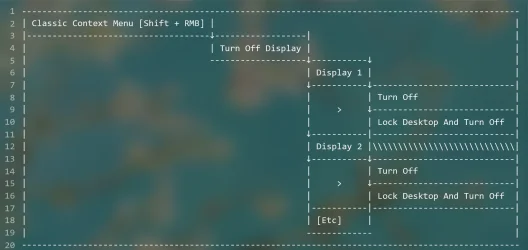
Like Having A Sub Menu To Turn Off Display 1', 'Turn Off Display 2,' Etc., Before The Sub Menu Of 'Turn Off'


Something Like This (Format):

Classic Context Menu (Shift + RMB) > Turn Off Display > (1) Display 1, (2) Display 2 [Etc] > (1) Turn Off, (2) Lock Desktop And Turn Off

Check Out The Attached File(s)

This Will Help Me Use My Secondary Monitor While The Primary Monitor Is Turn Off Individually


There Can Be Workaround That Hovering Over The Different Display Targets The Command For That, So There Won't Be A Need To Seperate As Display 1 And Display 2, Etc

Thanks!
 

Attachments

My Computer

System One

  • OS
    Windows 11
    Computer type
    Laptop
    Manufacturer/Model
    Lenovo LOQ 15IRH8
    CPU
    i512450H
    Memory
    8+8GB DDR4
    Graphics Card(s)
    RTX 4060 Mobile 8GB VRAM
    Screen Resolution
    1920*1080
    Hard Drives
    512+512GB PCIe 4.0 NVMe M.2 SSD
Hello @Raj_ :alien:

I'm not aware of a built-in option to turn on/off specific displays like this in Windows 11 other than below.


It'll probably be easier to physically turn on/ff the displays, but you could try NirSoft’s ControlMyMonitor utility for commands like below for this.

OFF: ControlMyMonitor.exe /TurnOff "\\.\DISPLAY2\Monitor0"

ON: ControlMyMonitor.exe /TurnOn "\\.\DISPLAY2\Monitor0"


My Computers

System One System Two

  • OS
    Windows 11 Pro for Workstations
    Computer type
    PC/Desktop
    Manufacturer/Model
    Custom self build
    CPU
    Intel i7-8700K 5 GHz
    Motherboard
    ASUS ROG Maximus XI Formula Z390
    Memory
    64 GB (4x16GB) G.SKILL TridentZ RGB DDR4 3600 MHz (F4-3600C18D-32GTZR)
    Graphics Card(s)
    ASUS ROG-STRIX-GTX1080TI-O11G-GAMING (11GB GDDR5X)
    Sound Card
    Integrated Digital Audio (S/PDIF)
    Monitor(s) Displays
    2 x Samsung Odyssey G75 27"
    Screen Resolution
    2560x1440
    Hard Drives
    1TB Samsung 990 PRO M.2,
    4TB Samsung 990 PRO M.2,
    TerraMaster F8 SSD Plus NAS
    PSU
    Seasonic Prime Titanium 850W
    Case
    Thermaltake Core P3 wall mounted
    Cooling
    Corsair Hydro H115i
    Keyboard
    Amazon Basics Wired Full Keyboard MD005
    Mouse
    Logitech MX Master 4
    Internet Speed
    2 Gbps Download and 100 Mbps Upload
    Browser
    Chrome and Edge
    Antivirus
    Microsoft Defender
    Other Info
    Logitech Z625 speaker system,
    Logitech BRIO 4K Pro webcam,
    HP Color LaserJet Pro MFP M477fdn,
    CyberPower CP1500PFCLCD
    Galaxy S23 Plus phone
  • Operating System
    Windows 11 Pro
    Computer type
    Laptop
    Manufacturer/Model
    Surface Laptop 7 Copilot+ PC
    CPU
    Snapdragon X Elite (12 core) 3.42 GHz
    Memory
    16 GB LPDDR5x-7467 MHz
    Monitor(s) Displays
    15" HDR
    Screen Resolution
    2496 x 1664
    Hard Drives
    1 TB SSD
    Internet Speed
    Wi-Fi 7 and Bluetooth 5.4
    Browser
    Chrome and Edge
    Antivirus
    Microsoft Defender
Hello @Raj_ :alien:

I'm not aware of a built-in option to turn on/off specific displays like this in Windows 11 other than below.


It'll probably be easier to physically turn on/ff the displays, but you could try NirSoft’s ControlMyMonitor utility for commands like below for this.

OFF: ControlMyMonitor.exe /TurnOff "\\.\DISPLAY2\Monitor0"

ON: ControlMyMonitor.exe /TurnOn "\\.\DISPLAY2\Monitor0"

Thanks For The Understanding,

After Following The Procedure;

Normally, The 'Turn Off Display' Option In Context Menu Gives The Ability To Disable/Turn-Off All The Connected Display Of A Desktop

What I'm Curious About Is That Cn There Be A Modification To Target Individual Display To Get Temporarily Disabled, Using The Context Menu Similar To 'Turn Off Display' Option.

In The Image File Attached In The Previous Comment, I Made A Chart Depicting How It Can Be Formatted...

As This Will Help The Users Who Are Using Multiple Display And Want To Individually Turn Off Their Display Temporarily, The Cursor Movement Enables The Display Will Not Definitely Works As That Would Be Universal For Every Display, Turning On The Display Moments After The Input

Having A Keyboard Shortcut To Re-Enable The Display Will Work...

Hope This Helps
 

My Computer

System One

  • OS
    Windows 11
    Computer type
    Laptop
    Manufacturer/Model
    Lenovo LOQ 15IRH8
    CPU
    i512450H
    Memory
    8+8GB DDR4
    Graphics Card(s)
    RTX 4060 Mobile 8GB VRAM
    Screen Resolution
    1920*1080
    Hard Drives
    512+512GB PCIe 4.0 NVMe M.2 SSD
Thanks For The Understanding,

After Following The Procedure;

Normally, The 'Turn Off Display' Option In Context Menu Gives The Ability To Disable/Turn-Off All The Connected Display Of A Desktop

What I'm Curious About Is That Cn There Be A Modification To Target Individual Display To Get Temporarily Disabled, Using The Context Menu Similar To 'Turn Off Display' Option.

In The Image File Attached In The Previous Comment, I Made A Chart Depicting How It Can Be Formatted...

As This Will Help The Users Who Are Using Multiple Display And Want To Individually Turn Off Their Display Temporarily, The Cursor Movement Enables The Display Will Not Definitely Works As That Would Be Universal For Every Display, Turning On The Display Moments After The Input

Having A Keyboard Shortcut To Re-Enable The Display Will Work...

Hope This Helps

Not natively. You'll need to use a 3rd party option for specific displays.

The ControlMyMonitor utility I posted above could have its commands used for this or shortcuts.
 

My Computers

System One System Two

  • OS
    Windows 11 Pro for Workstations
    Computer type
    PC/Desktop
    Manufacturer/Model
    Custom self build
    CPU
    Intel i7-8700K 5 GHz
    Motherboard
    ASUS ROG Maximus XI Formula Z390
    Memory
    64 GB (4x16GB) G.SKILL TridentZ RGB DDR4 3600 MHz (F4-3600C18D-32GTZR)
    Graphics Card(s)
    ASUS ROG-STRIX-GTX1080TI-O11G-GAMING (11GB GDDR5X)
    Sound Card
    Integrated Digital Audio (S/PDIF)
    Monitor(s) Displays
    2 x Samsung Odyssey G75 27"
    Screen Resolution
    2560x1440
    Hard Drives
    1TB Samsung 990 PRO M.2,
    4TB Samsung 990 PRO M.2,
    TerraMaster F8 SSD Plus NAS
    PSU
    Seasonic Prime Titanium 850W
    Case
    Thermaltake Core P3 wall mounted
    Cooling
    Corsair Hydro H115i
    Keyboard
    Amazon Basics Wired Full Keyboard MD005
    Mouse
    Logitech MX Master 4
    Internet Speed
    2 Gbps Download and 100 Mbps Upload
    Browser
    Chrome and Edge
    Antivirus
    Microsoft Defender
    Other Info
    Logitech Z625 speaker system,
    Logitech BRIO 4K Pro webcam,
    HP Color LaserJet Pro MFP M477fdn,
    CyberPower CP1500PFCLCD
    Galaxy S23 Plus phone
  • Operating System
    Windows 11 Pro
    Computer type
    Laptop
    Manufacturer/Model
    Surface Laptop 7 Copilot+ PC
    CPU
    Snapdragon X Elite (12 core) 3.42 GHz
    Memory
    16 GB LPDDR5x-7467 MHz
    Monitor(s) Displays
    15" HDR
    Screen Resolution
    2496 x 1664
    Hard Drives
    1 TB SSD
    Internet Speed
    Wi-Fi 7 and Bluetooth 5.4
    Browser
    Chrome and Edge
    Antivirus
    Microsoft Defender
Not natively. You'll need to use a 3rd party option for specific displays.

The ControlMyMonitor utility I posted above could have its commands used for this or shortcuts.
Thanks For The Guidance, I Will Definitely Inform This In This Thread If That Worked For My Use-Case
 

My Computer

System One

  • OS
    Windows 11
    Computer type
    Laptop
    Manufacturer/Model
    Lenovo LOQ 15IRH8
    CPU
    i512450H
    Memory
    8+8GB DDR4
    Graphics Card(s)
    RTX 4060 Mobile 8GB VRAM
    Screen Resolution
    1920*1080
    Hard Drives
    512+512GB PCIe 4.0 NVMe M.2 SSD
Thanks For The Guidance, I Will Definitely Inform This In This Thread If That Worked For My Use-Case

You're most welcome. I'm looking forward to hearing how it worked out for you.
 

My Computers

System One System Two

  • OS
    Windows 11 Pro for Workstations
    Computer type
    PC/Desktop
    Manufacturer/Model
    Custom self build
    CPU
    Intel i7-8700K 5 GHz
    Motherboard
    ASUS ROG Maximus XI Formula Z390
    Memory
    64 GB (4x16GB) G.SKILL TridentZ RGB DDR4 3600 MHz (F4-3600C18D-32GTZR)
    Graphics Card(s)
    ASUS ROG-STRIX-GTX1080TI-O11G-GAMING (11GB GDDR5X)
    Sound Card
    Integrated Digital Audio (S/PDIF)
    Monitor(s) Displays
    2 x Samsung Odyssey G75 27"
    Screen Resolution
    2560x1440
    Hard Drives
    1TB Samsung 990 PRO M.2,
    4TB Samsung 990 PRO M.2,
    TerraMaster F8 SSD Plus NAS
    PSU
    Seasonic Prime Titanium 850W
    Case
    Thermaltake Core P3 wall mounted
    Cooling
    Corsair Hydro H115i
    Keyboard
    Amazon Basics Wired Full Keyboard MD005
    Mouse
    Logitech MX Master 4
    Internet Speed
    2 Gbps Download and 100 Mbps Upload
    Browser
    Chrome and Edge
    Antivirus
    Microsoft Defender
    Other Info
    Logitech Z625 speaker system,
    Logitech BRIO 4K Pro webcam,
    HP Color LaserJet Pro MFP M477fdn,
    CyberPower CP1500PFCLCD
    Galaxy S23 Plus phone
  • Operating System
    Windows 11 Pro
    Computer type
    Laptop
    Manufacturer/Model
    Surface Laptop 7 Copilot+ PC
    CPU
    Snapdragon X Elite (12 core) 3.42 GHz
    Memory
    16 GB LPDDR5x-7467 MHz
    Monitor(s) Displays
    15" HDR
    Screen Resolution
    2496 x 1664
    Hard Drives
    1 TB SSD
    Internet Speed
    Wi-Fi 7 and Bluetooth 5.4
    Browser
    Chrome and Edge
    Antivirus
    Microsoft Defender

Latest Support Threads

Back
Top Bottom