This Tutorial will help guide you with using Hasleo Backup (Free) for the first time. A step by step process for creating a Windows 11 system image which is a comprehensive backup of your entire computer, including the operating system, installed programs, system settings, and personal files. It's essentially a snapshot of your system at a specific point in time, allowing you to restore your computer to that state if something goes wrong, like a hard drive failure or a major system issue.
This is just how I do it, there are most likely other ways.
Hasleo Backup Free is in my opinion very user friendly. —
 I take no responsibility for Hasleo's backup process. Easy to follow external Hasleo tutorial links for Incremental/Differential & other backup types can be found in post number 2. This is purely a "First Run" guide for creating a system image of your current OS.
 Yes I trust this software and use it daily.
Download

 www.easyuefi.com
This page covers:

 Skip to Hasleo System Backup First Run

 Don't be confused that the 100% progress bar is for the format only, it is the whole Rescue Media process completed.
Important notes:
This will be edited when I deem fit or when/if I am corrected on a process.
I hope you find this somewhat helpful
- Sinto.
This is just how I do it, there are most likely other ways.
Hasleo Backup Free is in my opinion very user friendly. —
- Backup & Restore — Clone Windows OS, Disks, Partitions, and Files/Folders
- Supported backup modes: Full, Incremental, and Differential.
- Compress, encrypt, split, merge, and verify backup image files.
- Delta Restore: Speeds up recovery by restoring only changed data blocks.
- Supports Backup Filters, Scheduling, and Image Retention Policies.
- Mount backup images as local drives to explore and restore files easily.
- Supported OS: Windows Vista / Server 2008 or later — fully compatible with GPT and UEFI.
I take no responsibility for Hasleo's backup process. Easy to follow external Hasleo tutorial links for Incremental/Differential & other backup types can be found in post number 2. This is purely a "First Run" guide for creating a system image of your current OS. Yes I trust this software and use it daily.Download
Best Free Backup Software for Windows 11/10/8/7/Vista in 2026 - Hasleo Backup Suite
Hasleo Backup Suite Free is the best free backup software for Windows 11/10/8/7 in 2026. Back up and restore OS, disks, partitions and files. Download free.
This page covers:
- Creating WinPE Rescue/Emergency Media
- Adding or Removing a Hasleo Boot Menu to the Boot environment of your PC
- Creating your first Hasleo System Backup (First Run)
Skip to Hasleo System Backup First RunCreating a Hasleo Emergency Disk
- Mandatory Requirement:
- A USB thumb drive 8GB or above is good.
- Optional:
- A 3 foot piece of nylon rope
- A cheese grater
- A copy of War & Peace
Regarding the Emergency disk creation. I have updated my PC with the Microsoft UEFI CA 2023 certificate, so when creating the emergency disk, I select nothing but
"Automatic Driver Injection"& "Enable support Microsoft UEFI CA 2023 certificate.
Your system may be different.
- Insert your USB thumb drive into your PC
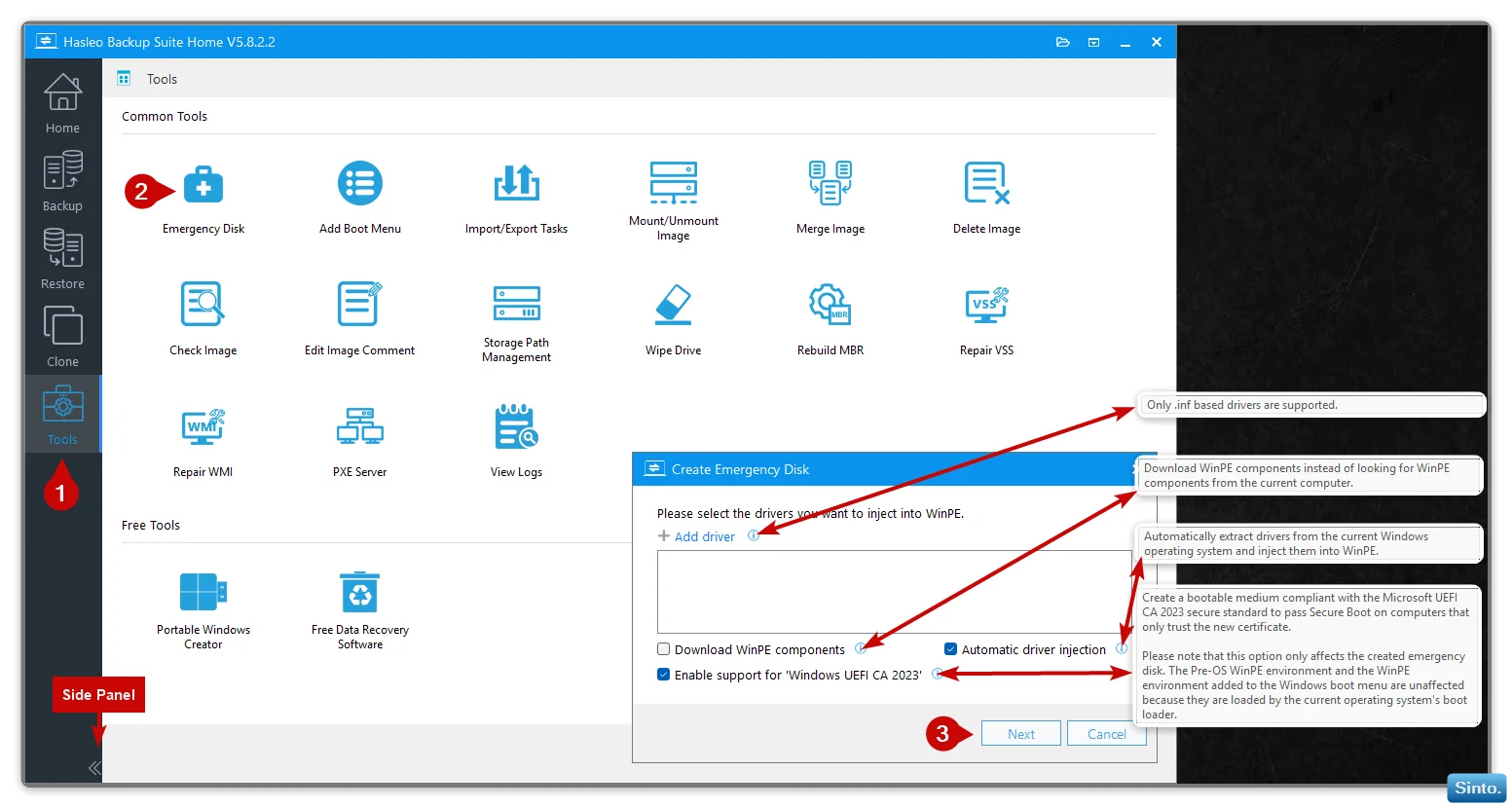
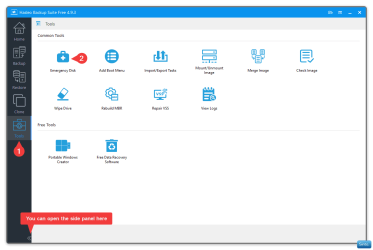
- Open Hasleo and click on the Tools Icon (1)
- Click on "Emergency Disk" (2)
- A box will open politely asking you if you want to add drivers to the Hasleo WinPe Emergency Disk (3) — I have never personally had to do this, so I ignore it.
- A box will open politely asking you if you want to add drivers to the Hasleo WinPe Emergency Disk (3) — I have never personally had to do this, so I ignore it.
- Options are:
- Add Driver: You are NOT required to add drivers, but if you do, only .inf based drivers are supported.
- Download WinPE components option allows you to download WinPE components instead of looking for WinPE components from the current computer. (I don’t personally use this option)
- Automatic Driver Injection Automatically extract drivers from the current Windows operating system and inject them into WinPE.
- Enable support Microsoft UEFI CA 2023 certificate. Create a bootable medium compliant with the Microsoft UEFI CA 2023 secure standard to pass Secure Boot on computers that only trust the new certificate.Please note that this option only affects the created emergency disk. The Pre-OS WinPE environment and the WinPE environment added to the Windows boot menu are unaffected because they are loaded by the current operating system's boot loader.
- When you have configured your options, click "Next" (3)
- Add Driver: You are NOT required to add drivers, but if you do, only .inf based drivers are supported.
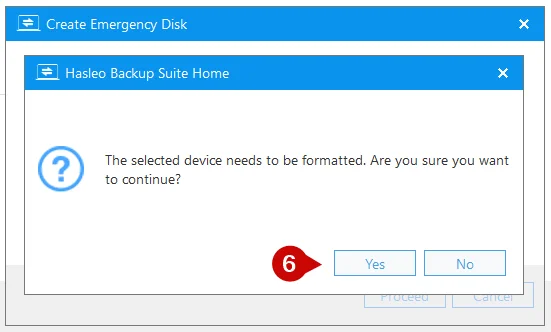
- You will be informed that the USB thumb drive will need to be formatted and be asked for confirmation to continue
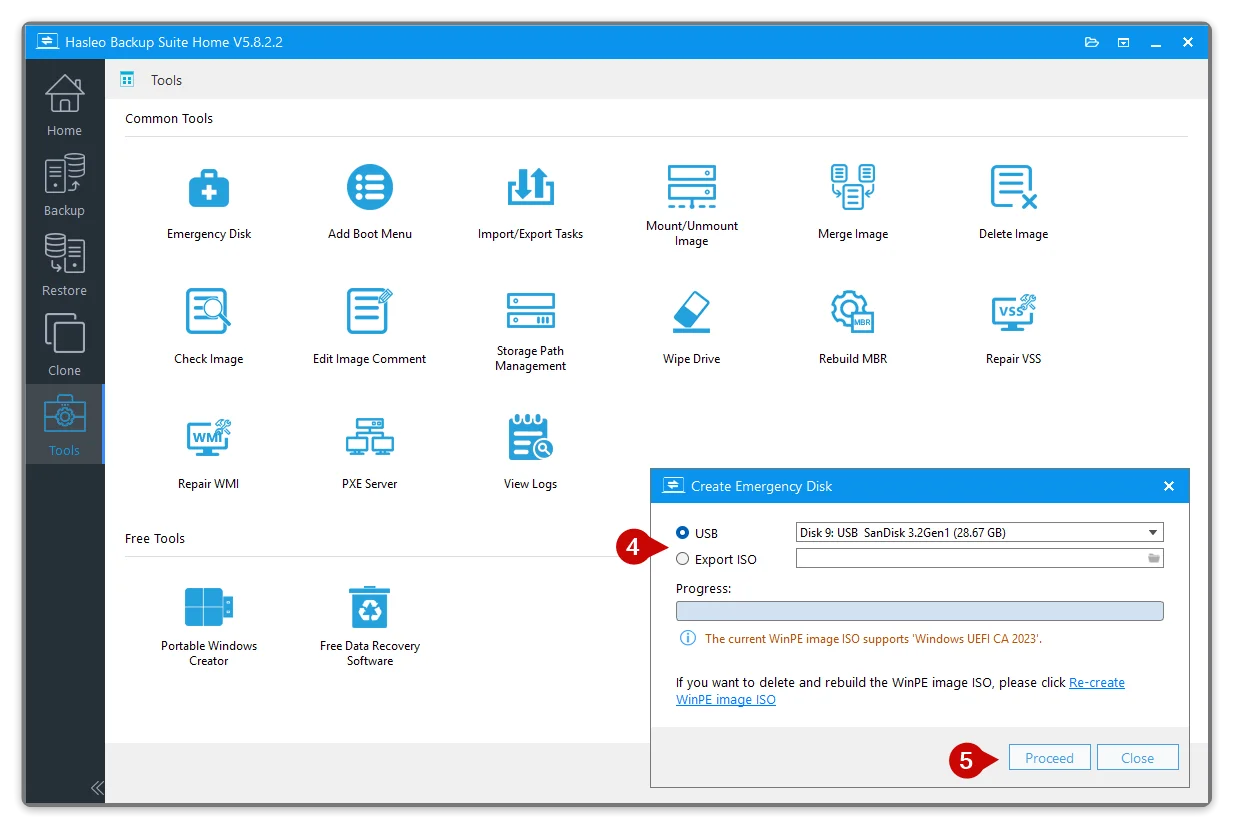
- You can also choose to export the Emergency WinPE to an ISO.
- Click "Next" (3)
- A new box will open asking you to create a USB or an ISO that you can later burn yourself. (4)
- Click "Proceed" (5)
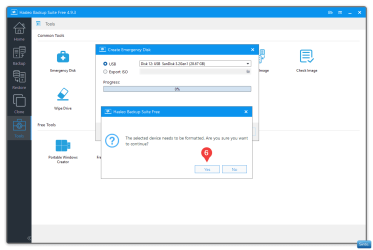
- You will be informed that the device (USB) needs to be formatted. Click "Yes" (6)
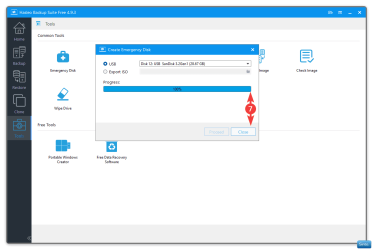
- The process will start and when it reaches 100% you can click "Close" (7)
Don't be confused that the 100% progress bar is for the format only, it is the whole Rescue Media process completed.- Creating the Emergency WinPE rescue Media has completed
- Job done! You can remove you USB thumb drive and label it.
Adding a Hasleo Boot Menu (Optional)
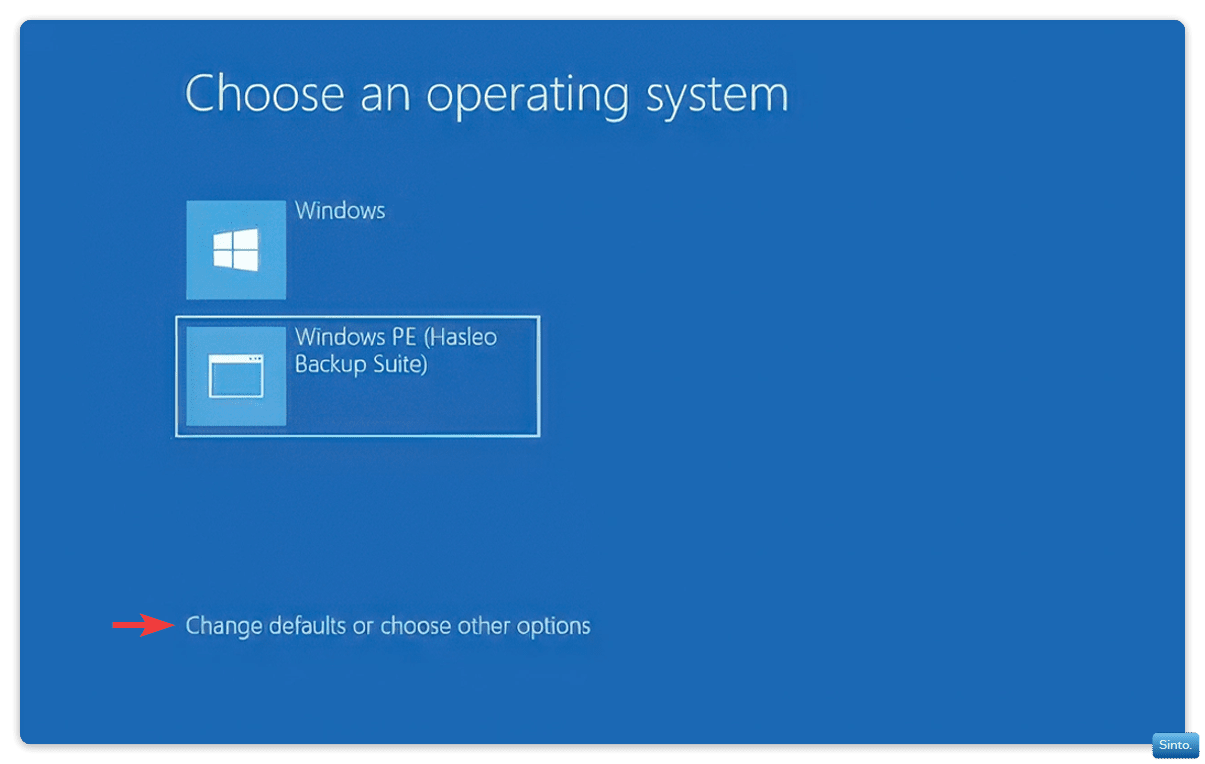
The boot menu option adds a Hasleo WinPe Boot Menu that will open post BIOS, before Windows loads.
It will give you the option to either
A: Boot into the Hasleo WinPe Environment
B: Boot into Windows
- You can configure the boot option by clicking on "Change defaults and other options"
- You can set the default duration that the boot menu shows before booting into Windows (Or the WinPE environment depending on the next setting)
- You can set the default option for the menu to open to, after the duration time has lapsed:
- Boot to Windows 11
- Boot to Hasleo WinPE environment
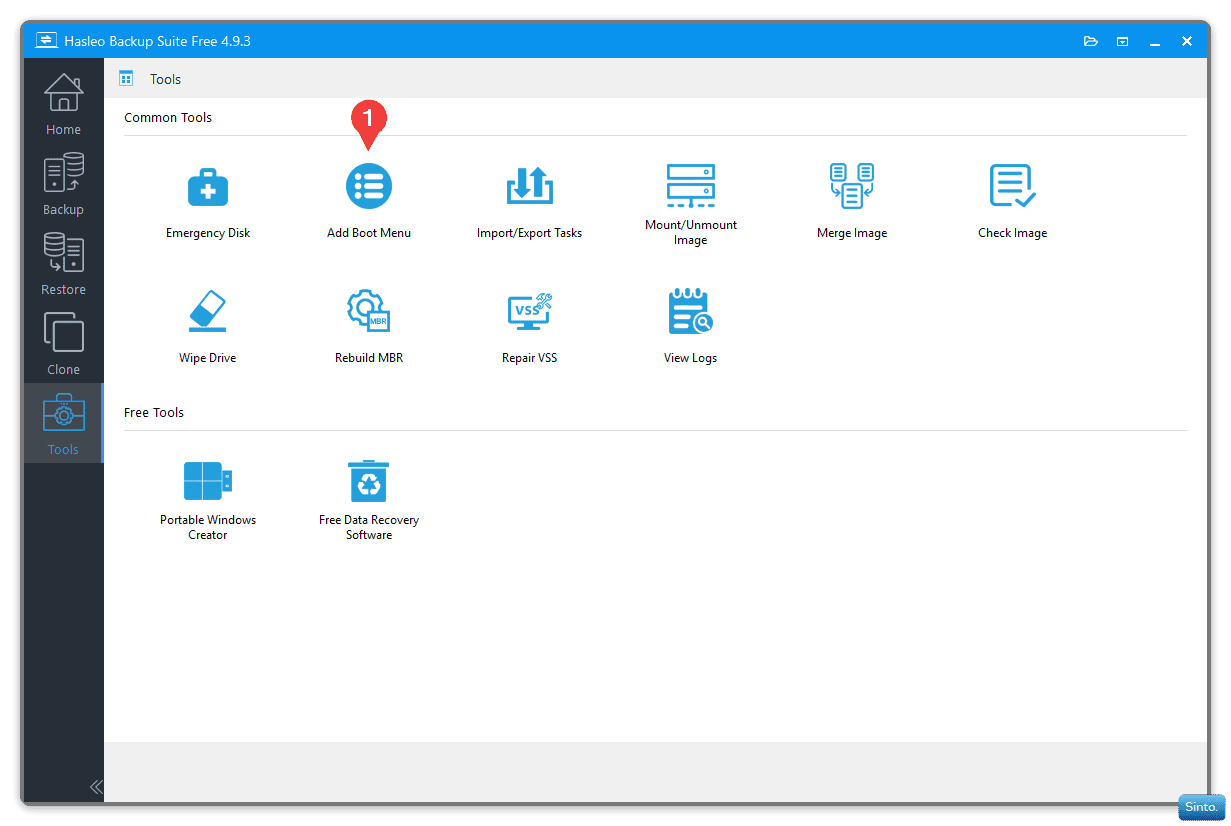
To add the Boot Menu:
- In the Tools section
- Click on "Add Boot Menu" and wait for the process to finish. (1)
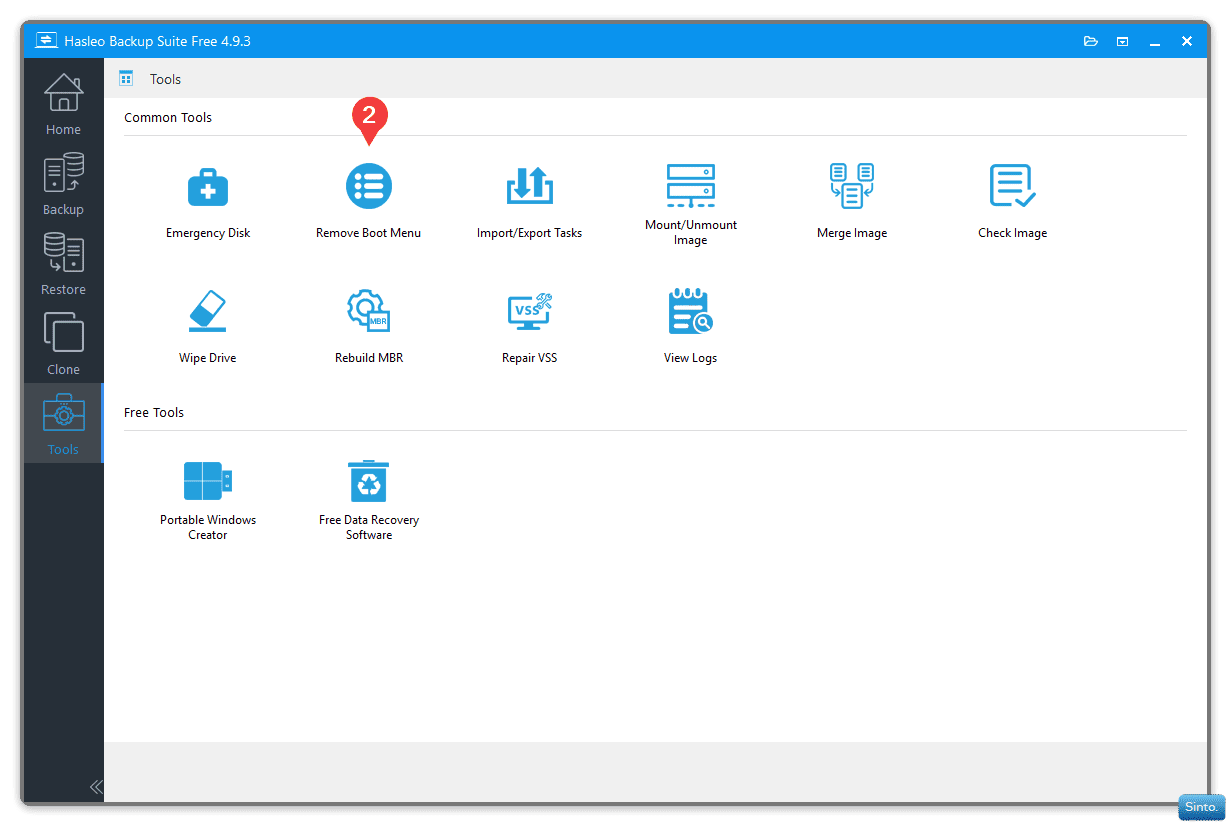
To remove the Boot Menu:
- In the Tools section
- Click on "Remove Boot Menu" and wait for the process to finish. (2)
Hasleo Backup
 First Run
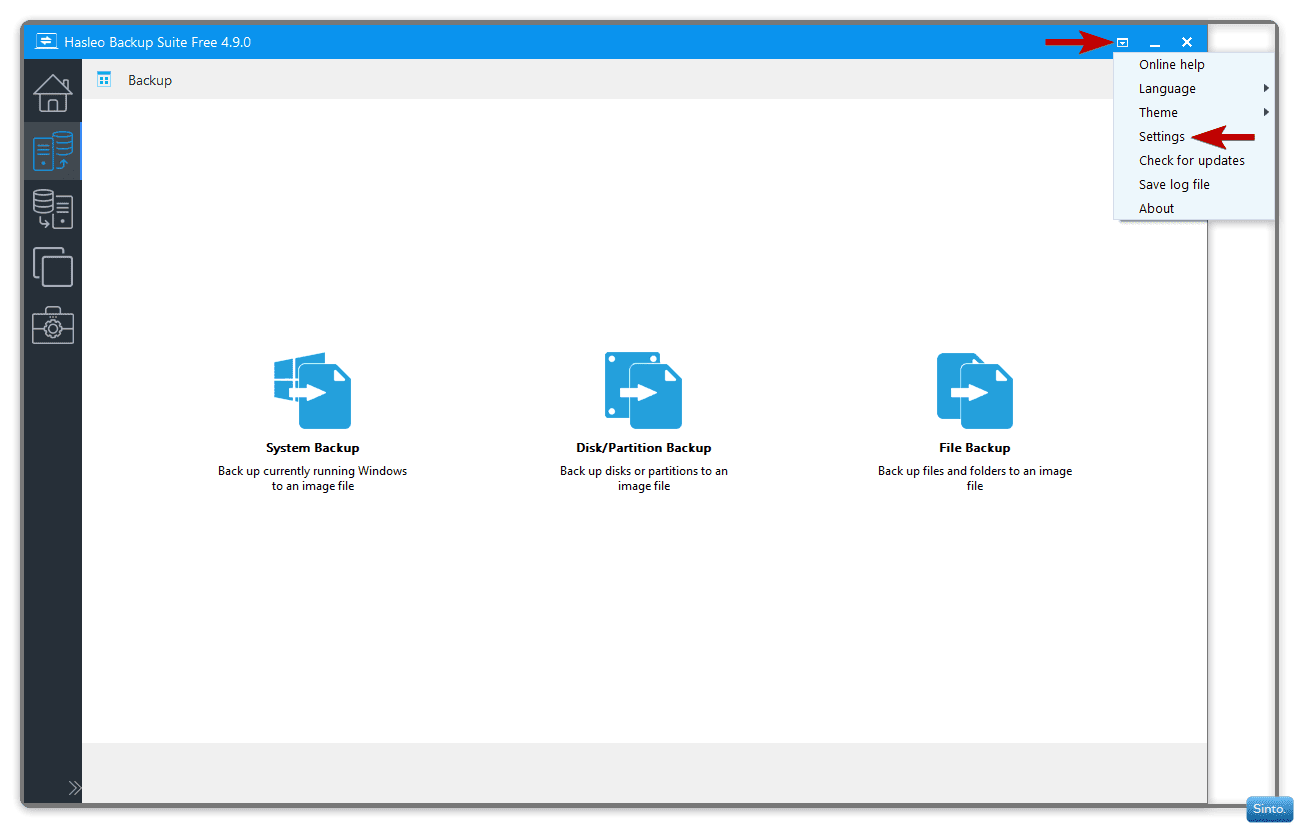
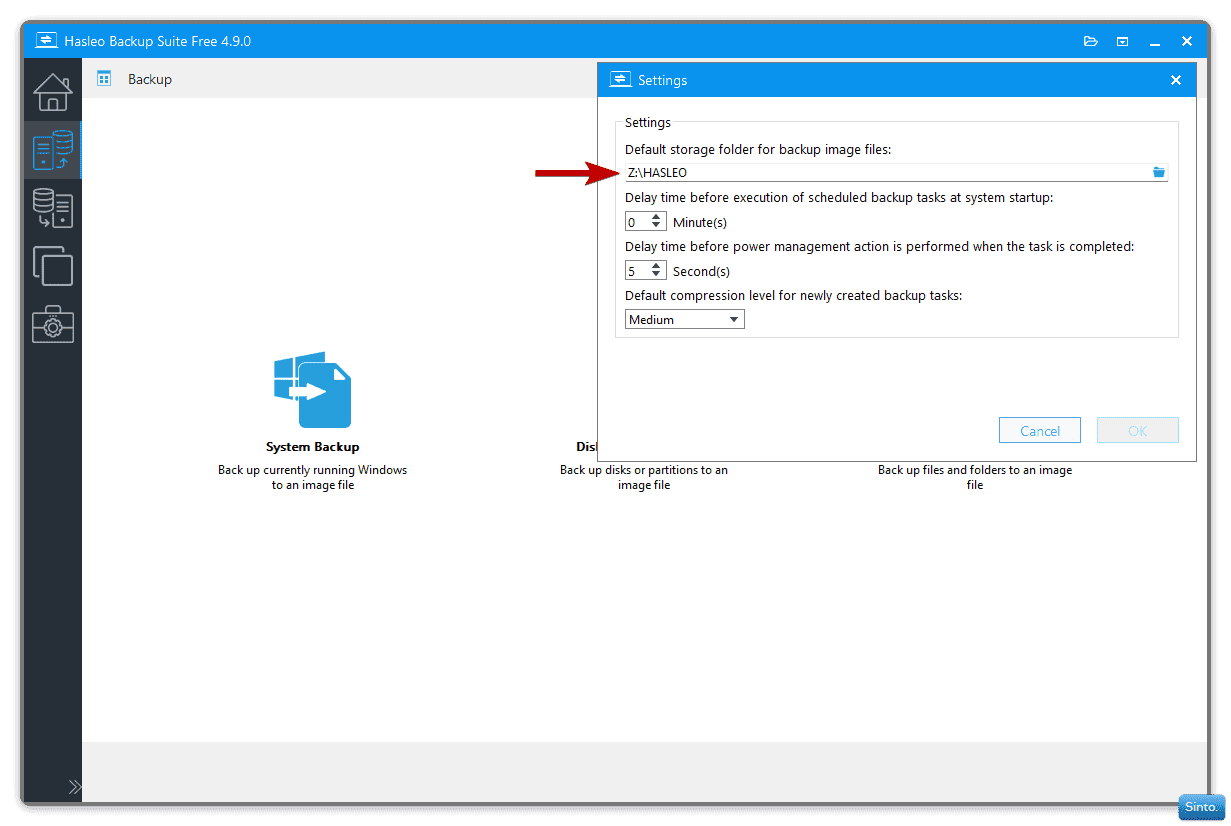
- When you open Hasleo, you can click on the little drop arrow at the top right of the window to open a context menu.
- In settings, there are options.
- I create a default storage folder on the drive where my backups will live so that:
- I don't have to set a destination every time I create a System Backup
- I know exactly where all my backups are going to be located
- To make it easier when having to restore a system backup
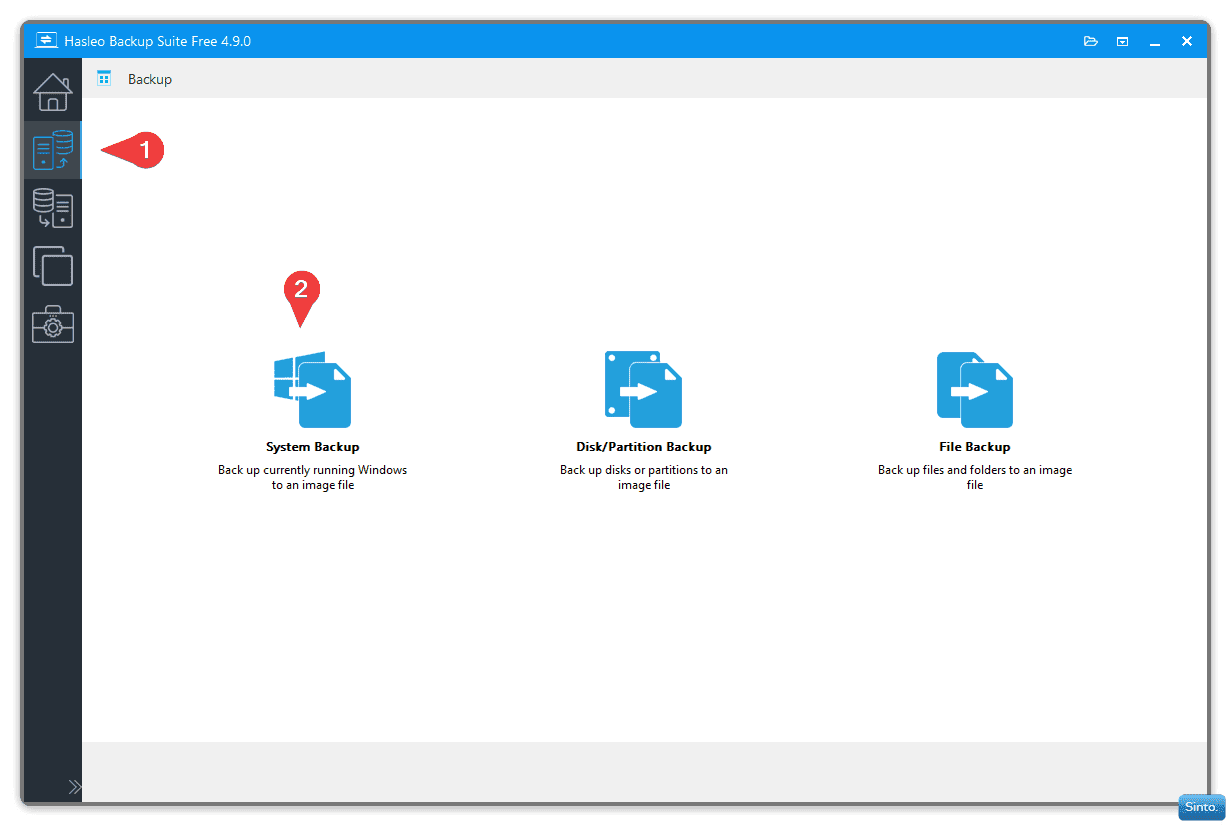
- To make a System Backup I click on the Backup Icon (1)
- I click on "System Backup" (2)
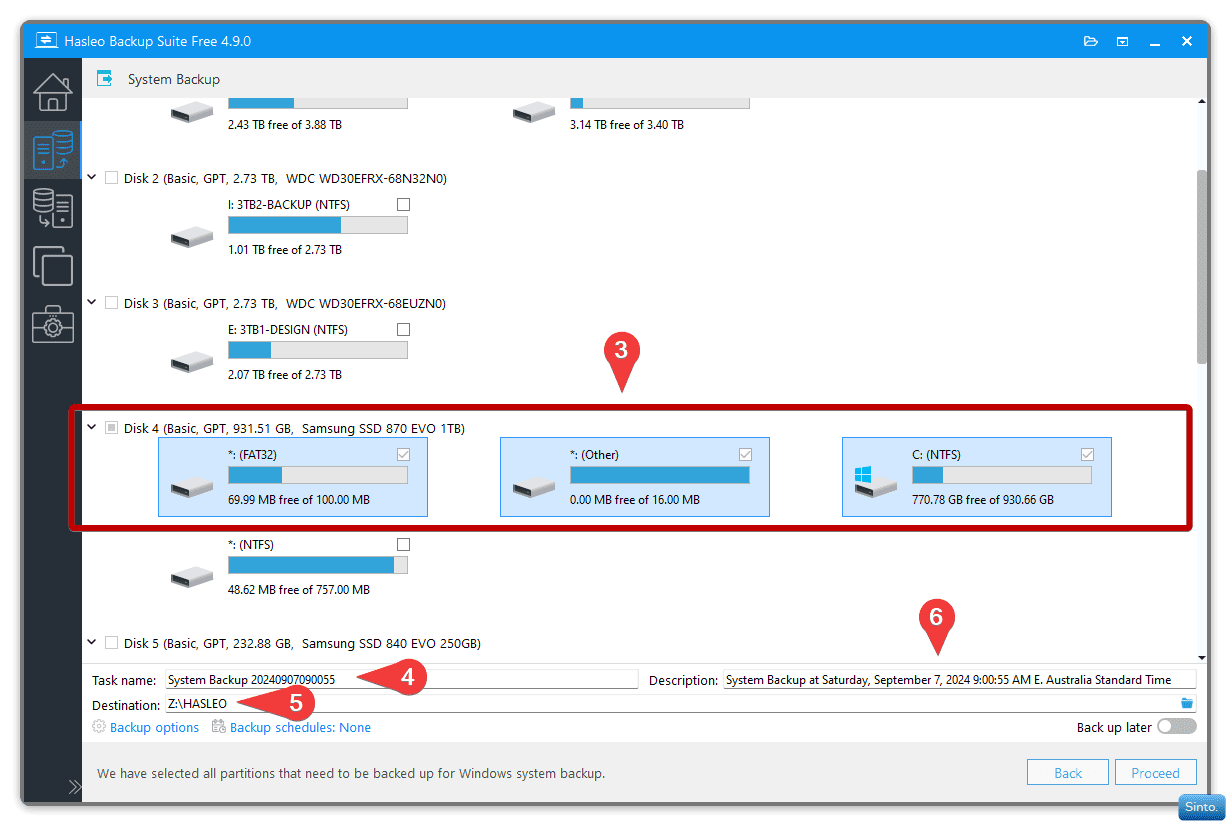
- The partitions that make up your OS drive are automatically selected (3)
- You don't need to add or change anything
- The Task Name can be altered (4) (I name mine as per the current build number)
- There is no reason why you can't leave the Task Names as they are.
- if you don't change the Task Name: With each backup, the Task Name will increase by number so the higher the number the newer the backup
- You can see that the drive and folder I set to be the defaults, are already selected (5)
- The new image will be placed in a sub-folder within the default folder. The folder will have the same name as the Task Name (Image name)
- You can write a description if needed (6)
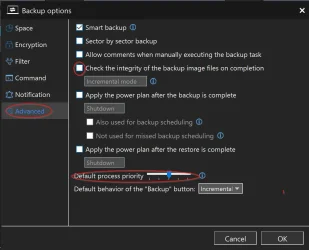
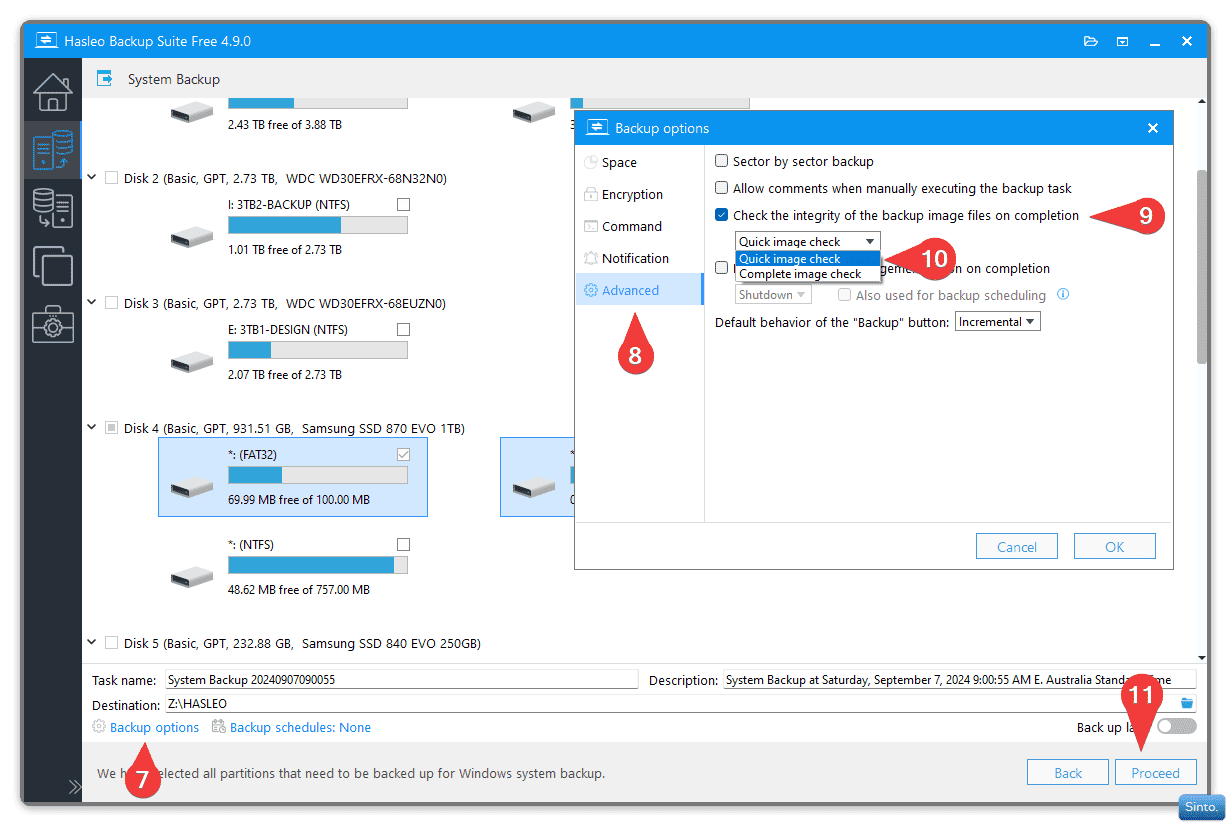
- I click the "Backup Options" (7)
- I select "Advanced" (8)
- I enable "Check the integrity of the backup image files on completion" (9)
- I can choose from a "Quick Image check" or a "Complete image check" (10)
- It's probably best to do a "Complete image check"
- This has to be set with each new backup created.
- I can now click proceed (11)
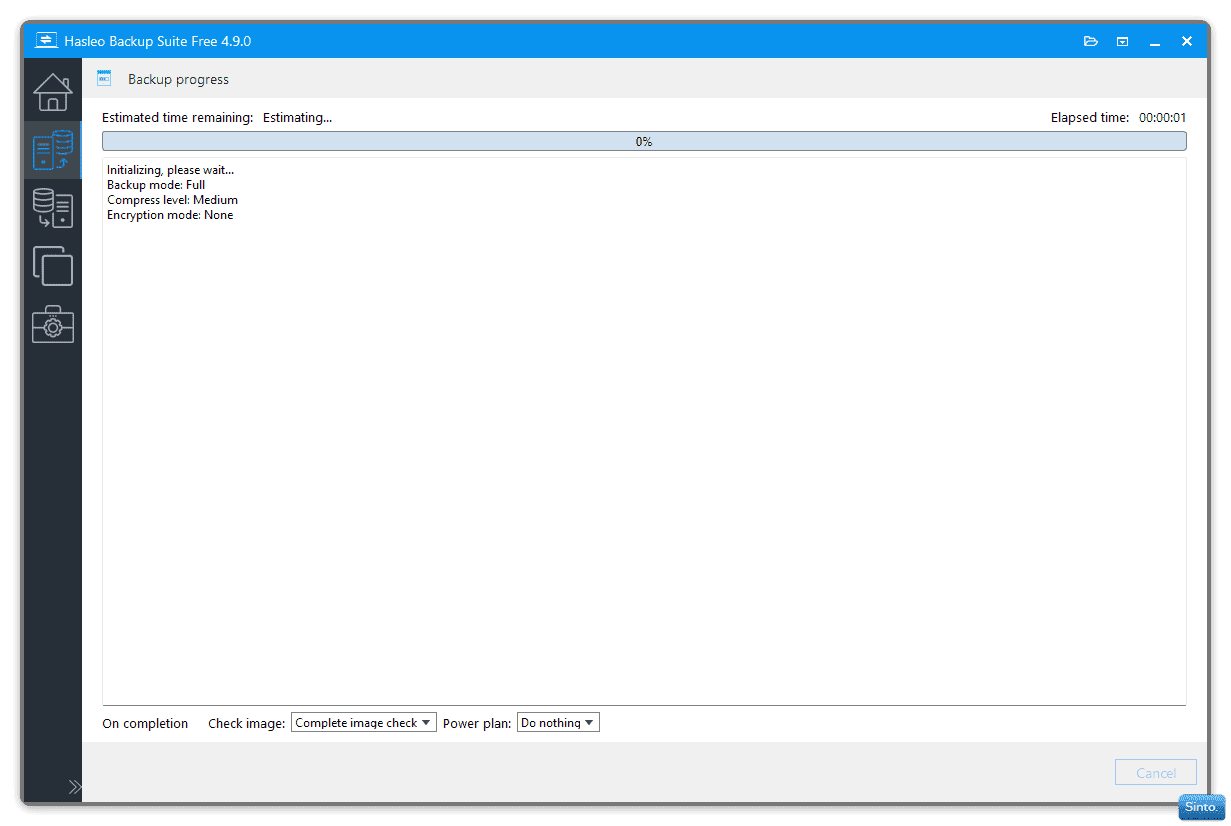
- Hasleo will start the System Image backup procedure. You will be notified when the task is completed.
Important notes:- If your User Folders are in their default location on the C: drive (Meaning you haven't moved them to a new default on another drive)
- A system image restore will replace files in your user folders. It replaces everything on the C: drive.
- So: If you have documents that you have altered, like a word document or an image etc. These files will be replaced with copies made from the time when the System Image was created.
- Therefore; It is important that you employ a separate backup method to save your User Folders
I use FreeFileSync, but that's a whole new thread.
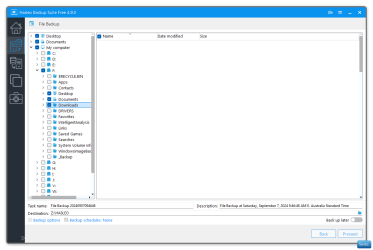
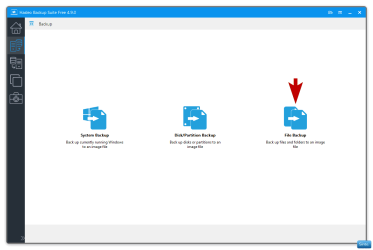
- Hasleo can do file & folder backups but I am yet to use it so I can not yet advise you. I think that is also a whole new thread.
- I am sure it is as easy as doing a System Backup.
If you use OneDrive you should be fine, but, I know nothing of OneDrive either.
This will be edited when I deem fit or when/if I am corrected on a process.
I hope you find this somewhat helpful
- Sinto.
Attachments

Last edited:


 Just dropping in to give you thumbs up for a great thread.


 It seems to be coming to that doesn't it?