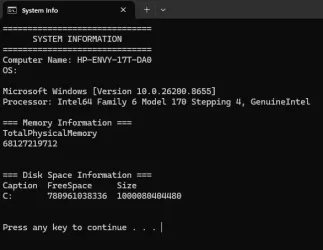
Any way to move an unallocated partition?


How to Create an MSR Partition
  1. Open Command Prompt: Press the Windows Key, type cmd, right-click Command Prompt, and select Run as administrator.
  2. Access Diskpart: Type diskpart and press Enter.
  3. Locate your drive: Type list disk and press Enter. Identify the drive number where you want to create the partition (e.g., Disk 0).
  4. Select the drive: Type select disk 0 (replace 0 with your actual drive number) and press Enter.
  5. Create the partition: Type create partition msr size=16 and press Enter.


@Djard
 

My Computers My Computers

  • At a glance

    Win 11 Home ♦♦♦26200.8737 ♦♦♦♦♦♦♦25H2AMD Ryzen 7 3700XG.Skill (F4-3200C14D-16GTZKW)EVGA RTX 2070 (08G-P4-2171-KR)
    OS
    Win 11 Home ♦♦♦26200.8737 ♦♦♦♦♦♦♦25H2
    Computer type
    PC/Desktop
    Manufacturer/Model
    Built by Ghot® [May 2020]
    CPU
    AMD Ryzen 7 3700X
    Motherboard
    Asus Pro WS X570-ACE (BIOS 5302)
    Memory
    G.Skill (F4-3200C14D-16GTZKW)
    Graphics Card(s)
    EVGA RTX 2070 (08G-P4-2171-KR)
    Sound Card
    Realtek ALC1220P / ALC S1220A
    Monitor(s) Displays
    Dell U3011 30"
    Screen Resolution
    2560 x 1600
    Hard Drives
    2x Samsung 860 EVO 500GB,
    WD 4TB Black FZBX - SATA III,
    WD 8TB Black FZBX - SATA III,
    DRW-24B1ST CD/DVD Burner
    PSU
    PC Power & Cooling 750W Quad EPS12V
    Case
    Cooler Master ATCS 840 Tower
    Cooling
    CM Hyper 212 EVO (push/pull)
    Keyboard
    Ducky DK9008 Shine II Blue LED
    Mouse
    Logitech Optical M-100
    Internet Speed
    300/300
    Browser
    Firefox (latest)
    Antivirus
    Bitdefender Total Security
    Other Info
    Speakers: Klipsch Pro Media 2.1
  • At a glance

    Windows XP Pro 32bit w/SP3AMD Athlon 64 X2 5000+ (OC'd @ 3.2Ghz)TWIN2X2048-6400C4DHX (2 x 1GB, DDR2 800)EVGA 256-P2-N758-TR GeForce 8600GT SSC
    Operating System
    Windows XP Pro 32bit w/SP3
    Computer type
    PC/Desktop
    Manufacturer/Model
    Built by Ghot® (not in use)
    CPU
    AMD Athlon 64 X2 5000+ (OC'd @ 3.2Ghz)
    Motherboard
    ASUS M2N32-SLI Deluxe Wireless Edition
    Memory
    TWIN2X2048-6400C4DHX (2 x 1GB, DDR2 800)
    Graphics card(s)
    EVGA 256-P2-N758-TR GeForce 8600GT SSC
    Sound Card
    Onboard
    Monitor(s) Displays
    ViewSonic G90FB Black 19" Professional (CRT)
    Screen Resolution
    up to 2048 x 1536
    Hard Drives
    WD 36GB 10,000rpm Raptor SATA
    Seagate 80GB 7200rpm SATA
    Lite-On LTR-52246S CD/RW
    Lite-On LH-18A1P CD/DVD Burner
    PSU
    PC Power & Cooling Silencer 750 Quad EPS12V
    Case
    Generic Beige case, 80mm fans
    Cooling
    ZALMAN 9500A 92mm CPU Cooler
    Keyboard
    Logitech Classic Keybooard 200
    Mouse
    Logitech Optical M-BT96a
    Internet Speed
    300/300
    Browser
    Firefox 3.x ??
    Antivirus
    Symantec (Norton)
    Other Info
    Still assembled, still runs. Haven't turned it on for 15 years?
I ran the script you kindly shared but received notice that "'wmic' is not recognized as an internal or external command." (See attachment.)

But I would like to know how to run a Diskparinfo batch file.


Please add WMIC then run Diskparinfo > post a share link into the newest post.

Code:
DISM /Online /Add-Capability /CapabilityName:WMIC~~~~


My Computer My Computer

At a glance

Windows 10Intel(R) Core(TM) i7-4800MQ CPU @ 2.70GHz16 GB Total: Manufacturer : Samsung MemoryTyp...NVIDIA Quadro K3100M; Intel(R) HD Graphics 4600
OS
Windows 10
Computer type
Laptop
Manufacturer/Model
HP
CPU
Intel(R) Core(TM) i7-4800MQ CPU @ 2.70GHz
Motherboard
Product : 190A Version : KBC Version 94.56
Memory
16 GB Total: Manufacturer : Samsung MemoryType : DDR3 FormFactor : SODIMM Capacity : 8GB Speed : 1600
Graphics Card(s)
NVIDIA Quadro K3100M; Intel(R) HD Graphics 4600
Sound Card
IDT High Definition Audio CODEC; PNP Device ID HDAUDIO\FUNC_01&VEN_111D&DEV_76E0
Hard Drives
Model Hitachi HTS727575A9E364
Antivirus
Microsoft Defender
Other Info
Mobile Workstation
ChatGPT:

The OP didn't actually create an MSR partition. They created a normal basic data partition and gave it the label "MSR."

On a GPT disk, an MSR is identified by its partition type GUID, not by its size, label, drive letter, or filesystem. In fact:
  • An MSR has no filesystem (it is not formatted).
  • It has no drive letter.
  • It usually has no volume label.
  • Windows recognizes it solely because its GPT partition type is E3C9E316-0B5C-4DB8-817D-F92DF00215AE.
A "Simple Volume" created in Disk Management or most partition editors is instead assigned the Basic Data Partition GUID, so Windows treats it as an ordinary volume regardless of its label.

How to create a real MSR​

Windows normally creates the MSR automatically during installation. If you need to create one manually, use DiskPart:

diskpart
list disk
select disk 0
create partition msr size=16
exit

The create partition msr command creates the partition with the correct GPT type. It is not formatted and does not appear as a normal volume.

The missing 16 MB MSR is not necessarily a problem. Windows 11 can boot and operate perfectly well without an MSR if the disk was partitioned that way (for example, by cloning or some OEM tools). The MSR is reserved for future partition management operations; it is not required for booting or everyday operation.
 

My Computers My Computers

  • At a glance

    Windows 11 ProAMD Ryzen 9 9950X3DKingston FURY Beast 64GB (2x32GB) DDR5 6000MT/sASUS TUF Gaming Radeon RX 9070 OC Edition 16G...
    OS
    Windows 11 Pro
    Computer type
    PC/Desktop
    CPU
    AMD Ryzen 9 9950X3D
    Motherboard
    ASRock B650E Taichi Lite
    Memory
    Kingston FURY Beast 64GB (2x32GB) DDR5 6000MT/s
    Graphics Card(s)
    ASUS TUF Gaming Radeon RX 9070 OC Edition 16GB GDDR6
    Hard Drives
    Solidigm P44 Pro 2TB M.2 NVMe SSD
  • At a glance

    Windows 11 HomeIntel Core Ultra 9 275HX64GB (2x 32GB) DDR5-6400NVIDIA GeForce RTX 5080 16GB GDDR7 Laptop GPU
    Operating System
    Windows 11 Home
    Computer type
    Laptop
    Manufacturer/Model
    Lenovo Legion Pro 7i Gen 10 16"
    CPU
    Intel Core Ultra 9 275HX
    Memory
    64GB (2x 32GB) DDR5-6400
    Graphics card(s)
    NVIDIA GeForce RTX 5080 16GB GDDR7 Laptop GPU
    Hard Drives
    2x 1TB M.2 NVMe SSD (SK Hynix)
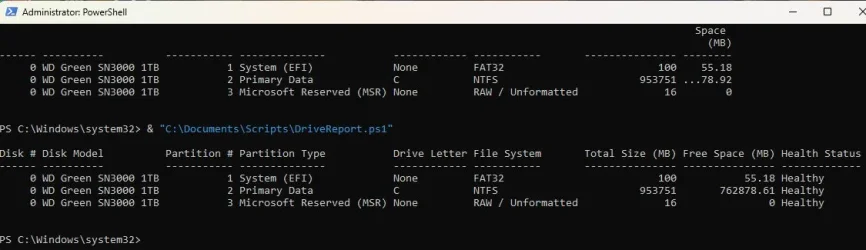
You can use the following PowerShell 5.1 script to get an extensive amount of information about your drives

The report will be saved to: "C:\AS\Backup\Logs\DriveReport_Latest.txt"


Code:
.SYNOPSIS
Get-ComprehensiveDriveReport
Generates a comprehensive storage, recovery, and VSS configuration report for a Windows system.

.DESCRIPTION
Get-ComprehensiveDriveReport collects read-only diagnostics using Windows Storage cmdlets, CIM/WMI, and built-in
command-line tools to produce a single log-file report suitable for troubleshooting and support workflows.

Sections included:
- Disk identifiers (Get-Disk)
- USB VID/PID inventory with optional usb.ids lookup, automatic first-run cache download, and Windows descriptor fallback
- Per-volume mapping to physical disk, partition layout, and capacity summary
- BitLocker status (manage-bde -status, plus Get-BitLockerVolume when available)
- NTFS and sector details (fsutil fsinfo ntfsinfo/sectorinfo) and dirty bit status (fsutil dirty query)
- Mounted volume GUID paths (\\?\Volume{...}\)
- Optical drive hardware is reported by default without probing inserted media; use -ProbeOpticalMedia only for known-good discs
- Volume summary with listed-volume total/free capacity totals (fixed + removable by default; optical media volumes only when -ProbeOpticalMedia is used) and network drive summary
- System file validation (hiberfil.sys, pagefile.sys, swapfile.sys, crash dumps, PendingFileRenameOperations)
- CHKDSK log summary (Wininit, Application log, Event ID 1001)
- Windows Recovery Environment status (reagentc /info)
- Hidden system partitions health (EFI/MSR/Recovery) using Get-Partition/Get-Volume
- Boot Configuration Data (BCD): current store, plus offline store read from the EFI System Partition (ESP)
- Disk/volume health status, VSS service status, shadow copy counts, VSS writers, and shadow storage configuration


Running PowerShell as an Administrator

Using the Start Menu:
Click the Start button or press the Windows key.
Type PowerShell in the search box.
Right-click Windows PowerShell and select Run as administrator.
Using the Run Dialog:
Press Win + R to open the Run dialog.
Type powershell and press Ctrl + Shift + Enter to run it as administrator.


Checking and Setting Execution Policies

PowerShell’s execution policy determines which scripts can run and under what conditions.

Check Current Execution Policy:
To view the current policy for the session, run:

Get-ExecutionPolicy

To see policies applied at different scopes (MachinePolicy, UserPolicy, Process, CurrentUser, LocalMachine), run:

Get-ExecutionPolicy -List


Set Execution Policy:

To allow scripts to run, you might need to change the policy. For example, to set the policy to RemoteSigned for the current user:

Set-ExecutionPolicy RemoteSigned -Scope CurrentUser

For system-wide changes (requires admin rights), you can set:

Set-ExecutionPolicy RemoteSigned -Scope LocalMachine

If you need less restriction (e.g., for testing), you might use Bypass or Unrestricted:

Set-ExecutionPolicy Bypass -Scope Process

(Note: Using less restrictive policies can expose your system to risks. Use with caution.)


As an example you can make a new folder called C:\Scripts and extract the script from the attached zip file to that new folder.

Make sure you uncheck the "Unblock" on properties ( see Mark of the Web ) on the script file.

Then right click over the Start menu on Windows and select Terminal (Admin)

Then in the PowerShell console type in: cd c:\scripts

Then type in or copy and paste the following to run the PowerShell script.

Code:
 .\Get-ComprehensiveDriveReport.ps1

The script should take less than a minute to run and should be located here "C:\AS\Backup\Logs\DriveReport_Latest.txt"

You can review it with any text editor.
 

Attachments

Last edited:

My Computer My Computer

At a glance

Windows 10Intel i9-9900K64GBEVGA GeForce GTX 1070 TI
OS
Windows 10
Computer type
PC/Desktop
Manufacturer/Model
MSI Custom build
CPU
Intel i9-9900K
Motherboard
MSI MPG Z390 Gaming Edge AC
Memory
64GB
Graphics Card(s)
EVGA GeForce GTX 1070 TI
Internet Speed
1 Gbps
Browser
Firefox
Antivirus
Malwarebytes
Partial output example


Code:
--------------------------------------------------------------------------------
PHYSICAL DRIVE: C: on Disk 0 - VMware Virtual NVMe Disk
--------------------------------------------------------------------------------
DriveLetter       : C:
VolumeLabel       :
FileSystem        : NTFS
TotalSpace        : 59.37 GB
FreeSpace         : 26.94 GB
UsedSpace         : 32.43 GB
PercentFree       : 45.38 %
DiskNumber        : 0
FriendlyName      : VMware Virtual NVMe Disk
Model             : VMware Virtual NVMe Disk
SerialNumber      : VMWare NVME_0000
FirmwareVersion   : 1.0
Status            : Online
HealthStatus      : Healthy
SizeFriendly      : 60.00 GB
BusType           : NVMe
LocationPath      : nvme0
PartitionStyle    : GPT
DevicePath        : SCSI\DISK&VEN_NVME&PROD_VMWARE_VIRTUAL_N\5&25A13950&0&000000
BootDisk          : Yes
WriteCacheEnabled : Disabled (IOCTL)
FlushCacheSupported : True
NVCacheEnabled      : False
PageFileDisk      : True
HibernationDisk   : False
CrashDumpDisk     : True


PartitionNumber Type                                                                                  Size      DriveLetter
--------------- ----                                                                                  ----      -----------
              1 EFI System Partition (GPT GUID: c12a7328-f81f-11d2-ba4b-00a0c93ec93b)                 100.00 MB           
              2 Microsoft Reserved (MSR) (GPT GUID: e3c9e316-0b5c-4db8-817d-f92df00215ae)             16.00 MB             
              3 Microsoft Basic Data (GPT GUID: ebd0a0a2-b9e5-4433-87c0-68b6b72699c7)                 59.37 GB  C:         
              4 Windows Recovery Environment (WinRE) (GPT GUID: de94bba4-06d1-4d40-a16a-bfd50179d6ac) 522.00 MB           


BitLocker Status for C:
BitLocker Drive Encryption: Configuration Tool version 10.0.19041
Copyright (C) 2013 Microsoft Corporation. All rights reserved.

Volume C: []
[OS Volume]

    Size:                 59.37 GB
    BitLocker Version:    None
    Conversion Status:    Fully Decrypted
    Percentage Encrypted: 0.0%
    Encryption Method:    None
    Protection Status:    Protection Off
    Lock Status:          Unlocked
    Identification Field: None
    Key Protectors:       None Found


VolumeType        : OperatingSystem
Capacity          : 59.37 GB
EncryptionPercent : 0 %
EncryptionMethod  : None
ConversionStatus  : FullyDecrypted
LockStatus        : Unlocked
AutoUnlockEnabled : <n/a>
ProtectionStatus  : Off

NTFS Information (fsutil):
  NTFS Volume Serial Number :        0x6812862f128601f4
  NTFS Version      :                3.1
  LFS Version       :                1.1
  Total Sectors     :                124,514,788  (59.4 GB)
  Total Clusters    :                 15,564,348  (59.4 GB)
  Free Clusters     :                  7,983,404  (30.5 GB)
  Total Reserved Clusters :              920,115  ( 3.5 GB)
  Reserved For Storage Reserve :         911,419  ( 3.5 GB)
  Bytes Per Sector  :                512
  Bytes Per Physical Sector :        4096
  Bytes Per Cluster :                4096
  Bytes Per FileRecord Segment    :  1024
  Clusters Per FileRecord Segment :  0
  Mft Valid Data Length :            739.00 MB
  Mft Start Lcn  :                   0x00000000000c0000
  Mft2 Start Lcn :                   0x0000000000000002
  Mft Zone Start :                   0x0000000000945560
  Mft Zone End   :                   0x0000000000947920
  MFT Zone Size  :                   35.75 MB
  Max Device Trim Extent Count :     0
  Max Device Trim Byte Count :       0
  Max Volume Trim Extent Count :     62
  Max Volume Trim Byte Count :       0x40000000
  Resource Manager Identifier :      A4EBCB79-F4E2-11ED-9D34-B5788B331C77

Sector Information (fsutil):
  LogicalBytesPerSector :                                 512
  PhysicalBytesPerSectorForAtomicity :                    4096
  PhysicalBytesPerSectorForPerformance :                  4096
  FileSystemEffectivePhysicalBytesPerSectorForAtomicity : 4096
  Device Alignment :                                      Aligned (0x000)
  Partition alignment on device :                         Aligned (0x000)
  No Seek Penalty
  Trim Not Supported
  Not DAX capable
  Not Thinly-Provisioned

Dirty Bit (fsutil dirty query):
  Volume - C: is NOT Dirty

Mounted volume C:
    \\?\Volume{7ead85a7-4a0f-4335-aa11-43a73a42e241}\
 

My Computer My Computer

At a glance

Windows 10Intel i9-9900K64GBEVGA GeForce GTX 1070 TI
OS
Windows 10
Computer type
PC/Desktop
Manufacturer/Model
MSI Custom build
CPU
Intel i9-9900K
Motherboard
MSI MPG Z390 Gaming Edge AC
Memory
64GB
Graphics Card(s)
EVGA GeForce GTX 1070 TI
Internet Speed
1 Gbps
Browser
Firefox
Antivirus
Malwarebytes
Google ai states that the MSR partition IS indeed 16 MB on Win 11 GPT-formatted drives, and that it must NOT be unallocated. It is required for backend processes. So I recreated it as a simple volume, named it as MSR, without a drive letter to hide it. But it still appears in Windows' Disk Mgt.
If you want the MSR, there is a correct and many incorrect ways to re create the MSR
Maybe @hsehestedt could advise?
It is not seen by the system as an MSR partition until it has the correct GUID. I told you how to set that in post #9.

...set the correct ID with the Diskpart's SET ID command, that should make it hidden in Disk Management, as it should be. In Diskpart select the disk, then select the partition. Then use the command SET ID=E3C9E316-0B5C-4DB8-817D-F92DF00215AE
 

My Computers My Computers

  • At a glance

    Windows 11 HomeAMD Athlon Silver 3050U8GBRadeon Graphics
    OS
    Windows 11 Home
    Computer type
    Laptop
    Manufacturer/Model
    Acer Aspire 3 A315-23-R9VY
    CPU
    AMD Athlon Silver 3050U
    Memory
    8GB
    Graphics Card(s)
    Radeon Graphics
    Monitor(s) Displays
    laptop screen
    Screen Resolution
    1366x768 native resolution, up to 2560x1440 with Radeon Virtual Super Resolution
    Hard Drives
    1TB Samsung EVO 870 SSD (from April 2026: 250GB EVO 850)
    Internet Speed
    150 Mbps
    Browser
    Edge, Firefox
    Antivirus
    Defender
    Other Info
    fully 'Windows 11 ready' laptop. Windows 10 C: partition migrated from my old unsupported 'main machine' then upgraded to 11. A test migration ran Insider builds for 2 months. When 11 was released on 5th October 2021 it was re-imaged back to 10 and was offered the upgrade in Windows Update on 20th October. Windows Update offered the 22H2 Feature Update on 20th September 2022. It got the 23H2 Feature Update on 4th November 2023 through Windows Update, 24H2 on 3rd October 2024 through Windows Update by setting the Target Release Version for 24H2, and 25H2 on 30th September 2025 through Windows Update by setting the Target Release Version for 25H2.

    UPDATE - 11 April 2026: due to mechanical deterioration this PC has been retired from active duty. The OS with all software and files has been migrated to my System Seven in 'Other systems' to carry on as my general purpose 'main machine'.
  • At a glance

    Windows 11 ProIntel® Core™ i5-520M8GB(integrated graphics) Intel HD Graphics
    Operating System
    Windows 11 Pro
    Computer type
    Laptop
    Manufacturer/Model
    Dell Latitude E4310
    CPU
    Intel® Core™ i5-520M
    Motherboard
    0T6M8G
    Memory
    8GB
    Graphics card(s)
    (integrated graphics) Intel HD Graphics
    Screen Resolution
    1366x768
    Hard Drives
    500GB Crucial MX500 SSD
    Browser
    Firefox, Edge
    Antivirus
    Defender
    Other Info
    unsupported machine: Legacy bios, MBR, TPM 1.2, upgraded from W10 to W11 using W10/W11 hybrid install media workaround.

    In-place upgrade to 22H2 using ISO and a workaround.
    Feature Update to 23H2 by manually installing the Enablement Package.
    In-place upgrade to 24H2 using hybrid 23H2/24H2 install media.
    Upgraded to 25H2 by Enablement Package.

    Also running Insider Dev, and Canary builds and Windows 10 as native boot .vhdx.
  • My SYSTEM THREE is a Dell Latitude 5410, i7-10610U, 32GB RAM, 512GB NVMe ssd, supported device running Windows 11 Pro.

    My SYSTEM FOUR is a 2-in-1 convertible Lenovo Yoga 11e 20DA, Celeron N2930, 8GB RAM, 256GB ssd. Unsupported device: currently running Win10 Pro, plus Win11 Pro RTM and Insider Dev, Beta, and RP 24H2 as native boot vhdx.

    My SYSTEM FIVE is a Dell Latitude 3190 2-in-1, Pentium Silver N5030, 8GB RAM, 1TB NVMe ssd, supported device running Windows 11 Pro, plus Insider Beta, Dev, and Canary builds (and a few others) as a native boot .vhdx.

    My SYSTEM SIX is a Dell Latitude 5550, Core Ultra 7 165H, 64GB RAM, 1TB NVMe SSD, supported device, Windows 11 Pro 24H2, Hyper-V host machine. Updated to 25H2 on 30th September 2025.

    My SYSTEM SEVEN is a Lenovo Thinkpad T580, Intel Core i7-8650U, 16GB RAM, 512GB NVMe SSD + 2nd 512GB NVMe SSD, a supported device for Windows 11. This is my current general purpose 'main machine'. The installed Windows 11 Home from my System One has been migrated to this machine.

My Computers My Computers

  • At a glance

    Win 11 Pro 25H2, Build 26200.8737Intel Core i5 1450064GB DDR4GeForce RTX 4060
    OS
    Win 11 Pro 25H2, Build 26200.8737
    Computer type
    PC/Desktop
    Manufacturer/Model
    Home Brew
    CPU
    Intel Core i5 14500
    Motherboard
    Gigabyte B760M G P WIFI
    Memory
    64GB DDR4
    Graphics Card(s)
    GeForce RTX 4060
    Sound Card
    Chipset Realtek
    Monitor(s) Displays
    LG 45" Ultragear, Acer 24" 1080p
    Screen Resolution
    5120x1440, 1920x1080
    Hard Drives
    Crucial P310 2TB 2280 PCIe Gen4 3D NAND NVMe M.2 SSD (O/S)
    Silicon Power 2TB US75 NVMe PCIe Gen4 M.2 2280 SSD (backup)
    Crucial BX500 2TB 3D NAND (2nd backup)
    Seagate 4TB Ironwolf, rotating HDD archive files
    External off-line backup Drives: 2 NVMe 4TB drives in external enclosures
    PSU
    Thermaltake Toughpower GF3 750W
    Case
    LIAN LI LANCOOL 216 E-ATX PC Case
    Cooling
    Lots of fans!
    Keyboard
    Microsoft Comfort Curve 2000
    Mouse
    Logitech G305
    Internet Speed
    Verizon FiOS 1GB
    Browser
    Firefox
    Antivirus
    Malware Bytes & Windows Defender Security
  • At a glance

    Win 11 Pro 25H2, Build 26200.8655Intel Core i5 1440032GB DDR5Intel 700 Embedded GPU
    Operating System
    Win 11 Pro 25H2, Build 26200.8655
    Computer type
    PC/Desktop
    Manufacturer/Model
    Home Brew
    CPU
    Intel Core i5 14400
    Motherboard
    Gigabyte B760M DS3H AX
    Memory
    32GB DDR5
    Graphics card(s)
    Intel 700 Embedded GPU
    Sound Card
    Realtek Embedded
    Monitor(s) Displays
    27" HP 1080p
    Screen Resolution
    1920x1080
    Hard Drives
    Crucial P310 2TB 2280 PCIe Gen4 eD NAND PCIe SSD
    Samsung EVO 990 2TB NVMe Gen4 SSD
    Samsung 2TB SATA SSD
    PSU
    Thermaltake Smart BM3 650W
    Case
    Okinos Micro ATX Case
    Cooling
    Fans
    Keyboard
    Microsoft Comfort Curve 2000
    Mouse
    Logitech G305
    Internet Speed
    Verizon FiOS 1GB
    Browser
    Firefox
    Antivirus
    Malware Bytes & Windows Defender Security
  • Nimo N171 17" Laptop, (Intel i3-1215U, 16GB RAM, 2TB NVMe, Win11 Pro)
    Acemagic Vista Mini PC V1 (Intel N150, 16GB RAM, 1TB NVMe, Win11 Pro)
    HP ENVY h8-1540t, (24GB RAM, 2TB SSD, 2TB HDD, Win11 Pro)
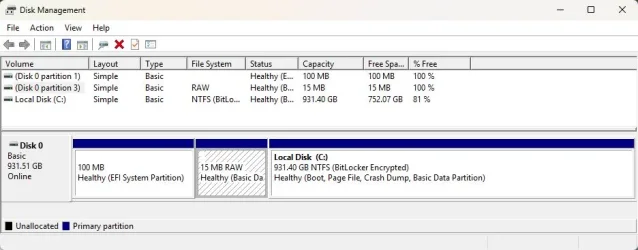
Microsoft states that an MSR partition is not needed in older HDDs; but it is required in GPT types, and that it must NOT formatted. Mine was formatted as NTFS. So I deleted the 16 MB partition to unformat/unallocate it -> booted up to a Windows 11 ISO on a flash drive -> opened a command prompt -> DiskPart -> then tried to recreate the MSR volume with the correct commands. But only the EFI and Primary partitions are visible as volumes, so I could not recreate it. I then performed the following:

1. Disk Management -> delete the 16 MB volume -> right-click on unallocated
volume -> New Simple Volume -> Next.
2. Accept default size as 15 or 16 MB -> Next.
3. Check "Do not assign a drive letter or path" -> Next.
4. Select "Do not format this volume" -> Next -> Finish. The volume now
appears as...

15 MB RAW
Healthy (Masic Data Partition)

5. Launch DiskGenius -> right-click on the 16 MB volume, labeled as
"Partition(1)" -> Create ESP/MSR Partition set as follows...

~ Create ESP partition (grayed)
+ Create MSR partition
+ Align to Integral Multiples of Sectors - 128 Sector (65536 Byte)

6. Notice appears...

"Failed to create ESP/MSR partition. (2000011a). Cannot find space to
create ESP/MSR partition."

So now the 16 MB of space is raw (unformatted & unallocated) and without a drive letter as Microsoft requires. Do I still need to recreate the MSR partition?
 

My Computer My Computer

At a glance

Windows 11 ProIntel Core Ultra 7 155H, 16 cores, 22 threads...64GB DDR5-5600 MT/sIntel Arc Graphics
OS
Windows 11 Pro
Computer type
Laptop
Manufacturer/Model
HP Envy 17t da000
CPU
Intel Core Ultra 7 155H, 16 cores, 22 threads, 4.8GHz.
Motherboard
HP?
Memory
64GB DDR5-5600 MT/s
Graphics Card(s)
Intel Arc Graphics
Sound Card
Realtek Hi-def/Intel Smart Sound
Monitor(s) Displays
17.3" touch screen
Screen Resolution
1920 x 1080
Hard Drives
1TB SSD
PSU
20VDC, 3.25A.
Case
Silver
Cooling
Fans
Keyboard
Numeric
Mouse
Logitech wireless
Internet Speed
Upload: 330 Mb/s; Download: 438 Mb/s.
Browser
Avast Secure
Antivirus
Avast One
Other Info
My cat's name is Mr. Scruffins.
Bree, when I ran the "SET ID+E3C9..." command, I'm notified, "The specified
partition type is not valid for this operation."

In Windows Disk Management, I right-click on "Disk 0" in the gray area at
far left of the graphic representation of the partitions -> Volumes tab ->
the following is shown...

Disk: 0
Type: Basic
Status: Online
Style: GUID Partition Table (GPT)
Capacity: 953870 MB
Unallocated: 4 MB

Reserved space = 100 MB
Volume: <blank> = 15 MB
Volume: Local C: = 9533751 MB

Microsoft states that an MSR partition is not needed in older HDDs; but it is
required in GPT types, and that it must NOT be formatted or have a drive letter.

I deleted the 16 MB partition to unformat/unallocate it -> booted up to a
Windows 11 ISO on a flash drive -> opened a command prompt -> DiskPart
then tried to recreate the MSR volume with the correct commands. But only
the EFI and Primary partitions are visible as volumes.

I then performed these steps:

1. Disk Management -> delete the 16 MB volume -> right-click
on unallocated volume -> New Simple Volume -> Next.
2. Accept default size as 15 or 16 MB -> Next.
3. Check "Do not assign a drive letter or path" -> Next.
4. Select "Do not format this volume" -> Next -> Finish. The
volume now appears as...

15 MB RAW
Healthy (Basic Data Partition)

Am I good to go? (see the attachment). Should I do what Ghot suggests; or do
I still need to recreate the MSR partition?
 

Attachments

  • MSR.webp
    MSR.webp
    31.7 KB · Views: 1

My Computer My Computer

At a glance

Windows 11 ProIntel Core Ultra 7 155H, 16 cores, 22 threads...64GB DDR5-5600 MT/sIntel Arc Graphics
OS
Windows 11 Pro
Computer type
Laptop
Manufacturer/Model
HP Envy 17t da000
CPU
Intel Core Ultra 7 155H, 16 cores, 22 threads, 4.8GHz.
Motherboard
HP?
Memory
64GB DDR5-5600 MT/s
Graphics Card(s)
Intel Arc Graphics
Sound Card
Realtek Hi-def/Intel Smart Sound
Monitor(s) Displays
17.3" touch screen
Screen Resolution
1920 x 1080
Hard Drives
1TB SSD
PSU
20VDC, 3.25A.
Case
Silver
Cooling
Fans
Keyboard
Numeric
Mouse
Logitech wireless
Internet Speed
Upload: 330 Mb/s; Download: 438 Mb/s.
Browser
Avast Secure
Antivirus
Avast One
Other Info
My cat's name is Mr. Scruffins.
Back
Top Bottom