Solved Applications above Taskbar


chris0004

New member
Member
Local time
5:43 AM
Posts
18
OS
Win 11 Pro
Apologies for posting here as unsure which forum to post in.

Running Windows 11 Pro Latest Update

How do I get programmes to show full screen above the taskbar, sure I could do it in an earlier version of windows.

Have tries several third party apps, but they dont run on WIN11.

Many thanks
 
Windows Build/Version
WIN 11 25h2 26200.7840

My Computer

System One

  • OS
    Win 11 Pro
    Computer type
    PC/Desktop
    Memory
    32gb
    Graphics Card(s)
    nvidia 4060
    Monitor(s) Displays
    Asus and BenQ
    Screen Resolution
    Full HD
    Hard Drives
    4 by 2tb drives
    Keyboard
    Logiteck
    Mouse
    Cherry
    Browser
    Librewolf, Vivaldi
    Antivirus
    ESET
    Other Info
    Windows 11 Pro Version 25HT
Hello Chris, :alien:

It depends on the app, but usually you'll need to maximize the app's window instead of using full screen. Full screen will use the whole screen and cover the taskbar.


My Computers

System One System Two

  • OS
    Windows 11 Pro for Workstations
    Computer type
    PC/Desktop
    Manufacturer/Model
    Custom self build
    CPU
    Intel i7-8700K 5 GHz
    Motherboard
    ASUS ROG Maximus XI Formula Z390
    Memory
    64 GB (4x16GB) G.SKILL TridentZ RGB DDR4 3600 MHz (F4-3600C18D-32GTZR)
    Graphics Card(s)
    ASUS ROG-STRIX-GTX1080TI-O11G-GAMING (11GB GDDR5X)
    Sound Card
    Integrated Digital Audio (S/PDIF)
    Monitor(s) Displays
    2 x Samsung Odyssey G75 27"
    Screen Resolution
    2560x1440
    Hard Drives
    1TB Samsung 990 PRO M.2,
    4TB Samsung 990 PRO M.2,
    TerraMaster F8 SSD Plus NAS
    PSU
    Seasonic Prime Titanium 850W
    Case
    Thermaltake Core P3 wall mounted
    Cooling
    Corsair Hydro H115i
    Keyboard
    Amazon Basics Wired Full Keyboard MD005
    Mouse
    Logitech MX Master 4
    Internet Speed
    2 Gbps Download and 100 Mbps Upload
    Browser
    Chrome and Edge
    Antivirus
    Microsoft Defender
    Other Info
    Logitech Z625 speaker system,
    Logitech BRIO 4K Pro webcam,
    HP Color LaserJet Pro MFP M477fdn,
    CyberPower CP1500PFCLCD
    Galaxy S23 Plus phone
  • Operating System
    Windows 11 Pro
    Computer type
    Laptop
    Manufacturer/Model
    Surface Laptop 7 Copilot+ PC
    CPU
    Snapdragon X Elite (12 core) 3.42 GHz
    Memory
    16 GB LPDDR5x-7467 MHz
    Monitor(s) Displays
    15" HDR
    Screen Resolution
    2496 x 1664
    Hard Drives
    1 TB SSD
    Internet Speed
    Wi-Fi 7 and Bluetooth 5.4
    Browser
    Chrome and Edge
    Antivirus
    Microsoft Defender
Hello Chris, :alien:

It depends on the app, but usually you'll need to maximize the app's window instead of using full screen. Full screen will use the whole screen and cover the taskbar.

Many thanks.

Linked Ques if I may how do I get different apps to always load in the same position and size, using 2 monitors by the way.

Cheers
 

My Computer

System One

  • OS
    Win 11 Pro
    Computer type
    PC/Desktop
    Memory
    32gb
    Graphics Card(s)
    nvidia 4060
    Monitor(s) Displays
    Asus and BenQ
    Screen Resolution
    Full HD
    Hard Drives
    4 by 2tb drives
    Keyboard
    Logiteck
    Mouse
    Cherry
    Browser
    Librewolf, Vivaldi
    Antivirus
    ESET
    Other Info
    Windows 11 Pro Version 25HT

Not sure about that one, but most apps will open the same as last closed.
 

My Computers

System One System Two

  • OS
    Windows 11 Pro for Workstations
    Computer type
    PC/Desktop
    Manufacturer/Model
    Custom self build
    CPU
    Intel i7-8700K 5 GHz
    Motherboard
    ASUS ROG Maximus XI Formula Z390
    Memory
    64 GB (4x16GB) G.SKILL TridentZ RGB DDR4 3600 MHz (F4-3600C18D-32GTZR)
    Graphics Card(s)
    ASUS ROG-STRIX-GTX1080TI-O11G-GAMING (11GB GDDR5X)
    Sound Card
    Integrated Digital Audio (S/PDIF)
    Monitor(s) Displays
    2 x Samsung Odyssey G75 27"
    Screen Resolution
    2560x1440
    Hard Drives
    1TB Samsung 990 PRO M.2,
    4TB Samsung 990 PRO M.2,
    TerraMaster F8 SSD Plus NAS
    PSU
    Seasonic Prime Titanium 850W
    Case
    Thermaltake Core P3 wall mounted
    Cooling
    Corsair Hydro H115i
    Keyboard
    Amazon Basics Wired Full Keyboard MD005
    Mouse
    Logitech MX Master 4
    Internet Speed
    2 Gbps Download and 100 Mbps Upload
    Browser
    Chrome and Edge
    Antivirus
    Microsoft Defender
    Other Info
    Logitech Z625 speaker system,
    Logitech BRIO 4K Pro webcam,
    HP Color LaserJet Pro MFP M477fdn,
    CyberPower CP1500PFCLCD
    Galaxy S23 Plus phone
  • Operating System
    Windows 11 Pro
    Computer type
    Laptop
    Manufacturer/Model
    Surface Laptop 7 Copilot+ PC
    CPU
    Snapdragon X Elite (12 core) 3.42 GHz
    Memory
    16 GB LPDDR5x-7467 MHz
    Monitor(s) Displays
    15" HDR
    Screen Resolution
    2496 x 1664
    Hard Drives
    1 TB SSD
    Internet Speed
    Wi-Fi 7 and Bluetooth 5.4
    Browser
    Chrome and Edge
    Antivirus
    Microsoft Defender
Not sure about that one, but most apps will open the same as last closed.
I think I have it. Powertoys Workspaces.
 

My Computer

System One

  • OS
    Win 11 Pro
    Computer type
    PC/Desktop
    Memory
    32gb
    Graphics Card(s)
    nvidia 4060
    Monitor(s) Displays
    Asus and BenQ
    Screen Resolution
    Full HD
    Hard Drives
    4 by 2tb drives
    Keyboard
    Logiteck
    Mouse
    Cherry
    Browser
    Librewolf, Vivaldi
    Antivirus
    ESET
    Other Info
    Windows 11 Pro Version 25HT
I learned a little trick that works for me. Do NOT set anything to run maximized. Set it for run as "normal window".
Open the app. Drag the edges and corners of the window using the double ended arrow to size it the way you want, leaving a couple of pixels at top and both sides.(however much you need to see the borders of the window.
Leave about a quarter of an inch at the bottom which is enough space for you taskbar to unhide. Once you get it sized to "almost full screen," exit and reopen the window. Windows will remember your sizing and your task bar will be visible.

If you want a window to open in a particular position on the screen, you can drag an un-maximized window where you want it to be on the creen. Windows will remember that position, too.

If you use snap layouts, always remember to double click on the title bar to close the window while in snap view. If you don't, you will have to resize it the next time it opens because Windows will remember the snapped size, and open to that size.
 

My Computers

System One System Two

  • OS
    Windows 11 Pro 25H2
    Computer type
    PC/Desktop
    Manufacturer/Model
    Dell Optiplex 7080
    CPU
    i9-10900 10 core 20 threads
    Motherboard
    DELL 0J37VM
    Memory
    32 gb
    Graphics Card(s)
    none-Intel UHD Graphics 630
    Sound Card
    Integrated Realtek
    Monitor(s) Displays
    Benq 27
    Screen Resolution
    2560x1440
    Hard Drives
    2x1tb Solidigm m.2 nvme /External drives 512gb Samsung m.2 sata+2tb Kingston m2.nvme
    PSU
    500w
    Case
    MT
    Cooling
    Dell Premium
    Keyboard
    Logitech wired
    Mouse
    Logitech wireless
    Internet Speed
    so slow I'm too embarrassed to tell
    Browser
    #1 Edge #2 Firefox
    Antivirus
    Defender+MWB Premium
  • Operating System
    Windows 11 Pro 24H2 26200.8457
    Computer type
    PC/Desktop
    Manufacturer/Model
    Beelink Mini PC SER5
    CPU
    AMD Ryzen 7 6800U
    Memory
    32 gb
    Graphics card(s)
    integrated
    Sound Card
    integrated
    Monitor(s) Displays
    Benq 27
    Screen Resolution
    2560x1440
    Hard Drives
    1TB Crucial nvme
    Keyboard
    Logitech wired
    Mouse
    Logitech wireless
    Internet Speed
    still too embarrassed to tell
    Browser
    Firefox
    Antivirus
    Defender
    Other Info
    System 3 is non compliant Dell 9020 i7-4770/24gb ram Win11 PRO 26200.8457
I learned a little trick that works for me. Do NOT set anything to run maximized. Set it for run as "normal window".
Open the app. Drag the edges and corners of the window using the double ended arrow to size it the way you want, leaving a couple of pixels at top and both sides.(however much you need to see the borders of the window.
Leave about a quarter of an inch at the bottom which is enough space for you taskbar to unhide. Once you get it sized to "almost full screen," exit and reopen the window. Windows will remember your sizing and your task bar will be visible.

If you want a window to open in a particular position on the screen, you can drag an un-maximized window where you want it to be on the creen. Windows will remember that position, too.

If you use snap layouts, always remember to double click on the title bar to close the window while in snap view. If you don't, you will have to resize it the next time it opens because Windows will remember the snapped size, and open to that size.
Many thanks I am on the case.

PS my power toys solution failed after shutting down.
 

My Computer

System One

  • OS
    Win 11 Pro
    Computer type
    PC/Desktop
    Memory
    32gb
    Graphics Card(s)
    nvidia 4060
    Monitor(s) Displays
    Asus and BenQ
    Screen Resolution
    Full HD
    Hard Drives
    4 by 2tb drives
    Keyboard
    Logiteck
    Mouse
    Cherry
    Browser
    Librewolf, Vivaldi
    Antivirus
    ESET
    Other Info
    Windows 11 Pro Version 25HT
On this subject, Notepad on my Win 11 Pro machine won't open to the last size I made it. Is there some trick to this?
 

My Computer

System One

  • OS
    Windows 11 Pro
On this subject, Notepad on my Win 11 Pro machine won't open to the last size I made it. Is there some trick to this?
Works OK with Notepad++

Only One I still have problems with is Signal so far.
 

My Computer

System One

  • OS
    Win 11 Pro
    Computer type
    PC/Desktop
    Memory
    32gb
    Graphics Card(s)
    nvidia 4060
    Monitor(s) Displays
    Asus and BenQ
    Screen Resolution
    Full HD
    Hard Drives
    4 by 2tb drives
    Keyboard
    Logiteck
    Mouse
    Cherry
    Browser
    Librewolf, Vivaldi
    Antivirus
    ESET
    Other Info
    Windows 11 Pro Version 25HT

Even just one instance of Notepad won't remember. It opens at top-left of my desktop in a small rectangle. If I move and resize it somewhere else, and then close it, and then reopen Notepad, it opens back to the top-left small rectangle again. Even when I hold down Ctrl when closing it.
 

My Computer

System One

  • OS
    Windows 11 Pro
It may be difficult to check if the info is actually stored in this location:

Do you have same behavior with Paint (as it's also a UWP app)?
Try uninstall/reinstall Notepad (from Microsoft Store).
 

My Computer

System One

  • OS
    Windows 11
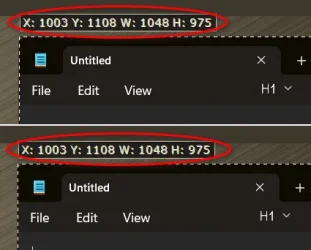
Mine opens the last closed window at the last size and position, every time, even after reboot.

12788.webp
 
Last edited:

My Computers

System One System Two

  • OS
    Windows 11 Pro
    Computer type
    PC/Desktop
    Manufacturer/Model
    ASUS ROG Strix
  • Operating System
    Windows 11 Pro
    Computer type
    Laptop
    Manufacturer/Model
    ASUS VivoBook
My Windows updated yesterday and now Notepad works again to remember the position. Maybe there was a known bug?
 

My Computer

System One

  • OS
    Windows 11 Pro
Back
Top Bottom