Backup/Restore Partitions


chadillac

Well-known member
Local time
9:08 PM
Posts
33
OS
Windows 11 Pro, build: 22621
In short, I had an issue with a recent Windows Update that messed up all printing capabilities (doesn't show any installed printers, printing from apps causes apps to freeze), as well as just made opening programs extremely slow. I had this happen last fall as well. Anyway, the recovery process has made me question what I truly need as far as "Recovery partitions" go, on my drive as I couldn't boot and attempting to use the default Windows Recovery options during advanced start up didn't work. In the end I was able to restore my image from an Aomei system image backup.

So using the approach of saving a system image backup for my C: partition for windows and robocopy nightly file backup to a NAS for my D: partition (and File History to a external USB) for all my data, and since I couldn't get the standard window recover to work, should I:
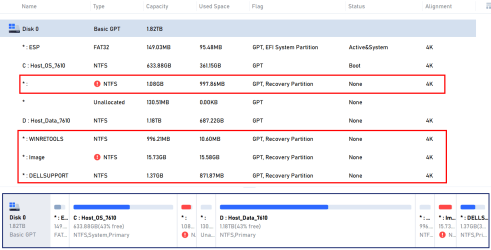
  1. Try to fix my windows recovery partitions, and if so, what are all 3 of these, do I need them all, and how to fix them (
    1. *: (? not sure what this is..part of recovery or some boot partition...can I delete it?)
    2. *:WINRETOOLS
    3. *:Image (? not sure what this is either)
    4. *:DELLSUPPORT (? Is this a more specific version of WINRETOOLS and hence replaces it? Or does it work within concert with WINRETOOLS...how is it even used?)
  2. OR Delete them all and just use the system image recovery process (leaning towards this as I
This post from a Windows MVP seems to state as well that option 2 is the currently best advisable way.

1711730683878.png

Side Rant on Moving from Aomei to Macrium

FYI, I'm also going to move to Macrium Reflect from Aomei. Aomei support is just not that good. It is always an overnight response (for me in the US), and is not that helpful, so follow up questions take a day each for a response, resulting in many days to resolve, which I don't have when my system is down.

They're USB/WinPE method of restore I haven't been able to get to work as they can't tell me how to get the proper drivers installed in the WinPE environment so it will recognize my host NVME SSD.

I then tried booting to an external windows SSD backup instance from the affected PC, then running Restore from there, but it said that the destination drive was in use so it asked me to reboot to continue, it then reboots into some WinPE/alternate OS (which I'm not sure how as it wasn't via an external USB...maybe one of those partitions is an Aomei created one?), but anyway after it boots into this PE environment, it just has a visually distored view of Aomei sofware that says Error.

Additionally, their restore process seems to fail to realize that their "System Backup", creates a backup of the first 3 partitions as shown in the below image (*:ESP, C:, *), however, upon restoring, it makes you select to restore these 3 to a single partition, which seems like a bug, as it then did actually put all 3 of those backedup partitions inside the single C: partition upon restoration, hence duplicating the *:ESP and * partitions. As such, you have to first boot into another windows install from a USB and used Partition Assistant to remove all those partitions (*:ESP, *:ESP, C, *, *) and restored again so it just resulted in the proper 3 partitions.

In the end, I had to take out the affected drive and restore to it from a backup computer running Aomei, but that was plagued by a failed attempt the first time which made the PC unbootable after the 3 hour long process, I had to repeat it.
 
Windows Build/Version
22H2 22621.5134

My Computer My Computer

At a glance

Windows 11 Pro, build: 22621Intel Core i7-12700H CPU @ 2300 Mhz32GBNvidia GeForce RTX 3060
OS
Windows 11 Pro, build: 22621
Computer type
Laptop
Manufacturer/Model
Dell 7620
CPU
Intel Core i7-12700H CPU @ 2300 Mhz
Memory
32GB
Graphics Card(s)
Nvidia GeForce RTX 3060
Hard Drives
NVMe Samsung SSD 980 PRO 2TB
Tried to understand what this is all about. I can't figure out the real issue.
 

My Computers My Computers

  • At a glance

    Windows 11 ProAMD Ryzen 7 9800X3D32GB DDR5 CL30 Kingston FuryASUS Prime Radeon RX 9060 XT OC Edition 16GB
    OS
    Windows 11 Pro
    Computer type
    PC/Desktop
    CPU
    AMD Ryzen 7 9800X3D
    Motherboard
    MSI PRO B850-P Wifi
    Memory
    32GB DDR5 CL30 Kingston Fury
    Graphics Card(s)
    ASUS Prime Radeon RX 9060 XT OC Edition 16GB
    Monitor(s) Displays
    LG Ultrawide 34" + LG 27" 1080p
    Screen Resolution
    3440x1440
    Hard Drives
    Main Boot Drive : 512GB Adata XPG RGB Gen3x4 NVMe M.2 SSD
    PSU
    EVGA 750 Watts 80+ Gold
    Case
    Deepcool Genome II
    Cooling
    Thermalright Burst Assassin 120
    Internet Speed
    1Gbps
    Browser
    Chrome
    Antivirus
    "Moderna"
  • At a glance

    Windows 11 Proi7-4790K16GB Corsair Vengeance ProMSI R9 290
    Operating System
    Windows 11 Pro
    Computer type
    PC/Desktop
    CPU
    i7-4790K
    Motherboard
    ASRock Xtreme6 Z97
    Memory
    16GB Corsair Vengeance Pro
    Graphics card(s)
    MSI R9 290
    Monitor(s) Displays
    LG Ultrawide 34"
    Screen Resolution
    3440x1440
    Hard Drives
    500GB Adata SSD (OS Only)
    PSU
    Thermaltake 475 Watts 80 Bronze
    Case
    Thermaltake Commander I Snow Edition
    Cooling
    Deep Cool Archer Air Cooler
    Keyboard
    Armageddon MKA-5R RGB-Hornet
    Mouse
    Logitech G402
    Internet Speed
    1Gbps
    Browser
    Chrome
    Antivirus
    Moderna :)
So using the approach of saving a system image backup for my C: partition for windows
All my comments use the terms used by the built-in utility Disk management [diskmgmt.msc]. I don't know what names other utilities use [so cannot interpret your diagram].

You should make a system image of the whole disk not just the C:\ partition [the partition with the OS on it].
You also need an EFI system partition [that is an intermediary between your Uefi & your OS]. Off the top of my head, I cannot remember the equivalent terms for an older Bios-based computer.

You do not have to have a [Windows] Recovery partition.
A [Windows] Recovery partition contains tools such as those you saw during that Advanced startup.
- The fact that that tools were not able to fix whatever it was that was wrong on that occasion does not mean those tools are defective.
- You can move those tools to the OS partition & ditch the Recovery partition without losing any capabilities.
- The Windows InstallationUSB contains those tools as well.
- If you have deleted the [Windows] Recovery partition, it can be rebuilt if you want.
Computer makers might use a term similar to Recovery partition for a 13GB-ish partition that they put on the disk and which contains not just the system image when the computer left the factory but also the maker's drivers & utilities. It also used to be called something similar to Factory image restoration partition.

Your DellSupport partition contains tools Dell put on there for use by its pre-installed DellSupportAssist utility.
You'll be able to find out more about that in their website's Support section.


I cannot go any further because, like Badrobot, I am not sure what else you are asking.


All the best,
Denis
 

My Computer My Computer

At a glance

Windows 11 Home x64 Version 25H2 Build 26200....
OS
Windows 11 Home x64 Version 25H2 Build 26200.8037
I managed to decipher a couple of parts of it, I think.

the proper drivers installed in the WinPE environment so it will recognize my host NVME SSD.

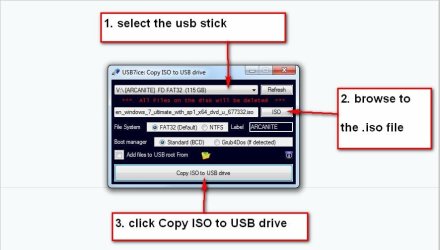
The op could borrow my boot media 23v7.iso
Extract the iso to usb stick with usb7ice


usb7ice.JPG
 

Attachments

My Computers My Computers

  • At a glance

    Win7,Win11i7-97002x16gb 3600mhz
    OS
    Win7,Win11
    Computer type
    PC/Desktop
    CPU
    i7-9700
    Motherboard
    gigabyte b365m ds3h
    Memory
    2x16gb 3600mhz
    Monitor(s) Displays
    benq gw2480
    PSU
    bequiet pure power 11 400CM
    Cooling
    cryorig m9i
  • At a glance

    win7,win11i5-84002x8gb 3200
    Operating System
    win7,win11
    Computer type
    PC/Desktop
    CPU
    i5-8400
    Motherboard
    gigabyte b365m ds3h
    Memory
    2x8gb 3200
    PSU
    xfx pro 450
(*:ESP, C:, *), however, upon restoring, it makes you select to restore these 3 to a single partition

?:confused:
 

My Computers My Computers

  • At a glance

    Win7,Win11i7-97002x16gb 3600mhz
    OS
    Win7,Win11
    Computer type
    PC/Desktop
    CPU
    i7-9700
    Motherboard
    gigabyte b365m ds3h
    Memory
    2x16gb 3600mhz
    Monitor(s) Displays
    benq gw2480
    PSU
    bequiet pure power 11 400CM
    Cooling
    cryorig m9i
  • At a glance

    win7,win11i5-84002x8gb 3200
    Operating System
    win7,win11
    Computer type
    PC/Desktop
    CPU
    i5-8400
    Motherboard
    gigabyte b365m ds3h
    Memory
    2x8gb 3200
    PSU
    xfx pro 450
Tried to understand what this is all about. I can't figure out the real issue.
Sorry for the confusion. The net of my question is: If I'm going to go the route of system image backup and restore, do I need those 4 additional partitions that seem to be related to "Recovery"?
 

My Computer My Computer

At a glance

Windows 11 Pro, build: 22621Intel Core i7-12700H CPU @ 2300 Mhz32GBNvidia GeForce RTX 3060
OS
Windows 11 Pro, build: 22621
Computer type
Laptop
Manufacturer/Model
Dell 7620
CPU
Intel Core i7-12700H CPU @ 2300 Mhz
Memory
32GB
Graphics Card(s)
Nvidia GeForce RTX 3060
Hard Drives
NVMe Samsung SSD 980 PRO 2TB
Side Rant on Moving from Aomei to Macrium
I think you'd be better off making this a separate thread so that it does not complicate understanding the issue[s?] you want help with.
But, if it helps, I would always do multiple image restorations not a single one of multiple partitions [I have been as confused as you in the past so I do one partition at a time to avoid bursting into tears again].
- If I believed there was a fault in my EFI System partition, I would restore that part of the image.
- If I believed there was a fault in my C:\ drive partition, I would restore that part of the image. This is the most common restoration I do.
- If I believed there was a fault in my Recovery partition, I would restore that part of the image.

I think SIW2 might be able to guide you in restoring more than one at once.


Denis
 

My Computer My Computer

At a glance

Windows 11 Home x64 Version 25H2 Build 26200....
OS
Windows 11 Home x64 Version 25H2 Build 26200.8037
Sorry for the confusion. The net of my question is: If I'm going to go the route of system image backup and restore, do I need those 4 additional partitions that seem to be related to "Recovery"?
They are each separate questions.
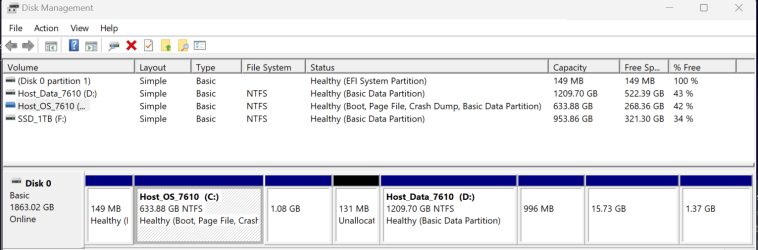
I could answer many of the questions if you posted a Disk mgmt diagram in which all the text was visible in both the top and bottom halves of the diagram..
Upload and Attach Images and Files in Post - ElevenForumTutorials
And do please repeat & number your questions as well as clarify which partition each is about.

Where forum software wants to replace things like D:\ with some stupid symbol, enclose those things in plain wrappers e.g.
[plain]D:\[/plain]
so they can get through unaltered.


Denis
 

My Computer My Computer

At a glance

Windows 11 Home x64 Version 25H2 Build 26200....
OS
Windows 11 Home x64 Version 25H2 Build 26200.8037
Aomei system backup will include all the partitions needed by windows. Can restore all at once, or optionally select individual partitions(s) to restore.
 

My Computers My Computers

  • At a glance

    Win7,Win11i7-97002x16gb 3600mhz
    OS
    Win7,Win11
    Computer type
    PC/Desktop
    CPU
    i7-9700
    Motherboard
    gigabyte b365m ds3h
    Memory
    2x16gb 3600mhz
    Monitor(s) Displays
    benq gw2480
    PSU
    bequiet pure power 11 400CM
    Cooling
    cryorig m9i
  • At a glance

    win7,win11i5-84002x8gb 3200
    Operating System
    win7,win11
    Computer type
    PC/Desktop
    CPU
    i5-8400
    Motherboard
    gigabyte b365m ds3h
    Memory
    2x8gb 3200
    PSU
    xfx pro 450
Aomei system backup will include all the partitions needed by windows. Can restore all at once, or optionally select individual partitions(s) to restore.
Similarly, Macrium Reflect will do the same.
 

My Computer My Computer

At a glance

Windows 11 Pro 25H2 (Build 26200.8728)Intel Core Ultra 9 285 5.6 GHz32.00 GBIntel Integrated Graphics (128 MB)
OS
Windows 11 Pro 25H2 (Build 26200.8728)
Computer type
PC/Desktop
Manufacturer/Model
Dell Pro Max Tower T2 FCT2250
CPU
Intel Core Ultra 9 285 5.6 GHz
Motherboard
64-bit operating system, x64-based processor
Memory
32.00 GB
Graphics Card(s)
Intel Integrated Graphics (128 MB)
Sound Card
Realtek Audio
Monitor(s) Displays
Dell P2714H Monitor
Screen Resolution
1920 x 1080
Hard Drives
1 x 512GB M.2 XG10d SED KIOXIA PCIe solid state drive (Internal)
1 x 2TB Seagate ST2000DM008-2UB102 HDD (Internal)
1 x 1TB Seagate STGX4000400 External HDD
1 x 4TB Seagate STGX4000400 External HDD
1 x 6TB WD Elements AE 2689 External HDD
PSU
500 Watts
Cooling
Air
Keyboard
Microsoft Wired Keyboard 600
Mouse
Microsoft USB Basic Optical Mouse v2.0
Browser
Firefox
Antivirus
Windows Defender + Malwarebytes Premium
Other Info
BaseBoard Manufacturer Dell Inc.
BaseBoard Product 022RY57
BaseBoard Version A01
I could answer many of the questions if you posted a Disk mgmt diagram in which all the text was visible in both the top and bottom halves of the diagram..

Here is the DiskMgmt screenshot. In my original post I did post the Aomei version of this as it provided a bit more information for each partition, i.e. giving it a name like *:WINRETOOLS vs Disk Mgmt doesn't provide this.

1711742700753.png

And do please repeat & number your questions as well as clarify which partition each is about.
I'm not 100% sure what each partition is about. That was my secondary question in my original post as I was wondering which ones are purely recovery related that I could delete if using system image restores from images stored on external devices vs images stored
  1. *: (? not sure what this is..part of recovery or some boot partition...can I delete it?)
  2. *:WINRETOOLS
  3. *:Image (? not sure what this is either)
  4. *D:\ELLSUPPORT (? Is this a more specific version of WINRETOOLS and hence replaces it? Or does it work within concert with WINRETOOLS...how is it even used?)
Where forum software wants to replace things like D:\ with some stupid symbol, enclose those things in plain wrappers e.g.
D:\
so they can get through unaltered.
Thanks for the tip. I was unaware that there are specific character combinations that would be manipulated and what those combinations are. And I don't see a way to edit a post, so not sure how I could fix at this point.
 

My Computer My Computer

At a glance

Windows 11 Pro, build: 22621Intel Core i7-12700H CPU @ 2300 Mhz32GBNvidia GeForce RTX 3060
OS
Windows 11 Pro, build: 22621
Computer type
Laptop
Manufacturer/Model
Dell 7620
CPU
Intel Core i7-12700H CPU @ 2300 Mhz
Memory
32GB
Graphics Card(s)
Nvidia GeForce RTX 3060
Hard Drives
NVMe Samsung SSD 980 PRO 2TB
Aomei system backup will include all the partitions needed by windows. Can restore all at once, or optionally select individual partitions(s) to restore.
Yes but this makes it a 3 step process, so the approach I came up with worked the best to restore all 3 in a single, and hence shorter, timeframe. I am just surprised that the UI doesn't allow you to map each source partition to a secific destination partition when there is more than one source. Or at least give a warning of some sort that you will be writing 3 to 1, but maybe I'm just picky because I design software for a living.
 

My Computer My Computer

At a glance

Windows 11 Pro, build: 22621Intel Core i7-12700H CPU @ 2300 Mhz32GBNvidia GeForce RTX 3060
OS
Windows 11 Pro, build: 22621
Computer type
Laptop
Manufacturer/Model
Dell 7620
CPU
Intel Core i7-12700H CPU @ 2300 Mhz
Memory
32GB
Graphics Card(s)
Nvidia GeForce RTX 3060
Hard Drives
NVMe Samsung SSD 980 PRO 2TB
This is what I think and I have also noted what I don't understand.
CapacityDisk mgmt volume labelAomei volume nameRequired?My comments
149MBEFI System partition*:ESPEssential
633.88GB C:\C:\ OS drive, boot partitionC:\ boot partitionEssential
1.08GB[not shown in volume list]*: "Recovery partition"I do not understand why one of these is not labelled as the Recovery partition in the Disk mgmt list
131MBunallocated*-You could merge it with the neighbouring D:\ partition so that you can make use of the space
1209.70GB D:\, 118TBD:\ I assume it's a data driveD:\ I assume it's a data driveYour decision
996MB[not shown in volume list]*:WinRETools "Recovery partition"I do not understand why one of these is not labelled as the Recovery partition in the Disk mgmt list
15.73GB[not shown in volume list]*:Image "Recovery partition"DisposableI think this is a system image created by Dell to enable you to restore the disk to its factory state [including hardware drivers & all / most preinstalled Dell utilities]
1.37GB[not shown in volume list]*:DellSupport "Recovery partition"DisposableThis is a partition used by the Dell SupportAssist utility and you can delete it if you decide to uninstall that utility

I never keep the system image created by Dell. It is out of date when the computer is delivered.
I rely on making my own system images and on backing up my drivers & downloading any Dell utilities I want from the same Dell support webpages I go to for driver downloads.
When my system image has been made, and​
I have backed up my own files from D:\, and​
my imaging utility's boot disk has been tested, and​
any Dell utilities I want have been downloaded, and​
my driver backups complete,​
then
I Clean install Windows from scratch, and​
restore my driver backups, and​
install any Dell utilities that I want [this used to mean installing Dell QuickSet several years ago but I don't know if there are any useful ones nowadays], and​
I partition off a D:\ drive area for my own files leaving about 100GB for Windows & installed applications. You might want to leave it more space since you seem to store more on your OS drive than I do.​
Clean Install Windows - ElevenForumTutorials
Backup and Restore Device Drivers - ElevenForumTutorials


Denis
 
Last edited:

My Computer My Computer

At a glance

Windows 11 Home x64 Version 25H2 Build 26200....
OS
Windows 11 Home x64 Version 25H2 Build 26200.8037

My Computer My Computer

At a glance

Windows 11 Home x64 Version 25H2 Build 26200....
OS
Windows 11 Home x64 Version 25H2 Build 26200.8037
???

I can't make head or tail of this

can you please state clearly ---

1) What's the problem -- i.e system boots / doesn't boot
2) Disk Geometry of Windows system you are trying to boot --i.e Disk layout
3) Disk Geometry of last working system (if you have it)
4) what are you using for creating new target Windows system.

Just answer in one sentence each. Everything else is just pure obfuscation and makes the whole problem much harder to understand -- if one can even understand in the first place.

I'd bet around 35% or more of all Windows problems could be solved if people could just describe in simple terms what their problem is.

Cheers
jimbo
 

My Computer My Computer

At a glance

Windows XP,11 Linux Fedora Rawhide pre-releas...2 X Intel i7
OS
Windows XP,11 Linux Fedora Rawhide pre-release 45
Computer type
PC/Desktop
CPU
2 X Intel i7
Screen Resolution
4KUHD X 2

Latest Support Threads

Back
Top Bottom