Boot image not found in Hyper-V


tecknot

living in a van down by the river
Power User
Local time
4:36 AM
Posts
552
Location
US (West Coast)
OS
Windows 11 Pro 25H2 build 26300.9725
Hello everyone (once again),

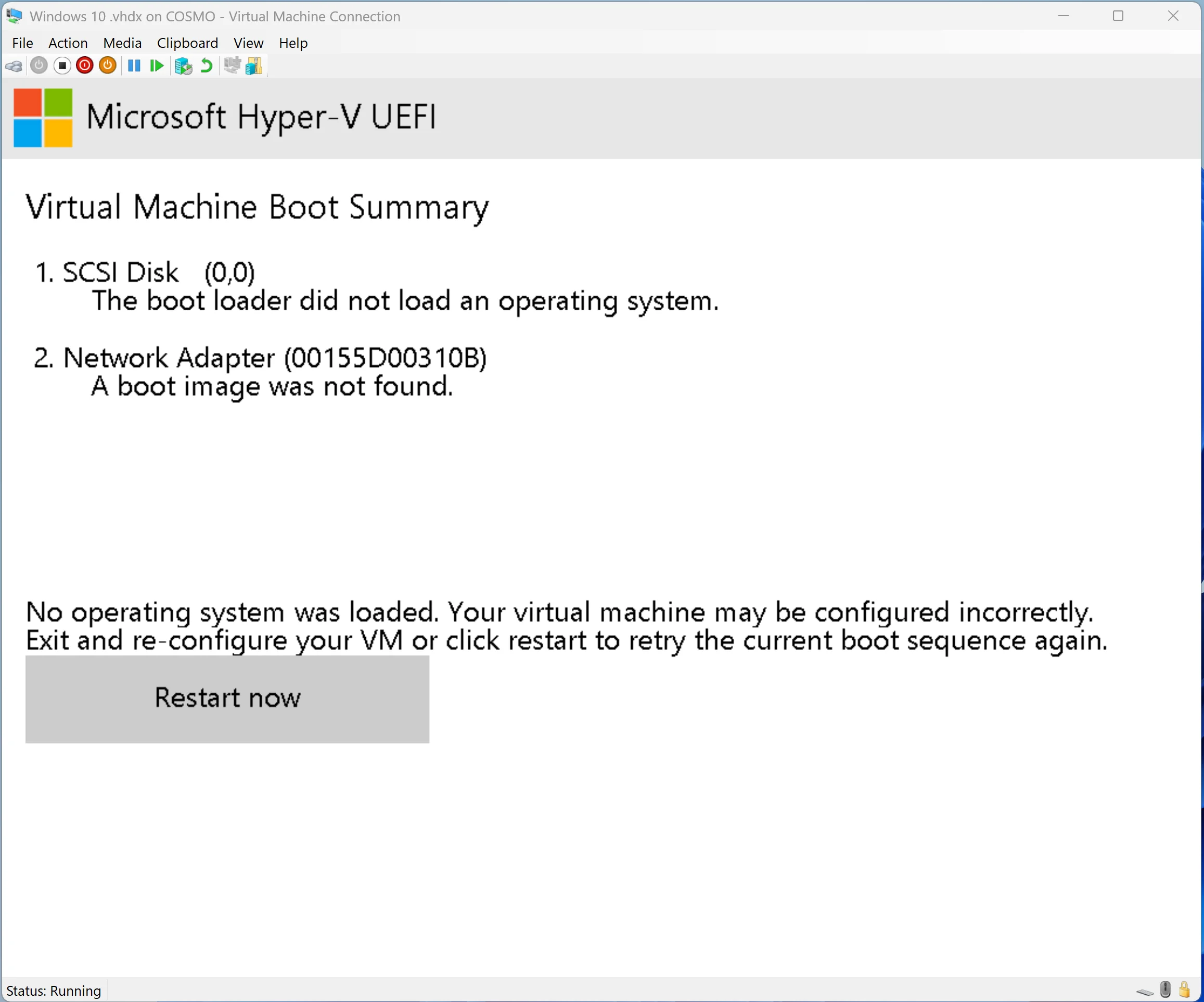
I created a .vhdx VM using Disk2vhd. I tried to start it in Hyper-V but it hung with, ">>Start PXE over IPv4," for a while then ended at a boot image was not found as in the screenshot below:
Hyper-V boot image not found.webp


I tried to fix the boot situation, but most of the boot commands would not work in WinRe (while in the Hyper-V).

Does anyone have a clue as to what I can do in this situation? Any suggestion would be greatly appreciated. Thanks in advance.

Kind regards,

tecknot

P.S. I did a thorough internets search to little avail without a working solution.
 

My Computers My Computers

  • At a glance

    Windows 11 Pro 25H2 build 26300.9725Intel i7 8750H @ 2.2 GHz16 GB (all Samsung) DDR4-3200 SODIMM (non-ECC...Intel UHD Graphics 630 & NVIDIA Quadro P600
    OS
    Windows 11 Pro 25H2 build 26300.9725
    Computer type
    Laptop
    Manufacturer/Model
    Lenovo ThinkPad Workstation P72
    CPU
    Intel i7 8750H @ 2.2 GHz
    Motherboard
    Lenovo 01YU291
    Memory
    16 GB (all Samsung) DDR4-3200 SODIMM (non-ECC) PCIe 3
    Graphics Card(s)
    Intel UHD Graphics 630 & NVIDIA Quadro P600
    Sound Card
    Realtek ALC3286 & Focusrite Saffire 24 Pro DSP
    Monitor(s) Displays
    17.3"
    Screen Resolution
    3840x2160
    Hard Drives
    1TB SSD Samsung 860 EVO SATA 3
    1TB SSD Samsung 970 EVO M.2 NVMe PCIe 3 x 4
    2TB SSD Samsung 990 PRO M.2 NVMe PCIe 3 x 4
    PSU
    230W
    Cooling
    fan
    Keyboard
    UltraNav
    Mouse
    Kensington wireless Orbit
    Internet Speed
    640Mbps
    Browser
    DuckDuckGo and Firefox
    Antivirus
    Defender
    Other Info
    CM246 Chipset
  • VM with Windows 11 26H2 b 26300.9725: 4 GB (all Samsung) DDR4-3200 SODIMM (non-ECC) PCIe 3; 150GB on SSD Samsung 990 PRO M.2 NVMe PCIe 3 x 4
I use Hyper-V, but I haven't used Disk2vhd myself, so I asked ChatGPT for some suggestions:

The important error in your screenshot is "The boot loader did not load an operating system." The PXE boot error is secondary because Hyper-V attempts to boot from the network after failing to boot from the virtual hard disk.

Since you created the VHDX using Disk2vhd, I suspect that the EFI System Partition was not captured correctly, or that its boot configuration is missing or invalid.

Your screenshot shows a Generation 2 Hyper-V virtual machine, which uses UEFI firmware. Was the original Windows installation also using UEFI/GPT?

I would first boot the VM from a Windows installation ISO, press Shift + F10 to open Command Prompt, and run:

diskpart
list disk
list volume
exit

Please post a screenshot of the results. This should help establish whether the VHDX contains a suitable EFI System Partition and whether the virtual machine's generation matches the original installation's boot configuration.

If the EFI partition is present, it may be possible to repair the boot configuration using BCDBoot without reinstalling Windows.

The screenshot below is from my Hyper-V virtual machine.

bootmgfw.efi is the Windows Boot Manager EFI application, normally located at \EFI\Microsoft\Boot\bootmgfw.efi on the EFI system partition.

The typical Windows UEFI boot sequence is:

UEFI firmware → NVRAM boot entry → bootmgfw.efi (reads the BCD store) → winload.efi

Hyper-V.webp
 

My Computers My Computers

  • At a glance

    Windows 11 ProAMD Ryzen 9 9950X3DKingston FURY Beast 64GB (2x32GB) DDR5 6000MT/sASUS TUF Gaming Radeon RX 9070 OC Edition 16G...
    OS
    Windows 11 Pro
    Computer type
    PC/Desktop
    CPU
    AMD Ryzen 9 9950X3D
    Motherboard
    ASRock B650E Taichi Lite
    Memory
    Kingston FURY Beast 64GB (2x32GB) DDR5 6000MT/s
    Graphics Card(s)
    ASUS TUF Gaming Radeon RX 9070 OC Edition 16GB GDDR6
    Hard Drives
    Solidigm P44 Pro 2TB M.2 NVMe SSD
  • At a glance

    Windows 11 HomeIntel Core Ultra 9 275HX64GB (2x 32GB) DDR5-6400NVIDIA GeForce RTX 5080 16GB GDDR7 Laptop GPU
    Operating System
    Windows 11 Home
    Computer type
    Laptop
    Manufacturer/Model
    Lenovo Legion Pro 7i Gen 10 16"
    CPU
    Intel Core Ultra 9 275HX
    Memory
    64GB (2x 32GB) DDR5-6400
    Graphics card(s)
    NVIDIA GeForce RTX 5080 16GB GDDR7 Laptop GPU
    Hard Drives
    2x 1TB M.2 NVMe SSD (SK Hynix)
Hi Tecknot,
To add to Celery's excellent suggestion about gathering the diskpart layout, the reason you are seeing this error usually comes down to how Disk2vhd captures partitions.
For a Generation 2 (UEFI) virtual machine to boot, the .vhdx file must contain both your primary operating system partition (C:) and the hidden EFI System Partition (ESP). If you only selected the C: drive checkbox when running Disk2vhd, the VM will have no bootloader, causing Hyper-V to fail over to a network boot (PXE over IPv4).
Once you are able to boot to a Windows ISO, open the Command Prompt (Shift + F10), and run the diskpart commands Celery listed; look closely at the volumes. Depending on what you see, here are the paths to fix it:

Path 1: If the EFI partition is entirely missing from the VHDX
If list volume shows only your main OS partition and no 100MB FAT32 partition, you have two choices:
Choice A: Recreate the VHDX (Recommended & Cleanest)
If you still have access to the original physical machine or source system:
  1. Run Disk2vhd as Administrator.
  2. Make sure to check the box for both the hidden System/EFI partition and the C: volume.
  3. Create the new .vhdx and attach it to your Hyper-V VM.
Choice B: Manually carve out an EFI partition inside the VM
If you cannot re-run Disk2vhd, you can manually shrink your OS partition and create a new bootloader right from the recovery command prompt:

cmd
diskpart
Select disk 0.
list partition
Select partition X (select your main Windows OS partition number).
shrink desired=100
Create partition EFI
format quick fs=fat32 label="System"
assign letter=S
exit

Use code with caution.

Then, apply the boot files to the newly created partition (assuming your Windows OS volume is currently assigned letter C in WinRE):

cmd
bcdboot C:\Windows /s S: /f UEFI
Use code with caution.


Path 2: If the EFI partition IS present but corrupted
If diskpart shows the FAT32 system partition is there, the boot configuration data (BCD) just needs to be rebuilt. Assign a letter to that FAT32 volume inside diskpart (e.g., assign letter=S), exit diskpart, and run:

cmd
bcdboot C:\Windows /s S: /f UEFI
Use code with caution.


Quick setting to check in Hyper-V
Sometimes, a newly converted physical-to-virtual (P2V) image will choke on Hyper-V's default security configuration. Go to your VM's settings in Hyper-V Manager, click on Security, and try unchecking Enable Secure Boot to see if it allows the OS to start loading.
Let us know what your diskpart layout looks like, and we can narrow down the exact commands you need!


My Computers My Computers

  • At a glance

    Windows 11 Homei7-14700k2X16 GBNVIDIA GeForce RTX 5070 12gb Founders Edition
    OS
    Windows 11 Home
    Computer type
    PC/Desktop
    Manufacturer/Model
    DELL XPS 8960
    CPU
    i7-14700k
    Motherboard
    GENUINE DELL XPS 8960 DESKTOP MOTHERBOARD INTEL SOCKET LGA1700 XD433 Intel Z690 chipset.
    Memory
    2X16 GB
    Graphics Card(s)
    NVIDIA GeForce RTX 5070 12gb Founders Edition
    Sound Card
    ON BOARD 7.1 CHANNEL DIGITAL AUDIO
    Monitor(s) Displays
    Dell UltraSharp 32 4K Thunderbolt Hub, High-end Productivity Monitor - U3225QE & ASUS ROG Swift pg32ucdmr 32 4K OLED 4K UHD (3840 x 2160 pixels) at 240hz Gaming Monitor
    Screen Resolution
    Native Resolution: 3840 x 2160 at 120 Hz & 240 Hz
    Hard Drives
    Samsung SSD 990 PRO 2TB, PCIe 4.0 M.2 2280 (Boot-Drive) & Samsung SSD 990 PRO 2TB, PCIe 4.0 M.2 2280 (Storage-Drive)
    PSU
    1000W
    Case
    DELL
    Cooling
    DELL 125W CPU Liquid Water Cooling Fan System (2G44F)
    Keyboard
    ROG Azoth Gaming Keyboard
    Mouse
    Razer Naga Left-Handed Edition MMO Gaming Mouse
    Internet Speed
    Internet Speed 300 Mbps
    Browser
    Microsoft Edge, Google Chrome, Brave
    Antivirus
    Windows Defender
    Other Info
    Logitech Z906 5.1 Surround Sound Speaker System
  • At a glance

    Windows 11 RetailAMD Ryzen 7 9800X3D 4.7 GHz 8-Core ProcessorKingston FURY Beast RGB 32GB (2 x 16GB) DDR5-...ROG Strix GeForce RTX™ 5070 Ti 16GB GDDR7 OC ...
    Operating System
    Windows 11 Retail
    Computer type
    PC/Desktop
    Manufacturer/Model
    "Custom", "Self-Built"
    CPU
    AMD Ryzen 7 9800X3D 4.7 GHz 8-Core Processor
    Motherboard
    ROG STRIX X870E-E GAMING WIFI
    Memory
    Kingston FURY Beast RGB 32GB (2 x 16GB) DDR5-6000 PC5-48000 CL30 Dual Channel Desktop Memory Kit KF560C30BBEAK2-32 - Black
    Graphics card(s)
    ROG Strix GeForce RTX™ 5070 Ti 16GB GDDR7 OC Edition
    Sound Card
    ON BOARD 7.1 CHANNEL DIGITAL AUDIO
    Monitor(s) Displays
    Dell UltraSharp 32 4K Thunderbolt Hub, High-end Productivity Monitor - U3225QE & ASUS ROG Swift pg32ucdmr 32 4K OLED 4K UHD (3840 x 2160 pixels) at 240hz Gaming Monitor
    Screen Resolution
    120Hz, and 240Hz
    Hard Drives
    Samsung 9100 Pro 1 TB M.2-2280 PCIe 5.0 X4 NVME Solid State Drive, Samsung 9100 Pro 2 TB M.2-2280 PCIe 5.0 X4 NVME Solid State Drive
    PSU
    Lian Li Edge Platinum V2 1350 W 80+ Platinum Certified Fully Modular ATX Power Supply
    Case
    Lian Li O11D EVO RGB ATX Mid Tower Case
    Cooling
    Lian Li HydroShift II OLED Curved 360TL 90.1 CFM Liquid CPU Cooler
    Keyboard
    ROG Azoth Gaming Keyboard
    Mouse
    Razer Naga Left-Handed Edition MMO Gaming Mouse
    Internet Speed
    300 mbps
    Browser
    Microsoft Edge, Google Chrome, Brave
    Antivirus
    Microsoft defender
    Other Info
    Fans and wireless Controller: Lian Li UNI FAN TL LCD FLEX 63 CFM 120 mm Fans 3-Pack (Side Panel), Lian Li UNI FAN TL LCD FLEX 63 CFM 120 mm Fans 3-Pack (Bottom), Lian Li UNI FAN TL LCD FLEX 66 CFM 120 mm Fan (Rear Exhaust)
    Lian Li UNI Fan L-Wireless Controller for Computer Fans, Works with SL-Infinity Wireless, CL Wireless, SL & TL Wireless, Strimer Wireless, and Hydroshift II - Black
I use Hyper-V, but I haven't used Disk2vhd myself, so I asked ChatGPT for some suggestions:


The screenshot below is from my Hyper-V virtual machine.

bootmgfw.efi is the Windows Boot Manager EFI application, normally located at \EFI\Microsoft\Boot\bootmgfw.efi on the EFI system partition.

The typical Windows UEFI boot sequence is:

UEFI firmware → NVRAM boot entry → bootmgfw.efi (reads the BCD store) → winload.efi

View attachment 188513

Hi Celery,

Here is a shot of Diskpart for my VM Hyper-V environment:

Hyper-V diskpart.webp


Further, here is a screenshot of my VM's Settings/Firmware:

VM settings firmware.webp


Thanks for the response and information. I appreciate it.

Kind regards,

tecknot
 

My Computers My Computers

  • At a glance

    Windows 11 Pro 25H2 build 26300.9725Intel i7 8750H @ 2.2 GHz16 GB (all Samsung) DDR4-3200 SODIMM (non-ECC...Intel UHD Graphics 630 & NVIDIA Quadro P600
    OS
    Windows 11 Pro 25H2 build 26300.9725
    Computer type
    Laptop
    Manufacturer/Model
    Lenovo ThinkPad Workstation P72
    CPU
    Intel i7 8750H @ 2.2 GHz
    Motherboard
    Lenovo 01YU291
    Memory
    16 GB (all Samsung) DDR4-3200 SODIMM (non-ECC) PCIe 3
    Graphics Card(s)
    Intel UHD Graphics 630 & NVIDIA Quadro P600
    Sound Card
    Realtek ALC3286 & Focusrite Saffire 24 Pro DSP
    Monitor(s) Displays
    17.3"
    Screen Resolution
    3840x2160
    Hard Drives
    1TB SSD Samsung 860 EVO SATA 3
    1TB SSD Samsung 970 EVO M.2 NVMe PCIe 3 x 4
    2TB SSD Samsung 990 PRO M.2 NVMe PCIe 3 x 4
    PSU
    230W
    Cooling
    fan
    Keyboard
    UltraNav
    Mouse
    Kensington wireless Orbit
    Internet Speed
    640Mbps
    Browser
    DuckDuckGo and Firefox
    Antivirus
    Defender
    Other Info
    CM246 Chipset
  • VM with Windows 11 26H2 b 26300.9725: 4 GB (all Samsung) DDR4-3200 SODIMM (non-ECC) PCIe 3; 150GB on SSD Samsung 990 PRO M.2 NVMe PCIe 3 x 4
Hi Tecknot,
To add to Celery's excellent suggestion about gathering the diskpart layout, the reason you are seeing this error usually comes down to how Disk2vhd captures partitions.
For a Generation 2 (UEFI) virtual machine to boot, the .vhdx file must contain both your primary operating system partition (C:) and the hidden EFI System Partition (ESP). If you only selected the C: drive checkbox when running Disk2vhd, the VM will have no bootloader, causing Hyper-V to fail over to a network boot (PXE over IPv4).
Once you are able to boot to a Windows ISO, open the Command Prompt (Shift + F10), and run the diskpart commands Celery listed; look closely at the volumes. Depending on what you see, here are the paths to fix it:

Path 1: If the EFI partition is entirely missing from the VHDX
If list volume shows only your main OS partition and no 100MB FAT32 partition, you have two choices:
Choice A: Recreate the VHDX (Recommended & Cleanest)
If you still have access to the original physical machine or source system:
  1. Run Disk2vhd as Administrator.
  2. Make sure to check the box for both the hidden System/EFI partition and the C: volume.
  3. Create the new .vhdx and attach it to your Hyper-V VM.
Choice B: Manually carve out an EFI partition inside the VM
If you cannot re-run Disk2vhd, you can manually shrink your OS partition and create a new bootloader right from the recovery command prompt:

cmd
diskpart
Select disk 0.
list partition
Select partition X (select your main Windows OS partition number).
shrink desired=100
Create partition EFI
format quick fs=fat32 label="System"
assign letter=S
exit

Use code with caution.

Then, apply the boot files to the newly created partition (assuming your Windows OS volume is currently assigned letter C in WinRE):

cmd
bcdboot C:\Windows /s S: /f UEFI
Use code with caution.


Path 2: If the EFI partition IS present but corrupted
If diskpart shows the FAT32 system partition is there, the boot configuration data (BCD) just needs to be rebuilt. Assign a letter to that FAT32 volume inside diskpart (e.g., assign letter=S), exit diskpart, and run:

cmd
bcdboot C:\Windows /s S: /f UEFI
Use code with caution.


Quick setting to check in Hyper-V
Sometimes, a newly converted physical-to-virtual (P2V) image will choke on Hyper-V's default security configuration. Go to your VM's settings in Hyper-V Manager, click on Security, and try unchecking Enable Secure Boot to see if it allows the OS to start loading.
Let us know what your diskpart layout looks like, and we can narrow down the exact commands you need!


Hi AmericanPharaoh,

Choice A:
You are right, I did create my VM without the System (EFI) partition. I have created a new VM accordingly and posted the requested screenshots for the new VM.

Choice B:
Okay, I ran the bcdboot command (with D: as my Windows install). Unfortunately, I got an error, "Failure when attempting to copy boot." I also tried it with C: as the Windows boot and still got the error.

Last suggestion:
I unchecked Secure boot in the Setting and reran the VM. This time I got this:

Hyper-V Start PXE over IPv4.webp


Which then turned to:

Screenshot 2026-11-01 034505.webp


So, still stuck without the boot image this time.

Kind regards,

tecknot
 

My Computers My Computers

  • At a glance

    Windows 11 Pro 25H2 build 26300.9725Intel i7 8750H @ 2.2 GHz16 GB (all Samsung) DDR4-3200 SODIMM (non-ECC...Intel UHD Graphics 630 & NVIDIA Quadro P600
    OS
    Windows 11 Pro 25H2 build 26300.9725
    Computer type
    Laptop
    Manufacturer/Model
    Lenovo ThinkPad Workstation P72
    CPU
    Intel i7 8750H @ 2.2 GHz
    Motherboard
    Lenovo 01YU291
    Memory
    16 GB (all Samsung) DDR4-3200 SODIMM (non-ECC) PCIe 3
    Graphics Card(s)
    Intel UHD Graphics 630 & NVIDIA Quadro P600
    Sound Card
    Realtek ALC3286 & Focusrite Saffire 24 Pro DSP
    Monitor(s) Displays
    17.3"
    Screen Resolution
    3840x2160
    Hard Drives
    1TB SSD Samsung 860 EVO SATA 3
    1TB SSD Samsung 970 EVO M.2 NVMe PCIe 3 x 4
    2TB SSD Samsung 990 PRO M.2 NVMe PCIe 3 x 4
    PSU
    230W
    Cooling
    fan
    Keyboard
    UltraNav
    Mouse
    Kensington wireless Orbit
    Internet Speed
    640Mbps
    Browser
    DuckDuckGo and Firefox
    Antivirus
    Defender
    Other Info
    CM246 Chipset
  • VM with Windows 11 26H2 b 26300.9725: 4 GB (all Samsung) DDR4-3200 SODIMM (non-ECC) PCIe 3; 150GB on SSD Samsung 990 PRO M.2 NVMe PCIe 3 x 4
So, still stuck.....

Looks like your .vhdx is an MBR disk. By default Hyper-V creates a Gen 2 VM when you create a new VM. A Gen 1 VM is required if your vhdx is from a Legacy BIOS/MBR machine.

Here are two VMs, one is Gen 1, the other Gen 2, both with the same MBR vhdx attached. One boots, the other doesn't.....

1793534469632.webp
1793534485540.webp


1793534642767.webp
1793534658267.webp
 

My Computers My Computers

  • At a glance

    Windows 11 HomeAMD Athlon Silver 3050U8GBRadeon Graphics
    OS
    Windows 11 Home
    Computer type
    Laptop
    Manufacturer/Model
    Acer Aspire 3 A315-23-R9VY
    CPU
    AMD Athlon Silver 3050U
    Memory
    8GB
    Graphics Card(s)
    Radeon Graphics
    Monitor(s) Displays
    laptop screen
    Screen Resolution
    1366x768 native resolution, up to 2560x1440 with Radeon Virtual Super Resolution
    Hard Drives
    1TB Samsung EVO 870 SSD (from April 2026: 250GB EVO 850)
    Internet Speed
    150 Mbps
    Browser
    Edge, Firefox
    Antivirus
    Defender
    Other Info
    UPDATE - 11 April 2026: due to lid hinges starting to break up this laptop has been retired from active duty. The OS with all software and files has been migrated to my System Seven in 'Other systems' to carry on as my general purpose 'main machine'.

    I've now clean installed 25H2 and used Garlin's scripts to update Secure Boot to CA 2023 and revoke the PCA 2011 certificates. It's new role is to test secure boot issues.

    Info for 2021-2026:
    fully 'Windows 11 ready' laptop. Windows 10 C: partition migrated from my old unsupported 'main machine' then upgraded to 11. A test migration ran Insider builds for 2 months. When 11 was released on 5th October 2021 it was re-imaged back to 10 and was offered the upgrade in Windows Update on 20th October. Windows Update offered the 22H2 Feature Update on 20th September 2022. It got the 23H2 Feature Update on 4th November 2023 through Windows Update, 24H2 on 3rd October 2024 through Windows Update by setting the Target Release Version for 24H2, and 25H2 on 30th September 2025 through Windows Update by setting the Target Release Version for 25H2.
  • At a glance

    Windows 11 ProIntel® Core™ i5-520M8GB(integrated graphics) Intel HD Graphics
    Operating System
    Windows 11 Pro
    Computer type
    Laptop
    Manufacturer/Model
    Dell Latitude E4310
    CPU
    Intel® Core™ i5-520M
    Motherboard
    0T6M8G
    Memory
    8GB
    Graphics card(s)
    (integrated graphics) Intel HD Graphics
    Screen Resolution
    1366x768
    Hard Drives
    500GB Crucial MX500 SSD
    Browser
    Firefox, Edge
    Antivirus
    Defender
    Other Info
    unsupported machine: Legacy bios, MBR, TPM 1.2, upgraded from W10 to W11 using W10/W11 hybrid install media workaround.

    In-place upgrade to 22H2 using ISO and a workaround.
    Feature Update to 23H2 by manually installing the Enablement Package.
    In-place upgrade to 24H2 using hybrid 23H2/24H2 install media.
    Upgraded to 25H2 by Enablement Package.
    Upgraded to 26H2 by Enablement Package.

    Also running Insider Experimental 263xx and 29xxx builds and Windows 10 as native boot .vhdx.
  • My SYSTEM THREE is a Dell Latitude 5410, i7-10610U, 32GB RAM, 512GB NVMe ssd, supported device running Windows 11 Pro.

    My SYSTEM FOUR was a 2-in-1 convertible Lenovo Yoga 11e (1st gen) type 20DA, Celeron N2930, 8GB RAM, 256GB ssd. Unsupported device. This has now been sold. It has been replaced by my System Eight.

    My SYSTEM FIVE is a Dell Latitude 3190 2-in-1, Pentium Silver N5030, 8GB RAM, 1TB NVMe ssd, supported device running Windows 11 Pro, plus Insider Beta, Experimental 263xx and 29xxx builds (and a few others) as a native boot .vhdx.

    My SYSTEM SIX is a Dell Latitude 5550, Core Ultra 7 165H, 64GB RAM, 1TB NVMe SSD, supported device, Windows 11 Pro, Hyper-V host machine. Updated to 25H2 on 30th September 2025, 26H2 on 29th September 2026.

    My SYSTEM SEVEN is a Lenovo Thinkpad T580, 1920x1080 touchscreen, Intel Core i7-8650U, 16GB RAM, 512GB NVMe SSD + 2nd 512GB NVMe SSD, a supported device for Windows 11. This is my current general purpose 'main machine'. The installed Windows 11 Home from my System One has been migrated to this machine. As its new home has an existing digital licence for Pro I've been able to upgrade the migrated OS from Home to Pro.
    29 Sept. 2026 Feature Update to 26H2 through Windows Update.

    My SYSTEM EIGHT is a 2-in-1 convertible Lenovo Yoga 11e (5th gen) type 20LN, Celeron N4120, 8GB RAM, 512GB NVMe ssd, a supported device for Windows 11. Currently running Windows 11 Pro, plus Insider Beta, Experimental 263xx and 29xxx builds as native boot vhdx.
  • Helpful
Reactions: x_1
Hi Bree,

I tried making a new VM this time with Gen 1. I ran it and got this:

Hyper-V boot failure.webp


How do I know if the VM was created as MBR or GPT?

Kind regards,

tecknot
 

My Computers My Computers

  • At a glance

    Windows 11 Pro 25H2 build 26300.9725Intel i7 8750H @ 2.2 GHz16 GB (all Samsung) DDR4-3200 SODIMM (non-ECC...Intel UHD Graphics 630 & NVIDIA Quadro P600
    OS
    Windows 11 Pro 25H2 build 26300.9725
    Computer type
    Laptop
    Manufacturer/Model
    Lenovo ThinkPad Workstation P72
    CPU
    Intel i7 8750H @ 2.2 GHz
    Motherboard
    Lenovo 01YU291
    Memory
    16 GB (all Samsung) DDR4-3200 SODIMM (non-ECC) PCIe 3
    Graphics Card(s)
    Intel UHD Graphics 630 & NVIDIA Quadro P600
    Sound Card
    Realtek ALC3286 & Focusrite Saffire 24 Pro DSP
    Monitor(s) Displays
    17.3"
    Screen Resolution
    3840x2160
    Hard Drives
    1TB SSD Samsung 860 EVO SATA 3
    1TB SSD Samsung 970 EVO M.2 NVMe PCIe 3 x 4
    2TB SSD Samsung 990 PRO M.2 NVMe PCIe 3 x 4
    PSU
    230W
    Cooling
    fan
    Keyboard
    UltraNav
    Mouse
    Kensington wireless Orbit
    Internet Speed
    640Mbps
    Browser
    DuckDuckGo and Firefox
    Antivirus
    Defender
    Other Info
    CM246 Chipset
  • VM with Windows 11 26H2 b 26300.9725: 4 GB (all Samsung) DDR4-3200 SODIMM (non-ECC) PCIe 3; 150GB on SSD Samsung 990 PRO M.2 NVMe PCIe 3 x 4
Hi Bree,

I tried making a new VM this time with Gen 1. I ran it and got this:
I got that too when I first tried my test on the Gen 1. The trick was to remove the vhdx from the SCSI controller and attach it to the IDE controller.

How do I know if the VM was created as MBR or GPT?
With the VM turned off, double-click on the vhdx to mount it. Then run Diskpart and use the command LIST DISK. Only a GPT disk has a '*' in the last column. Here my MBR vhdx from the test above is mounted as disk 1.

1793536396843.webp
 

My Computers My Computers

  • At a glance

    Windows 11 HomeAMD Athlon Silver 3050U8GBRadeon Graphics
    OS
    Windows 11 Home
    Computer type
    Laptop
    Manufacturer/Model
    Acer Aspire 3 A315-23-R9VY
    CPU
    AMD Athlon Silver 3050U
    Memory
    8GB
    Graphics Card(s)
    Radeon Graphics
    Monitor(s) Displays
    laptop screen
    Screen Resolution
    1366x768 native resolution, up to 2560x1440 with Radeon Virtual Super Resolution
    Hard Drives
    1TB Samsung EVO 870 SSD (from April 2026: 250GB EVO 850)
    Internet Speed
    150 Mbps
    Browser
    Edge, Firefox
    Antivirus
    Defender
    Other Info
    UPDATE - 11 April 2026: due to lid hinges starting to break up this laptop has been retired from active duty. The OS with all software and files has been migrated to my System Seven in 'Other systems' to carry on as my general purpose 'main machine'.

    I've now clean installed 25H2 and used Garlin's scripts to update Secure Boot to CA 2023 and revoke the PCA 2011 certificates. It's new role is to test secure boot issues.

    Info for 2021-2026:
    fully 'Windows 11 ready' laptop. Windows 10 C: partition migrated from my old unsupported 'main machine' then upgraded to 11. A test migration ran Insider builds for 2 months. When 11 was released on 5th October 2021 it was re-imaged back to 10 and was offered the upgrade in Windows Update on 20th October. Windows Update offered the 22H2 Feature Update on 20th September 2022. It got the 23H2 Feature Update on 4th November 2023 through Windows Update, 24H2 on 3rd October 2024 through Windows Update by setting the Target Release Version for 24H2, and 25H2 on 30th September 2025 through Windows Update by setting the Target Release Version for 25H2.
  • At a glance

    Windows 11 ProIntel® Core™ i5-520M8GB(integrated graphics) Intel HD Graphics
    Operating System
    Windows 11 Pro
    Computer type
    Laptop
    Manufacturer/Model
    Dell Latitude E4310
    CPU
    Intel® Core™ i5-520M
    Motherboard
    0T6M8G
    Memory
    8GB
    Graphics card(s)
    (integrated graphics) Intel HD Graphics
    Screen Resolution
    1366x768
    Hard Drives
    500GB Crucial MX500 SSD
    Browser
    Firefox, Edge
    Antivirus
    Defender
    Other Info
    unsupported machine: Legacy bios, MBR, TPM 1.2, upgraded from W10 to W11 using W10/W11 hybrid install media workaround.

    In-place upgrade to 22H2 using ISO and a workaround.
    Feature Update to 23H2 by manually installing the Enablement Package.
    In-place upgrade to 24H2 using hybrid 23H2/24H2 install media.
    Upgraded to 25H2 by Enablement Package.
    Upgraded to 26H2 by Enablement Package.

    Also running Insider Experimental 263xx and 29xxx builds and Windows 10 as native boot .vhdx.
  • My SYSTEM THREE is a Dell Latitude 5410, i7-10610U, 32GB RAM, 512GB NVMe ssd, supported device running Windows 11 Pro.

    My SYSTEM FOUR was a 2-in-1 convertible Lenovo Yoga 11e (1st gen) type 20DA, Celeron N2930, 8GB RAM, 256GB ssd. Unsupported device. This has now been sold. It has been replaced by my System Eight.

    My SYSTEM FIVE is a Dell Latitude 3190 2-in-1, Pentium Silver N5030, 8GB RAM, 1TB NVMe ssd, supported device running Windows 11 Pro, plus Insider Beta, Experimental 263xx and 29xxx builds (and a few others) as a native boot .vhdx.

    My SYSTEM SIX is a Dell Latitude 5550, Core Ultra 7 165H, 64GB RAM, 1TB NVMe SSD, supported device, Windows 11 Pro, Hyper-V host machine. Updated to 25H2 on 30th September 2025, 26H2 on 29th September 2026.

    My SYSTEM SEVEN is a Lenovo Thinkpad T580, 1920x1080 touchscreen, Intel Core i7-8650U, 16GB RAM, 512GB NVMe SSD + 2nd 512GB NVMe SSD, a supported device for Windows 11. This is my current general purpose 'main machine'. The installed Windows 11 Home from my System One has been migrated to this machine. As its new home has an existing digital licence for Pro I've been able to upgrade the migrated OS from Home to Pro.
    29 Sept. 2026 Feature Update to 26H2 through Windows Update.

    My SYSTEM EIGHT is a 2-in-1 convertible Lenovo Yoga 11e (5th gen) type 20LN, Celeron N4120, 8GB RAM, 512GB NVMe ssd, a supported device for Windows 11. Currently running Windows 11 Pro, plus Insider Beta, Experimental 263xx and 29xxx builds as native boot vhdx.

Latest Support Threads

Back
Top Bottom