This tutorial will show you how to change which app opens when you press the hardware Copilot key or Windows
 + C keys for your account or all users in Windows 11.
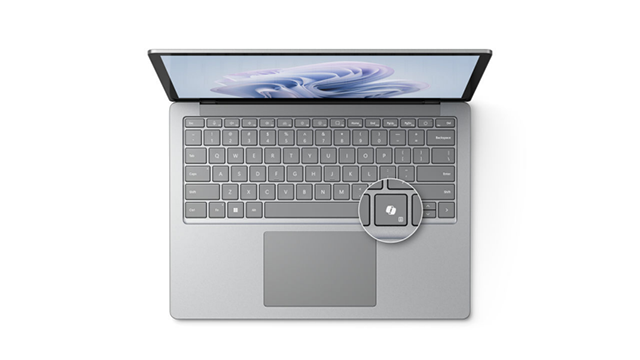
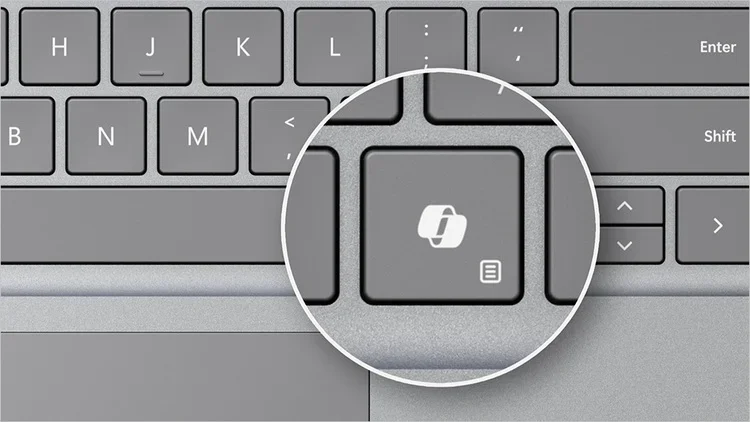
If you have a Windows 11 Copilot+ PC, it will have a Copilot key on the keyboard. When you press this Copilot key, it opens the Copilot app by default.
With the new Copilot app, you can search and access your Copilot anytime, anywhere. Ask your Copilot anything you want, from trivia questions to creating images. Like a friend, Copilot will give you quick and helpful answers, along with suggestions for what to do next. You can even use voice to search or chat, and your history and preferences will sync across all your devices.
Starting with Windows 11 build 22631.4391 (23H2) and build 26100.2161 (24H2), Microsoft is adding the ability to configure the Copilot key. You can choose to have the Copilot key launch an app that is MSIX packaged and signed, thus indicating the app meets security and privacy requirements to keep customers safe. The key will continue to launch Copilot on devices that have the Copilot app installed until a customer selects a different experience. This setting can be found via Settings > Personalization > Text input. If the keyboard connected to your PC does not have a Copilot key, adjusting this setting will not do anything. We are planning further refinements to this experience in a future flight
Starting with Windows 11 build 22635.4435 (Beta), after disabling the ability to configure the Copilot key with Build 22635.4291, Microsoft is enabling this functionality again with refinements. Microsoft has limited the apps that can be launched by the Copilot key to those apps that have opted into this experience. This is to ensure apps targeted by the key know they will be used in this way and meet security and privacy requirements to keep customers safe. Microsoft will be publishing how apps can opt-in to this experience here in on this Microsoft Learn page soon.
Starting with Windows 11 build 26200.5516 (Dev) and build 26120.3653 (Beta 24H2), and build 22635.5160 (Beta 23H2), you can now launch Copilot on Windows with Win + C. You can personalize your Copilot key and Win + C experience at any time with the existing “Customize Copilot key on keyboard” setting below.
Starting in 2024, hardware manufactures released new Windows 11 devices that include a dedicated Copilot key that provides quick access to Copilot experiences in Windows. This Copilot key sometimes replaces the Right Ctrl key or Context Menu key on select devices.
Customers who rely on the Right Ctrl key or Context menu key for keyboard shortcuts or assistive technologies (such as screen readers) experienced some challenges to their workflows when using these devices.
Microsoft is committed to enabling customers to select options for how the Copilot key functions. A Windows 11 update will ship later this year that will add a setting option to let you remap the Copilot key to act as the Context menu key or Right Ctrl key.
See: Understand updates to the Copilot key on Windows devices
References:
New experiences coming to the Copilot key - Windows IT Pro Blog
 techcommunity.microsoft.com

Understand updates to the Copilot key on Windows devices | Microsoft Support
 support.microsoft.com
Updates to Copilot hardware key experience on Windows 11 Copilot+ PCs
 www.elevenforum.com
- Option One: Change App Copilot Key on Keyboard or Win+C Opens for Current User in Settings
- Option Two: Change App Copilot Key on Keyboard or Win+C Opens for All Users in Local Group Policy Editor
EXAMPLE: Copilot key on keyboard of Windows 11 Copilot+ PC
1 Open Settings (Win+I).
2 Click/tap on Bluetooth & devices on the left side, and click/tap on Keyboard on the right side. (see screenshot below)
3 Select an available option you want to use in the Customize Copilot key on keyboard drop menu. (see screenshot below)
The Customize Copilot key on keyboard setting is saved to the BrandedKeyChoiceType and AppAumid values in the registry key below for the current user.
HKEY_CURRENT_USER\Software\Microsoft\Windows\Shell\BrandedKey
4 If you selected Custom, then select a supported installed app you want, and click/tap on Select. (see screenshot below)
5 You can now close Settings if you like.
Change App Copilot Key on Keyboard or Win+C Opens for All Users in Local Group Policy Editor
You must be signed in as an administrator to use this option.
The Local Group Policy Editor is only available in the Windows 11 Pro, Enterprise, and Education editions.
1 Open the Local Group Policy Editor (gpedit.msc).
2 Navigate to the policy location below in the left pane of the Local Group Policy Editor. (see screenshot below)
3 In the right pane of Windows Copilot in the Local Group Policy Editor, double click/tap on the Set Copilot Hardware Key policy to edit it. (see screenshot above)
4 Do step 5 (change) or step 6 (undo - default) below for what you want.
This will override and gray out Option One.
This policy setting is saved to the SetCopilotHardwareKey string value (REG_SZ) in the registry key below.
HKEY_CURRENT_USER\Software\Policies\Microsoft\Windows\CopilotKey
The tutorial below will show you how find the AUMID of the app you want to open when you press the Copilot hardware key.

Find Application User Model ID (AUMID) of Installed App in Windows 11
www.elevenforum.com
This is the default setting to allow using Option One.
This policy setting will delete the SetCopilotHardwareKey string value (REG_SZ) in the registry key below.
HKEY_CURRENT_USER\Software\Policies\Microsoft\Windows\CopilotKey
7 You can now close the Local Group Policy Editor if you like.
That's it,
Shawn Brink
- Open Copilot in Windows 11 and Windows 10
- Uninstall or Reinstall Copilot app in Windows 11 and Windows 10
- Enable or Disable Auto Start Copilot on Login in Windows 11
- Add or Remove Copilot Button on Taskbar in Windows 11
- Change How Copilot Opens with Single Press of Copilot Key or Win+C Shortcut in Windows 11
- Change What Happens When Press and Hold Copilot Key for 1 Second in Windows 11