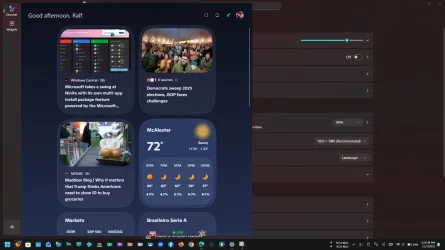
This tutorial will show you how to rearrange the order of dashboards to change the default dashboard on the Widgets board for your account in Windows 11.
Widgets in Windows are interactive elements that display dynamic content and provide quick access to various apps and features. You can view your location's current weather conditions directly on the taskbar and hover over the icon to see concise, scannable information on topics like sports, stocks, local news, and breaking headlines. Widgets are designed to help you staying informed and organized by presenting personalized information at a glance.
Widgets are displayed on the Widgets board, which contains a collection of cards, each representing a widget with relevant information and actions related to an app. On the Widgets board you can discover, pin, unpin, arrange, resize, and customize widgets to reflect your interests.
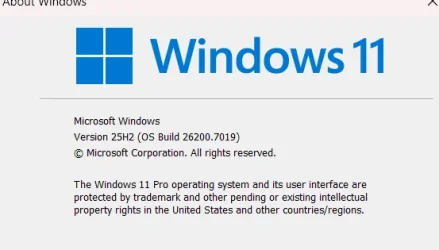
Starting with Windows 11 build 2610.5074 (24H2), multiple dashboards are now available in your Widgets Board. This gives you more space for your favorite widgets and helps you stay informed with a feed that connects you to current events. A new navigation bar on the left side makes it easy to switch between your widget’s dashboard and other views like the Discover feed. After initial launch in the EEA, these updates are expanding to all regions.
Starting with Windows 11 build 26100.7309 (24H2) and build 26200.7309 (25H2), you can choose a default dashboard in Widget Board settings. When live weather is showing, the Widget Board opens the first dashboard in your navigation bar instead of the most recently used one, making the experience consistent. To set your default dashboard, open the full-page Widgets Settings by selecting Settings in the navigation bar, then move your preferred dashboard to the top.
Starting with Windows 11 build 26100.8737 (24H2), build 26200.8737 (25H2), and build 2800.2608 (26H1), Widgets will open to widgets experience on first launch by default.
Reference:
Stay up to date with Widgets in Windows | Microsoft Support
Learn how to use Widgets dashboards to keep track of the things you care about.
 support.microsoft.com
EXAMPLE: Dashboards on Widgets board
Here's How:
1 Open Widgets (Win+W).
2 Click/tap on the Settings (gear) button at the bottom of the left pane. (see screenshot below)
3 Perform either action below to rearrange the dashboards until they are all in the order you want: (see screenshots below)
The top dashboard will be the default dashboard shown when you open the Widget Board.
- Drag and drop the dashboards into the order you want.
- Click/tap on the More options (3 dots) button of a dashboard you want to move, and click/tap on Move up and/or Move down until the dashboard is in the order you want.
That's it,
Shawn Brink
Last edited: