This tutorial will show you how to change what happens when you press and hold the Copilot key for 1 second for your account in Windows 11.
Microsoft Copilot is your everyday AI companion, empowering you to achieve anything you can imagine.
When you open Copilot with a Single Press of the Copilot key or Win+C shortcut, Copilot opens or restores to Full Window by default. You can change this to either Full Window or Quick View.
You can activate Copilot Voice at any time in Windows by holding the Copilot key or the Windows key + C for 1 - 2 seconds. The Copilot Voice interface will appear, Copilot will play an audio greeting, and you can have a voice conversation with Copilot. You can also use this interface to mute or end your conversation.
You can change the Press and hold action to either Same as single press or Start a voice conversation.
References:
Getting started with Copilot on Windows | Microsoft Support
Discover how Microsoft Copilot, your everyday AI companion, can help you achieve anything you can imagine.
 support.microsoft.com
Using Copilot Voice with Microsoft Copilot | Microsoft Support
Microsoft Copilot Voice allows you to interact with Microsoft Copilot using natural language voice commands.
support.microsoft.com
EXAMPLE: "Same as single pass" ("Full Window" or "Quick View") or "Start a voice conversation"
Here's How:
1 Open the Copilot app.
2 While in full view, click/tap on the Account button on the sidebar, and click/tap on Settings. (see screenshot below)
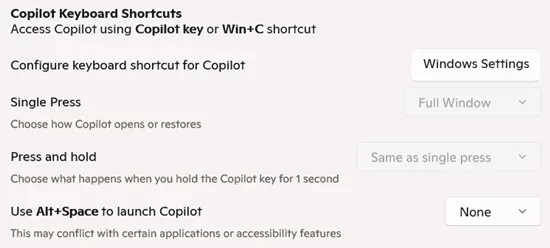
3 Under Copilot Keyboard Shortcuts settings, select Same as single press or Start a voice conversation in the Press and hold drop menu for what you want. (see screenshot below)
If you customized the Copilot key on keyboard to open anything other than the Copilot app when pressed, then the Single Press and Press and hold settings will be grayed out.
4 Click/tap on the Back arrow button to exit Copilot settings.
That's it,
Shawn Brink
Related Tutorials
- Open Copilot in Windows 11 and Windows 10
- Change How Copilot Opens with Single Press of Copilot Key or Win+C Shortcut in Windows 11
- Switch Between Quick View and Full View for Copilot in Windows 11
- Customize what Copilot Key on Keyboard or Win+C Opens in Windows 11
- Change How Copilot Opens with Alt+Spacebar shortcut in Windows 11
- Start Voice Conversation with Copilot in Windows 11
Last edited: