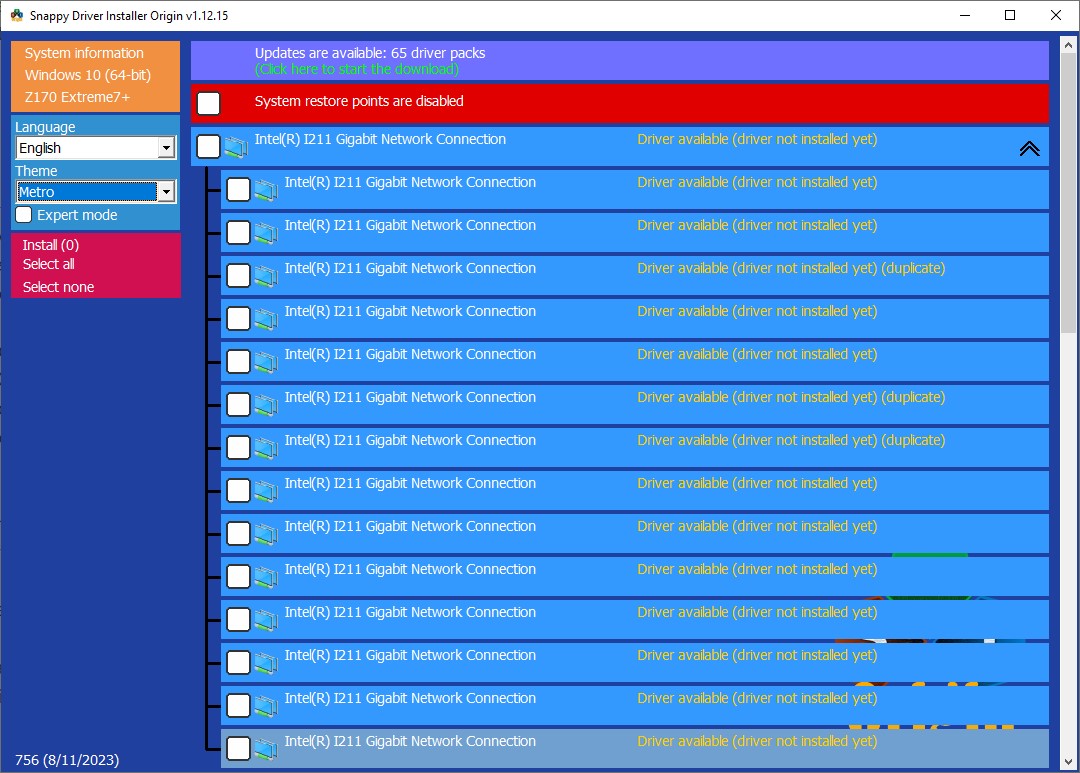
Clean install no longer finds all drivers


So what? You can still add those drivers through Device Manager or $OEM$. The fact that Windows update does not find them means absolutely nothing.
No, you can't. Do you think I didn't try? Sorry to argue with you as you have been so helpful in the past.
 

My Computers My Computers

  • At a glance

    Windows 11 Pro 25H2 26200.9278AMD Ryzen 7 5825U with Radeon Graphics16GB
    OS
    Windows 11 Pro 25H2 26200.9278
    Computer type
    Laptop
    Manufacturer/Model
    Acemagic LX15PRO
    CPU
    AMD Ryzen 7 5825U with Radeon Graphics
    Motherboard
    BIOS CT_BI_AMI_LX15PRO_AB8139_A-004
    Memory
    16GB
    Screen Resolution
    1920 x 1080
    Hard Drives
    SSD 2TB
    Internet Speed
    30 Mbps
    Browser
    Brave
    Antivirus
    Webroot SecureAnywhere Complete beta
  • At a glance

    Windows 11 Pro 23H2 22631.2506Atom N450 1.66GHz2GB
    Operating System
    Windows 11 Pro 23H2 22631.2506
    Computer type
    Laptop
    Manufacturer/Model
    HP Mini 210-1090NR PC (bought in late 2009!)
    CPU
    Atom N450 1.66GHz
    Memory
    2GB
    Browser
    Brave
    Antivirus
    Webroot
  • Acer Swift SF114-34 laptop
    OS Windows 11 Pro 26200.8894
    CPU Pentium Silver N6000
    RAM 4GB
    BIOS v1.17
    SSD Samsung 970 EVO Plus SSD 2TB (an upgrade)
Maybe you can check the SetupAPI log, and see if some drivers are "outranked".
Code:
findstr /i outrank C:\Windows\INF\SetupAPI.dev.log
 

My Computer My Computer

At a glance

Windows 7
OS
Windows 7

My Computer My Computer

At a glance

Windows 11 Pro 25H2
OS
Windows 11 Pro 25H2
Computer type
Laptop
Manufacturer/Model
Toshiba
Maybe you can check the SetupAPI log, and see if some drivers are "outranked".
Code:
findstr /i outrank C:\Windows\INF\SetupAPI.dev.log
I wish I could, but I had to restore from a Macrium backup, so I have no relevant logs.
Dear Garlin, please waste no time on this thread, since you have much better things to do helping thousands of people with your great knowledge of Secure Boot and Window's inner workings.
 

My Computers My Computers

  • At a glance

    Windows 11 Pro 25H2 26200.9278AMD Ryzen 7 5825U with Radeon Graphics16GB
    OS
    Windows 11 Pro 25H2 26200.9278
    Computer type
    Laptop
    Manufacturer/Model
    Acemagic LX15PRO
    CPU
    AMD Ryzen 7 5825U with Radeon Graphics
    Motherboard
    BIOS CT_BI_AMI_LX15PRO_AB8139_A-004
    Memory
    16GB
    Screen Resolution
    1920 x 1080
    Hard Drives
    SSD 2TB
    Internet Speed
    30 Mbps
    Browser
    Brave
    Antivirus
    Webroot SecureAnywhere Complete beta
  • At a glance

    Windows 11 Pro 23H2 22631.2506Atom N450 1.66GHz2GB
    Operating System
    Windows 11 Pro 23H2 22631.2506
    Computer type
    Laptop
    Manufacturer/Model
    HP Mini 210-1090NR PC (bought in late 2009!)
    CPU
    Atom N450 1.66GHz
    Memory
    2GB
    Browser
    Brave
    Antivirus
    Webroot
  • Acer Swift SF114-34 laptop
    OS Windows 11 Pro 26200.8894
    CPU Pentium Silver N6000
    RAM 4GB
    BIOS v1.17
    SSD Samsung 970 EVO Plus SSD 2TB (an upgrade)
No, you can't. Do you think I didn't try? Sorry to argue with you as you have been so helpful in the past.

So, let's take a moment to verify that we are talking about the same thing here. I won't bother with the $OEM$ method right now, let's just look at the easier method. BTW, this is in no way whatsoever trying to say that you are wrong, I simply want to be sure we are not talking about different procedures.

1) Start with the system fully configured with all drivers installed and working properly and no errors shown in Device Manager.

2) Export all the drivers by opening a command prompt and running these commands:

NOTE: There are multiple ways to do this, this is just one way.

MD C:\DriversBackup
pnputil /export-driver * C:\DriversBackup

3) Copy C:\DriversBackup to a thumb drive, external drive, another internal drive, etc. Anyplace that you can access after your clean install of Windows will do.

4) Perform your clean install of Windows.

5) Once Windows is installed, open Device Manager. At the top of the device tree you will see your computer name. Right-click that name and select "Add drivers".

6) Enter the location where you saved the backup of your drivers and make sure to check the box that says "Include subfolders". Click on "Next".

7) After the drivers are all installed, reboot the system.

Done.

Again, I am not doubting you. I just want to make sure that we are talking about the same thing here because I find it odd that this is not working. I've done this literally hundreds of times across dozens of machines from 10+ year old system to system purchased less than a month ago and have NEVER had this procedure fail. Not a single time. Maybe I just got lucky or there is something really odd and different on your system.

In case, I would be curious to know if this is the same thing that you tried or if there was some nuance I am unaware of.

 

My Computers My Computers

  • At a glance

    Win11 Pro 25H2 (RTM+)Intel i7-14650HX32 GBNo GPU - Built-in Intel Graphics
    OS
    Win11 Pro 25H2 (RTM+)
    Computer type
    PC/Desktop
    Manufacturer/Model
    Acemagic
    CPU
    Intel i7-14650HX
    Memory
    32 GB
    Graphics Card(s)
    No GPU - Built-in Intel Graphics
    Sound Card
    Integrated
    Monitor(s) Displays
    Varies as machine will often be moved to locations with different monitors
    Screen Resolution
    Varies
    Hard Drives
    1 x 1TB Gen 4 NVMe SSD
    PSU
    120W Power Brick
    Keyboard
    Corsair K70 Max RGB Magnetic Keyboard
    Mouse
    Logitech MX Master 3
    Internet Speed
    1Gb Up / 1 Gb Down
    Browser
    Edge
    Antivirus
    Windows Defender
  • At a glance

    Win11 Pro 25H2 (RTM+)Intel i7-1255U16 GBIntel Iris Xe Graphics
    Operating System
    Win11 Pro 25H2 (RTM+)
    Computer type
    Laptop
    Manufacturer/Model
    Lenovo ThinkBook 13x Gen 2
    CPU
    Intel i7-1255U
    Memory
    16 GB
    Graphics card(s)
    Intel Iris Xe Graphics
    Sound Card
    Realtek® ALC3306-CG codec
    Monitor(s) Displays
    13.3-inch IPS Display
    Screen Resolution
    WQXGA (2560 x 1600)
    Hard Drives
    2 TB 4 x 4 NVMe SSD
    PSU
    USB-C / Thunderbolt 4 Power / Charging
    Keyboard
    Backlit, spill resistant keyboard
    Mouse
    Buttonless Glass Precision Touchpad
    Internet Speed
    1Gb Up / 1Gb Down
    Browser
    Edge
    Antivirus
    Windows Defender
    Other Info
    WiFi 6e / Bluetooth 5.1 / Facial Recognition / Fingerprint Sensor / ToF (Time of Flight) Human Presence Sensor
Follow up: I had a thought just now. When I perform the above procedure, I am logged in with an Admin account. I don't know if using a standard account will work the same way. Admittedly, I have never tried this using anything other than an admin account.
 

My Computers My Computers

  • At a glance

    Win11 Pro 25H2 (RTM+)Intel i7-14650HX32 GBNo GPU - Built-in Intel Graphics
    OS
    Win11 Pro 25H2 (RTM+)
    Computer type
    PC/Desktop
    Manufacturer/Model
    Acemagic
    CPU
    Intel i7-14650HX
    Memory
    32 GB
    Graphics Card(s)
    No GPU - Built-in Intel Graphics
    Sound Card
    Integrated
    Monitor(s) Displays
    Varies as machine will often be moved to locations with different monitors
    Screen Resolution
    Varies
    Hard Drives
    1 x 1TB Gen 4 NVMe SSD
    PSU
    120W Power Brick
    Keyboard
    Corsair K70 Max RGB Magnetic Keyboard
    Mouse
    Logitech MX Master 3
    Internet Speed
    1Gb Up / 1 Gb Down
    Browser
    Edge
    Antivirus
    Windows Defender
  • At a glance

    Win11 Pro 25H2 (RTM+)Intel i7-1255U16 GBIntel Iris Xe Graphics
    Operating System
    Win11 Pro 25H2 (RTM+)
    Computer type
    Laptop
    Manufacturer/Model
    Lenovo ThinkBook 13x Gen 2
    CPU
    Intel i7-1255U
    Memory
    16 GB
    Graphics card(s)
    Intel Iris Xe Graphics
    Sound Card
    Realtek® ALC3306-CG codec
    Monitor(s) Displays
    13.3-inch IPS Display
    Screen Resolution
    WQXGA (2560 x 1600)
    Hard Drives
    2 TB 4 x 4 NVMe SSD
    PSU
    USB-C / Thunderbolt 4 Power / Charging
    Keyboard
    Backlit, spill resistant keyboard
    Mouse
    Buttonless Glass Precision Touchpad
    Internet Speed
    1Gb Up / 1Gb Down
    Browser
    Edge
    Antivirus
    Windows Defender
    Other Info
    WiFi 6e / Bluetooth 5.1 / Facial Recognition / Fingerprint Sensor / ToF (Time of Flight) Human Presence Sensor
Follow up: I had a thought just now. When I perform the above procedure, I am logged in with an Admin account. I don't know if using a standard account will work the same way. Admittedly, I have never tried this using anything other than an admin account.
Thanks. I will save your posts for the next time I need a clean install. I did not have the driver's saved any where. I did download them from Acemagic.
 

My Computers My Computers

  • At a glance

    Windows 11 Pro 25H2 26200.9278AMD Ryzen 7 5825U with Radeon Graphics16GB
    OS
    Windows 11 Pro 25H2 26200.9278
    Computer type
    Laptop
    Manufacturer/Model
    Acemagic LX15PRO
    CPU
    AMD Ryzen 7 5825U with Radeon Graphics
    Motherboard
    BIOS CT_BI_AMI_LX15PRO_AB8139_A-004
    Memory
    16GB
    Screen Resolution
    1920 x 1080
    Hard Drives
    SSD 2TB
    Internet Speed
    30 Mbps
    Browser
    Brave
    Antivirus
    Webroot SecureAnywhere Complete beta
  • At a glance

    Windows 11 Pro 23H2 22631.2506Atom N450 1.66GHz2GB
    Operating System
    Windows 11 Pro 23H2 22631.2506
    Computer type
    Laptop
    Manufacturer/Model
    HP Mini 210-1090NR PC (bought in late 2009!)
    CPU
    Atom N450 1.66GHz
    Memory
    2GB
    Browser
    Brave
    Antivirus
    Webroot
  • Acer Swift SF114-34 laptop
    OS Windows 11 Pro 26200.8894
    CPU Pentium Silver N6000
    RAM 4GB
    BIOS v1.17
    SSD Samsung 970 EVO Plus SSD 2TB (an upgrade)

Latest Support Threads

Back
Top Bottom