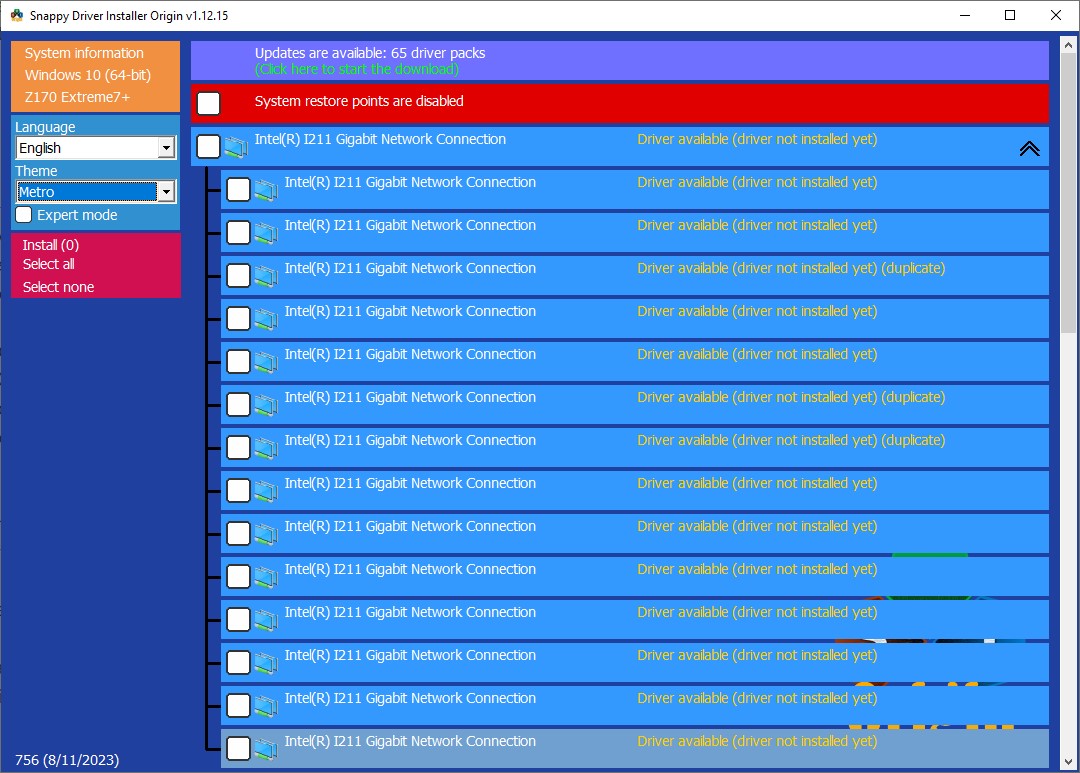
No, you can't. Do you think I didn't try? Sorry to argue with you as you have been so helpful in the past.
So, let's take a moment to verify that we are talking about the same thing here. I won't bother with the $OEM$ method right now, let's just look at the easier method. BTW, this is in no way whatsoever trying to say that you are wrong, I simply want to be sure we are not talking about different procedures.
1) Start with the system fully configured with all drivers installed and working properly and no errors shown in Device Manager.
2) Export all the drivers by opening a command prompt and running these commands:
NOTE: There are multiple ways to do this, this is just one way.
MD C:\DriversBackup
pnputil /export-driver * C:\DriversBackup
3) Copy C:\DriversBackup to a thumb drive, external drive, another internal drive, etc. Anyplace that you can access after your clean install of Windows will do.
4) Perform your clean install of Windows.
5) Once Windows is installed, open Device Manager. At the top of the device tree you will see your computer name. Right-click that name and select "Add drivers".
6) Enter the location where you saved the backup of your drivers and make sure to check the box that says "Include subfolders". Click on "Next".
7) After the drivers are all installed, reboot the system.
Done.
Again, I am not doubting you. I just want to make sure that we are talking about the same thing here because I find it odd that this is not working. I've done this literally hundreds of times across dozens of machines from 10+ year old system to system purchased less than a month ago and have NEVER had this procedure fail. Not a single time. Maybe I just got lucky or there is something really odd and different on your system.
In case, I would be curious to know if this is the same thing that you tried or if there was some nuance I am unaware of.