Personalization Clear Start Menu Recommended Section in Windows 11


Start_banner.png

This tutorial will show you how to clear the Start menu Recommended section to always show empty for your account in Windows 11.

The Start menu in Windows 11 is comprised of three sections: Pinned, All apps, and Recommended.

The Recommended section on the Start menu shows a list of your recently added apps, recently opened items, and websites.

While you currently cannot remove the Recommended section on the Start menu, you can clear the Recommended section to always show empty.

Starting with Windows 11 build 22635.5025 (Beta 23H2) and build 26120.3380 (Beta/Dev 24H2), Microsoft is trying out a new change where Microsoft will recommend a snap group in the Recommended section of the Start menu based on two apps that are most likely to be snapped together.

Starting with Windows 11 build 26220.6682 (Dev 25H2), build 26120.6682 (Beta 24H2), Microsoft is trying out a small change in the Recommended section of the Start menu where Microsoft will show examples of prompts that you can try using in the Copilot app such as creating an image with Copilot.


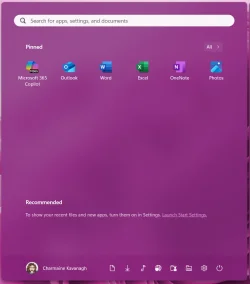
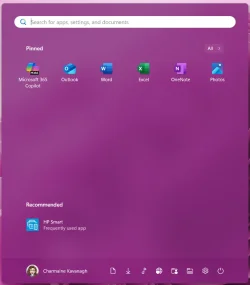
EXAMPLE: Start menu Recommended section

Default_Start_menu_Recommended.jpg
Empty_Start_menu_Recommended.jpg


Here's How:

1 Open Settings (Win+I).

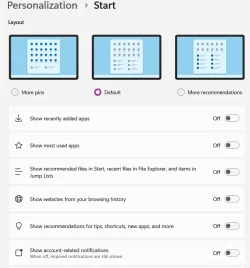
2 Click/tap on Personalization on the left side, and click/tap on Start on the right side. (see screenshot below)


Start_menu_Recommended_section-1.png

3 Under Layout, select (dot) More pins to reduce the size of the Recommended section. (see screenshots below)

4 Turn off Show recently added apps.

5 Turn off Show recently opened items in Start, Jump Lists, and File Explorer.

This will clear your recent items list, and will also stop showing recently opened items in Jump Lists and File Explorer > Home > Recent.


6 Turn off Show websites from your browsing history.

7 Turn off Show recommendations for tips, shortcuts, new apps, and more.

8 You can now close Settings if you like.

Start_menu_Recommended_section-2.png
Start_menu_Recommended_section-3.png


That's it,
Shawn Brink


Last edited:
Hello,

Are there any registry modifications for these toggles, specifically for "Show recommended files in Start, recent files in File Explorer, and items in Jump Lists", "Show recommendations for tips, shortcuts, new apps, and more", and "Show account-related notifications"?
 

My Computer

System One

  • OS
    Windows 10
Hello,

Are there any registry modifications for these toggles, specifically for "Show recommended files in Start, recent files in File Explorer, and items in Jump Lists", "Show recommendations for tips, shortcuts, new apps, and more", and "Show account-related notifications"?

Hello, :alien:

The tutorials below for those settings do include REG options.


My Computers

System One System Two

  • OS
    Windows 11 Pro for Workstations
    Computer type
    PC/Desktop
    Manufacturer/Model
    Custom self build
    CPU
    Intel i7-8700K 5 GHz
    Motherboard
    ASUS ROG Maximus XI Formula Z390
    Memory
    64 GB (4x16GB) G.SKILL TridentZ RGB DDR4 3600 MHz (F4-3600C18D-32GTZR)
    Graphics Card(s)
    ASUS ROG-STRIX-GTX1080TI-O11G-GAMING (11GB GDDR5X)
    Sound Card
    Integrated Digital Audio (S/PDIF)
    Monitor(s) Displays
    2 x Samsung Odyssey G75 27"
    Screen Resolution
    2560x1440
    Hard Drives
    1TB Samsung 990 PRO M.2,
    4TB Samsung 990 PRO M.2,
    TerraMaster F8 SSD Plus NAS
    PSU
    Seasonic Prime Titanium 850W
    Case
    Thermaltake Core P3 wall mounted
    Cooling
    Corsair Hydro H115i
    Keyboard
    Amazon Basics Wired Full Keyboard MD005
    Mouse
    Logitech MX Master 4
    Internet Speed
    2 Gbps Download and 100 Mbps Upload
    Browser
    Chrome and Edge
    Antivirus
    Microsoft Defender
    Other Info
    Logitech Z625 speaker system,
    Logitech BRIO 4K Pro webcam,
    HP Color LaserJet Pro MFP M477fdn,
    CyberPower CP1500PFCLCD
    Galaxy S23 Plus phone
  • Operating System
    Windows 11 Pro
    Computer type
    Laptop
    Manufacturer/Model
    Surface Laptop 7 Copilot+ PC
    CPU
    Snapdragon X Elite (12 core) 3.42 GHz
    Memory
    16 GB LPDDR5x-7467 MHz
    Monitor(s) Displays
    15" HDR
    Screen Resolution
    2496 x 1664
    Hard Drives
    1 TB SSD
    Internet Speed
    Wi-Fi 7 and Bluetooth 5.4
    Browser
    Chrome and Edge
    Antivirus
    Microsoft Defender
Thanks for the tutorial. However, I already have all the options OFF and still see an item under RECOMMENDED when I open the Start Menu after I open one. This only started to occur today after I did a clean reset on Win11 2H24. years prior no issues, just decided yesterday to mess around with removing Start Menu apps.
 

My Computer

System One

  • OS
    Window 11 Pro
    Computer type
    Laptop
    Manufacturer/Model
    HP Elitebook 8
already have all the options OFF and still see an item under RECOMMENDED when I open the Start Menu after I open one. This only started to occur today after I did a clean reset on Win11 2H24. years prior no issues, just decided yesterday to mess around with removing Start Menu apps.
Maybe I am misunderstanding your post but this does not remove the recommended section entirely. As Brink said "While you currently cannot remove the Recommended section on the Start menu, you can clear the Recommended section to always show empty." Are you saying you have an item listed under recommended? What is it?
 

My Computers

System One System Two

  • OS
    Windows 11 Pro 25H2
    Computer type
    PC/Desktop
    Manufacturer/Model
    Dell Optiplex 7080
    CPU
    i9-10900 10 core 20 threads
    Motherboard
    DELL 0J37VM
    Memory
    32 gb
    Graphics Card(s)
    none-Intel UHD Graphics 630
    Sound Card
    Integrated Realtek
    Monitor(s) Displays
    Benq 27
    Screen Resolution
    2560x1440
    Hard Drives
    2x1tb Solidigm m.2 nvme /External drives 512gb Samsung m.2 sata+2tb Kingston m2.nvme
    PSU
    500w
    Case
    MT
    Cooling
    Dell Premium
    Keyboard
    Logitech wired
    Mouse
    Logitech wireless
    Internet Speed
    so slow I'm too embarrassed to tell
    Browser
    #1 Edge #2 Firefox
    Antivirus
    Defender+MWB Premium
  • Operating System
    Windows 11 Pro 24H2 26200.8457
    Computer type
    PC/Desktop
    Manufacturer/Model
    Beelink Mini PC SER5
    CPU
    AMD Ryzen 7 6800U
    Memory
    32 gb
    Graphics card(s)
    integrated
    Sound Card
    integrated
    Monitor(s) Displays
    Benq 27
    Screen Resolution
    2560x1440
    Hard Drives
    1TB Crucial nvme
    Keyboard
    Logitech wired
    Mouse
    Logitech wireless
    Internet Speed
    still too embarrassed to tell
    Browser
    Firefox
    Antivirus
    Defender
    Other Info
    System 3 is non compliant Dell 9020 i7-4770/24gb ram Win11 PRO 26200.8457
All options are OFF yet items appear under Recommended. I am not new to this, I know hiw the settings work. It only started happening after I did a reset yesterday. Now under Recommended it will show a random app. I close it, reopen Start Menu and a different app appears.
 

My Computer

System One

  • OS
    Window 11 Pro
    Computer type
    Laptop
    Manufacturer/Model
    HP Elitebook 8
I did a reset yesterday
I noticed you have another thread open about this and other issues. They are giving you good advice about a clean install. Another option is to restore an image made when everything was working correctly...if you have one.
I have never done one reset since Windows 11 was released but I have restored a system image several times. Took me less than 10 minutes.
 

My Computers

System One System Two

  • OS
    Windows 11 Pro 25H2
    Computer type
    PC/Desktop
    Manufacturer/Model
    Dell Optiplex 7080
    CPU
    i9-10900 10 core 20 threads
    Motherboard
    DELL 0J37VM
    Memory
    32 gb
    Graphics Card(s)
    none-Intel UHD Graphics 630
    Sound Card
    Integrated Realtek
    Monitor(s) Displays
    Benq 27
    Screen Resolution
    2560x1440
    Hard Drives
    2x1tb Solidigm m.2 nvme /External drives 512gb Samsung m.2 sata+2tb Kingston m2.nvme
    PSU
    500w
    Case
    MT
    Cooling
    Dell Premium
    Keyboard
    Logitech wired
    Mouse
    Logitech wireless
    Internet Speed
    so slow I'm too embarrassed to tell
    Browser
    #1 Edge #2 Firefox
    Antivirus
    Defender+MWB Premium
  • Operating System
    Windows 11 Pro 24H2 26200.8457
    Computer type
    PC/Desktop
    Manufacturer/Model
    Beelink Mini PC SER5
    CPU
    AMD Ryzen 7 6800U
    Memory
    32 gb
    Graphics card(s)
    integrated
    Sound Card
    integrated
    Monitor(s) Displays
    Benq 27
    Screen Resolution
    2560x1440
    Hard Drives
    1TB Crucial nvme
    Keyboard
    Logitech wired
    Mouse
    Logitech wireless
    Internet Speed
    still too embarrassed to tell
    Browser
    Firefox
    Antivirus
    Defender
    Other Info
    System 3 is non compliant Dell 9020 i7-4770/24gb ram Win11 PRO 26200.8457
I just used recovery options in Windows 11 a couple of times as well as the pressing F11 for options and entering Bitlocker key. Just completed another reset because file explorer was extremely slow to open (was the reason I did the 1st reset) and choose to clean drive. All configured...again. Now I will just leave it alone and ignore unwanted apps. Still an issue with items appearing under Recommended although mo option selected but I'll live with it. Wasn't an issue before I reset.
 

My Computer

System One

  • OS
    Window 11 Pro
    Computer type
    Laptop
    Manufacturer/Model
    HP Elitebook 8
Thanks for the tutorial. However, I already have all the options OFF and still see an item under RECOMMENDED when I open the Start Menu after I open one. This only started to occur today after I did a clean reset on Win11 2H24. years prior no issues, just decided yesterday to mess around with removing Start Menu apps.
I just used recovery options in Windows 11 a couple of times as well as the pressing F11 for options and entering Bitlocker key. Just completed another reset because file explorer was extremely slow to open (was the reason I did the 1st reset) and choose to clean drive. All configured...again. Now I will just leave it alone and ignore unwanted apps. Still an issue with items appearing under Recommended although mo option selected but I'll live with it. Wasn't an issue before I reset.

Hello, :alien:

Which items are still showing under the Recommended section?

Luckily, an option below to actually remove the Recommended section instead of just clearing and leaving it empty is on the way to public builds.


My Computers

System One System Two

  • OS
    Windows 11 Pro for Workstations
    Computer type
    PC/Desktop
    Manufacturer/Model
    Custom self build
    CPU
    Intel i7-8700K 5 GHz
    Motherboard
    ASUS ROG Maximus XI Formula Z390
    Memory
    64 GB (4x16GB) G.SKILL TridentZ RGB DDR4 3600 MHz (F4-3600C18D-32GTZR)
    Graphics Card(s)
    ASUS ROG-STRIX-GTX1080TI-O11G-GAMING (11GB GDDR5X)
    Sound Card
    Integrated Digital Audio (S/PDIF)
    Monitor(s) Displays
    2 x Samsung Odyssey G75 27"
    Screen Resolution
    2560x1440
    Hard Drives
    1TB Samsung 990 PRO M.2,
    4TB Samsung 990 PRO M.2,
    TerraMaster F8 SSD Plus NAS
    PSU
    Seasonic Prime Titanium 850W
    Case
    Thermaltake Core P3 wall mounted
    Cooling
    Corsair Hydro H115i
    Keyboard
    Amazon Basics Wired Full Keyboard MD005
    Mouse
    Logitech MX Master 4
    Internet Speed
    2 Gbps Download and 100 Mbps Upload
    Browser
    Chrome and Edge
    Antivirus
    Microsoft Defender
    Other Info
    Logitech Z625 speaker system,
    Logitech BRIO 4K Pro webcam,
    HP Color LaserJet Pro MFP M477fdn,
    CyberPower CP1500PFCLCD
    Galaxy S23 Plus phone
  • Operating System
    Windows 11 Pro
    Computer type
    Laptop
    Manufacturer/Model
    Surface Laptop 7 Copilot+ PC
    CPU
    Snapdragon X Elite (12 core) 3.42 GHz
    Memory
    16 GB LPDDR5x-7467 MHz
    Monitor(s) Displays
    15" HDR
    Screen Resolution
    2496 x 1664
    Hard Drives
    1 TB SSD
    Internet Speed
    Wi-Fi 7 and Bluetooth 5.4
    Browser
    Chrome and Edge
    Antivirus
    Microsoft Defender
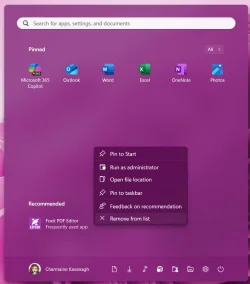
I set option to show more pins. Always have it set like this so the Recommended prompt is lower down. It was not an issue for years before I did a system reset. Now everytime I click the Start Menu I see a last used frequent app. Just one and not necessarily the last one I acutal last opened. I select tk not show in Recommended but when I open Start Menu again another random app appears.
 

Attachments

  • Start Menu Setting.webp
    Start Menu Setting.webp
    33.8 KB · Views: 32
  • Disappears after removing from list.webp
    Disappears after removing from list.webp
    25.2 KB · Views: 46
  • Opened and closed an app and it then appears in Recommended as frequently used.webp
    Opened and closed an app and it then appears in Recommended as frequently used.webp
    23.2 KB · Views: 49
  • Remove from list.webp
    Remove from list.webp
    33.2 KB · Views: 30

My Computer

System One

  • OS
    Window 11 Pro
    Computer type
    Laptop
    Manufacturer/Model
    HP Elitebook 8
I set option to show more pins. Always have it set like this so the Recommended prompt is lower down. It was not an issue for years before I did a system reset. Now everytime I click the Start Menu I see a last used frequent app. Just one and not necessarily the last one I acutal last opened. I select tk not show in Recommended but when I open Start Menu again another random app appears.

The only setting I see that needs changing is to show More pins instead of Default at the top.


My Computers

System One System Two

  • OS
    Windows 11 Pro for Workstations
    Computer type
    PC/Desktop
    Manufacturer/Model
    Custom self build
    CPU
    Intel i7-8700K 5 GHz
    Motherboard
    ASUS ROG Maximus XI Formula Z390
    Memory
    64 GB (4x16GB) G.SKILL TridentZ RGB DDR4 3600 MHz (F4-3600C18D-32GTZR)
    Graphics Card(s)
    ASUS ROG-STRIX-GTX1080TI-O11G-GAMING (11GB GDDR5X)
    Sound Card
    Integrated Digital Audio (S/PDIF)
    Monitor(s) Displays
    2 x Samsung Odyssey G75 27"
    Screen Resolution
    2560x1440
    Hard Drives
    1TB Samsung 990 PRO M.2,
    4TB Samsung 990 PRO M.2,
    TerraMaster F8 SSD Plus NAS
    PSU
    Seasonic Prime Titanium 850W
    Case
    Thermaltake Core P3 wall mounted
    Cooling
    Corsair Hydro H115i
    Keyboard
    Amazon Basics Wired Full Keyboard MD005
    Mouse
    Logitech MX Master 4
    Internet Speed
    2 Gbps Download and 100 Mbps Upload
    Browser
    Chrome and Edge
    Antivirus
    Microsoft Defender
    Other Info
    Logitech Z625 speaker system,
    Logitech BRIO 4K Pro webcam,
    HP Color LaserJet Pro MFP M477fdn,
    CyberPower CP1500PFCLCD
    Galaxy S23 Plus phone
  • Operating System
    Windows 11 Pro
    Computer type
    Laptop
    Manufacturer/Model
    Surface Laptop 7 Copilot+ PC
    CPU
    Snapdragon X Elite (12 core) 3.42 GHz
    Memory
    16 GB LPDDR5x-7467 MHz
    Monitor(s) Displays
    15" HDR
    Screen Resolution
    2496 x 1664
    Hard Drives
    1 TB SSD
    Internet Speed
    Wi-Fi 7 and Bluetooth 5.4
    Browser
    Chrome and Edge
    Antivirus
    Microsoft Defender
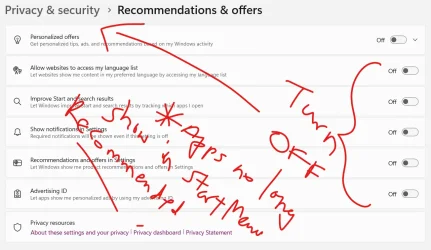
I went into Settings-Privacy and Security. I unchecked all the options under Recommendations and Offers. Tested and issue seems resolved. Not sure if all need to be unchecked but did all anyway. Frequently used/last used app no longer appears in Start Menu under Recommended.

I've always selected more pins with nothing checked so the Recommended section would be lower down windows. Never an issue until I reset laptop.
 

Attachments

  • Resolve_Turn options OFF on Privacy and Security_Recommendation and Offers.webp
    Resolve_Turn options OFF on Privacy and Security_Recommendation and Offers.webp
    76.4 KB · Views: 30

My Computer

System One

  • OS
    Window 11 Pro
    Computer type
    Laptop
    Manufacturer/Model
    HP Elitebook 8
I went into Settings-Privacy and Security. I unchecked all the options under Recommendations and Offers. Tested and issue seems resolved. Not sure if all need to be unchecked but did all anyway. Frequently used/last used app no longer appears in Start Menu under Recommended.
:shawn:
 

My Computers

System One System Two

  • OS
    Windows 11 Pro for Workstations
    Computer type
    PC/Desktop
    Manufacturer/Model
    Custom self build
    CPU
    Intel i7-8700K 5 GHz
    Motherboard
    ASUS ROG Maximus XI Formula Z390
    Memory
    64 GB (4x16GB) G.SKILL TridentZ RGB DDR4 3600 MHz (F4-3600C18D-32GTZR)
    Graphics Card(s)
    ASUS ROG-STRIX-GTX1080TI-O11G-GAMING (11GB GDDR5X)
    Sound Card
    Integrated Digital Audio (S/PDIF)
    Monitor(s) Displays
    2 x Samsung Odyssey G75 27"
    Screen Resolution
    2560x1440
    Hard Drives
    1TB Samsung 990 PRO M.2,
    4TB Samsung 990 PRO M.2,
    TerraMaster F8 SSD Plus NAS
    PSU
    Seasonic Prime Titanium 850W
    Case
    Thermaltake Core P3 wall mounted
    Cooling
    Corsair Hydro H115i
    Keyboard
    Amazon Basics Wired Full Keyboard MD005
    Mouse
    Logitech MX Master 4
    Internet Speed
    2 Gbps Download and 100 Mbps Upload
    Browser
    Chrome and Edge
    Antivirus
    Microsoft Defender
    Other Info
    Logitech Z625 speaker system,
    Logitech BRIO 4K Pro webcam,
    HP Color LaserJet Pro MFP M477fdn,
    CyberPower CP1500PFCLCD
    Galaxy S23 Plus phone
  • Operating System
    Windows 11 Pro
    Computer type
    Laptop
    Manufacturer/Model
    Surface Laptop 7 Copilot+ PC
    CPU
    Snapdragon X Elite (12 core) 3.42 GHz
    Memory
    16 GB LPDDR5x-7467 MHz
    Monitor(s) Displays
    15" HDR
    Screen Resolution
    2496 x 1664
    Hard Drives
    1 TB SSD
    Internet Speed
    Wi-Fi 7 and Bluetooth 5.4
    Browser
    Chrome and Edge
    Antivirus
    Microsoft Defender
Back
Top Bottom