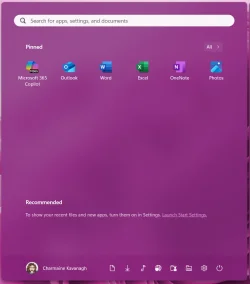
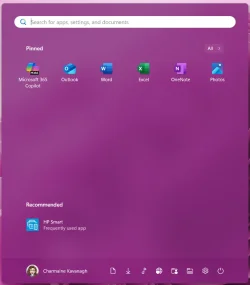
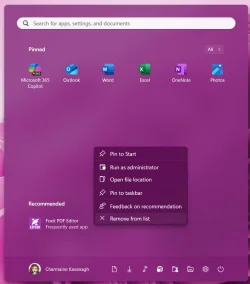
This tutorial will show you how to clear the Start menu Recommended section to always show empty for your account in Windows 11.
The Start menu in Windows 11 is comprised of three sections: Pinned, Recent, and All apps.
The Recent section on the Start menu shows a list of your recently added apps, recently opened items, and websites.
While you currently cannot remove the Recommended section on the Start menu, you can clear the Recommended section to always show empty.
Starting with Windows 11 build 26100.9278 (24H2), build 26200.9278 (25H2), and build 2800.3086 (26H1), the "Recommended" section has been renamed to "Recent" in Start and Settings page.
EXAMPLE: Start menu Recommended section
Here's How:
1 Open Settings (Win+I).
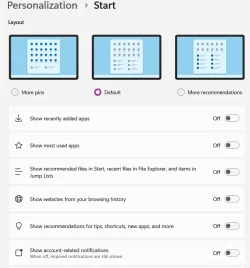
2 Click/tap on Personalization on the left side, and click/tap on Start on the right side. (see screenshot below)
3 Under Layout, select (dot) More pins to reduce the size of the Recommended section. (see screenshots below)
4 Turn off Show recently added apps.
5 Turn off Show recently opened items in Start, Jump Lists, and File Explorer.
This will clear your recent items list, and will also stop showing recently opened items in Jump Lists and File Explorer > Home > Recent.
6 Turn off Show websites from your browsing history.
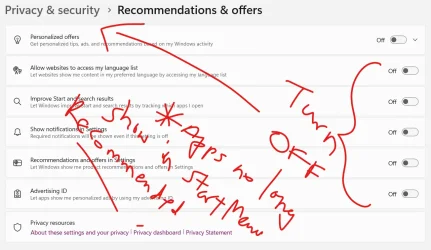
7 Turn off Show recommendations for tips, shortcuts, new apps, and more.
8 You can now close Settings if you like.
That's it,
Shawn Brink
Related Tutorials
- Open Start Menu in Windows 11
- Remove Recommended Section from Start Menu in Windows 11
- Turn On or Off Show All Pins on Start Menu in Windows 11
- Add or Remove Recently Added apps on Start Menu in Windows 11
- Add or Remove Recommended Websites on Start Menu in Windows 11
- Enable or Disable Recent Items in Start, Jump Lists, and File Explorer in Windows 11
- Enable or Disable Recommended Tips, Shortcuts, New Apps, and more on Start Menu in Windows 11
Last edited: