computer still running Version 23H2 (os build 22631.6199)


I did the updates as suggested by win11raider and I did a complete backup after each one - just in case. I got through all of them now and that is up to date. I then did the upgrade on the bios and that all went well. Thank You.

So now, I need to restart my pc and press delete to get into the BIOS again and change the setting for secure boot back to enabled again. The steps for doing the BIOS update had me disable that prior to doing the BIOS update.

After I do that, is there a reason that I should update to the newest version of windows or leave it set at 23H2 vs updating my Windows to 24H2 or 25H2?

I am guessing that I do have a Windows 11 compliant installation since the pc came with Windows 11 pro installed on it when I purchased it.
I am guessing that since spapakons stated about the pc having UEFI boot, TPM 2.0 and Secure Boot enabled, I need to make sure that my pc has all of that. I know how to turn the secure boot back to enabled since I just did the disable in order to upgrade the BIOS. Not sure how to make sure I have UEFI boot and TPM 2.0 - but will search for info on finding out about that.

Off to switch my secure boot back to enabled on the pc first.
 

My Computers My Computers

  • At a glance

    windows 11 Pro11th Gen Intel Core i7-11390H (4 Cores, 8 Thr...32GB dual channel (DDR4)Intel® Iris® Xe
    OS
    windows 11 Pro
    Computer type
    PC/Desktop
    Manufacturer/Model
    geekom mini IT11
    CPU
    11th Gen Intel Core i7-11390H (4 Cores, 8 Threads, 12M
    Memory
    32GB dual channel (DDR4)
    Graphics Card(s)
    Intel® Iris® Xe
    Monitor(s) Displays
    HP S2031
    Hard Drives
    1TB SSD
  • At a glance

    Windows 11 ProIntel Core i7-13620HDDR4: SO-DIMM 32GB
    Operating System
    Windows 11 Pro
    Computer type
    PC/Desktop
    Manufacturer/Model
    Geekom Mini PC XT13 Pro
    CPU
    Intel Core i7-13620H
    Memory
    DDR4: SO-DIMM 32GB
    Monitor(s) Displays
    HPS2031
    Hard Drives
    M.2 1TB
On compliant systems, either there is a TPM 2.0 hardware module which can be enabled/disabled in BIOS (security section), or a software equivalent, such as Intel PTT (Platform Trust Technology) or AMD fTPM (Firmware Trusted Platform Module). Also is you have disabled UEFI boot mode (boot section) or you have enabled both CSM (Compatibility Support Module aka Legacy BIOS boot mode) and UEFI, then you might not be able to enable Secure Boot as some motherboards need to specify UEFI only to enable Secure Boot. In any case, if you cannot make your PC compliant, it is not the end of the World, just disable compatibility check to install/upgrade Windows 11. For the time being there is no difference in performance or compatibility if you run 23H2 vs 25H2. Windows Defender is regularly updated through Windows Update, so Microsoft's own antivirus is updated and if you are a little careful what you do online you are secure. What you don't receive are feature updates (such as Wi-Fi 7 support or other modern features). There are no applications or games yet that demand 24H2 or higher and refuse to work in 23H2, similarly for device drivers. So compatibility-wise you have no issues yet. You might start having issues at least 2-3 years later, not right now.
 

My Computers My Computers

  • At a glance

    Windows 11 Pro 23H2 (5699), 25H2 (8655)Mobile DualCore Intel Core 2 Duo T7250, 2000 MHz4GBMobile Intel(R) GMA 4500M (Mobile 4 series)
    OS
    Windows 11 Pro 23H2 (5699), 25H2 (8655)
    Computer type
    Laptop
    Manufacturer/Model
    Acer Extensa 5630EZ
    CPU
    Mobile DualCore Intel Core 2 Duo T7250, 2000 MHz
    Motherboard
    Acer Extensa 5630
    Memory
    4GB
    Graphics Card(s)
    Mobile Intel(R) GMA 4500M (Mobile 4 series)
    Sound Card
    Realtek ALC268 @ Intel 82801IB ICH9 - High Definition Audio Controller
    Monitor(s) Displays
    1
    Screen Resolution
    1280x800
    Hard Drives
    Samsung SSD 850 EVO 250GB SATA Device (250 GB, SATA-III)
    Internet Speed
    VDSL 50 Mbps
    Browser
    MICROSOFT EDGE
    Antivirus
    WINDOWS DEFENDER
    Other Info
    Legacy MBR installation, no TPM, no Secure Boot, no WDDM 2.0 graphics drivers, no SSE4.2, cannot get more unsupported ;) This is only my test laptop. I had installed Windows 11 here before upgrading my main PC. For my main PC I use everyday see my 2nd system specs.
  • At a glance

    Windows 11 Pro v25H2 (build 26200.8655)Intel Core-i7 3770 3.40GHz s1155 (3rd generat...2x Kingston Hyper-X Blu 8GB DDR3-1600GIGABYTE GeForce RTX 3050 WINDFORCE OC V2 6GB...
    Operating System
    Windows 11 Pro v25H2 (build 26200.8655)
    Computer type
    PC/Desktop
    Manufacturer/Model
    Custom-built PC
    CPU
    Intel Core-i7 3770 3.40GHz s1155 (3rd generation)
    Motherboard
    Asus P8H61 s1155 ATX
    Memory
    2x Kingston Hyper-X Blu 8GB DDR3-1600
    Graphics card(s)
    GIGABYTE GeForce RTX 3050 WINDFORCE OC V2 6GB (GV-N3050WF2OCV2-6GD)
    Sound Card
    Realtek HD audio (ALC887)
    Monitor(s) Displays
    Sony Bravia KDL-19L4000 19" LCD TV via VGA
    Screen Resolution
    1440x900 32-bit 60Hz
    Hard Drives
    WD Blue SA510 2.5 1000GB SSD as system disk, Western Digital Caviar Purple 4TB SATA III (WD40PURZ) as second
    PSU
    Thermaltake Litepower RGB 550W Full Wired
    Case
    SUPERCASE MIDI-TOWER
    Cooling
    Deepcool Gamma Archer CPU cooler, 1x 8cm fan at the back
    Keyboard
    Mitsumi 101-key PS/2
    Mouse
    Sunnyline OptiEye PS/2
    Internet Speed
    100Mbps
    Browser
    Microsoft Edge, Mozilla Firefox
    Antivirus
    Microsoft Windows Defender
    Other Info
    Legacy BIOS (MBR) installation, no TPM, no Secure Boot, WDDM 3.0 graphics drivers, WEI score 7.4
After I do that, is there a reason that I should update to the newest version of windows or leave it set at 23H2 vs updating my Windows to 24H2 or 25H2?

23H2 will receive updates (security updates, not feature updates) through November 2026. Of course, you must download them manually as you have done now. So if your system is running smoothly and everything is working properly, you can stay with that version until then. That is what I am doing for now. After November 2026, when there will no longer be any type of updates for 23H2, it will be a good idea to upgrade to at least 25H2, or even 26H2 (which will be released around that time).

That said, the actual decision to stay on 23H2 and not upgrade to a newer version is up to each user. In my case, I use my computer mainly for work and gaming, so I want the system to be as stable as possible. I don’t want to be a free beta tester for Microsoft.

Of course, 24H2 and 25H2 include many interesting new features, but many of them focus on artificial intelligence and changes to the user interface that not everyone has been happy with. But most importantly, starting with 24H2, Windows security has been modified so radically that certain programs, and even drivers, may not work properly. Another important point: if you use a virtual reality headset, stay on 23H2, because starting with 24H2, they won’t officially work.

I am guessing that I do have a Windows 11 compliant installation since the pc came with Windows 11 pro installed on it when I purchased it.
I am guessing that since spapakons stated about the pc having UEFI boot, TPM 2.0 and Secure Boot enabled, I need to make sure that my pc has all of that. I know how to turn the secure boot back to enabled since I just did the disable in order to upgrade the BIOS. Not sure how to make sure I have UEFI boot and TPM 2.0 - but will search for info on finding out about that.

Based on your computer's specifications, I'm almost certain it has TPM 2.0 and UEFI boot. These features have been standard for quite a few years now. In any case, there are free programs, such as OCCT, that provide all that information in a very user-friendly way.
 

My Computer My Computer

At a glance

Win 11 Pro 23H213700K32GB DDR5 Kingston Fury Renegade @6400MSI GeForce RTX 4070 Ti Gaming X Slim White 12G
OS
Win 11 Pro 23H2
Computer type
PC/Desktop
CPU
13700K
Motherboard
MAG Z790 TOMAHAWK WIFI (7D91vHH - 0x12F)
Memory
32GB DDR5 Kingston Fury Renegade @6400
Graphics Card(s)
MSI GeForce RTX 4070 Ti Gaming X Slim White 12G
Sound Card
Creative Sound Blaster Z SE
Monitor(s) Displays
ASUS VA24DQ
Hard Drives
WD Black SN850X 2TB (main)
SAMSUNG SSD 990 Pro 2TB
WD Blue 1TB 7200rpm
PSU
Corsair RM1000x SHIFT
Case
DeepCool CH560 WH
Cooling
Noctua NH-D15S
Keyboard
Ducky One 3 Pro Nazca Line
Mouse
Logitech G403 HERO
I did the updates as suggested by win11raider and I did a complete backup after each one - just in case. I got through all of them now and that is up to date. I then did the upgrade on the bios and that all went well. Thank You.

So now, I need to restart my pc and press delete to get into the BIOS again and change the setting for secure boot back to enabled again. The steps for doing the BIOS update had me disable that prior to doing the BIOS update.

After I do that, is there a reason that I should update to the newest version of windows or leave it set at 23H2 vs updating my Windows to 24H2 or 25H2?

I am guessing that I do have a Windows 11 compliant installation since the pc came with Windows 11 pro installed on it when I purchased it.
I am guessing that since spapakons stated about the pc having UEFI boot, TPM 2.0 and Secure Boot enabled, I need to make sure that my pc has all of that. I know how to turn the secure boot back to enabled since I just did the disable in order to upgrade the BIOS. Not sure how to make sure I have UEFI boot and TPM 2.0 - but will search for info on finding out about that.

Off to switch my secure boot back to enabled on the pc first.
no reason to not update if it's compatible. looks to be fully compatible. if it is not updating for you, get the iso and run this one .cmd file to bypass requirements (even though you technically shouldnt need to)


My Computer My Computer

At a glance

Windows 11 Pro
OS
Windows 11 Pro
Even if your hardware is able to run Win 11, some requirements can be disabled, like TPM 2.0 or even UEFI-GPT.
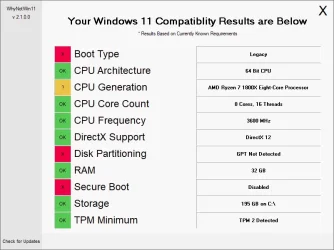
To see if your computer has everything to meet Win 11 requirements so it does all updates and upgrades, download and run WhyNotWin11

1781876931111.webp
 

Attachments

  • 1781876809019.webp
    1781876809019.webp
    35.2 KB · Views: 1

My Computers My Computers

  • At a glance

    Windows 11 Pro - Windows 7 HP 64 - Lubuntui5 6600K - 800MHz to 4400MHz4+4G GSkill DDR4 3000IG - Intel 530
    OS
    Windows 11 Pro - Windows 7 HP 64 - Lubuntu
    Computer type
    PC/Desktop
    Manufacturer/Model
    custom build
    CPU
    i5 6600K - 800MHz to 4400MHz
    Motherboard
    GA-Z170-HD3P
    Memory
    4+4G GSkill DDR4 3000
    Graphics Card(s)
    IG - Intel 530
    Monitor(s) Displays
    Samsung 226BW
    Screen Resolution
    1680x1050
    Hard Drives
    (1) -1 SM951 – 128GB M.2 AHCI PCIe SSD drive for Win 11
    (2) -1 WD SATA 3 - 1T for Data
    (3) -1 WD SATA 3 - 1T for backup
    (4) -1 BX500 SSD - 256G for Windows 7 and Lubuntu
    PSU
    Thermaltake 450W TR2 gold
    Keyboard
    Old and good Chicony mechanical keyboard
    Mouse
    Logitech mX performance - 9 buttons (had to disable some)
    Internet Speed
    500 Mb/s
    Browser
    Firefox 64
  • At a glance

    Windows 11 Proi7-4500U 800- 3000MHz(4+4)G DDR3 1600IG intel 4400 + NVIDIA GeForce GT 745M
    Operating System
    Windows 11 Pro
    Computer type
    Laptop
    Manufacturer/Model
    Asus Q550LF
    CPU
    i7-4500U 800- 3000MHz
    Motherboard
    Asus Q550LF
    Memory
    (4+4)G DDR3 1600
    Graphics card(s)
    IG intel 4400 + NVIDIA GeForce GT 745M
    Sound Card
    Realtek
    Monitor(s) Displays
    LG Display LP156WF4-SPH1
    Screen Resolution
    1920 x 1080
    Hard Drives
    BX500 120G SSD for Windows and programs
    & 1T HDD for data
    Internet Speed
    500 Mb/s
    Browser
    Firefox 64
Your system is configured to boot in native UEFI mode without legacy BIOS/CSM (Compatibility Support Module) support.

Your mini PC uses an 11th Generation Intel Core i7-11390H processor with integrated Intel Iris Xe Graphics. Starting with the Tiger Lake generation, Intel's integrated graphics no longer provide legacy VGA/VBIOS support and instead rely on UEFI Graphics Output Protocol (GOP) for display initialization during boot. As a result, the integrated GPU is designed to operate in a native UEFI environment rather than through legacy BIOS-compatible graphics initialization.

Windows 11 requires UEFI firmware that is Secure Boot capable, but Secure Boot itself does not have to be enabled.
 

My Computers My Computers

  • At a glance

    Windows 11 ProAMD Ryzen 9 9950X3DKingston FURY Beast 64GB (2x32GB) DDR5 6000MT/sASUS TUF Gaming Radeon RX 9070 OC Edition 16G...
    OS
    Windows 11 Pro
    Computer type
    PC/Desktop
    CPU
    AMD Ryzen 9 9950X3D
    Motherboard
    ASRock B650E Taichi Lite
    Memory
    Kingston FURY Beast 64GB (2x32GB) DDR5 6000MT/s
    Graphics Card(s)
    ASUS TUF Gaming Radeon RX 9070 OC Edition 16GB GDDR6
    Hard Drives
    Solidigm P44 Pro 2TB M.2 NVMe SSD
  • At a glance

    Windows 11 HomeIntel Core Ultra 9 275HX64GB (2x 32GB) DDR5-6400NVIDIA GeForce RTX 5080 16GB GDDR7 Laptop GPU
    Operating System
    Windows 11 Home
    Computer type
    Laptop
    Manufacturer/Model
    Lenovo Legion Pro 7i Gen 10 16"
    CPU
    Intel Core Ultra 9 275HX
    Memory
    64GB (2x 32GB) DDR5-6400
    Graphics card(s)
    NVIDIA GeForce RTX 5080 16GB GDDR7 Laptop GPU
    Hard Drives
    2x 1TB M.2 NVMe SSD (SK Hynix)
Or you can bypass compatibility check and use Windows 11 without TPM, not even TPM 1.2, without Secure Boot and even without UEFI firmware, just plain good old BIOS. I remind you that Windows 11 23H2 and earlier can be installed on ANY 64-bit system with at least 2GB RAM and 40GB hadd disk. 24H2 and 25H2 can be installed on ANY 64-bit CPU with SSE4.2 instructions (you can check with CPU-Z) from first generation Intel Core-i3 or newer. Same for 26H2 which will be available as a simple update (26H2 Enablement Package) for all systems running 25H2.
 

My Computers My Computers

  • At a glance

    Windows 11 Pro 23H2 (5699), 25H2 (8655)Mobile DualCore Intel Core 2 Duo T7250, 2000 MHz4GBMobile Intel(R) GMA 4500M (Mobile 4 series)
    OS
    Windows 11 Pro 23H2 (5699), 25H2 (8655)
    Computer type
    Laptop
    Manufacturer/Model
    Acer Extensa 5630EZ
    CPU
    Mobile DualCore Intel Core 2 Duo T7250, 2000 MHz
    Motherboard
    Acer Extensa 5630
    Memory
    4GB
    Graphics Card(s)
    Mobile Intel(R) GMA 4500M (Mobile 4 series)
    Sound Card
    Realtek ALC268 @ Intel 82801IB ICH9 - High Definition Audio Controller
    Monitor(s) Displays
    1
    Screen Resolution
    1280x800
    Hard Drives
    Samsung SSD 850 EVO 250GB SATA Device (250 GB, SATA-III)
    Internet Speed
    VDSL 50 Mbps
    Browser
    MICROSOFT EDGE
    Antivirus
    WINDOWS DEFENDER
    Other Info
    Legacy MBR installation, no TPM, no Secure Boot, no WDDM 2.0 graphics drivers, no SSE4.2, cannot get more unsupported ;) This is only my test laptop. I had installed Windows 11 here before upgrading my main PC. For my main PC I use everyday see my 2nd system specs.
  • At a glance

    Windows 11 Pro v25H2 (build 26200.8655)Intel Core-i7 3770 3.40GHz s1155 (3rd generat...2x Kingston Hyper-X Blu 8GB DDR3-1600GIGABYTE GeForce RTX 3050 WINDFORCE OC V2 6GB...
    Operating System
    Windows 11 Pro v25H2 (build 26200.8655)
    Computer type
    PC/Desktop
    Manufacturer/Model
    Custom-built PC
    CPU
    Intel Core-i7 3770 3.40GHz s1155 (3rd generation)
    Motherboard
    Asus P8H61 s1155 ATX
    Memory
    2x Kingston Hyper-X Blu 8GB DDR3-1600
    Graphics card(s)
    GIGABYTE GeForce RTX 3050 WINDFORCE OC V2 6GB (GV-N3050WF2OCV2-6GD)
    Sound Card
    Realtek HD audio (ALC887)
    Monitor(s) Displays
    Sony Bravia KDL-19L4000 19" LCD TV via VGA
    Screen Resolution
    1440x900 32-bit 60Hz
    Hard Drives
    WD Blue SA510 2.5 1000GB SSD as system disk, Western Digital Caviar Purple 4TB SATA III (WD40PURZ) as second
    PSU
    Thermaltake Litepower RGB 550W Full Wired
    Case
    SUPERCASE MIDI-TOWER
    Cooling
    Deepcool Gamma Archer CPU cooler, 1x 8cm fan at the back
    Keyboard
    Mitsumi 101-key PS/2
    Mouse
    Sunnyline OptiEye PS/2
    Internet Speed
    100Mbps
    Browser
    Microsoft Edge, Mozilla Firefox
    Antivirus
    Microsoft Windows Defender
    Other Info
    Legacy BIOS (MBR) installation, no TPM, no Secure Boot, WDDM 3.0 graphics drivers, WEI score 7.4
Or you can bypass compatibility check and use Windows 11 without TPM, not even TPM 1.2, without Secure Boot and even without UEFI firmware, just plain good old BIOS. I remind you that Windows 11 23H2 and earlier can be installed on ANY 64-bit system with at least 2GB RAM and 40GB hadd disk. 24H2 and 25H2 can be installed on ANY 64-bit CPU with SSE4.2 instructions (you can check with CPU-Z) from first generation Intel Core-i3 or newer. Same for 26H2 which will be available as a simple update (26H2 Enablement Package) for all systems running 25H2.
Hi! Could you tell me how to "skip compatibility check"? Is it for Windows Update?

Sorry if there are any inconsistencies in the text; I'm using Google Translate.
 

My Computer My Computer

At a glance

windows 10 /11
OS
windows 10 /11
If you upgrade from Windows 10 64-bit or from older Windows 11 version to 25H2:

1) Download the latest ISO from Microsoft. Make sure it is the same language as the original installation language (not any language packs added later) so you can keep both your apps and data: Download Windows 11 scroll down, third option, download the ISO directly.
2) You can either create a patched USB flash drive with Rufus which already has compatibility check removed and run Setup from there, or you can manually open the ISO (mount it, aka Open with File Explorer) and execute this command to bypass compatibility check:
D:\setup /product server where D: is the drive letter of the virtual drive it opens upon mounting the ISO. Replace if different than D:

This should be enough to successfully upgrade, but you can also take these steps to improve chances of success: Open Device Manager and disable the second disk and any others, if you have more than one and also devices not necessary to upgrade like sound, LAN, Wi-Fi, Bluetooth, card reader and others. Then disable all startup applications and any third-party Antivirus, Antimalware and firewall so they won't interfere with the upgrade and cause a BSOD or otherwise interrupt it. To avoid Setup installing updates or messing with your drivers you can click on "Change how Windows Update acts" (don't remember the exact words) and then select not to install Windows Updates during installation. Because I don't trust it, I would disconnect from the internet so Setup cannot misbehave anyway until the upgrade has completed successfully.


If you do a new (aka clean) installation, the easiest way is to download the ISO from Microsoft (see above) and use Rufus to create a patched USB flash drive with the compatibility check already bypassed. Or you can boot with any USB (patched or not), and switch to classic Setup, just in case, and then press SHIFT+F10 to open a Command Prompt window. Then click inside to be able to type and execute regedit to open Registry Editor. Don't worry, the changes below are temporary and affect only Setup, they are not copied to the final Windows system.

When the Registry Editor shows up, find this key:
HKEY_LOCAL_MACHINE\SYSTEM\Setup
Create new key LabConfig inside the Setup.
Create DWORD (32 Bit) BypassTPMCheck and set to 1
Create DWORD (32 Bit) BypassSecureBootCheck and set to 1
Create DWORD (32 Bit) BypassRAMCheck and set to 1
Create DWORD (32 Bit) BypassCPUCheck and set to 1

These changes take effect immediately, so just close Registry Editor, close the Command Prompt window and proceed with Setup. It should skip checking compatibility and instead of an error message that your PC is not compliant, you should be presented with the available disks. Since you are doing a clean installation, just select one partition and delete it, then delete the other and delete the rest until all the disk space is unallocated. Then click Next to start installation.

Important: Microsoft by default wants everyone to use a Microsoft account to login to Windows, much like you create an iCloud account for a Mac or iPhone or a Google account for an Android device. If you want to bypass this requirement and create a local Administrator account instead, DON'T connect to the internet at first startup. If you have a LAN cable, remove it. If you have Wi-Fi, DON'T connect. You can complete the configuration, if you like and when you see the Network connection screen (or any time earlier) press SHIFT+F10 to open a Command Prompt window. Then click inside to be able to type and execute start ms-cxh:localonly This interrupts the configuration and presents you a screen to create a local Administrator account. Don't worry, you can configure the rest options any time from Windows Settings, Privacy and Security section.
 
Last edited:

My Computers My Computers

  • At a glance

    Windows 11 Pro 23H2 (5699), 25H2 (8655)Mobile DualCore Intel Core 2 Duo T7250, 2000 MHz4GBMobile Intel(R) GMA 4500M (Mobile 4 series)
    OS
    Windows 11 Pro 23H2 (5699), 25H2 (8655)
    Computer type
    Laptop
    Manufacturer/Model
    Acer Extensa 5630EZ
    CPU
    Mobile DualCore Intel Core 2 Duo T7250, 2000 MHz
    Motherboard
    Acer Extensa 5630
    Memory
    4GB
    Graphics Card(s)
    Mobile Intel(R) GMA 4500M (Mobile 4 series)
    Sound Card
    Realtek ALC268 @ Intel 82801IB ICH9 - High Definition Audio Controller
    Monitor(s) Displays
    1
    Screen Resolution
    1280x800
    Hard Drives
    Samsung SSD 850 EVO 250GB SATA Device (250 GB, SATA-III)
    Internet Speed
    VDSL 50 Mbps
    Browser
    MICROSOFT EDGE
    Antivirus
    WINDOWS DEFENDER
    Other Info
    Legacy MBR installation, no TPM, no Secure Boot, no WDDM 2.0 graphics drivers, no SSE4.2, cannot get more unsupported ;) This is only my test laptop. I had installed Windows 11 here before upgrading my main PC. For my main PC I use everyday see my 2nd system specs.
  • At a glance

    Windows 11 Pro v25H2 (build 26200.8655)Intel Core-i7 3770 3.40GHz s1155 (3rd generat...2x Kingston Hyper-X Blu 8GB DDR3-1600GIGABYTE GeForce RTX 3050 WINDFORCE OC V2 6GB...
    Operating System
    Windows 11 Pro v25H2 (build 26200.8655)
    Computer type
    PC/Desktop
    Manufacturer/Model
    Custom-built PC
    CPU
    Intel Core-i7 3770 3.40GHz s1155 (3rd generation)
    Motherboard
    Asus P8H61 s1155 ATX
    Memory
    2x Kingston Hyper-X Blu 8GB DDR3-1600
    Graphics card(s)
    GIGABYTE GeForce RTX 3050 WINDFORCE OC V2 6GB (GV-N3050WF2OCV2-6GD)
    Sound Card
    Realtek HD audio (ALC887)
    Monitor(s) Displays
    Sony Bravia KDL-19L4000 19" LCD TV via VGA
    Screen Resolution
    1440x900 32-bit 60Hz
    Hard Drives
    WD Blue SA510 2.5 1000GB SSD as system disk, Western Digital Caviar Purple 4TB SATA III (WD40PURZ) as second
    PSU
    Thermaltake Litepower RGB 550W Full Wired
    Case
    SUPERCASE MIDI-TOWER
    Cooling
    Deepcool Gamma Archer CPU cooler, 1x 8cm fan at the back
    Keyboard
    Mitsumi 101-key PS/2
    Mouse
    Sunnyline OptiEye PS/2
    Internet Speed
    100Mbps
    Browser
    Microsoft Edge, Mozilla Firefox
    Antivirus
    Microsoft Windows Defender
    Other Info
    Legacy BIOS (MBR) installation, no TPM, no Secure Boot, WDDM 3.0 graphics drivers, WEI score 7.4
Si actualiza desde Windows 10 de 64 bits o desde una versión anterior de Windows 11 a la versión 25H2:

1) Descarga la última imagen ISO de Microsoft. Asegúrate de que sea del mismo idioma que el de la instalación original (no de ningún paquete de idioma añadido posteriormente) para que puedas conservar tus aplicaciones y datos: Descarga Windows 11 , desplázate hacia abajo, tercera opción, descarga la imagen ISO directamente.
2) Puedes crear una unidad flash USB parcheada con Rufus que ya tenga la comprobación de compatibilidad eliminada y ejecutarla Setupdesde allí, o puedes abrir manualmente la ISO (montarla, es decir, abrirla con el Explorador de archivos) y ejecutar este comando para omitir la comprobación de compatibilidad:
D:\setup /product server ¿Cuál D:es la letra de la unidad virtual que se abre al montar la ISO? Reemplazar si es diferente deD:

Esto debería ser suficiente para actualizar correctamente, pero también puedes seguir estos pasos para aumentar las probabilidades de éxito: Abre el Administrador de dispositivos y desactiva el segundo disco y cualquier otro, si tienes más de uno, así como los dispositivos que no necesitas actualizar, como el sonido, LAN, Wi-Fi, Bluetooth, lector de tarjetas, etc. Luego, desactiva todas las aplicaciones de inicio y cualquier antivirus, antimalware o firewall de terceros para que no interfieran con la actualización y provoquen una pantalla azul de la muerte (BSOD) o la interrumpan de alguna otra manera. Para evitar que el programa de instalación instale actualizaciones o modifique tus controladores, puedes hacer clic en "Cambiar el comportamiento de Windows Update" (no recuerdo las palabras exactas) y luego seleccionar que no se instalen las actualizaciones de Windows durante la instalación. Como no me fío, me desconectaría de internet para que el programa de instalación no pueda comportarse mal hasta que la actualización se haya completado correctamente.
¡¡Muchas gracias!!
 

My Computer My Computer

At a glance

windows 10 /11
OS
windows 10 /11
Por nada!
 

My Computers My Computers

  • At a glance

    Windows 11 Pro 23H2 (5699), 25H2 (8655)Mobile DualCore Intel Core 2 Duo T7250, 2000 MHz4GBMobile Intel(R) GMA 4500M (Mobile 4 series)
    OS
    Windows 11 Pro 23H2 (5699), 25H2 (8655)
    Computer type
    Laptop
    Manufacturer/Model
    Acer Extensa 5630EZ
    CPU
    Mobile DualCore Intel Core 2 Duo T7250, 2000 MHz
    Motherboard
    Acer Extensa 5630
    Memory
    4GB
    Graphics Card(s)
    Mobile Intel(R) GMA 4500M (Mobile 4 series)
    Sound Card
    Realtek ALC268 @ Intel 82801IB ICH9 - High Definition Audio Controller
    Monitor(s) Displays
    1
    Screen Resolution
    1280x800
    Hard Drives
    Samsung SSD 850 EVO 250GB SATA Device (250 GB, SATA-III)
    Internet Speed
    VDSL 50 Mbps
    Browser
    MICROSOFT EDGE
    Antivirus
    WINDOWS DEFENDER
    Other Info
    Legacy MBR installation, no TPM, no Secure Boot, no WDDM 2.0 graphics drivers, no SSE4.2, cannot get more unsupported ;) This is only my test laptop. I had installed Windows 11 here before upgrading my main PC. For my main PC I use everyday see my 2nd system specs.
  • At a glance

    Windows 11 Pro v25H2 (build 26200.8655)Intel Core-i7 3770 3.40GHz s1155 (3rd generat...2x Kingston Hyper-X Blu 8GB DDR3-1600GIGABYTE GeForce RTX 3050 WINDFORCE OC V2 6GB...
    Operating System
    Windows 11 Pro v25H2 (build 26200.8655)
    Computer type
    PC/Desktop
    Manufacturer/Model
    Custom-built PC
    CPU
    Intel Core-i7 3770 3.40GHz s1155 (3rd generation)
    Motherboard
    Asus P8H61 s1155 ATX
    Memory
    2x Kingston Hyper-X Blu 8GB DDR3-1600
    Graphics card(s)
    GIGABYTE GeForce RTX 3050 WINDFORCE OC V2 6GB (GV-N3050WF2OCV2-6GD)
    Sound Card
    Realtek HD audio (ALC887)
    Monitor(s) Displays
    Sony Bravia KDL-19L4000 19" LCD TV via VGA
    Screen Resolution
    1440x900 32-bit 60Hz
    Hard Drives
    WD Blue SA510 2.5 1000GB SSD as system disk, Western Digital Caviar Purple 4TB SATA III (WD40PURZ) as second
    PSU
    Thermaltake Litepower RGB 550W Full Wired
    Case
    SUPERCASE MIDI-TOWER
    Cooling
    Deepcool Gamma Archer CPU cooler, 1x 8cm fan at the back
    Keyboard
    Mitsumi 101-key PS/2
    Mouse
    Sunnyline OptiEye PS/2
    Internet Speed
    100Mbps
    Browser
    Microsoft Edge, Mozilla Firefox
    Antivirus
    Microsoft Windows Defender
    Other Info
    Legacy BIOS (MBR) installation, no TPM, no Secure Boot, WDDM 3.0 graphics drivers, WEI score 7.4
Back
Top Bottom