Solved Converting Windows 11 Enterprise Evaluation 22H2 to Windows 11 Enterprise 22H2 VL


Balubeto

Active member
Local time
7:37 AM
Posts
57
OS
Windows 11
Hi

Is it possible to convert Windows 11 Enterprise Evaluation 22H2 to Windows 11 Enterprise 22H2 VL?

Thanks

Bye
 

My Computer

System One

  • OS
    Windows 11
No.
 

My Computer

System One

  • OS
    Windows 11 Pro + Win11 Canary VM.
    Computer type
    Laptop
    Manufacturer/Model
    ASUS Zenbook 14
    CPU
    I9 13th gen i9-13900H 2.60 GHZ
    Motherboard
    Yep, Laptop has one.
    Memory
    16 GB soldered
    Graphics Card(s)
    Integrated Intel Iris XE
    Sound Card
    Realtek built in
    Monitor(s) Displays
    laptop OLED screen
    Screen Resolution
    2880x1800 touchscreen
    Hard Drives
    1 TB NVME SSD (only weakness is only one slot)
    PSU
    Internal + 65W thunderbolt USB4 charger
    Case
    Yep, got one
    Cooling
    Stella Artois (UK pint cans - 568 ml) - extra cost.
    Keyboard
    Built in UK keybd
    Mouse
    Bluetooth , wireless dongled, wired
    Internet Speed
    900 mbs (ethernet), wifi 6 typical 350-450 mb/s both up and down
    Browser
    Edge
    Antivirus
    Defender
    Other Info
    TPM 2.0, 2xUSB4 thunderbolt, 1xUsb3 (usb a), 1xUsb-c, hdmi out, 3.5 mm audio out/in combo, ASUS backlit trackpad (inc. switchable number pad)

    Macrium Reflect Home V8
    Office 365 Family (6 users each 1TB onedrive space)
    Hyper-V (a vm runs almost as fast as my older laptop)
Hi there
certainly not by any methods even allowed to be thought about on this Forum. But you CAN extend (legally) the evaluation period via slmgr /rearm. I think a maximum number of 6 times are allowed.

I have W2022 Server evaluation and have extended it beyond the initial 180 day evaluation via the slmgr /rearm command.

Cheers
jimbo
 

My Computer

System One

  • OS
    Windows XP,11 Linux Fedora Rawhide pre-release 45
    Computer type
    PC/Desktop
    CPU
    2 X Intel i7
    Screen Resolution
    4KUHD X 2
It is sufficient to run the slmgr /ream command in a terminal window of Windows 11 Enterprise Evaluation 22H2 to extend its life for 180 days without any side effect. Right?

If yes, when should I run this command to achieve the greatest effectiveness?

Thanks

Bye
 

My Computer

System One

  • OS
    Windows 11
If the command works with the Windows 11 Enterprise Evaluation then there shouldn't be any negative effects even if a rearm is not possible, but a system backup would be wise before entering the playing field; and I can find no information on whether or not Microsoft allows the trial period for the Enterprise version to be extended. AFAIK if you use the command 'slgmr /dlv' first, it should report the OS licensing details, and provide information on whether any rearm periods are available.
 

My Computers

System One System Two

  • OS
    macOS 14.x (plus Windows 11, Debian, FreeBSD for ARM64)
    Computer type
    Laptop
    Manufacturer/Model
    MacBook Pro M1 MAX
    CPU
    Apple M1 Max (T6001) - 8 performance 2 efficiency cores
    Memory
    32GB LPDDR5
    Graphics Card(s)
    Apple M1 Max (32-core)
    Hard Drives
    a) 1TB SSD + + 1TB SD Card + external SSD Drives
    Browser
    1. Safari 2. DuckDuckGo
    Antivirus
    -
  • Operating System
    Windows 11 Pro, plus VirtualBox VMs: various Windows & Linux
    Computer type
    Laptop
    Manufacturer/Model
    Microsoft Surface Laptop Studio
    CPU
    i7
    Memory
    32GB
    Hard Drives
    1TB SSD, plus external SSDs for Virtual Machines etc.
    Browser
    1. MS Edge 2. DuckDuckGo
    Antivirus
    Defender
Hi folks

As admin

1) slmgr -ato
2) slmgr -rearm

3) re-boot and to verify: slmgr -dlv.

Windows 2022 server free evaluation works up to 6X so 6X 180 days. Can't see why W11 enterprise won't extend either.


Cheers
jimbo
 

My Computer

System One

  • OS
    Windows XP,11 Linux Fedora Rawhide pre-release 45
    Computer type
    PC/Desktop
    CPU
    2 X Intel i7
    Screen Resolution
    4KUHD X 2
Sorry, but I haven't understood if this trick also works on the Windows 11 Enterprise Evaluation 22H2.

Is there a method to verify it before its expiration?

Thanks

Bye
 

My Computer

System One

  • OS
    Windows 11
Hi:

Thanks for these posts. I had done some customization on my virtual PC and wasn't looking forward to re-creating and re-establishing all that as the 90-day evaluation period was due to expire soon. This thread was very helpful.

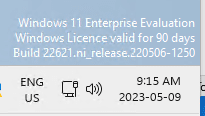
I just tried these (suggested) commands on my Hyper-V virtual machine running Windows 11 Enterprise Evaluation. It was set to expire in 12 days and, as per this screenshot, it extended the evaluation period for 90 days.

1683645346482.png

I also found the thread at How to Use Slmgr to Change, Remove, or Extend Your Windows License helpful to work through the commands. The process did take several seconds for each slmgr command to execute, and the restart was necessary for the reset to process effectively, so some patience was necessary.

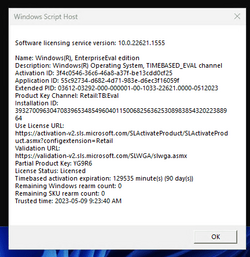
I noted that the Remaining rearm count is now set to 0:
1683645920027.png

I tried rearming it again to extend the timer and got an error message that the rearm count was now zero and could not be extended. So, it looks like the max extension is one time of 90 days. After that it appears that you need to re-install or create a new virtual PC

I hope this helps.
 

My Computer

System One

  • OS
    Windows 11
    Computer type
    PC/Desktop
    Manufacturer/Model
    Custom built
    CPU
    Intel i9-10900KF
    Motherboard
    ASUS Prime Z-490-A
    Memory
    16 GB - 2x Ripjaws DDR4-3200 8GB
    Graphics Card(s)
    NVIDIA GeForce GTX 1650
    Sound Card
    NVIDIA High Definition Audio, Realtek
    Monitor(s) Displays
    Gigabyte G27Q, Acer S220
    Screen Resolution
    2560x1440, 1920x1080
    Hard Drives
    1 500 GB SSD
    2 3 TB HDDs
As a follow-up to the post above that I made on May 9, 2023, it is now May 17 and my Windows 11 Enterprise Evaluation environment is still showing 89 days remaining in the valid licensing. Does anyone know if the rearming process actually stops the countdown process? It seems to have done that on my PC. I'm not complaining, but, if it does now stay at 89 days remaining, that would certainly address the problem of having to renew it again wouldn't it?
 

My Computer

System One

  • OS
    Windows 11
    Computer type
    PC/Desktop
    Manufacturer/Model
    Custom built
    CPU
    Intel i9-10900KF
    Motherboard
    ASUS Prime Z-490-A
    Memory
    16 GB - 2x Ripjaws DDR4-3200 8GB
    Graphics Card(s)
    NVIDIA GeForce GTX 1650
    Sound Card
    NVIDIA High Definition Audio, Realtek
    Monitor(s) Displays
    Gigabyte G27Q, Acer S220
    Screen Resolution
    2560x1440, 1920x1080
    Hard Drives
    1 500 GB SSD
    2 3 TB HDDs
On further checking, I used the slmgr.vbs commands to check the remaining licence time and it appears that the countdown timer was not updating the main window. After checking, the badge in the lower right corner of the main window miraculously changed to "76 days" remaining. So, it seems that the licence timer for Windows 11 can be rearmed but only once. :-(
 

My Computer

System One

  • OS
    Windows 11
    Computer type
    PC/Desktop
    Manufacturer/Model
    Custom built
    CPU
    Intel i9-10900KF
    Motherboard
    ASUS Prime Z-490-A
    Memory
    16 GB - 2x Ripjaws DDR4-3200 8GB
    Graphics Card(s)
    NVIDIA GeForce GTX 1650
    Sound Card
    NVIDIA High Definition Audio, Realtek
    Monitor(s) Displays
    Gigabyte G27Q, Acer S220
    Screen Resolution
    2560x1440, 1920x1080
    Hard Drives
    1 500 GB SSD
    2 3 TB HDDs

Latest Support Threads

Back
Top Bottom