- Local time
- 10:19 AM
- Posts
- 292
- OS
- Window 11 v24H2 Build 26100.2033
Hello everyone,
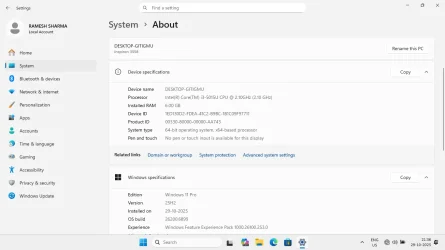
To create a local account in Windows 11 v25H2 on an unsuppored hardware pc using bootable usb made by using media creation tool, I followed steps given below.
1. Create a bootable usb of Windows 11 v25H2 by media creation tool downloaded from Microsoft official website.
2. Make a batch file of following commands in notepad and save it as any name like Bypass.bat and save it in usb root drive.
reg add "HKLM\SYSTEM\Setup\LabConfig" /v "BypassRAMCheck" /t REG_DWORD /d 1
reg add "HKLM\SYSTEM\Setup\LabConfig" /v "BypassSecureBootCheck" /t REG_DWORD /d 1
reg add "HKCU\SOFTWARE\Microsoft\PCHC" /v "UpgradeEligibility" /t REG_DWORD /d 1
reg add "HKLM\SYSTEM\Setup\MoSetup" /v "AllowUpgradesWithUnsupportedTPMOrCPU" /t REG_DWORD /d 1
reg add "HKLM\SYSTEM\CurrentControlSet\Control\BitLocker" /v "PreventDeviceEncryption" /t REG_DWORD /d 1
3. Boot from usb and at the screen of error message "This pc can't run windows 11" press shift+F10.
4. To know usb drive letter(D: in my case, to be replaced by user)
x:\sources>diskpart
DISKPART>lis vol
DISKPART>exit
x:\sources>D:
D:\> Bypass.bat
After each entry processed, we get message 'The Operation completed successfully.'
5. Click back arrow symbol and proceed again. Installation starts and after reboot it comes to region and language
selection following keyboard layout choice.
6. Installation continues to connect to network. Here press Shift+F10 and we get C:\windows\system32
7. Here are two ways to create local account. One is typing command and other is registry change.
a. C:\windows\system32>reg add HKLM\SOFTWARE\Microsoft\Windows\CurrentVersion\OOBE /v BypassNRO /t REG_DWORD /d 1 /f
C:\windows\system32>shutdown /r /t 0
b. C:\windows\system32>regedit
Navigate to HKEY_LOCAL_MACHINE\SOFTWARE\Microsoft\Windows\CurrentVersion\OOBE. Click on OOBE and then right click in right pane to create New>DWORD(32-bit)Value. Type BypassNRO and set value to 1. Exit regedit.
8. C:\windows\system32>shutdown /r /t 0
9. After reboot again select region, language, keyboard and then click on I don't have internet.
10. Now proceed for local account creation with or without entering password as you wish.
11. This way I created Local account of Windows 11 v25H2 OS Build 26200.6899
(Please note that this usb does not work for in place upgradation when run in live os on an unsuppored hardware pc).
Thanks for viewing this thread and sharing your valueable time.
To create a local account in Windows 11 v25H2 on an unsuppored hardware pc using bootable usb made by using media creation tool, I followed steps given below.
1. Create a bootable usb of Windows 11 v25H2 by media creation tool downloaded from Microsoft official website.
2. Make a batch file of following commands in notepad and save it as any name like Bypass.bat and save it in usb root drive.
reg add "HKLM\SYSTEM\Setup\LabConfig" /v "BypassRAMCheck" /t REG_DWORD /d 1
reg add "HKLM\SYSTEM\Setup\LabConfig" /v "BypassSecureBootCheck" /t REG_DWORD /d 1
reg add "HKCU\SOFTWARE\Microsoft\PCHC" /v "UpgradeEligibility" /t REG_DWORD /d 1
reg add "HKLM\SYSTEM\Setup\MoSetup" /v "AllowUpgradesWithUnsupportedTPMOrCPU" /t REG_DWORD /d 1
reg add "HKLM\SYSTEM\CurrentControlSet\Control\BitLocker" /v "PreventDeviceEncryption" /t REG_DWORD /d 1
3. Boot from usb and at the screen of error message "This pc can't run windows 11" press shift+F10.
4. To know usb drive letter(D: in my case, to be replaced by user)
x:\sources>diskpart
DISKPART>lis vol
DISKPART>exit
x:\sources>D:
D:\> Bypass.bat
After each entry processed, we get message 'The Operation completed successfully.'
5. Click back arrow symbol and proceed again. Installation starts and after reboot it comes to region and language
selection following keyboard layout choice.
6. Installation continues to connect to network. Here press Shift+F10 and we get C:\windows\system32
7. Here are two ways to create local account. One is typing command and other is registry change.
a. C:\windows\system32>reg add HKLM\SOFTWARE\Microsoft\Windows\CurrentVersion\OOBE /v BypassNRO /t REG_DWORD /d 1 /f
C:\windows\system32>shutdown /r /t 0
b. C:\windows\system32>regedit
Navigate to HKEY_LOCAL_MACHINE\SOFTWARE\Microsoft\Windows\CurrentVersion\OOBE. Click on OOBE and then right click in right pane to create New>DWORD(32-bit)Value. Type BypassNRO and set value to 1. Exit regedit.
8. C:\windows\system32>shutdown /r /t 0
9. After reboot again select region, language, keyboard and then click on I don't have internet.
10. Now proceed for local account creation with or without entering password as you wish.
11. This way I created Local account of Windows 11 v25H2 OS Build 26200.6899
(Please note that this usb does not work for in place upgradation when run in live os on an unsuppored hardware pc).
Thanks for viewing this thread and sharing your valueable time.
Attachments
Last edited:
My Computer
At a glance
Window 11 v24H2 Build 26100.2033Intel(R) Core(TM) i3-2100 CPU @ 3.10GHz 3.10 GHz4.00 GB (3.89 GB usable)Onboard
- OS
- Window 11 v24H2 Build 26100.2033
- Computer type
- PC/Desktop
- Manufacturer/Model
- ASSEMMBLED
- CPU
- Intel(R) Core(TM) i3-2100 CPU @ 3.10GHz 3.10 GHz
- Motherboard
- ZEBRONICS
- Memory
- 4.00 GB (3.89 GB usable)
- Graphics Card(s)
- Onboard
- Sound Card
- Onboard
- Monitor(s) Displays
- LG
- Screen Resolution
- 1366x768
- Hard Drives
- Toshiba HDD 1 TB
- Keyboard
- Mechanical
- Mouse
- Mechanical
- Internet Speed
- 700 kb/s
- Browser
- Microsoft EDGE, CHROME
- Antivirus
- Microsoft Defender