Solved Creating an iso from a Windows11 Rufus install usb.


srqkiter

New member
Local time
4:15 PM
Posts
5
OS
Windows 11
Hi. Is there a way to take an already created bootable windows 11 install usb drive and then turn that around and turn it into an .iso? The reason I want to do this is that I am trying to create a new Oracle Virtual Box VM that would run windows 11 with a local account only. As anyone reading this knows, Rufus is excellent for creating an install usb drive that can bypass the windows 11 requirement for a microsoft account. However, when installing windows 11 into the new VM, it must be done with an iso so I can't install to the new VM from the usb. anyway, I hope I have been clear enough about what I am trying to do. Thanks.
 

My Computer

System One

  • OS
    Windows 11
    Computer type
    PC/Desktop
    Manufacturer/Model
    Dell
Do you mean you want to convert Rufus created bootable files to ISO image?
 

My Computer

System One

  • OS
    Windows 11
    Computer type
    PC/Desktop
    Manufacturer/Model
    HP Pavilion
    CPU
    AMD Ryzen 7 5700G
    Motherboard
    Erica6
    Memory
    Micron Technology DDR4-3200 16GB
    Graphics Card(s)
    NVIDIA GeForce RTX 3060
    Sound Card
    Realtek ALC671
    Monitor(s) Displays
    Samsung SyncMaster U28E590
    Screen Resolution
    3840 x 2160
    Hard Drives
    SAMSUNG MZVLQ1T0HALB-000H1
Is there a way to take an already created bootable windows 11 install usb drive and then turn that around and turn it into an .iso?


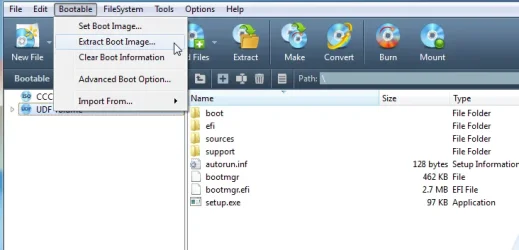
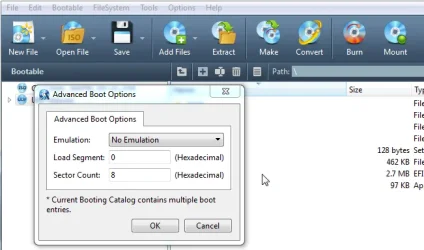
I'm pretty sure AnyBurn can do that.


Like so...


Just plug in the USB stick, open it in File Explore, and let AnyBurn create the ISO for you. :-)
 

My Computers

System One System Two

  • OS
    Win 11 Home ♦♦♦26200.8457 ♦♦♦♦♦♦♦25H2
    Computer type
    PC/Desktop
    Manufacturer/Model
    Built by Ghot® [May 2020]
    CPU
    AMD Ryzen 7 3700X
    Motherboard
    Asus Pro WS X570-ACE (BIOS 5302)
    Memory
    G.Skill (F4-3200C14D-16GTZKW)
    Graphics Card(s)
    EVGA RTX 2070 (08G-P4-2171-KR)
    Sound Card
    Realtek ALC1220P / ALC S1220A
    Monitor(s) Displays
    Dell U3011 30"
    Screen Resolution
    2560 x 1600
    Hard Drives
    2x Samsung 860 EVO 500GB,
    WD 4TB Black FZBX - SATA III,
    WD 8TB Black FZBX - SATA III,
    DRW-24B1ST CD/DVD Burner
    PSU
    PC Power & Cooling 750W Quad EPS12V
    Case
    Cooler Master ATCS 840 Tower
    Cooling
    CM Hyper 212 EVO (push/pull)
    Keyboard
    Ducky DK9008 Shine II Blue LED
    Mouse
    Logitech Optical M-100
    Internet Speed
    300/300
    Browser
    Firefox (latest)
    Antivirus
    Bitdefender Total Security
    Other Info
    Speakers: Klipsch Pro Media 2.1
  • Operating System
    Windows XP Pro 32bit w/SP3
    Computer type
    PC/Desktop
    Manufacturer/Model
    Built by Ghot® (not in use)
    CPU
    AMD Athlon 64 X2 5000+ (OC'd @ 3.2Ghz)
    Motherboard
    ASUS M2N32-SLI Deluxe Wireless Edition
    Memory
    TWIN2X2048-6400C4DHX (2 x 1GB, DDR2 800)
    Graphics card(s)
    EVGA 256-P2-N758-TR GeForce 8600GT SSC
    Sound Card
    Onboard
    Monitor(s) Displays
    ViewSonic G90FB Black 19" Professional (CRT)
    Screen Resolution
    up to 2048 x 1536
    Hard Drives
    WD 36GB 10,000rpm Raptor SATA
    Seagate 80GB 7200rpm SATA
    Lite-On LTR-52246S CD/RW
    Lite-On LH-18A1P CD/DVD Burner
    PSU
    PC Power & Cooling Silencer 750 Quad EPS12V
    Case
    Generic Beige case, 80mm fans
    Cooling
    ZALMAN 9500A 92mm CPU Cooler
    Keyboard
    Logitech Classic Keybooard 200
    Mouse
    Logitech Optical M-BT96a
    Internet Speed
    300/300
    Browser
    Firefox 3.x ??
    Antivirus
    Symantec (Norton)
    Other Info
    Still assembled, still runs. Haven't turned it on for 15 years?
Download Windows Assessment and Deployment Kit (Microsoft.com)


Copy the contents of the Windows setup files to a folder with a relatively short path, e.g. C:\Win11ISO.


Now we have to create the new ISO file

Type this command;


Code:
oscdimg.exe -m -o -u2 -udfver102 -bootdata:2#p0,e,bc:\Win11ISO\boot\etfsboot.com#pEF,e,bc:\Win11ISO\efi\microsoft\boot\efisys.bin c:\Win11ISO c:\Win11.iso

When above command finish, it will create Win11.iso and store it on root of C: partition.
 

My Computer

System One

  • OS
    Windows 11
    Computer type
    PC/Desktop
    Manufacturer/Model
    HP Pavilion
    CPU
    AMD Ryzen 7 5700G
    Motherboard
    Erica6
    Memory
    Micron Technology DDR4-3200 16GB
    Graphics Card(s)
    NVIDIA GeForce RTX 3060
    Sound Card
    Realtek ALC671
    Monitor(s) Displays
    Samsung SyncMaster U28E590
    Screen Resolution
    3840 x 2160
    Hard Drives
    SAMSUNG MZVLQ1T0HALB-000H1
Hi. Is there a way to take an already created bootable windows 11 install usb drive and then turn that around and turn it into an .iso? The reason I want to do this is that I am trying to create a new Oracle Virtual Box VM that would run windows 11 with a local account only. As anyone reading this knows, Rufus is excellent for creating an install usb drive that can bypass the windows 11 requirement for a microsoft account. However, when installing windows 11 into the new VM, it must be done with an iso so I can't install to the new VM from the usb. anyway, I hope I have been clear enough about what I am trying to do. Thanks.

Rufus creates a hidden unattended file to perform all Windows bypasses. You can copy an equivalent autounattend.xml to the ISO image.
Code:
<?xml version="1.0" encoding="utf-8"?>
<unattend xmlns="urn:schemas-microsoft-com:unattend">
    <settings pass="windowsPE">
        <component name="Microsoft-Windows-Setup" processorArchitecture="amd64" publicKeyToken="31bf3856ad364e35" language="neutral" versionScope="nonSxS" xmlns:wcm="http://schemas.microsoft.com/WMIConfig/2002/State" xmlns:xsi="http://www.w3.org/2001/XMLSchema-instance">
            <RunSynchronous>
                <RunSynchronousCommand wcm:action="add">
                    <Order>1</Order>
                    <Path>reg add HKLM\SYSTEM\Setup\LabConfig /v BypassTPMCheck /t REG_DWORD /d 1 /f</Path>
                </RunSynchronousCommand>
                <RunSynchronousCommand wcm:action="add">
                    <Order>2</Order>
                    <Path>reg add HKLM\SYSTEM\Setup\LabConfig /v BypassSecureBootCheck /t REG_DWORD /d 1 /f</Path>
                </RunSynchronousCommand>
                <RunSynchronousCommand wcm:action="add">
                    <Order>3</Order>
                    <Path>reg add HKLM\SYSTEM\Setup\LabConfig /v BypassRAMCheck /t REG_DWORD /d 1 /f</Path>
                </RunSynchronousCommand>
            </RunSynchronous>
            <UserData>
                <ProductKey>
                    <Key></Key>
                </ProductKey>
            </UserData>
        </component>
    </settings>
    <settings pass="specialize">
        <component name="Microsoft-Windows-Deployment" processorArchitecture="amd64" publicKeyToken="31bf3856ad364e35" language="neutral" versionScope="nonSxS" xmlns:wcm="http://schemas.microsoft.com/WMIConfig/2002/State" xmlns:xsi="http://www.w3.org/2001/XMLSchema-instance">
            <RunSynchronous>
                </RunSynchronousCommand>
                    <Order>1</Order>
                    <Path>reg add HKLM\SOFTWARE\Microsoft\Windows\CurrentVersion\OOBE /v BypassNRO /t REG_DWORD /d 1 /f</Path>
                </RunSynchronousCommand>
            </RunSynchronous>
        </component>
    </settings>
</unattend>

I'm pretty sure AnyBurn can do that.

@SIW2 shared this example on using AnyBurn to add files to an ISO:
How to create ISO from Windows 11 22H2.22621.963 bootable USB Stick?

Make sure when you're creating the VM, to skip the unattended install box in the wizard. Otherwise VirtualBox will use its own unattended file.
 

My Computer

System One

  • OS
    Windows 7
Thank you to all who responded. I will try one or more of the fixes and post back about what works.
 

My Computer

System One

  • OS
    Windows 11
    Computer type
    PC/Desktop
    Manufacturer/Model
    Dell
And your answer is? (For others interested.)
 

My Computers

System One System Two

  • OS
    Windows 11 Home, ver 25H2 build 26200.8246
    Computer type
    Laptop
    Manufacturer/Model
    Hewlett-Packard Spectre 13-4001 x360 convertable
    CPU
    Intel Core i5 5200U @ 2.20GH
    Motherboard
    Hewlett-Packard 802D
    Memory
    4 GB
    Graphics Card(s)
    Intel HD Graphics 5500 on board
    Sound Card
    Intel Smart Sound Technology (Intel SST)
    Hard Drives
    Micron 256GB M.2 2280 NGFF SSD MTFDDAV256TBN, (SATA 6.0 Gb/s)
    Keyboard
    Model # G01KB
    Antivirus
    Microsoft Defender
    Other Info
    born on date: 25 Feb 2016
  • Operating System
    Win 11 Home 25H2 build 26200.7922
    Computer type
    PC/Desktop
    Manufacturer/Model
    Asus Desktop model M32AD-US019S (DOM: 6/9/2014 )
    CPU
    Intel Core i7 4th Gen 4790 (3.60GHz), Haswell 22nm Technology, SOCKET 1150
    Motherboard
    H81M-E/M51AD/DP_MB
    Memory
    Samsung 16 GB DDR3 (8GB in 2 modules)
    Graphics card(s)
    NVIDIA GeForce GTX 760, 3GB, and on-board Intel HD Graphics 4600 Rev 6
    Monitor(s) Displays
    HP EliteDisplay E241i LED; HP EliteDisplay E243
    Hard Drives
    Samsung 500GB SSD, 870 EVO (SATA 6.0 )
    Micron 250GB SSD, CT250MX500
    Toshiba HDD, 3GB (original drive w/PC)
    Case
    ASUS
    Keyboard
    ASUS-------------------------
    Antivirus
    MS Defender
    Other Info
    Additional Laptops:

    HEWLETT PACKARD
    HP OmniBook X Flip NGAI (Next Gen AI),
    Model: 16-as0023dx
    PT# B5UH1UA#ABA Product #: B5UH1UA
    delivered and setup 7/25/25
    16" 2K Touch-Screen Laptop
    Intel Core Ultra 7 256V '24 Series 2 - CPU
    Boost Clock Frequency 4.8 gigahertz; Neural Processing Unit (NPU) Yes;
    16GB Memory, LPDDR5X
    1TB SSD PCIe 4.0
    Graphics: Intel Arc 140V
    1 x HDMI 2.1
    1 x Thunderbolt 4
    2K Touch-Screen display, LED, IPS; 1920 x 1200 (Full HD+)
    USB Ports: 1 x USB-C 3.1, 2 x USB-A 3.1
    Wi-Fi 6E
    weight 4.15 pounds

    DELL
    Model:I7591-7483BLK-PUS 2-in-1 (7000 Series)
    purchased 12/3/2019,
    15.6 inch 2-IN-1;
    4K Ultra HD Touch-Screen, 3840 x 2160,
    Intel Core i7 10510U CPU 1.80GHz,
    16GB RAM DDR4 SDRAM 2400 megahert (2 slots),
    dedicated graphics Nvidia GeForce MX250 2 GB Graphics,
    PCIe 512GB Intel SSD + 32GB Optane Memory (Intel Optane Memory H10 with solid-state storage),
    wireless-AX & Bluetooth
    Battery: 68wh, Type 4VGMP 4 cell
In AnyBurn Free 6.5+ there’s a “Create image file from files/folders” option, but it doesn’t seem to be able to create a bootable ISO file (or maybe I just can’t get it to work).

But the following method works (thanks to @SIW2):

AnyBurn Free: Create a UEFI- and BIOS-bootable ISO file from the files on a Rufus-made USB stick

  • Select “Edit image file”
  • Open the Windows 11 ISO you downloaded from the Windows 11 download page
  • Select all files/folders in the ISO and choose “Remove”
  • Then choose “Add” and select all files and folders from the Rufus USB stick
  • Set the save location and filename
  • Click “Create Now”
 

My Computers

System One System Two

  • OS
    Windows 11 Pro
    Computer type
    PC/Desktop
    CPU
    AMD Ryzen 9 9950X3D
    Motherboard
    ASRock B650E Taichi Lite
    Memory
    Kingston FURY Beast 64GB (2x32GB) DDR5 6000MT/s
    Graphics Card(s)
    ASUS TUF Gaming Radeon RX 9070 OC Edition 16GB GDDR6
    Hard Drives
    Solidigm P44 Pro 2TB M.2 NVMe SSD
  • Operating System
    Windows 11 Home
    Computer type
    Laptop
    Manufacturer/Model
    Lenovo Legion Pro 7i Gen 10 16"
    CPU
    Intel Core Ultra 9 275HX
    Memory
    64GB (2x 32GB) DDR5-6400
    Graphics card(s)
    NVIDIA GeForce RTX 5080 16GB GDDR7 Laptop GPU
    Hard Drives
    2x 1TB M.2 NVMe SSD (SK Hynix)
Last edited:

My Computers

System One System Two

  • OS
    Win7,Win11
    Computer type
    PC/Desktop
    CPU
    i7-9700
    Motherboard
    gigabyte b365m ds3h
    Memory
    2x16gb 3600mhz
    Monitor(s) Displays
    benq gw2480
    PSU
    bequiet pure power 11 400CM
    Cooling
    cryorig m9i
  • Operating System
    win7,win11
    Computer type
    PC/Desktop
    CPU
    i5-8400
    Motherboard
    gigabyte b365m ds3h
    Memory
    2x8gb 3200
    PSU
    xfx pro 450
I don’t know what the situation is right now, but at least two years ago the free versions of WinISO, PowerISO, and UltraISO had a file-size limit for saving ISO files.

AnyBurn Free does not have a size limit for the ISO file you save.
 

My Computers

System One System Two

  • OS
    Windows 11 Pro
    Computer type
    PC/Desktop
    CPU
    AMD Ryzen 9 9950X3D
    Motherboard
    ASRock B650E Taichi Lite
    Memory
    Kingston FURY Beast 64GB (2x32GB) DDR5 6000MT/s
    Graphics Card(s)
    ASUS TUF Gaming Radeon RX 9070 OC Edition 16GB GDDR6
    Hard Drives
    Solidigm P44 Pro 2TB M.2 NVMe SSD
  • Operating System
    Windows 11 Home
    Computer type
    Laptop
    Manufacturer/Model
    Lenovo Legion Pro 7i Gen 10 16"
    CPU
    Intel Core Ultra 9 275HX
    Memory
    64GB (2x 32GB) DDR5-6400
    Graphics card(s)
    NVIDIA GeForce RTX 5080 16GB GDDR7 Laptop GPU
    Hard Drives
    2x 1TB M.2 NVMe SSD (SK Hynix)
dont know if winiso still has a limited free version. I have the proper version of winiso

anyburn is good enough for most things with that editing workaround. It is the same guy who makes poweriso and gburner so probably can do the same editing with those
 

My Computers

System One System Two

  • OS
    Win7,Win11
    Computer type
    PC/Desktop
    CPU
    i7-9700
    Motherboard
    gigabyte b365m ds3h
    Memory
    2x16gb 3600mhz
    Monitor(s) Displays
    benq gw2480
    PSU
    bequiet pure power 11 400CM
    Cooling
    cryorig m9i
  • Operating System
    win7,win11
    Computer type
    PC/Desktop
    CPU
    i5-8400
    Motherboard
    gigabyte b365m ds3h
    Memory
    2x8gb 3200
    PSU
    xfx pro 450
In AnyBurn Free 6.5+ there’s a “Create image file from files/folders” option, but it doesn’t seem to be able to create a bootable ISO file (or maybe I just can’t get it to work).

But the following method works (thanks to @SIW2):

AnyBurn Free: Create a UEFI- and BIOS-bootable ISO file from the files on a Rufus-made USB stick

  • Select “Edit image file”
  • Open the Windows 11 ISO you downloaded from the Windows 11 download page
  • Select all files/folders in the ISO and choose “Remove”
  • Then choose “Add” and select all files and folders from the Rufus USB stick
  • Set the save location and filename
  • Click “Create Now”
This is the way to do it. Worked perfectly. Thank you.
 

My Computer

System One

  • OS
    Windows 11
    Computer type
    PC/Desktop
    Manufacturer/Model
    Dell

Latest Support Threads

Back
Top Bottom