Hi everyone, can someone help me please
I'm customizing my Windows Explorer folder
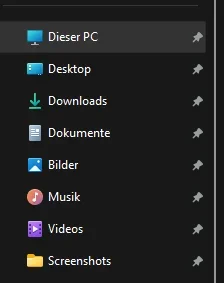
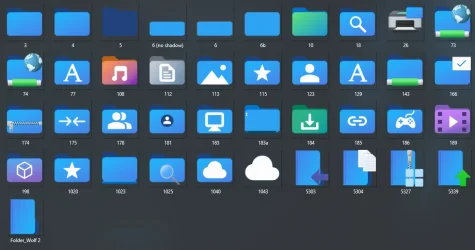
I would like to change some folders that are in quick access with these acronyms that I created.
But when I go to set the folder icon and then insert it in quick access the acronym is too small and I can't read it.
Can you please help me to have these images in a resolution as large as possible to set them in the quick access bar?
Thanks a lot for those who will help me
Attachments
FONT1.webp
39.7 KB
· Views: 10
FONT2.webp
46.7 KB
· Views: 8
FONT3.webp
68.3 KB
· Views: 8
FONT4.webp
58.7 KB
· Views: 9
FONT5.webp
64.2 KB
· Views: 10
FONT6.webp
55.8 KB
· Views: 9
FONT7.webp
59.1 KB
· Views: 7
FONT8.webp
52.5 KB
· Views: 7
FONT9.webp
45.6 KB
· Views: 10
FONT10.webp
55.5 KB
· Views: 14
My Computer
At a glance
Windows 11 Pro 24H2Intel Core i7-7700K 4.2GHzCorsair Vengeance (32 GB) DDR4, 3000 MHzMSI GeForce GTX 1080 Ti
OS
Windows 11 Pro 24H2
Computer type
PC/Desktop
CPU
Intel Core i7-7700K 4.2GHz
Motherboard
MSI Z270 Tomahawk
Memory
Corsair Vengeance (32 GB) DDR4, 3000 MHz
Graphics Card(s)
MSI GeForce GTX 1080 Ti
Sound Card
built-in Realtek HD audio
Monitor(s) Displays
LG 21:9
Screen Resolution
2560x1080 75Hz
Hard Drives
Samsung 980 PRO, 1 TB
Samsung 960 EVO, 250 GB
Western Digital Red 4TB
Hi everyone, can someone help me please
I'm customizing my Windows Explorer folder
I would like to change some folders that are in quick access with these acronyms that I created.
But when I go to set the folder icon and then insert it in quick access the acronym is too small and I can't read it.
Can you please help me to have these images in a resolution as large as possible to set them in the quick access bar?
Thanks a lot for those who will help me
What I'd love to have would be a downscale option for the screenshot folder icon so it matches the quick access icons of the libraries. Currently, it scales down to a plain folder.
What I'd love to have would be a downscale option for the screenshot folder icon so it matches the quick access icons of the libraries. Currently, it scales down to a plain folder.
im not certain for pinned nav pane items, but if you just add it to your nav pane normally, you can set the icon via registry. i have my recycle bin shell location added to the nav pane and changed the icon via reg
My desktop PC has two 8TB hard drives. I plan to add more 8TB hard drives in the future so that I can install Windows 8, 8.1, 10, and 11.
PSU
Current Setting: {5C67A112-A4C9-483F-B4A7-1D473BECAFDC} (Quality).
Case
Antec.
Cooling
N/A.
Keyboard
HID Keyboard Device.
Mouse
HID Compliant Mouse.
Internet Speed
Broadband 20MB.
Browser
Microsoft Edge, Internet Explorer, Google Chrome, Opera Web Browser.
Antivirus
Microsoft Security Essentials, Win/MS Defender, Malwarebytes.
Other Info
My desktop PC has a UEFI BIOS and TPM 2.0 system requirements which means that my system meets the minimum requirements to install Windows 11 in the future.
Would it be possible for you to upload a PSD that includes examples of different folder colors? I'd like to see how you're handling the gradient and positioning to ensure it's all aligned correctly.
My Computer
At a glance
Windows 11 Pro Version 23H2 (OS Build 22631. ...intel i7 13th 13700kVENGEANCE® 64GB (2x32GB) DDR5 DRAM 5600MT/s C...NVidia founders edition 3080 ti
OS
Windows 11 Pro Version 23H2 (OS Build 22631. 3374)
Computer type
PC/Desktop
Manufacturer/Model
Custome Built
CPU
intel i7 13th 13700k
Motherboard
ROG STRIX Z790-F GAMING WIFI
Memory
VENGEANCE® 64GB (2x32GB) DDR5 DRAM 5600MT/s CL40 Memory Kit
Would it be possible for you to upload a PSD that includes examples of different folder colors? I'd like to see how you're handling the gradient and positioning to ensure it's all aligned correctly.
Actually the PSD already contained a "hidden" effect on each that does that very thing. Just toggle the visibility and you can see the treatment I gave for the Proton folder.
Thank you David for sharing, and by the way showing the correct images for each resolution.
3 years ago, I started some separate templates (4 to superimpose).
I realized that a correct (as original) ICO file contained 8 separate sharp images created, and not just 7 basic conversions based on the 256 one.
(otherwise, the small images get blurred and not that pleasant to use).
In order to customize a folder (with a different color or personal picture), I managed to spot the right position of each conversion (of the "Back folder" in the fist place). To start making proper conversions, the initial 256 image has to be shifted vertically with a few pixels, differently for each new smaller dimensions. I made a table to indicate the number of pixels to be shifted on the main 256 image, for the creation of the smaller ones.
(Positions of the "Front folder" are different also. Unfortunately, I lost the conversions I managed to find, but I could work on it again.)
Note that the width of the layer may be slightly reduced and needs readjusting in some dimensions.
(...and some rounded angles of the folder too)
Images in 8 resolutions based on the full icon (Back template) :
(the 16x16 image conversion needs the 256 one to be cropped to fill the full image)
I would have loved to get a program which could make custom icons this was, with a ready preview of each size (which you could separately readjust) to get the best pixel resolution in each dimension, for the front and back folder.
I guess that now IA programs can help you a lot creating this, someone could have a try.
...and why not get some recommendations or help from the original creator Mike :