Default Apps Question


mccmw

Well-known member
Member
VIP
Local time
4:55 PM
Posts
496
OS
Windows 11
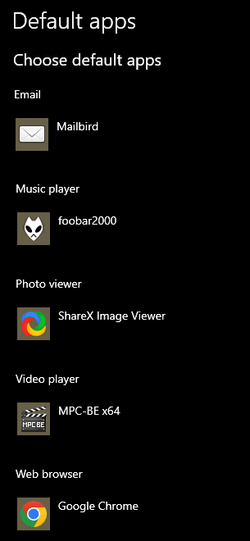
I haven't found anything...so figured I'd ask. Is there a solution yet to allow you to select an app and make it the default app for any file types it supports...similar to how it was done in Win 10 and before? Right now I literally have to click the app and manually change existing default app to it (VLC in this case for all media file types).
 

My Computers My Computers

  • At a glance

    Windows 11Intel i7-7700K32GB 2666Mhz (Kingston Hyper X Fury)Asus Nvidia 1050Ti
    OS
    Windows 11
    Computer type
    PC/Desktop
    Manufacturer/Model
    Custom
    CPU
    Intel i7-7700K
    Motherboard
    Asus Prime Z-270A
    Memory
    32GB 2666Mhz (Kingston Hyper X Fury)
    Graphics Card(s)
    Asus Nvidia 1050Ti
    Sound Card
    N/A
    Monitor(s) Displays
    Samsung C27F390
    Screen Resolution
    1920 x 1080
    Hard Drives
    1TB Western Digital SN770 (System) and 2TB Western Digital SN770 (Storage)
    Antivirus
    Windows Security
  • At a glance

    Windows 11 Homei9-11900H32GBIntegrated Intel and Nvidia 3050Ti
    Operating System
    Windows 11 Home
    Computer type
    Laptop
    Manufacturer/Model
    Dell/XPS 15 9510
    CPU
    i9-11900H
    Motherboard
    Unknown
    Memory
    32GB
    Graphics card(s)
    Integrated Intel and Nvidia 3050Ti
    Sound Card
    Integrated (Realtek)
    Monitor(s) Displays
    None
    Screen Resolution
    1920 x 1200 (non-Touch)
    Hard Drives
    2TB SK Hynix P41 Platinum
    Antivirus
    Windows Security
Probably the best way is, within the desired program, if possible!

Windows 11 is a major pain in the a$$ that way!

W10 was much more cooperative!

0004885.png
 

My Computers My Computers

  • At a glance

    Windows 11 Pro
    OS
    Windows 11 Pro
    Computer type
    PC/Desktop
    Manufacturer/Model
    ASUS ROG Strix
  • At a glance

    Windows 11 Pro
    Operating System
    Windows 11 Pro
    Computer type
    Laptop
    Manufacturer/Model
    ASUS VivoBook
  • ASUS VivoBook 'Lite' ~ Windows 11 Home
To bypass the Settings screen, you need a tool like SetUserFTA which knows how to defeat the File Type Association (FTA) security hash protecting any changes to the assigned Apps.

Here's the manual process in a nutshell:

1. Search for your App's list of supported FTA's: "ftype | findstr /i AppName"
2. Create (or overwrite) the file association for each extension, using "cmd /c assoc .extension=type"
3. Run "SetUserFTA extension AppName" to enforce the same preferences. This will stop Explorer from asking you to confirm the default App every time you open a new file extension for the first time.

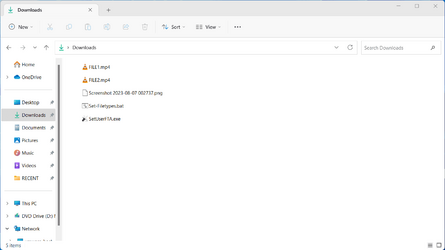
Or you can use my script which automates the whole process, by downloading SetUserFTA and doing the work. I've only tested it on WMP and VLC, so it might break with other apps. Backup your system in case the script can't figure out the FTA naming patterns.

VLC is weird for example, it wants to steal *.zip as a file type for itself. /shrug

Run as Administrator:
Set-Filetypes.bat VLC
Set-Filetypes.bat WMP11

If everything works, you should see the media file icons change back and forth. Before MS implemented the security hash, it was simple to script the Default App change and all app developers could do it for themselves. Now they can't -- without using SetUserFTA.
 

Attachments

  • Screenshot 2023-08-07 002737.png
    Screenshot 2023-08-07 002737.png
    16.4 KB · Views: 6
  • Screenshot 2023-08-07 002950.png
    Screenshot 2023-08-07 002950.png
    17.8 KB · Views: 8
  • Set-Filetypes.bat
    Set-Filetypes.bat
    988 bytes · Views: 15

My Computer My Computer

At a glance

Windows 7
OS
Windows 7
Back
Top Bottom