This tutorial will show you how to delete passkeys saved for apps and websites on your Windows 11 device.
Microsoft believes that the future is passwordless. Passkeys will allow you to replace passwords when you sign into a web site or application that supports them. Passkeys represent a future where bad actors will have a much harder time stealing and using your credentials when signing into a web site or application. Passkeys are phish-resistant, recoverable, and faster for users.
Enroll and use passkey to sign into apps and websites: Microsoft is improving the passkey experience for Windows users. You can now go to any app or website that supports passkeys to create and sign in using passkeys with the Windows Hello native experience. Once a passkey is created, you can use your local or Microsoft account's Windows Hello (face, fingerprint, PIN) to sign in. In addition, you can use your phone to complete the application logon process.
Manage passkeys saved to your Windows device: Microsoft is giving you fundamental control over how you can manage the passkeys saved to your Windows device. Starting with Windows 11 version 22H2 KB5030310 Build 22621.2361,, you can now view and delete passkeys saved for your favorite apps/websites from Windows settings.
Deleting a passkey for a website saved to your Windows device does not remove/delete the passkey from your account settings on the website.
References:
Manage your saved passkeys | Microsoft Support
Learn how to view and manage your saved passkeys.
 support.microsoft.com

Pushing passkeys forward: Microsoft’s latest updates for simpler, safer sign-ins | Microsoft Security Blog
Join us in embracing passkeys for secure, passwordless sign-ins. Learn more about our commitment to a safer digital future.
www.microsoft.com
Create and save a passkey | Microsoft Support
Learn how to create and save a passkey to sign in to your Microsoft personal or work/school account and many other websites, apps and services.
support.microsoft.com
What are passkeys and why they matter | Microsoft Support
Learn about passkeys and how they are used in Windows.
support.microsoft.com
Websites and Apps with Passkey Support
See which websites and applications already support Passkeys as an authentication method or are currently working on integrations.
 www.passkeys.io
Here's How:
1 Open Settings (Win+I).
2 Click/tap on Accounts on the left side, and click/tap on Passkeys on the right side. (see screenshot below)
3 Click/tap on the 3 dots button for the app or website you want to delete the passkey for, and click/tap on Delete Passkey. (see screenshot below)
Some passkeys for login.microsoft.com can't be deleted, as they're used with your Microsoft Account for signing in to the device and Microsoft services.
"This passkey can't be deleted because it's required to sign in to this device."
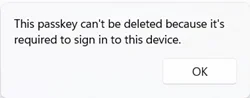
4 Click/tap on Delete Passkey to confirm. (see screenshot below)
5 When finished, you can close Settings if you like.
That's it,
Shawn Brink
Related Tutorials
- Enable or Disable Passkey Access for Apps in Windows 11
- Enable or Disable Passkey Autofill Access for Apps in Windows 11
- Enable or Disable Passkey Managers in Windows 11
- Create and Save Passkey for Website in Windows 11
- Sign in to Website with Passkey in Windows 11
- View Passkeys for Apps and Websites in Windows 11
- Add or Remove Passkey on Security Key for your Microsoft Account
- Add or Remove Passkey on Android Phone for your Microsoft Account
- Enable or Disable Automatically Upgrade Accounts to use Passkeys in Microsoft Edge
- See Passkeys Recent Activity by Apps in Windows 11
Last edited: