Dis-jointed File Explorer


Meebers

Well-known member
Member
VIP
Local time
5:37 PM
Posts
119
Location
Florida
OS
W11 25H2 26200.8457
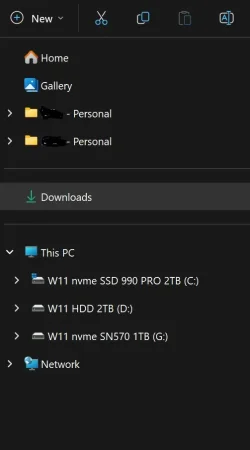
25H2 26200.8039. A couple of updates ago, my W11 File explorer has become a head ache to do the simplest of tasks. It could have been me trying to adjust view/layout etc. But I ended up with 2 personal folders, see attachment, [with my name - personal] both of which have different data/arrangements. I am guessing one is local and the other is one drive. Tried my best to eliminate one drive but some times looking for a file on local drive, ends up being on one drive

FE.webp
 

My Computers My Computers

  • At a glance

    W11 25H2 26200.8457AMD RYZEN 5-56002x8 GBMSI NVIDIA GeForce 710
    OS
    W11 25H2 26200.8457
    Computer type
    PC/Desktop
    Manufacturer/Model
    Self
    CPU
    AMD RYZEN 5-5600
    Motherboard
    ASUS B 550-F
    Memory
    2x8 GB
    Graphics Card(s)
    MSI NVIDIA GeForce 710
    Sound Card
    On Board
    Monitor(s) Displays
    TCL 4k 43" TV
    Screen Resolution
    3840x2160
    Hard Drives
    Samsung 990 Pro 2TB and WD 2TB
    PSU
    800 W
    Case
    Fractal Design Focus Mid-Tower Case (RED)
    Cooling
    3 120 mm Fan
    Keyboard
    Logitech MK320
    Mouse
    Logitech
    Internet Speed
    2 Mbps/2 Mbps
    Browser
    FF
    Antivirus
    MS Defender, MWB
  • At a glance

    W11 22621.1194 / Linux Mint/Chrome OSAMD a8-5545m2x4GBGTX 550 Ti
    Operating System
    W11 22621.1194 / Linux Mint/Chrome OS
    Computer type
    PC/Desktop
    Manufacturer/Model
    SELF
    CPU
    AMD a8-5545m
    Motherboard
    Biostar A68N-5545
    Memory
    2x4GB
    Graphics card(s)
    GTX 550 Ti
    Sound Card
    Internal
    Monitor(s) Displays
    2 ASUS 27"
    Screen Resolution
    1920x1080
    Hard Drives
    ADATA SU655
    PSU
    800W
    Case
    Cooler Master
    Cooling
    2 120mm Fan
    Keyboard
    LOGITEC
    Mouse
    lOGITEC
    Internet Speed
    940/940
    Browser
    FF
    Antivirus
    MS -MWB
I am guessing one is local and the other is one drive. Tried my best to eliminate one drive but some times looking for a file on local drive, ends up being on one drive
There are specific steps for dealing with Onedrive. If not taken, everything gets messed up.

Proper sequence of events to get rid of ONEDRIVE

Note 1:
If you are an Office 365, Office 2019, 2021 or 2024 user, you need to change options in each Office app such as Word and Excel to save to your computer by default. Currently files created in these apps default to Onedrive. Open a document, select File>Options> Check “save to computer by default” and choose a save location. Do the same for a each app.. Note, this disables the autosave feature in these apps as autosave works only for files in Onedrive.

Note 2: These instructions assume that OneDrive is still installed on your PC.
If OD is already uninstalled, for this procedure to work, you will need to reinstall OneDrive from Microsoft’s official site. Restart your PC, sign in to OD, and then continue with the steps below.

NOTE 3: Note: Whether this will work as written depends on what steps were taken in your prior attempts to get rid of Onedrive. A user’s incorrect actions can have unwanted results so other steps may be required. Nevertheless, your files should still be in OD until you manually delete them.

Step 1. Turn off backup folder syncing for Documents, Desktop, Pictures, and Videos.. This tutorial tells you how and also how to get your files onto your local drive.
https://www.elevenforum.com/t/turn-on-or-off-onedrive-folder-backup-syncing-across-windows-11-devices.4321/

You know this was successful by right clicking on a user folder>select Properties>General tab. The folder location should now be C:\users\yourusername\foldername,

Only if folders DO NOT MOVE TO DEFAULT LOCATION use option 3 in these tutorials
to restore the default folder location and move your files manually from Onedrive into the folders.

Move or Restore Default Location of Desktop Folder in Windows 11

Move or Restore Default Location of Documents Folder in Windows 11 Tutorial

Move or Restore Default Location of Pictures Folder in Windows 11

Move or Restore Default Location of Videos Folder in Windows 11

Step 2. Unlink account & PC from onedrive.
Unlink Account and PC from OneDrive in Windows 11

Step 3.
You can then either uninstall Onedrive or disable it.

To disable Onedrive. Open Task Manager>Startup Apps, right click on Onedrive in the list and disable.

To uninstall Onedrive, the best way is to use Revo Uninstaller Free Portable. Find Onedrive under the Windows Apps section. Use Revo’s scan feature to find leftover files and registry entries and delete them. Revo Free You can also use option 1 in this tutorial to uninstall it. It will leave a few registry entries behind though. Uninstall and Reinstall OneDrive in Windows 11

Note: All files in Onedrive will remain there until you login to Onedrive on the Web and delete them. Microsoft OneDrive

Restart the computer for changes to go into effect.
 

My Computers My Computers

  • At a glance

    Windows 11 Pro 25H2 26200.8875i9-10900 10 core 20 threads32 gbnone-Intel UHD Graphics 630
    OS
    Windows 11 Pro 25H2 26200.8875
    Computer type
    PC/Desktop
    Manufacturer/Model
    Dell Optiplex 7080
    CPU
    i9-10900 10 core 20 threads
    Motherboard
    DELL 0J37VM
    Memory
    32 gb
    Graphics Card(s)
    none-Intel UHD Graphics 630
    Sound Card
    Integrated Realtek
    Monitor(s) Displays
    Benq 27
    Screen Resolution
    2560x1440
    Hard Drives
    2x1tb Solidigm m.2 nvme /External drives 512gb Samsung m.2 sata+2tb Kingston m2.nvme
    PSU
    500w
    Case
    MT
    Cooling
    Dell Premium
    Keyboard
    Logitech wired
    Mouse
    Logitech wireless
    Internet Speed
    so slow I'm too embarrassed to tell
    Browser
    #1 Edge #2 Firefox
    Antivirus
    Defender+MWB Premium
  • At a glance

    Windows 11 Pro 24H2 26200.8875AMD Ryzen 7 6800U32 gbintegrated
    Operating System
    Windows 11 Pro 24H2 26200.8875
    Computer type
    PC/Desktop
    Manufacturer/Model
    Beelink Mini PC SER5
    CPU
    AMD Ryzen 7 6800U
    Memory
    32 gb
    Graphics card(s)
    integrated
    Sound Card
    integrated
    Monitor(s) Displays
    Benq 27
    Screen Resolution
    2560x1440
    Hard Drives
    1TB Crucial nvme
    Keyboard
    Logitech wired
    Mouse
    Logitech wireless
    Internet Speed
    still too embarrassed to tell
    Browser
    Firefox
    Antivirus
    Defender
    Other Info
    System 3 is non compliant Dell 9020 i7-4770/24gb ram Win11 PRO 26200.8875
WOW! Tx for that. May take a breweski or 2 to complete that. I take it then that 2 instances of "personal" folders are not normal?
 

My Computers My Computers

  • At a glance

    W11 25H2 26200.8457AMD RYZEN 5-56002x8 GBMSI NVIDIA GeForce 710
    OS
    W11 25H2 26200.8457
    Computer type
    PC/Desktop
    Manufacturer/Model
    Self
    CPU
    AMD RYZEN 5-5600
    Motherboard
    ASUS B 550-F
    Memory
    2x8 GB
    Graphics Card(s)
    MSI NVIDIA GeForce 710
    Sound Card
    On Board
    Monitor(s) Displays
    TCL 4k 43" TV
    Screen Resolution
    3840x2160
    Hard Drives
    Samsung 990 Pro 2TB and WD 2TB
    PSU
    800 W
    Case
    Fractal Design Focus Mid-Tower Case (RED)
    Cooling
    3 120 mm Fan
    Keyboard
    Logitech MK320
    Mouse
    Logitech
    Internet Speed
    2 Mbps/2 Mbps
    Browser
    FF
    Antivirus
    MS Defender, MWB
  • At a glance

    W11 22621.1194 / Linux Mint/Chrome OSAMD a8-5545m2x4GBGTX 550 Ti
    Operating System
    W11 22621.1194 / Linux Mint/Chrome OS
    Computer type
    PC/Desktop
    Manufacturer/Model
    SELF
    CPU
    AMD a8-5545m
    Motherboard
    Biostar A68N-5545
    Memory
    2x4GB
    Graphics card(s)
    GTX 550 Ti
    Sound Card
    Internal
    Monitor(s) Displays
    2 ASUS 27"
    Screen Resolution
    1920x1080
    Hard Drives
    ADATA SU655
    PSU
    800W
    Case
    Cooler Master
    Cooling
    2 120mm Fan
    Keyboard
    LOGITEC
    Mouse
    lOGITEC
    Internet Speed
    940/940
    Browser
    FF
    Antivirus
    MS -MWB
@meebeers I have polished up the Onedrive instructions slightly. They are the same, just with a little more clarification. Here they are.

Keep in mind these are general instructions for the proper way to do it. In your case I have absolutely no way of knowing what you previously did in your efforts to get rid of Onedrive nor how you got some files on your local disk and others in Onedrive. Because of this you may end up with some duplicated files.

How To PROPERLY Remove OneDrive from Windows 11

When you sign in with a Microsoft account, Windows automatically sets Documents, Desktop, Pictures, and Videos user folders to use OneDrive as their default storage location.These folders are NOT on your system drive.

If you don’t want to use OneDrive, you’ll need to carefully follow the steps below. Skipping or rearranging them can cause issues with your files and folders.

Note 1: If you use Office 365, Office 2019, 2021 or 2024 user, you need to change options in each Office app such as Word and Excel to save to your computer by default. Currently files created in these apps default to Onedrive. Open a document, select File>Options> Check “save to computer by default” and choose a save location. Do the same for a each app.. Note, this disables the autosave feature in these apps as autosave works only for files in Onedrive.

Note 2: Whether this will work as written depends on what steps were taken in your prior attempts to get rid of Onedrive. A user’s incorrect actions can have unwanted results so other steps may be required. Nevertheless, your files should still be in OD until you manually delete them.

Important:
These instructions assume that OneDrive is still installed on your PC.
If you’ve already uninstalled it, for this procedure to work, you will need to first reinstall OneDrive by downloading it from Microsoft’s official site.
  • sign in to OneDrive if not already signed in, and then continue with the tutorial.

STEP 1: Turn Off OneDrive Folder Backup Syncing

First, you need to stop OneDrive from automatically syncing your Desktop, Documents, Pictures, and Videos folders. This guide will also help you get your files back on to your local drive.
Turn On or Off OneDrive Folder Backup Syncing in Windows 11

You know this was successful by right clicking on a user folder>select Properties>General tab. The folder location should now be C:\users\yourusername\foldername

Only If the folders don’t automatically return to their default local location under C:\Users\YourUserName in step 1:

Use the tutorials below (Option Three) to manually restore the default location of each folder and move your files from Onedrive into it.
Move or Restore Default Location of Desktop Folder in Windows 11

Move or Restore Default Location of Documents Folder in Windows 11

Move or Restore Default Location of Pictures Folder in Windows 11

Move or Restore Default Location of Videos Folder in Windows 11 |


STEP 2: Unlink Account & PC from OneDrive

After syncing is turned off, disconnect your account and computer from OneDrive:
Unlink account & PC from Onedrive.

Once you do this the files you have in Onedrive will remain there until you login to Onedrive on the Web and delete them. Microsoft OneDrive
__________________________________________________________

STEP 3: Prevent OneDrive from Starting Automatically or Uninstall Onedrive

At this point, you can either disable OneDrive from autostart or uninstall it.


Option 1- disable Onedrive from auto-starting. This is my preference since Microsoft can reinstall Onedrive through Windows or Office updates. This setting tends to hold during those updates.
  1. Open Task Manager (Ctrl+Shift+Esc).
  2. Go to the Startup Apps list in left pane. (Hover you mouse over the little icons until you see the one named Startup Apps)
  3. Find OneDrive.exe, right-click it, and select Disable
If you want to remove it from file explorer navigation pane Add or Remove OneDrive in Navigation Pane of File Explorer in Windows 11

If you want to hide it in the task tray, Settings > Personalization > Taskbar "Other system tray icons". Find Onedrive and toggle it off. Alternatively, you can quickly hide an icon by dragging it from the taskbar onto the upward-pointing arrow that opens the hidden icons menu.

Once you re-start, OneDrive will no longer launch at startup and the only place you will see it is in your start menu.

Option 2 - Uninstall OneDrive

Method 1 – Using Revo Uninstaller (recommended):

Download Revo Uninstaller Freeware Portable.
  • Open Revo and look under Windows Apps to find OneDrive.
  • Uninstall it using Revo, then run its scan feature. Check all the leftover files and registry entries Revo finds and remove.
Method 2 – Built-in Windows option:
You can also uninstall OneDrive through Windows settings, but this will leave some registry entries behind. Uninstall and Reinstall OneDrive in Windows 11
________________________________________________________________________
Following this sequence ensures your files are safe and your folders return to their proper locations, while OneDrive is disabled or completely removed from your system.

 

My Computers My Computers

  • At a glance

    Windows 11 Pro 25H2 26200.8875i9-10900 10 core 20 threads32 gbnone-Intel UHD Graphics 630
    OS
    Windows 11 Pro 25H2 26200.8875
    Computer type
    PC/Desktop
    Manufacturer/Model
    Dell Optiplex 7080
    CPU
    i9-10900 10 core 20 threads
    Motherboard
    DELL 0J37VM
    Memory
    32 gb
    Graphics Card(s)
    none-Intel UHD Graphics 630
    Sound Card
    Integrated Realtek
    Monitor(s) Displays
    Benq 27
    Screen Resolution
    2560x1440
    Hard Drives
    2x1tb Solidigm m.2 nvme /External drives 512gb Samsung m.2 sata+2tb Kingston m2.nvme
    PSU
    500w
    Case
    MT
    Cooling
    Dell Premium
    Keyboard
    Logitech wired
    Mouse
    Logitech wireless
    Internet Speed
    so slow I'm too embarrassed to tell
    Browser
    #1 Edge #2 Firefox
    Antivirus
    Defender+MWB Premium
  • At a glance

    Windows 11 Pro 24H2 26200.8875AMD Ryzen 7 6800U32 gbintegrated
    Operating System
    Windows 11 Pro 24H2 26200.8875
    Computer type
    PC/Desktop
    Manufacturer/Model
    Beelink Mini PC SER5
    CPU
    AMD Ryzen 7 6800U
    Memory
    32 gb
    Graphics card(s)
    integrated
    Sound Card
    integrated
    Monitor(s) Displays
    Benq 27
    Screen Resolution
    2560x1440
    Hard Drives
    1TB Crucial nvme
    Keyboard
    Logitech wired
    Mouse
    Logitech wireless
    Internet Speed
    still too embarrassed to tell
    Browser
    Firefox
    Antivirus
    Defender
    Other Info
    System 3 is non compliant Dell 9020 i7-4770/24gb ram Win11 PRO 26200.8875
Back
Top Bottom