Windows Update Disable Automatic Windows Updates in Windows 11

  • Thread starter Thread starter Brink
  • Start date Published: Start date Updated Updated:
  • Featured

Pause_updates_banner.png

This tutorial will show you how to disable Windows Update from automatically downloading and installing updates in Windows 10 and Windows 11.

Windows Update keeps Windows 11 updated by automatically downloading and installing the latest updates, drivers, and hotfixes when released by Microsoft (unless you’re on a metered connection, then updates won’t download until you get them).

Occasionally, your PC might need to restart to finish installing the updates. You can set active hours to let Windows know when you're usually using your PC to help prevent inconvenient restarts. The default active hours is 8 AM (8 on 24 hour clock) for Start time and 5 PM (17 on 24 hour clock) End time.

If wanted, you can disable automatic updates so you can manually update when you are ready to instead.


Contents

  • Option One: Disable Automatic Windows Updates by using Metered Connection
  • Option Two: Disable Automatic Windows Updates by Pausing Updates for Up To 20 Years


Option One

Disable Automatic Windows Updates by using Metered Connection


This option will allow you to still check for updates without some updates being automatically downloaded and installed.


1 Set your Wi-Fi or Ethernet connection to metered using an available option in the tutorials below.


Windows_Update_metered_connection.png


Option Two

Disable Automatic Windows Updates by Pausing Updates for Up To 20 Years


You can pause Windows Update for 20 years to effectively disable Windows Update until you are ready to create backups and manually resume updates and check for updates to be automatically downloaded and installed. Afterwards, you can pause Windows Update again.

You must be signed in as an administrator to use this option.


For Windows Insider builds, the FlightSettingsMaxPauseDays DWORD value used in this option will automatically get reset back to its default 7 days each time you either Check for Updates or Resume updates.


1 Click/tap on the Download button below to download the REG file below.

This REG file will set the maximum days you can pause Windows Update to 7300 days (20 years).


Set_max_days_to_pause_Windows_Updates_to_20_years.reg


(Contents of .reg file)
Code:
Windows Registry Editor Version 5.00

[HKEY_LOCAL_MACHINE\SOFTWARE\Microsoft\WindowsUpdate\UX\Settings]
"FlightSettingsMaxPauseDays"=dword:00001c84

2 Save the .reg file to your desktop.

3 If you have Smart App Control turned on, you will need to unblock the downloaded REG file.

4 Double click/tap on the downloaded .reg file to merge it.

5 When prompted, click/tap on Run, Yes (UAC), Yes, and OK to approve the merge.

6 You can now delete the downloaded .reg file if you like.

7 Open Settings (WIn+I).

8 Click/tap on Windows Update on the left side. (see screenshot below step 9)

Open Windows Update Settings

9 Select Pause for 1042 weeks (20 years) in the Pause updates drop menu. (see screenshot below)

For how to pause updates in Windows 10, see:

Pause_Windows_Updates-1.png
Pause_Windows_Updates-2.png

10 Windows Update will now be pause for 20 years until you are ready to manually resume updates. (see screenshot below)

Pause_Windows_Updates-2.png

11 You can now close Settings if you like.


That's it,
Shawn Brink


Attachments

Last edited:
I allow Windows to update itself every month. But it's a personal decision based on if you're experiencing a known bug and waiting for a fix, or like to keep up with security patches. If you're a cautious person and don't tend to visit questionable sites or run dodgy software, then it's not a terrible thing to wait out a few months.
 

My Computer

System One

  • OS
    Windows 7
I allow Windows to update itself every month. But it's a personal decision based on if you're experiencing a known bug and waiting for a fix, or like to keep up with security patches. If you're a cautious person and don't tend to visit questionable sites or run dodgy software, then it's not a terrible thing to wait out a few months.
Thank you again! I have 2 separate machines (not just monitors) and do all my browsing, music, etc. on one but this is my work machine so it's completely clean. So I think I will continue to wait a couple months. I really appreciate you time and insight!
 

My Computer

System One

  • OS
    Win 11 Home
    Computer type
    PC/Desktop
    Manufacturer/Model
    Home built
The second method with registry pause for 20 years doesn't work at windows 11 ltsc 24h2.
Is there anything else i can do?
I don't want to do the first way.
 

My Computer

System One

  • OS
    Windows 7 and 11 and 12
    Computer type
    PC/Desktop
    Browser
    Firefox
I allow Windows to update itself every month. But it's a personal decision based on if you're experiencing a known bug and waiting for a fix, or like to keep up with security patches. If you're a cautious person and don't tend to visit questionable sites or run dodgy software, then it's not a terrible thing to wait out a few months.
It grey the 1 week me to
 

My Computer

System One

  • OS
    Windows 7 and 11 and 12
    Computer type
    PC/Desktop
    Browser
    Firefox
The second method with registry pause for 20 years doesn't work at windows 11 ltsc 24h2.
Is there anything else i can do?
I don't want to do the first way.
It grey the 1 week me to

Hello, :alien:

Usually, when you only see a grayed out "Pause for 1 week" option available, you have an Insider build installed that already has Windows Update paused.

Just to confirm, after merging the REG file from this tutorial to add the extra pause dates, did you close and reopen Settings to have the extra pause dates available (may have to resume updates first)?

Please go ahead and post a screenshot showing your Windows Update Settings page for this to see if anything may stand out.
 

My Computers

System One System Two

  • OS
    Windows 11 Pro for Workstations
    Computer type
    PC/Desktop
    Manufacturer/Model
    Custom self build
    CPU
    Intel i7-8700K 5 GHz
    Motherboard
    ASUS ROG Maximus XI Formula Z390
    Memory
    64 GB (4x16GB) G.SKILL TridentZ RGB DDR4 3600 MHz (F4-3600C18D-32GTZR)
    Graphics Card(s)
    ASUS ROG-STRIX-GTX1080TI-O11G-GAMING (11GB GDDR5X)
    Sound Card
    Integrated Digital Audio (S/PDIF)
    Monitor(s) Displays
    2 x Samsung Odyssey G75 27"
    Screen Resolution
    2560x1440
    Hard Drives
    1TB Samsung 990 PRO M.2,
    4TB Samsung 990 PRO M.2,
    TerraMaster F8 SSD Plus NAS
    PSU
    Seasonic Prime Titanium 850W
    Case
    Thermaltake Core P3 wall mounted
    Cooling
    Corsair Hydro H115i
    Keyboard
    Amazon Basics Wired Full Keyboard MD005
    Mouse
    Logitech MX Master 4
    Internet Speed
    2 Gbps Download and 100 Mbps Upload
    Browser
    Chrome and Edge
    Antivirus
    Microsoft Defender
    Other Info
    Logitech Z625 speaker system,
    Logitech BRIO 4K Pro webcam,
    HP Color LaserJet Pro MFP M477fdn,
    CyberPower CP1500PFCLCD
    Galaxy S23 Plus phone
  • Operating System
    Windows 11 Pro
    Computer type
    Laptop
    Manufacturer/Model
    Surface Laptop 7 Copilot+ PC
    CPU
    Snapdragon X Elite (12 core) 3.42 GHz
    Memory
    16 GB LPDDR5x-7467 MHz
    Monitor(s) Displays
    15" HDR
    Screen Resolution
    2496 x 1664
    Hard Drives
    1 TB SSD
    Internet Speed
    Wi-Fi 7 and Bluetooth 5.4
    Browser
    Chrome and Edge
    Antivirus
    Microsoft Defender
No i don't have any insider build.
I have win11 ltsc 24h2 64bit greek.
 

My Computer

System One

  • OS
    Windows 7 and 11 and 12
    Computer type
    PC/Desktop
    Browser
    Firefox
Why is the Group Policy method not included in the tutorial? I know it doesn't work on Home edition, but many people use something other than Home.
 

My Computer

System One

  • OS
    Windows 11
Why is the Group Policy method not included in the tutorial? I know it doesn't work on Home edition, but many people use something other than Home.

Hello, :alien:

That method is not included since it's no longer reliable and/or doesn't work anymore.
 

My Computers

System One System Two

  • OS
    Windows 11 Pro for Workstations
    Computer type
    PC/Desktop
    Manufacturer/Model
    Custom self build
    CPU
    Intel i7-8700K 5 GHz
    Motherboard
    ASUS ROG Maximus XI Formula Z390
    Memory
    64 GB (4x16GB) G.SKILL TridentZ RGB DDR4 3600 MHz (F4-3600C18D-32GTZR)
    Graphics Card(s)
    ASUS ROG-STRIX-GTX1080TI-O11G-GAMING (11GB GDDR5X)
    Sound Card
    Integrated Digital Audio (S/PDIF)
    Monitor(s) Displays
    2 x Samsung Odyssey G75 27"
    Screen Resolution
    2560x1440
    Hard Drives
    1TB Samsung 990 PRO M.2,
    4TB Samsung 990 PRO M.2,
    TerraMaster F8 SSD Plus NAS
    PSU
    Seasonic Prime Titanium 850W
    Case
    Thermaltake Core P3 wall mounted
    Cooling
    Corsair Hydro H115i
    Keyboard
    Amazon Basics Wired Full Keyboard MD005
    Mouse
    Logitech MX Master 4
    Internet Speed
    2 Gbps Download and 100 Mbps Upload
    Browser
    Chrome and Edge
    Antivirus
    Microsoft Defender
    Other Info
    Logitech Z625 speaker system,
    Logitech BRIO 4K Pro webcam,
    HP Color LaserJet Pro MFP M477fdn,
    CyberPower CP1500PFCLCD
    Galaxy S23 Plus phone
  • Operating System
    Windows 11 Pro
    Computer type
    Laptop
    Manufacturer/Model
    Surface Laptop 7 Copilot+ PC
    CPU
    Snapdragon X Elite (12 core) 3.42 GHz
    Memory
    16 GB LPDDR5x-7467 MHz
    Monitor(s) Displays
    15" HDR
    Screen Resolution
    2496 x 1664
    Hard Drives
    1 TB SSD
    Internet Speed
    Wi-Fi 7 and Bluetooth 5.4
    Browser
    Chrome and Edge
    Antivirus
    Microsoft Defender
Interesting, when did that happen? I'd like to read more about it, if you have an official source or even some forum discussion.
I know that it's been 100% reliable on Windows 10 for many years and when I sometimes used Windows 11 it worked there too.
There's also a blog post by a MS employee that says that's the way to do it on Windows 11, so I'm very surprised to read that it doesn't work anymore.
 

My Computer

System One

  • OS
    Windows 11
I read somewhere that u could Stop Windows Update permanently by Windows Services and Group Policy Editor. After few days i saw the Windows services but it seems to revert back to its default configuration. But the Group Policy Editor seems to stop it permanently.
And i checked the Windows Update, it hasn't bugged after the setting has been turned on. The third was through Registry Editor. Which i find it boring.
And to u too, or else the Update simply seems to affect some other services and settings. Which was unnecessary. After applying the settings, i don't even
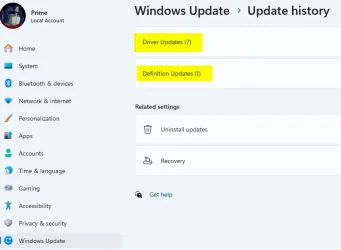
h' a single update. See the snapshot; only Driver(7) and Definition Update(1). No cumulative Updates(0)
 

Attachments

  • 2025-10-20_172803.webp
    2025-10-20_172803.webp
    19.7 KB · Views: 33

My Computer

System One

  • OS
    Windows 11 Pro
    Computer type
    PC/Desktop
    Manufacturer/Model
    GIGABYTE B450M K-CF
    CPU
    AMD Ryzen 5 5600GT
    Motherboard
    GIGABYTE B450M K-CF
    Memory
    32GB
    Graphics Card(s)
    AMD Radeon RX 6500 XT
    Monitor(s) Displays
    BenQ GW2480
    Screen Resolution
    1600 x 900 60 Hz
    Hard Drives
    2TB
    Keyboard
    Logitech
    Mouse
    Dell
    Internet Speed
    2MB
    Browser
    Firefox
Interesting, when did that happen? I'd like to read more about it, if you have an official source or even some forum discussion.
I know that it's been 100% reliable on Windows 10 for many years and when I sometimes used Windows 11 it worked there too.
There's also a blog post by a MS employee that says that's the way to do it on Windows 11, so I'm very surprised to read that it doesn't work anymore.

I believe it started at least around 23H2. Nothing official to read though. It was from experience and member feedback reporting that Windows Update was not fully disabled when using that policy, and would sometime re-enable itself after an allowed update when manually using "Check for updates".

You can read more about the policy not working in Windows 10 in the feedback posts below.


The pause updates for 20 years was a workaround that effectively and completely disables automatic updates reliable so far.
 

My Computers

System One System Two

  • OS
    Windows 11 Pro for Workstations
    Computer type
    PC/Desktop
    Manufacturer/Model
    Custom self build
    CPU
    Intel i7-8700K 5 GHz
    Motherboard
    ASUS ROG Maximus XI Formula Z390
    Memory
    64 GB (4x16GB) G.SKILL TridentZ RGB DDR4 3600 MHz (F4-3600C18D-32GTZR)
    Graphics Card(s)
    ASUS ROG-STRIX-GTX1080TI-O11G-GAMING (11GB GDDR5X)
    Sound Card
    Integrated Digital Audio (S/PDIF)
    Monitor(s) Displays
    2 x Samsung Odyssey G75 27"
    Screen Resolution
    2560x1440
    Hard Drives
    1TB Samsung 990 PRO M.2,
    4TB Samsung 990 PRO M.2,
    TerraMaster F8 SSD Plus NAS
    PSU
    Seasonic Prime Titanium 850W
    Case
    Thermaltake Core P3 wall mounted
    Cooling
    Corsair Hydro H115i
    Keyboard
    Amazon Basics Wired Full Keyboard MD005
    Mouse
    Logitech MX Master 4
    Internet Speed
    2 Gbps Download and 100 Mbps Upload
    Browser
    Chrome and Edge
    Antivirus
    Microsoft Defender
    Other Info
    Logitech Z625 speaker system,
    Logitech BRIO 4K Pro webcam,
    HP Color LaserJet Pro MFP M477fdn,
    CyberPower CP1500PFCLCD
    Galaxy S23 Plus phone
  • Operating System
    Windows 11 Pro
    Computer type
    Laptop
    Manufacturer/Model
    Surface Laptop 7 Copilot+ PC
    CPU
    Snapdragon X Elite (12 core) 3.42 GHz
    Memory
    16 GB LPDDR5x-7467 MHz
    Monitor(s) Displays
    15" HDR
    Screen Resolution
    2496 x 1664
    Hard Drives
    1 TB SSD
    Internet Speed
    Wi-Fi 7 and Bluetooth 5.4
    Browser
    Chrome and Edge
    Antivirus
    Microsoft Defender
I believe it started at least around 23H2. Nothing official to read though. It was from experience and member feedback reporting that Windows Update was not fully disabled when using that policy, and would sometime re-enable itself after an allowed update when manually using "Check for updates".

The pause updates for 20 years was a workaround that effectively and completely disables automatic updates reliable so far.
That 20 years extension was a wonderful thing. i am in 25H2, started from scratch. Its working.
 

My Computer

System One

  • OS
    Windows 11 Pro
    Computer type
    PC/Desktop
    Manufacturer/Model
    GIGABYTE B450M K-CF
    CPU
    AMD Ryzen 5 5600GT
    Motherboard
    GIGABYTE B450M K-CF
    Memory
    32GB
    Graphics Card(s)
    AMD Radeon RX 6500 XT
    Monitor(s) Displays
    BenQ GW2480
    Screen Resolution
    1600 x 900 60 Hz
    Hard Drives
    2TB
    Keyboard
    Logitech
    Mouse
    Dell
    Internet Speed
    2MB
    Browser
    Firefox
Hi Brink, do you have a tutorial on disabling automatic restarts after updates? I want the updates, just not the unexpected restarts
 

My Computer

System One

  • OS
    Windows 11
Hi Brink, do you have a tutorial on disabling automatic restarts after updates? I want the updates, just not the unexpected restarts

A couple to try:


My Computers

System One System Two

  • OS
    Windows 11 Pro 25H2 Build 26200.8524
    Computer type
    PC/Desktop
    Manufacturer/Model
    Sin-built 2013
    CPU
    Intel(R) Core(TM) i7-4770K CPU @ 3.50GHz
    Motherboard
    ASUS ROG Maximus VI Formula
    Memory
    32.0 GB of I forget and the box is in storage.
    Graphics Card(s)
    Gigabyte nVidia GeForce GTX 1660 Super OC 6GB
    Sound Card
    Onboard thingy
    Monitor(s) Displays
    5 x LG 25MS500-B - 1 x 24MK430H-B - 1 x Wacom Pro 22" Touch Screen Tablet
    Screen Resolution
    All over the place
    Hard Drives
    Too many to list.
    OS on Samsung 1TB 870 QVO SATA
    PSU
    Silverstone 1500
    Case
    NZXT Phantom 820 Full-Tower Case
    Cooling
    Noctua NH-D15 Elite Class Dual Tower CPU Cooler / 6 x EziDIY 120mm / 2 x Corsair 140mm somethings / 1 x 140mm Thermaltake something / 2 x 200mm Corsair.
    Keyboard
    Corsair K95 / Logitech diNovo Edge Wireless
    Mouse
    Logitech: G402 / G502 / Mx Masters / Mx Air Cordless
    Internet Speed
    2000/500Mbps
    Browser
    All sorts
    Antivirus
    Kaspersky Premium
    Other Info
    ㅤㅤㅤㅤㅤㅤㅤㅤㅤㅤㅤㅤㅤㅤㅤㅤㅤㅤㅤㅤㅤㅤㅤㅤㅤㅤㅤㅤㅤㅤㅤㅤㅤㅤㅤㅤㅤㅤㅤㅤ⠀⠀⠀⠀⠀⠀⠀⠀⠀⠀
    TP-Link BE9300 WiFi 7 Bluetooth 5.4 (Archer TBE550E)
    TP-Link TX201 V1 2.5GB Lan

    Grandstream HT812 - VoIP
    ASUS DSL-AX82U - Mesh
    ASUS RT-AC68U - Mesh
    ASUS RT-BE88U Router

    Brother MFC-L2880DW Printer

    I’m on a horse.
  • Operating System
    Windows 11 Pro 25H2 Build 26200.8524
    Computer type
    Laptop
    Manufacturer/Model
    LENOVO Yoga 7 14IRL8 - 7i EVO OLED 14" Touchscreen i5 12 Core 16GB/512GB
    CPU
    Intel Core 12th Gen i5-1240P Processor (1.7 - 4.4GHz)
    Memory
    16GB LPDDR5 RAM
    Graphics card(s)
    Intel Iris Xe Graphics Processor
    Sound Card
    Optimized with Dolby Atmos®
    Screen Resolution
    QHD 2880 x 1800 OLED
    Hard Drives
    M.2 512GB
    Antivirus
    Defender / Malwarebytes
    Other Info
    …still on a horse.

Latest Support Threads

Back
Top Bottom