Dual-boot troubles with Windows 11 and BitLocker


TKR

New member
Local time
10:44 AM
Posts
3
OS
Windows 11
I need help figuring out what happened and what to do.
A far away relative has a Windows 11 PC that got too bloated, high CPU, freezes…
I tried fixing it earlier but gave up.
Since I don't have the time there to sort things, I thought I would install a new drive as a dual boot system, as I have done multiple times in the past decades.
The two old drives were 2.5" SATAs, and the new one is an NVMe. The PC is fully compatible with Windows 11, which I verified with the MS tool as well. I believe the old drive did not have BitLocker enabled, and while I saw an MS account, it required no password anywhere - not even for administrator options.
I first tried a Rufus made USB drive with MS account and BitLocker disabled, to try avoiding problems, but the install kept failing, on both Windows 11 installers, 2 latest versions of Win ISO, 2 versions of Rufus, online and offline, removing hardware… eventually I only managed to install it after making a new USB with nothing removed and disconnecting both old drives, as many wrote solved it for them. I used the MS account from the other install, I believe.
However, after re-connecting the old drives, now I have no boot menu *and* it requires BitLocker code to access the old drives from the F8 menu. I could find the code @ MS, it's dated new BTW, but we need to type it all every time, and then the new drive is locked for it.
I tried from the installer's terminal (after typing the BootLocker codes) the: bootrec /fixmbr /fixboot /scanOS /rebuildbcd. It found 3, but I can see no change.
Why? :oops: How can I fix that? I don't need the BitLocker. I hope for both OS working and for the menu. Or at least just have the old OS back working as normal.
Thank you for any help!
 
Windows Build/Version
Win11_25H2_English_x64_v2

My Computer

System One

  • OS
    Windows 11
Any relatively safe path, that won't make things harder?
 

My Computer

System One

  • OS
    Windows 11
you can disable/turn off bit locker in settings > security
then the drive will un-encrypt itself.

you can also find your bitlocker keys in the control panel > bitlocker encryption
before you remove the encryption from the drive.

best of luck Steve ..
 

My Computers

System One System Two

  • OS
    Windows 11 Home
    Computer type
    PC/Desktop
    Manufacturer/Model
    HP 24" AiO
    CPU
    Ryzen 7 5825u
    Motherboard
    HP
    Memory
    64GB DDR4 3200
    Graphics Card(s)
    Ryzen 7 5825u
    Sound Card
    RealTek
    Monitor(s) Displays
    24" HP AiO
    Screen Resolution
    1920 x 1080 @60 Hz
    Hard Drives
    1TB WD Blue SN580 M2 SSD Partitioned.
    2x 1TB USB HDD External Backup/Storage.
    PSU
    90W external power brick
    Case
    24" All in One
    Cooling
    Default Air Cooling
    Keyboard
    HP WiFi UK extended
    Mouse
    HP WiFi 3 Button
    Internet Speed
    1GB full fibre
    Browser
    Edge & Firefox
    Antivirus
    AVG Internet Security/Windows Defender
    Other Info
    Mainly Open Source Software
  • Operating System
    Ubuntu 22.04.5 LTS
    Computer type
    Laptop
    Manufacturer/Model
    Dell 13" Latitude 2017
    CPU
    i5 7200u
    Motherboard
    Dell
    Memory
    16GB DDR4
    Graphics card(s)
    Intel
    Sound Card
    Intel
    Monitor(s) Displays
    13" Dell Laptop
    Hard Drives
    250GB Crucial 2.5" SSD
    Mouse
    Generic WiFi 3 button
    Internet Speed
    WiFi only
    Browser
    Firefox
    Antivirus
    ClamAV TK
    Other Info
    Mainly Open Source Software
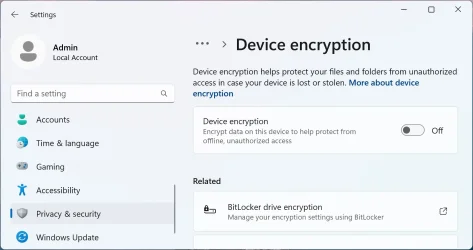
I don't need the BitLocker.

Go to:

Settings > Privacy & security > Device encryption

Turn it Off.

Device encryption.webp

bootrec /fixmbr /fixboot

These commands are intended for legacy BIOS/MBR-based systems. They are not compatible with boot repairs on UEFI/GPT configurations, where the UEFI firmware loads EFI executables (.efi) directly from the FAT32-formatted EFI system partition, bypassing traditional MBR/VBR boot sector chaining.

bootrec /FixMbr
  • Writes a Windows-compatible Master Boot Record (MBR) to sector 0 of the system disk.
  • On UEFI/GPT systems, this only updates the Protective MBR and does not repair the actual UEFI boot process.
bootrec /FixBoot
  • Writes a new Volume Boot Record (VBR) to the system partition, using a boot sector compatible with the current version of Windows.
  • In Windows 10 (version 1709 and later) and Windows 11, the bootrec /fixboot command no longer works in the Windows Recovery Environment (WinRE), regardless of whether the disk uses GPT or MBR. Running the command results in an "Access is denied" error.

/rebuildbcd. It found 3, but I can see no change.

This means that the command found three Windows installations missing from the BCD store.

bootrec /RebuildBcd
- Scans all disks for Windows installations that are not currently present in the Boot Configuration Data (BCD) store.
- Prompts the user to add the detected installations to the BCD store.
- If "Total identified Windows installations: 0" is reported, it means no Windows installations were found that are missing from the BCD store.

after re-connecting the old drives, now I have no boot menu

Run the following command as an administrator, replacing x with the Windows partition letter (e.g. bcdboot d:\windows):

bcdboot x:\windows

Note: The primary C:\Windows partition is already in the BCD store and does not need to be added.

When setting up a PC to boot more than one operating system, you may sometimes lose the ability to boot into one of the operating systems. The BCDBoot option allows you to quickly add boot options for a Windows-based operating system.

 
Last edited:

My Computers

System One System Two

  • OS
    Windows 11 Pro
    Computer type
    PC/Desktop
    CPU
    AMD Ryzen 9 9950X3D
    Motherboard
    ASRock B650E Taichi Lite
    Memory
    Kingston FURY Beast 64GB (2x32GB) DDR5 6000MT/s
    Graphics Card(s)
    ASUS TUF Gaming Radeon RX 9070 OC Edition 16GB GDDR6
    Hard Drives
    Solidigm P44 Pro 2TB M.2 NVMe SSD
  • Operating System
    Windows 11 Home
    Computer type
    Laptop
    Manufacturer/Model
    Lenovo Legion Pro 7i Gen 10 16"
    CPU
    Intel Core Ultra 9 275HX
    Memory
    64GB (2x 32GB) DDR5-6400
    Graphics card(s)
    NVIDIA GeForce RTX 5080 16GB GDDR7 Laptop GPU
    Hard Drives
    2x 1TB M.2 NVMe SSD (SK Hynix)
There are a number of approaches to this problem. Myself, I like the quick and fast and possibly dirty approach until I can get things 'ironed out' as it were.

Keep in mind that only one activation key can be used per OS. Neither can you boot to a clone of the same OS when the original OS is running on the unit. This will result in a conflict and you won't be able to boot to either. Here is what I do to get booting in dual boot before I start doing surgery i.e. removing BitLocker, Co-Pilot, One Drive etc.

1) Disconnect all drives that refuse to boot and work only with the drive that allows you to access the OS.
2) Boot up to that OS and download Easy BCD here >> Easy BCD
3) Install Easy BCD
4) Reboot and configure BCD (It's extremely user friendly and very easy to configure.)
5) Shut down computer and reconnect the drives you want to boot to
6) Start PC and select the working OS and boot to it
7) Use Disk Manager to find the drive letters of the drives you wish to boot to.
8) Enter those drive letter into the Easy BCD configuration list.
9) Reboot - you should have more than one selection to chose from on a boot screen

Let us know if you can boot to any of those other drives after doing the above.
 

My Computer

System One

  • OS
    WIN 11, WIN 10, WIN 8.1, WIN 7 U, WIN 7 PRO, WIN 7 HOME (32 Bit), LINUX MINT
    Computer type
    PC/Desktop
    Manufacturer/Model
    DIY, ASUS, and DELL
    CPU
    Intel i7 6900K and i9-7960X / AMD 3800X (8 core)
    Motherboard
    ASUS X99E-WS USB 3.1 and ASUS X299 SAGE
    Memory
    128 GB CORSAIR DOMINATOR PLATINUM (B DIE)
    Graphics Card(s)
    NVIDIA 1070 and RTX 3070
    Sound Card
    Crystal Sound (onboard)
    Monitor(s) Displays
    single Samsung 30" 4K and 8" aux monitor
    Screen Resolution
    4K and something equally attrocious. I'll be working on this.
    Hard Drives
    A, B, C, D, E, F, G, H, I, J, K, L, M, N, O, P, Q, R, S, T, U, V, W

    Ports X, Y, and Z are reserved for USB access and removable drives.

    Drive types consist of the following: Various mechanical hard drives bearing the brand names, Seagate, Toshiba, and Western Digital. Various NVMe drives bearing the brand names Kingston, Intel, Silicon Power, Crucial, Western Digital, and Team Group. Various SATA SSDs bearing various different brand names.

    RAID arrays included:

    LSI RAID 10 (WD Velociraptors) 1115.72 GB
    LSI RAID 10 (WD SSDS) 463.80 GB

    INTEL RAID 0 (KINGSTON HYPER X) System 447.14 GB
    INTEL RAID 1 TOSHIBA ENTERPRIZE class Data 2794.52 GB
    INTEL RAID 1 SEAGATE HYBRID 931.51 GB
    PSU
    SEVERAL. I prefer my Corsair Platinum HX1000i but I also like EVGA power supplies
    Case
    ThermalTake Level 10 GT (among others)
    Cooling
    Noctua is my favorite and I use it in my main. I also own various other coolers.
    Keyboard
    all kinds.
    Mouse
    all kinds
    Internet Speed
    360 mbps - 1 gbps (depending)
    Browser
    FIREFOX
    Antivirus
    KASPERSKY (no apologies)
    Other Info
    Gave Dell touch screen with Windows 11 to daughter and got me an OTVOC. Being a PC builder I own many desktop PCs as well. I am a father of five providing PCs, laptops, and tablets for all my family, most of which I have modified, rebuilt, or simply built from scratch. I do not own a cell phone, never have, never will.
Thank you all. I will try this as soon as I can get my currently busy relative to try.

you can disable/turn off bit locker in settings > security
then the drive will un-encrypt itself.

Would the one switch work for all 3 drives at once, and from any of the 2 bootable (one easy, one hard) Win11 operating systems? Any preference from where, since the new one should be actually encrypted?

There are a number of approaches to this problem.

So, to make sure I got this right, I should do 2 separate things to fix that:

  • disable BitLocker
  • fix BCD in one of the above ways
And the order does not matter, only for convenience?

Keep in mind that only one activation key can be used per OS. Neither can you boot to a clone of the same OS when the original OS is running on the unit

Sure, we only need one OS working at a time, nothing special.
 

My Computer

System One

  • OS
    Windows 11
So, to make sure I got this right, I should do 2 separate things to fix that:

  • disable BitLocker
  • fix BCD in one of the above ways
And the order does not matter, only for convenience?

ChatGPT:

Technically, the order usually does not matter. The two tasks are mostly independent:
  • disabling BitLocker affects drive encryption/unlocking
  • repairing the Boot Configuration Data affects the boot menu and boot entries
However, for convenience and to avoid confusion, it is generally better to:
  1. unlock/disable BitLocker first
  2. then repair the BCD
 

My Computers

System One System Two

  • OS
    Windows 11 Pro
    Computer type
    PC/Desktop
    CPU
    AMD Ryzen 9 9950X3D
    Motherboard
    ASRock B650E Taichi Lite
    Memory
    Kingston FURY Beast 64GB (2x32GB) DDR5 6000MT/s
    Graphics Card(s)
    ASUS TUF Gaming Radeon RX 9070 OC Edition 16GB GDDR6
    Hard Drives
    Solidigm P44 Pro 2TB M.2 NVMe SSD
  • Operating System
    Windows 11 Home
    Computer type
    Laptop
    Manufacturer/Model
    Lenovo Legion Pro 7i Gen 10 16"
    CPU
    Intel Core Ultra 9 275HX
    Memory
    64GB (2x 32GB) DDR5-6400
    Graphics card(s)
    NVIDIA GeForce RTX 5080 16GB GDDR7 Laptop GPU
    Hard Drives
    2x 1TB M.2 NVMe SSD (SK Hynix)
So, to make sure I got this right, I should do 2 separate things to fix that:

  • disable BitLocker
  • fix BCD in one of the above ways
And the order does not matter, only for convenience?
Myself, I would do the BCD bit first before disabling BitLocker but it probably wouldn't matter if you can already access the OS.
Sure, we only need one OS working at a time, nothing special.
Every OS will need it's own activation key.
 

My Computer

System One

  • OS
    WIN 11, WIN 10, WIN 8.1, WIN 7 U, WIN 7 PRO, WIN 7 HOME (32 Bit), LINUX MINT
    Computer type
    PC/Desktop
    Manufacturer/Model
    DIY, ASUS, and DELL
    CPU
    Intel i7 6900K and i9-7960X / AMD 3800X (8 core)
    Motherboard
    ASUS X99E-WS USB 3.1 and ASUS X299 SAGE
    Memory
    128 GB CORSAIR DOMINATOR PLATINUM (B DIE)
    Graphics Card(s)
    NVIDIA 1070 and RTX 3070
    Sound Card
    Crystal Sound (onboard)
    Monitor(s) Displays
    single Samsung 30" 4K and 8" aux monitor
    Screen Resolution
    4K and something equally attrocious. I'll be working on this.
    Hard Drives
    A, B, C, D, E, F, G, H, I, J, K, L, M, N, O, P, Q, R, S, T, U, V, W

    Ports X, Y, and Z are reserved for USB access and removable drives.

    Drive types consist of the following: Various mechanical hard drives bearing the brand names, Seagate, Toshiba, and Western Digital. Various NVMe drives bearing the brand names Kingston, Intel, Silicon Power, Crucial, Western Digital, and Team Group. Various SATA SSDs bearing various different brand names.

    RAID arrays included:

    LSI RAID 10 (WD Velociraptors) 1115.72 GB
    LSI RAID 10 (WD SSDS) 463.80 GB

    INTEL RAID 0 (KINGSTON HYPER X) System 447.14 GB
    INTEL RAID 1 TOSHIBA ENTERPRIZE class Data 2794.52 GB
    INTEL RAID 1 SEAGATE HYBRID 931.51 GB
    PSU
    SEVERAL. I prefer my Corsair Platinum HX1000i but I also like EVGA power supplies
    Case
    ThermalTake Level 10 GT (among others)
    Cooling
    Noctua is my favorite and I use it in my main. I also own various other coolers.
    Keyboard
    all kinds.
    Mouse
    all kinds
    Internet Speed
    360 mbps - 1 gbps (depending)
    Browser
    FIREFOX
    Antivirus
    KASPERSKY (no apologies)
    Other Info
    Gave Dell touch screen with Windows 11 to daughter and got me an OTVOC. Being a PC builder I own many desktop PCs as well. I am a father of five providing PCs, laptops, and tablets for all my family, most of which I have modified, rebuilt, or simply built from scratch. I do not own a cell phone, never have, never will.
Back
Top Bottom