Dual Boot - Windows Boot Manager


gnulab

Well-known member
Local time
5:46 AM
Posts
38
OS
Windows 11
Hi,

I am planning to dual boot with Linux and Windows on my laptop. 1 HDD shared between 2 OS.
2 questions.

1. How do I use Windows Boot Manager instead of using Linux Grub?
-> Most youtube videos and other tech posts that I come across all use Grub as the boot manager.

2.How do I revert back to single boot if I decided to keep Windows installation?
-> I read this post Dual boot to single boot+boot sector - Windows 10 Help Forums, Is that the way to go to reinstall the Windows Boot Manager?


Thanks
Henry
 
Windows Build/Version
Windows 11 24H2 (26100.1742)

My Computer

System One

  • OS
    Windows 11
    Computer type
    Laptop
    CPU
    AMD Ryzen AI 7 350 w/ Radeon 860M
    Motherboard
    LENOVO LNVNB161216
    Memory
    32.00 GB
    Graphics Card(s)
    32.00 GB
    Sound Card
    AMD Audio Device
    Screen Resolution
    2880 x 1800 x 32 bits (4294967296 colors) @ 60 Hz
    Hard Drives
    WD PC SN7100S SDFPMSL-1T00-1101 1TB
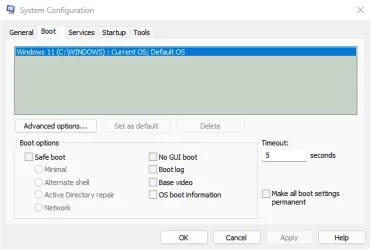
How do I revert back to single boot if I decided to keep Windows installation?
Simply click on Start then type msconfig in the Run box and then click on the msconfig.exe icon.
This will launch the System Configuration window.
Select the Boot tab and delete anything other than the C:\Windows as per photo.

MsConfig Boot Tab.webp
 

My Computers

System One System Two

  • OS
    Windows 11 Pro
    Computer type
    PC/Desktop
    Manufacturer/Model
    GMKtec K11
    CPU
    AMD Ryzen 9 8945HS
    Memory
    32GB DDR5 SO-DIMM
    Graphics Card(s)
    Integrated AMD Radeon 780M (4.00 GHz)
    Monitor(s) Displays
    Benq 2250HM
    Screen Resolution
    1920 x 1080
    Hard Drives
    1 TB PCIe 4.0 NVMe M.2 SSD
  • Operating System
    Windows 11 Home
    Computer type
    Laptop
    Manufacturer/Model
    ASUS Zenbook 14 OLED 14" Laptop - UX3405CA-QL192W
    CPU
    Intel® Core™ Ultra 7 - 255H processor
    Memory
    16 GB LPDDR5 SDRAM
    Graphics card(s)
    Intel Arc 140T onboard graphics
    Screen Resolution
    1920 x 1200 (16:10 WUXGA resolution) OLED Touchscreen
    Hard Drives
    1TB SSD
Is your computer a Legacy-MBR or UEFI - GPT?
The boot manager of them are different.

Please edit your profile with ALL your hardware specs. It will help us to help you

Please post a whole window Disk Manager image of ALL your drives. Don't forget to expand the columns so we can read them. How to Post a Screenshot of Disk Management
If you have a MiniTool or AOMEI Partition use it instead or Windows disk manager.
 

My Computers

System One System Two

  • OS
    Windows 11 Pro - Windows 7 HP 64 - Lubuntu
    Computer type
    PC/Desktop
    Manufacturer/Model
    custom build
    CPU
    i5 6600K - 800MHz to 4400MHz
    Motherboard
    GA-Z170-HD3P
    Memory
    4+4G GSkill DDR4 3000
    Graphics Card(s)
    IG - Intel 530
    Monitor(s) Displays
    Samsung 226BW
    Screen Resolution
    1680x1050
    Hard Drives
    (1) -1 SM951 – 128GB M.2 AHCI PCIe SSD drive for Win 11
    (2) -1 WD SATA 3 - 1T for Data
    (3) -1 WD SATA 3 - 1T for backup
    (4) -1 BX500 SSD - 256G for Windows 7 and Lubuntu
    PSU
    Thermaltake 450W TR2 gold
    Keyboard
    Old and good Chicony mechanical keyboard
    Mouse
    Logitech mX performance - 9 buttons (had to disable some)
    Internet Speed
    500 Mb/s
    Browser
    Firefox 64
  • Operating System
    Windows 11 Pro
    Computer type
    Laptop
    Manufacturer/Model
    Asus Q550LF
    CPU
    i7-4500U 800- 3000MHz
    Motherboard
    Asus Q550LF
    Memory
    (4+4)G DDR3 1600
    Graphics card(s)
    IG intel 4400 + NVIDIA GeForce GT 745M
    Sound Card
    Realtek
    Monitor(s) Displays
    LG Display LP156WF4-SPH1
    Screen Resolution
    1920 x 1080
    Hard Drives
    BX500 120G SSD for Windows and programs
    & 1T HDD for data
    Internet Speed
    500 Mb/s
    Browser
    Firefox 64
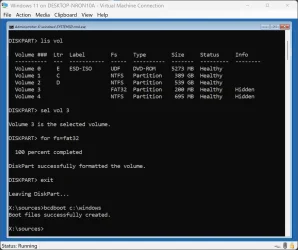
How do I revert back to single boot if I decided to keep Windows installation?
Format the EFI system partition when you want to completely wipe all previous boot data — for example, after a dual-boot installation (e.g., Windows + Linux). This will delete all bootloaders.

- Boot into the recovery environment, then open the command prompt.

diskpart
list volume (check your EFI system partition number)
select volume # (replace # with your EFI system partition number)
format quick fs=fat32
list volume (check the volume letter of your Windows partition)
exit

bcdboot x:\windows

- replace "x" with the volume letter of your Windows partition

The bcdboot command automatically identifies the FAT32-formatted EFI system partition, copies the necessary boot files from the Windows partition to it, and creates a Boot Configuration Data (BCD) store on that same partition.

Format the EFI system partition.webp
 

My Computers

System One System Two

  • OS
    Windows 11 Pro
    Computer type
    PC/Desktop
    CPU
    AMD Ryzen 9 9950X3D
    Motherboard
    ASRock B650E Taichi Lite
    Memory
    Kingston FURY Beast 64GB (2x32GB) DDR5 6000MT/s
    Graphics Card(s)
    ASUS TUF Gaming Radeon RX 9070 OC Edition 16GB GDDR6
    Hard Drives
    Solidigm P44 Pro 2TB M.2 NVMe SSD
  • Operating System
    Windows 11 Home
    Computer type
    Laptop
    Manufacturer/Model
    Lenovo Legion Pro 7i Gen 10 16"
    CPU
    Intel Core Ultra 9 275HX
    Memory
    64GB (2x 32GB) DDR5-6400
    Graphics card(s)
    NVIDIA GeForce RTX 5080 16GB GDDR7 Laptop GPU
    Hard Drives
    2x 1TB M.2 NVMe SSD (SK Hynix)
Format the EFI system partition when you want to completely wipe all previous boot data — for example, after a dual-boot installation (e.g., Windows + Linux). This will delete all bootloaders.
I don't use Linux, so I checked this with ChatGPT.
ChatGPT: "Formatting the ESP wipes all bootloaders and boot managers."

If anyone is interested: ChatGPT: "If you’d like, I can also help you draft a unified glossary (Boot Manager vs. bootloader vs. OS loader), so you don’t have to rethink the wording every time you write about UEFI/boot flow."

🔑 UEFI Boot Terminology​


UEFI Boot Manager (firmware component)


  • Built into the UEFI firmware.
  • Maintains the boot order (BootOrder, Boot#### variables in NVRAM).
  • Decides which EFI executable to run first from the EFI System Partition (ESP).
  • Example: When you press F12 or Esc at startup to pick a device, you’re using the UEFI Boot Manager.


Bootloader (generic EFI program)


  • An EFI application stored on the ESP.
  • Launched by the UEFI Boot Manager.
  • Its job is to prepare and transfer control to the operating system kernel.
  • Examples:
    • GRUB (grubx64.efi) for Linux
    • systemd-boot (systemd-bootx64.efi)
    • shim (shimx64.efi, used in Secure Boot)


OS-specific Boot Manager


  • Some operating systems provide their own boot manager, which acts as a middle layer between UEFI and the OS loader.
  • Example:
    • Windows Boot Manager (bootmgfw.efi)
      • Reads the Boot Configuration Data (BCD).
      • Presents boot choices (Safe Mode, Recovery, multiple Windows installations).
      • Chooses and launches the OS loader (winload.efi).


OS Loader (OS-specific bootloader stage)


  • Responsible for loading the OS kernel and essential drivers.
  • Examples:
    • Windows: winload.efi (loads ntoskrnl.exe).
    • Linux: GRUB can directly load the Linux kernel (vmlinuz) or hand off to another loader.


EFI System Partition (ESP)


  • FAT32 partition where bootloaders and boot managers reside.
  • Typical layout:


    /EFI/Boot/bootx64.efi (fallback bootloader)
    /EFI/Microsoft/Boot/bootmgfw.efi (Windows Boot Manager)
    /EFI/ubuntu/grubx64.efi (GRUB for Ubuntu)
    /EFI/fedora/shimx64.efi (shim loader for Secure Boot)

  • Formatting the ESP wipes all bootloaders and boot managers.


👉 In short:


  • UEFI Boot Manager = firmware’s built-in selector.
  • Bootloader = EFI program launched from the ESP.
  • Windows Boot Manager (bootmgfw.efi) = OS-specific manager, not just a loader.
  • OS Loader = loads the kernel (e.g., winload.efi on Windows).

If anyone is interested:

MBR Disk Boot Process (BIOS-based booting):

1. BIOS firmware performs the POST (Power-On Self-Test).
2. BIOS reads the Master Boot Record (MBR) from the first sector of the boot disk — in other words, from the boot sector of that disk.
3. The MBR boot code identifies the active (bootable) partition and transfers control to its Volume Boot Record (VBR) — in other words, to the boot sector of that partition.
4. The VBR boot code loads the Windows Boot Manager — bootmgr (a file in the root of the boot partition, typically C:\bootmgr).
5. bootmgr reads the BCD store from the \Boot\BCD path on the system partition.
6. Based on BCD settings, it launches winload.exe, the OS loader for BIOS-based systems, to start Windows.

GPT Disk Boot Process (UEFI-based booting):

1. UEFI firmware performs the POST (Power-On Self-Test).
2. UEFI checks the system's NVRAM for boot entries.
3. A boot entry (e.g., "Windows Boot Manager") points to \EFI\Microsoft\Boot\bootmgfw.efi on the EFI system partition.
4. bootmgfw.efi is the Windows Boot Manager, which loads and reads the BCD (Boot Configuration Data) store from the same EFI system partition.
5. Based on BCD settings, it launches winload.efi, the OS loader for UEFI-based systems, to start Windows.

In short:
- MBR disks rely on boot sectors and an active partition to eventually reach bootmgr.
- GPT disks rely on the UEFI firmware to directly load EFI files from the EFI system partition, so no MBR/VBR/active partition concept exists.

Windows will not boot on BIOS systems unless the boot device is configured as the primary boot option in the BIOS settings. UEFI systems do not have this specific limitation because they function differently.

 

My Computers

System One System Two

  • OS
    Windows 11 Pro
    Computer type
    PC/Desktop
    CPU
    AMD Ryzen 9 9950X3D
    Motherboard
    ASRock B650E Taichi Lite
    Memory
    Kingston FURY Beast 64GB (2x32GB) DDR5 6000MT/s
    Graphics Card(s)
    ASUS TUF Gaming Radeon RX 9070 OC Edition 16GB GDDR6
    Hard Drives
    Solidigm P44 Pro 2TB M.2 NVMe SSD
  • Operating System
    Windows 11 Home
    Computer type
    Laptop
    Manufacturer/Model
    Lenovo Legion Pro 7i Gen 10 16"
    CPU
    Intel Core Ultra 9 275HX
    Memory
    64GB (2x 32GB) DDR5-6400
    Graphics card(s)
    NVIDIA GeForce RTX 5080 16GB GDDR7 Laptop GPU
    Hard Drives
    2x 1TB M.2 NVMe SSD (SK Hynix)
I don't know of any way to dual boot Linux and Windows without using GRUB.

I found the easiest way to dual boot is by installing Windows first, leaving unallocated and unformatted drive space for Linux. If you do it the other way around, you have to repair GRUB afterwards using the Linux installation media or Linux won't boot.
 

My Computer

System One

  • OS
    Windows 11 22H2 Pro (X-lite Micro 11 version)
    Computer type
    Laptop
    Manufacturer/Model
    Dell/ Precision 7680
    CPU
    i7 13850HX (20 cores, 28 threads)
    Motherboard
    Dell
    Memory
    32GB DDR5
    Graphics Card(s)
    Intel UHD/ RTX 1000 ADA
    Sound Card
    Realtek
    Monitor(s) Displays
    4K UHD Touchscreen
    Screen Resolution
    3840 x 2400
    Hard Drives
    Samsung 512GB system drive
    WD Blue 1TB game drive
    PSU
    240W AC adapter, 1800W when docked
    Internet Speed
    1 gigabit symmetrical
    Browser
    Firefox, Librewolf
    Antivirus
    None. Manully configured so nobody except me can change any critical system files. (Don't ask how, it's probably against some rule somewhere)
Hi

GRuB is the usual way, BCD is difficult and I can't explain HOW2.

rEFInd is absolutely superb as a Boot Loader.

NB: Paragon Partition Manager CE can mount your efi boot partition as A: for editing, best not to meddle with it unless practiced in the art or desperate.

In the BIOS set your Boot MANAGER with the Microsoft Loader as TOP and you wont see Grub, it will boot straight to Windows.
 

My Computer

System One

  • OS
    W10, W11, Mint and Debian
    Computer type
    Laptop
    Manufacturer/Model
    HP,HP, HP and Lenovo
    Other Info
    Assorted hardware and OS's.

Latest Support Threads

Back
Top Bottom