Dual Windows Boot winload.efi error on every restart


"bootrec /fixmbr" writes disk's boot sector (commonly called MBR)
"bootrec /fixboot" writes partition's boot sector (commonly called VBR).

The Windows boot process on a GPT disk is significantly different from an MBR disk.
- Unlike an MBR disk, a GPT disk does not have an active partition.
- Unlike an MBR disk, a GPT disk does not have a boot sectors (no MBR, no VBR).
- On a GPT disk, the bootloader is just a regular file inside the EFI system partition.

Windows boot process on GPT disk.
1. "Windows Boot Manager" entry in the list of bootable UEFI devices in the BIOS settings.
2. \EFI\Microsoft\Boot\bootmgfw.efi file in the EFI system partition.
3. \EFI\Microsoft\Boot\BCD file (Boot Configuration Data) in the EFI system partition.
4. \Windows\system32\winload.efi file.


Both Windows installations must use the same EFI system partition.

diskpart
list volume (check your EFI system partition number)
select volume # (replace # with your EFI system partition number)
format quick fs=fat32 (optional: format your EFI system partition)
assign letter=z
list volume (check the volume letters of both your Windows partitions)
exit

bcdboot x:\windows /s z: /f uefi
- replace "x" with the volume letter of your first Windows partition

bcdboot x:\windows /s z: /f uefi
- replace "x" with the volume letter of your second Windows partition

- /s z: is your EFI system partition you assigned above
- firmware type /f uefi is not needed if you have booted USB flash drive in UEFI mode
I did this in recovery "
format fs=fat32 quick
diskpart
select partition X
set id=c12a7328-f81f-11d2-ba4b-00a0c93ec93b (EFI system partition GUID)
gpt attributes=0x8000000000000001 (sets EFI + hidden attributes)
exit"
bcdboot D:\Windows /l en-us /s Z: /f UEFI
But i still have the same issue
 

My Computer

System One

  • OS
    Windows 11
    Computer type
    PC/Desktop
@aubergine Thanks for your detailed explanation. But I am confused about the usage of bootrec /fixboot command. As I understand from your post, bootrec command should not be used in GPT/UEFI systems.

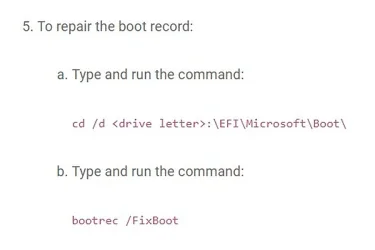
According to Dell Technologies, this command must be used. The following screenshot is taken from the web site of Dell Technologies: How to Repair the EFI Bootloader on a GPT Hard Drive for Windows Operating Systems | Dell US


fixboot.webp

This web document is updated recently.

Is my interpretation of your post correct ? Could you please explain further.
 

My Computers

System One System Two

  • OS
    Windows 11 Pro build 26200.8524
    Computer type
    PC/Desktop
    Manufacturer/Model
    Home Built
    CPU
    Intel i7-4790
    Motherboard
    Asus H97 Pro Gamer with add-on TPM1.2 module
    Memory
    Teams DDR3-1600 4x4 GB
    Graphics Card(s)
    MSI Nvidia GeForce GTX 1050Ti
    Sound Card
    Realtek ALC1150
    Monitor(s) Displays
    Dell P2425D
    Screen Resolution
    2560 by 1440 pixels
    Hard Drives
    Corsair NVMe M.2 Core XT 1000 GB (Windows 11 v.25H2); Samsung SATA Evo 870 500 GB (Windows 11 v.25H2);
    PSU
    Corsair HX850
    Case
    Gigabyte Solo 210
    Cooling
    Zalman CNPS7X Tower
    Keyboard
    Microsoft AIO Wireless (includes touchpad)
    Mouse
    HP S1000 Plus Wireless
    Internet Speed
    500 Mb fiber optic
    Browser
    Chrome; MS Edge
    Antivirus
    Windows Defender
  • Operating System
    MacOS 12 Monterey
    Computer type
    Laptop
    Manufacturer/Model
    Apple Macbook Air
    CPU
    Intel Core i5
    Memory
    8 GB
    Graphics card(s)
    Intel integrated
    Screen Resolution
    1440 by 900 pixels
    Hard Drives
    128 GB
    Keyboard
    Built-in
    Mouse
    Microsoft Wireless
    Internet Speed
    802.11 ac
    Browser
    Chrome; Safari
    Antivirus
    N/A
Could you please explain further.

"bootrec /fixboot" writes partition's boot sector (commonly called VBR).

Google AI > Does the EFI system partition have a VBR boot sector?

No, an EFI System Partition (ESP) does not have a Volume Boot Record (VBR). Modern UEFI systems, which utilize an ESP, do not rely on the legacy boot sector mechanism (VBR) found in older BIOS systems. Instead, the UEFI firmware directly executes files (EFI applications) stored on the ESP.

Here's a breakdown:
  • BIOS/MBR Systems:
    In older BIOS systems, the Master Boot Record (MBR) on the disk would locate a partition, and then the Volume Boot Record (VBR) within that partition would load the operating system.

  • UEFI/GPT Systems:
    UEFI systems, often using GPT partition tables, bypass the MBR and VBR approach. The UEFI firmware directly accesses and runs EFI applications from the ESP, which is formatted with a FAT filesystem.

  • ESP Function:
    The ESP acts as a storage location for the bootloaders and other necessary files for UEFI to boot the operating system.

  • No Overlap:
    Unlike MBR systems where the MBR and VBR can overlap on unpartitioned disks, UEFI systems with an ESP avoid this overlap. The ESP is a separate partition on the disk.

  • Simplified Boot Process:
    UEFI booting through the ESP simplifies the boot process by directly executing EFI applications, rather than relying on the sequential loading of boot sectors.
 

My Computers

System One System Two

  • OS
    Windows 11 Pro
    Computer type
    PC/Desktop
    CPU
    AMD Ryzen 9 9950X3D
    Motherboard
    ASRock B650E Taichi Lite
    Memory
    Kingston FURY Beast 64GB (2x32GB) DDR5 6000MT/s
    Graphics Card(s)
    ASUS TUF Gaming Radeon RX 9070 OC Edition 16GB GDDR6
    Hard Drives
    Solidigm P44 Pro 2TB M.2 NVMe SSD
  • Operating System
    Windows 11 Home
    Computer type
    Laptop
    Manufacturer/Model
    Lenovo Legion Pro 7i Gen 10 16"
    CPU
    Intel Core Ultra 9 275HX
    Memory
    64GB (2x 32GB) DDR5-6400
    Graphics card(s)
    NVIDIA GeForce RTX 5080 16GB GDDR7 Laptop GPU
    Hard Drives
    2x 1TB M.2 NVMe SSD (SK Hynix)
"bootrec /fixmbr" writes disk's boot sector (commonly called MBR)
"bootrec /fixboot" writes partition's boot sector (commonly called VBR).

The Windows boot process on a GPT disk is significantly different from an MBR disk.
- Unlike an MBR disk, a GPT disk does not have an active partition.
- Unlike an MBR disk, a GPT disk does not have a boot sectors (no MBR, no VBR).
- On a GPT disk, the bootloader is just a regular file inside the EFI system partition.

Windows boot process on GPT disk.
1. "Windows Boot Manager" entry in the list of bootable UEFI devices in the BIOS settings.
2. \EFI\Microsoft\Boot\bootmgfw.efi file in the EFI system partition.
3. \EFI\Microsoft\Boot\BCD file (Boot Configuration Data) in the EFI system partition.
4. \Windows\system32\winload.efi file.


Both Windows installations must use the same EFI system partition.

diskpart
list volume (check your EFI system partition number)
select volume # (replace # with your EFI system partition number)
format quick fs=fat32 (optional: format your EFI system partition)
assign letter=z
list volume (check the volume letters of both your Windows partitions)
exit

bcdboot x:\windows /s z: /f uefi
- replace "x" with the volume letter of your first Windows partition

bcdboot x:\windows /s z: /f uefi /addlast
- replace "x" with the volume letter of your second Windows partition

- /s z: is your EFI system partition you assigned above
- firmware type /f uefi is not needed if you have booted USB flash drive in UEFI mode

edit:

Added /addlast
"Optional. Specifies that the Windows Boot Manager firmware entry should be added last. The default behavior is to add it first."
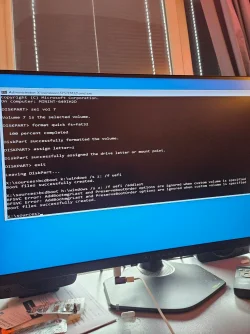
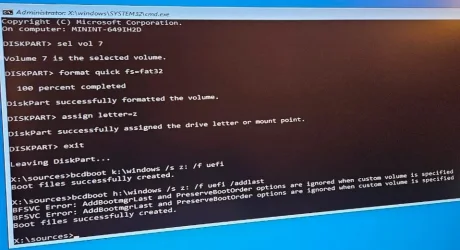
I did as you said, makes it possible to boot, but after restart same issue.
 

Attachments

  • photo_2025-08-19_13-08-17.webp
    photo_2025-08-19_13-08-17.webp
    166.8 KB · Views: 2

My Computer

System One

  • OS
    Windows 11
    Computer type
    PC/Desktop
there should only be "one" EFI Partition for the PC...
You got a lot going on there.... MiniTool Partition Wizard is your friend when working with Disks and Partitions
clearly you cloned one of the disks and also took with it all the other partitions that are no longer needed or required by the current system....

Remove disk 5 and see if you can boot into the current C Partition... this will confirm the EFI Partition Used... Also check the Bois to see what is assigned as the first Boot Drive...

once booted into the working C drive - use diskpart MiniTool and remove the EFI Partition from the other Drive
then from within That working/booted C Drive - open cmd prompt (Admin) BCDBoot S:\Windows
assuming S is still the assigned drive letter for the other OS

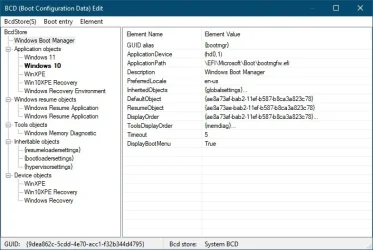
You could also use a program called "Bootice" it is a stand alone program... this will also confirm the EFI Partition Used
Run the exe > select BCD tab > Professional Mode..
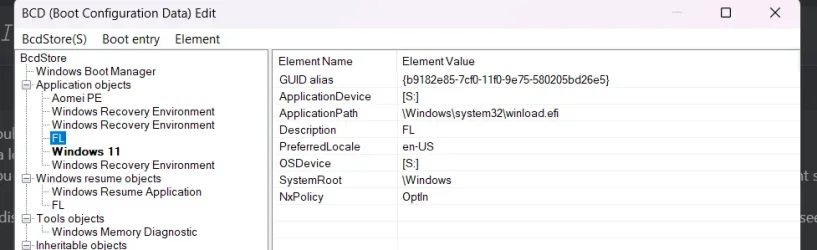
Look at Windows Boot Manager - and note the Hd.partition
pictured is hd0.1 (which is Harddisk 0 - Partition 1 )

Another Great Tool for working with Disks and Partitions is AOMEI Partition Assistant
 

Attachments

  • Image00123.webp
    Image00123.webp
    43.1 KB · Views: 1
Last edited:

My Computer

System One

  • OS
    Windows
there should only be "one" EFI Partition for the PC...
You got a lot going on there....
clearly you cloned one of the disks and also took with it all the other partitions that are no longer needed or required by the current system....

Remove disk 5 and see if you can boot into the current C Partition... this will confirm the EFI Partition Used... Also check the Bois to see what is assigned as the first Boot Drive...

once booted into the working C drive - use diskpart and remove the EFI Partition from the other Drive
then from within That working C Drive - open cmd prompt (Admin) BCDBoot S:\Windows
assuming S is still the assigned drive letter for the other OS
My working is disk 5. disk 6 is the non working os. you mean that i remove disk 5 from m2 (the broken one is on a ssd drive) then try going into the broken one?
Edit: Did not work
 

Attachments

  • image_2025-08-19_134747957.webp
    image_2025-08-19_134747957.webp
    70 KB · Views: 3
  • image_2025-08-19_134849730.webp
    image_2025-08-19_134849730.webp
    34.8 KB · Views: 2
Last edited:

My Computer

System One

  • OS
    Windows 11
    Computer type
    PC/Desktop
"bootrec /fixboot" writes partition's boot sector (commonly called VBR).

Google AI > Does the EFI system partition have a VBR boot sector?
Thank you for your further clarification. I know company engineers, be it hardware companies, software companies, what not, may not be very careful about what they say or write or manufacture. That's why we have something called "warranty, warranty for hardware, warranty for software, warranty for all durable consumer commodity".

Have a nice day.
 

My Computers

System One System Two

  • OS
    Windows 11 Pro build 26200.8524
    Computer type
    PC/Desktop
    Manufacturer/Model
    Home Built
    CPU
    Intel i7-4790
    Motherboard
    Asus H97 Pro Gamer with add-on TPM1.2 module
    Memory
    Teams DDR3-1600 4x4 GB
    Graphics Card(s)
    MSI Nvidia GeForce GTX 1050Ti
    Sound Card
    Realtek ALC1150
    Monitor(s) Displays
    Dell P2425D
    Screen Resolution
    2560 by 1440 pixels
    Hard Drives
    Corsair NVMe M.2 Core XT 1000 GB (Windows 11 v.25H2); Samsung SATA Evo 870 500 GB (Windows 11 v.25H2);
    PSU
    Corsair HX850
    Case
    Gigabyte Solo 210
    Cooling
    Zalman CNPS7X Tower
    Keyboard
    Microsoft AIO Wireless (includes touchpad)
    Mouse
    HP S1000 Plus Wireless
    Internet Speed
    500 Mb fiber optic
    Browser
    Chrome; MS Edge
    Antivirus
    Windows Defender
  • Operating System
    MacOS 12 Monterey
    Computer type
    Laptop
    Manufacturer/Model
    Apple Macbook Air
    CPU
    Intel Core i5
    Memory
    8 GB
    Graphics card(s)
    Intel integrated
    Screen Resolution
    1440 by 900 pixels
    Hard Drives
    128 GB
    Keyboard
    Built-in
    Mouse
    Microsoft Wireless
    Internet Speed
    802.11 ac
    Browser
    Chrome; Safari
    Antivirus
    N/A
My working is disk 5. disk 6 is the non working os. you mean that i remove disk 5 from m2 (the broken one is on a m2 drive) then try going into the broken one?
Edit: Did not work
As I understand this is for test purposes. In fact you don't have to actually remove disk 5 from your PC. You should be able to disable disk 5 in BIOS for test purposes only. If you can't boot to your broken disk, you can re-enable disk 5 in BIOS. Nothing wrong will happen. You will continue using your PC the same way until you repair your system software-wise.
 

My Computers

System One System Two

  • OS
    Windows 11 Pro build 26200.8524
    Computer type
    PC/Desktop
    Manufacturer/Model
    Home Built
    CPU
    Intel i7-4790
    Motherboard
    Asus H97 Pro Gamer with add-on TPM1.2 module
    Memory
    Teams DDR3-1600 4x4 GB
    Graphics Card(s)
    MSI Nvidia GeForce GTX 1050Ti
    Sound Card
    Realtek ALC1150
    Monitor(s) Displays
    Dell P2425D
    Screen Resolution
    2560 by 1440 pixels
    Hard Drives
    Corsair NVMe M.2 Core XT 1000 GB (Windows 11 v.25H2); Samsung SATA Evo 870 500 GB (Windows 11 v.25H2);
    PSU
    Corsair HX850
    Case
    Gigabyte Solo 210
    Cooling
    Zalman CNPS7X Tower
    Keyboard
    Microsoft AIO Wireless (includes touchpad)
    Mouse
    HP S1000 Plus Wireless
    Internet Speed
    500 Mb fiber optic
    Browser
    Chrome; MS Edge
    Antivirus
    Windows Defender
  • Operating System
    MacOS 12 Monterey
    Computer type
    Laptop
    Manufacturer/Model
    Apple Macbook Air
    CPU
    Intel Core i5
    Memory
    8 GB
    Graphics card(s)
    Intel integrated
    Screen Resolution
    1440 by 900 pixels
    Hard Drives
    128 GB
    Keyboard
    Built-in
    Mouse
    Microsoft Wireless
    Internet Speed
    802.11 ac
    Browser
    Chrome; Safari
    Antivirus
    N/A
As I understand this is for test purposes. In fact you don't have to actually remove disk 5 from your PC. You should be able to disable disk 5 in BIOS for test purposes only. If you can't boot to your broken disk, you can re-enable disk 5 in BIOS. Nothing wrong will happen. You will continue using your PC the same way until you repair your system software-wise.
Im glad i dont have to remove the m2, its a pain in the ass. So i can just disable it in bios? Nice.
 

My Computer

System One

  • OS
    Windows 11
    Computer type
    PC/Desktop
@GreatLove Sorry. I did not see your "Edit: Did not work comment."
 

My Computers

System One System Two

  • OS
    Windows 11 Pro build 26200.8524
    Computer type
    PC/Desktop
    Manufacturer/Model
    Home Built
    CPU
    Intel i7-4790
    Motherboard
    Asus H97 Pro Gamer with add-on TPM1.2 module
    Memory
    Teams DDR3-1600 4x4 GB
    Graphics Card(s)
    MSI Nvidia GeForce GTX 1050Ti
    Sound Card
    Realtek ALC1150
    Monitor(s) Displays
    Dell P2425D
    Screen Resolution
    2560 by 1440 pixels
    Hard Drives
    Corsair NVMe M.2 Core XT 1000 GB (Windows 11 v.25H2); Samsung SATA Evo 870 500 GB (Windows 11 v.25H2);
    PSU
    Corsair HX850
    Case
    Gigabyte Solo 210
    Cooling
    Zalman CNPS7X Tower
    Keyboard
    Microsoft AIO Wireless (includes touchpad)
    Mouse
    HP S1000 Plus Wireless
    Internet Speed
    500 Mb fiber optic
    Browser
    Chrome; MS Edge
    Antivirus
    Windows Defender
  • Operating System
    MacOS 12 Monterey
    Computer type
    Laptop
    Manufacturer/Model
    Apple Macbook Air
    CPU
    Intel Core i5
    Memory
    8 GB
    Graphics card(s)
    Intel integrated
    Screen Resolution
    1440 by 900 pixels
    Hard Drives
    128 GB
    Keyboard
    Built-in
    Mouse
    Microsoft Wireless
    Internet Speed
    802.11 ac
    Browser
    Chrome; Safari
    Antivirus
    N/A
As I understand this is for test purposes. In fact you don't have to actually remove disk 5 from your PC. You should be able to disable disk 5 in BIOS for test purposes only. If you can't boot to your broken disk, you can re-enable disk 5 in BIOS. Nothing wrong will happen. You will continue using your PC the same way until you repair your system software-wise.
i disabled the kingston m2 drive but that just made it so that i booted into bios when i did that. the boot manager is on the m2 drive, it needs to be on for me to be able to see the bootmenu so i can choose between the working and broken one
 

My Computer

System One

  • OS
    Windows 11
    Computer type
    PC/Desktop
Im glad i dont have to remove the m2, its a pain in the ass. So i can just disable it in bios? Nice.
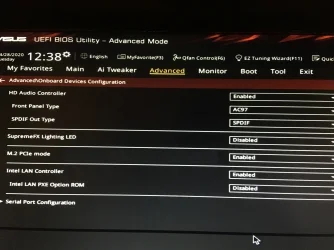
In my Asus motherboard, it is in Advanced\Onboard Devices Configuration page. You can enable / disable it. This is PCIe M.2 NVMe SSD. If you have SATA M.2 drive, it may be located elsewhere.

install3.webp
 

My Computers

System One System Two

  • OS
    Windows 11 Pro build 26200.8524
    Computer type
    PC/Desktop
    Manufacturer/Model
    Home Built
    CPU
    Intel i7-4790
    Motherboard
    Asus H97 Pro Gamer with add-on TPM1.2 module
    Memory
    Teams DDR3-1600 4x4 GB
    Graphics Card(s)
    MSI Nvidia GeForce GTX 1050Ti
    Sound Card
    Realtek ALC1150
    Monitor(s) Displays
    Dell P2425D
    Screen Resolution
    2560 by 1440 pixels
    Hard Drives
    Corsair NVMe M.2 Core XT 1000 GB (Windows 11 v.25H2); Samsung SATA Evo 870 500 GB (Windows 11 v.25H2);
    PSU
    Corsair HX850
    Case
    Gigabyte Solo 210
    Cooling
    Zalman CNPS7X Tower
    Keyboard
    Microsoft AIO Wireless (includes touchpad)
    Mouse
    HP S1000 Plus Wireless
    Internet Speed
    500 Mb fiber optic
    Browser
    Chrome; MS Edge
    Antivirus
    Windows Defender
  • Operating System
    MacOS 12 Monterey
    Computer type
    Laptop
    Manufacturer/Model
    Apple Macbook Air
    CPU
    Intel Core i5
    Memory
    8 GB
    Graphics card(s)
    Intel integrated
    Screen Resolution
    1440 by 900 pixels
    Hard Drives
    128 GB
    Keyboard
    Built-in
    Mouse
    Microsoft Wireless
    Internet Speed
    802.11 ac
    Browser
    Chrome; Safari
    Antivirus
    N/A
I did as you said, makes it possible to boot, but after restart same issue.

photo_2025-08-19_13-08-17.webp

What does this mean?

"BFSVC Error: AddBootmgrLast and PreserveBootOrder options are ignored when custom volume is specified"

So in this case the /addlast option cannot be used.
 

My Computers

System One System Two

  • OS
    Windows 11 Pro
    Computer type
    PC/Desktop
    CPU
    AMD Ryzen 9 9950X3D
    Motherboard
    ASRock B650E Taichi Lite
    Memory
    Kingston FURY Beast 64GB (2x32GB) DDR5 6000MT/s
    Graphics Card(s)
    ASUS TUF Gaming Radeon RX 9070 OC Edition 16GB GDDR6
    Hard Drives
    Solidigm P44 Pro 2TB M.2 NVMe SSD
  • Operating System
    Windows 11 Home
    Computer type
    Laptop
    Manufacturer/Model
    Lenovo Legion Pro 7i Gen 10 16"
    CPU
    Intel Core Ultra 9 275HX
    Memory
    64GB (2x 32GB) DDR5-6400
    Graphics card(s)
    NVIDIA GeForce RTX 5080 16GB GDDR7 Laptop GPU
    Hard Drives
    2x 1TB M.2 NVMe SSD (SK Hynix)
the boot manager is on the m2 drive _ which what drive?
did you boot back into the working drive and remove the non used EFI Partition?
Did you the add the BCDBoot s:\Windows

When you say not working - should we assume it is not bootable -
If so then the other OS is most like corrupt and non bootable

Normally the Booted OS Knows where the BCD is Located - so to add other Bootable OS's - it is just a matter to tell the Host OS to make it visible to the BCD - by using the above command---- no need for partition label, firmware type or any of the other bs options - as the Host already knows that....
WinPE entries are a little different ....
 

My Computer

System One

  • OS
    Windows
try this from command prompt (admin)

Code:
Dism /Image:S:\offline /Cleanup-Image /RestoreHealth /Source:S:\windows

once again assuming S is the offline OS - that command will use DISM to try and repair the OS

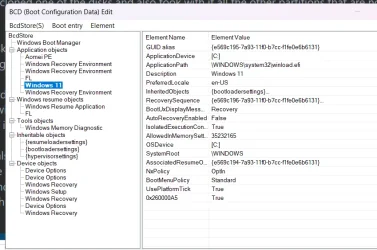
Also: your Bootice pictures do not show the "Windows Boot Manager" so could not verify the BCD location...
 

My Computer

System One

  • OS
    Windows
the boot manager is on the m2 drive _ which what drive?
did you boot back into the working drive and remove the non used EFI Partition?
Did you the add the BCDBoot s:\Windows

When you say not working - should we assume it is not bootable -
If so then the other OS is most like corrupt and non bootable

Normally the Booted OS Knows where the BCD is Located - so to add other Bootable OS's - it is just a matter to tell the Host OS to make it visible to the BCD - by using the above command---- no need for partition label, firmware type or any of the other bs options - as the Host already knows that....
WinPE entries are a little different ....
I did but i cannot boot into it, whenever i fix it so i can boot into it i cannot boot into it again after restart. this command works to get it booting bcdboot H:\Windows /l en-us /s Z: /f ALL
When i format the EFI on the broken drive it recreates it automatically
 

My Computer

System One

  • OS
    Windows 11
    Computer type
    PC/Desktop
I only have one EFI partition which is before the C:\ Drive. It has been quite some time ago that I dual Booted, last night I remembered that both Windows Releases were on the Same drive and this was way before GPT drives came along. I hope that @GreatLove can get this sorted out.
 

My Computers

System One System Two

  • OS
    Windows11 Pro 26200.8524
    Computer type
    PC/Desktop
    Manufacturer/Model
    Dell Alienware Aurora R16
    CPU
    Intel Core i9 14900F (24 -Core, 68 MB Total Cache)
    Motherboard
    Dell Alienware
    Memory
    32GB DDR5
    Graphics Card(s)
    RTX 4080 Super w/581.95
    Sound Card
    Realtec
    Monitor(s) Displays
    Corsair XENEON 32QHD165
    Screen Resolution
    2560 X 1440
    Hard Drives
    1-2TB Samsung 990 Pro PCIe NVMe M2 SSD
    1-4TB Samsung 990 Pro PCIe NVMe M2 SSD
    PSU
    1000 Watt Platinum Dell
    Case
    Alienware
    Cooling
    Liquid Closed Loop
    Keyboard
    Logitech MK270 Wireless Keyboard
    Mouse
    Logitech MK270 Wireless
    Internet Speed
    100Gb's Down-20 Up
    Browser
    Firefox 151.0.2
    Antivirus
    Defender
    Other Info
    Very Quiet And Fast
    CyberPower UPS CP1500PFCLCD
  • Operating System
    PClinuxOS Mate (2025.7)
    Computer type
    PC/Desktop
    Manufacturer/Model
    Intel
    CPU
    13th Gen Inter(R) Core(TM) i3-1315U
    Motherboard
    Intel
    Memory
    64 GB DDR4 @3200 MHz.
    Graphics card(s)
    Internal
    Sound Card
    None
    Monitor(s) Displays
    Dell 2419HGCF
    Screen Resolution
    1920 X 1080
    Hard Drives
    SAMSUNG 980 PRO SSD 2TB, PCIe 4.0 M.2 2280
    PSU
    Chicony 30 Watt
    Case
    Small
    Keyboard
    Dell
    Mouse
    Razor
    Internet Speed
    1GB
    Browser
    Slimjet
i formated this partition (see picture) and now no matter what i do with bcd it gives me winload error. now i cant even get in once. the drive letter and volume of EFI changed as well in recovery diskpart
 

Attachments

  • image_2025-08-19_151446460.webp
    image_2025-08-19_151446460.webp
    12.2 KB · Views: 1

My Computer

System One

  • OS
    Windows 11
    Computer type
    PC/Desktop
When i format the EFI on the broken drive it recreates it automatically
the part you still do not get is - only one drive should have an EFI partition.... so until you clean up the second drive - good luck..
As it could of been fixed in a few minutes... as I can see in your images you are not following advice...
 

My Computer

System One

  • OS
    Windows
i formated this partition (see picture) and now no matter what i do with bcd it gives me winload error. now i cant even get in once. the drive letter and volume of EFI changed as well in recovery diskpart
no you have one at the beginning of the disk - too and a bunch of other unknown use partitions
 

My Computer

System One

  • OS
    Windows
Back
Top Bottom