Privacy and Security Enable or Disable Bing Web Suggested Search Results in Windows Search on Windows 11


Search_banner.webp

This tutorial will show you how to turn on or off showing Bing "Web Searches" suggested search results in Windows Search for your account in Windows 11

Windows Search lets you search from your taskbar to find what you’re looking for, whether it’s on your device, in the cloud, or on the web.

The Search button on the taskbar allows you to quickly use Windows Search (Win+S) to find your apps, files, settings, help, and more on Windows—plus unlock the power of the web with quick access to online information like time zone conversions, fact lookup, trending searches, and search results for navigating to websites faster. You can also use Search to find files and people in your work or school organization through  Microsoft Search.

When you start typing into the Search Box, you will see a toolbar to select All, Apps, Documents, Web, Settings, Folders, or Photos to find search results in.

Starting with Windows 11 build 26300.8697 (Experimental 26H2) for Insiders, Microsoft added a hidden experimental feature to turn on or off showing suggested search results from Web Searches and Microsoft Store in Windows Search.

If you do not have the hidden Show suggested search results toggle available yet in the Insider build above and would like to test it now using Option One or Option Two below, then you can enable this setting using the ViVeTool command below.

vivetool.exe /enable /id:48433719,61267302,61344081,61482515,61532758,61760679


Reference:


Contents

  • Option One: Turn On or Off Bing Web Suggested Search Results in Windows Search in Settings
  • Option Two: Turn On or Off Bing Web Suggested Search Results in Windows Search using REG file
  • Option Three: Add or Remove Bing Web Suggested Search Results in Windows Search with "BingSearchEnabled"
  • Option Four: Add or Remove Bing Web Suggested Search Results in Windows Search with "DisableSearchBoxSuggestions" Policy


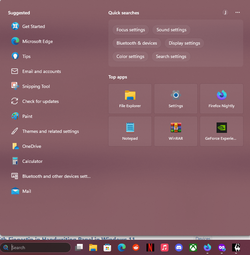
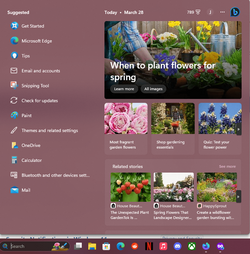
EXAMPLE: Bing "Web Searches" suggested search results in Windows Search

Web_searches_results-1.webp
Web_searches_results-2.webp


Option One

Turn On or Off Bing Web Suggested Search Results in Windows Search in Settings


1 Open Settings (Win+I).

2 Click/tap on Privacy & security on the left side, and click/tap on Search on the right side. (see screenshot below)


Suggested_search_results-1.webp

3 Under Show suggested search results, turn On (default) or Off Web Searches for what you want. (see screenshot below)

Suggested_search_results-2.webp

4 You can now close Settings if you like.


Option Two

Turn On or Off Bing Web Suggested Search Results in Windows Search using REG file


This is for the same setting in Option One.


1 Do step 2 (on) or step 3 (off) below for what you would like to do.

2 Turn On Bing Web Suggested Search Results in Windows Search

This is the default setting.


A) Click/tap on the Download button below to download the file below, and go to step 4 below.​

Turn_ON_Web_Searches_suggested_search_results.reg


(Contents of REG file for reference)
Code:
Windows Registry Editor Version 5.00

[HKEY_CURRENT_USER\Software\Microsoft\Windows\CurrentVersion\SearchSettings]
"IsWebSuggestionsEnabled"=dword:00000001

3 Turn Off Bing Web Suggested Search Results in Windows Search

A) Click/tap on the Download button below to download the file below, and go to step 4 below.​

Turn_OFF_Web_Searches_suggested_search_results.reg


(Contents of REG file for reference)
Code:
Windows Registry Editor Version 5.00

[HKEY_CURRENT_USER\Software\Microsoft\Windows\CurrentVersion\SearchSettings]
"IsWebSuggestionsEnabled"=dword:00000000

4 Save the REG file to your desktop.

5 If you have Smart App Control turned on, you will need to unblock the downloaded REG file.

6 Double click/tap on the downloaded REG file to merge it.

7 When prompted, click/tap on Run, Yes (UAC), Yes, and OK to approve the merge.

8 You can now delete the downloaded REG file if you like.


Option Three

Add or Remove Bing Web Suggested Search Results in Windows Search with "BingSearchEnabled"


1 Do step 2 (enable) or step 3 (disable) below for what you want.


 2. Add Bing Web Suggested Search Results in Windows Search

This is the default setting.


A) Click/tap on the Download button below to download the file below, and go to step 4.​

Add_Web_Searches_results_to_Windows_Search_with_BingSearchEnabled..zip


(contents of .bat file)
Code:
@echo off

REG ADD "HKCU\Software\Microsoft\Windows\CurrentVersion\Search" /V BingSearchEnabled /T REG_DWORD /D 1 /F

taskkill /f /im explorer.exe
start explorer.exe


 3. Remove Bing Web Suggested Search Results in Windows Search

A) Click/tap on the Download button below to download the file below, and go to step 4.​

Remove_Web_Searches_results_from_Windows_Search_with_BingSearchEnabled..zip


(contents of .bat file)
Code:
@echo off

REG ADD "HKCU\Software\Microsoft\Windows\CurrentVersion\Search" /V BingSearchEnabled /T REG_DWORD /D 0 /F

taskkill /f /im explorer.exe
start explorer.exe

4 Save the ZIP file to your desktop.

5 Unblock the ZIP file.

6 Extract the BAT file from the ZIP file.

7 Run the BAT file.

8 You will now see a command prompt quickly open and close, and your screen flicker as the explorer process is restarted to apply the registry changes.

9 You can now delete the BAT file if you like.


Option Four

Add or Remove Bing Web Suggested Search Results in Windows Search with "DisableSearchBoxSuggestions" Policy


You must be signed in as an administrator to use this option.

If you disable search the web with Bing in Windows Search using this option, it will also disable search box suggestions (aka: recent searches) in File Explorer.


1 Do step 2 (enable) or step 3 (disable) below for what you want.


 2. Add Bing Web Suggested Search Results in Windows Search

This is the default setting.


A) Click/tap on the Download button below to download the file below, and go to step 4.​

Add_Web_Searches_results_to_Windows_Search_with_DisableSearchBoxSuggestions..zip


(contents of .bat file)
Code:
@echo off

powershell -windowstyle hidden -command "Start-Process cmd -ArgumentList '/s,/c,REG Delete "HKEY_CURRENT_USER\SOFTWARE\Policies\Microsoft\Windows\Explorer" /V DisableSearchBoxSuggestions /F' -Verb runAs"

taskkill /f /im explorer.exe
start explorer.exe


 3. Remove Bing Web Suggested Search Results in Windows Search

A) Click/tap on the Download button below to download the file below, and go to step 4.​

Remove_Web_Searches_results_from_Windows_Search_with_DisableSearchBoxSuggestions..zip


(contents of .bat file)
Code:
@echo off

powershell -windowstyle hidden -command "Start-Process cmd -ArgumentList '/s,/c,REG Add "HKEY_CURRENT_USER\SOFTWARE\Policies\Microsoft\Windows\Explorer" /V DisableSearchBoxSuggestions /T REG_DWORD /D 1 /F' -Verb runAs"

taskkill /f /im explorer.exe
start explorer.exe

4 Save the ZIP file to your desktop.

5 Unblock the ZIP file.

6 Extract the BAT file from the ZIP file.

7 Run the BAT file.

8 If prompted by UAC, click/tap on Yes to approve.

9 You will now see a command prompt quickly open and close, and your screen flicker as the explorer process is restarted to apply the registry changes.

10 You can now delete the .bat file if you like.


That's it,
Shawn Brink


Attachments

Last edited:

My Computers My Computers

  • At a glance

    Windows 11 Pro 25H2 26200.8655i9-10900 10 core 20 threads32 gbnone-Intel UHD Graphics 630
    OS
    Windows 11 Pro 25H2 26200.8655
    Computer type
    PC/Desktop
    Manufacturer/Model
    Dell Optiplex 7080
    CPU
    i9-10900 10 core 20 threads
    Motherboard
    DELL 0J37VM
    Memory
    32 gb
    Graphics Card(s)
    none-Intel UHD Graphics 630
    Sound Card
    Integrated Realtek
    Monitor(s) Displays
    Benq 27
    Screen Resolution
    2560x1440
    Hard Drives
    2x1tb Solidigm m.2 nvme /External drives 512gb Samsung m.2 sata+2tb Kingston m2.nvme
    PSU
    500w
    Case
    MT
    Cooling
    Dell Premium
    Keyboard
    Logitech wired
    Mouse
    Logitech wireless
    Internet Speed
    so slow I'm too embarrassed to tell
    Browser
    #1 Edge #2 Firefox
    Antivirus
    Defender+MWB Premium
  • At a glance

    Windows 11 Pro 24H2 26200.8457AMD Ryzen 7 6800U32 gbintegrated
    Operating System
    Windows 11 Pro 24H2 26200.8457
    Computer type
    PC/Desktop
    Manufacturer/Model
    Beelink Mini PC SER5
    CPU
    AMD Ryzen 7 6800U
    Memory
    32 gb
    Graphics card(s)
    integrated
    Sound Card
    integrated
    Monitor(s) Displays
    Benq 27
    Screen Resolution
    2560x1440
    Hard Drives
    1TB Crucial nvme
    Keyboard
    Logitech wired
    Mouse
    Logitech wireless
    Internet Speed
    still too embarrassed to tell
    Browser
    Firefox
    Antivirus
    Defender
    Other Info
    System 3 is non compliant Dell 9020 i7-4770/24gb ram Win11 PRO 26200.8457
Thank you, this work for me.
I search from Google disable via group policy but search the web still showing up, but this tutorial work for me.
 

My Computer My Computer

At a glance

Windows 11
OS
Windows 11
Thank you, this work for me.
I search from Google disable via group policy but search the web still showing up, but this tutorial work for me.
:shawn:
 

My Computers My Computers

  • At a glance

    Windows 11 Pro for WorkstationsIntel i7-8700K 5 GHz64 GB (4x16GB) G.SKILL TridentZ RGB DDR4 3600...ASUS ROG-STRIX-GTX1080TI-O11G-GAMING (11GB GD...
    OS
    Windows 11 Pro for Workstations
    Computer type
    PC/Desktop
    Manufacturer/Model
    Custom self build
    CPU
    Intel i7-8700K 5 GHz
    Motherboard
    ASUS ROG Maximus XI Formula Z390
    Memory
    64 GB (4x16GB) G.SKILL TridentZ RGB DDR4 3600 MHz (F4-3600C18D-32GTZR)
    Graphics Card(s)
    ASUS ROG-STRIX-GTX1080TI-O11G-GAMING (11GB GDDR5X)
    Sound Card
    Integrated Digital Audio (S/PDIF)
    Monitor(s) Displays
    2 x Samsung Odyssey G75 27"
    Screen Resolution
    2560x1440
    Hard Drives
    1TB Samsung 990 PRO M.2,
    4TB Samsung 990 PRO M.2,
    TerraMaster F8 SSD Plus NAS
    PSU
    Seasonic Prime Titanium 850W
    Case
    Thermaltake Core P3 wall mounted
    Cooling
    Corsair Hydro H115i
    Keyboard
    Amazon Basics Wired Full Keyboard MD005
    Mouse
    Logitech MX Master 4
    Internet Speed
    2 Gbps Download and 100 Mbps Upload
    Browser
    Chrome and Edge
    Antivirus
    Microsoft Defender
    Other Info
    Logitech Z625 speaker system,
    Logitech BRIO 4K Pro webcam,
    HP Color LaserJet Pro MFP M477fdn,
    CyberPower CP1500PFCLCD
    Galaxy S23 Plus phone
  • At a glance

    Windows 11 ProSnapdragon X Elite (12 core) 3.42 GHz16 GB LPDDR5x-7467 MHz
    Operating System
    Windows 11 Pro
    Computer type
    Laptop
    Manufacturer/Model
    Surface Laptop 7 Copilot+ PC
    CPU
    Snapdragon X Elite (12 core) 3.42 GHz
    Memory
    16 GB LPDDR5x-7467 MHz
    Monitor(s) Displays
    15" HDR
    Screen Resolution
    2496 x 1664
    Hard Drives
    1 TB SSD
    Internet Speed
    Wi-Fi 7 and Bluetooth 5.4
    Browser
    Chrome and Edge
    Antivirus
    Microsoft Defender
I use DuckDuckGo as my default search engine.
 

My Computers My Computers

  • At a glance

    Windows 11 23H2 22631.2861Intel(R) Core(TM) i7-10700 CPU @ 2.90GHz 2.90...16384 MBytesIntel UHD Graphics 630
    OS
    Windows 11 23H2 22631.2861
    Computer type
    PC/Desktop
    Manufacturer/Model
    HP Envy TE01-1xxx
    CPU
    Intel(R) Core(TM) i7-10700 CPU @ 2.90GHz 2.90 GHz
    Motherboard
    16.0GB Dual-Channel Unknown @ 1463MHz (21-21-21-47)
    Memory
    16384 MBytes
    Graphics Card(s)
    Intel UHD Graphics 630
    Sound Card
    Realtek High Definition Audio
    Monitor(s) Displays
    Monitor 1 - Acer 27" Monitor 2 - Acer 27"
    Screen Resolution
    1920 x 1080
    Hard Drives
    WDC PC SN530 SDBPNPZ-512G-1006 (SSD)
    Seagate ST1000DM003-1SB102
    Seagate BUP Slim SCSI Disk Device (SSD)
    PSU
    HP
    Case
    HP
    Cooling
    Standard
    Keyboard
    Logitech Wave K350
    Mouse
    Logitech M705
    Internet Speed
    500 mbps
    Browser
    Firefox
    Antivirus
    Windows Defender
    Other Info
    That's all Folks!
  • At a glance

    Windows 11Intel Core i7 (10th gen) 1070016 GBIntel UHD Graphics 630
    Operating System
    Windows 11
    Computer type
    PC/Desktop
    Manufacturer/Model
    HP
    CPU
    Intel Core i7 (10th gen) 10700
    Motherboard
    Intel
    Memory
    16 GB
    Graphics card(s)
    Intel UHD Graphics 630
    Sound Card
    Built-in
    Monitor(s) Displays
    Acer 27" & Samsung 24"
    Screen Resolution
    1920 x
    Hard Drives
    SSD (512 GB)
    HDD (1 TB)
    Seagate
    PSU
    Intel i7 10th Generation
    Case
    HP
    Cooling
    HP/Intel?
    Keyboard
    Logitech Wave K350
    Mouse
    Logitech M705
    Internet Speed
    50 mbps
    Browser
    Firefox 90.2
    Antivirus
    Windows Defender
    Other Info
    Headphone/Microphone Combo
    SuperSpeed USB Type-A (4 on front)
    HP 3-in-One Card Readr
    SuperSpeed USB Type-C
    DVD Writer
Hi @Brink, I'm trying to get search highlights to work and I posted on the Microsoft Community forum. An advisor led me here. I noticed your warning about how search highlights would not work if Bing search was not enabled. Judging by my search box, it looks like it isn't. But I tried running your BAT file and it unfortunately did not work for me. I've not had this problem before. I'm currently running build 22621.1413
 

Attachments

  • Screenshot 2023-03-28 135059.png
    Screenshot 2023-03-28 135059.png
    163.6 KB · Views: 175

My Computer My Computer

At a glance

Windows 11Intel(R) Core(TM) i7-8750H CPU @ 2.20GHz16GB
OS
Windows 11
Computer type
Laptop
Manufacturer/Model
Razer
CPU
Intel(R) Core(TM) i7-8750H CPU @ 2.20GHz
Memory
16GB
Hi @Brink, I'm trying to get search highlights to work and I posted on the Microsoft Community forum. An advisor led me here. I noticed your warning about how search highlights would not work if Bing search was not enabled. Judging by my search box, it looks like it isn't. But I tried running your BAT file and it unfortunately did not work for me. I've not had this problem before. I'm currently running build 22621.1413
Hello Joey, and welcome. :alien:

Your Windows Search screenshot looks normal. You won't see "Web" on the search toolbar until you type something in the search box.

Double check you have "Web" search with Bing enabled from both option 1 and 2 since they use different methods.

Usually when Search Highlights is enabled and turned on like below, you'll either see the Bing icon or graphics on the right side of the search box on the toolbar or in Windows Search.

 
Last edited:

My Computers My Computers

  • At a glance

    Windows 11 Pro for WorkstationsIntel i7-8700K 5 GHz64 GB (4x16GB) G.SKILL TridentZ RGB DDR4 3600...ASUS ROG-STRIX-GTX1080TI-O11G-GAMING (11GB GD...
    OS
    Windows 11 Pro for Workstations
    Computer type
    PC/Desktop
    Manufacturer/Model
    Custom self build
    CPU
    Intel i7-8700K 5 GHz
    Motherboard
    ASUS ROG Maximus XI Formula Z390
    Memory
    64 GB (4x16GB) G.SKILL TridentZ RGB DDR4 3600 MHz (F4-3600C18D-32GTZR)
    Graphics Card(s)
    ASUS ROG-STRIX-GTX1080TI-O11G-GAMING (11GB GDDR5X)
    Sound Card
    Integrated Digital Audio (S/PDIF)
    Monitor(s) Displays
    2 x Samsung Odyssey G75 27"
    Screen Resolution
    2560x1440
    Hard Drives
    1TB Samsung 990 PRO M.2,
    4TB Samsung 990 PRO M.2,
    TerraMaster F8 SSD Plus NAS
    PSU
    Seasonic Prime Titanium 850W
    Case
    Thermaltake Core P3 wall mounted
    Cooling
    Corsair Hydro H115i
    Keyboard
    Amazon Basics Wired Full Keyboard MD005
    Mouse
    Logitech MX Master 4
    Internet Speed
    2 Gbps Download and 100 Mbps Upload
    Browser
    Chrome and Edge
    Antivirus
    Microsoft Defender
    Other Info
    Logitech Z625 speaker system,
    Logitech BRIO 4K Pro webcam,
    HP Color LaserJet Pro MFP M477fdn,
    CyberPower CP1500PFCLCD
    Galaxy S23 Plus phone
  • At a glance

    Windows 11 ProSnapdragon X Elite (12 core) 3.42 GHz16 GB LPDDR5x-7467 MHz
    Operating System
    Windows 11 Pro
    Computer type
    Laptop
    Manufacturer/Model
    Surface Laptop 7 Copilot+ PC
    CPU
    Snapdragon X Elite (12 core) 3.42 GHz
    Memory
    16 GB LPDDR5x-7467 MHz
    Monitor(s) Displays
    15" HDR
    Screen Resolution
    2496 x 1664
    Hard Drives
    1 TB SSD
    Internet Speed
    Wi-Fi 7 and Bluetooth 5.4
    Browser
    Chrome and Edge
    Antivirus
    Microsoft Defender
Hello Joey, and welcome. :alien:

Your Windows Search screenshot looks normal. You won't see "Web" on the search toolbar until you type something in the search box.

Double check you have "Web" search with Bing enabled from both option 1 and 2 since they use different methods.

Usually when Search Highlights is enabled and turned on like below, you'll either see the Bing icon or graphics on the right side of the search box on the toolbar or in Windows Search.

Thank you so much! Looks like it needed a reboot after applying the .BAT files you provided. Search highlights and Bing search are working as intended now:giggle:
 

Attachments

  • Screenshot_20230328_093944.png
    Screenshot_20230328_093944.png
    233.9 KB · Views: 161

My Computer My Computer

At a glance

Windows 11Intel(R) Core(TM) i7-8750H CPU @ 2.20GHz16GB
OS
Windows 11
Computer type
Laptop
Manufacturer/Model
Razer
CPU
Intel(R) Core(TM) i7-8750H CPU @ 2.20GHz
Memory
16GB
Thank you so much! Looks like it needed a reboot after applying the .BAT files you provided. Search highlights and Bing search are working as intended now:giggle:

Great news. You're most welcome. :party:
 

My Computers My Computers

  • At a glance

    Windows 11 Pro for WorkstationsIntel i7-8700K 5 GHz64 GB (4x16GB) G.SKILL TridentZ RGB DDR4 3600...ASUS ROG-STRIX-GTX1080TI-O11G-GAMING (11GB GD...
    OS
    Windows 11 Pro for Workstations
    Computer type
    PC/Desktop
    Manufacturer/Model
    Custom self build
    CPU
    Intel i7-8700K 5 GHz
    Motherboard
    ASUS ROG Maximus XI Formula Z390
    Memory
    64 GB (4x16GB) G.SKILL TridentZ RGB DDR4 3600 MHz (F4-3600C18D-32GTZR)
    Graphics Card(s)
    ASUS ROG-STRIX-GTX1080TI-O11G-GAMING (11GB GDDR5X)
    Sound Card
    Integrated Digital Audio (S/PDIF)
    Monitor(s) Displays
    2 x Samsung Odyssey G75 27"
    Screen Resolution
    2560x1440
    Hard Drives
    1TB Samsung 990 PRO M.2,
    4TB Samsung 990 PRO M.2,
    TerraMaster F8 SSD Plus NAS
    PSU
    Seasonic Prime Titanium 850W
    Case
    Thermaltake Core P3 wall mounted
    Cooling
    Corsair Hydro H115i
    Keyboard
    Amazon Basics Wired Full Keyboard MD005
    Mouse
    Logitech MX Master 4
    Internet Speed
    2 Gbps Download and 100 Mbps Upload
    Browser
    Chrome and Edge
    Antivirus
    Microsoft Defender
    Other Info
    Logitech Z625 speaker system,
    Logitech BRIO 4K Pro webcam,
    HP Color LaserJet Pro MFP M477fdn,
    CyberPower CP1500PFCLCD
    Galaxy S23 Plus phone
  • At a glance

    Windows 11 ProSnapdragon X Elite (12 core) 3.42 GHz16 GB LPDDR5x-7467 MHz
    Operating System
    Windows 11 Pro
    Computer type
    Laptop
    Manufacturer/Model
    Surface Laptop 7 Copilot+ PC
    CPU
    Snapdragon X Elite (12 core) 3.42 GHz
    Memory
    16 GB LPDDR5x-7467 MHz
    Monitor(s) Displays
    15" HDR
    Screen Resolution
    2496 x 1664
    Hard Drives
    1 TB SSD
    Internet Speed
    Wi-Fi 7 and Bluetooth 5.4
    Browser
    Chrome and Edge
    Antivirus
    Microsoft Defender
This tutorial has been updated. This also includes the new "Open Bing Chat in Edge" icon in Windows Search.
 

My Computers My Computers

  • At a glance

    Windows 11 Pro for WorkstationsIntel i7-8700K 5 GHz64 GB (4x16GB) G.SKILL TridentZ RGB DDR4 3600...ASUS ROG-STRIX-GTX1080TI-O11G-GAMING (11GB GD...
    OS
    Windows 11 Pro for Workstations
    Computer type
    PC/Desktop
    Manufacturer/Model
    Custom self build
    CPU
    Intel i7-8700K 5 GHz
    Motherboard
    ASUS ROG Maximus XI Formula Z390
    Memory
    64 GB (4x16GB) G.SKILL TridentZ RGB DDR4 3600 MHz (F4-3600C18D-32GTZR)
    Graphics Card(s)
    ASUS ROG-STRIX-GTX1080TI-O11G-GAMING (11GB GDDR5X)
    Sound Card
    Integrated Digital Audio (S/PDIF)
    Monitor(s) Displays
    2 x Samsung Odyssey G75 27"
    Screen Resolution
    2560x1440
    Hard Drives
    1TB Samsung 990 PRO M.2,
    4TB Samsung 990 PRO M.2,
    TerraMaster F8 SSD Plus NAS
    PSU
    Seasonic Prime Titanium 850W
    Case
    Thermaltake Core P3 wall mounted
    Cooling
    Corsair Hydro H115i
    Keyboard
    Amazon Basics Wired Full Keyboard MD005
    Mouse
    Logitech MX Master 4
    Internet Speed
    2 Gbps Download and 100 Mbps Upload
    Browser
    Chrome and Edge
    Antivirus
    Microsoft Defender
    Other Info
    Logitech Z625 speaker system,
    Logitech BRIO 4K Pro webcam,
    HP Color LaserJet Pro MFP M477fdn,
    CyberPower CP1500PFCLCD
    Galaxy S23 Plus phone
  • At a glance

    Windows 11 ProSnapdragon X Elite (12 core) 3.42 GHz16 GB LPDDR5x-7467 MHz
    Operating System
    Windows 11 Pro
    Computer type
    Laptop
    Manufacturer/Model
    Surface Laptop 7 Copilot+ PC
    CPU
    Snapdragon X Elite (12 core) 3.42 GHz
    Memory
    16 GB LPDDR5x-7467 MHz
    Monitor(s) Displays
    15" HDR
    Screen Resolution
    2496 x 1664
    Hard Drives
    1 TB SSD
    Internet Speed
    Wi-Fi 7 and Bluetooth 5.4
    Browser
    Chrome and Edge
    Antivirus
    Microsoft Defender
This tutorial has been updated. This also includes the new "Open Bing Chat in Edge" icon in Windows Search.
I don't care for Bing . . . I use Duck Duck Go. I don't care for Edge either . . . I use Firefox.
 

My Computers My Computers

  • At a glance

    Windows 11 23H2 22631.2861Intel(R) Core(TM) i7-10700 CPU @ 2.90GHz 2.90...16384 MBytesIntel UHD Graphics 630
    OS
    Windows 11 23H2 22631.2861
    Computer type
    PC/Desktop
    Manufacturer/Model
    HP Envy TE01-1xxx
    CPU
    Intel(R) Core(TM) i7-10700 CPU @ 2.90GHz 2.90 GHz
    Motherboard
    16.0GB Dual-Channel Unknown @ 1463MHz (21-21-21-47)
    Memory
    16384 MBytes
    Graphics Card(s)
    Intel UHD Graphics 630
    Sound Card
    Realtek High Definition Audio
    Monitor(s) Displays
    Monitor 1 - Acer 27" Monitor 2 - Acer 27"
    Screen Resolution
    1920 x 1080
    Hard Drives
    WDC PC SN530 SDBPNPZ-512G-1006 (SSD)
    Seagate ST1000DM003-1SB102
    Seagate BUP Slim SCSI Disk Device (SSD)
    PSU
    HP
    Case
    HP
    Cooling
    Standard
    Keyboard
    Logitech Wave K350
    Mouse
    Logitech M705
    Internet Speed
    500 mbps
    Browser
    Firefox
    Antivirus
    Windows Defender
    Other Info
    That's all Folks!
  • At a glance

    Windows 11Intel Core i7 (10th gen) 1070016 GBIntel UHD Graphics 630
    Operating System
    Windows 11
    Computer type
    PC/Desktop
    Manufacturer/Model
    HP
    CPU
    Intel Core i7 (10th gen) 10700
    Motherboard
    Intel
    Memory
    16 GB
    Graphics card(s)
    Intel UHD Graphics 630
    Sound Card
    Built-in
    Monitor(s) Displays
    Acer 27" & Samsung 24"
    Screen Resolution
    1920 x
    Hard Drives
    SSD (512 GB)
    HDD (1 TB)
    Seagate
    PSU
    Intel i7 10th Generation
    Case
    HP
    Cooling
    HP/Intel?
    Keyboard
    Logitech Wave K350
    Mouse
    Logitech M705
    Internet Speed
    50 mbps
    Browser
    Firefox 90.2
    Antivirus
    Windows Defender
    Other Info
    Headphone/Microphone Combo
    SuperSpeed USB Type-A (4 on front)
    HP 3-in-One Card Readr
    SuperSpeed USB Type-C
    DVD Writer
Hello, I reinstalled Windows 11 today. I did all the updates etc. Then lastly I disabled bing search and restarted. I hadn't noticed before. Under Search permissions in the Privacy and Security section, it says 'Some of these settings are managed by your organization' above. Is this the same for you? Is it normal ? Thank you (Google Translate)
 

My Computer My Computer

At a glance

Windows 11 Home - 26200.8246 - 25H2Ryzen 5500U
OS
Windows 11 Home - 26200.8246 - 25H2
Computer type
Laptop
Manufacturer/Model
Huawei Matebook D15 Ryzen 5500U 8GB / 512 SSD, Windows 11 Home Single Language
CPU
Ryzen 5500U
Keyboard
Logitech K380, G15
Mouse
Logi m350, Everest SM-620, Logitech G9, Lecoo WS210
Browser
Chrome (Desktop), Vivaldi (Mobile)
Antivirus
Windows Security, (Alternative Eset)
Hello, I reinstalled Windows 11 today. I did all the updates etc. Then lastly I disabled bing search and restarted. I hadn't noticed before. Under Search permissions in the Privacy and Security section, it says 'Some of these settings are managed by your organization' above. Is this the same for you? Is it normal ? Thank you (Google Translate)
Hello, :alien:

It is normal if you used option two to disable via the policy.
 

My Computers My Computers

  • At a glance

    Windows 11 Pro for WorkstationsIntel i7-8700K 5 GHz64 GB (4x16GB) G.SKILL TridentZ RGB DDR4 3600...ASUS ROG-STRIX-GTX1080TI-O11G-GAMING (11GB GD...
    OS
    Windows 11 Pro for Workstations
    Computer type
    PC/Desktop
    Manufacturer/Model
    Custom self build
    CPU
    Intel i7-8700K 5 GHz
    Motherboard
    ASUS ROG Maximus XI Formula Z390
    Memory
    64 GB (4x16GB) G.SKILL TridentZ RGB DDR4 3600 MHz (F4-3600C18D-32GTZR)
    Graphics Card(s)
    ASUS ROG-STRIX-GTX1080TI-O11G-GAMING (11GB GDDR5X)
    Sound Card
    Integrated Digital Audio (S/PDIF)
    Monitor(s) Displays
    2 x Samsung Odyssey G75 27"
    Screen Resolution
    2560x1440
    Hard Drives
    1TB Samsung 990 PRO M.2,
    4TB Samsung 990 PRO M.2,
    TerraMaster F8 SSD Plus NAS
    PSU
    Seasonic Prime Titanium 850W
    Case
    Thermaltake Core P3 wall mounted
    Cooling
    Corsair Hydro H115i
    Keyboard
    Amazon Basics Wired Full Keyboard MD005
    Mouse
    Logitech MX Master 4
    Internet Speed
    2 Gbps Download and 100 Mbps Upload
    Browser
    Chrome and Edge
    Antivirus
    Microsoft Defender
    Other Info
    Logitech Z625 speaker system,
    Logitech BRIO 4K Pro webcam,
    HP Color LaserJet Pro MFP M477fdn,
    CyberPower CP1500PFCLCD
    Galaxy S23 Plus phone
  • At a glance

    Windows 11 ProSnapdragon X Elite (12 core) 3.42 GHz16 GB LPDDR5x-7467 MHz
    Operating System
    Windows 11 Pro
    Computer type
    Laptop
    Manufacturer/Model
    Surface Laptop 7 Copilot+ PC
    CPU
    Snapdragon X Elite (12 core) 3.42 GHz
    Memory
    16 GB LPDDR5x-7467 MHz
    Monitor(s) Displays
    15" HDR
    Screen Resolution
    2496 x 1664
    Hard Drives
    1 TB SSD
    Internet Speed
    Wi-Fi 7 and Bluetooth 5.4
    Browser
    Chrome and Edge
    Antivirus
    Microsoft Defender
Hello, :alien:

It is normal if you used option two to disable via the policy.

I always use the first option, the bat file. Is it normal for it to show like this then? Thank you. I hadn't noticed that line before, I wasn't sure if it existed or not :) (Google Translate)
 

My Computer My Computer

At a glance

Windows 11 Home - 26200.8246 - 25H2Ryzen 5500U
OS
Windows 11 Home - 26200.8246 - 25H2
Computer type
Laptop
Manufacturer/Model
Huawei Matebook D15 Ryzen 5500U 8GB / 512 SSD, Windows 11 Home Single Language
CPU
Ryzen 5500U
Keyboard
Logitech K380, G15
Mouse
Logi m350, Everest SM-620, Logitech G9, Lecoo WS210
Browser
Chrome (Desktop), Vivaldi (Mobile)
Antivirus
Windows Security, (Alternative Eset)
I always use the first option, the bat file. Is it normal for it to show like this then? Thank you. I hadn't noticed that line before, I wasn't sure if it existed or not :) (Google Translate)
I just checked, and it's normal since both options disable "Search Highlights" that's on this Settings page.
 

My Computers My Computers

  • At a glance

    Windows 11 Pro for WorkstationsIntel i7-8700K 5 GHz64 GB (4x16GB) G.SKILL TridentZ RGB DDR4 3600...ASUS ROG-STRIX-GTX1080TI-O11G-GAMING (11GB GD...
    OS
    Windows 11 Pro for Workstations
    Computer type
    PC/Desktop
    Manufacturer/Model
    Custom self build
    CPU
    Intel i7-8700K 5 GHz
    Motherboard
    ASUS ROG Maximus XI Formula Z390
    Memory
    64 GB (4x16GB) G.SKILL TridentZ RGB DDR4 3600 MHz (F4-3600C18D-32GTZR)
    Graphics Card(s)
    ASUS ROG-STRIX-GTX1080TI-O11G-GAMING (11GB GDDR5X)
    Sound Card
    Integrated Digital Audio (S/PDIF)
    Monitor(s) Displays
    2 x Samsung Odyssey G75 27"
    Screen Resolution
    2560x1440
    Hard Drives
    1TB Samsung 990 PRO M.2,
    4TB Samsung 990 PRO M.2,
    TerraMaster F8 SSD Plus NAS
    PSU
    Seasonic Prime Titanium 850W
    Case
    Thermaltake Core P3 wall mounted
    Cooling
    Corsair Hydro H115i
    Keyboard
    Amazon Basics Wired Full Keyboard MD005
    Mouse
    Logitech MX Master 4
    Internet Speed
    2 Gbps Download and 100 Mbps Upload
    Browser
    Chrome and Edge
    Antivirus
    Microsoft Defender
    Other Info
    Logitech Z625 speaker system,
    Logitech BRIO 4K Pro webcam,
    HP Color LaserJet Pro MFP M477fdn,
    CyberPower CP1500PFCLCD
    Galaxy S23 Plus phone
  • At a glance

    Windows 11 ProSnapdragon X Elite (12 core) 3.42 GHz16 GB LPDDR5x-7467 MHz
    Operating System
    Windows 11 Pro
    Computer type
    Laptop
    Manufacturer/Model
    Surface Laptop 7 Copilot+ PC
    CPU
    Snapdragon X Elite (12 core) 3.42 GHz
    Memory
    16 GB LPDDR5x-7467 MHz
    Monitor(s) Displays
    15" HDR
    Screen Resolution
    2496 x 1664
    Hard Drives
    1 TB SSD
    Internet Speed
    Wi-Fi 7 and Bluetooth 5.4
    Browser
    Chrome and Edge
    Antivirus
    Microsoft Defender
I just checked, and it's normal since both options disable "Search Highlights" that's on this Settings page.
Exactly. That part is blurry.

1700013432152.jpeg
 

My Computer My Computer

At a glance

Windows 11 Home - 26200.8246 - 25H2Ryzen 5500U
OS
Windows 11 Home - 26200.8246 - 25H2
Computer type
Laptop
Manufacturer/Model
Huawei Matebook D15 Ryzen 5500U 8GB / 512 SSD, Windows 11 Home Single Language
CPU
Ryzen 5500U
Keyboard
Logitech K380, G15
Mouse
Logi m350, Everest SM-620, Logitech G9, Lecoo WS210
Browser
Chrome (Desktop), Vivaldi (Mobile)
Antivirus
Windows Security, (Alternative Eset)
Tutorial updated for the replacing of Bing icon with Copilot icon in Windows Search. :alien:
 

My Computers My Computers

  • At a glance

    Windows 11 Pro for WorkstationsIntel i7-8700K 5 GHz64 GB (4x16GB) G.SKILL TridentZ RGB DDR4 3600...ASUS ROG-STRIX-GTX1080TI-O11G-GAMING (11GB GD...
    OS
    Windows 11 Pro for Workstations
    Computer type
    PC/Desktop
    Manufacturer/Model
    Custom self build
    CPU
    Intel i7-8700K 5 GHz
    Motherboard
    ASUS ROG Maximus XI Formula Z390
    Memory
    64 GB (4x16GB) G.SKILL TridentZ RGB DDR4 3600 MHz (F4-3600C18D-32GTZR)
    Graphics Card(s)
    ASUS ROG-STRIX-GTX1080TI-O11G-GAMING (11GB GDDR5X)
    Sound Card
    Integrated Digital Audio (S/PDIF)
    Monitor(s) Displays
    2 x Samsung Odyssey G75 27"
    Screen Resolution
    2560x1440
    Hard Drives
    1TB Samsung 990 PRO M.2,
    4TB Samsung 990 PRO M.2,
    TerraMaster F8 SSD Plus NAS
    PSU
    Seasonic Prime Titanium 850W
    Case
    Thermaltake Core P3 wall mounted
    Cooling
    Corsair Hydro H115i
    Keyboard
    Amazon Basics Wired Full Keyboard MD005
    Mouse
    Logitech MX Master 4
    Internet Speed
    2 Gbps Download and 100 Mbps Upload
    Browser
    Chrome and Edge
    Antivirus
    Microsoft Defender
    Other Info
    Logitech Z625 speaker system,
    Logitech BRIO 4K Pro webcam,
    HP Color LaserJet Pro MFP M477fdn,
    CyberPower CP1500PFCLCD
    Galaxy S23 Plus phone
  • At a glance

    Windows 11 ProSnapdragon X Elite (12 core) 3.42 GHz16 GB LPDDR5x-7467 MHz
    Operating System
    Windows 11 Pro
    Computer type
    Laptop
    Manufacturer/Model
    Surface Laptop 7 Copilot+ PC
    CPU
    Snapdragon X Elite (12 core) 3.42 GHz
    Memory
    16 GB LPDDR5x-7467 MHz
    Monitor(s) Displays
    15" HDR
    Screen Resolution
    2496 x 1664
    Hard Drives
    1 TB SSD
    Internet Speed
    Wi-Fi 7 and Bluetooth 5.4
    Browser
    Chrome and Edge
    Antivirus
    Microsoft Defender
I am in Windows 11, 23H2. However, even after I applied te .bat scripts, I still have nothing showing in my search bar (I don't even have the big or copilot button)
1707806961501.png


I am also missing the "Show search highlights button in settings app"... not even restarting the computer helps...

Is there anything else I should do?
1707807136689.png
 

My Computer My Computer

At a glance

Windows 11
OS
Windows 11
Computer type
Laptop
Manufacturer/Model
Lenovo Legion 5
I am in Windows 11, 23H2. However, even after I applied te .bat scripts, I still have nothing showing in my search bar (I don't even have the big or copilot button)
View attachment 86977

I am also missing the "Show search highlights button in settings app"... not even restarting the computer helps...

Is there anything else I should do?
View attachment 86978
Hello, and welcome. :alien:

Check using option 3 or 4 in the tutorial below to see if you may have disabled Search Highlights by policy, and enable it again if so.


My Computers My Computers

  • At a glance

    Windows 11 Pro for WorkstationsIntel i7-8700K 5 GHz64 GB (4x16GB) G.SKILL TridentZ RGB DDR4 3600...ASUS ROG-STRIX-GTX1080TI-O11G-GAMING (11GB GD...
    OS
    Windows 11 Pro for Workstations
    Computer type
    PC/Desktop
    Manufacturer/Model
    Custom self build
    CPU
    Intel i7-8700K 5 GHz
    Motherboard
    ASUS ROG Maximus XI Formula Z390
    Memory
    64 GB (4x16GB) G.SKILL TridentZ RGB DDR4 3600 MHz (F4-3600C18D-32GTZR)
    Graphics Card(s)
    ASUS ROG-STRIX-GTX1080TI-O11G-GAMING (11GB GDDR5X)
    Sound Card
    Integrated Digital Audio (S/PDIF)
    Monitor(s) Displays
    2 x Samsung Odyssey G75 27"
    Screen Resolution
    2560x1440
    Hard Drives
    1TB Samsung 990 PRO M.2,
    4TB Samsung 990 PRO M.2,
    TerraMaster F8 SSD Plus NAS
    PSU
    Seasonic Prime Titanium 850W
    Case
    Thermaltake Core P3 wall mounted
    Cooling
    Corsair Hydro H115i
    Keyboard
    Amazon Basics Wired Full Keyboard MD005
    Mouse
    Logitech MX Master 4
    Internet Speed
    2 Gbps Download and 100 Mbps Upload
    Browser
    Chrome and Edge
    Antivirus
    Microsoft Defender
    Other Info
    Logitech Z625 speaker system,
    Logitech BRIO 4K Pro webcam,
    HP Color LaserJet Pro MFP M477fdn,
    CyberPower CP1500PFCLCD
    Galaxy S23 Plus phone
  • At a glance

    Windows 11 ProSnapdragon X Elite (12 core) 3.42 GHz16 GB LPDDR5x-7467 MHz
    Operating System
    Windows 11 Pro
    Computer type
    Laptop
    Manufacturer/Model
    Surface Laptop 7 Copilot+ PC
    CPU
    Snapdragon X Elite (12 core) 3.42 GHz
    Memory
    16 GB LPDDR5x-7467 MHz
    Monitor(s) Displays
    15" HDR
    Screen Resolution
    2496 x 1664
    Hard Drives
    1 TB SSD
    Internet Speed
    Wi-Fi 7 and Bluetooth 5.4
    Browser
    Chrome and Edge
    Antivirus
    Microsoft Defender
I tried to add the registry key manually but couldn't get it to work. I had to use the bat file. I though that was strange. I tried kiling and restarting explorer, and rebooting to no avail. This method (BingSearchEnabled) worked on my local non-admin user account. The other method I found (DisableSearchBoxSuggestions - I just manually added the key for that one) worked on my local admin account but not the non-admin user account. Maybe I was getting something wrong. Either way, thanks for the awesome website!
 

My Computer My Computer

At a glance

Windows 11 Pro
OS
Windows 11 Pro
Computer type
Laptop
Manufacturer/Model
Lenovo Thinkpad P16 gen 2
Back
Top Bottom