Apps Enable or Disable Resume App from Device and Continue on Windows 11 PC

  • Thread starter Thread starter Brink
  • Start date Published: Start date Updated Updated:
  • Tags Tags
    android

Cross_Device_banner.png

This tutorial will show you how to enable or disable cross device Resume (aka: Hand Off) apps for your account or all users in Windows 11.

Resume (aka: Hand Off) allows you to start something in an app on one device (ex: Android phone) and continue on your PC.

Starting with Windows 11 build 26100.4202 (24H2), you can now seamlessly resume working on OneDrive files from your phone (iOS and Android) on your Windows 11 PC with a single click. With this feature, you will get a notification asking you if you want to pick up where you left off editing a OneDrive file like a Word doc that you last viewed or edited on your phone within a 5-minute time window preceding unlocking your PC.

Here are some important details about how this feature works:
  • This feature works only when signing into OneDrive with a Microsoft account. Work and school accounts are not supported. And you need to be using the same Microsoft account signing into OneDrive on your phone and signing into your Windows 11 PC.
  • This feature supports Word docs, Excel spreadsheets, PowerPoint presentations, OneNote notebooks/pages, and PDFs.
  • The OneDrive file must be opened on your phone when your PC is locked. If you then unlock your PC within 5 minutes of accessing the file on your phone, you will receive the resume notification as noted above.
  • For the best experience using this feature, you should be logged into OneDrive in your default browser on your PC.
Starting with Windows 11 build 22631.4830, you know that you can use an iOS or Android phone to access your Microsoft OneDrive files. If you do that when your PC is locked, you can now continue working on that file from where you left off on your PC. Just sign in to your PC within five minutes of using your phone. When Windows asks if you want to resume work on that file, select the file to open it. To use this feature, you must sign in to OneDrive and your PC using the same Microsoft account. Work and school accounts do not support this feature. This feature works for Word, Excel, PowerPoint, OneNote, and PDF files. For the best experience, sign in to OneDrive on your PC using your default browser.

Starting with Windows 11 build 26200.5761 (Dev 25H2), build 26120.5761 (Beta 24H2), and build 28020.1619 (Canary 26H1), Microsoft is beginning to gradually roll out the ability to seamlessly resume using your favorite apps from your Android phone on your Windows 11 PC to Windows Insiders in the Dev and Beta Channels. To start with, you will be able to resume or continue listening to your favorite Spotify tracks and episodes right from where you left off on the Spotify app on your Android phone.

Starting with Windows 11 build 26220.7271 (Dev and Beta 25H2), Microsoft is excited to share that:
  • vivo Android phone users can also now continue your browsing activity from vivo Browser on your phone, onto your default browser on your PC.
  • Honor, Huawei, Oppo, Samsung and vivo Android phone users can also now continue online files opened on M365 Copilot app from your phone onto your PC. Word, Excel, and PowerPoint files will open in the respective app on your PC if you have it installed, or if you don’t they’ll open in the default browser on your PC. Note – offline files (stored locally on the phone) are not currently supported.
Starting with Windows 11 build 26100.7705 (24H2) and build 26200.7705 (25H2), Microsoft expands the functionality of Cross‑Device Resume first introduced in the May 2025 Windows non-security update (KB5058499). You can continue activities from your Android phone on your PC based on the apps and services you use, including resuming Spotify playback, working in Word, Excel, or PowerPoint, or continuing a browsing session.


Contents

  • Option One: Turn On or Off Cross Device Resume for All Apps for Current User in Settings
  • Option Two: Turn On or Off Cross Device Resume for All Apps for Current User using REG file
  • Option Three: Turn On or Off Cross Device Resume for Specific Apps for Current User in Settings
  • Option Four: Turn On or Off Cross Device Resume for Specific Apps for Current User in Registry Editor
  • Option Five: Enable or Disable Cross Device Resume for All Apps for All Users using REG file


EXAMPLE: A cross-device resume notification indicating that you can continue working across devices seamlessly

Upon clicking on this notification, the same file that you were viewing or editing previously on your phone will open in your default browser on your PC.


Resume.png


Option One

Turn On or Off Cross Device Resume for All Apps for Current User in Settings


1 Open Settings (Win+I).

2 Click/tap on Apps on the left side, and click/tap on Resume on the right side. (see screenshot below)


Resume_settings-1.png

3 Turn On (default) or Off Resume for what you want. (see screenshot below)

4 You can now close Settings if you like.

Resume_settings-2.png


Option Two

Turn On or Off Cross Device Resume for All Apps for Current User using REG file


1 Do step 2 (on) or step 3 (off) below for what you would like to do.

2 Turn On Cross Device Resume

This is the default setting.


A) Click/tap on the Download button below to download the file below, and go to step 4 below.

Turn_ON_Resume.reg


(Contents of REG file for reference)
Code:
Windows Registry Editor Version 5.00

[HKEY_CURRENT_USER\Software\Microsoft\Windows\CurrentVersion\CrossDeviceResume\Configuration]
"IsResumeAllowed"=dword:00000001

3 Turn Off Cross Device Resume

A) Click/tap on the Download button below to download the file below, and go to step 4 below.

Turn_OFF_Resume.reg


(Contents of REG file for reference)
Code:
Windows Registry Editor Version 5.00

[HKEY_CURRENT_USER\Software\Microsoft\Windows\CurrentVersion\CrossDeviceResume\Configuration]
"IsResumeAllowed"=dword:00000000

4 Save the .reg file to your desktop.

5 If you have Smart App Control turned on, you will need to unblock the downloaded REG file.

6 Double click/tap on the downloaded .reg file to merge it.

7 When prompted, click/tap on Run, Yes (UAC), Yes, and OK to approve the merge.

8 You can now delete the downloaded .reg file if you like.


Option Three

Turn On or Off Cross Device Resume for Specific Apps for Current User in Settings


This option requires Resume to be turned on in Option One or Option Two


1 Open Settings (Win+I).

2 Click/tap on Apps on the left side, and click/tap on Resume on the right side. (see screenshot below)


Resume_settings-1.png

3 Under Control which apps can use Resume, turn On (default) or Off the listed apps (ex: OneDrive or Spotify) you want. (see screenshot below)

Resume_settings-3.webp

4 You can now close Settings if you like.


Option Four

Turn On or Off Cross Device Resume for Specific Apps for Current User in Registry Editor


This option requires Resume to be turned on in Option One or Option Two


1 Open Registry Editor (regedit.exe).

2 Navigate to the key below in the left pane of Registry Editor. (see screenshot below)

HKEY_CURRENT_USER\Software\Microsoft\Windows\CurrentVersion\CrossDeviceResume\Configuration

Resume_app_regedit-1.webp

3 In the right pane of the Configuration key, double click/tap on an app's DWORD value you want to modify it. (see screenshot above)

An app's DWORD value will be listed as: Is<app name>ResumeAllowed.

An example for OneDrive: IsOneDriveResumeAllowed

An example for Spotify: IsSpotifyResumeAllowed


4 Type 1 (on - default) or 0 (off) for what you want in the "Value data" box, and click/tap on OK. (see screenshot below)

Resume_app_regedit-2.png

5 Repeat steps 3 and 4 for any other app(s) you want to turn on or off allow to use Resume.

6 When finished, you can close Registry Editor if you like.


Option Five

Enable or Disable Cross Device Resume for All Apps for All Users using REG file


You must me signed in as an administrator to use this option.


1 Do step 2 (on) or step 3 (off) below for what you would like to do.


 2. Enable Cross Device Resume

This is the default setting to allow using Option One, Option Two, Option Three, and Option Four.


A) Click/tap on the Download button below to download the file below, and go to step 4 below.

Default_user-choice_cross_device_resume.reg


(Contents of REG file for reference)
Code:
Windows Registry Editor Version 5.00

[HKEY_LOCAL_MACHINE\SOFTWARE\Microsoft\PolicyManager\default\Connectivity\DisableCrossDeviceResume]
"value"=dword:00000000


 3. Disable Cross Device Resume for All Users

This will prevent using Option One, Option Two, Option Three, and Option Four.


A) Click/tap on the Download button below to download the file below, and go to step 4 below.

Disable_cross_device_resume_for_all_users.reg


(Contents of REG file for reference)
Code:
Windows Registry Editor Version 5.00

[HKEY_LOCAL_MACHINE\SOFTWARE\Microsoft\PolicyManager\default\Connectivity\DisableCrossDeviceResume]
"value"=dword:00000001

4 Save the .reg file to your desktop.

5 If you have Smart App Control turned on, you will need to unblock the downloaded REG file.

6 Double click/tap on the downloaded .reg file to merge it.

7 When prompted, click/tap on Run, Yes (UAC), Yes, and OK to approve the merge.

8 You can now delete the downloaded .reg file if you like.


That's it,
Shawn Brink


Attachments

Last edited:
Tutorial updated for latest Beta build. :alien:
 

My Computers

System One System Two

  • OS
    Windows 11 Pro for Workstations
    Computer type
    PC/Desktop
    Manufacturer/Model
    Custom self build
    CPU
    Intel i7-8700K 5 GHz
    Motherboard
    ASUS ROG Maximus XI Formula Z390
    Memory
    64 GB (4x16GB) G.SKILL TridentZ RGB DDR4 3600 MHz (F4-3600C18D-32GTZR)
    Graphics Card(s)
    ASUS ROG-STRIX-GTX1080TI-O11G-GAMING (11GB GDDR5X)
    Sound Card
    Integrated Digital Audio (S/PDIF)
    Monitor(s) Displays
    2 x Samsung Odyssey G75 27"
    Screen Resolution
    2560x1440
    Hard Drives
    1TB Samsung 990 PRO M.2,
    4TB Samsung 990 PRO M.2,
    TerraMaster F8 SSD Plus NAS
    PSU
    Seasonic Prime Titanium 850W
    Case
    Thermaltake Core P3 wall mounted
    Cooling
    Corsair Hydro H115i
    Keyboard
    Amazon Basics Wired Full Keyboard MD005
    Mouse
    Logitech MX Master 4
    Internet Speed
    2 Gbps Download and 100 Mbps Upload
    Browser
    Chrome and Edge
    Antivirus
    Microsoft Defender
    Other Info
    Logitech Z625 speaker system,
    Logitech BRIO 4K Pro webcam,
    HP Color LaserJet Pro MFP M477fdn,
    CyberPower CP1500PFCLCD
    Galaxy S23 Plus phone
  • Operating System
    Windows 11 Pro
    Computer type
    Laptop
    Manufacturer/Model
    Surface Laptop 7 Copilot+ PC
    CPU
    Snapdragon X Elite (12 core) 3.42 GHz
    Memory
    16 GB LPDDR5x-7467 MHz
    Monitor(s) Displays
    15" HDR
    Screen Resolution
    2496 x 1664
    Hard Drives
    1 TB SSD
    Internet Speed
    Wi-Fi 7 and Bluetooth 5.4
    Browser
    Chrome and Edge
    Antivirus
    Microsoft Defender
Taskbar hover card UI used for the upcoming taskbar recommendations feature + Resume on taskbar, w/ Spotify support, in Windows 11 (taken from a pre-recorded Build session*)

Resume itself (with OneDrive support) is shipping later this month. No release date for the taskbar integration and Spotify/WhatsApp support in sight (not even in testing with WIP yet), but it's more likely to be in another optional non-security CU than tied to 25H2 specifically.


My Computers

System One System Two

  • OS
    Windows 11 Pro for Workstations
    Computer type
    PC/Desktop
    Manufacturer/Model
    Custom self build
    CPU
    Intel i7-8700K 5 GHz
    Motherboard
    ASUS ROG Maximus XI Formula Z390
    Memory
    64 GB (4x16GB) G.SKILL TridentZ RGB DDR4 3600 MHz (F4-3600C18D-32GTZR)
    Graphics Card(s)
    ASUS ROG-STRIX-GTX1080TI-O11G-GAMING (11GB GDDR5X)
    Sound Card
    Integrated Digital Audio (S/PDIF)
    Monitor(s) Displays
    2 x Samsung Odyssey G75 27"
    Screen Resolution
    2560x1440
    Hard Drives
    1TB Samsung 990 PRO M.2,
    4TB Samsung 990 PRO M.2,
    TerraMaster F8 SSD Plus NAS
    PSU
    Seasonic Prime Titanium 850W
    Case
    Thermaltake Core P3 wall mounted
    Cooling
    Corsair Hydro H115i
    Keyboard
    Amazon Basics Wired Full Keyboard MD005
    Mouse
    Logitech MX Master 4
    Internet Speed
    2 Gbps Download and 100 Mbps Upload
    Browser
    Chrome and Edge
    Antivirus
    Microsoft Defender
    Other Info
    Logitech Z625 speaker system,
    Logitech BRIO 4K Pro webcam,
    HP Color LaserJet Pro MFP M477fdn,
    CyberPower CP1500PFCLCD
    Galaxy S23 Plus phone
  • Operating System
    Windows 11 Pro
    Computer type
    Laptop
    Manufacturer/Model
    Surface Laptop 7 Copilot+ PC
    CPU
    Snapdragon X Elite (12 core) 3.42 GHz
    Memory
    16 GB LPDDR5x-7467 MHz
    Monitor(s) Displays
    15" HDR
    Screen Resolution
    2496 x 1664
    Hard Drives
    1 TB SSD
    Internet Speed
    Wi-Fi 7 and Bluetooth 5.4
    Browser
    Chrome and Edge
    Antivirus
    Microsoft Defender
So what if we want to disable this machine-wide as a matter of policy? All I see here are per-user settings...

edit: Nevermind, I found it. HKLM\SOFTWARE\Microsoft\PolicyManager\default\Connectivity\DisableCrossDeviceResume\value=1.
However, Microsoft in their infinite stupidity made sihost.exe always launch CrossDeviceResume.exe anyway, regardless of settings or policies explicitly disabling that feature (let alone that the user isn't signed into a Microsoft account or using that feature).
 
Last edited:

My Computer

System One

  • OS
    Windows 11
    Computer type
    PC/Desktop
    Manufacturer/Model
    Intel i9-14900K
So what if we want to disable this machine-wide as a matter of policy? All I see here are per-user settings...

edit: Nevermind, I found it. HKLM\SOFTWARE\Microsoft\PolicyManager\default\Connectivity\DisableCrossDeviceResume\value=1.
However, Microsoft in their infinite stupidity made sihost.exe always launch CrossDeviceResume.exe anyway, regardless of settings or policies explicitly disabling that feature (let alone that the user isn't signed into a Microsoft account or using that feature).
Yes. As a former Microsoft Windows engineer for 7 years, I apologize -- this is par for the course in terms of our retardation. I'm pissed off myself, I have "Resume" disabled 10 different ways via HKLM/HKCU registry and Computer/User Group Policy, and this rubbish still launches. Back in the day Microsoft did this sort of rubbish on purpose. This past decade including my time there, it's just out of incompetence.
 

My Computers

System One System Two

  • OS
    Windows 11
    Computer type
    PC/Desktop
    CPU
    Intel Core i9-12900K
    Motherboard
    ASUS ProArt Z790-Creator Wi-Fi
    Memory
    64 GB DDR5 5600 MHz
    Graphics Card(s)
    NVIDIA GeForce RTX 4090
    Monitor(s) Displays
    Dell UltraSharp U2723QE
    Screen Resolution
    3840 x 2160
    Hard Drives
    Western Digital Black SN850X 4 TB
    PSU
    Seasonic PRIME TX-1000
    Case
    beQuiet Dark Base Pro 901
    Internet Speed
    2.5 Gbps down / 350 Mbps up
  • Operating System
    Windows 11
    Computer type
    Laptop
    Manufacturer/Model
    Lenovo Thinkpad X1 Carbon Gen 12
    CPU
    Intel Core Ultra 7 165U vPro
    Memory
    32 GB LPDDR5X 6400 MHz
    Graphics card(s)
    Integrated
    Monitor(s) Displays
    14" IPS, Anti-Glare, Touch
    Screen Resolution
    1920 x 1200
    Hard Drives
    1 TB SSD M.2 2280 PCIe Gen4 Performance TLC Opal
Yes, I had originally posted about killing it for good via IFEO, only to discover after the fact in testing that it doesn't even check the Debugger string for CrossDeviceResume.exe (checks a lot of other IFEO flags though!), and had to edit my post to remove that note. At least sihost.exe doesn't keep relaunching CrossDeviceResume.exe if it is terminated. We're getting to the level with Windows here of needing to inject a system-wide DLL into every process to make rouge ones like this self-terminate during the Init phase!
I don't like the idea of relying on a 3rd-party tool (vivetool) to make changes. Surely, there's a simple registry-based way to do this directly? Also, what are the chances that disabling this feature ID will continue to work? Aren't those feature flags there for temporary (beta-exclusion/gradual rollout) purposes only?

Another one I want to kill is StartMenuExperienceHost.exe. When using a 3rd-party Start Menu (like Open Shell or StartAllBack), one does not need the built-in XAML Start Menu app launching, running in the background (along with all its helper processes) all the time, and downloading content from Microsoft needlessly. If terminated, it is immediately restarted by svchost.exe (DCOM). It too bypasses the Debugger IEFO string. However, it honors the WaitForDebuggerPresent flag (unlike CrossDeviceResume.exe), going into a hang-state for several minutes before logging an Application Error (app hang) and exiting. Which isn't too bad—except this also hangs the Explorer shell on login until the timeout expires. However, if terminated during this wait phase, the hang immediately ends, no error is logged, and it is not restarted unless one tries to open the built-in Start Menu (e.g. via [Shift] + [Win] using Open Shell).

edit: Locking read access to CrossDeviceResume.exe results in sihost.exe throwing a message box on the desktop with that app's path and "The parameter is incorrect." Replacing it with a stub application results in the same error. Removing the file entirely results in the same message box stating that the file cannot be found. Restored the file to original, and can't get the error to go away! Googling reveals that this is a common issue with it. What programming...

edit: Locking read access to StartMenuExperienceHost.exe results in an error getting logged in the System log from DCOM each time it tries to launch it. No operational issues were detected besides—login happens quickly as before, no error messages, 3rd-party Start Menu works fine. This is quite acceptable (although it would be nice to have a system policy "Disable Start Menu" that would do this cleanly).
 
Last edited:

My Computer

System One

  • OS
    Windows 11
    Computer type
    PC/Desktop
    Manufacturer/Model
    Intel i9-14900K
1_Z8o2bvlcydKCWAu3Rz5Eqg.webp


The crux of this problem is CrossDeviceResume.exe straddles two separate packages.

You would think it's entirely contained in YourPhone or CrossDeviceExperienceHost, but it's actually inside Client.CBS. If it was packaged correctly, then removing phone device support would neatly get rid of any running Services. But clearly it's not. Client.CBS tends to be the "kitchen sink" of whatever doesn't fit neatly into its own feature package (Windows.Backup, GetStarted, etc.).

Instead of using ViveTool, you can substitute the same reg changes:
Code:
Windows Registry Editor Version 5.00

[HKEY_LOCAL_MACHINE\System\ControlSet001\Control\FeatureManagement\Overrides\8\1387020943]
"EnabledStateOptions"=dword:00000000
"EnabledState"=dword:00000001
"Variant"=dword:00000000
"VariantPayload"=dword:00000000
"VariantPayloadKind"=dword:00000000

But you're correct that MS could eventually remove this Feature control in a future Windows update, putting us back to no workaround.

It's possible to remove Client.CBS package entirely, using the AppxAllUserStore\Deprovisioned reg hack. Some users think that's fine with their desktop using 3rd-party extensions.
 

My Computer

System One

  • OS
    Windows 7
The crux of this problem is CrossDeviceResume.exe straddles two separate packages.

Instead of using ViveTool, you can substitute the same reg changes:
Code:
Windows Registry Editor Version 5.00

[HKEY_LOCAL_MACHINE\System\ControlSet001\Control\FeatureManagement\Overrides\8\1387020943]
"EnabledStateOptions"=dword:00000000
"EnabledState"=dword:00000001
"Variant"=dword:00000000
"VariantPayload"=dword:00000000
"VariantPayloadKind"=dword:00000000

But you're correct that MS could eventually remove this Feature control in a future Windows update, putting us back to no workaround.

It's possible to remove Client.CBS package entirely, using the AppxAllUserStore\Deprovisioned reg hack. Some users think that's fine with their desktop using 3rd-party extensions.
Well, that was fun while it lasted. After a reboot, adding the above registry values successfully stopped CrossDeviceResume.exe from being started—until today, when my PC updated from Windows build 26100.4946 to build 26100.5074. Now it's being launched again. :mad: The tweak still works on PCs running earlier subversions of Windows 11 24H2.
 

My Computer

System One

  • OS
    Windows 11
    Computer type
    PC/Desktop
    Manufacturer/Model
    Intel i9-14900K
You may have to re-apply the reg, and permanently disable the ReconcileFeatures task:
Code:
schtasks /Change /Disable /TN "\Microsoft\Windows\Flighting\FeatureConfig\ReconcileFeatures"

ReconcileFeatures phones home, and asks MS which Feature ID's to change on an user's machines. This is how "gradual rollouts" are staged.
 

My Computer

System One

  • OS
    Windows 7
The values are definitely still there (they're part of a debloating script I was working on today), and the PC has been rebooted many times. They simply don't work in the latest subversion.
 

My Computer

System One

  • OS
    Windows 11
    Computer type
    PC/Desktop
    Manufacturer/Model
    Intel i9-14900K
For those struggling, ViVetool appears to have defeated Resume for me. Not even CrossDeviceResume.exe is running. Microsoft must be really insistent on keeping this enabled at any cost and all it does is waste RAM.
 

My Computers

System One System Two

  • OS
    Windows 11
    Computer type
    PC/Desktop
    Manufacturer/Model
    Acer Nitro 5
    CPU
    13th Gen Intel(R) Core(TM) i9-13900H 2.60 GHz
    Motherboard
    Unknown OEM Motherboard
    Memory
    32.0 GB (31.7 GB usable)
    Graphics Card(s)
    NVIDIA GeForce RTX 4060 Laptop
    Sound Card
    Generic Realtek sound chipset
    Monitor(s) Displays
    Sealan Q340B45
    Screen Resolution
    3440 x 1440 @ 99.99 hz
    Hard Drives
    Unknown HFS001TEJ9X110N NVMe SSD
    PSU
    Generic external 120V brick style PSU
    Cooling
    Fans
    Keyboard
    Unicomp New Model M
    Mouse
    Cheap Logitech mouse
    Internet Speed
    around 62 MB/s
    Browser
    Firefox
    Antivirus
    None
  • Operating System
    Windows XP
    Computer type
    Laptop
    Manufacturer/Model
    Dell Vostro 1720
    CPU
    Intel Core 2 Duo
    Motherboard
    Dell OEM motherboard
    Memory
    4 GB (3 GB usable)
    Graphics card(s)
    Intel GMA
    Sound Card
    IDT Intergraded Audio
    Monitor(s) Displays
    Internal
    Screen Resolution
    1440 x 900
    Hard Drives
    Seagate 500 GiB mechanical spinning drive
    PSU
    120V external brick style adapter
Well, that was fun while it lasted. After a reboot, adding the above registry values successfully stopped CrossDeviceResume.exe from being started—until today, when my PC updated from Windows build 26100.4946 to build 26100.5074. Now it's being launched again. :mad: The tweak still works on PCs running earlier subversions of Windows 11 24H2.
hi i was managed to close resume but after update it start popping again and eating memory. Did you find solution?
 

My Computers

System One System Two

  • OS
    windows 11 home 23H2 22631.6199
    Computer type
    Laptop
    Manufacturer/Model
    HP
    CPU
    Intel core i7 (2nd gen) Turbo 3.10 ghz
    Memory
    6gb
    Graphics Card(s)
    Amd Radeon HD 7400m 1GB & Intel hd graphics
    Sound Card
    BeatsAudio
    Hard Drives
    128gb SSD
  • Operating System
    macOS Sequoia
    Computer type
    PC/Desktop
    Manufacturer/Model
    iMac 24"
    CPU
    M1 3.2 ghz
    Memory
    8gb onboard
    Graphics card(s)
    igpu
    Monitor(s) Displays
    Retina 4.5K
    Screen Resolution
    4480x2520
    Hard Drives
    512gb SSD
@HarleyQuinn Execute the command below in an administrative command window—this is what I'm currently using:
Code:
schtasks /create /sc OnLogon /delay 0000:03 /tn "\Microsoft\Windows\Shell\Kill CrossDeviceResume.exe" /tr "taskkill /im CrossDeviceResume.exe /f" /ru SYSTEM /f

@TheSystemGuy What build of Windows are you running? Execute winver and report back with the number. For me, the feature flags stopped working in version 26100.5074.
 
Last edited:

My Computer

System One

  • OS
    Windows 11
    Computer type
    PC/Desktop
    Manufacturer/Model
    Intel i9-14900K
@TheSystemGuy What build of Windows are you running? Execute winver and report back with the number. For me, the feature flags stopped working in version 26100.5074.
I'm on Build 26100.6584 - the solution I used is a combination of ViVetool, disabling ReconcileFeatures and the registry tweaks at the top of the page.
 

My Computers

System One System Two

  • OS
    Windows 11
    Computer type
    PC/Desktop
    Manufacturer/Model
    Acer Nitro 5
    CPU
    13th Gen Intel(R) Core(TM) i9-13900H 2.60 GHz
    Motherboard
    Unknown OEM Motherboard
    Memory
    32.0 GB (31.7 GB usable)
    Graphics Card(s)
    NVIDIA GeForce RTX 4060 Laptop
    Sound Card
    Generic Realtek sound chipset
    Monitor(s) Displays
    Sealan Q340B45
    Screen Resolution
    3440 x 1440 @ 99.99 hz
    Hard Drives
    Unknown HFS001TEJ9X110N NVMe SSD
    PSU
    Generic external 120V brick style PSU
    Cooling
    Fans
    Keyboard
    Unicomp New Model M
    Mouse
    Cheap Logitech mouse
    Internet Speed
    around 62 MB/s
    Browser
    Firefox
    Antivirus
    None
  • Operating System
    Windows XP
    Computer type
    Laptop
    Manufacturer/Model
    Dell Vostro 1720
    CPU
    Intel Core 2 Duo
    Motherboard
    Dell OEM motherboard
    Memory
    4 GB (3 GB usable)
    Graphics card(s)
    Intel GMA
    Sound Card
    IDT Intergraded Audio
    Monitor(s) Displays
    Internal
    Screen Resolution
    1440 x 900
    Hard Drives
    Seagate 500 GiB mechanical spinning drive
    PSU
    120V external brick style adapter
Interesting. So I don't want to disable feature reconciliation as I want my system to move forward with updates/features, and have my system set to reapply tweaks after each version change. I wonder what additional flags ViVeTool is setting that is still working for this feature.
 

My Computer

System One

  • OS
    Windows 11
    Computer type
    PC/Desktop
    Manufacturer/Model
    Intel i9-14900K
vivetool.exe /disable /id:56517033

Because IFEO isn't even strong enough to kill CrossDeviceResume.exe.

You may have to re-apply the reg, and permanently disable the ReconcileFeatures task:
Code:
schtasks /Change /Disable /TN "\Microsoft\Windows\Flighting\FeatureConfig\ReconcileFeatures"

ReconcileFeatures phones home, and asks MS which Feature ID's to change on an user's machines. This is how "gradual rollouts" are staged.
@Techie007 , I have quoted the exact posts I've used to disable Resume once and for all. ReconcileFeatures phones home to arm or disarm feature ID's and shouldn't break Windows Update from my understanding
 

My Computers

System One System Two

  • OS
    Windows 11
    Computer type
    PC/Desktop
    Manufacturer/Model
    Acer Nitro 5
    CPU
    13th Gen Intel(R) Core(TM) i9-13900H 2.60 GHz
    Motherboard
    Unknown OEM Motherboard
    Memory
    32.0 GB (31.7 GB usable)
    Graphics Card(s)
    NVIDIA GeForce RTX 4060 Laptop
    Sound Card
    Generic Realtek sound chipset
    Monitor(s) Displays
    Sealan Q340B45
    Screen Resolution
    3440 x 1440 @ 99.99 hz
    Hard Drives
    Unknown HFS001TEJ9X110N NVMe SSD
    PSU
    Generic external 120V brick style PSU
    Cooling
    Fans
    Keyboard
    Unicomp New Model M
    Mouse
    Cheap Logitech mouse
    Internet Speed
    around 62 MB/s
    Browser
    Firefox
    Antivirus
    None
  • Operating System
    Windows XP
    Computer type
    Laptop
    Manufacturer/Model
    Dell Vostro 1720
    CPU
    Intel Core 2 Duo
    Motherboard
    Dell OEM motherboard
    Memory
    4 GB (3 GB usable)
    Graphics card(s)
    Intel GMA
    Sound Card
    IDT Intergraded Audio
    Monitor(s) Displays
    Internal
    Screen Resolution
    1440 x 900
    Hard Drives
    Seagate 500 GiB mechanical spinning drive
    PSU
    120V external brick style adapter
ViveTool isn't magic, it's updating the same Feature ID's as ReconcileFeatures. The difference is you're playing "Whack-A-Mole" between ReconcileFeatures and whatever you may have enabled/disabled manually.

If you'd like to do both, create a new scheduled task to run ViveTool immediately after ReconcileFeatures' normal scheduled run time.
 

My Computer

System One

  • OS
    Windows 7
Turns out I don't even have the ReconcileFeatures task on my PC. In that folder, I only have GovernedFeatureUsageProcessing (never run), and ReconcileConfigs (last run in June). So clearly I was wrong about those tasks being necessary for newly downloaded features to get enabled.

And apparently ViVeTool is doing something more than just writing the supplied registry tweak (which is sitting in my registry just fine, to no effect since build 26100.5074)—or something else is going on here.
 
Last edited:

My Computer

System One

  • OS
    Windows 11
    Computer type
    PC/Desktop
    Manufacturer/Model
    Intel i9-14900K
@HarleyQuinn Execute the command below in an administrative command window—this is what I'm currently using:
Code:
schtasks /create /sc OnLogon /delay 0000:03 /tn "\Microsoft\Windows\Shell\Kill CrossDeviceResume.exe" /tr "taskkill /im CrossDeviceResume.exe /f" /ru SYSTEM /f

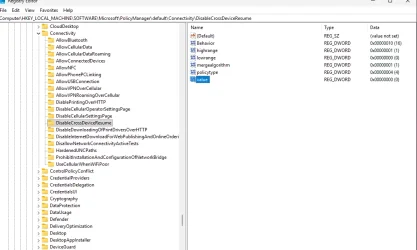
I hesitate to run commands because of bad experience in past. I'd rather do it manually by following guide with visuals BUT unfortunately i couldnt find any so i had to dig reg keys by my own. Got help from forum a bit but stucked here.

Disable Cross Device Resume for All Users >> [HKEY_LOCAL_MACHINE\SOFTWARE\Microsoft\PolicyManager\default\Connectivity\DisableCrossDeviceResume]<br>"value"=dword:00000001

according to this should I double click on this "value" and change to 1?
 

Attachments

  • Screenshot (6).webp
    Screenshot (6).webp
    70.3 KB · Views: 42

My Computers

System One System Two

  • OS
    windows 11 home 23H2 22631.6199
    Computer type
    Laptop
    Manufacturer/Model
    HP
    CPU
    Intel core i7 (2nd gen) Turbo 3.10 ghz
    Memory
    6gb
    Graphics Card(s)
    Amd Radeon HD 7400m 1GB & Intel hd graphics
    Sound Card
    BeatsAudio
    Hard Drives
    128gb SSD
  • Operating System
    macOS Sequoia
    Computer type
    PC/Desktop
    Manufacturer/Model
    iMac 24"
    CPU
    M1 3.2 ghz
    Memory
    8gb onboard
    Graphics card(s)
    igpu
    Monitor(s) Displays
    Retina 4.5K
    Screen Resolution
    4480x2520
    Hard Drives
    512gb SSD
Back
Top Bottom