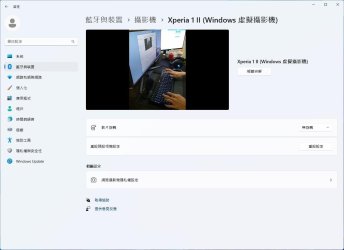
This tutorial will show you how to turn on or off the ability to use your Android phone or tablet camera in any video application for your account in Windows 11.
You can use your Android phone or tablet camera in any video application on your Windows 11 PC. With this feature, you’ll be able to wirelessly enjoy the high quality of your mobile device’s camera on your PC with flexibility and ease. Some of the abilities include being able to switch between front and back camera, pausing the stream during interruptions, and enjoying effects provided by your mobile model.
The Use as a connected camera setting requires your mobile device has Android 9.0+ and that your version of the Link to Windows phone application is 1.24012* or greater.
Starting with Windows 11 build 26100.7309 (24H2) and build 26200.7309 (25H2), you can now directly add and manage your mobile devices from Settings on your Windows PC by navigating to “Mobile Devices” under the Bluetooth & Devices section.
References:
Use your mobile device's camera | Microsoft Support
Use your mobile device's camera
 support.microsoft.com

Ability to use a mobile device’s camera as a webcam on your PC begins rolling out to Windows Insiders
UPDATE 3/19: We have expanded the rollout introducing the ability to use your Android phone or tablet camera in any video application on your Windows 11 PC to all Windows Insiders across all Insider Channels. Hello Windows I
 blogs.windows.com
This Use as a connected camera setting from your Android mobile devices will require linking your Android phone to the PC and Allow this PC to access your mobile devices to be turned on.
EXAMPLE: A phone and a PC window showing connected camera controls that are available when you connect your phone with your PC.
Here's How:
1 Open Settings (Win+I).
2 Click/tap on Bluetooth & devices on the left side, and click/tap on Mobile devices on the right side. (see screenshot below)
3 Under Mobile devices, click/tap on an added phone you want to manage. (see screenshot below)
Mobile devices you added will not be listed if Allow this PC to access content and capabilities from your mobile devices is turned off.
4 Turn On or Off (default) Use as a connected camera for what you want. (see screenshot below)
5 You can now close Settings if you like.
That's it,
Shawn Brink
Related Tutorials
- Link Samsung Android Phone to Windows 11 PC
- Enable or Disable Allow PC to Access your Mobile Devices in Windows 11
- Sign in or Sign out of Manage Mobile Devices in Windows 11
- Switch Account to Manage Mobile Devices in Windows 11
- Link Android Mobile Device to Microsoft Account on Windows 11 PC
- Enable or Disable Mobile Devices in Windows 11
- Enable or Disable New Photo Notifications from Mobile Devices in Windows 11
- Enable or Disable Android Phone Access in File Explorer in Windows 11
Last edited: