Solved External drives larger than 4TB are no longer recognized


I have a strong feeling that the Ubuntu flash drive you created is not proper. I created a Ubuntu flash drive using Rufus and it looks like this. I used a 32GB Sandisk flash drive

I have also read that Ubuntu cannot see raid with Intel Rapid storage Technology (IRST). Your PC with 2 disks are in Raid mode. Read your own computer specifications in "My Computer"

So be warned.
I have not created a Ubuntu flash drive because Windows can't see the drive.

Indeed I am running a RAID 0 with Intel RST. Thanks for the heads up!
 

My Computer

System One

  • OS
    Windows 11
    Computer type
    Laptop
    Manufacturer/Model
    Alienware A51M R2
    CPU
    Intel(R) Core(TM) i9-10900K CPU @ 3.70GHz
    Memory
    32,0 GB
    Graphics Card(s)
    Nvidia GeForce RTX2080 Super
    Sound Card
    Realtek
    Screen Resolution
    4K
    Hard Drives
    2TB (2x 1TB PCle M.2 SSD) RAID 0 [Boot] + 2TB (2x 1TB
    PCle M.2 SSD) Non-Raid [Storage]
Of course, I agree with you. Windows 10 was far superior to this pile of crap.
Windows 11 22H2 works pretty well if you learn how to blindfold and gag it so it doesn't start systematically breaking things. It's a little more difficult to set up 23H2 the same way. 24H2 has to be stripped down before the install in order to work correctly if you want a stable software setup.
 

My Computer

System One

  • OS
    Windows 11 22H2 Pro (X-lite Micro 11 version)
    Computer type
    Laptop
    Manufacturer/Model
    Dell/ Precision 7680
    CPU
    i7 13850HX (20 cores, 28 threads)
    Motherboard
    Dell
    Memory
    32GB DDR5
    Graphics Card(s)
    Intel UHD/ RTX 1000 ADA
    Sound Card
    Realtek
    Monitor(s) Displays
    4K UHD Touchscreen
    Screen Resolution
    3840 x 2400
    Hard Drives
    Samsung 512GB system drive
    WD Blue 1TB game drive
    PSU
    240W AC adapter, 1800W when docked
    Internet Speed
    1 gigabit symmetrical
    Browser
    Firefox, Librewolf
    Antivirus
    None. Manully configured so nobody except me can change any critical system files. (Don't ask how, it's probably against some rule somewhere)
So when you buy a drive and it's labeled as 5TB in marketing and labeling they are using base 10 digits . A computer shows it in proper binary base 2. So the base 10 5,000,000,000,000 / (2^40) is roughly 4.6TB which is what is shown in your disk management.
 

My Computer

System One

  • OS
    Linux Mint
    Computer type
    Laptop
    Manufacturer/Model
    System76 Lemur Pro
this happens more than you would think, I just so happen to be working on a machine that was not showing a partition, and came here while I'm waiting for some resizing to finish

Had to manually assign a letter, it happens
 

My Computer

System One

  • OS
    PE
@QuicktellPro

It is too premature to decide on Repair install Windows 11. You have problems in accessing the external disks.

Do this:

1. Vitual CloneDrive: Go into Settings/Preferences and set the number of virtual drives to 0 and disable it starting with Windows.

2. Invoke Windows Disk Management. It should show only your internal drives-
Your 2TB (2x1TB PCle M.2 SSD) RAID 0 [Boot]+2TB (2x1TB PCle M.2 SSD) Non-Raid [Storage]. The two 1TB disks in a RAID 0 configuration should appear as a single, combined 2TB volume in Windows Disk Management. You should also see the two PCIe M2 SSDs. I do not know what Drive letters you have assigned to these two SSDs. Assign drive letter D and E to the two SSDs. So it will all be C: D: and E: Take a screenshot to post.

3. On an elevated command prompt (Run as adminstrator )
type diskpart Press [ENTER]
Against the DISKPART prompt
type automount Press [ENTER]
If it says "automatic mounting of new volumes enabled " Good. Close the command Window.

If it says "automatic mounting of new volumes disabled" then
type automount enable Press [ENTER]
"automatic mounting of new volumes enabled" Close Command Window.

4. Download V1.6.5 of the " drivecleanup.zip - remove nonpresent drives from the registry" from Drive Tools for Windows (Scroll down in this page till you see "DriveCleanup V1.6.5 - remove nonpresent drives from the registry")

Unzip it to a folder, say drivecleanup.

You will have two folders Win32 and x64 each containing DriveCleanup.exe for 32 bit and 64 bit respectively.

Remove all USB storage devices/Hubs/docks from your system (except your Keyboard and mouse) and reboot.

Right click on the DriveCleanup.exe in the x64 folder and run as administrator.

After the clean up act, reboot.

When you plug in your USB devices after this cleanup, these will be installed afresh. What you have done is to remove all non-present devices, drive letters and registry entries associated with them and start with a clean slate.)

Note: If you do not run it as administrator it will run in Test Mode after you confirm yes. It will show all the nonpresent devices and the redundant registry entries associated with them. (You can read this post in the thread Must Assign Drive Letter Each Time I Swap Drives - Windows 10 Help Forums. ) However you must run it as administrator to delete all those redundant entries. It will show all that it deleted. )

Hopefully that should resolve the problem you experienced with the external drives. You can now assign whatever drive lietters you want

If you want the assigned drive letters to stick, then start with Y. and go down with X, W,V, U ........ in the descending order. (You can give the Drive leter Z for the Virtual clone drive/ external Optical drive).

 
Last edited:

My Computers

System One System Two

  • OS
    Windows 11 Pro Version:25H2 OS Build: 26200.8524
    Computer type
    PC/Desktop
    Manufacturer/Model
    Beelink Mini PC Model: SEi12
    CPU
    12th Gen Intel core i5-1235U(Alder
    Motherboard
    SEi (manufactured by AZW)
    Memory
    16*2 (32 GB) DDR 4-3200(1600MHz) Crucial Technology
    Graphics Card(s)
    Intel Iris Xe Graphics (Internal)
    Sound Card
    Internal
    Monitor(s) Displays
    BenQ GW2283
    Screen Resolution
    1920*1080
    Hard Drives
    500GB NVME (Kingston SNV2S500G)
    1TB (Crucial CT1000BX500SSD1)
    PSU
    Power Brick 19V-6.32A , 120.08W
    Keyboard
    Dell KB3322Wi (Wireless)
    Mouse
    Dell WM118t (Wireless)
    Internet Speed
    4G/5G
    Browser
    MS Edge, Chrome
    Antivirus
    Malwarebytes Premium - Subscription
  • Operating System
    Windows 11 Home Version 25H2 Build 26200.8524
    Computer type
    PC/Desktop
    Manufacturer/Model
    Dell Inspiron 3280 AIO 22"
    CPU
    Intel Core i3 8145U
    Motherboard
    Dell inc. 027W48
    Memory
    Intel Optane 16GB module + DDR 4 16GB (Optane disabled.)
    Graphics card(s)
    Intel UHD Graphics 620
    Sound Card
    Internal
    Monitor(s) Displays
    Dell Monitor 22"
    Screen Resolution
    1920x1080
    Hard Drives
    Crucial CT1000BX500SSD1 ; 1000,2 GB
    PSU
    Power Brick
    Case
    All-in one
    Keyboard
    Dell Wireless KM636
    Mouse
    Dell Wireless KM 636
    Internet Speed
    4G
    Browser
    Edge, Chrome
    Antivirus
    Malwarebytes
    Other Info
    Upgraded from Windows 10 Home to Windows 11 Home on 28 Oct 2023
If you want the assigned drive letters to stick, then start with Y. and go down with X, W,V, U ........ in the descending order. (You can give the Drive leter Z for the Virtual clone drive/ external Optical drive).
I will do as you have suggested today. Just a couple of things though. I don't understand why you feel I should assign drive letters at the end of the alphabet rather than those that immediately follow my fixed internal drives. Perhaps you could clarify this strategy for me?

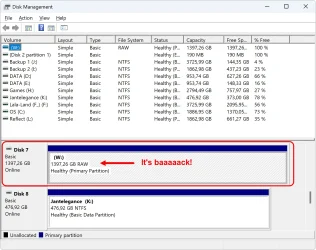
The other thing is the vanishing W: drive in RAW format decided to make a reappearance this morning. I find this very weird, but anyway, should I still go ahead with everything you previously outlined and abandon recovery of data from the W: drive, or should I attempt that first? If the latter, how could I do that bearing in mind I have no access to the drive?
 

Attachments

  • diskmgmt-1.webp
    diskmgmt-1.webp
    167.7 KB · Views: 1
Last edited:

My Computer

System One

  • OS
    Windows 11
    Computer type
    Laptop
    Manufacturer/Model
    Alienware A51M R2
    CPU
    Intel(R) Core(TM) i9-10900K CPU @ 3.70GHz
    Memory
    32,0 GB
    Graphics Card(s)
    Nvidia GeForce RTX2080 Super
    Sound Card
    Realtek
    Screen Resolution
    4K
    Hard Drives
    2TB (2x 1TB PCle M.2 SSD) RAID 0 [Boot] + 2TB (2x 1TB
    PCle M.2 SSD) Non-Raid [Storage]
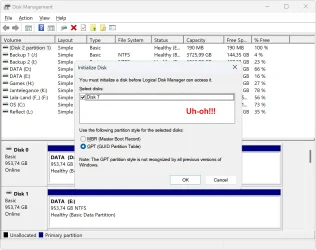
Further to my last post, which I am no longer able to edit, opening diskmgmt showed a new invitation to initialize drive W:. I of course refused, but it does make me wonder whether there will be any chance of recovering the data that's on that disk?
 

Attachments

  • diskmgmt-2.webp
    diskmgmt-2.webp
    112.8 KB · Views: 1

My Computer

System One

  • OS
    Windows 11
    Computer type
    Laptop
    Manufacturer/Model
    Alienware A51M R2
    CPU
    Intel(R) Core(TM) i9-10900K CPU @ 3.70GHz
    Memory
    32,0 GB
    Graphics Card(s)
    Nvidia GeForce RTX2080 Super
    Sound Card
    Realtek
    Screen Resolution
    4K
    Hard Drives
    2TB (2x 1TB PCle M.2 SSD) RAID 0 [Boot] + 2TB (2x 1TB
    PCle M.2 SSD) Non-Raid [Storage]
I will do as you have suggested today. Just a couple of things though. I don't understand why you feel I should assign drive letters at the end of the alphabet rather than those that immediately follow my fixed internal drives. Perhaps you could clarify this strategy for me?

The other thing is the vanishing W: drive in RAW format decided to make a reappearance this morning. I find this very weird, but anyway, should I still go ahead with everything you previously outlined and abandon recovery of data from the W: drive, or should I attempt that first? If the latter, how could I do that bearing in mind I have no access to the drive?
In post #17 you said "when I restarted the PC some of my drive letters had been changed which meant that my bookmarks no longer worked. I order to recover them, I changed their letters back"

When you plugin an external drive Windows by default will give the next available Drive letter in the alphabetical order . When you assign a drive letter at the end of the alphapetical order., say Y, no matter when you plug it in, it will always be seen as Y, So if you want to get the same Drive letter you start assigning drive letters in the reverse order for the specific drive, Those will always get the same drive letters when plugged in. Other drives plugged in will get drive letters F,G, H and so on..

Do not bother about the present drive shown as W. Mark it as W, and keep it aside. When you complete the drive cleanup. you can plug it in and it will get a drive lettter F. We can see the status. If it still shows as RAW, we can attempt data recovery. Change in Drive letter does not have anything to do with the data inside.
 
Last edited:

My Computers

System One System Two

  • OS
    Windows 11 Pro Version:25H2 OS Build: 26200.8524
    Computer type
    PC/Desktop
    Manufacturer/Model
    Beelink Mini PC Model: SEi12
    CPU
    12th Gen Intel core i5-1235U(Alder
    Motherboard
    SEi (manufactured by AZW)
    Memory
    16*2 (32 GB) DDR 4-3200(1600MHz) Crucial Technology
    Graphics Card(s)
    Intel Iris Xe Graphics (Internal)
    Sound Card
    Internal
    Monitor(s) Displays
    BenQ GW2283
    Screen Resolution
    1920*1080
    Hard Drives
    500GB NVME (Kingston SNV2S500G)
    1TB (Crucial CT1000BX500SSD1)
    PSU
    Power Brick 19V-6.32A , 120.08W
    Keyboard
    Dell KB3322Wi (Wireless)
    Mouse
    Dell WM118t (Wireless)
    Internet Speed
    4G/5G
    Browser
    MS Edge, Chrome
    Antivirus
    Malwarebytes Premium - Subscription
  • Operating System
    Windows 11 Home Version 25H2 Build 26200.8524
    Computer type
    PC/Desktop
    Manufacturer/Model
    Dell Inspiron 3280 AIO 22"
    CPU
    Intel Core i3 8145U
    Motherboard
    Dell inc. 027W48
    Memory
    Intel Optane 16GB module + DDR 4 16GB (Optane disabled.)
    Graphics card(s)
    Intel UHD Graphics 620
    Sound Card
    Internal
    Monitor(s) Displays
    Dell Monitor 22"
    Screen Resolution
    1920x1080
    Hard Drives
    Crucial CT1000BX500SSD1 ; 1000,2 GB
    PSU
    Power Brick
    Case
    All-in one
    Keyboard
    Dell Wireless KM636
    Mouse
    Dell Wireless KM 636
    Internet Speed
    4G
    Browser
    Edge, Chrome
    Antivirus
    Malwarebytes
    Other Info
    Upgraded from Windows 10 Home to Windows 11 Home on 28 Oct 2023
I have a few backup drives used by several programs to automatically create backups at certain times of the day. For example, Macrium Reflect, Kirby Alarm Pro, Outlook, and Steam. These use drives H, J, L, and I. These really cannot be changed without rebuilding their definition files which would be a lot of work. As it stands, if any of those drives are unplugged, they always retain their drive letters once reconnected. Only when Windows does one of its rubbish updates do their drive letters get altered, but I have always resolved that by changing them back again. Of course, I never considered what effect that would have on their registry entries.
 

My Computer

System One

  • OS
    Windows 11
    Computer type
    Laptop
    Manufacturer/Model
    Alienware A51M R2
    CPU
    Intel(R) Core(TM) i9-10900K CPU @ 3.70GHz
    Memory
    32,0 GB
    Graphics Card(s)
    Nvidia GeForce RTX2080 Super
    Sound Card
    Realtek
    Screen Resolution
    4K
    Hard Drives
    2TB (2x 1TB PCle M.2 SSD) RAID 0 [Boot] + 2TB (2x 1TB
    PCle M.2 SSD) Non-Raid [Storage]
I have a few backup drives used by several programs to automatically create backups at certain times of the day. For example, Macrium Reflect, Kirby Alarm Pro, Outlook, and Steam. These use drives H, J, L, and I. These really cannot be changed without rebuilding their definition files which would be a lot of work. As it stands, if any of those drives are unplugged, they always retain their drive letters once reconnected. Only when Windows does one of its rubbish updates do their drive letters get altered, but I have always resolved that by changing them back again. Of course, I never considered what effect that would have on their registry entries.
When an external disk is safely removed , Windows releases the drive letter.. This is the normal behavior. You plugin another external drive, it gets the same drive letter released by its predecessor.. You can try it yourself. Safely remove all the external disks. Now plugin one external disk and note the drive letter. Safely remove that external disk. Plug in another external disk. This external disk will get the same drive letter that was released by its predecessor.

If when plugging in an external disk, you get the same drive letter, it only means the all the drive letters preceding it are already in action taken by the other external disks that remain plugged in.

The problem arises only when Windows "forgets" to release the drive letter and it forgets especially when you keep plugging in and plugging out innumerable external disks. And that is your problem. DriveCleanup clears the mess created by Windows.
 
Last edited:

My Computers

System One System Two

  • OS
    Windows 11 Pro Version:25H2 OS Build: 26200.8524
    Computer type
    PC/Desktop
    Manufacturer/Model
    Beelink Mini PC Model: SEi12
    CPU
    12th Gen Intel core i5-1235U(Alder
    Motherboard
    SEi (manufactured by AZW)
    Memory
    16*2 (32 GB) DDR 4-3200(1600MHz) Crucial Technology
    Graphics Card(s)
    Intel Iris Xe Graphics (Internal)
    Sound Card
    Internal
    Monitor(s) Displays
    BenQ GW2283
    Screen Resolution
    1920*1080
    Hard Drives
    500GB NVME (Kingston SNV2S500G)
    1TB (Crucial CT1000BX500SSD1)
    PSU
    Power Brick 19V-6.32A , 120.08W
    Keyboard
    Dell KB3322Wi (Wireless)
    Mouse
    Dell WM118t (Wireless)
    Internet Speed
    4G/5G
    Browser
    MS Edge, Chrome
    Antivirus
    Malwarebytes Premium - Subscription
  • Operating System
    Windows 11 Home Version 25H2 Build 26200.8524
    Computer type
    PC/Desktop
    Manufacturer/Model
    Dell Inspiron 3280 AIO 22"
    CPU
    Intel Core i3 8145U
    Motherboard
    Dell inc. 027W48
    Memory
    Intel Optane 16GB module + DDR 4 16GB (Optane disabled.)
    Graphics card(s)
    Intel UHD Graphics 620
    Sound Card
    Internal
    Monitor(s) Displays
    Dell Monitor 22"
    Screen Resolution
    1920x1080
    Hard Drives
    Crucial CT1000BX500SSD1 ; 1000,2 GB
    PSU
    Power Brick
    Case
    All-in one
    Keyboard
    Dell Wireless KM636
    Mouse
    Dell Wireless KM 636
    Internet Speed
    4G
    Browser
    Edge, Chrome
    Antivirus
    Malwarebytes
    Other Info
    Upgraded from Windows 10 Home to Windows 11 Home on 28 Oct 2023
When an external disk is safely removed , Windows releases the drive letter.. This is the normal behavior. You plugin another external drive, it gets the same drive letter released by its predecessor.. You can try it yourself. Safely remove all the external disks. Now plugin one external disk and note the drive letter. Safely remove that external disk. Plug in another external disk. This external disk will get the same drive letter that wss released by itspresecessor.

If when plugging in an external disk, you get the same drive letter, it only means the all the drive letters preceding it are already in action taken by the other external disks that remain plugged in.

The problem araises only Windows forgets to release the drive letter and it forgets especially when you keep plugging in and plugging out innumerable external disks. And that is your problem. Drive clean up the mess.
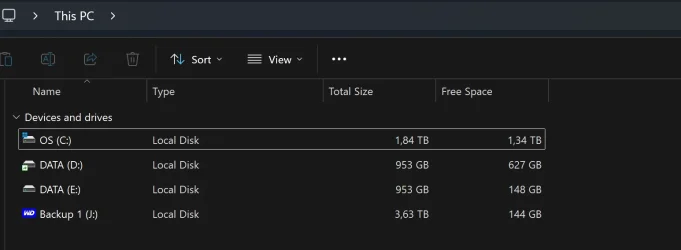
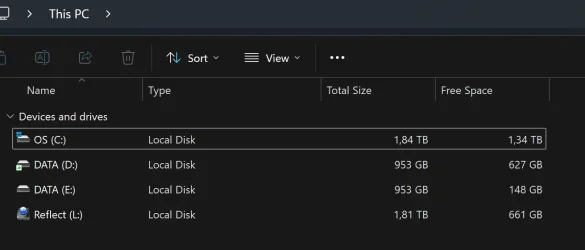
Surprisingly, even after using the drive cleanup tool and rebooting, Windows retained the drive letters I had reassigned. Here are a few screenshots showing this in Windows Explorer.

explorer1.webp

explorer2.webp

explorer3.webp

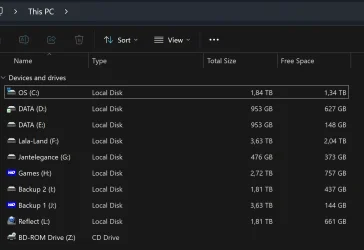
I have to thank you for all your time and patience jumanji, because not only did your solution work, but it also made my PC startup much faster. At a guess, I would say this is because the PC is no longer looking for a drive that no longer exists. That said, I find it very curious as to why the famous W: drive is no longer present whatsoever? It is normal that the drive letter has been deleted, but there's no sign of any drive in RAW format and I am not being asked to initialize anything.

Regarding the reassigned drive letters, as I said previously, the external drives are used for backup purposes and I have programs with definition files that execute automated backups to them. It would have been too much work to delete them all and recreate from scratch so they could find the altered drive letters. Nontheless, they are all in order with only K missing.

I have a couple of questions though:
1. you asked me to enable automount which I did. Should I leave it like that, or now that everything appears to be working normally again, should I disable it?
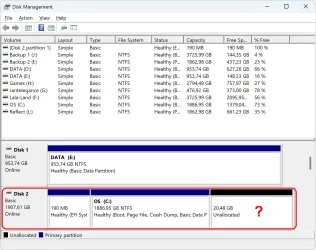
2. In diskmgmt, disk 2 which contains my C partition shows 190MB as a healthy EFI partition with no letter assigned. I take it that should be left alone and is nothing I need to be concerned about? A further 20.48Gb as unallocated space. Is this normal or should I do something in order to make the unallocated space available?

diskmgmt-1.webp
 

My Computer

System One

  • OS
    Windows 11
    Computer type
    Laptop
    Manufacturer/Model
    Alienware A51M R2
    CPU
    Intel(R) Core(TM) i9-10900K CPU @ 3.70GHz
    Memory
    32,0 GB
    Graphics Card(s)
    Nvidia GeForce RTX2080 Super
    Sound Card
    Realtek
    Screen Resolution
    4K
    Hard Drives
    2TB (2x 1TB PCle M.2 SSD) RAID 0 [Boot] + 2TB (2x 1TB
    PCle M.2 SSD) Non-Raid [Storage]
1.automount should always remain enabled.It provides the driveletter to the newly connected disk/s . If it is diabled you will not see any newly connected disks. Sometimes due to system glitches automount can get disabled. When you are unable to see any newly connected disk/s which you know is good and working, you should check whether it got disabled and enable it.

2. EFI partition is a system partition that contains UEFI bootloaders, applications and drivers to be launched.by the UEFI Firmware.Hands off. If the EFI partition gets corrupted the PC may not boot.

3. Overprovisioning in SSDs: Manufacturers usually keep 7 to 10% of the disk for housekeeping - background management tasks like garbage collection/TRIM and wear leveling etc., significantly boosting performance, endurance, and lifespan by providing spare blocks

Your W disk has been dillydallying showing up sometimes and vanishing. Check it in your other PC. If it shows up on your other PC consistently only then we can check its health and attempt data recovery.
 
Last edited:

My Computers

System One System Two

  • OS
    Windows 11 Pro Version:25H2 OS Build: 26200.8524
    Computer type
    PC/Desktop
    Manufacturer/Model
    Beelink Mini PC Model: SEi12
    CPU
    12th Gen Intel core i5-1235U(Alder
    Motherboard
    SEi (manufactured by AZW)
    Memory
    16*2 (32 GB) DDR 4-3200(1600MHz) Crucial Technology
    Graphics Card(s)
    Intel Iris Xe Graphics (Internal)
    Sound Card
    Internal
    Monitor(s) Displays
    BenQ GW2283
    Screen Resolution
    1920*1080
    Hard Drives
    500GB NVME (Kingston SNV2S500G)
    1TB (Crucial CT1000BX500SSD1)
    PSU
    Power Brick 19V-6.32A , 120.08W
    Keyboard
    Dell KB3322Wi (Wireless)
    Mouse
    Dell WM118t (Wireless)
    Internet Speed
    4G/5G
    Browser
    MS Edge, Chrome
    Antivirus
    Malwarebytes Premium - Subscription
  • Operating System
    Windows 11 Home Version 25H2 Build 26200.8524
    Computer type
    PC/Desktop
    Manufacturer/Model
    Dell Inspiron 3280 AIO 22"
    CPU
    Intel Core i3 8145U
    Motherboard
    Dell inc. 027W48
    Memory
    Intel Optane 16GB module + DDR 4 16GB (Optane disabled.)
    Graphics card(s)
    Intel UHD Graphics 620
    Sound Card
    Internal
    Monitor(s) Displays
    Dell Monitor 22"
    Screen Resolution
    1920x1080
    Hard Drives
    Crucial CT1000BX500SSD1 ; 1000,2 GB
    PSU
    Power Brick
    Case
    All-in one
    Keyboard
    Dell Wireless KM636
    Mouse
    Dell Wireless KM 636
    Internet Speed
    4G
    Browser
    Edge, Chrome
    Antivirus
    Malwarebytes
    Other Info
    Upgraded from Windows 10 Home to Windows 11 Home on 28 Oct 2023
Your W disk has been dillydallying showing up sometimes and vanixhing. Check it in your other PC. If it shows up on your other PC consistently only then we can check its health and attempt data recovery.
All connected disks are displayed. The W disk appears to have been a phantom drive, perhaps a leftover in the registry. I cannot test it on my other laptop because it doesn't physically exist. On the other hand, for a brief moment it did show up on Sunday as an M.2 SSD which would have been an internal drive as I don't have any external SSD's, so maybe the drive cleanup tool corrected that too.

In summary, it would appear the main issue came from automount being disabled. At this moment in time, everything is working as it should. Then again, we are talking about Windows 11... 🤣

Thanks for everything jumanji.
 

My Computer

System One

  • OS
    Windows 11
    Computer type
    Laptop
    Manufacturer/Model
    Alienware A51M R2
    CPU
    Intel(R) Core(TM) i9-10900K CPU @ 3.70GHz
    Memory
    32,0 GB
    Graphics Card(s)
    Nvidia GeForce RTX2080 Super
    Sound Card
    Realtek
    Screen Resolution
    4K
    Hard Drives
    2TB (2x 1TB PCle M.2 SSD) RAID 0 [Boot] + 2TB (2x 1TB
    PCle M.2 SSD) Non-Raid [Storage]
Back
Top Bottom