@QuicktellPro
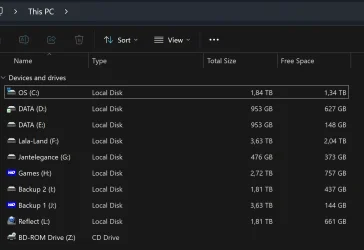
It is too premature to decide on Repair install Windows 11. You have problems in accessing the external disks.
Do this:
1. Vitual CloneDrive: Go into Settings/Preferences and set the number of virtual drives to 0 and disable it starting with Windows.
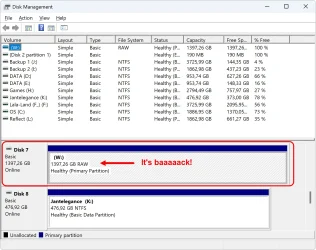
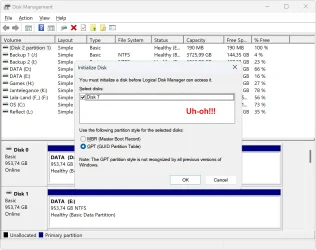
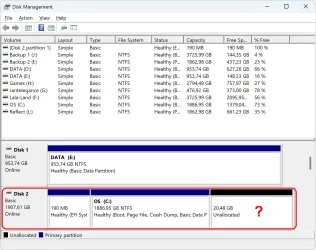
2. Invoke Windows Disk Management. It should show only your internal drives-
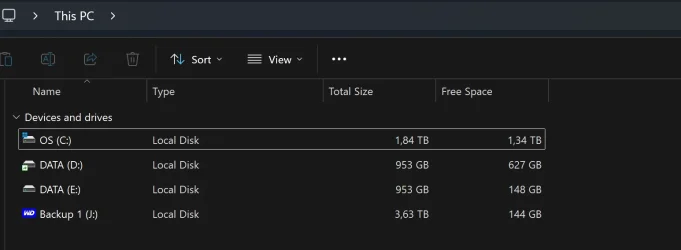
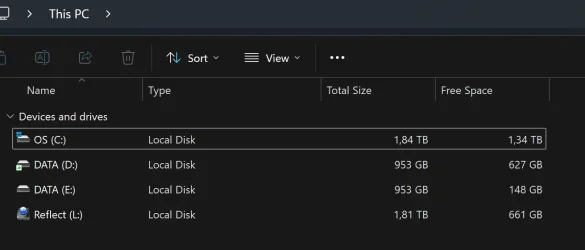
Your 2TB (2x1TB PCle M.2 SSD) RAID 0 [Boot]+2TB (2x1TB PCle M.2 SSD) Non-Raid [Storage]. The two 1TB disks in a RAID 0 configuration should appear as a single, combined 2TB volume in Windows Disk Management. You should also see the two PCIe M2 SSDs. I do not know what Drive letters you have assigned to these two SSDs. Assign drive letter D and E to the two SSDs. So it will all be C: D: and E: Take a screenshot to post.
3. On an elevated command prompt
(Run as adminstrator )
type
diskpart Press [
ENTER]
Against the DISKPART prompt
type
automount Press
[ENTER]
If it says "automatic mounting of new volumes enabled " Good. Close the command Window.
If it says "automatic mounting of new volumes disabled" then
type
automount enable Press
[ENTER]
"automatic mounting of new volumes enabled" Close Command Window.
4. Download V1.6.5 of the "
drivecleanup.zip - remove nonpresent drives from the registry" from
Drive Tools for Windows (Scroll down in this page till you see "
DriveCleanup V1.6.5 - remove nonpresent drives from the registry")
Unzip it to a folder, say drivecleanup.
You will have two folders
Win32 and
x64 each containing
DriveCleanup.exe for 32 bit and 64 bit respectively.
Remove all USB storage devices/Hubs/docks from your system (except your Keyboard and mouse) and reboot.
Right click on the
DriveCleanup.exe in the x64 folder and
run as administrator.
After the clean up act,
reboot.
When you plug in your USB devices after this cleanup, these will be installed afresh. What you have done is to remove all non-present devices, drive letters and registry entries associated with them and start with a clean slate.)
Note: If you do not run it as administrator it will run in Test Mode after you confirm yes. It will show all the nonpresent devices and the redundant registry entries associated with them. (You can read this post in the thread
Must Assign Drive Letter Each Time I Swap Drives - Windows 10 Help Forums. )
However you must run it as administrator to delete all those redundant entries. It will show all that it deleted. )
Hopefully that should resolve the problem you experienced with the external drives. You can now assign whatever drive lietters you want
If you want the assigned drive letters to stick, then start with Y. and go down with X, W,V, U ........ in the descending order. (You can give the Drive leter
Z for the Virtual clone drive/ external Optical drive).