System Find Product Key in Windows 11


ShowKeyPlus_banner.webp

This tutorial will show you how to find and view your product key in Windows 10 and Windows 11.

A Windows product key is a 25-character code used to activate Windows. It looks like this:
  • PRODUCT KEY: XXXXX-XXXXX-XXXXX-XXXXX-XXXXX
Depending on how you got your copy of Windows 10 or Windows 11, you'll need either a 25-character product key or a digital license to activate it. A digital license (called a digital entitlement in Windows 10, Version 1511) is a method of activation in Windows 10 and Windows 11 that doesn't require you to enter a product key. Without one of these, you won't be able to activate your device.

Where to find your product key depends on how you got your copy of Windows.

A new PC running Windows
The product key is preinstalled on your PC, included with the packaging the PC came in, or included on the Certificate of Authenticity (COA) attached to the PC. For more info, contact your hardware manufacturer, and for pictures of authentic product keys and COA labels, see How to tell your hardware is genuine.​

A copy of Windows 10 or Windows 11 from an authorized retailer
The product key is on a label or card inside the box that Windows came in. For more info, contact the retailer that sold you Windows 10 or Windows 11. How to tell your software is genuine.​

A digital copy of Windows 10 or Windows 11 from an authorized retailer
Find your product key in the confirmation email you received after buying Windows 10 or Windows 11 in a digital locker accessible through the retailer’s website.​

A digital copy from a Microsoft website
The product key is in the confirmation email you received after buying your digital copy of Windows. Microsoft only keeps a record of product keys if you purchased from the Microsoft online store. You can find out if you purchased from Microsoft in your Microsoft account Order history.​

Free upgrade to Windows 10
If you upgraded to Windows 10 for free from Windows 7 or Windows 8.1, you should have a digital license instead of a product key.​

Microsoft Store App
If you bought Windows 10 or Windows 11 Pro upgrade in the Microsoft Store app, you'll receive a digital license instead of a product key in the confirmation email that was sent to confirm the purchase. That email address (MSA) will contain the digital license. You can use the digital license for activation.​

For more information about digital licenses and product keys in Windows 10 and Windows 11, see the “Methods of Activation” section in Activate Windows.​

Volume Licensing agreement or MSDN subscription
Your product key is available through the web portal for your program. For more information, see Volume Activation for Windows 10.​

References:


Here's How:

1 Perform one of the following actions to get the free ShowKeyPlus app created by our member @Superfly :
  • Download and install ShowKeyPlus app from Microsoft Store.

    Download

  • Download and run ShowKeyPlus exe file in a ZIP from GitHub.

    This is a standalone exe file that does not install anything on your computer.


    Download

2 You will now see your Windows product key. (see screenshot below)

Installed Key = This is the product key that Windows is currently activated with.

OEM Key = This is the key stored in the UEFI firmware chip on the motherboard. This key will not always be the same as the installed key. An OEM Key will only be available if this is for a computer purchased from an OEM (ex: HP, Dell, etc...).


ShowKeyPlus.png


That's it,
Shawn Brink


Last edited:
It does have the FX8XG at the end, @antspants , but nothing else in it matches the code you found. Maybe ShowKeyPlus has misunderstood what it is, maybe it is a generic Home afterall. lol. I have NO idea at this point. lol. I gotta go back to look at the new comment dacrone wrote.
 

My Computers

System One System Two

  • OS
    Windows 11 Pro 23H2, Build: 22631.5335 (Retail)
    Computer type
    PC/Desktop
    CPU
    Intel Core i5-12600K
    Motherboard
    ASRock B760M PG Riptide
    Memory
    Crucial Classic DDR5-4800 16GB
    Monitor(s) Displays
    1 good old Benq model
    Hard Drives
    Kingston KC3000 SSD 512GB PCIe 4.0 M.2 2280 NVMe
    PSU
    Seasonic G12 GM 750Watt
    Case
    metal, 15+ years old, ATX/mATX
    Cooling
    Thermalright Peerless Assassin 120
    Keyboard
    Lenovo, wired
    Mouse
    Logitech, wired
    Browser
    Chrome
    Other Info
    First time DIY build.
  • Operating System
    Windows 11 Home 23H2, Build: 22631.4751 (OEM)
    Computer type
    PC/Desktop
    Manufacturer/Model
    Acer Aspire XC-1760
    CPU
    Intel Core i5-12400
    Motherboard
    Acer Andrew H610 (PCIe Gen 4)
    Memory
    8 GB DDR4
    Graphics card(s)
    Intel(R) UHD Graphics 730
    Sound Card
    Integrated, HD Audio
    Monitor(s) Displays
    old Samsung
    Screen Resolution
    1920x1080, 60 Hz
    Hard Drives
    M.2 PCIe NVMe SSD (WD or Kingston, not sure), 512GB, partitioned into C & D drives.
    PSU
    Brand unknown. 180W. (80 Plus Gold certification)
    Case
    Slim, DTX
    Cooling
    Brand unknown. Air cooling.
    Keyboard
    Lenovo (wired)
    Mouse
    Logitech (wired)
    Browser
    Chrome
    Other Info
    Extra CPU details:
    Intel UHD Graphics, 6 cores, 12 threads, 2.5 GHz, LGA1700, Intel H610 Chipset.
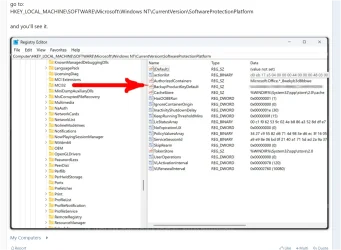
as far as the registry entry goes:
  • Fun Fact:
    This key might differ from what CMD and PowerShell reveal. The reason stems from how Microsoft encodes the product key for different purposes, especially with OEM (Original Equipment Manufacturer)-installed versions of Windows.
Oh, I think you wrote that earlier, right? And I forgot you said it... Yeah, so maybe it's something Microsoft did once the retail Pro key was put in? Like, a kind of encoding to maybe hide the real product key running the system (e.g. from hackers/malware) while still indicating that a legit RTM Retail Pro key is being used? (just throwing out a guess, lol)

re your post 36 - I'm sorry to say I haven't learned enough yet to be able to understand those instructions.

I don't know what 'ise' means. As far as I can see (greenhorn that I am), I only have 2 options for opening powershell (either via 'Terminal' or 'Terminal (admin)'. I opened both side by side on my screen and they look exactly the same except that the heading on the one window indicates it's in Admin mode.

I gather that .ps1 is some type of file, but I've never heard of it and don't know how to make that. Nor how to change the Powershell directory to where the .ps1 would be saved.

I'll try to search now to find out the info...
 

My Computers

System One System Two

  • OS
    Windows 11 Pro 23H2, Build: 22631.5335 (Retail)
    Computer type
    PC/Desktop
    CPU
    Intel Core i5-12600K
    Motherboard
    ASRock B760M PG Riptide
    Memory
    Crucial Classic DDR5-4800 16GB
    Monitor(s) Displays
    1 good old Benq model
    Hard Drives
    Kingston KC3000 SSD 512GB PCIe 4.0 M.2 2280 NVMe
    PSU
    Seasonic G12 GM 750Watt
    Case
    metal, 15+ years old, ATX/mATX
    Cooling
    Thermalright Peerless Assassin 120
    Keyboard
    Lenovo, wired
    Mouse
    Logitech, wired
    Browser
    Chrome
    Other Info
    First time DIY build.
  • Operating System
    Windows 11 Home 23H2, Build: 22631.4751 (OEM)
    Computer type
    PC/Desktop
    Manufacturer/Model
    Acer Aspire XC-1760
    CPU
    Intel Core i5-12400
    Motherboard
    Acer Andrew H610 (PCIe Gen 4)
    Memory
    8 GB DDR4
    Graphics card(s)
    Intel(R) UHD Graphics 730
    Sound Card
    Integrated, HD Audio
    Monitor(s) Displays
    old Samsung
    Screen Resolution
    1920x1080, 60 Hz
    Hard Drives
    M.2 PCIe NVMe SSD (WD or Kingston, not sure), 512GB, partitioned into C & D drives.
    PSU
    Brand unknown. 180W. (80 Plus Gold certification)
    Case
    Slim, DTX
    Cooling
    Brand unknown. Air cooling.
    Keyboard
    Lenovo (wired)
    Mouse
    Logitech (wired)
    Browser
    Chrome
    Other Info
    Extra CPU details:
    Intel UHD Graphics, 6 cores, 12 threads, 2.5 GHz, LGA1700, Intel H610 Chipset.
  • Fun Fact:
    This key might differ from what CMD and PowerShell reveal. The reason stems from how Microsoft encodes the product key for different purposes, especially with OEM (Original Equipment Manufacturer)-installed versions of Windows.
Oh, I think you wrote that earlier, right? And I forgot you said it... Yeah, so maybe it's something Microsoft did once the retail Pro key was put in? Like, a kind of encoding to maybe hide the real product key running the system (e.g. from hackers/malware) while still indicating that a legit RTM Retail Pro key is being used? (just throwing out a guess, lol)

re your post 36 - I'm sorry to say I haven't learned enough yet to be able to understand those instructions.

I don't know what 'ise' means. As far as I can see (greenhorn that I am), I only have 2 options for opening powershell (either via 'Terminal' or 'Terminal (admin)'. I opened both side by side on my screen and they look exactly the same except that the heading on the one window indicates it's in Admin mode.

I gather that .ps1 is some type of file, but I've never heard of it and don't know how to make that. Nor how to change the Powershell directory to where the .ps1 would be saved.

I'll try to search now to find out the info...
in your start menu, search for and open
1748565940347.webp


create a new (or it may be on a new tab when launched) and paste that code in the field below
1748565998130.webp


file > save as > name it whatever and make it a .ps1 type from the dropdown

1748566039281.webp


open terminal (admin), make sure the profile is on powershell

1748566109275.webp


cd to the directory you saved the .ps1 and type .\ and press tab until the name shows and press enter to run it

1748566214674.webp
 

My Computer

System One

  • OS
    Windows 11 Pro
@dacrone -Ooooh, I'm learning and I like it! 🙃

I saw that 'ISE' is the abbreviation for the rest of Powershell's name. I never knew it had a longer name than just the one word. lol. And '.ps1' is a file extension for PowerShell scripts.

Didn't get further with googling before seeing your latest post above with the screencaps. I tried following that. Opened the ISE (neat! didn't know such a tool was on the system), pasted the code into the tab as you said, and couldn't get further. The 'save' and 'save as' options are greyed out. Not sure why or how to activate them. I highlighted everything from that member's post in the thread and pasted it exactly as it was copied. Not sure what to do next...
 

My Computers

System One System Two

  • OS
    Windows 11 Pro 23H2, Build: 22631.5335 (Retail)
    Computer type
    PC/Desktop
    CPU
    Intel Core i5-12600K
    Motherboard
    ASRock B760M PG Riptide
    Memory
    Crucial Classic DDR5-4800 16GB
    Monitor(s) Displays
    1 good old Benq model
    Hard Drives
    Kingston KC3000 SSD 512GB PCIe 4.0 M.2 2280 NVMe
    PSU
    Seasonic G12 GM 750Watt
    Case
    metal, 15+ years old, ATX/mATX
    Cooling
    Thermalright Peerless Assassin 120
    Keyboard
    Lenovo, wired
    Mouse
    Logitech, wired
    Browser
    Chrome
    Other Info
    First time DIY build.
  • Operating System
    Windows 11 Home 23H2, Build: 22631.4751 (OEM)
    Computer type
    PC/Desktop
    Manufacturer/Model
    Acer Aspire XC-1760
    CPU
    Intel Core i5-12400
    Motherboard
    Acer Andrew H610 (PCIe Gen 4)
    Memory
    8 GB DDR4
    Graphics card(s)
    Intel(R) UHD Graphics 730
    Sound Card
    Integrated, HD Audio
    Monitor(s) Displays
    old Samsung
    Screen Resolution
    1920x1080, 60 Hz
    Hard Drives
    M.2 PCIe NVMe SSD (WD or Kingston, not sure), 512GB, partitioned into C & D drives.
    PSU
    Brand unknown. 180W. (80 Plus Gold certification)
    Case
    Slim, DTX
    Cooling
    Brand unknown. Air cooling.
    Keyboard
    Lenovo (wired)
    Mouse
    Logitech (wired)
    Browser
    Chrome
    Other Info
    Extra CPU details:
    Intel UHD Graphics, 6 cores, 12 threads, 2.5 GHz, LGA1700, Intel H610 Chipset.
Oop. I went back to that open ISE window again to look at the pane where the code was pasted. I accidentally clicked 'enter' and all the text turned to white (whereas it had been colored before). I don't know if that was supposed to happen or not. But the 'save' and 'save as' are still grayed out. Did I do something wrong?
 

My Computers

System One System Two

  • OS
    Windows 11 Pro 23H2, Build: 22631.5335 (Retail)
    Computer type
    PC/Desktop
    CPU
    Intel Core i5-12600K
    Motherboard
    ASRock B760M PG Riptide
    Memory
    Crucial Classic DDR5-4800 16GB
    Monitor(s) Displays
    1 good old Benq model
    Hard Drives
    Kingston KC3000 SSD 512GB PCIe 4.0 M.2 2280 NVMe
    PSU
    Seasonic G12 GM 750Watt
    Case
    metal, 15+ years old, ATX/mATX
    Cooling
    Thermalright Peerless Assassin 120
    Keyboard
    Lenovo, wired
    Mouse
    Logitech, wired
    Browser
    Chrome
    Other Info
    First time DIY build.
  • Operating System
    Windows 11 Home 23H2, Build: 22631.4751 (OEM)
    Computer type
    PC/Desktop
    Manufacturer/Model
    Acer Aspire XC-1760
    CPU
    Intel Core i5-12400
    Motherboard
    Acer Andrew H610 (PCIe Gen 4)
    Memory
    8 GB DDR4
    Graphics card(s)
    Intel(R) UHD Graphics 730
    Sound Card
    Integrated, HD Audio
    Monitor(s) Displays
    old Samsung
    Screen Resolution
    1920x1080, 60 Hz
    Hard Drives
    M.2 PCIe NVMe SSD (WD or Kingston, not sure), 512GB, partitioned into C & D drives.
    PSU
    Brand unknown. 180W. (80 Plus Gold certification)
    Case
    Slim, DTX
    Cooling
    Brand unknown. Air cooling.
    Keyboard
    Lenovo (wired)
    Mouse
    Logitech (wired)
    Browser
    Chrome
    Other Info
    Extra CPU details:
    Intel UHD Graphics, 6 cores, 12 threads, 2.5 GHz, LGA1700, Intel H610 Chipset.
Ohh! Wait a minute! lol! Since hitting enter, now I see at the bottom all the info. The product key is there. It's the same key as the retail Pro one we got. So it's not disagreeing with all the other stuff. So I guess I can just close out of this maybe and not complete the other steps?

Still a mystery about the registry key that tickles my puzzle bone... It's the only appearance of a key that doesn't match everything else. ...I can still only guess... maybe it's some kind of encoding by MS that was done during the Pro key activation.... funny thing... *shrug*
 

My Computers

System One System Two

  • OS
    Windows 11 Pro 23H2, Build: 22631.5335 (Retail)
    Computer type
    PC/Desktop
    CPU
    Intel Core i5-12600K
    Motherboard
    ASRock B760M PG Riptide
    Memory
    Crucial Classic DDR5-4800 16GB
    Monitor(s) Displays
    1 good old Benq model
    Hard Drives
    Kingston KC3000 SSD 512GB PCIe 4.0 M.2 2280 NVMe
    PSU
    Seasonic G12 GM 750Watt
    Case
    metal, 15+ years old, ATX/mATX
    Cooling
    Thermalright Peerless Assassin 120
    Keyboard
    Lenovo, wired
    Mouse
    Logitech, wired
    Browser
    Chrome
    Other Info
    First time DIY build.
  • Operating System
    Windows 11 Home 23H2, Build: 22631.4751 (OEM)
    Computer type
    PC/Desktop
    Manufacturer/Model
    Acer Aspire XC-1760
    CPU
    Intel Core i5-12400
    Motherboard
    Acer Andrew H610 (PCIe Gen 4)
    Memory
    8 GB DDR4
    Graphics card(s)
    Intel(R) UHD Graphics 730
    Sound Card
    Integrated, HD Audio
    Monitor(s) Displays
    old Samsung
    Screen Resolution
    1920x1080, 60 Hz
    Hard Drives
    M.2 PCIe NVMe SSD (WD or Kingston, not sure), 512GB, partitioned into C & D drives.
    PSU
    Brand unknown. 180W. (80 Plus Gold certification)
    Case
    Slim, DTX
    Cooling
    Brand unknown. Air cooling.
    Keyboard
    Lenovo (wired)
    Mouse
    Logitech (wired)
    Browser
    Chrome
    Other Info
    Extra CPU details:
    Intel UHD Graphics, 6 cores, 12 threads, 2.5 GHz, LGA1700, Intel H610 Chipset.
@dacrone -Ooooh, I'm learning and I like it! 🙃

I saw that 'ISE' is the abbreviation for the rest of Powershell's name. I never knew it had a longer name than just the one word. lol. And '.ps1' is a file extension for PowerShell scripts.

Didn't get further with googling before seeing your latest post above with the screencaps. I tried following that. Opened the ISE (neat! didn't know such a tool was on the system), pasted the code into the tab as you said, and couldn't get further. The 'save' and 'save as' options are greyed out. Not sure why or how to activate them. I highlighted everything from that member's post in the thread and pasted it exactly as it was copied. Not sure what to do next...
not 100% sure why it would be greyed out... would need to troubleshoot further. but as far as the .bat that i had uploaded before, i removed a lot of random apps i had uploaded because i'm building a github repository so as to not spam the forum with so much. but just for the sake of this convo, attached are the .ps1 and the .bat versions of that code. just download the .zip and extract.

for troubleshooting ISE, just start a thread and we can all pitch in on it. dont want to spam the tutorial
 

Attachments

My Computer

System One

  • OS
    Windows 11 Pro
@dacrone -Thx! I downloaded them to keep in a folder with the download of the ShowKeyPlus, for future reference. I like that yours shows the installation date and time for the product key. I didn't see that in ShowKeyPlus, though that's also really handy to have for its own good features. Grateful to the member who made it. :)

(I have to go to bed soon, so I'll have to wait with anything further in a different thread re the ISE. But this was a nice little introduction to the tool. Thx for that.) :)
 

My Computers

System One System Two

  • OS
    Windows 11 Pro 23H2, Build: 22631.5335 (Retail)
    Computer type
    PC/Desktop
    CPU
    Intel Core i5-12600K
    Motherboard
    ASRock B760M PG Riptide
    Memory
    Crucial Classic DDR5-4800 16GB
    Monitor(s) Displays
    1 good old Benq model
    Hard Drives
    Kingston KC3000 SSD 512GB PCIe 4.0 M.2 2280 NVMe
    PSU
    Seasonic G12 GM 750Watt
    Case
    metal, 15+ years old, ATX/mATX
    Cooling
    Thermalright Peerless Assassin 120
    Keyboard
    Lenovo, wired
    Mouse
    Logitech, wired
    Browser
    Chrome
    Other Info
    First time DIY build.
  • Operating System
    Windows 11 Home 23H2, Build: 22631.4751 (OEM)
    Computer type
    PC/Desktop
    Manufacturer/Model
    Acer Aspire XC-1760
    CPU
    Intel Core i5-12400
    Motherboard
    Acer Andrew H610 (PCIe Gen 4)
    Memory
    8 GB DDR4
    Graphics card(s)
    Intel(R) UHD Graphics 730
    Sound Card
    Integrated, HD Audio
    Monitor(s) Displays
    old Samsung
    Screen Resolution
    1920x1080, 60 Hz
    Hard Drives
    M.2 PCIe NVMe SSD (WD or Kingston, not sure), 512GB, partitioned into C & D drives.
    PSU
    Brand unknown. 180W. (80 Plus Gold certification)
    Case
    Slim, DTX
    Cooling
    Brand unknown. Air cooling.
    Keyboard
    Lenovo (wired)
    Mouse
    Logitech (wired)
    Browser
    Chrome
    Other Info
    Extra CPU details:
    Intel UHD Graphics, 6 cores, 12 threads, 2.5 GHz, LGA1700, Intel H610 Chipset.
An interesting thread.
I wonder if anyone can help with this:
I kept the SSD's of couple of LT's that were scrapped that were running W11 Pro.
I thought I would be able to get the W11 key from them, didn't think to do it while the units were working and had no luck so far.
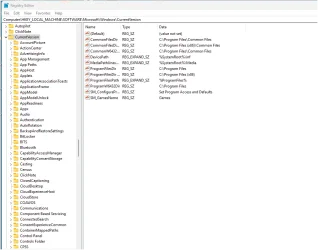
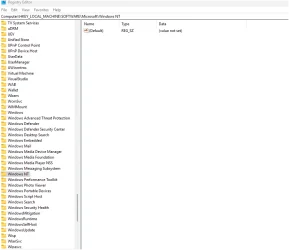
Any Ideas how I can get into the registry to extract the keys? In the attached files I accessed the drives and ran the regedit.exe I found in the windows folder.
I think it's accessing the registry of the subject drive, but I'm not getting the options shown in the thread.
 

Attachments

  • Screenshot 2025-08-22 182448.webp
    Screenshot 2025-08-22 182448.webp
    101.4 KB · Views: 39
  • Screenshot 2025-08-22 184011.webp
    Screenshot 2025-08-22 184011.webp
    72.6 KB · Views: 46
  • Screenshot 2025-08-22 183853.webp
    Screenshot 2025-08-22 183853.webp
    43.5 KB · Views: 48

My Computers

System One System Two

  • OS
    Windows 11 25H2 OS Build 26200.8117
    Computer type
    PC/Desktop
    Manufacturer/Model
    Self Build
    CPU
    Intel Core Ultra 7-265K
    Motherboard
    Gigabyte Aorus Elite WiFi7 ICE Z890
    Memory
    32GB Corsair Vengeance DDR5 PC6400
    Graphics Card(s)
    Intel ARC B580
    Sound Card
    On board
    Monitor(s) Displays
    LG
    Hard Drives
    1+2GB NVME, 2GB SSD x 2
    PSU
    MSI 650W
    Case
    Fractal Design 7 Solid
    Cooling
    Air
    Keyboard
    Logitech MX key S
    Mouse
    Logitech MX keyS
    Internet Speed
    1GB
    Browser
    Edge and Chrome
    Other Info
    Also have two Dell LT's using W11 Pro and 25H2
  • Operating System
    Windows 11 24H2 OS Build 26100.2705
    Computer type
    PC/Desktop
    Manufacturer/Model
    self build
    CPU
    AMD Ryzen 5600G
    Motherboard
    Gigabyte Aorus B550
    Memory
    32 GB Corsair Vengeance
    Graphics card(s)
    Integrated
    Sound Card
    onboard
    Monitor(s) Displays
    TV/ Monitor
    Hard Drives
    Crucial 500GB NVME
    2x 12TB Seagate spinners.
    2 x 8TB WD spinner
    PSU
    650W
    Case
    Micro ATX box
    Cooling
    Air
    Internet Speed
    1GB
    Browser
    Edge and Chrome
    Antivirus
    Malwarebytes
    Other Info
    Its my Server / occasional user.
    The 12TB drives use Stablebit Drivepool :)
An interesting thread.
I wonder if anyone can help with this:
I kept the SSD's of couple of LT's that were scrapped that were running W11 Pro.
I thought I would be able to get the W11 key from them, didn't think to do it while the units were working and had no luck so far.
Any Ideas how I can get into the registry to extract the keys? In the attached files I accessed the drives and ran the regedit.exe I found in the windows folder.
I think it's accessing the registry of the subject drive, but I'm not getting the options shown in the thread.

Hello, :alien:

Since these were for laptops, it would have most likely been an OEM license for W11 Pro embedded in the firmware chip. OEM wouldn't be transferable to another device.
 

My Computers

System One System Two

  • OS
    Windows 11 Pro for Workstations
    Computer type
    PC/Desktop
    Manufacturer/Model
    Custom self build
    CPU
    Intel i7-8700K 5 GHz
    Motherboard
    ASUS ROG Maximus XI Formula Z390
    Memory
    64 GB (4x16GB) G.SKILL TridentZ RGB DDR4 3600 MHz (F4-3600C18D-32GTZR)
    Graphics Card(s)
    ASUS ROG-STRIX-GTX1080TI-O11G-GAMING (11GB GDDR5X)
    Sound Card
    Integrated Digital Audio (S/PDIF)
    Monitor(s) Displays
    2 x Samsung Odyssey G75 27"
    Screen Resolution
    2560x1440
    Hard Drives
    1TB Samsung 990 PRO M.2,
    4TB Samsung 990 PRO M.2,
    TerraMaster F8 SSD Plus NAS
    PSU
    Seasonic Prime Titanium 850W
    Case
    Thermaltake Core P3 wall mounted
    Cooling
    Corsair Hydro H115i
    Keyboard
    Amazon Basics Wired Full Keyboard MD005
    Mouse
    Logitech MX Master 4
    Internet Speed
    2 Gbps Download and 100 Mbps Upload
    Browser
    Chrome and Edge
    Antivirus
    Microsoft Defender
    Other Info
    Logitech Z625 speaker system,
    Logitech BRIO 4K Pro webcam,
    HP Color LaserJet Pro MFP M477fdn,
    CyberPower CP1500PFCLCD
    Galaxy S23 Plus phone
  • Operating System
    Windows 11 Pro
    Computer type
    Laptop
    Manufacturer/Model
    Surface Laptop 7 Copilot+ PC
    CPU
    Snapdragon X Elite (12 core) 3.42 GHz
    Memory
    16 GB LPDDR5x-7467 MHz
    Monitor(s) Displays
    15" HDR
    Screen Resolution
    2496 x 1664
    Hard Drives
    1 TB SSD
    Internet Speed
    Wi-Fi 7 and Bluetooth 5.4
    Browser
    Chrome and Edge
    Antivirus
    Microsoft Defender
Thanks for the response. They were running W7 and had digital updates through to W10 or W11 Pro
I now have the Keys, even if they are not usable without the SSD. I cycled the SSD's through an HP LT I kept as a "mule" and used the wonderful app in this thread to extract the Keys.
Thanks again.
 

My Computers

System One System Two

  • OS
    Windows 11 25H2 OS Build 26200.8117
    Computer type
    PC/Desktop
    Manufacturer/Model
    Self Build
    CPU
    Intel Core Ultra 7-265K
    Motherboard
    Gigabyte Aorus Elite WiFi7 ICE Z890
    Memory
    32GB Corsair Vengeance DDR5 PC6400
    Graphics Card(s)
    Intel ARC B580
    Sound Card
    On board
    Monitor(s) Displays
    LG
    Hard Drives
    1+2GB NVME, 2GB SSD x 2
    PSU
    MSI 650W
    Case
    Fractal Design 7 Solid
    Cooling
    Air
    Keyboard
    Logitech MX key S
    Mouse
    Logitech MX keyS
    Internet Speed
    1GB
    Browser
    Edge and Chrome
    Other Info
    Also have two Dell LT's using W11 Pro and 25H2
  • Operating System
    Windows 11 24H2 OS Build 26100.2705
    Computer type
    PC/Desktop
    Manufacturer/Model
    self build
    CPU
    AMD Ryzen 5600G
    Motherboard
    Gigabyte Aorus B550
    Memory
    32 GB Corsair Vengeance
    Graphics card(s)
    Integrated
    Sound Card
    onboard
    Monitor(s) Displays
    TV/ Monitor
    Hard Drives
    Crucial 500GB NVME
    2x 12TB Seagate spinners.
    2 x 8TB WD spinner
    PSU
    650W
    Case
    Micro ATX box
    Cooling
    Air
    Internet Speed
    1GB
    Browser
    Edge and Chrome
    Antivirus
    Malwarebytes
    Other Info
    Its my Server / occasional user.
    The 12TB drives use Stablebit Drivepool :)
Thanks for the response. They were running W7 and had digital updates through to W10 or W11 Pro
I now have the Keys, even if they are not usable without the SSD. I cycled the SSD's through an HP LT I kept as a "mule" and used the wonderful app in this thread to extract the Keys.
Thanks again.

Great news. :shawn:
 

My Computers

System One System Two

  • OS
    Windows 11 Pro for Workstations
    Computer type
    PC/Desktop
    Manufacturer/Model
    Custom self build
    CPU
    Intel i7-8700K 5 GHz
    Motherboard
    ASUS ROG Maximus XI Formula Z390
    Memory
    64 GB (4x16GB) G.SKILL TridentZ RGB DDR4 3600 MHz (F4-3600C18D-32GTZR)
    Graphics Card(s)
    ASUS ROG-STRIX-GTX1080TI-O11G-GAMING (11GB GDDR5X)
    Sound Card
    Integrated Digital Audio (S/PDIF)
    Monitor(s) Displays
    2 x Samsung Odyssey G75 27"
    Screen Resolution
    2560x1440
    Hard Drives
    1TB Samsung 990 PRO M.2,
    4TB Samsung 990 PRO M.2,
    TerraMaster F8 SSD Plus NAS
    PSU
    Seasonic Prime Titanium 850W
    Case
    Thermaltake Core P3 wall mounted
    Cooling
    Corsair Hydro H115i
    Keyboard
    Amazon Basics Wired Full Keyboard MD005
    Mouse
    Logitech MX Master 4
    Internet Speed
    2 Gbps Download and 100 Mbps Upload
    Browser
    Chrome and Edge
    Antivirus
    Microsoft Defender
    Other Info
    Logitech Z625 speaker system,
    Logitech BRIO 4K Pro webcam,
    HP Color LaserJet Pro MFP M477fdn,
    CyberPower CP1500PFCLCD
    Galaxy S23 Plus phone
  • Operating System
    Windows 11 Pro
    Computer type
    Laptop
    Manufacturer/Model
    Surface Laptop 7 Copilot+ PC
    CPU
    Snapdragon X Elite (12 core) 3.42 GHz
    Memory
    16 GB LPDDR5x-7467 MHz
    Monitor(s) Displays
    15" HDR
    Screen Resolution
    2496 x 1664
    Hard Drives
    1 TB SSD
    Internet Speed
    Wi-Fi 7 and Bluetooth 5.4
    Browser
    Chrome and Edge
    Antivirus
    Microsoft Defender

Latest Support Threads

Back
Top Bottom