Frequent BSOD Triggered by FL Studio Launch


onefive

Member
Local time
1:07 AM
Posts
6
OS
Windows 11
I’ve been experiencing recurring Blue Screen of Death (BSOD) errors on my system since May 2025. The crashes happen under specific conditions:
  • When opening FL Studio
  • When plugging in or unplugging the power supply (Running the FL Studio application in the background)

There is no issue with FL Studio itself — I have been using it flawlessly since 2024 without any problems. I suspect the BSOD may be related to a driver conflict or power management issue, especially since the crashes also occur when plugging or unplugging the power supply. No major hardware changes have been made recently.

Log Zip: Dropbox
 
Windows Build/Version
Windows 11 Home Single Language (24H2)

My Computer

System One

  • OS
    Windows 11
    Computer type
    Laptop
    Manufacturer/Model
    ROG Strix G512LV_G512LV
    CPU
    ntel(R) Core(TM) i7-10750H CPU @ 2.60GHz (2.59 GHz)
    Memory
    16.0 GB (15.8 GB usable)
    Graphics Card(s)
    NVIDIA GeForce RTX 2060 (6GB)
    Hard Drives
    INTEL SSDPEKNW010T8
    NVMe Samsung SSD970( Main C: drive)
Please perform the following steps: (in sequence)


1) Uninstall Kaspersky software using the applicable uninstall tool:


2) Perform defender updates


3) Run Tuneup plus > post a share link


4) Create a new restore point


5) Enable Regback:


6) Reinstall:

iastorac Intel(R) Chipset SATA/PCIe RST Premium Controller c:\windows\system32\drivers\iastorac.sys

Driver C:\WINDOWS\SYSTEM32\DRIVERS\IASTORAC.SYS (17.11.0.1000, 1.29 MB (1,347,776 bytes), 12-10-2021 06:12 AM)


7) Clean install the Nvidia and Intel GPU drivers using DDU > reinstall from the Asus website


8) Create another new restore point


9) Run Sea Tools Long generic test (all drives) > post images or share links


10) Run HD Tune (all drives) (old version) > post images or share links


a) Health

b) Full error scan


11) Open administrative command prompt and copy and paste:

chkdsk /b /v

Run these chkdsk switches on all drives using the syntax: chkdsk /b /v C: or chkdsk /b /v D: or chkdsk /b /v E: etc.

Make sure that the windows drive runs overnight while sleeping.

C:\WINDOWS\system32>chkdsk /b /v
The type of the file system is NTFS.
Cannot lock current drive.
Chkdsk cannot run because the volume is in use by another
process. Would you like to schedule this volume to be
checked the next time the system restarts? (Y/N)

Type: Y

Reboot as needed.


12) After completing all chkdsk /b /v run:

https://www.tenforums.com/attachmen...-files-use-bsod-debugging-chkdskfromevent.bat

Batch files for use in BSOD debugging - Windows 10 Help Forums

Batch files for use in BSOD debugging - Windows 10 Help Forums


Make sure that this runs only after the prior three steps for each drive.


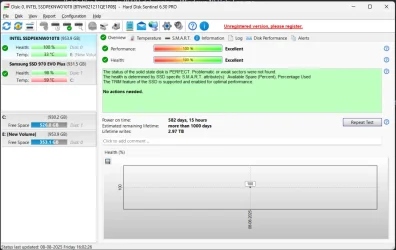
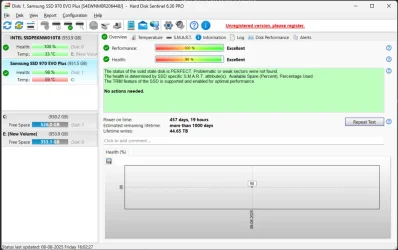
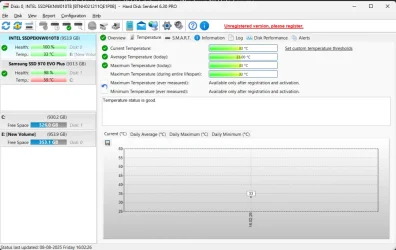
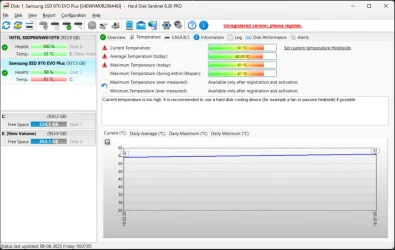
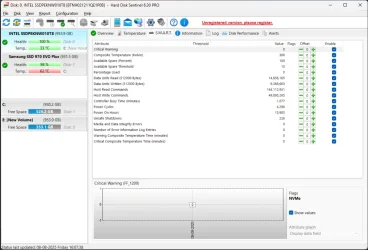
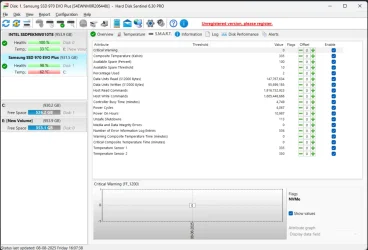
13) Run HD Sentinel (all drives) > post images or share links (do not run until posting results for each steps 9, 10, 11 and 12 )

Hard Disk Sentinel - HDD health and temperature monitoring
a) Overview
b) Temperature
c) SMART


14) Please make sure that all of the above steps are performed in sequence

These steps / tests can be performed overnight while sleeping:
a) Sea Tools Long generic test
b) HD Tune Full error scan
c) Chkdsk /b /v


Code:
klbackupdisk.sys Sat Oct 23 11:39:49 2027 (6CBCC155)

Code:
iaStorAC.sys Thu Sep 30 08:50:11 2021 (6155C093)

Code:
nvlddmkm.sys Tue Dec  3 14:17:19 2024 (674F674F)

Code:
igdkmd64.sys Mon Mar  9 19:29:22 2020 (5E66DF62)

 

My Computer

System One

  • OS
    Windows 10
    Computer type
    Laptop
    Manufacturer/Model
    HP
    CPU
    Intel(R) Core(TM) i7-4800MQ CPU @ 2.70GHz
    Motherboard
    Product : 190A Version : KBC Version 94.56
    Memory
    16 GB Total: Manufacturer : Samsung MemoryType : DDR3 FormFactor : SODIMM Capacity : 8GB Speed : 1600
    Graphics Card(s)
    NVIDIA Quadro K3100M; Intel(R) HD Graphics 4600
    Sound Card
    IDT High Definition Audio CODEC; PNP Device ID HDAUDIO\FUNC_01&VEN_111D&DEV_76E0
    Hard Drives
    Model Hitachi HTS727575A9E364
    Antivirus
    Microsoft Defender
    Other Info
    Mobile Workstation

My Computer

System One

  • OS
    Windows 11
    Computer type
    Laptop
    Manufacturer/Model
    ROG Strix G512LV_G512LV
    CPU
    ntel(R) Core(TM) i7-10750H CPU @ 2.60GHz (2.59 GHz)
    Memory
    16.0 GB (15.8 GB usable)
    Graphics Card(s)
    NVIDIA GeForce RTX 2060 (6GB)
    Hard Drives
    INTEL SSDPEKNW010T8
    NVMe Samsung SSD970( Main C: drive)
I’ve followed all the steps as requested and saved the results in the Dropbox link below:

👉 Dropbox
 

My Computer

System One

  • OS
    Windows 11
    Computer type
    Laptop
    Manufacturer/Model
    ROG Strix G512LV_G512LV
    CPU
    ntel(R) Core(TM) i7-10750H CPU @ 2.60GHz (2.59 GHz)
    Memory
    16.0 GB (15.8 GB usable)
    Graphics Card(s)
    NVIDIA GeForce RTX 2060 (6GB)
    Hard Drives
    INTEL SSDPEKNW010T8
    NVMe Samsung SSD970( Main C: drive)
Please perform the following steps: (in sequence)


1) Uninstall Kaspersky software using the applicable uninstall tool

2) Perform defender updates

3) Run Tuneup plus

4) Create a new restore point

5) Enable Regback:

6) Reinstall:

iastorac Intel(R) Chipset SATA/PCIe RST Premium Controller c:\windows\system32\drivers\iastorac.sys


7) Clean install the Nvidia and Intel GPU drivers using DDU > reinstall from the Asus website


8) Create another new restore point


9) Run Sea Tools Long generic test (all drives) > post images or share links


10) Run HD Tune (all drives) (old version) > post images or share links

a) Health b) Full error scan


11) Open administrative command prompt and copy and paste:

chkdsk /b /v

Run these chkdsk switches on all drives using the syntax: chkdsk /b /v C: or chkdsk /b /v D: or chkdsk /b /v E: etc.

12) After completing all chkdsk /b /v run: Post result
Hi there, after following all the steps as requested, I noticed a new issue. When I opened FL Studio this time, my E: drive disappeared from File Explorer. However, after restarting the system, both C: and E: drives appeared normally again.

Could you please help me understand why this might be happening and how I can prevent the E: drive from disappearing like this?
 

My Computer

System One

  • OS
    Windows 11
    Computer type
    Laptop
    Manufacturer/Model
    ROG Strix G512LV_G512LV
    CPU
    ntel(R) Core(TM) i7-10750H CPU @ 2.60GHz (2.59 GHz)
    Memory
    16.0 GB (15.8 GB usable)
    Graphics Card(s)
    NVIDIA GeForce RTX 2060 (6GB)
    Hard Drives
    INTEL SSDPEKNW010T8
    NVMe Samsung SSD970( Main C: drive)
When available please post HDS results (step #13).


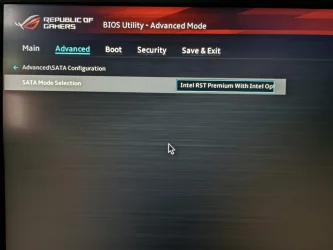
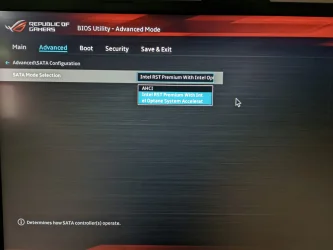
Please post images or share links displaying BIOS settings:

IDE / AHCI / RAID


Post a new V2 share link into the newest post.
 

My Computer

System One

  • OS
    Windows 10
    Computer type
    Laptop
    Manufacturer/Model
    HP
    CPU
    Intel(R) Core(TM) i7-4800MQ CPU @ 2.70GHz
    Motherboard
    Product : 190A Version : KBC Version 94.56
    Memory
    16 GB Total: Manufacturer : Samsung MemoryType : DDR3 FormFactor : SODIMM Capacity : 8GB Speed : 1600
    Graphics Card(s)
    NVIDIA Quadro K3100M; Intel(R) HD Graphics 4600
    Sound Card
    IDT High Definition Audio CODEC; PNP Device ID HDAUDIO\FUNC_01&VEN_111D&DEV_76E0
    Hard Drives
    Model Hitachi HTS727575A9E364
    Antivirus
    Microsoft Defender
    Other Info
    Mobile Workstation
Link to Old Post:
Hard Disk Sentinel - HDD health and temperature monitoring (Images)
a) Overview
b) Temperature
c) SMART

BIOS settings: IDE / AHCI / RAID (Images)bios2.webpbios.webpScreenshot 2025-08-08 160523.webpScreenshot 2025-08-08 160535.webpScreenshot 2025-08-08 160551.webpScreenshot 2025-08-08 160721.webpScreenshot 2025-08-08 160809.webpScreenshot 2025-08-08 160817.webp
 

My Computer

System One

  • OS
    Windows 11
    Computer type
    Laptop
    Manufacturer/Model
    ROG Strix G512LV_G512LV
    CPU
    ntel(R) Core(TM) i7-10750H CPU @ 2.60GHz (2.59 GHz)
    Memory
    16.0 GB (15.8 GB usable)
    Graphics Card(s)
    NVIDIA GeForce RTX 2060 (6GB)
    Hard Drives
    INTEL SSDPEKNW010T8
    NVMe Samsung SSD970( Main C: drive)
Do not start multiple threads on the same issue.
 

My Computers

System One System Two

  • OS
    Windows 11 Workstation
    Computer type
    PC/Desktop
    Manufacturer/Model
    doofenshmirtz evil incorporated
    CPU
    Ryzen 9 5950X
    Motherboard
    Asus ROG Crosshair VIII Formula
    Memory
    Corsair Vengeance RGB PRO Black 64GB (4x16GB) 3600MHz AMD Ryzen Tuned DDR4
    Graphics Card(s)
    ASUS AMD Radeon RX 6900 XT 16GB ROG Strix LC OC
    Sound Card
    Sound BlasterX Katana
    Monitor(s) Displays
    3 x27" Dell U2724D & 1 x 34" Dell U3415W
    Hard Drives
    Samsung 980 Pro 1TB M.2 2280 PCI-e 4.0 x4 NVMe Solid State
    Drive
    PSU
    ASUS ROG THOR 850W 80 Plus Platinum
    Case
    ASUS ROG Strix Helios Midi-Tower ARGB Gaming Case
    Cooling
    ASUS ROG Strix LC Performance RGB AIO CPU Liquid Cooler - 360mm
    Keyboard
    Logi Ergo
    Mouse
    Logitech MX Vertical
    Internet Speed
    900/100 Mbps
    Browser
    Chrome
    Antivirus
    Windows Defender, Malwarebytes Pro
    Other Info
    HP M281 Printer
    Logitech Brio Stream webcam
    Yeti X mic
  • Operating System
    Windows 10
    Computer type
    Laptop
    Manufacturer/Model
    Surface Laptop
    CPU
    i7
When available please post HDS results (step #13).


Please post images or share links displaying BIOS settings:

IDE / AHCI / RAID


Post a new V2 share link into the newest post.
Done
 

My Computer

System One

  • OS
    Windows 11
    Computer type
    Laptop
    Manufacturer/Model
    ROG Strix G512LV_G512LV
    CPU
    ntel(R) Core(TM) i7-10750H CPU @ 2.60GHz (2.59 GHz)
    Memory
    16.0 GB (15.8 GB usable)
    Graphics Card(s)
    NVIDIA GeForce RTX 2060 (6GB)
    Hard Drives
    INTEL SSDPEKNW010T8
    NVMe Samsung SSD970( Main C: drive)
I
Hi there, after following all the steps as requested, I noticed a new issue. When I opened FL Studio this time, my E: drive disappeared from File Explorer. However, after restarting the system, both C: and E: drives appeared normally again.

Could you please help me understand why this might be happening and how I can prevent the E: drive from disappearing like this?

If this is a recurrent problem then switch RAID to AHCI > report findings


Modify computer / drive cooling > monitor using HDS and one of these:

Speccy - Free Download - Piriform: Speccy - System Information - Free
HWMONITOR | Softwares | CPUID: HWMONITOR | Softwares | CPUID
SpeedFan - Access temperature sensor in your computer: SpeedFan - Access temperature sensor in your computer
 

My Computer

System One

  • OS
    Windows 10
    Computer type
    Laptop
    Manufacturer/Model
    HP
    CPU
    Intel(R) Core(TM) i7-4800MQ CPU @ 2.70GHz
    Motherboard
    Product : 190A Version : KBC Version 94.56
    Memory
    16 GB Total: Manufacturer : Samsung MemoryType : DDR3 FormFactor : SODIMM Capacity : 8GB Speed : 1600
    Graphics Card(s)
    NVIDIA Quadro K3100M; Intel(R) HD Graphics 4600
    Sound Card
    IDT High Definition Audio CODEC; PNP Device ID HDAUDIO\FUNC_01&VEN_111D&DEV_76E0
    Hard Drives
    Model Hitachi HTS727575A9E364
    Antivirus
    Microsoft Defender
    Other Info
    Mobile Workstation

Latest Support Threads

Back
Top Bottom