Please perform the following steps: (in sequence)
1) Uninstall Kaspersky software using the applicable uninstall tool:
Overview of settings and features available in a Kaspersky application and guides on how to use them.

support.kaspersky.com
2) Perform defender updates
3) Run Tuneup plus > post a share link
Information This thread is for use by the BSOD team to store batch files that can be used to collect additional data, fix settings or anything else that is useful in debugging BSOD problems in Windows 10. The way I see it working is the first

www.tenforums.com
Information This thread is for use by the BSOD team to store batch files that can be used to collect additional data, fix settings or anything else that is useful in debugging BSOD problems in Windows 10. The way I see it working is the first
www.tenforums.com
4) Create a new restore point
This tutorial will show you how to manually create a restore point in Windows 11. Turning on system protection for a drive allows System Restore to include the drive when restore points are created so you can undo undesired system changes by reverting to a previous point in time. System...

www.elevenforum.com
5) Enable Regback:
This tutorial will show you how to enable automatic backup of the system registry to the RegBack folder when the computer restarts in Windows 10 and Windows 11. Starting with Windows 10, version 1803, Windows no longer automatically backs up the system registry to the RegBack folder when the...
www.elevenforum.com
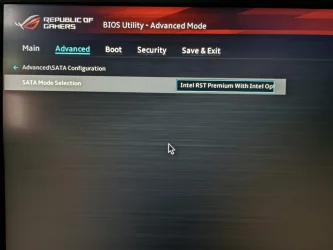
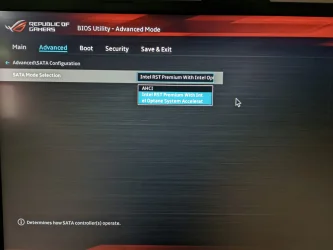
6) Reinstall:
iastorac Intel(R) Chipset SATA/PCIe RST Premium Controller c:\windows\system32\drivers\iastorac.sys
Driver C:\WINDOWS\SYSTEM32\DRIVERS\IASTORAC.SYS (17.11.0.1000, 1.29 MB (1,347,776 bytes), 12-10-2021 06:12 AM)
7) Clean install the Nvidia and Intel GPU drivers using DDU > reinstall from the Asus website
How to Use Display Driver Uninstaller to Uninstall any Installed Display Driver This tutorial will show you how to use Display Driver Uninstaller (DDU) to uninstall the Insialled display driver completely from your system. As a model, the current tutorial will uninstall Nvidia 347.88 WHQL...

www.sevenforums.com
Download Display Driver Uninstaller (DDU) free from Wagnardsoft, the official source. Remove NVIDIA, AMD, Intel drivers cleanly.

www.wagnardsoft.com

rog.asus.com
8) Create another new restore point
9) Run Sea Tools Long generic test (all drives) > post images or share links
SeaTools - Quick diagnostic tool that checks the health of your drive.
www.seagate.com
10) Run HD Tune (all drives) (old version) > post images or share links
a) Health
b) Full error scan
11) Open administrative command prompt and copy and paste:
chkdsk /b /v
Run these chkdsk switches on all drives using the syntax: chkdsk /b /v C: or chkdsk /b /v D: or chkdsk /b /v E: etc.
Make sure that the windows drive runs overnight while sleeping.
C:\WINDOWS\system32>chkdsk /b /v
The type of the file system is NTFS.
Cannot lock current drive.
Chkdsk cannot run because the volume is in use by another
process. Would you like to schedule this volume to be
checked the next time the system restarts? (Y/N)
Type: Y
Reboot as needed.
12) After completing all chkdsk /b /v run:
https://www.tenforums.com/attachmen...-files-use-bsod-debugging-chkdskfromevent.bat
Batch files for use in BSOD debugging - Windows 10 Help Forums
Batch files for use in BSOD debugging - Windows 10 Help Forums
Make sure that this runs only after the prior three steps for each drive.
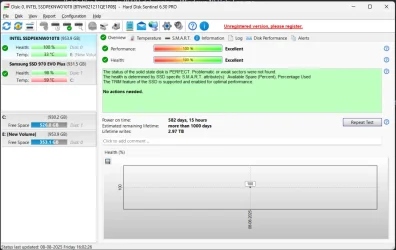
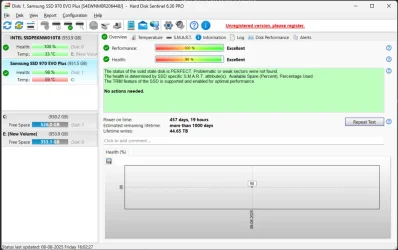
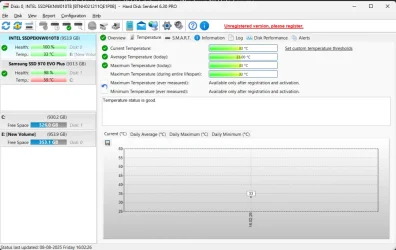
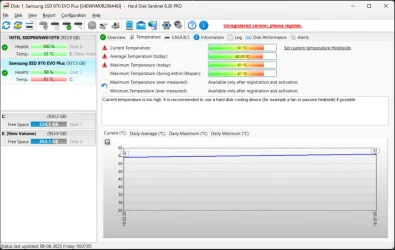
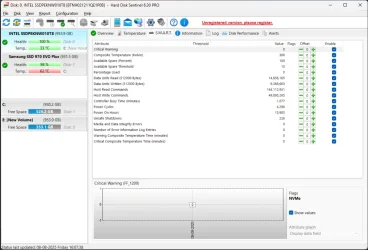
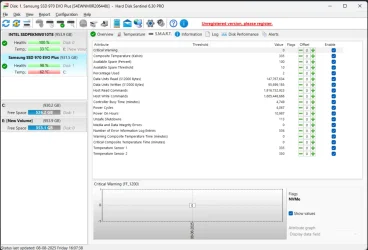
13) Run HD Sentinel (all drives) > post images or share links (do not run until posting results for each steps 9, 10, 11 and 12 )
Hard Disk Sentinel - HDD health and temperature monitoring
a) Overview
b) Temperature
c) SMART
14) Please make sure that all of the above steps are performed in sequence
These steps / tests can be performed overnight while sleeping:
a) Sea Tools Long generic test
b) HD Tune Full error scan
c) Chkdsk /b /v
Code:
klbackupdisk.sys Sat Oct 23 11:39:49 2027 (6CBCC155)
Code:
iaStorAC.sys Thu Sep 30 08:50:11 2021 (6155C093)
Code:
nvlddmkm.sys Tue Dec 3 14:17:19 2024 (674F674F)
Code:
igdkmd64.sys Mon Mar 9 19:29:22 2020 (5E66DF62)