@nightf0x
1.On an
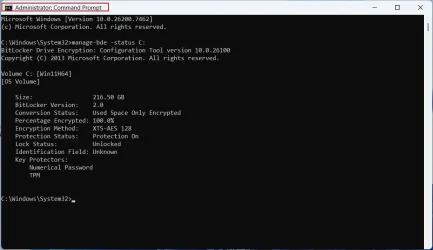
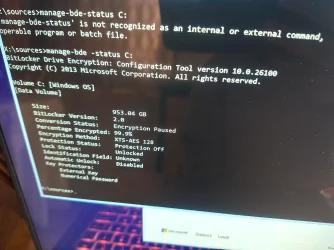
elevated Command prompt type: manage-bde -status C:
Let us see what it shows. Post the screenshot.
Sample screenshot -my disk
View attachment 158289
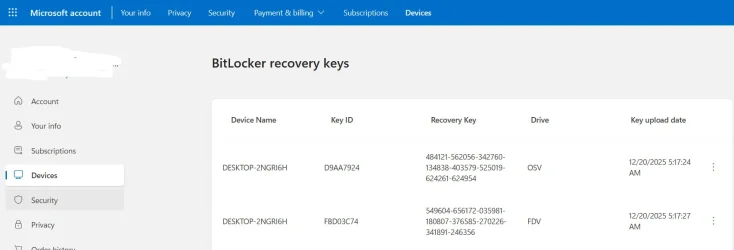
On another PC log into your Microsoft Account > Devices > Info & Support > Manage Recovery Keys
It should show your Device and Recovery keys
How many Drive OSV and drive FDV keys are there?
It will also show the date on which the Keys were saved. In your case the date on which you did the initial setup.
Take a screenshot,
save and keep it. Log out from your MS account
Sample screenshot:
View attachment 158290
HBCD: On another PC and on an empty flash drive create Hiren's BootCD PE x64 (v1.0.8) - ISO
Download | Hiren's BootCD PE
On this page
USB Booting | Hiren's BootCD PE you will see instructions on creating the flash drive using Rufus. Follow that procedure ( Some hidden parameter has to be activated). You can download the latest version of Rufus here
Rufus - Create bootable USB drives the easy way
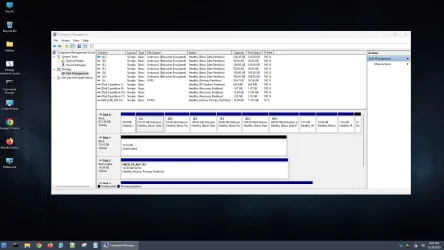
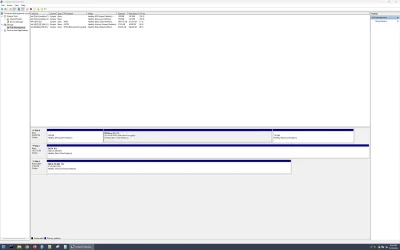
Boot your faulty PC with the HBCD, take a screenshot of Windows Disk Management and post it.
Note: This is only for information gathering that should help other experts to suggest ways and means of restoring your disk if possible. I hadn't done any project of this sort before and neither am I a Windows system expert. I know what I can do and what I can't

. There are more capable system experts here .